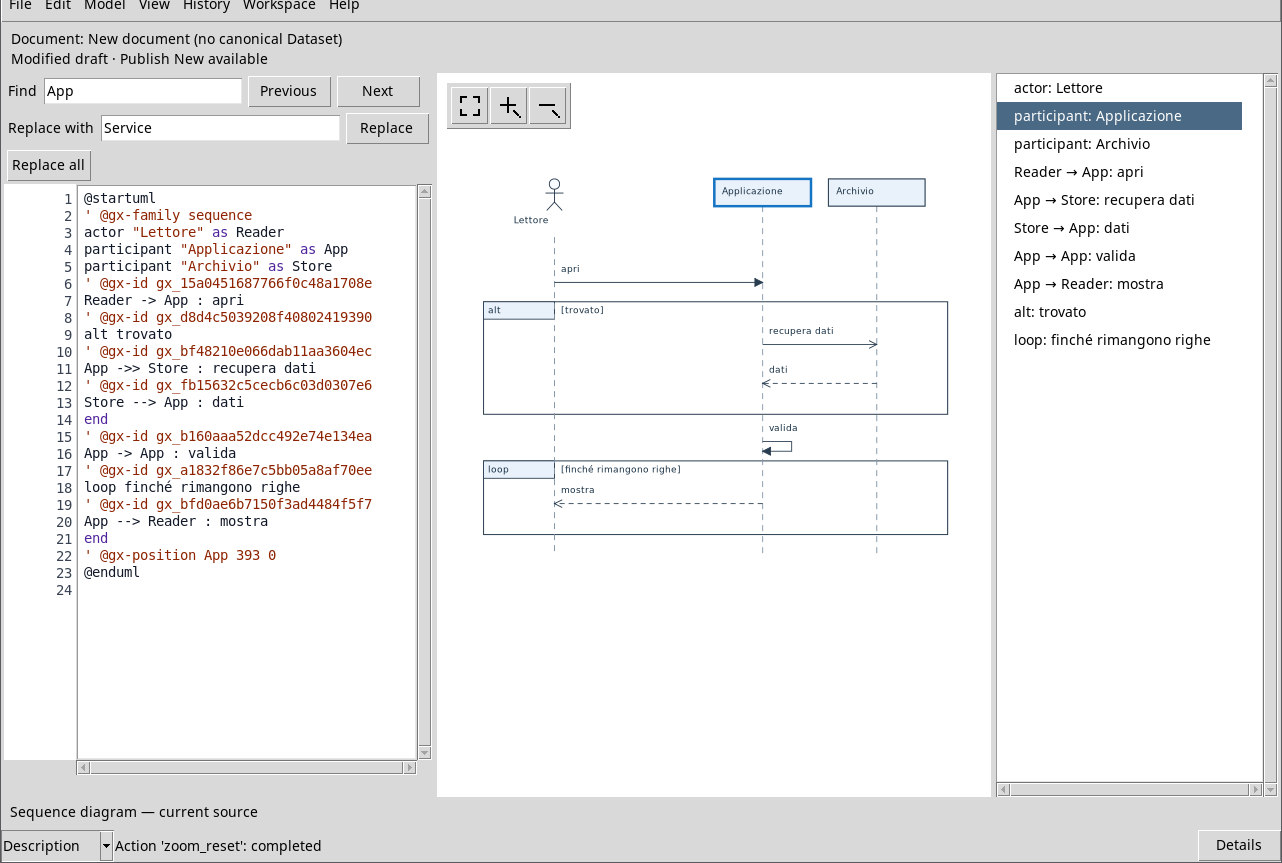
Navigate and arrange the diagram
Zoom, panning, panels and position of the elements.
Show the panels and restore the layout
In View, the commands Show / hide Source, Show / hide Diagram, Show / hide Outline, Show / hide Properties and Show / hide Diagnostics toggle each pane. Drag the dividers to give room to the source, to the drawing or to the properties column. Reset panel layout restores Source, Diagram and Outline as visible and the other two panels closed. Refresh diagram rebuilds the drawing from the current state of the text.
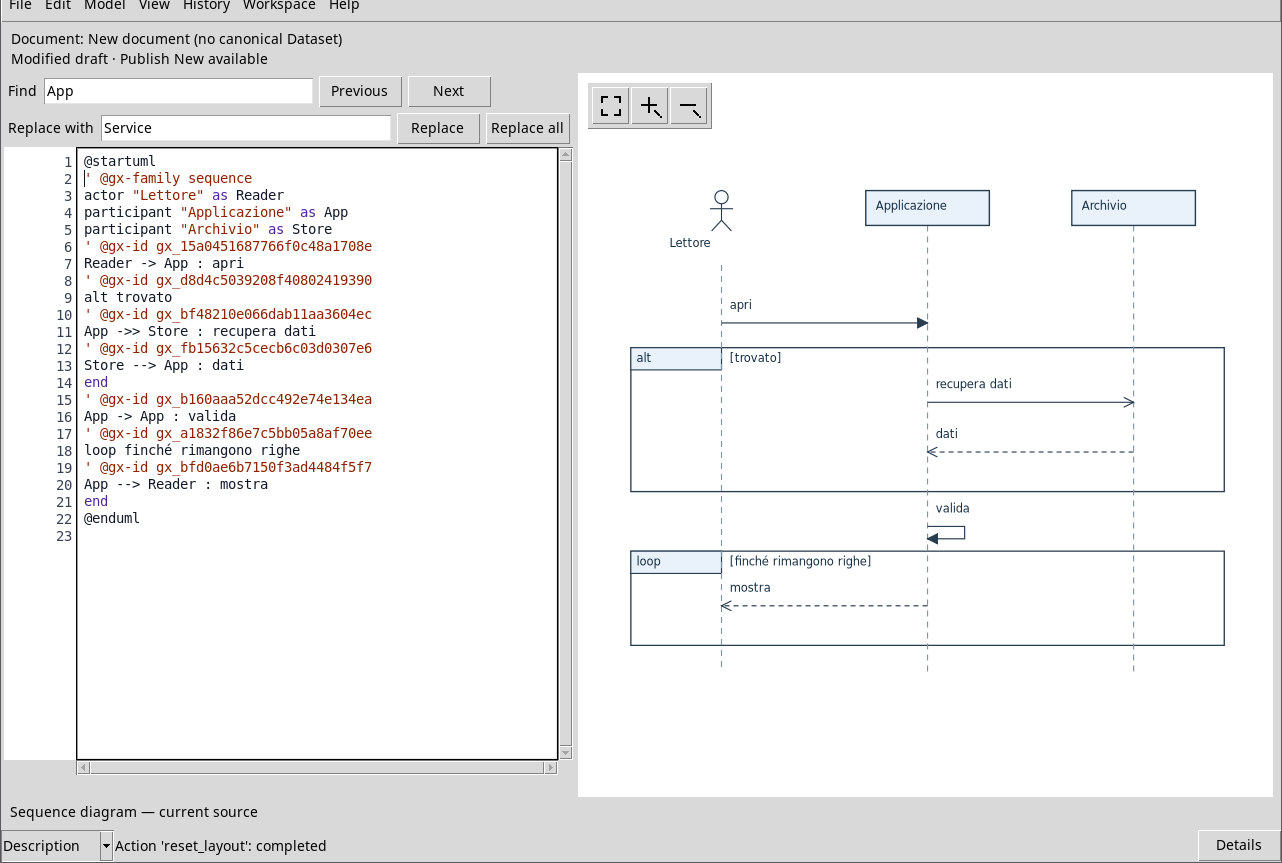
Fit, zoom and pan the view
- Fit diagram
- Fits the whole drawing to the available space. Home also works when the drawing has the focus.
- Zoom in / Zoom out
- Enlarge or reduce by one step. You can also use F8 and F7 or the wheel over the diagram.
- Reset zoom
- Ctrl+0 brings the zoom back to factor 1.
- Pan
- Drag with the middle button to move the framing. The arrow keys move it in steps when the drawing has the focus.
In the drawing the View button opens or collapses the local controls. The fit and zoom icons call the same view movements. If space is limited, look for the remaining commands in the More menu. View movements leave the source unchanged.
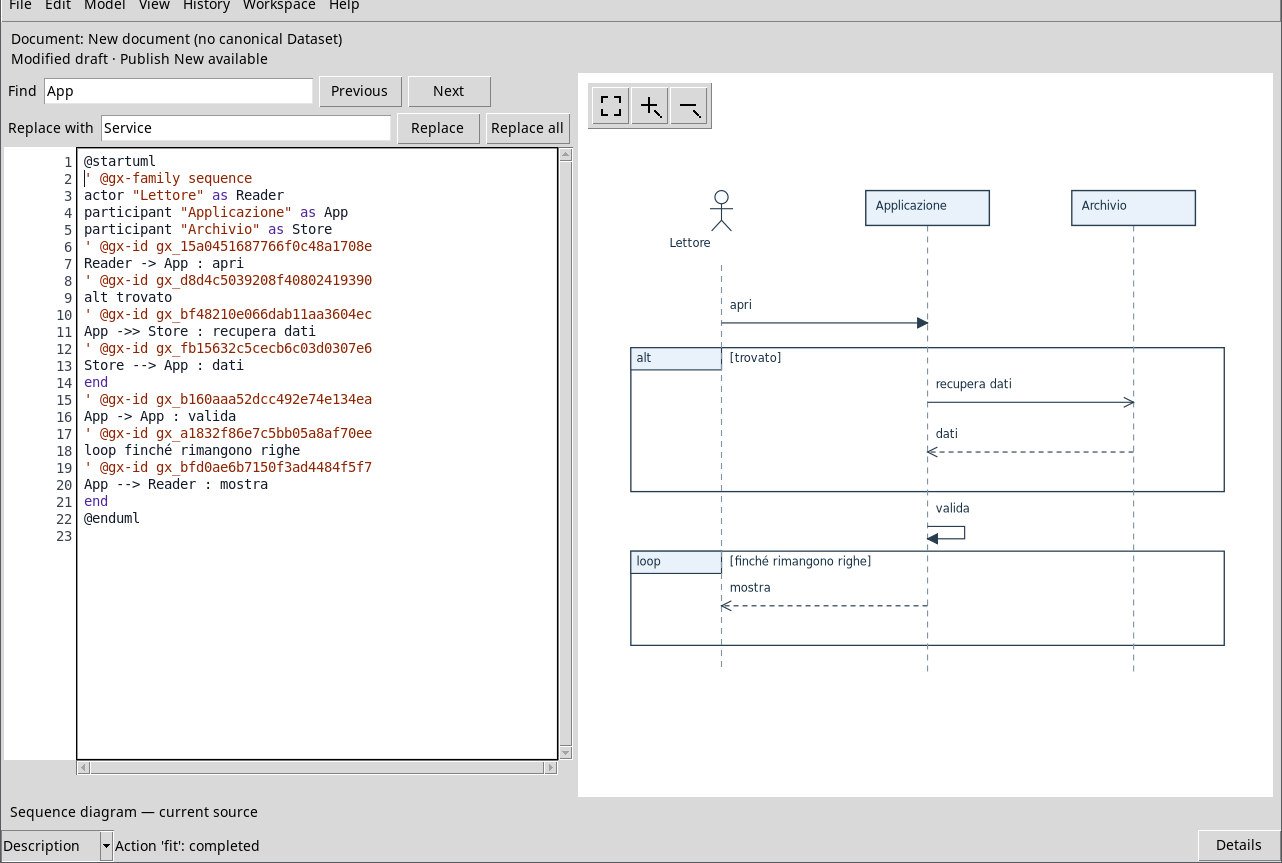
Move an element of the model
Drag a class, an interface or a participant in the drawing with the left button. This action records a position in the source with ' @gx-position. In a sequence the positioning is horizontal and the vertical order of the messages stays unchanged. Model → Automatic layout removes the explicit positions and recalculates the layout. A valid draft is needed to act on the objects of the drawing.