Keep the draft and the history
Workspace, view restore and operation history.
Save and reopen the working draft
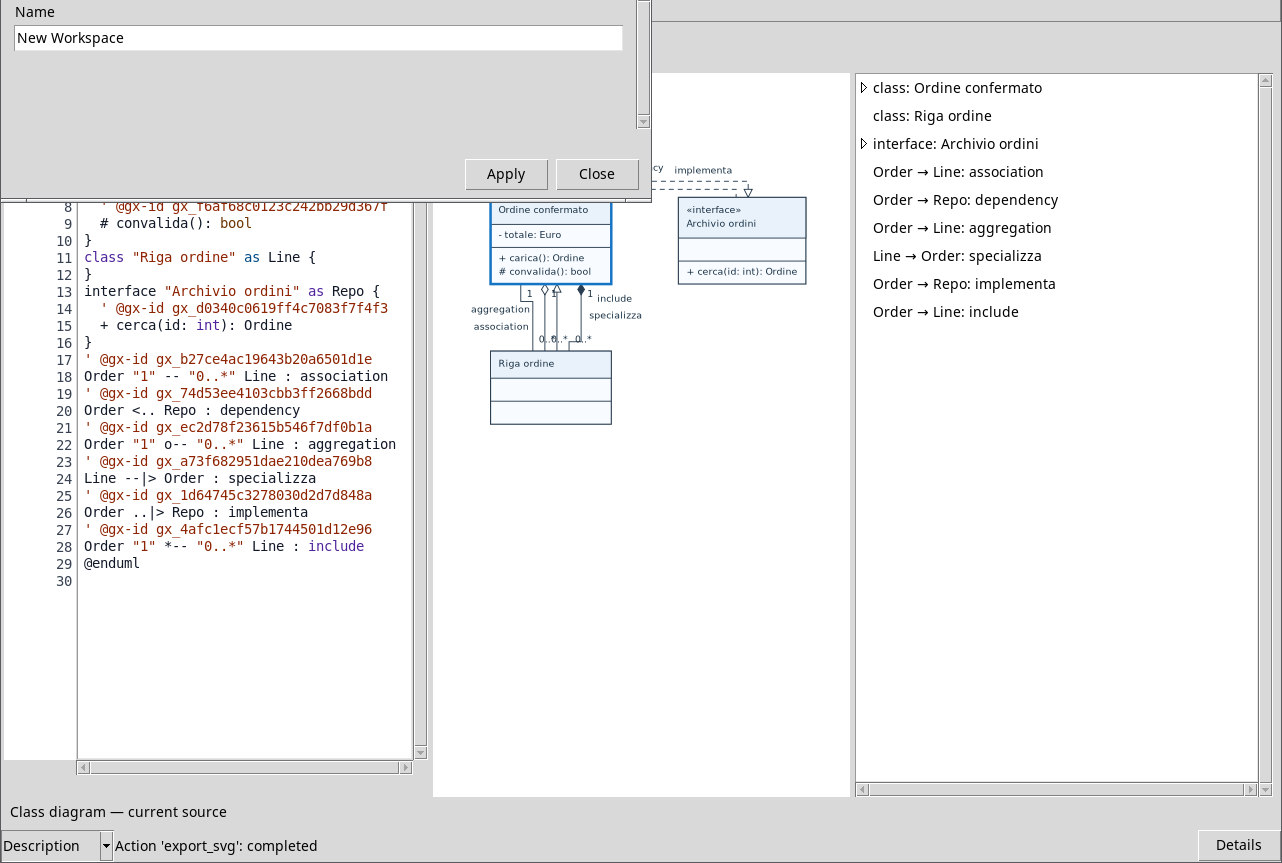
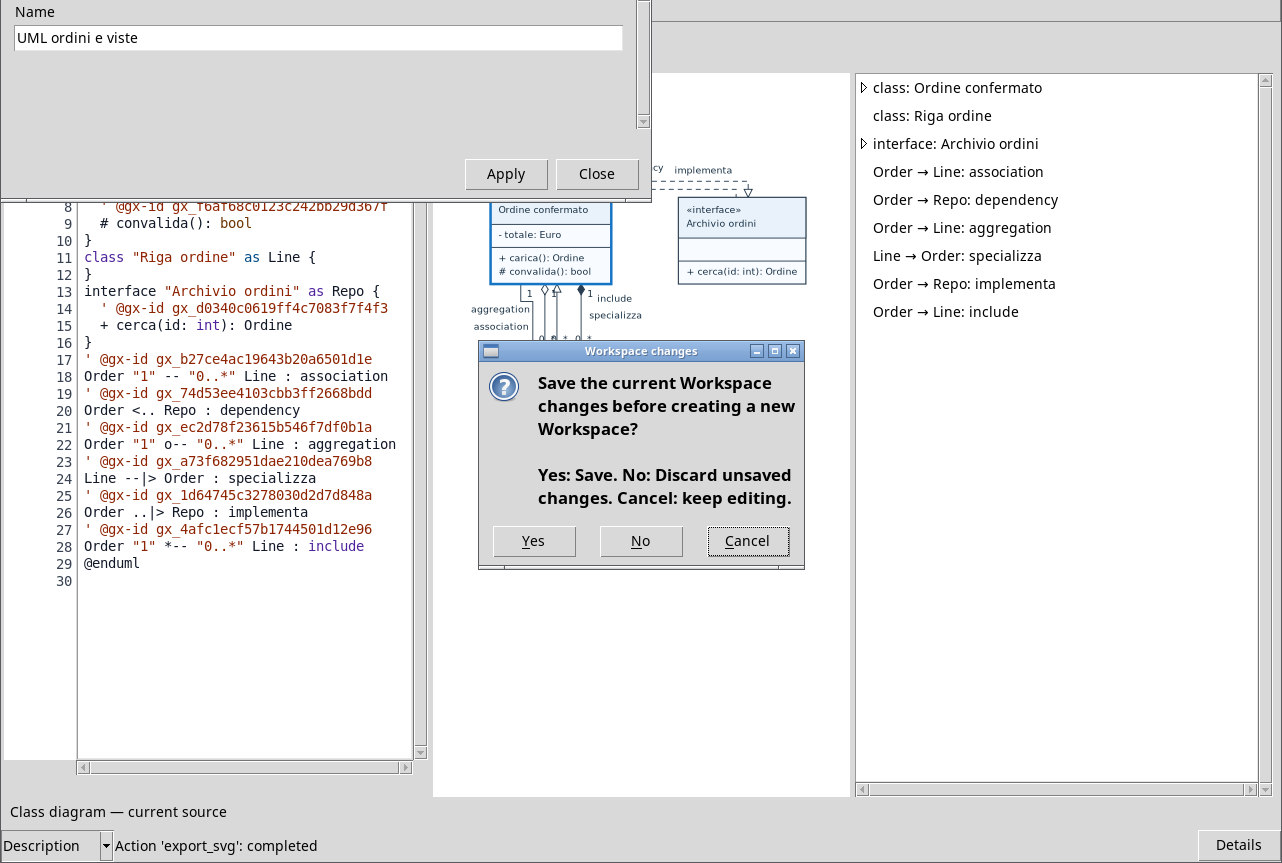
Workspace → New workspace… opens the Name field for a new workspace. Press Apply. If you have open changes, Yes starts saving, No discards the changes and Cancel stops the switch. The new Workspace opens a new UML surface. Create or open a document, arrange the panels and use Workspace → Save to keep the source, the link to the Dataset if there is one, and the state of the view.
A Workspace keeps the draft. To register a new Dataset or update a revision use the commands in the File menu. Before the first save some Workspace operations are disabled.
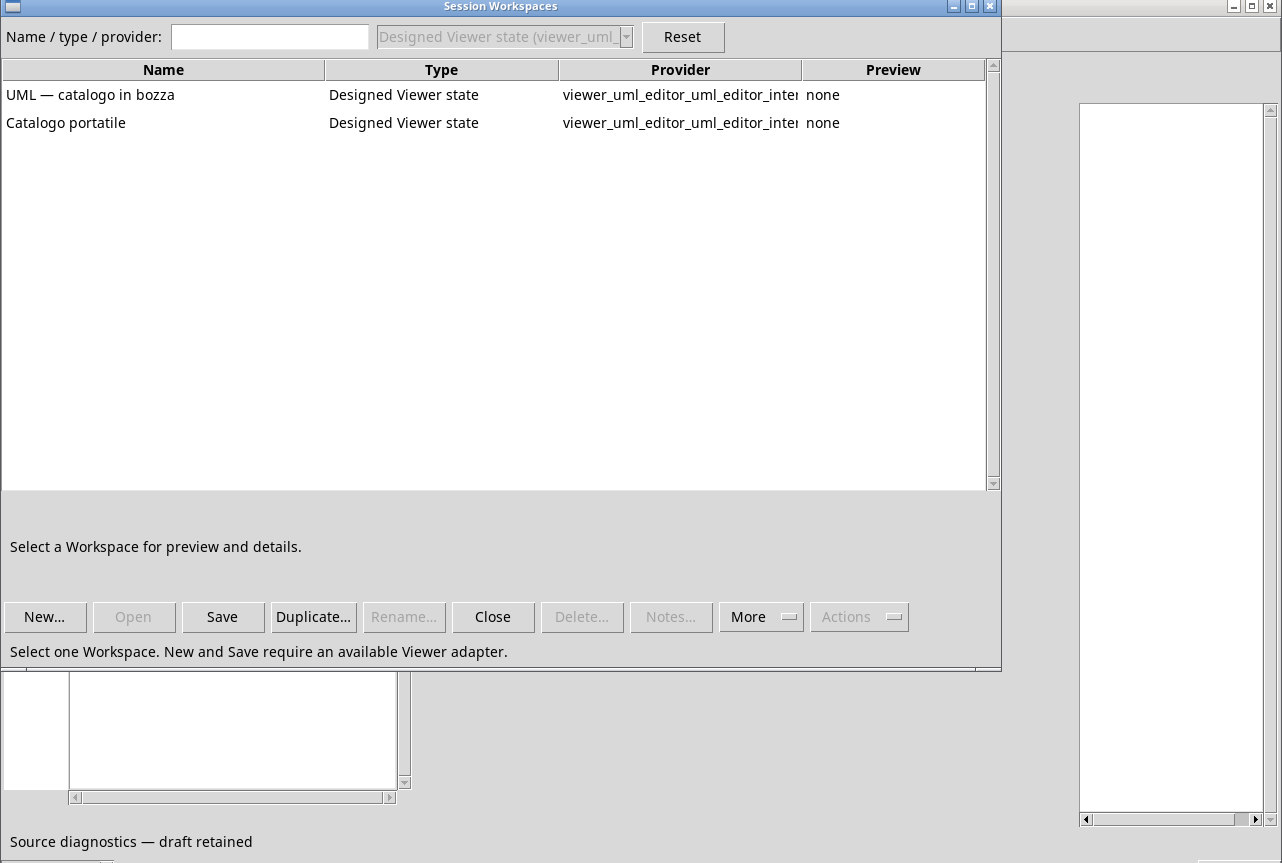
Open workspace… opens Session Workspaces. Select the saved name and press Open. In the manager, Name / type / provider filters the list as you type and Reset clears the filter. For a provider already fixed its selector is disabled. Duplicate… is the manager’s copy command. In narrow windows More collects the actions that do not fit in the bar. On reopening check the diagram, the position of the view and the panels. Close closes the Workspace and may ask for a decision on the changes still open.
Manage the registered Workspaces
- Save As…
- Saves a copy with the chosen name. The suffix
copyis proposed. - Rename…
- Changes the name of the registered Workspace. Type the new name and press Apply.
- Session Workspaces…
- Shows the Workspaces of the Session that are compatible with UML Editor and the commands on the chosen workspace.
- Preview…
- Opens the manager on the consultation view of the Workspace.
- Notes…
- Opens the notes associated with the Workspace. The title identifies the selected workspace.
- Refresh
- Updates the catalogue and the views of the registered Workspaces.
- Delete…
- Deletes the selected workspace, its notes and History after confirmation. The referenced and published Datasets remain. Use Cancel to keep the workspace.
- Actions
- Shows any actions of the provider. For UML Editor the menu reads No owner-defined actions.
Export and import a Workspace package
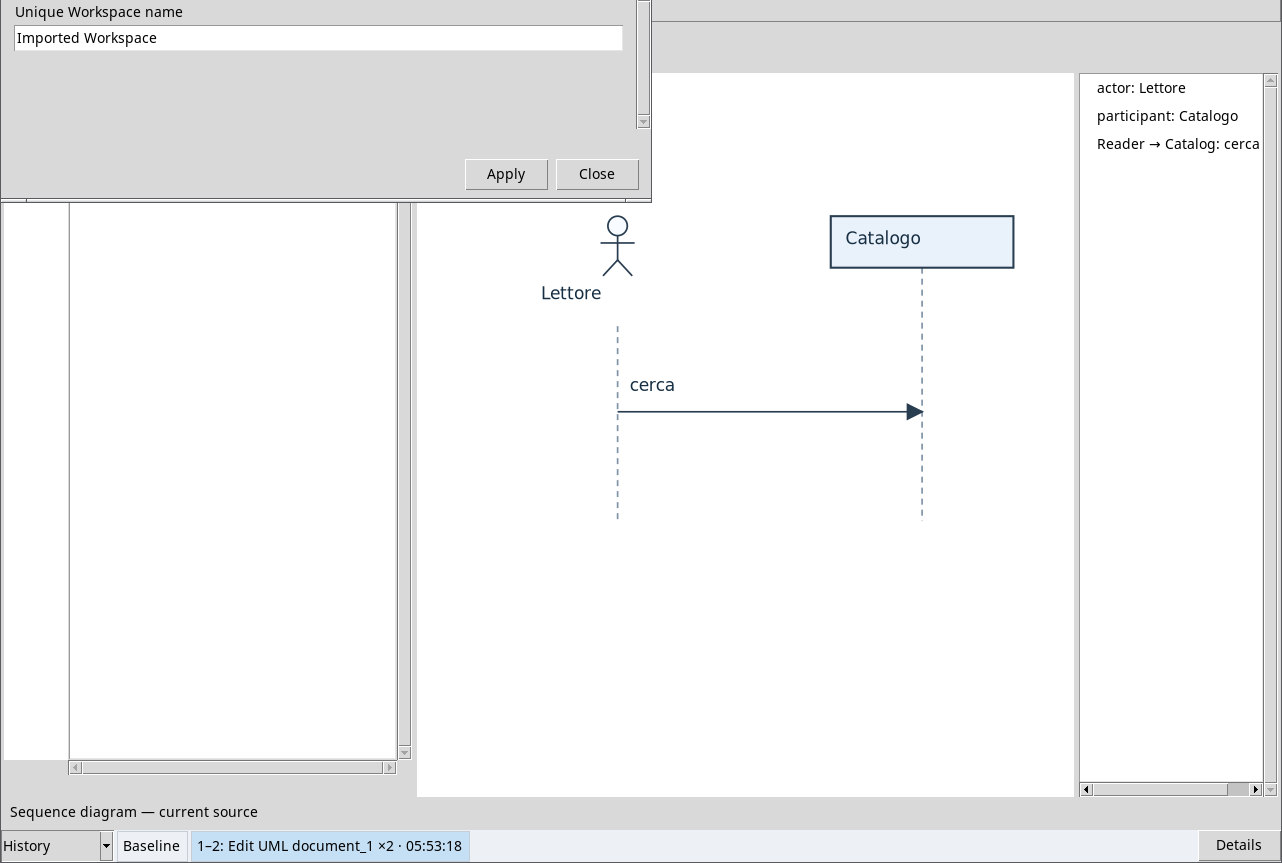
From a saved Workspace use Workspace → Export…, choose a .gxtxt-workspace.zip file and confirm. To import it again use Import…, select the ZIP and assign a distinct Unique Workspace name. The result appears in the catalogue and you can open it as a Workspace. The ZIP contains the state and the metadata of the Workspace. The import does not publish a new UML Dataset.
Consult the operation history
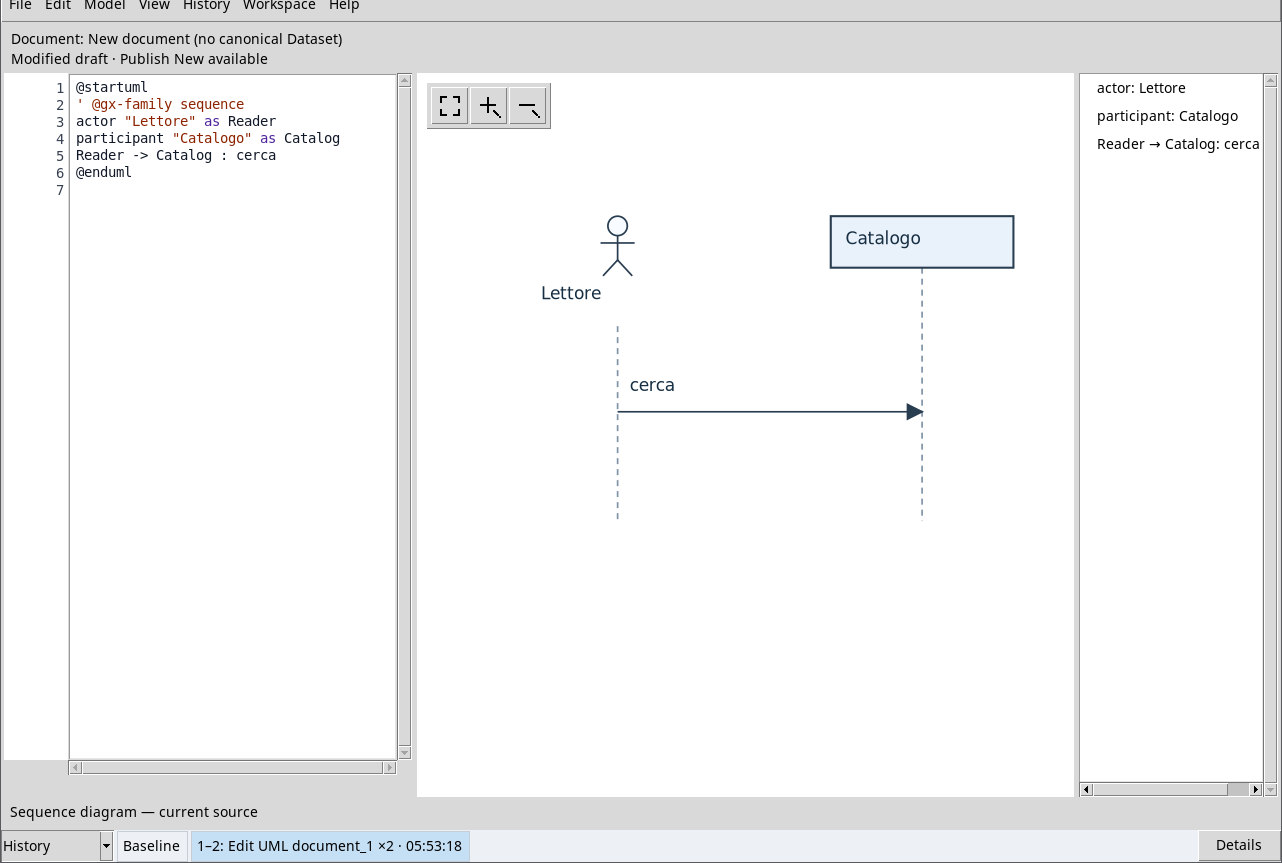
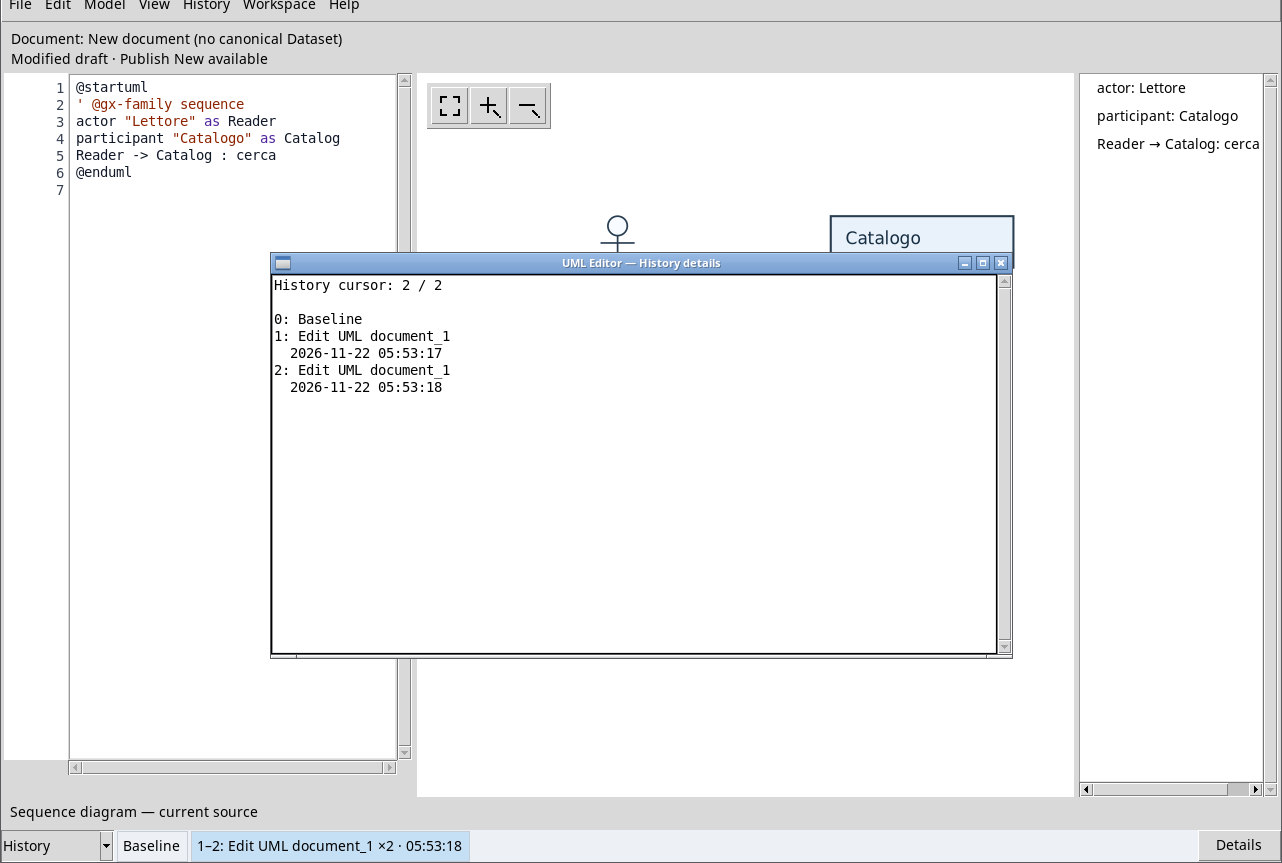
In the selector at the bottom, Description shows the description, while History shows the line of operations. History → Show / hide Description / History strip shows or hides the bar. Details and History details… open the details of the current mode. History → Undo (Ctrl+Z) and Redo (Ctrl+Y) step back or forward through the recorded operations, when available. For literal corrections use the two explicit commands of the Edit menu.
Explore the History line
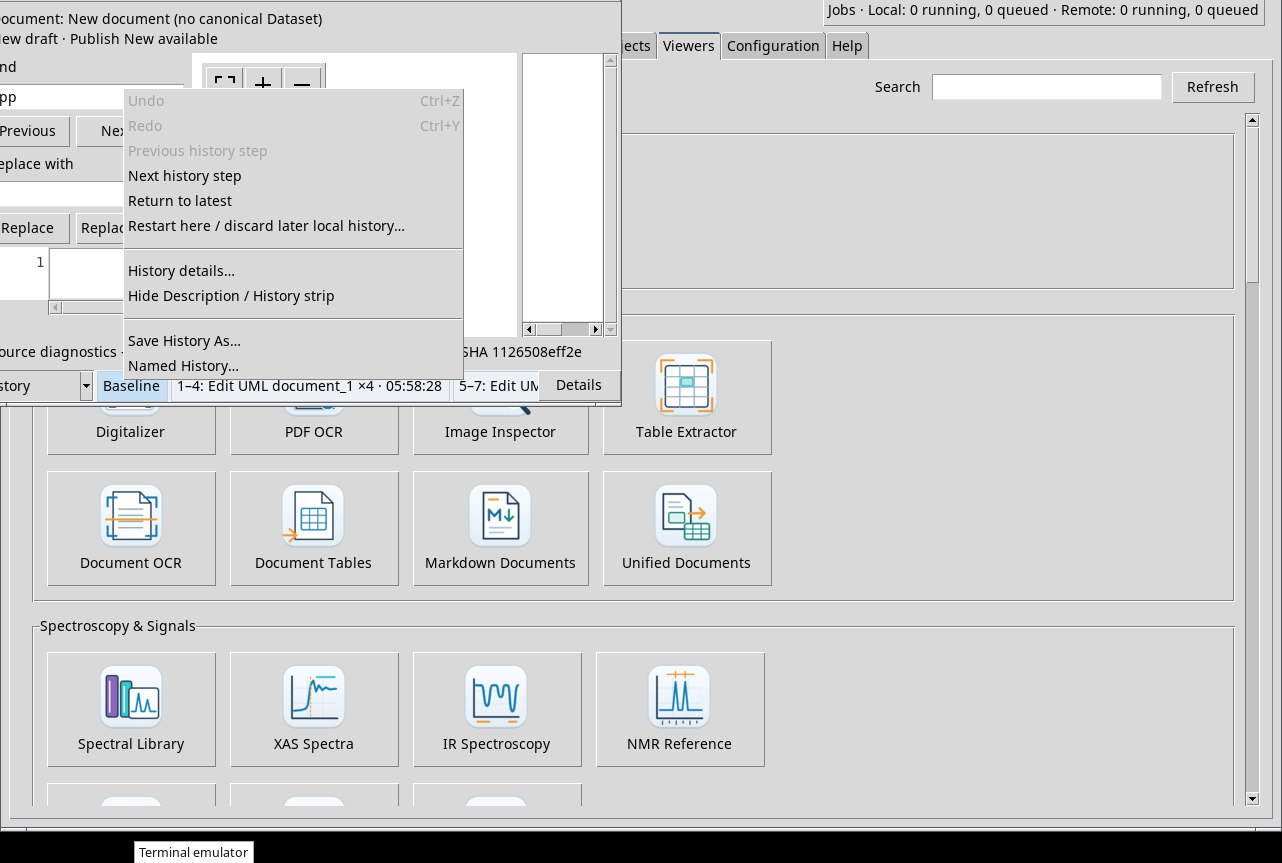
In History mode, click Baseline or a step to inspect that state. The wheel scrolls the line horizontally. In the right-click menu, Previous history step and Next history step change the observed step. Return to latest goes back to the current state. The commands are disabled at the relevant edge. When the selected step groups several operations, Expand / collapse individual operations shows or regroups the single steps. Restart here / discard later local history… asks for confirmation to restart from the point shown and delete the later local steps. Use the named History if you want to save a copy before changing branch.
In the current saved Workspace, Clear History… is available on the last step when a history exists. Yes first saves a protected backup of the Workspace, No clears the history while keeping the current state and Cancel leaves the steps in place. When the Session contains a verified and unclosed automatic History save, a recovery dialog may appear on opening. Yes resumes the last draft, No archives it and opens a new Workspace, Cancel leaves it unchanged.
Archive and resume a named History
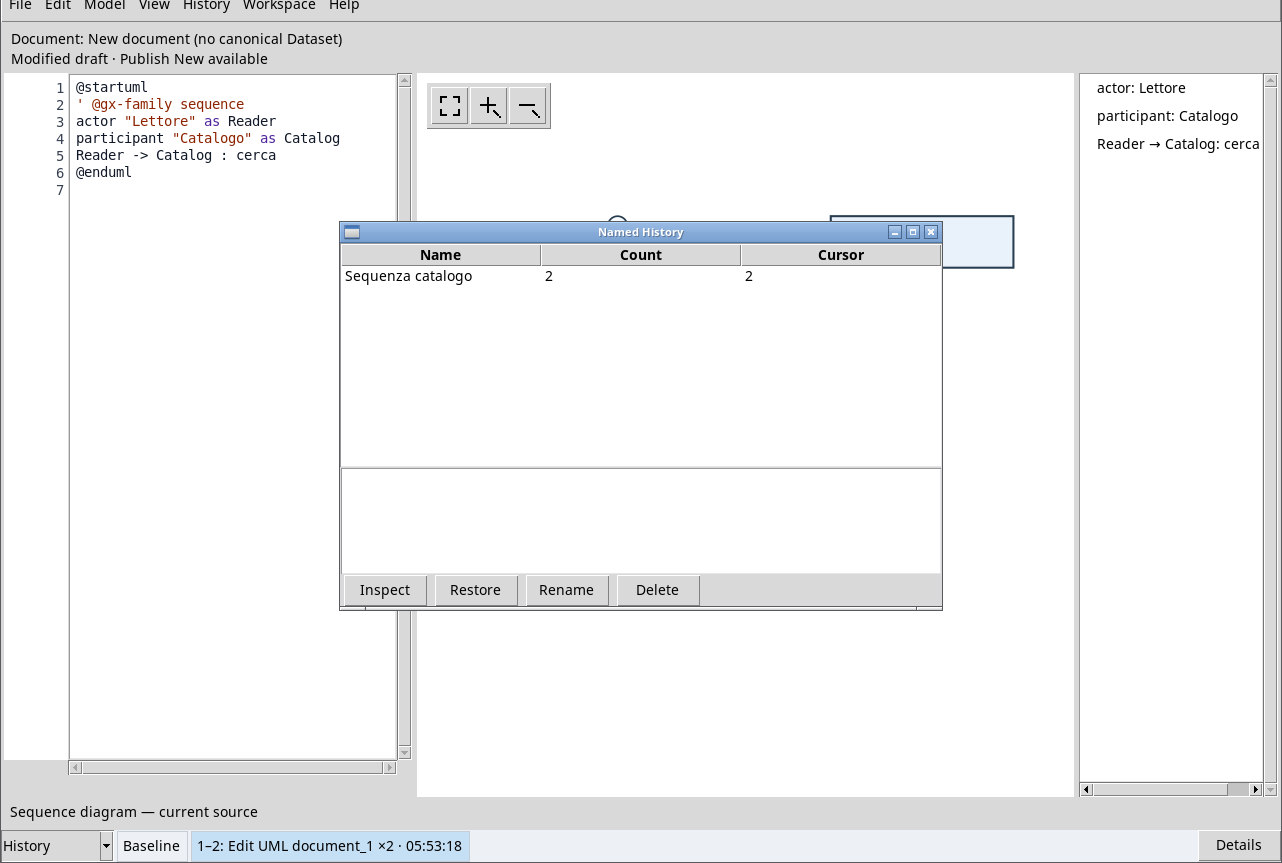
After saving the Workspace, choose History → Save History As…, assign a Name and confirm. Named History… lists the archived copies by name, number of steps and cursor. Choose a row and use Inspect to read owner, revision and fingerprint, Restore to resume the archived history, Rename to change its name or Delete to delete it after confirmation. Deleting the named copy keeps the active History.