

Publishing Functions, samples and Graphs
Canonical Function
- Select the function and use File → Save model to fix the current revision.
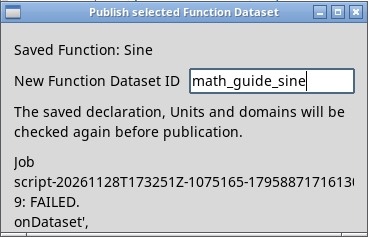
- Open Publish → Publish selected Function Dataset…, enter a free New Dataset ID and use Publish Function.
- Wait for the terminal state in Jobs. If the Job has created the Dataset, look for the same ID in the Session and open it in the Mathematical Function inspector.
The provider of the dimensionless Function uses the original scalar expression. For physical declarations the consistent provider covers the linear units s, V and V/s at scale one and the admitted operations. Units or operators outside the contract may be rejected. Closing the dialog lets a Function Job already submitted continue. Check the result in Jobs or go back to the Dataset to verify that it exists.
P012 limit (214). With the dimensionless Sine model saved, the test stops in the Job with a Host profile error. The diagnostic counter-test with the environment declared by the package also ends on a non-existent build path. The requested ID does not appear in the Session. This stops the procedure shown here before mathematical.function is created. If you need the values right away, use Sampled Dataset…. If you need the editable definition, keep the Workspace.
Samples
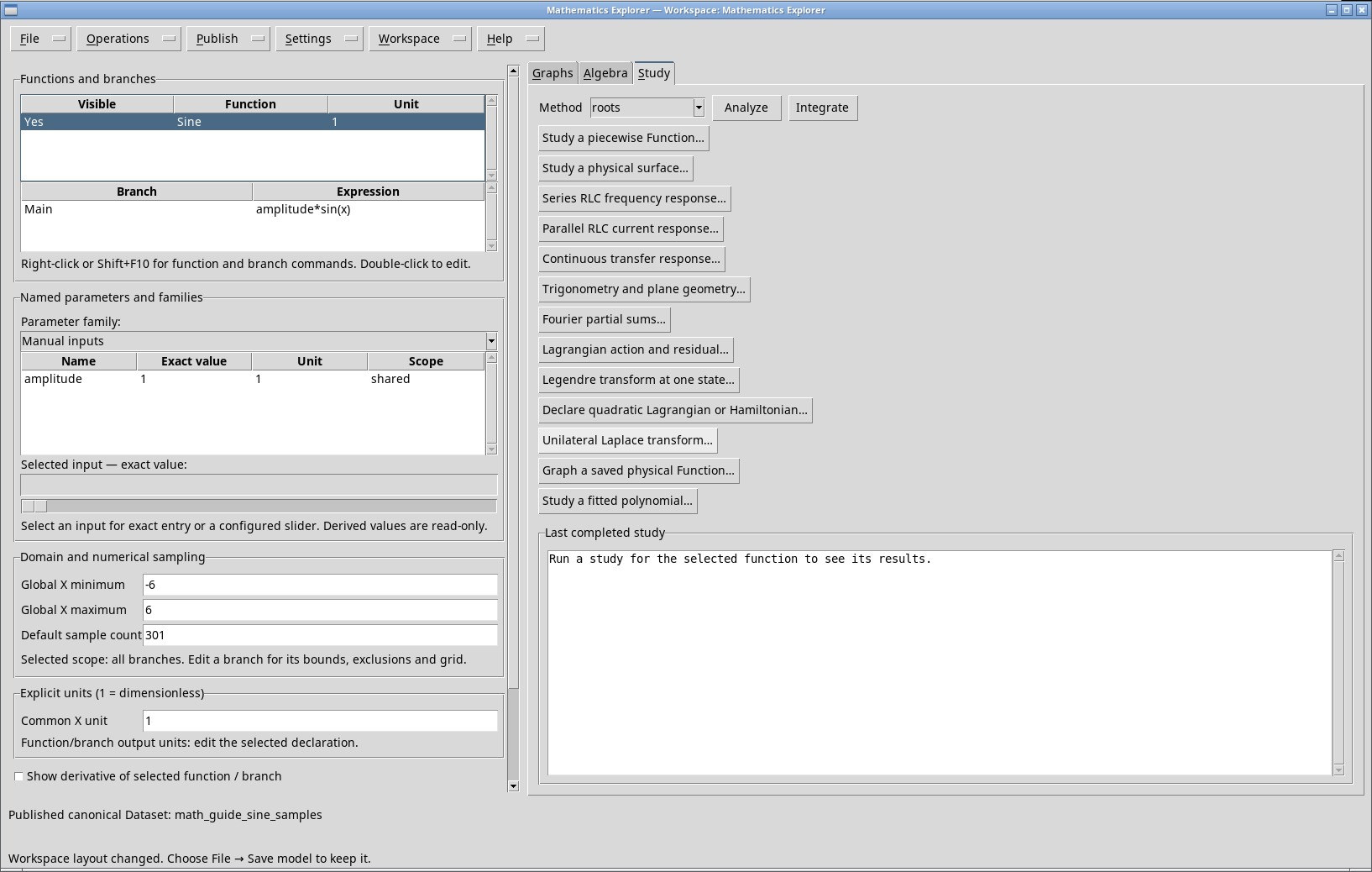
On the saved revision open Publish → Sampled Dataset…. Enter a free prefix in New Dataset ID, then Publish. For the named model the suffixes identify the connected components. Each Dataset keeps X, response, units and provenance of the samples of its own segment. The historical model asks for a single ID.
For the Sine example use math_guide_sine_samples. The observed result has ID math_guide_sine_samples.s0001. It contains 301 rows with X from −6 to 6, unit 1, columns x and response. The response matches sin(x) on the 301 abscissas. Look for the suffix in the Dataset browser to work on the published segment.

Persistent Graph
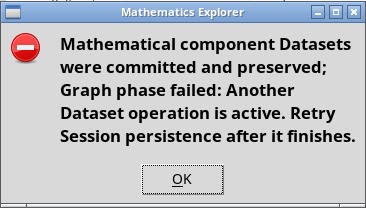
Save the model and open Publish → Graph…. Fill in New Dataset ID and press Publish. The dialog of the named model uses the prefix for the components and the current Plot title for the Graph. After the confirmation wait for the outcome and look for the Graph in Plots. The panels can separate unit and series role. The plot freezes the Datasets produced for the output. In the Sine model the dialog reported an error in the Graph phase after the samples had been saved (216). The p0003 variant appeared anyway after Plots → Refresh and opened, linked to the CSV created. Before repeating, check both Dataset and Plots. After a restart the two Sine variants generated this way no longer appeared in Plots, while their Datasets were still available (222). The managed metadata of the Graph were incomplete. After a new edit save and use a new prefix if you want to keep another result.

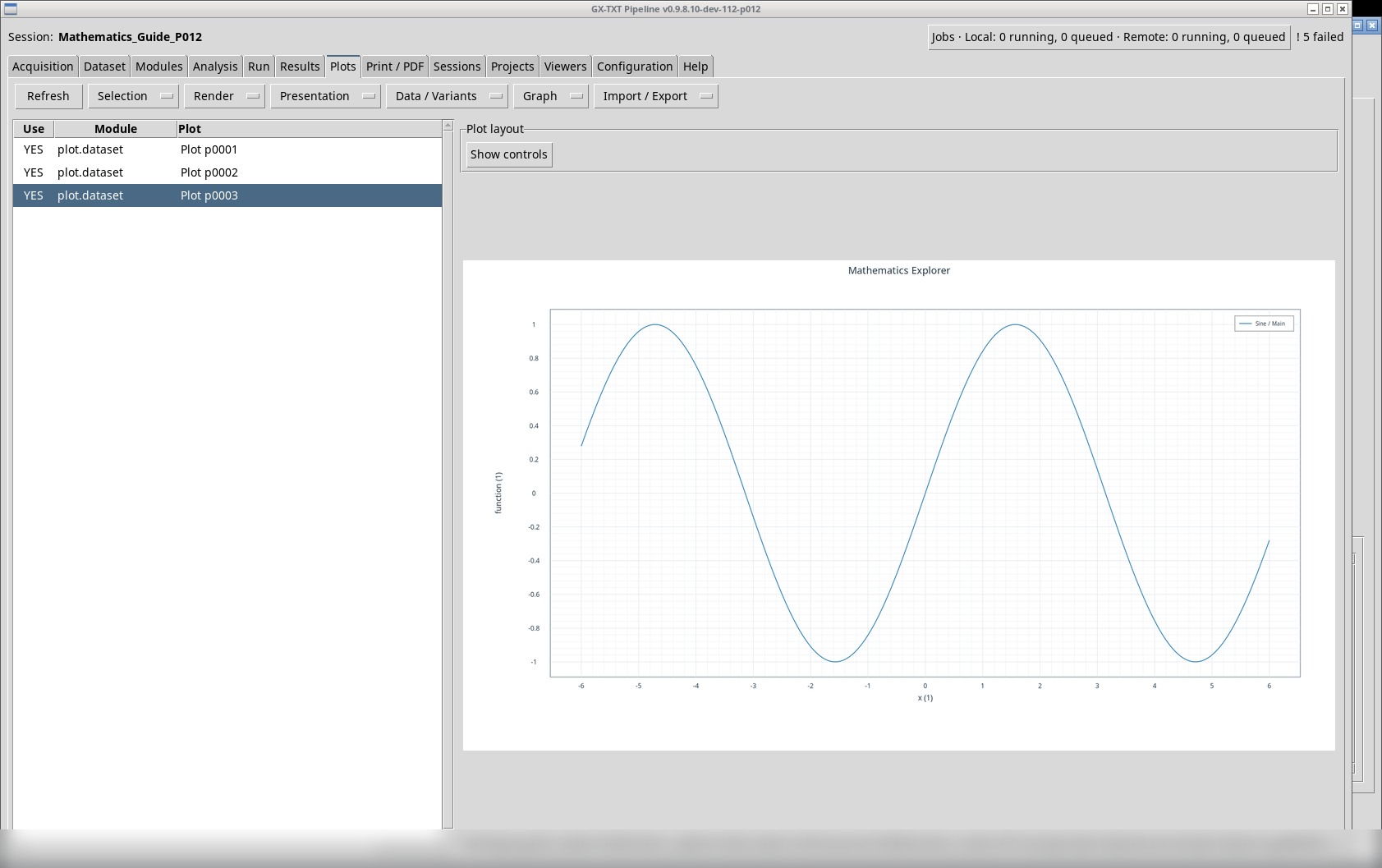
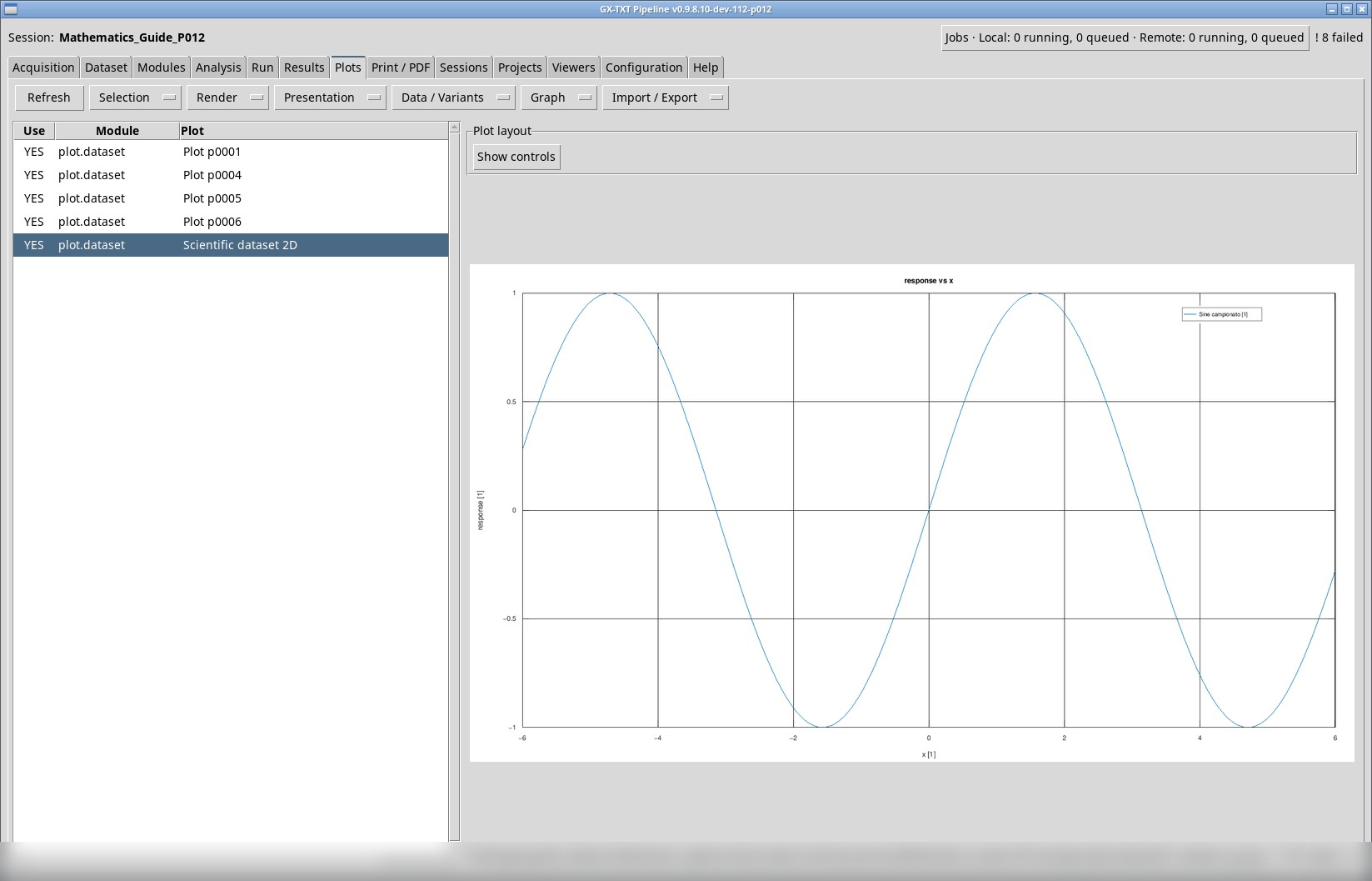
To get another plot from the sampled curve, use Analysis → Scientific Dataset Plot. Enable a 2D configuration and add a series with Dataset math_guide_sine_samples.s0001, X x — x and Y response — response. Enable the module and use Run → Run enabled analyses with the other modules that are not needed disabled. The test created Scientific dataset 2D, available in Plots → Refresh.
Formal model
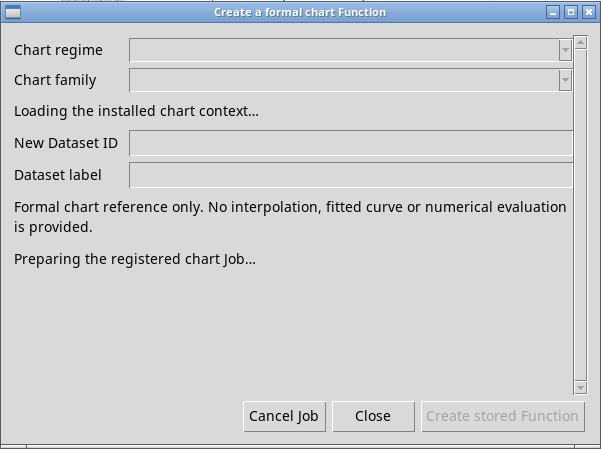
Publish → Create a formal chart Function… opens the discovery of the admitted regimes and families. Wait for Chart regime to become enabled. Choose regime and Chart family, fill in New Dataset ID and Dataset label and press Create stored Function. During the discovery Cancel Job cancels the request. Close closes the dialog. With an incomplete selection Create stored Function stays disabled. A formal chart keeps structure and notation. On the P012 tested, the discovery returned FAILED before enabling Chart regime and Chart family (223). The Job in Jobs shows the rejection by the Host profile. Closing the dialog after submission leaves the Job available for inspection. Evaluation is available only if the provider offers it.
Publishing errors
If the revision has changed, save again. If the ID is already taken, choose a different ID. The operation is create-only. In case of error after a partial publication, read the list of the objects created and check them in the browser before the next attempt. For the Function also check the diagnostics of the Job.