

GX-TXT Curve Digitalizer – Tutorial 04: Dual Y-Axis Digitization and Uncertainty Propagation
In this guide, we reconstruct two scientific curves from the same image: the gain and phase responses of an RC low-pass filter. We will configure a logarithmic X axis, assign the curves to two different Y axes, extract points using assisted tracing, and publish them as Datasets ready for further analysis.
We will work with a synthetic graph so that the results can be compared with a known mathematical model. The same steps apply to a graph taken from a paper, a scan, or an experimental image, provided the axis scales are known.
By the end, we will have: a Digitalizer configuration, two curves with 100 points each, two Datasets with different physical units, an optional Dataset Group, an uncertainty declaration, and the identifiers needed to trace every point back to the raster image.
1. Prepare the Graph and Read the Axes Correctly
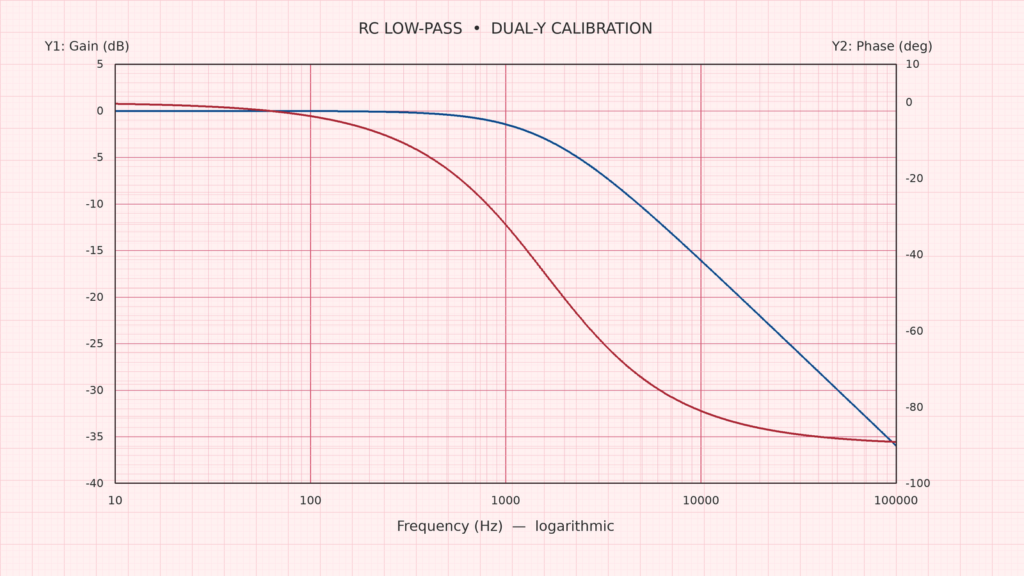
The original graph shows the frequency response of a first-order RC low-pass filter. The blue line is gain in decibels; the red line is phase in degrees. Both depend on frequency, but they have different units and must not be interpreted against the same vertical axis.
| Axis | Quantity | Range | Scale type |
|---|---|---|---|
| X | Frequency (Hz) | 10 – 100,000 | Logarithmic |
| Y1 | Gain (dB) | −40 – +5 | Linear |
| Y2 | Phase (°) | −100 – +10 | Linear |
The reference circuit has a resistance of \(R=10\,\mathrm{k}\Omega\) and a capacitance of \(C=10\,\mathrm{nF}\). Its theoretical cutoff frequency is:
$$f_c=\frac{1}{2\pi RC}\approx1591.55\,\mathrm{Hz}$$
The two functions we want to reconstruct are:
$$G_{\mathrm{dB}}(f)=-10\log_{10}\!\left[1+\left(\frac{f}{f_c}\right)^2\right]$$
$$\varphi(f)=-\arctan\!\left(\frac{f}{f_c}\right)\frac{180}{\pi}$$
You do not need these equations to operate the Digitalizer, but they help you interpret the result: gain approaches 0 dB at low frequencies and decreases above the cutoff frequency, while phase gradually changes from 0° toward −90°.
2. Import the Image into the Session
Open a GX-TXT Session and use the standard acq.image_binary acquisition workflow to import the PNG image. This creates an Image Dataset, rather than leaving the image disconnected from the Session data.
Before continuing, check that the correct image has been imported, that it has not been accidentally cropped or resized, and that the axes are readable. The example image is 1600 × 900 pixels.
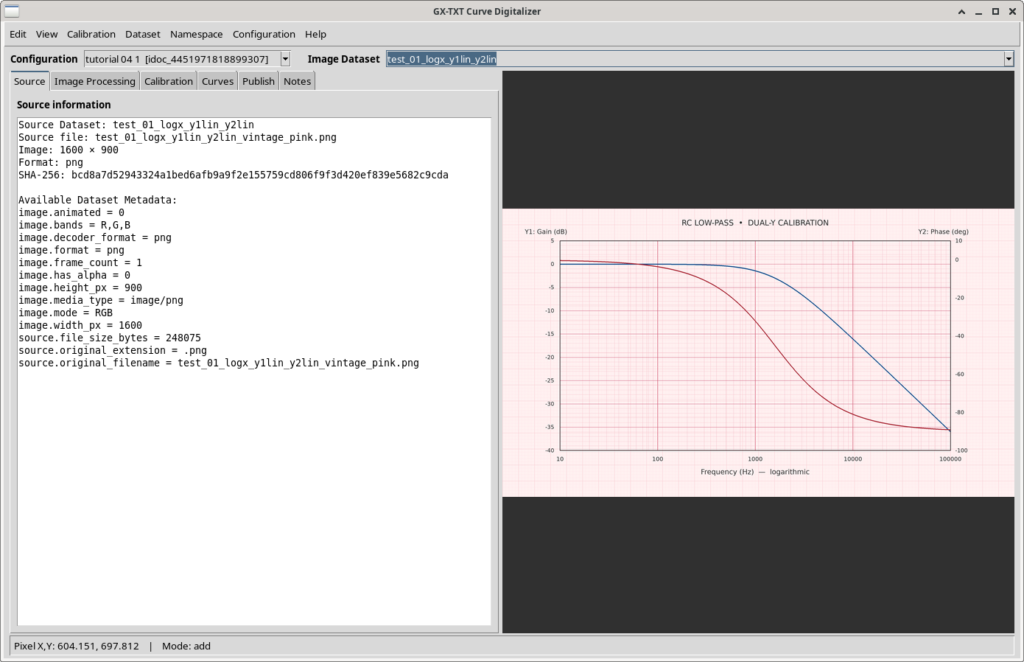
Open Viewers → Curve Digitalizer, create a configuration, and select the newly imported Image Dataset as the source. Selecting the source from the Session catalog preserves the link between the image and the numerical results.
3. Configure X, Y1, and Y2
Go to the Calibration tab. First define the physical meaning of the coordinates. Enter the ranges from the table above and select the scale type for each axis:
- X: Frequency, unit Hz, minimum 10, maximum 100000, log scale.
- Y1: Gain, unit dB, minimum −40, maximum +5, linear scale.
- Y2: enable the second axis, Phase, unit deg, minimum −100, maximum +10, linear scale.
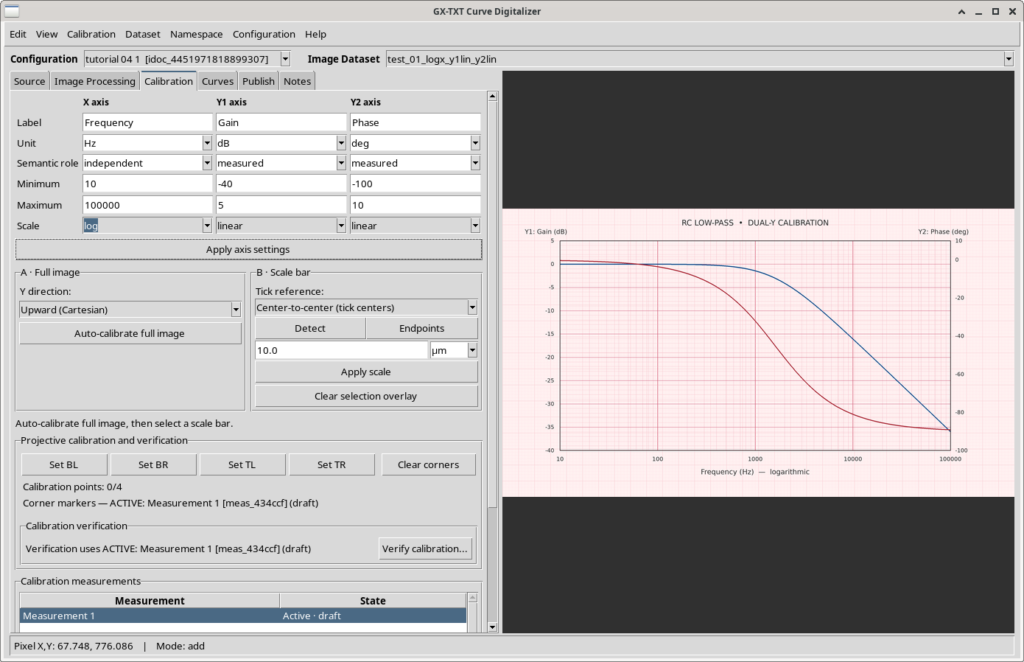
Important: when setting up a logarithmic axis, enter the actual values, not their logarithms. For frequency, enter 10 and 100000, not 1 and 5. The Digitalizer applies the logarithmic transformation.
Y1 and Y2 represent two physical interpretations of the same vertical position in the raster: a point at a given height may correspond to a value in dB or degrees, depending on the axis assigned to the curve.
Select the Four Corners
In the calibration section, identify the four corners of the plotting rectangle in the order specified by the interface: BL (bottom-left), BR (bottom-right), TL (top-left), and TR (top-right).
In the reference image, the plotting-region corners are near pixel coordinates BL (180, 755), BR (1400, 755), TL (180, 100), and TR (1400, 100). In the interface, select the points on the visible image rather than blindly copying coordinates from a table: a different scan may have different dimensions or margins.
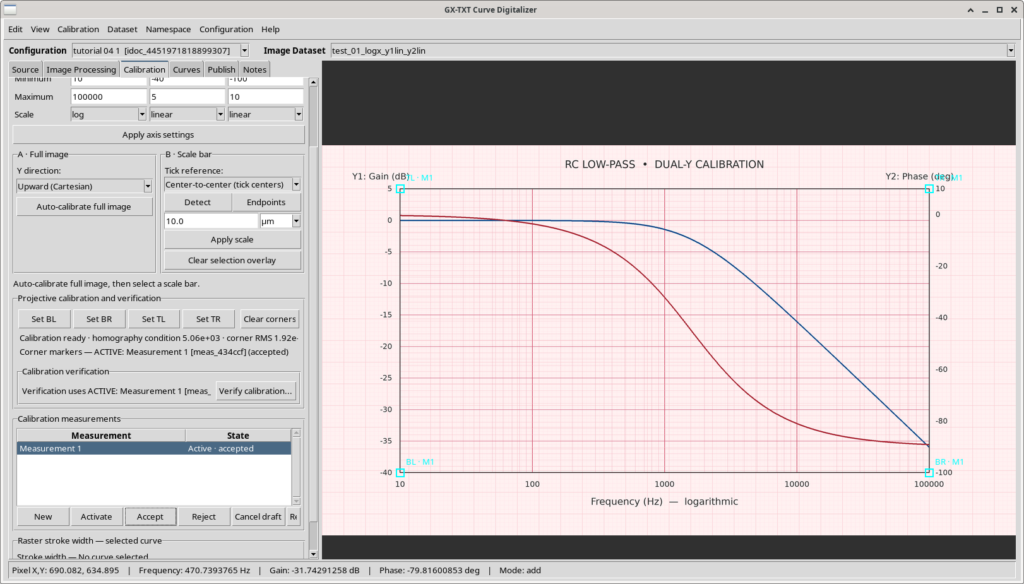
Check that all four markers sit at the intersections of the plot boundaries, not at the center of a curve stroke. Accept the calibration when the geometry is consistent.
Check a Known Grid Point
Before placing curve guides, open Calibration verification and select a grid point whose physical coordinates are known. Choose the intersection at 1000 Hz, −10 dB gain, and approximately −26.667° phase.
In the frequency field, you can enter 1e3, meaning 1000. The verification panel shows the values calculated by the geometric transformation; compare them with the reference values.
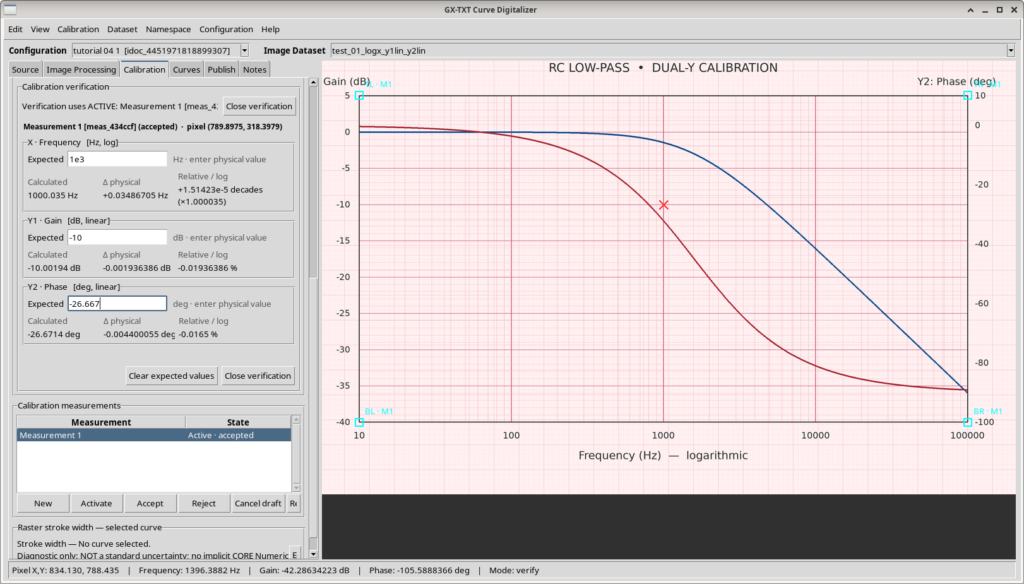
| Coordinate | Reference | Example calculated value |
|---|---|---|
| X | 1000 Hz | 1000.035 Hz |
| Y1 | −10 dB | −10.00194 dB |
| Y2 | −26.667° | −26.6714° |
Small differences in this check indicate that the selected point is consistent with the calibration. If a value is substantially different, first check the positions of the corners, then the axis limits and scale types. Do not start digitizing with an obviously incorrect calibration.
4. Create and Digitize the Gain Curve (Y1)
Open Curves and add a new curve named Gain. Select Y1 as its vertical axis: this determines which physical scale is used to convert pixel positions into decibels.
For a frequency response progressing from left to right, set Monotonicity → Monotonic in X and Point ordering source → Sort by X. The first constraint prevents unwanted backward steps along the frequency axis; the second orders extracted points by X, even if the guides were placed in a different order.
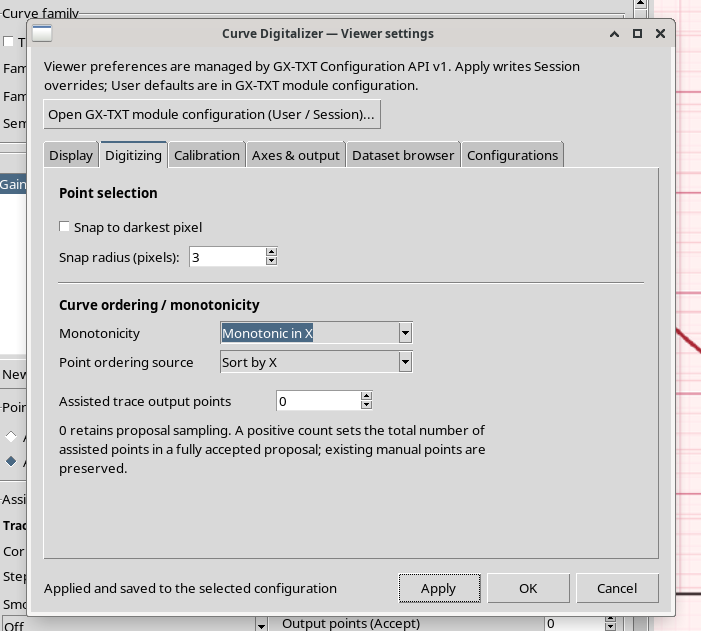
These settings are not suitable for every graph: closed curves or paths that move back to the left require a different tracing behavior.
Place the Guides
Activate Add guide and place a few well-spaced reference points along the blue line. You can start near 100 Hz, 1 kHz, 10 kHz, and 50 kHz, then add guides near the endpoints. Guides indicate the path to follow; they do not need to represent every final point.
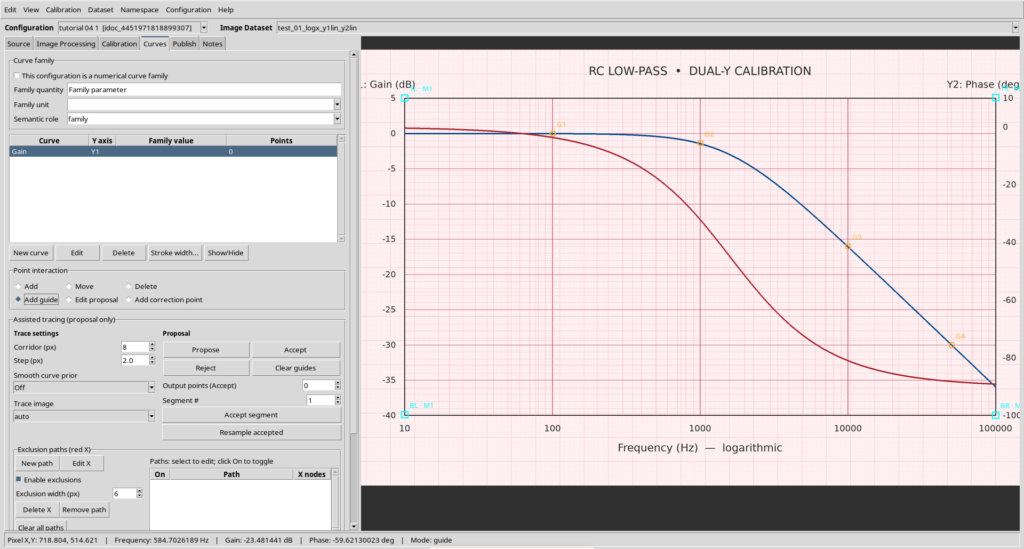
Click Propose to generate the suggested trace. Pay particular attention where the curve changes slope, approaches grid lines, or crosses other lines: in these regions, the algorithm may choose an unintended path.
Adjust Step and Corridor
The proposal also depends on the search parameters. In this example, keep Step = 2 px and compare two Corridor values: 1 px and 4 px.
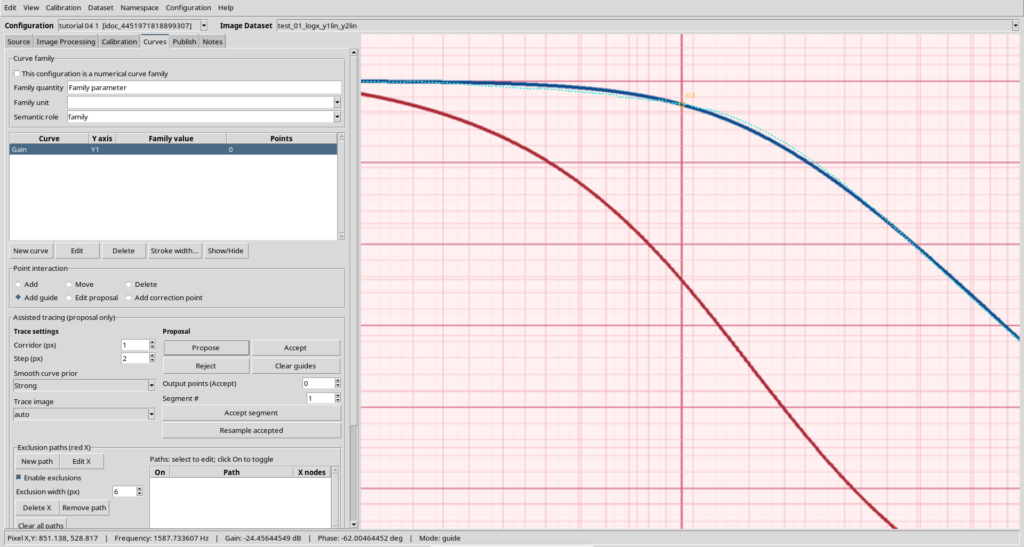
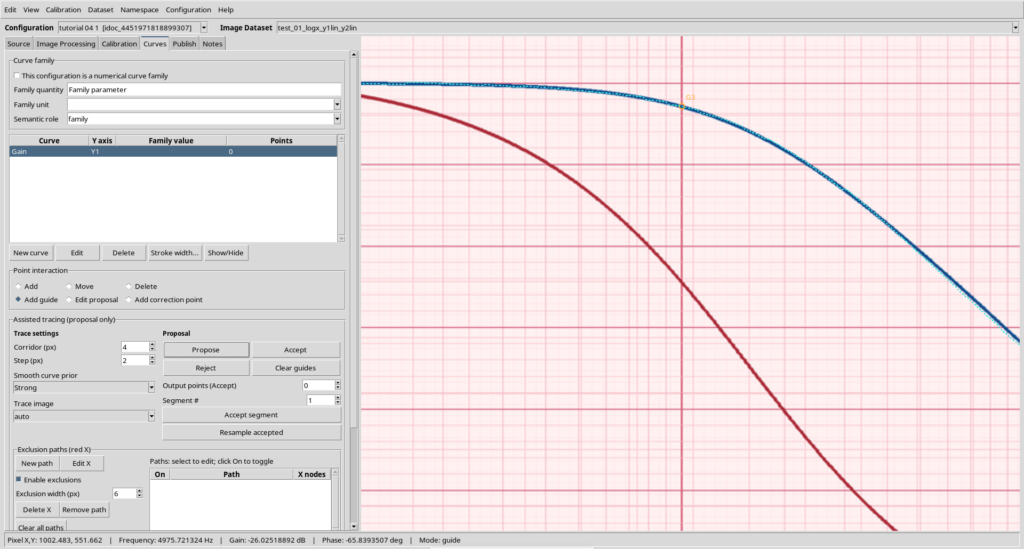
A narrow corridor keeps the search close to the guide path; widening it gives the algorithm more room to follow the raster line. However, an overly wide corridor may include unwanted elements, such as grid lines or the second curve. No single Corridor value is optimal for every image: inspect the result and choose the value that follows the target line most closely.
Correct the Proposal Before Accepting It
If part of the path drifts away from the blue line, use Edit proposal to add the required correction points. Regenerate or update the proposal, then inspect the entire path. Correcting a few guide points is easier than manually editing a hundred already-published points.
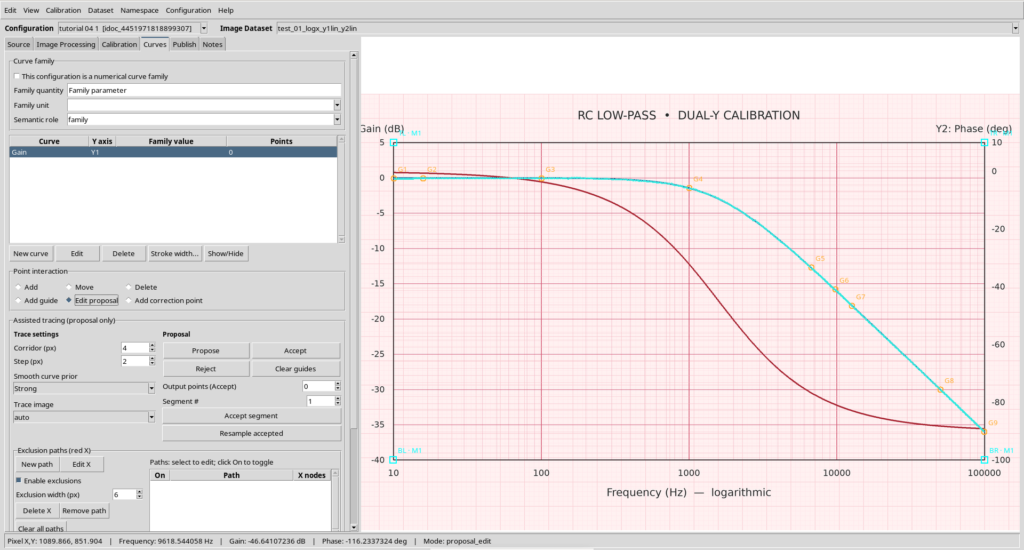
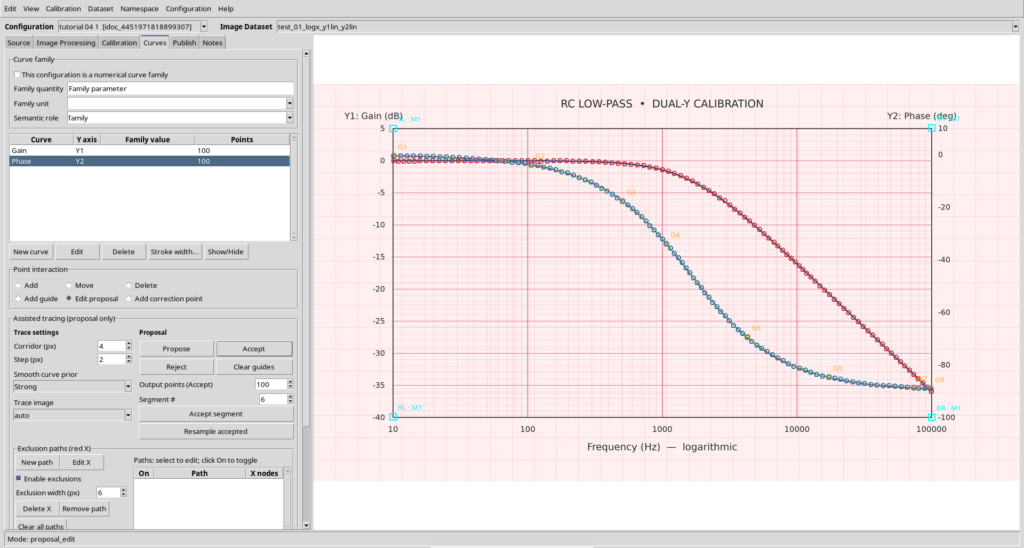
When the trace looks satisfactory, set Output points (Accept) = 100 and click Accept. The curve is recorded as Gain / Y1 / 100 points.
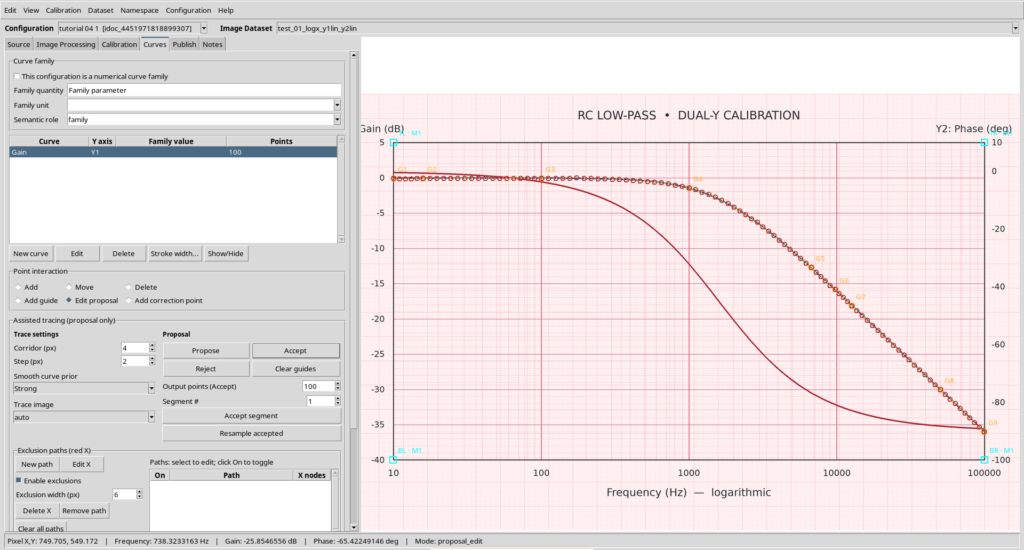
The number of points defines the sampling density along the accepted trace. It does not directly measure accuracy: adding more points will not fix a poorly followed curve.
5. Digitize Phase (Y2) and Use Undo
Add a second curve named Phase and assign it to Y2. The workflow is the same: place guides along the red line, generate a proposal, inspect it, and select an output of 100 points.
Checking the endpoints is especially important here: phase approaches −90° at high frequencies, while gain uses a completely different scale. A curve mistakenly assigned to Y1 might appear correctly positioned on the raster yet have incorrect physical coordinates.
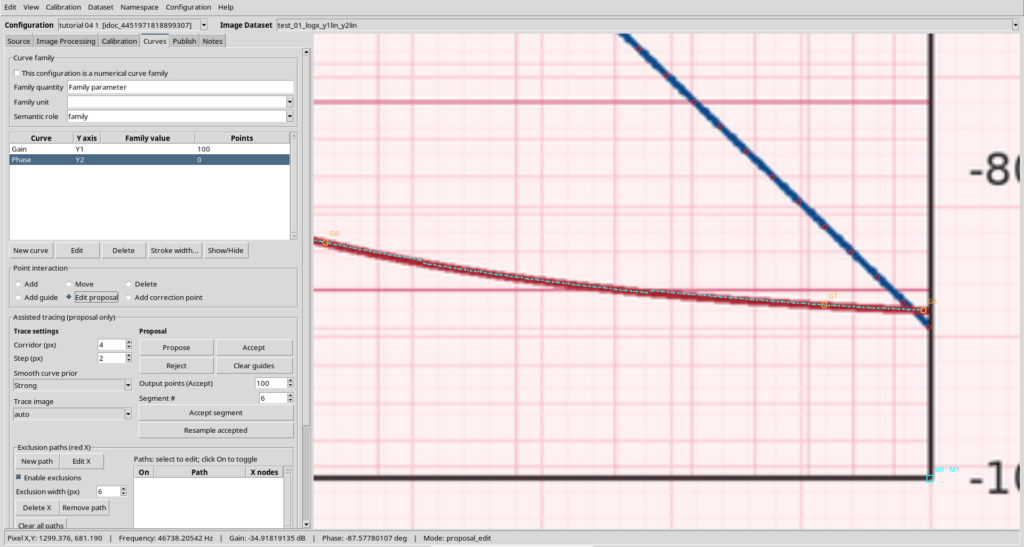
Suppose you accept a proposal and then notice that the final section does not follow the red line correctly. The following image shows the type of error to look for.
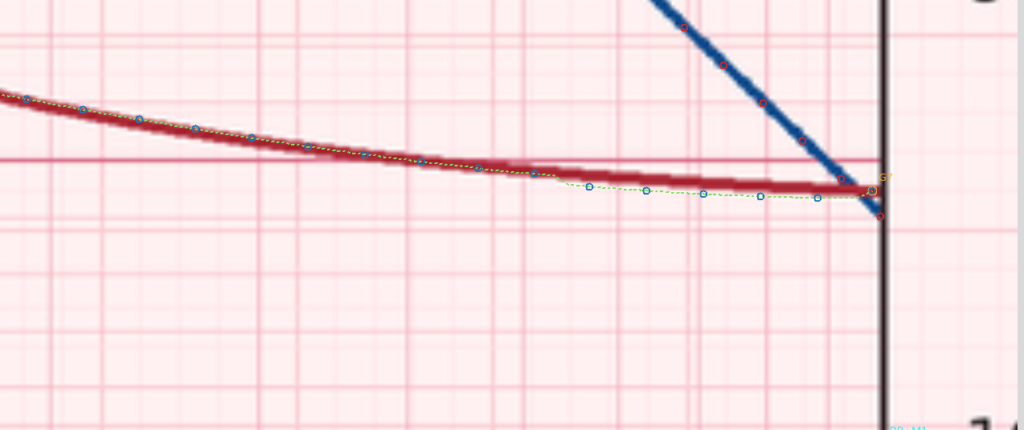
Use Undo to restore the state before acceptance, then return to Edit proposal. Add or reposition the necessary guides, inspect the new path, and click Accept again.
The curve list should now show Gain / Y1 / 100 points and Phase / Y2 / 100 points: 200 points in total, representing two distinct physical quantities.
6. Publish the Curves as Scientific Datasets
Open the Publish tab and select the calibration you have just used. To create the first pair of Datasets, choose the Separate layout and leave Group published Datasets disabled for now.
Enter a new base identifier for this publication. This makes the outputs easy to identify and prevents confusion with any existing Datasets.
The publication produces two separate results:
- Gain Dataset (Y1): frequency in Hz and gain in dB, 100 rows.
- Phase Dataset (Y2): frequency in Hz and phase in degrees, 100 rows.
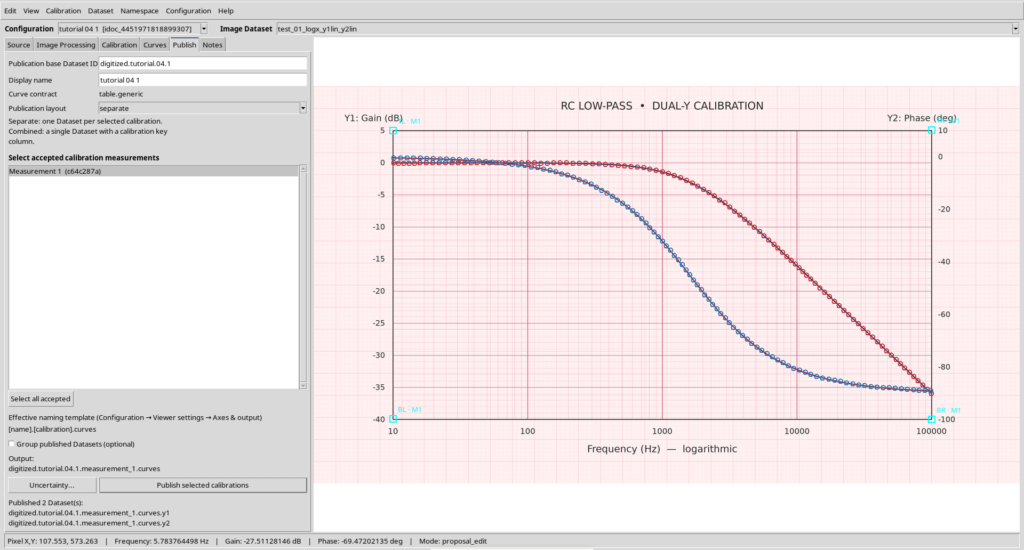
The Datasets also contain traceability information, including the logical axis y_axis_id, the curve name and identifier, the point index and identifier, and the pixel coordinates pixel_x and pixel_y. Publishing makes the points available to other GX-TXT tools without having to read the image again.
Why two Datasets? The quantities use different units. Keeping dB and degrees separate prevents a single unit from being mistakenly assigned to both ordinates.
7. View the Results in Dataset Preview
Select the Gain Dataset in the catalog and open Dataset Preview. To display the curves with the configured physical scales, use the Curves tab and Load curves. Repeat the procedure for the Phase Dataset.
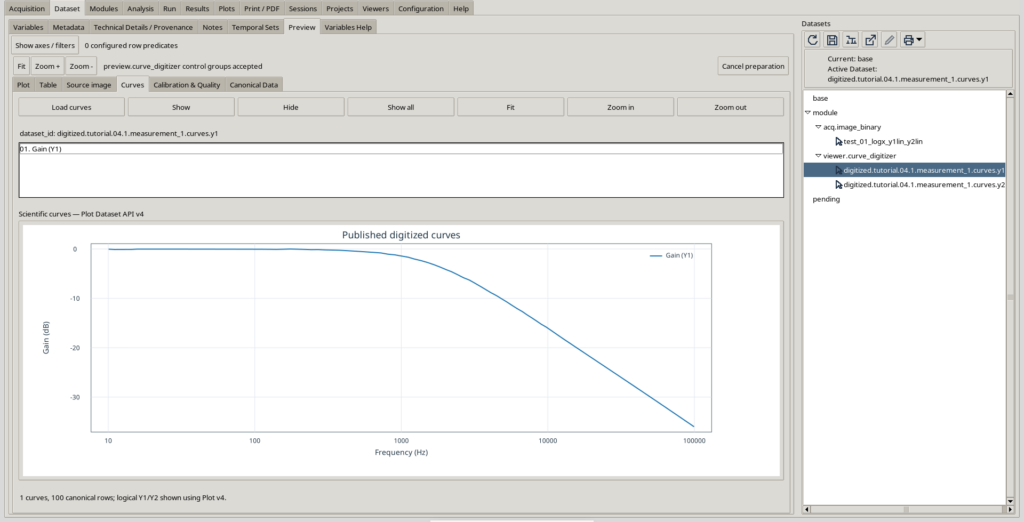
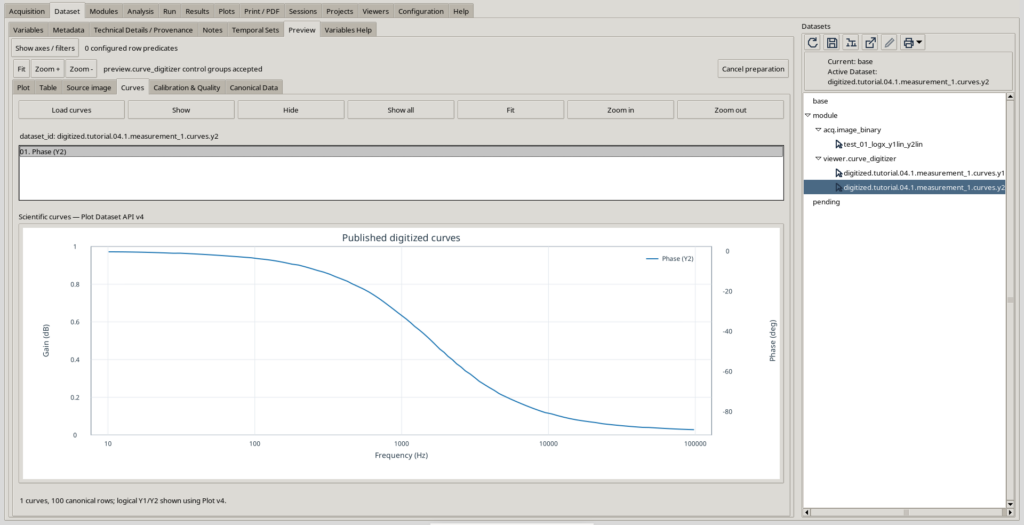
Check three things: frequency must use a logarithmic scale; the first Dataset must use dB; and the second must use degrees. A curve that looks plausible is not sufficient if the physical axis is wrong.
The interface may also provide a generic Plot tab and other views. For this exercise, explicitly select Curves, which displays the curves using the scales declared by the calibration. The Canonical Data tab lets you read the numerical row values directly.
8. Group Gain and Phase Without Mixing Units
If you want to keep both results together, return to Publish, choose a new base identifier, and enable Group published Datasets. Keep the Separate layout and publish the curves again.
You will obtain a Dataset Group with two members: one for Gain/Y1 and the other for Phase/Y2. The group is a logical container: it does not place decibels and degrees into a single column, change curve values, or remove the identity of its member Datasets.
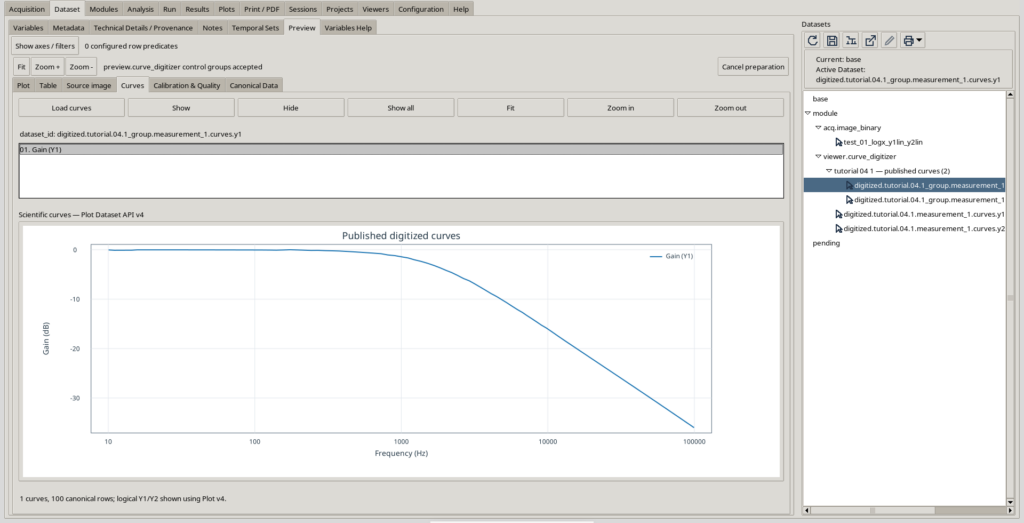
This feature is useful when several quantities belong to the same experiment or image and need to be found and inspected together.
9. Declare Digitization Uncertainty
So far, we have converted positions identified on an image into physical coordinates. Locating the center of a raster line and the grid corners is not perfectly precise: to describe this limitation quantitatively, we can add an explicit uncertainty model.
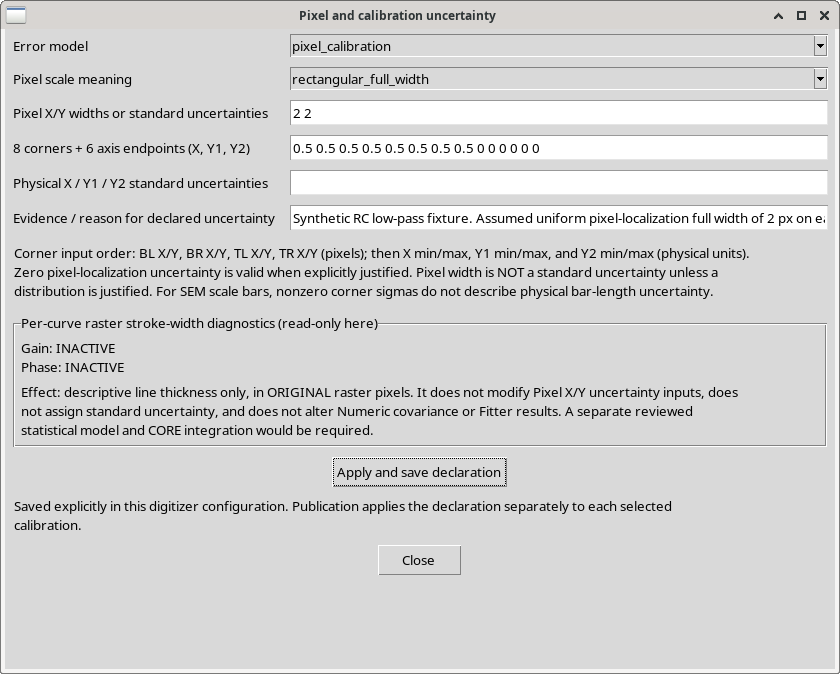
Open Publish → Uncertainty… and select pixel_calibration. For this exercise, use the rectangular_full_width distribution, two total widths of 2 px, and the following calibration standard uncertainties:
| Field | Value to enter |
|---|---|
| Error model | pixel_calibration |
| Pixel scale meaning | rectangular_full_width |
| Pixel X/Y widths | 2 2 |
| 8 corners + 6 axis endpoints | 0.5 0.5 0.5 0.5 0.5 0.5 0.5 0.5 0 0 0 0 0 0 |
| Physical X/Y1/Y2 standard uncertainties | Leave blank for the selected model |
The first eight numbers specify the standard uncertainties of the four corners’ pixel coordinates, in the order BL X/Y, BR X/Y, TL X/Y, TR X/Y. The final six numbers describe the physical minimum/maximum endpoints of X, Y1, and Y2. In this synthetic example, these endpoints are treated as exact by construction.
If point-position uncertainty is modeled by a rectangular distribution of total width \(w\), its standard uncertainty is:
$$u_{\mathrm{pixel}}=\frac{w}{\sqrt{12}}$$
A total width of 2 px corresponds to approximately 0.577 px. This is a declared assumption, not a quantity measured automatically by the software. For an experimental graph, select and justify the model according to the actual acquisition conditions.
In the Evidence / reason field, briefly describe the assumptions and click Apply and save declaration.
Publish and Read Standard Uncertainties and Covariance
The declaration does not retroactively change previously published Datasets. To obtain tables that include uncertainty, return to Publish and use a new base ID. Publish both curves again with the uncertainty model enabled.
Open Canonical Data in the Preview of the new Datasets. You will find three additional numerical columns:
sigma_x: frequency standard uncertainty, in Hz;sigma_y: gain standard uncertainty in dB or phase standard uncertainty in degrees;covariance_xy: covariance between frequency and the ordinate of the same row, expressed in the product of their units.
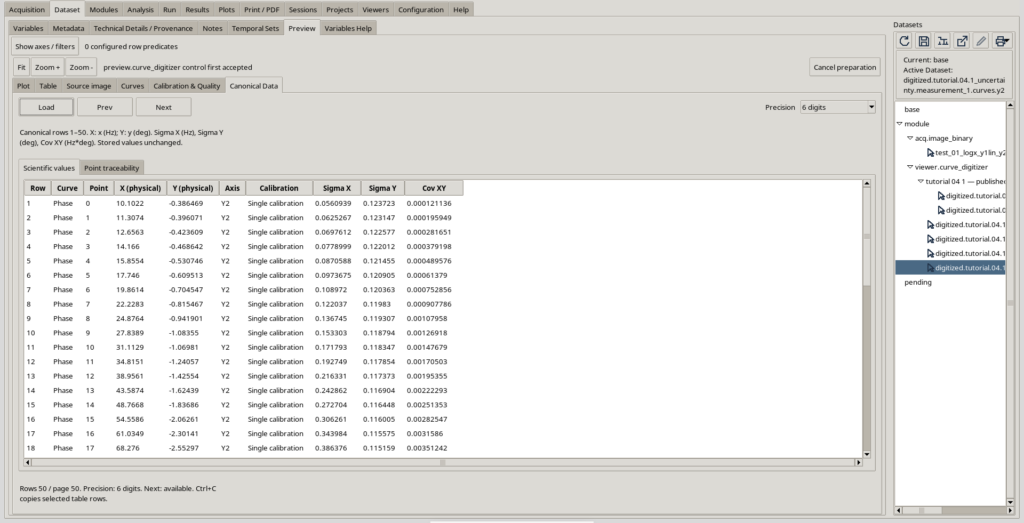
The preceding screenshot shows the uncertainty columns of the Phase Dataset (Y2). As a further example, the first row of the Gain Dataset (Y1) contains the following numerical results:
| Quantity | Value |
|---|---|
| Frequency X | 10.05395227 Hz |
| Gain Y1 | −0.04282468 dB |
| σX | 0.05547460 Hz |
| σY1 | 0.05033129 dB |
| Cov(X,Y1) | 5.38250 × 10⁻⁵ Hz·dB |
These numbers must be interpreted correctly: the calibration is shared by all points on a curve, so it may introduce correlations between different points. The uncertainty columns of a single row are not equivalent to a complete covariance matrix for all observations.
10. Trace Numerical Points Back to the Image
To check the origin of a value, open Canonical Data → Point traceability and load the table. You will find the curve identifier, the unique Point ID, the Calibration ID, and the original raster coordinates.
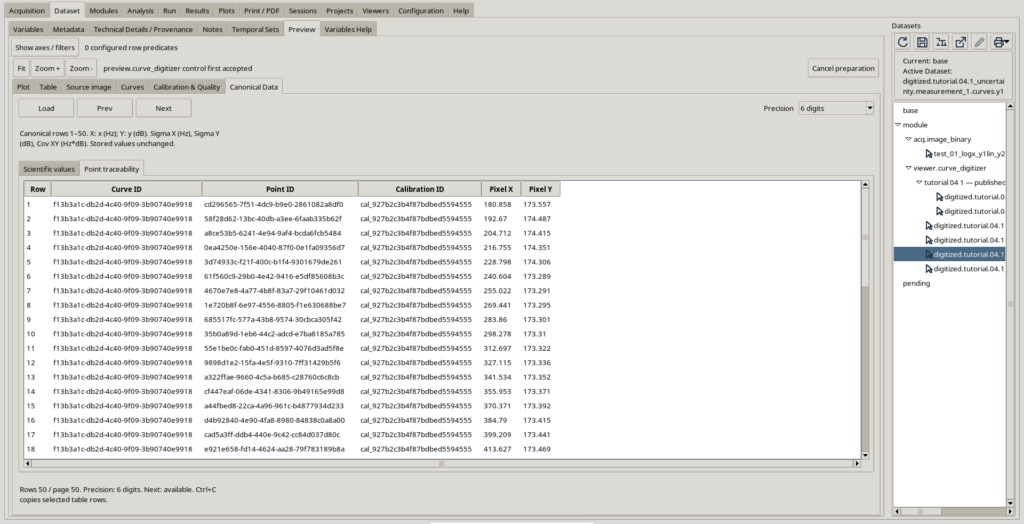
These fields answer practical questions: Which curve produced this row? Which raster point was digitized? Which calibration was used to calculate its physical coordinates?
The table also provides pagination and selectable numerical precision. Changing the number of displayed digits does not alter the values stored in the Dataset.
11. Final Checks and Reusing the Datasets
Before using the results in another script or plot, check that the work is complete:
- The two curves are assigned to the correct axes: Gain → Y1 and Phase → Y2.
- The calibration uses a logarithmic X scale, and the physical ranges match the original graph.
- Each published Dataset contains 100 rows, without mixing degrees and decibels.
- The Curves Preview displays the axes correctly, while Canonical Data shows the values.
- The uncertainty-enabled tables contain
sigma_x,sigma_y, andcovariance_xy, and the rationale for the model is saved. - Point IDs, calibration identifiers, and raster coordinates are available in the traceability section.
Save the Session using the standard GX-TXT commands. When you reopen the work, you can retrieve the Digitalizer configurations and published Datasets from the Session catalog.
You can use the Datasets to compare results with the RC model, create further Plot Dataset visualizations, process values through Script Bridge, or perform other scientific operations available in the framework. Digitization does not merely produce another drawing: it produces numerical values with units, identities, and provenance.