

Workspace, History and local edits
Working state and drafts
Workspace manages the working status and presentation of the viewer. History lets you explore recorded states. Both are distinct from the publication of the Dataset. Before closing, read the following warning about the reopening of the drafts.
Warning about drafts in Workspaces. In testing, after choosing Save and closing the viewer, reopening the same Workspace could show a blank draft even though the working state had saved the text. Keep another copy of the content. Before closing or switching Sessions, publish the draft as a new Dataset or save it to the existing Dataset if authorized. Check its identity and reopen it from the Session to verify the content. Publish New creates a separate canonical Dataset, so use it only if you intend to publish the document. If you want to keep the document unpublished, save a separate copy of the source and check the managed images. A text-only copy does not include those resources.
Edit → Undo Edit / Redo Edit acts on the local text undo stack. Save Existing and Publish New write a canonical Dataset. Workspace and History manage a different kind of state.
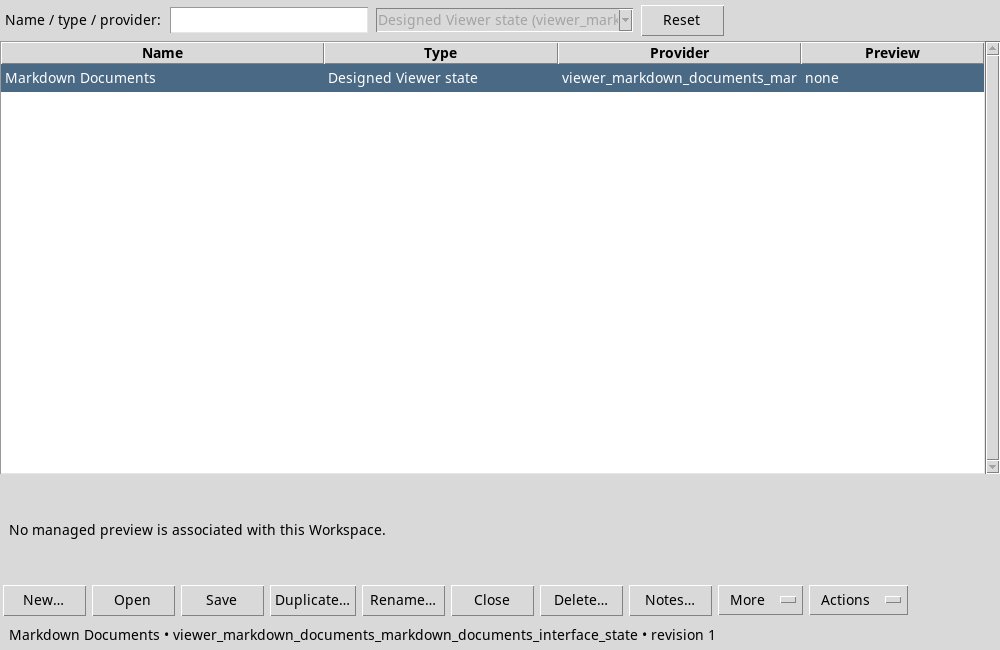
Session Workspaces manager
In the tested viewer, the Actions submenu displays No owner-defined actions disabled.
Open workspace… and Session Workspaces… both open the manager. Search by name, type or provider. Reset clears the filter. Select a row to read its details and enable actions that require a selection. Choose Open, double-click the row or press Enter to open it. The provider filter may be locked to the viewer’s provider.
| Command | Use |
|---|---|
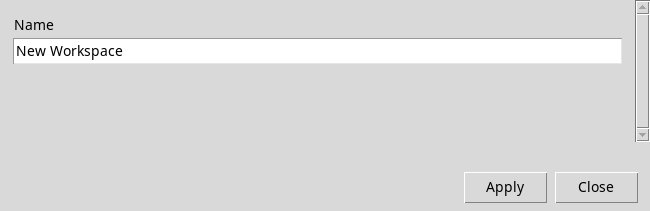
| New workspace… | Ask for a name and create a new state of the viewer; resell the request for current changes. |
| Save / Save As… | Save updates the current state. Save As asks for a copy name. |
| Rename… / Delete… | Rename or delete the selected status. Delete requires confirmation and removes Workspace notes and History; Source and published datasets remain. |
| Notes… / Preview… | Notes opens the view of the note and the Edit button; Preview leads to the manager to examine the details. |
| Import… / Export… | They transfer a Workspace package; Import asks for a unique name after selecting the file. |
| Refresh / Actions | Update the list or show the available actions for the provider; some entries depend on the selection. |
History and named histories
With the right button on the History strip open the context menu: Previous history step and Next history step explore the steps; Return to latest returns to the current state. Restart here / discard later local history… requires confirmation before resuming from a previous point. The menu also offers Undo, Redo, History details, the possibility to hide the strip and, when available, Clear History…; the non-applicable entries are disabled.

The bottom strip can show Description or History; Details opens the text of the state or the list of operations. In the History, Undo and Redo menu navigate the history states; Show / hide Description / History strip shows or hides the strip. Operations not available are disabled.
Save History As… asks for a name. Named History… shows a list with each history’s name, operation count and position. Select a row, then use Inspect, Restore, Rename or Delete. Restore changes the working state. Delete asks for confirmation and leaves published Datasets intact. If you edit a previous state, read the confirmation about branching, as later local states can be discarded.