

Save Workspaces and History
Restore the working context and choose what to save.
Save your work in the session
With a session open, use the Workspace menu to manage the viewer’s working state. Use New workspace… to start fresh. Save updates the active Workspace. Save As… creates a copy using Name and Apply. The Workspace stores the state supported by the viewer. To reproduce a plot with the same references and layout, also use Save Plot Variant….
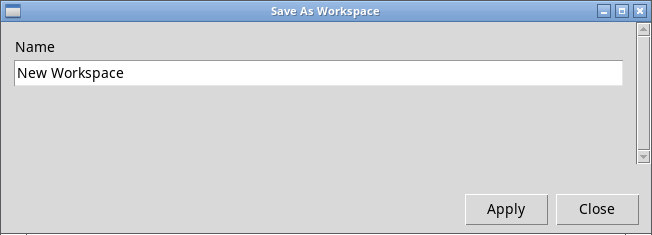
Rename… renames the selected Workspace. Delete… prompts for confirmation and removes it. Close closes the active context. Consider saving if the application reports pending changes. Refresh refreshes the Workspace state. Actions on an existing Workspace become available after you select it. Actions lists any provider-specific actions. In the tested IR context it shows No owner-defined actions.
Open, inspect, and transfer a Workspace
Open workspace… starts from the session’s Workspace list. Session Workspaces… opens the manager. Use Name / type / provider to search and Reset to show all rows again. Select a row to inspect its name, type, provider, and details. The IR Workspace type is Designed Viewer state. Use Open to reactivate the selected context and Duplicate… to keep a copy. New… and Save require a viewer that supports the Workspace type. Close closes the manager.
Notes… opens the Workspace note. Preview… opens the manager for inspection. No managed preview is associated with this Workspace. indicates that there is no saved preview. Export… opens a file chooser to save the Workspace package. Import… lets you choose a package to add to the session. In Import Workspace, enter Unique Workspace name and click Apply. The new Workspace appears next to the original. Select it and check that the comparison sources and Libraries are still available after transfer.
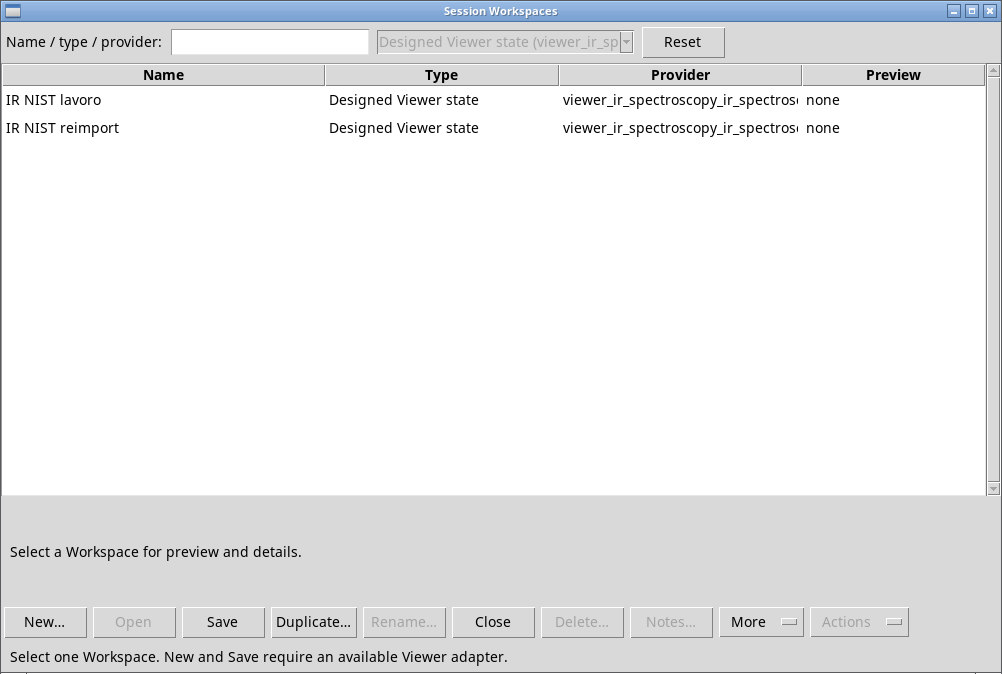
If you click Open on the already active Workspace, P011-bis may open a second pane showing History recovery requires the active writer to close first. Close that pane and continue in the active viewer. To reopen the same Workspace, save and close the viewer. Open IR Spectroscopy again from the catalog, use Workspace → Open workspace…, select the row, and click Open.
Review and save History
History → Show / hide Description / History strip toggles the strip at the bottom. Choose Description for the current message or History for the operation history. Details and History details… open the full text for the current mode. Undo (Ctrl+Z) moves back one recorded operation. Redo (Ctrl+Y) moves forward through operations that are still available.
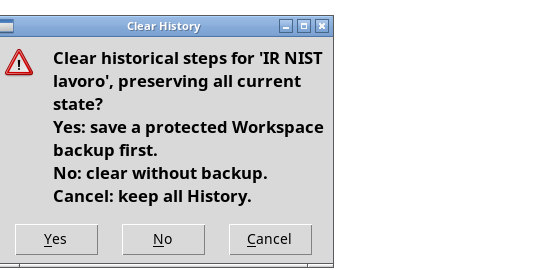
In History, click a step to inspect it. Use the mouse wheel to scroll the strip. In the context menu, Previous history step and Next history step move through the sequence. Return to latest exits inspection. Use Restart here / discard later local history… only when you want to resume from the selected step, after reviewing the prompt about removing later steps. Expand / collapse individual operations appears for groups of operations. Hide Description / History strip hides the strip. Clear History… keeps the current state and clears the steps. At the prompt, Yes first saves a protected Workspace copy, No clears the steps without a copy, and Cancel keeps the history. The command is available on the latest revision when at least one step has been recorded.
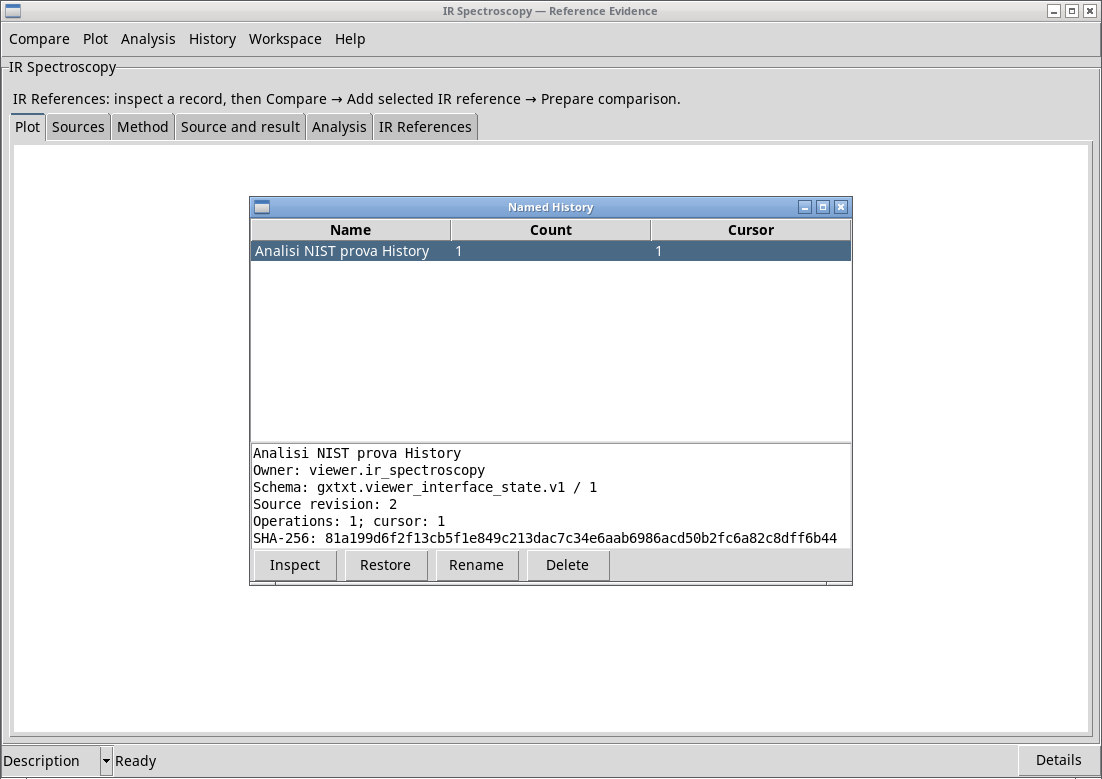
With a native Workspace available, use Save History As…, enter Name, and click Apply to archive the current sequence. Named History… lists Name, Count, and Cursor. Select a row and use Inspect to check identity, revision, operations, and fingerprint. Restore restores the saved history in a compatible context. Rename renames the archive, and Delete asks to remove it. The deletion dialog states that active History and scientific resources are kept.
Respond to draft recovery
After an interrupted exit, Recover unsaved History may appear before you start working. Yes resumes the last recoverable History, No archives the draft and starts a new Workspace, and Cancel leaves the decision pending. If you start in a new Workspace, reopen the Dataset or saved variant to return to a specific view.
Open the manual and identify the module
Help → User Manual… (F1) opens the guide bundled with the application. About Module… shows the installed viewer’s identity and version. IR Spectroscopy is the viewer.ir_spectroscopy viewer. analysis.spectroscopy.ir is the module that runs the calculation from Analysis.