

Browse IR references
Scope, record identity, properties, and ways to browse the catalog.
Browse the IR catalog view
IR References displays three tabs, Records, Sources, and Manual, in the spectroscopy.ir.reference scope. View exact scope and availability… describes the filter and available libraries. Filtering happens before pagination. To install, update, or remove packages, use the Scientific Libraries catalog.
Find the exact reference
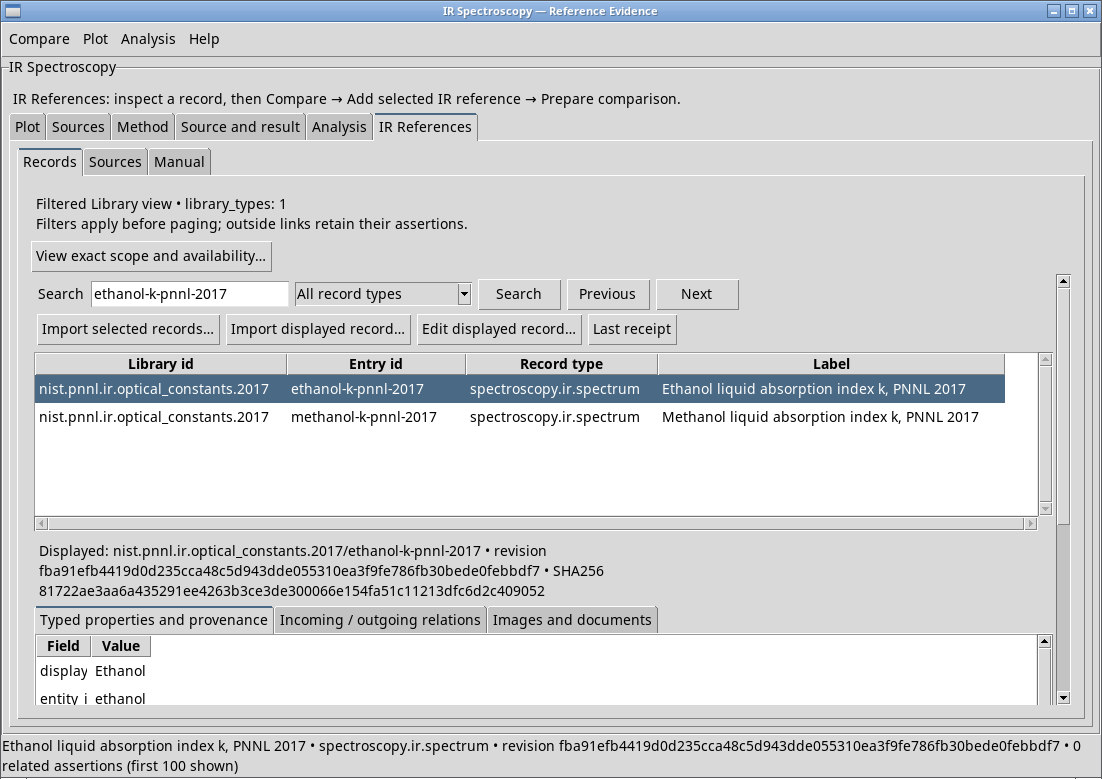
- Enter a query in Records, for example
ethanol-k-pnnl-2017. All record types includes record types in the active scope.spectroscopy.ir.spectrumnarrows the list to spectral records. Click Search and use Previous or Next to move between result pages. - Select the row you want to inspect. Displayed shows the library ID, record ID, revision, and fingerprint. Typed properties and provenance shows quantities, units, sample count, and provenance. Check Incoming / outgoing relations and Images and documents for links and files when populated.
- Use Compare → Add selected IR reference to add the numeric reference. Choose a compatible mode and click Prepare comparison. With a single reference,
overlayworks even without a session. If the viewer opened with a reference identity already supplied, Add opened IR reference uses that identity. When opened from the Viewers catalog, the viewer asks you to select a record.
Import selected records… explicitly acquires selected rows. Import displayed record… starts from the displayed identity. Review the offered representation and destination before confirming. For the PNNL record, the viewer reports that no local acquisition representation is available. Use the NIST Generator to obtain the numeric Dataset. Last receipt shows the receipt when one exists for the active browser. Edit displayed record… requires editing support from both the library and the schema. The PNNL record is read-only and updates through a managed package.
Verify availability and rights
In Sources, Registered source lists registrations for the current scope. Refresh refreshes the list, Register installed connector… opens registration, and Credentials… opens protected profiles. With a source available, use Query / exact source identity, Look up (read only), and Preview selected exact record or Inspect source record…. Cancel request stops an active request. For a compatible source that supports deposit, Destination Library ID prefix sets the prefix, Download selected linked files includes copies that can be retrieved, and Include reviewed source suggestions includes suggestions reviewed with Review selected suggestion…. Import selected into persistent Libraries asks to save selected items. In the tests, Registered source was empty. Both exercises use local managed packages.
Manual is limited to the active scope. For the managed IR Library used in the exercise, Record schema is empty and the view reports that no writable schema is available for that scope. The provider supports browsing those entries. To update a managed library, use an updated package from the catalog.
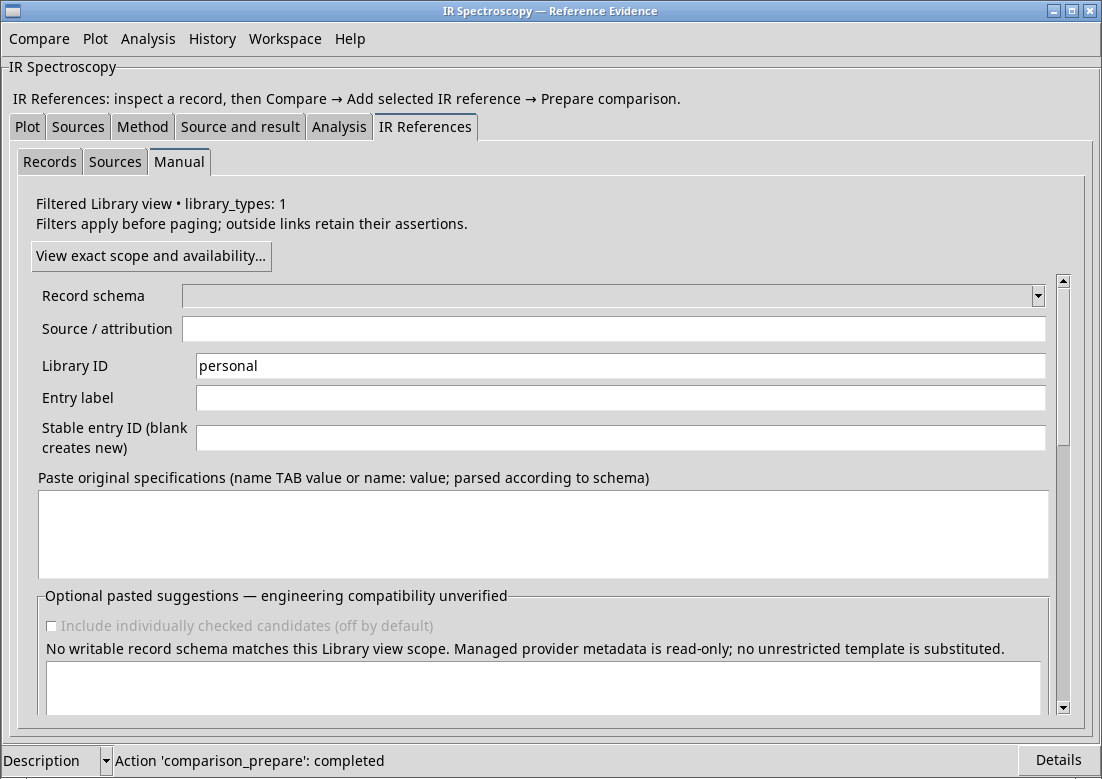
When a compatible writable schema is available, Source / attribution specifies the source, Library ID the destination, Entry label the title, and Stable entry ID the record. Leave the record blank to create a new entry. Paste original specifications accepts name/value pairs separated by a tab or a colon. Parse candidates prepares rows according to the schema, Inspect selected candidate… opens details, and Filter reviewed rows limits the view. Check all, Uncheck all, and Include individually checked candidates control which rows to include. Copy schema TSV header copies the expected headers.
For a proposed association, Declared relation sets the type. Suggestion source / attribution, Assertion by, and Original suggestion / differences record provenance and content. For local files, choose Local file role, add a PDF or image with Add downloaded PDF / image…, and inspect it with Preview selected original file. Clear selected files clears draft attachments. Preview typed record reviews the draft, Save into persistent Library confirms it when the schema allows it, and Cancel draft discards it. These write actions still depend on schema and Library support in the read-only IR scope.