

Transfer presentation with presets
Read the presentation settings from the last render, edit a draft, and apply it to a plot. A preset saves the draft in the Session. Export it as JSON to transfer it.
Read the last render
Right-click the row and choose Read plot settings. The Plot presentation draft window lists Presentation property and Draft value. The initial information identifies the source render and excluded fields. If saved settings are unavailable, the program reports that state. When the provider supports it, rerender successfully to record a new set of settings.
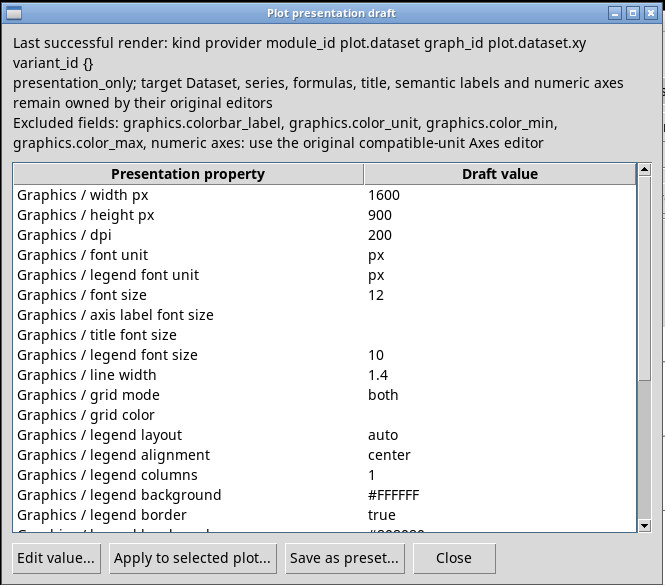
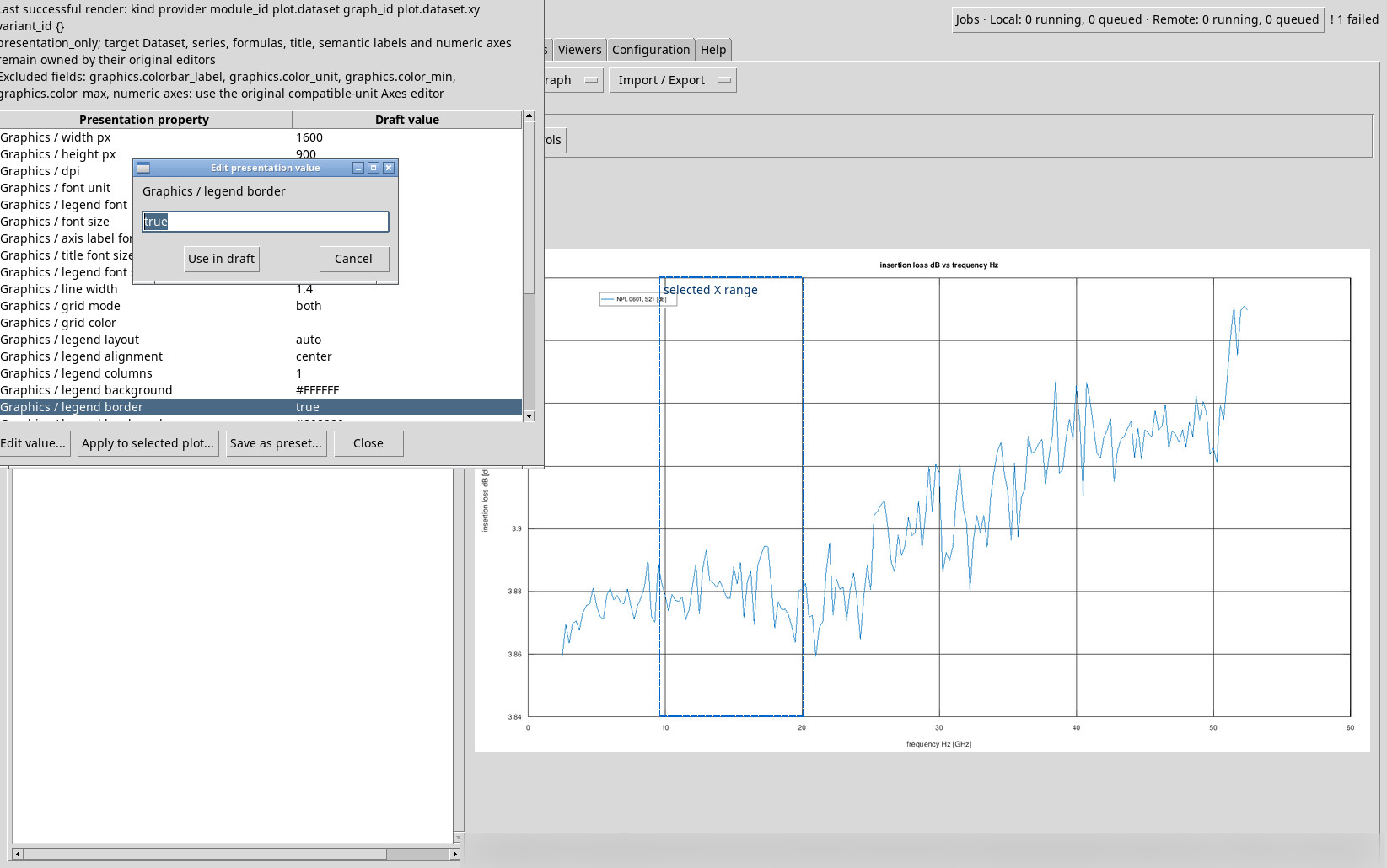
Select a property and press Edit value… or Enter, or double-click the property. In Edit presentation value, enter the value and use Use in draft. Cancel and Esc close the property editor. For a Boolean flag, try 0 or 1. In the test, using 2 for Graphics / legend border produced Renderer presentation flag is not boolean. The value 0 was accepted and removed the border after the draft was applied.
Apply to a plot
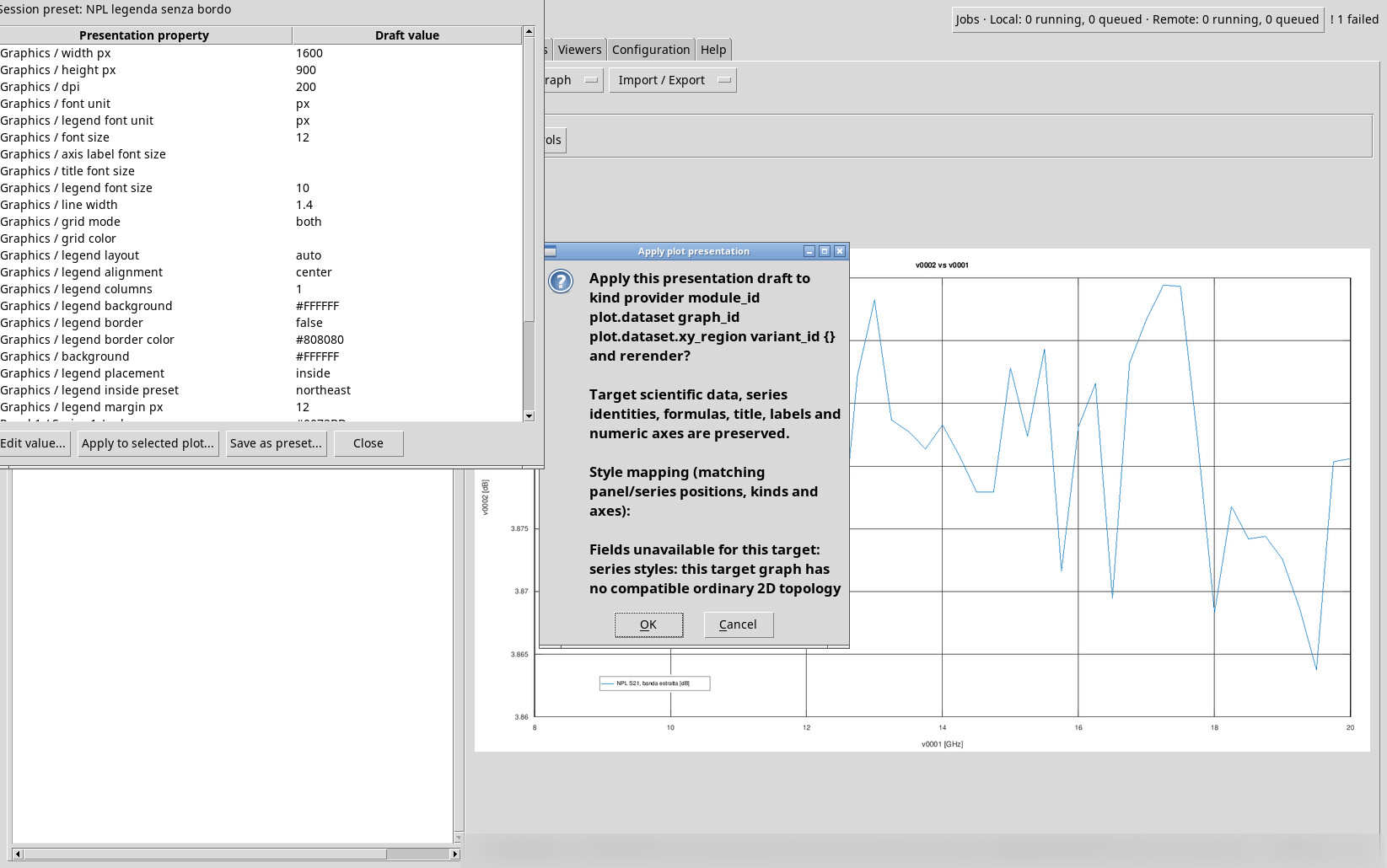
Select the destination plot in Plots. Choose Apply current settings… from the context menu or Apply to selected plot… from the draft. In the confirmation, check the target plot, panel and series matches, and unavailable fields. The target’s scientific bindings, title, and numeric axis settings are preserved. Transferring from standard XY to XY rectangle displayed a warning that the target topology was incompatible with transferring individual series styles. The applicable general graphics were rendered again. Press Cancel to leave the plot as it is or OK to proceed.
Apply presentation settings between XY and XYZ
When transferring from XY to an XYZ variant, the confirmation may say “this target graph has no compatible ordinary 2D topology.” XY series styles are skipped. When transferring to an XY plot, the confirmation lists the 3D fields that the plot does not use, including azimuth, elevation, projection, aspect ratio, colormap, and colorbar visibility.
In both tests, Apply to selected plot… completed the rerender of the target. The confirmation indicates that target data, series identities, formulas, titles, labels, and numeric axis settings are preserved. Check the plot after rerendering. If the presentation is already equivalent, the renderer may produce the same PNG.
Save, load and delete a preset
Save settings as preset… in the row menu or Save as preset… in the draft opens Save Session presentation preset. Enter a Preset name and confirm with Save. An existing name requires confirmation before it can be replaced. Use Cancel to keep the existing preset.
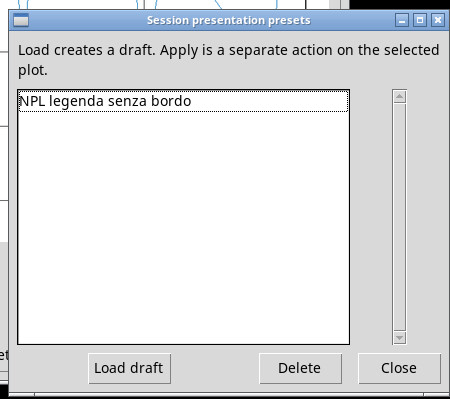
Apply preset… opens the Session preset list. Select a name and press Load draft. The draft loads so you can review it before applying it. Delete removes the selected preset. Close closes the list.
Transfer the draft in JSON
Use Import / Export → Export conf… to save the current draft as JSON. If the draft is empty, first read a plot, load a preset, or import a profile. To read an existing file, use Import conf… and choose the JSON. Apply the imported draft explicitly to a plot row. When switching Sessions, reload or import the draft for the new Session.
For an incomplete file, the parser reports where the JSON is invalid. JSON without the schema field is rejected. Choose a profile exported by GX-TXT and review the properties loaded into the draft before applying it.
Base XYZ row
In P011-bis, the context menu for a base 3D plot may fail with cartesian_3d requires a persistent plot.dataset.xyz variant. Close the warning with OK. The menu opened correctly for the persistent grid variant. You can also use the menus at the top for commands they provide.