

Export and import plots
Export a figure to view as a PNG or transfer a clone in a Graph ZIP archive. Check the selection and the available package type first.
Export one or more PNGs
In the Use column, set the desired plots to YES. Open Import / Export → Export… and choose the destination folder. The first column controls this export even if the preview shows another row. Use Export annotated… to obtain figures with the annotation layer applied.
Export a Graph ZIP
Select the current row. Use Import / Export → Export Graph ZIP… and choose a new filename ending in .gxtxt-graph.zip. The confirmation reports the SHA-256 digest and file count. Depending on the plot type, the package can contain the PNG, plot state, notes, annotations, presentation settings, and scientific resources.
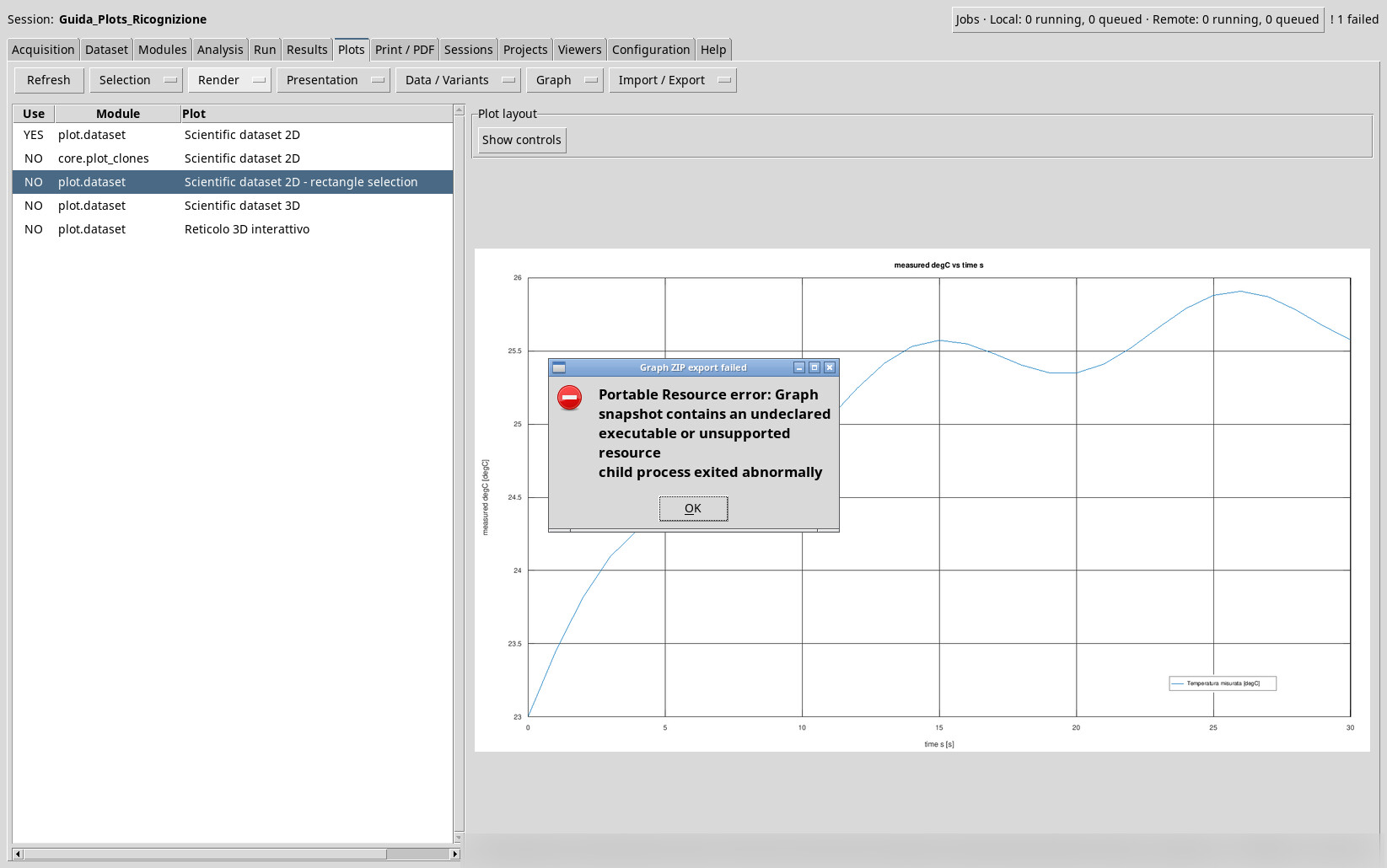
In P011-bis, validation returned Graph snapshot contains an undeclared executable or unsupported resource for the tested base XY and XY rectangle plots. A native XYZ variant returned Native snapshot contains undeclared or unsupported files. In these cases the archive is not created, and the figure remains available in Plots. Use Export PNG to share the figure. A second route worked for the base XY plot. Use Graph → Clone…, select the scientific clone, and try Export Graph ZIP… again.
Check the Graph ZIP for an image-only clone
Select the image-only clone row and use Export Graph ZIP…. The verified archive contains the clone state, PNG, and package manifest. Open it with Import Graph ZIP… to use the image-only import path.
Import a Graph ZIP
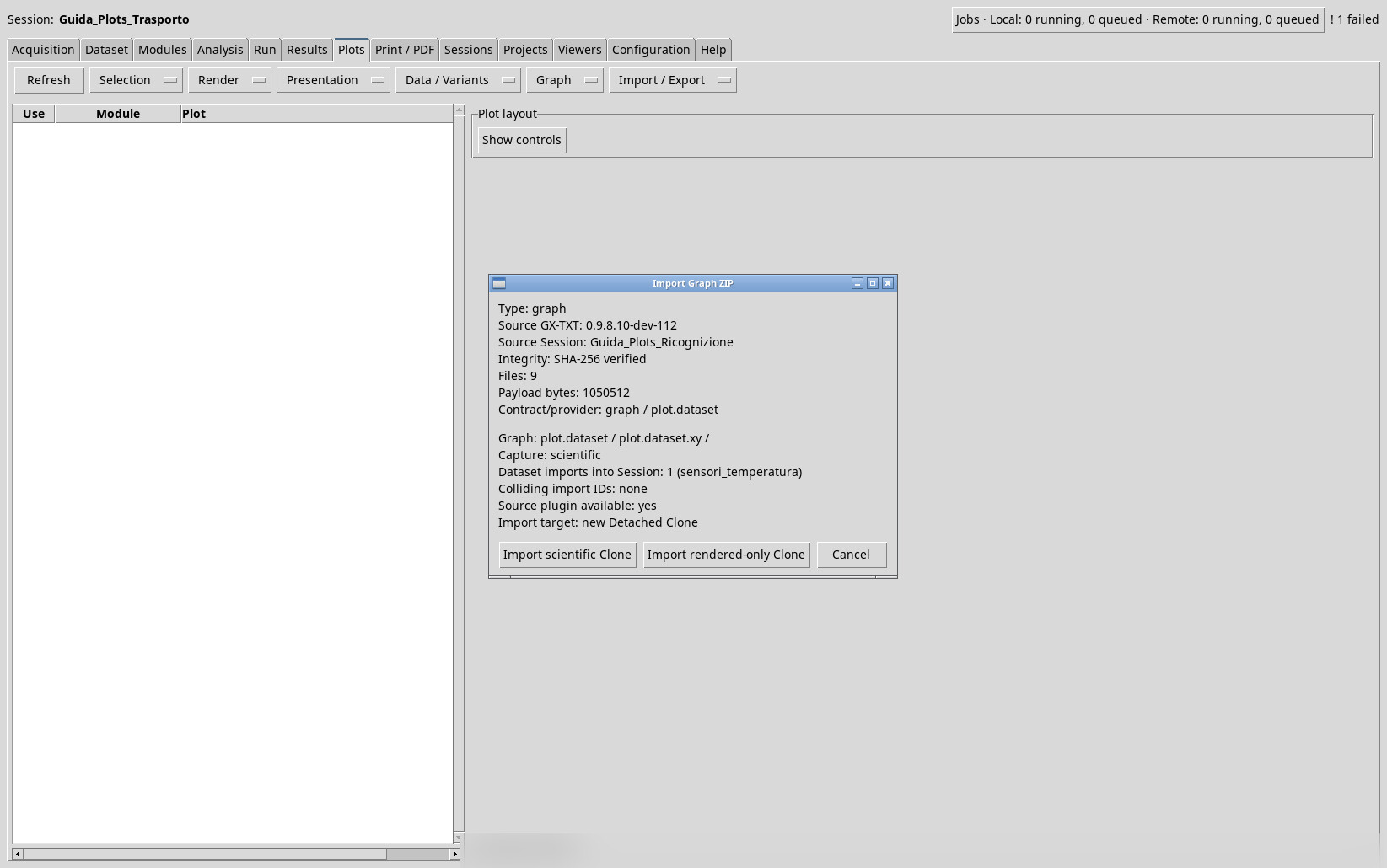
Open a destination Session. Choose Import / Export → Import Graph ZIP… and select the archive. The dialog shows the type, source version, integrity, provider, capture mode, and dependent Datasets. Check for ID conflicts. The destination object is a new detached clone.
- Import scientific Clone
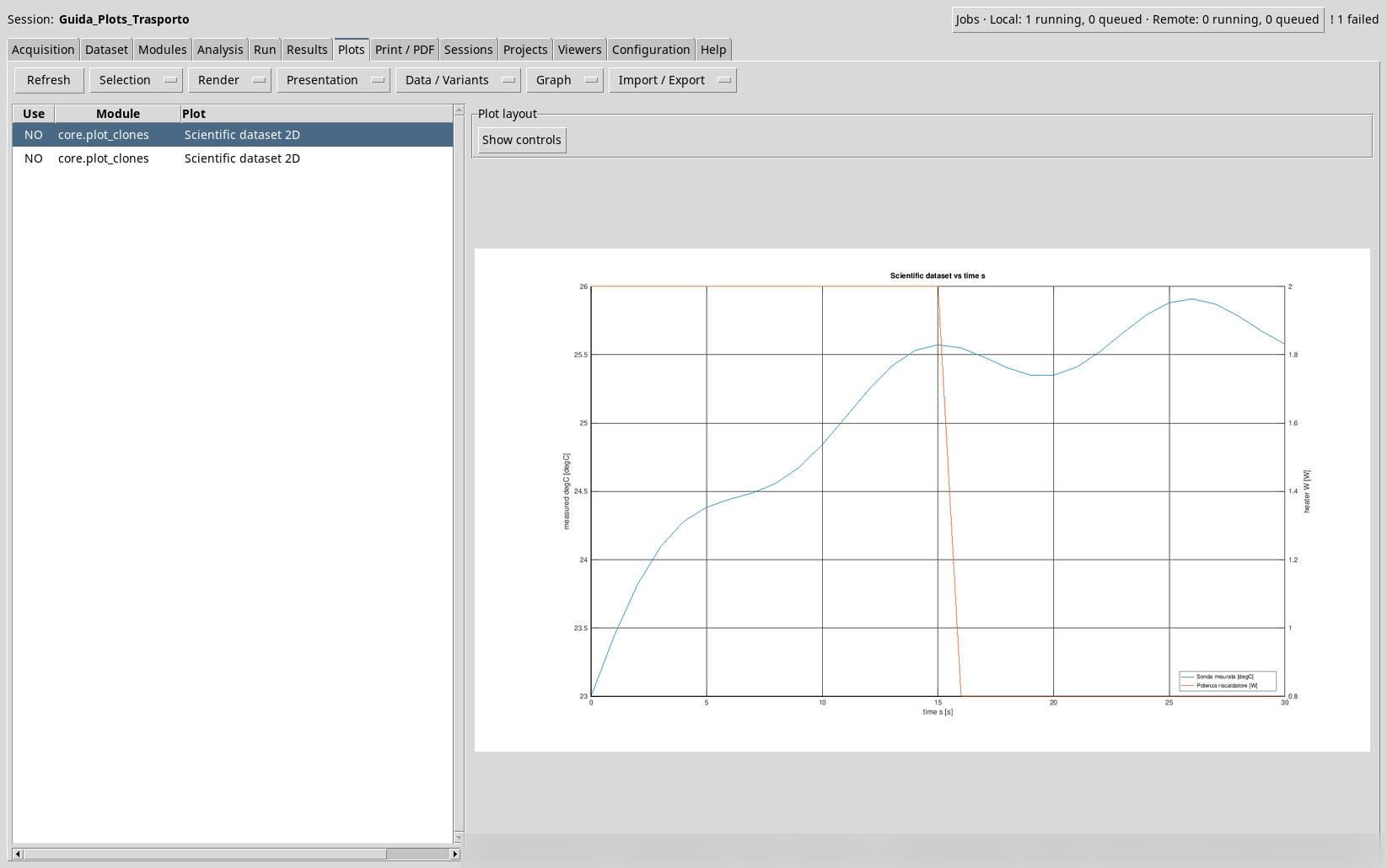
- Available when the package includes a scientific capture, the required provider is available, and the Datasets to import have no conflicts. In the test, the temperature plot clone imported
sensori_temperaturainto an empty Session. - Import rendered-only Clone
- Imports the rendered figure. This is also available when Dataset ID conflicts prevent a scientific import. Use the clone for viewing and for export formats that accept a raster image.
- Cancel
- Closes the confirmation without creating a clone.
Check the exported files
If no row has Use set to YES, Export… reports No plot selected. With two enabled plots, ordinary export preserved the analysis/ subfolders and the Session PNG bytes. With Export annotated…, the file for the row with a JSON layer was composited with its annotations. The PNG from the row without annotations remained identical to the source. When the only selected row was a scientific or image-only clone, the test showed Export annotated… disabled. Export… copied both PNGs byte for byte.
Recognize an invalid archive
If you open an incomplete file, the GUI displays Invalid Resource ZIP. Get an intact copy of the archive and import it again. Selecting a Dataset archive displays This is a dataset package. Choose a graph package.. Use the Dataset import command for that format. A valid Graph ZIP confirms integrity and offers a choice of clone type.
Choose the folder or file
In the folder picker, Directory shows the current location. Use the up arrow to open the parent folder. Choose a subfolder from the list or enter its path in Selection. Press OK to confirm the current or selected folder. When the entered path opens in the list, check Directory before the final confirmation.
In the file picker, use File name for the filename or path. Files of type filters the displayed files, for example by GX-TXT Graph ZIP (*.zip) or Presentation JSON (*.json). Open starts checking the package or profile. Save selects the output file. Use Cancel to return to the tab.