

Scientific Dataset Plot Interface Reference
GX-TXT P011-bis · Scientific Dataset Plot 4.4.2
Open Analysis after making visible Scientific Dataset Plot in Modules. The plate shows the whole module. The numbers refer to the controls described below. The enlarged window contains the same links.
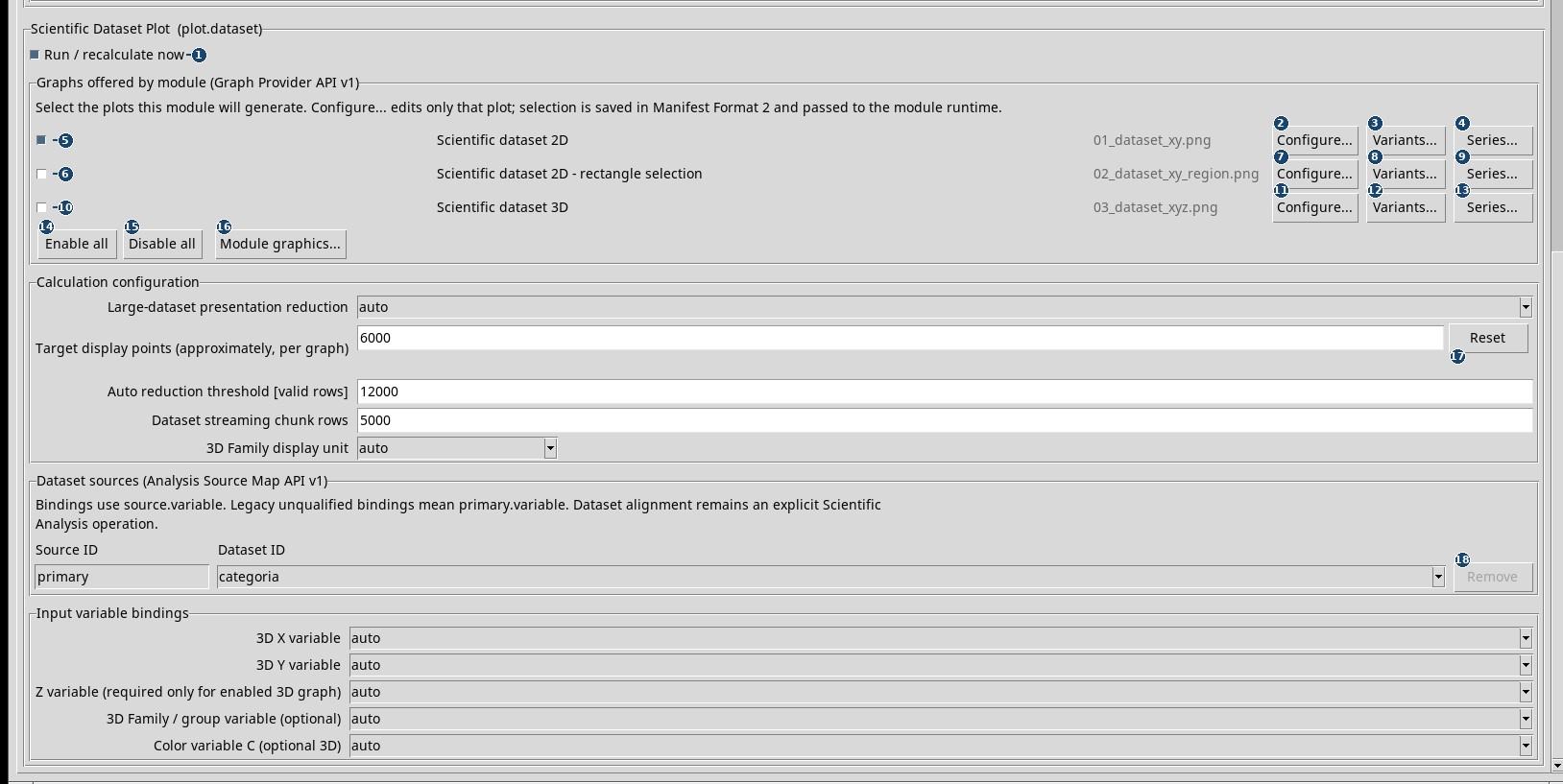
Analysis plate
- No.
- 1
- Control and position
- Run / recalculate now, below the module title
- Use, effect and conditions
- Selects the module for the selective Run. The outputs checked further down define which plots the plan requests. The run button is in the Run tab. Details on the plan.
- No.
- 2
- Control and position
- Configure…, Scientific dataset 2D
- Use, effect and conditions
- Sets title, labels, style, scales and legend of the XY base. From the provider you can stack panels with a shared X axis. Open Configure.
- No.
- 3
- Control and position
- Variants…, Scientific dataset 2D
- Use, effect and conditions
- Lists the secondary identities of the XY base. Use New from base or Duplicate to get a configuration with its own output directory. Variant actions.
- No.
- 4
- Control and position
- Series…, Scientific dataset 2D
- Use, effect and conditions
- Configures Dataset, variables, families, filters, Y side, representation, style and panel. Create a series.
- No.
- 5
- Control and position
- Checkbox Scientific dataset 2D
- Use, effect and conditions
- Enable
plot.dataset.xy. The run produces01_dataset_xy.pngwhen sources and series are valid. The choice is recorded in the Session manifest.
- No.
- 6
- Control and position
- Checkbox Scientific dataset 2D – rectangle selection
- Use, effect and conditions
- Enable
plot.dataset.xy_region, a single-panel output with02_dataset_xy_region.png. Register at least one enabled series for this row. Rectangle selection.
- No.
- 7
- Control and position
- Configure…, rectangle selection
- Use, effect and conditions
- Opens the settings of the rectangle base. The output has a single Y domain for cropping. Limits and configuration.
- No.
- 8
- Control and position
- Variants…, rectangle selection
- Use, effect and conditions
- Opens variant management for the same rectangle output. The variant inherits the output type. It allows separate editing and rendering.
- No.
- 9
- Control and position
- Series…, rectangle selection
- Use, effect and conditions
- Registers the series of the second output. Select X and Y suitable for calibration. The rectangle in the extraction uses the left side.
- No.
- 10
- Control and position
- Checkbox Scientific dataset 3D
- Use, effect and conditions
- Enable
plot.dataset.xyzand its file03_dataset_xyz.png. To run only the 2D path, leave the checkbox empty.
- No.
- 11
- Control and position
- Configure…, Scientific dataset 3D
- Use, effect and conditions
- Opens the settings of the XYZ output. This control applies to the third output.
- No.
- 12
- Control and position
- Variants…, Scientific dataset 3D
- Use, effect and conditions
- Manages the variants of the XYZ output. The 2D variants are in their own rows above.
- No.
- 13
- Control and position
- Series…, Scientific dataset 3D
- Use, effect and conditions
- Opens the Graph Series control associated with the XYZ output. The XYZ binding configuration has a separate section further down.
- No.
- 14
- Control and position
- Enable all, below the three rows
- Use, effect and conditions
- Selects all available outputs, including XYZ. Then disable the rows outside your Run if their inputs are not ready.
- No.
- 15
- Control and position
- Disable all, below the three rows
- Use, effect and conditions
- Clears all outputs at once. To start a new case, then set the single output you want. Changing the selection is separate from the files already written.
- No.
- 16
- Control and position
- Module graphics…, below the three rows
- Use, effect and conditions
- Opens the module graphics settings. Enable the specific configuration to apply it to the next supported renders. Settings and precedence.
- No.
- 17
- Control and position
- Reset, next to Target display points
- Use, effect and conditions
- Resets the module display-point target to 6000. The rendering changes at the next eligible Run or Rerender.
- No.
- 18
- Control and position
- Remove, to the right of Dataset sources
- Use, effect and conditions
- The required row
primaryshows the button disabled. Change its Dataset from the Dataset ID selector. To use several sources in the same figure, choose the Dataset of each Graph Series.
Calculation configuration
- Large-dataset presentation reduction
autodelegates the choice to the renderer above the threshold.nonekeeps the full presentation,stridesamples at a fixed stride,minmaxtries to keep the extremes of the windows. See threshold, effect and data check.- Target display points (approximately, per graph)
- Approximate target for the reduced presentation. The default 6000 can be restored with Reset. The number and distribution of points can vary with the active series and the mode.
- Auto reduction threshold [valid rows]
- Automatic activation threshold. The default is 12000 valid rows. Use a count of the finite rows accepted by the output to interpret the effect.
- Dataset streaming chunk rows
- Rows per read block, 5000 by default. It is used for progressive reading. You can see the result in the loading diagnostics. It is not the Dataset limit.
- 3D Family display unit
autofollows the choice of the 3D output,sourcekeeps the unit declared by the family. The 2D series flow uses its own variables and settings.
Dataset sources and Input variable bindings
Source ID shows the source primary. Dataset ID links it to a Session Dataset. The five rows 3D X variable, 3D Y variable, Z variable (required only for enabled 3D graph), 3D Family / group variable (optional) and Color variable C (optional 3D) show auto and the choices primary.nome_variabile of the selected source. These are XYZ bindings. In the two outputs of this part, X, Y and family are chosen in the Series dialog.
Secondary windows and numbered controls
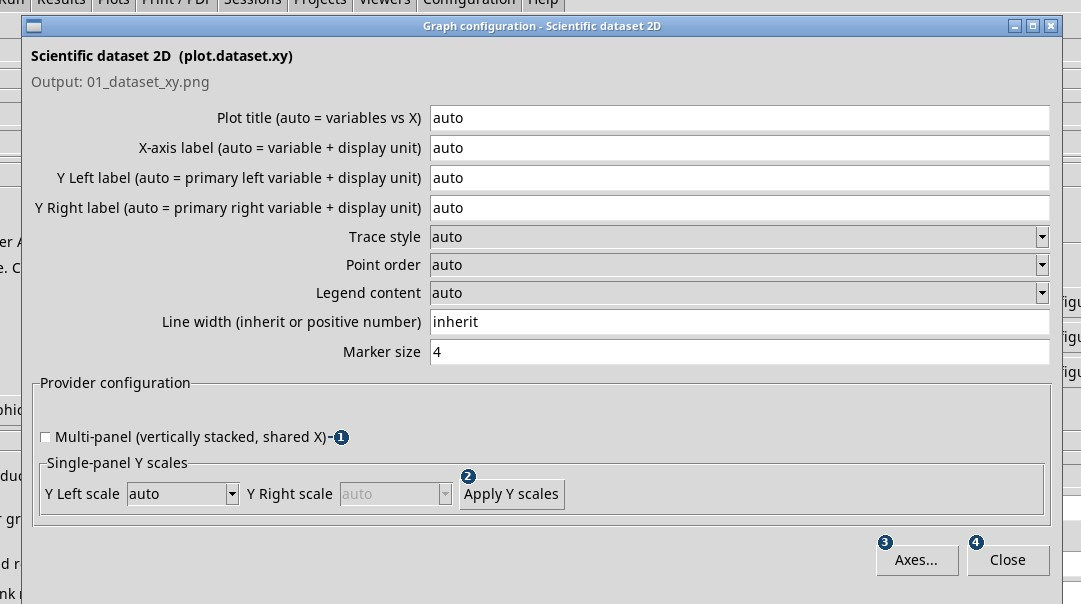
Configure for the XY base with the single-panel controls.
- No.
- 1
- Control
- Multi-panel (vertically stacked, shared X)
- Use and effect
- Turns stacked panels on or off. Single mode is the default; the checkbox is available for the XY base. Procedure.
- No.
- 2
- Control
- Apply Y scales
- Use and effect
- Applies the scale choices for the Y sides. The right selector becomes available when there are right-axis series. Procedure.
- No.
- 3
- Control
- Axes…
- Use and effect
- Opens the axes of the output shown at the top. Enter unit, limits, scale and ticks in the applicable fields. Procedure.
- No.
- 4
- Control
- Close
- Use and effect
- Closes Configure. The output’s own changes are read at the next render. Procedure.
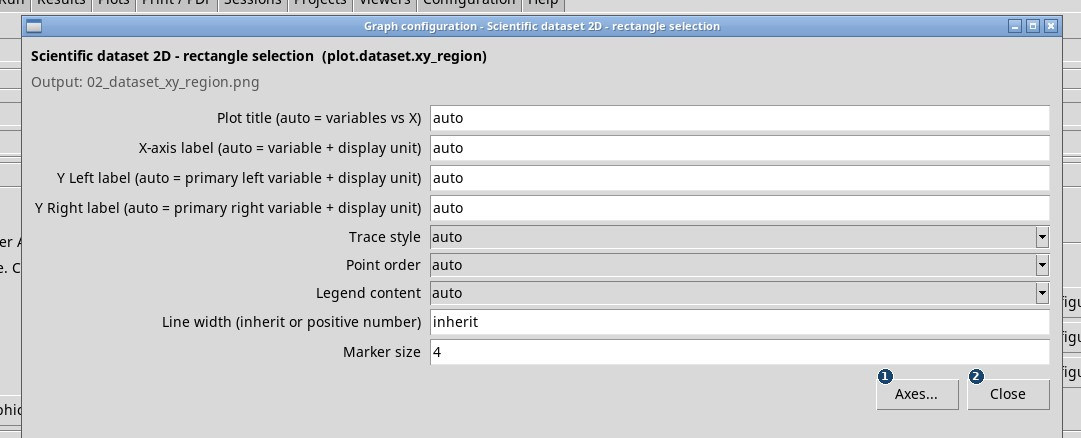
Configure for the rectangle-selection base.
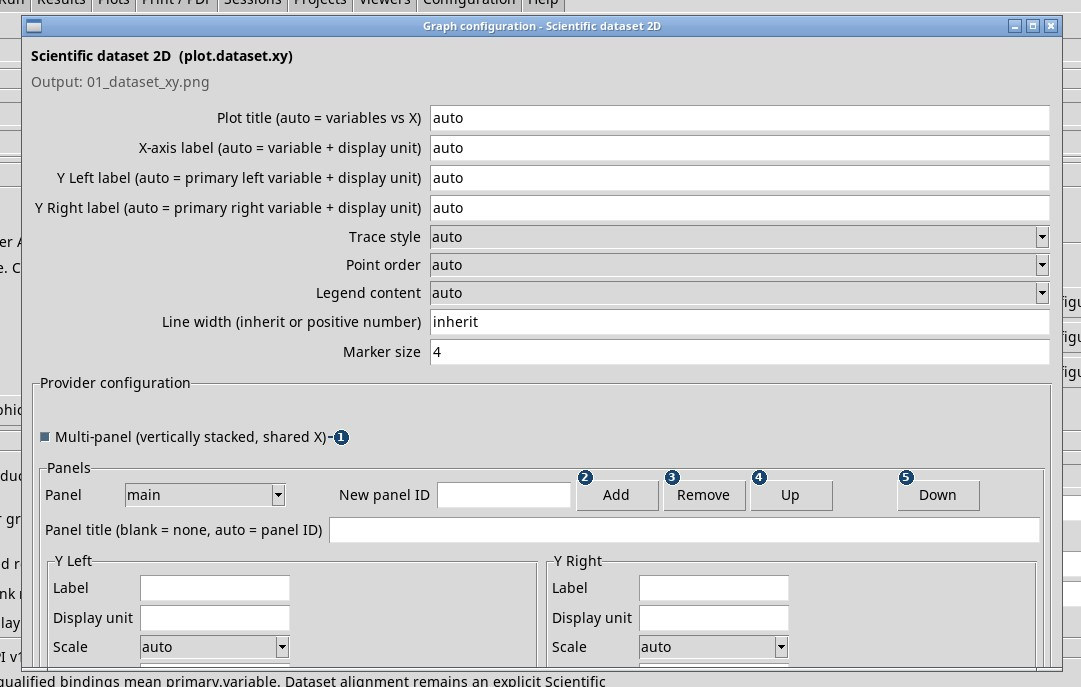
Configure XY in stacked mode, with the controls that appear in the panels section.
Axes for the XY base, top view with the axis fields.
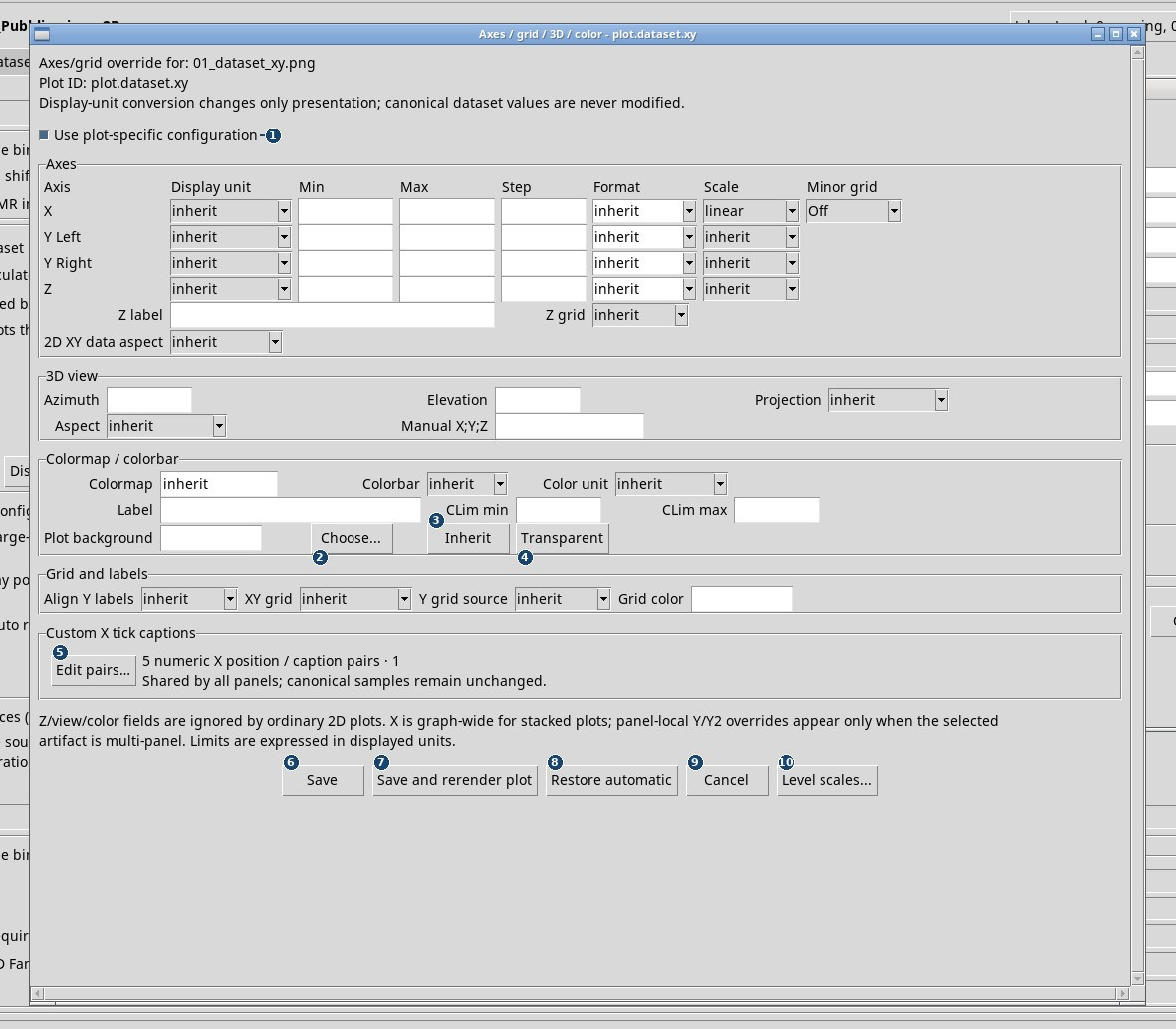
- No.
- 1
- Control
- Use plot-specific configuration
- Use and effect
- Enables the figure overrides. Leave individual fields on inherit if the general setting should apply. Procedure.
- No.
- 2
- Control
- Choose…
- Use and effect
- Opens the color picker for the field next to it, then uses the result in the draft. Procedure.
- No.
- 3
- Control
- Inherit
- Use and effect
- Removes the specific color and reuses the inherited value at render time. Procedure.
- No.
- 4
- Control
- Transparent
- Use and effect
- Uses a background with no fill in the formats and renderers that support it. Procedure.
- No.
- 5
- Control
- Edit pairs…
- Use and effect
- Opens the custom X positions and captions. Use two paired strings with positions in the display unit. Procedure.
- No.
- 6
- Control
- Save
- Use and effect
- Saves the draft choices. Use a later render to update the file. Procedure.
- No.
- 7
- Control
- Save and rerender plot
- Use and effect
- Saves and tries to regenerate the figure. The PNG must be updated to check the effect. Procedure.
- No.
- 8
- Control
- Restore automatic
- Use and effect
- Restores the automatic axis presentation. Use it to remove incompatible overrides. Procedure.
- No.
- 9
- Control
- Cancel
- Use and effect
- Closes the Axes draft, discarding unsaved changes. Procedure.
- No.
- 10
- Control
- Level scales…
- Use and effect
- Opens the level transformations. Select quantity, amplitude, reference and zero policy according to the signal. Procedure.
Axes for the XY base, bottom view with save actions and level scales.
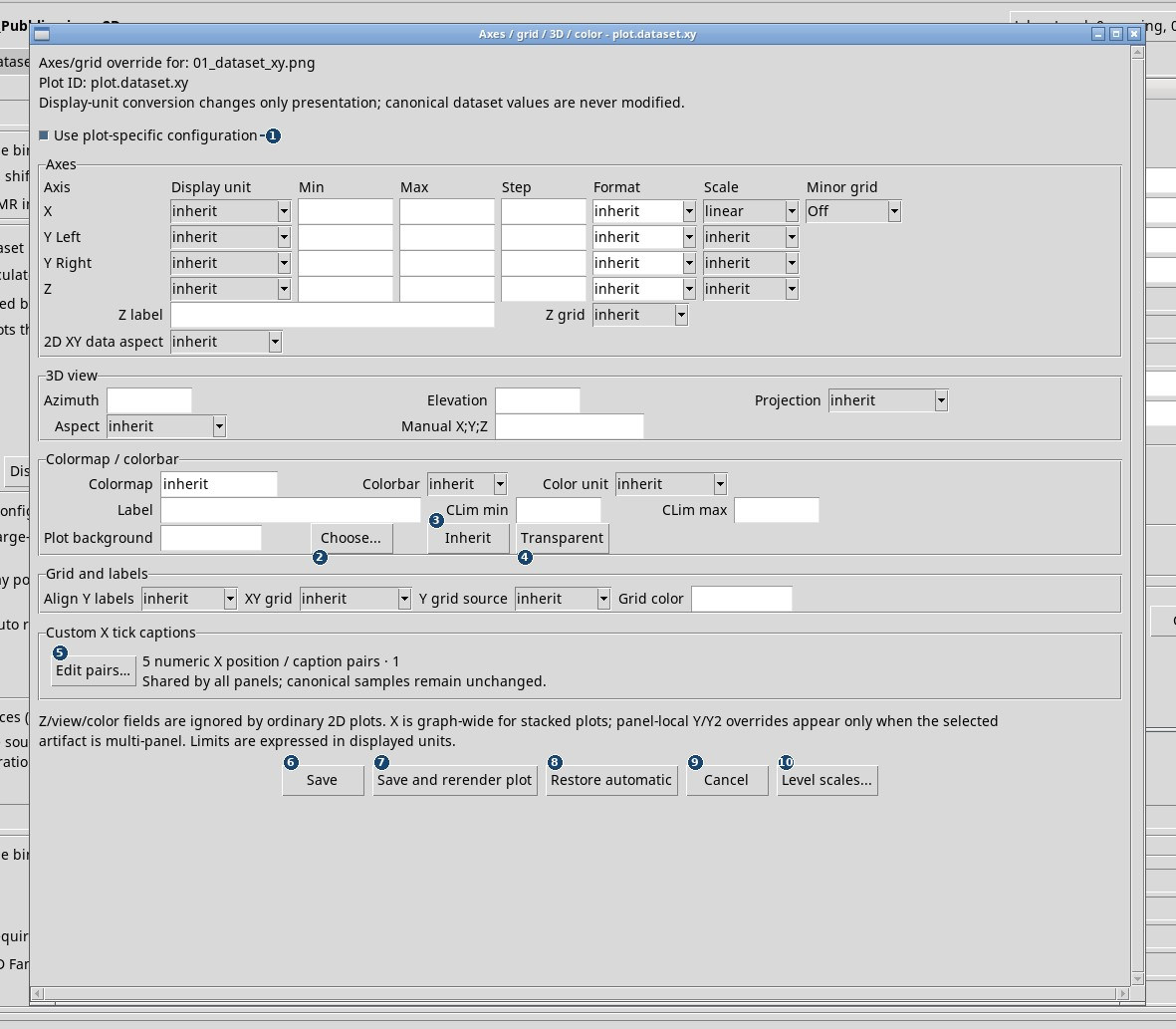
- No.
- 1
- Control
- Use plot-specific configuration
- Use and effect
- Enables the figure overrides. Leave individual fields on inherit if the general setting should apply. Procedure.
- No.
- 2
- Control
- Choose…
- Use and effect
- Opens the color picker for the field next to it, then uses the result in the draft. Procedure.
- No.
- 3
- Control
- Inherit
- Use and effect
- Removes the specific color and reuses the inherited value at render time. Procedure.
- No.
- 4
- Control
- Transparent
- Use and effect
- Uses a background with no fill in the formats and renderers that support it. Procedure.
- No.
- 5
- Control
- Edit pairs…
- Use and effect
- Opens the custom X positions and captions. Use two paired strings with positions in the display unit. Procedure.
- No.
- 6
- Control
- Save
- Use and effect
- Saves the draft choices. Use a later render to update the file. Procedure.
- No.
- 7
- Control
- Save and rerender plot
- Use and effect
- Saves and tries to regenerate the figure. The PNG must be updated to check the effect. Procedure.
- No.
- 8
- Control
- Restore automatic
- Use and effect
- Restores the automatic axis presentation. Use it to remove incompatible overrides. Procedure.
- No.
- 9
- Control
- Cancel
- Use and effect
- Closes the Axes draft, discarding unsaved changes. Procedure.
- No.
- 10
- Control
- Level scales…
- Use and effect
- Opens the level transformations. Select quantity, amplitude, reference and zero policy according to the signal. Procedure.
Axes opened from the rectangle-selection base, top view.
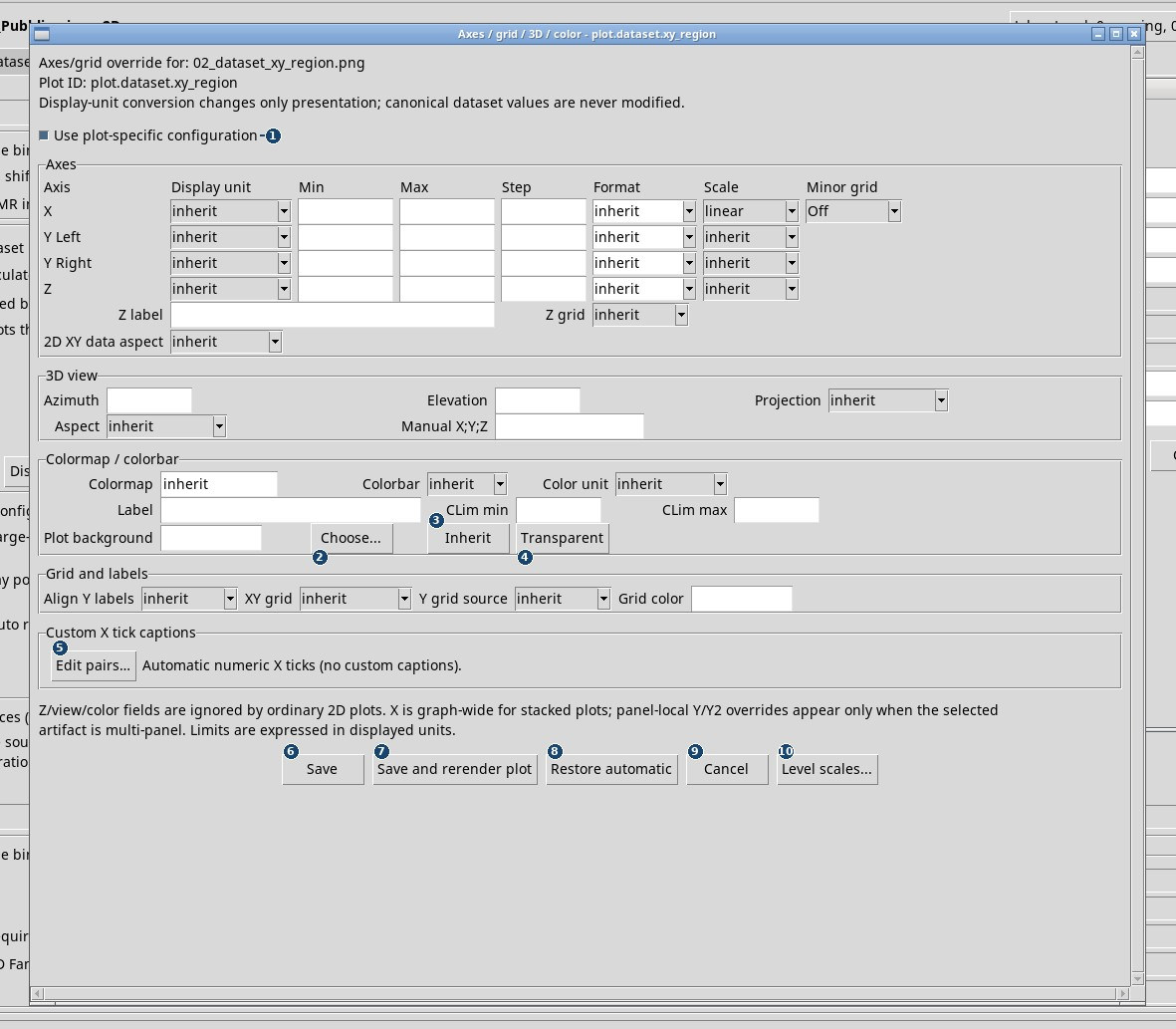
- No.
- 1
- Control
- Use plot-specific configuration
- Use and effect
- Enables the figure overrides. Leave individual fields on inherit if the general setting should apply. Procedure.
- No.
- 2
- Control
- Choose…
- Use and effect
- Opens the color picker for the field next to it, then uses the result in the draft. Procedure.
- No.
- 3
- Control
- Inherit
- Use and effect
- Removes the specific color and reuses the inherited value at render time. Procedure.
- No.
- 4
- Control
- Transparent
- Use and effect
- Uses a background with no fill in the formats and renderers that support it. Procedure.
- No.
- 5
- Control
- Edit pairs…
- Use and effect
- Opens the custom X positions and captions. Use two paired strings with positions in the display unit. Procedure.
- No.
- 6
- Control
- Save
- Use and effect
- Saves the draft choices. Use a later render to update the file. Procedure.
- No.
- 7
- Control
- Save and rerender plot
- Use and effect
- Saves and tries to regenerate the figure. The PNG must be updated to check the effect. Procedure.
- No.
- 8
- Control
- Restore automatic
- Use and effect
- Restores the automatic axis presentation. Use it to remove incompatible overrides. Procedure.
- No.
- 9
- Control
- Cancel
- Use and effect
- Closes the Axes draft, discarding unsaved changes. Procedure.
- No.
- 10
- Control
- Level scales…
- Use and effect
- Opens the level transformations. Select quantity, amplitude, reference and zero policy according to the signal. Procedure.
Axes of the rectangle base, bottom view.
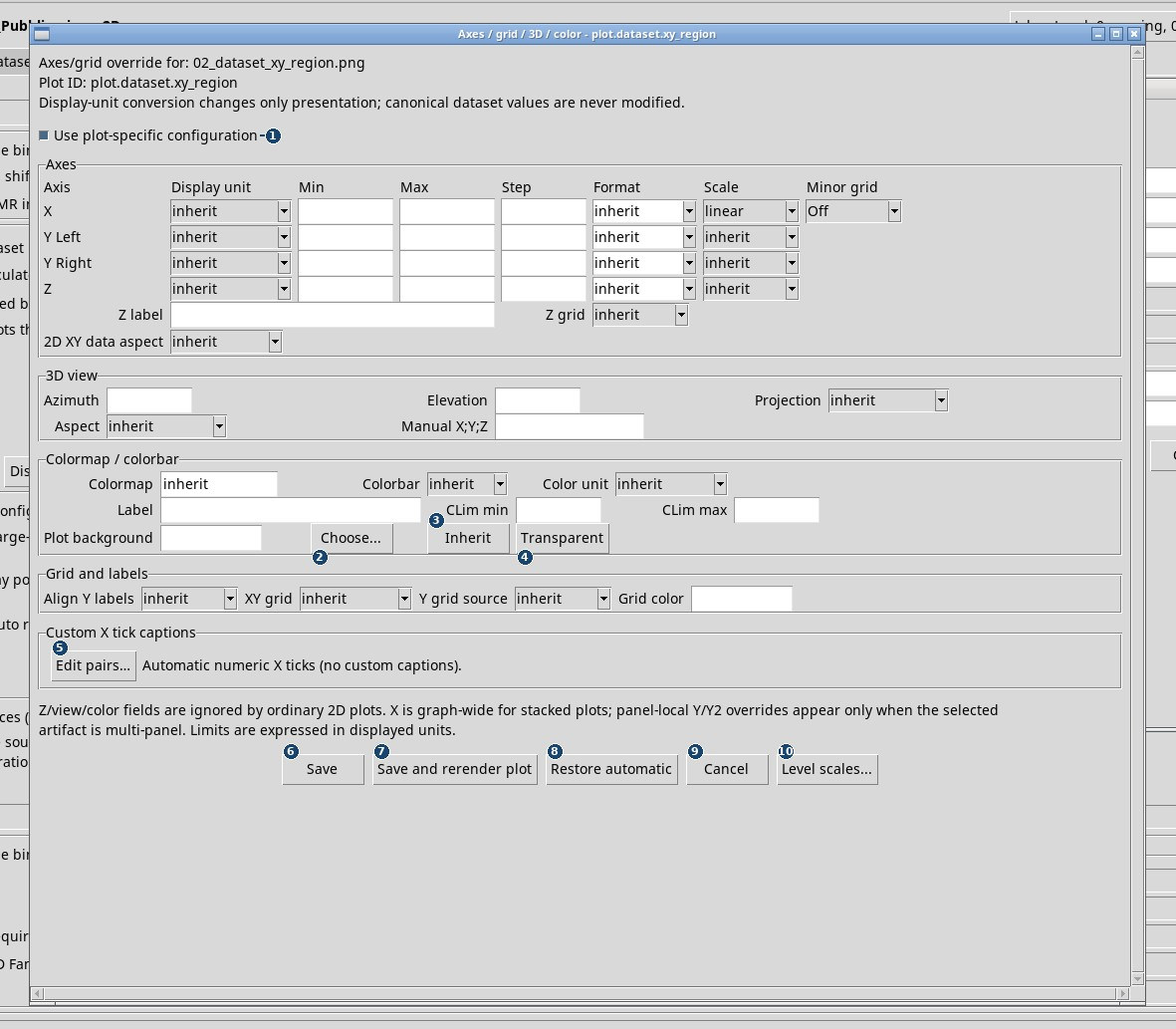
- No.
- 1
- Control
- Use plot-specific configuration
- Use and effect
- Enables the figure overrides. Leave individual fields on inherit if the general setting should apply. Procedure.
- No.
- 2
- Control
- Choose…
- Use and effect
- Opens the color picker for the field next to it, then uses the result in the draft. Procedure.
- No.
- 3
- Control
- Inherit
- Use and effect
- Removes the specific color and reuses the inherited value at render time. Procedure.
- No.
- 4
- Control
- Transparent
- Use and effect
- Uses a background with no fill in the formats and renderers that support it. Procedure.
- No.
- 5
- Control
- Edit pairs…
- Use and effect
- Opens the custom X positions and captions. Use two paired strings with positions in the display unit. Procedure.
- No.
- 6
- Control
- Save
- Use and effect
- Saves the draft choices. Use a later render to update the file. Procedure.
- No.
- 7
- Control
- Save and rerender plot
- Use and effect
- Saves and tries to regenerate the figure. The PNG must be updated to check the effect. Procedure.
- No.
- 8
- Control
- Restore automatic
- Use and effect
- Restores the automatic axis presentation. Use it to remove incompatible overrides. Procedure.
- No.
- 9
- Control
- Cancel
- Use and effect
- Closes the Axes draft, discarding unsaved changes. Procedure.
- No.
- 10
- Control
- Level scales…
- Use and effect
- Opens the level transformations. Select quantity, amplitude, reference and zero policy according to the signal. Procedure.
Graph Series for the XY base, start of the fields and series table.
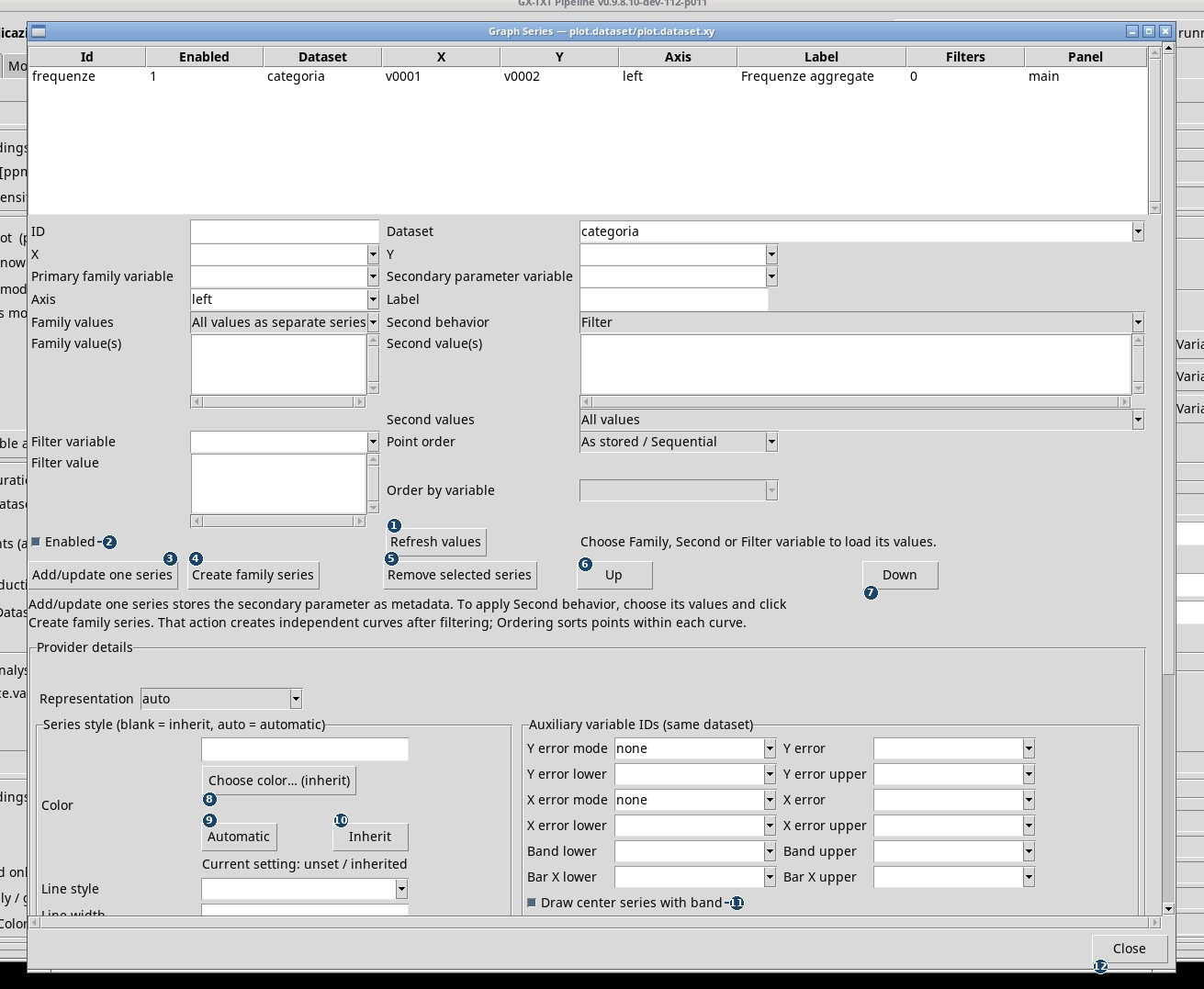
- No.
- 1
- Control
- Refresh values
- Use and effect
- Reloads the values for family, category and filter after choosing the columns. Procedure.
- No.
- 2
- Control
- Enabled
- Use and effect
- Marks the series as included. Save the new state with Add/update one series. Procedure.
- No.
- 3
- Control
- Add/update one series
- Use and effect
- Validates and registers the fields under the current ID. Use a new ID to add a row. Procedure.
- No.
- 4
- Control
- Create family series
- Use and effect
- Expands a family configuration into selected members and assigns derived IDs. Procedure.
- No.
- 5
- Control
- Remove selected series
- Use and effect
- Deletes the selected series; then update the plot to check the effect. Procedure.
- No.
- 6
- Control
- Up
- Use and effect
- Moves the selected row above the previous one. Procedure.
- No.
- 7
- Control
- Down
- Use and effect
- Moves the selected row below the next one. Procedure.
- No.
- 8
- Control
- Choose color… (inherit)
- Use and effect
- Opens the RGB picker from the Color property. The text in parentheses shows the current state. Procedure.
- No.
- 9
- Control
- Automatic
- Use and effect
- Accepts an automatic color choice for this trace or family. Procedure.
- No.
- 10
- Control
- Inherit
- Use and effect
- Clears the specific color choice and reuses the inherited style. Procedure.
- No.
- 11
- Control
- Draw center series with band
- Use and effect
- Shows the center trace together with the band when the representation uses a band. Procedure.
- No.
- 12
- Control
- Close
- Use and effect
- Closes Graph Series. First register any changes to the row with Add/update one series. Procedure.
Graph Series for the XY base, middle of the window with families, styles and auxiliary variables.
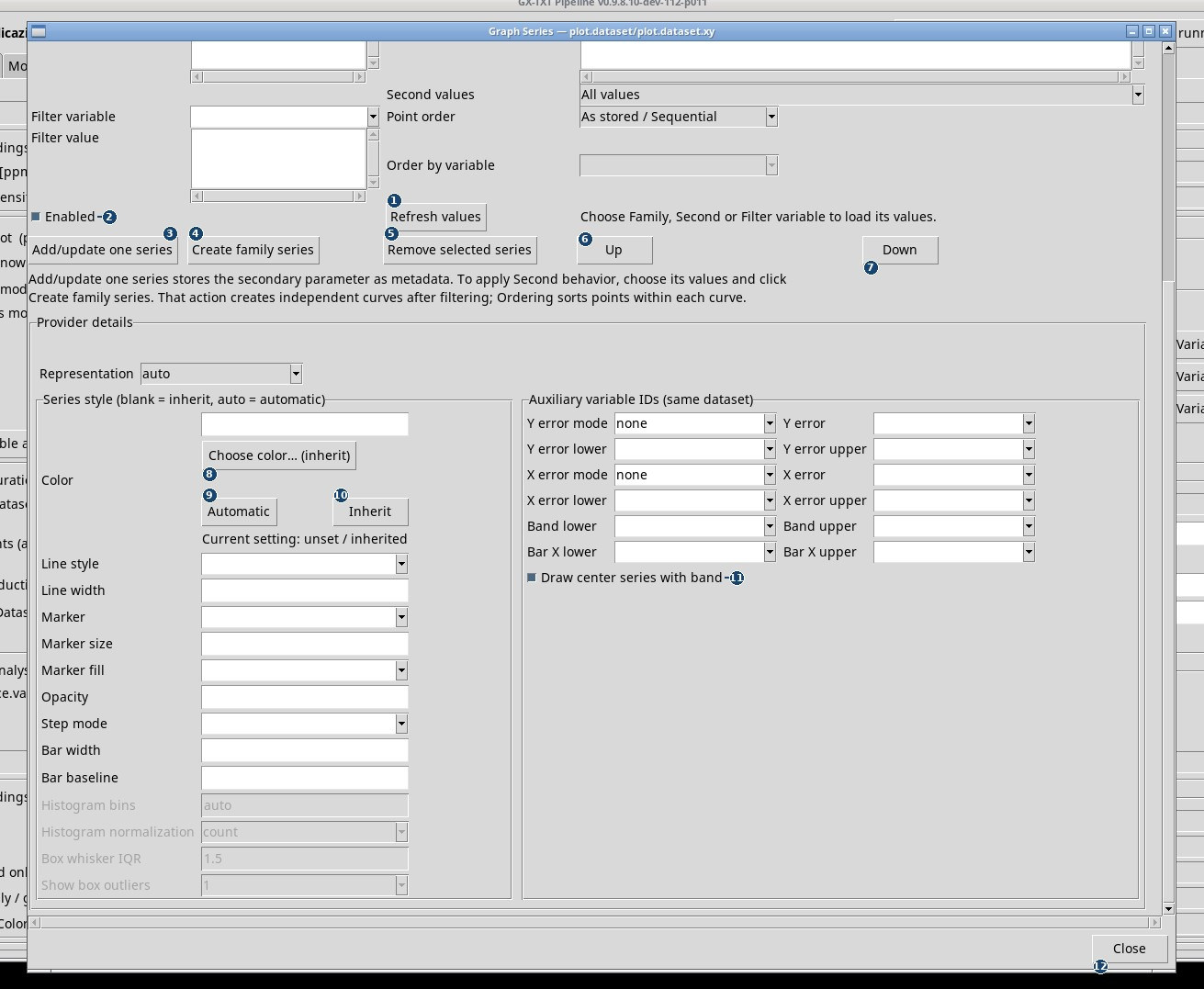
- No.
- 1
- Control
- Refresh values
- Use and effect
- Reloads the values for family, category and filter after choosing the columns. Procedure.
- No.
- 2
- Control
- Enabled
- Use and effect
- Marks the series as included. Save the new state with Add/update one series. Procedure.
- No.
- 3
- Control
- Add/update one series
- Use and effect
- Validates and registers the fields under the current ID. Use a new ID to add a row. Procedure.
- No.
- 4
- Control
- Create family series
- Use and effect
- Expands a family configuration into selected members and assigns derived IDs. Procedure.
- No.
- 5
- Control
- Remove selected series
- Use and effect
- Deletes the selected series; then update the plot to check the effect. Procedure.
- No.
- 6
- Control
- Up
- Use and effect
- Moves the selected row above the previous one. Procedure.
- No.
- 7
- Control
- Down
- Use and effect
- Moves the selected row below the next one. Procedure.
- No.
- 8
- Control
- Choose color… (inherit)
- Use and effect
- Opens the RGB picker from the Color property. The text in parentheses shows the current state. Procedure.
- No.
- 9
- Control
- Automatic
- Use and effect
- Accepts an automatic color choice for this trace or family. Procedure.
- No.
- 10
- Control
- Inherit
- Use and effect
- Clears the specific color choice and reuses the inherited style. Procedure.
- No.
- 11
- Control
- Draw center series with band
- Use and effect
- Shows the center trace together with the band when the representation uses a band. Procedure.
- No.
- 12
- Control
- Close
- Use and effect
- Closes Graph Series. First register any changes to the row with Add/update one series. Procedure.
Graph Series for the XY base, end of the window.
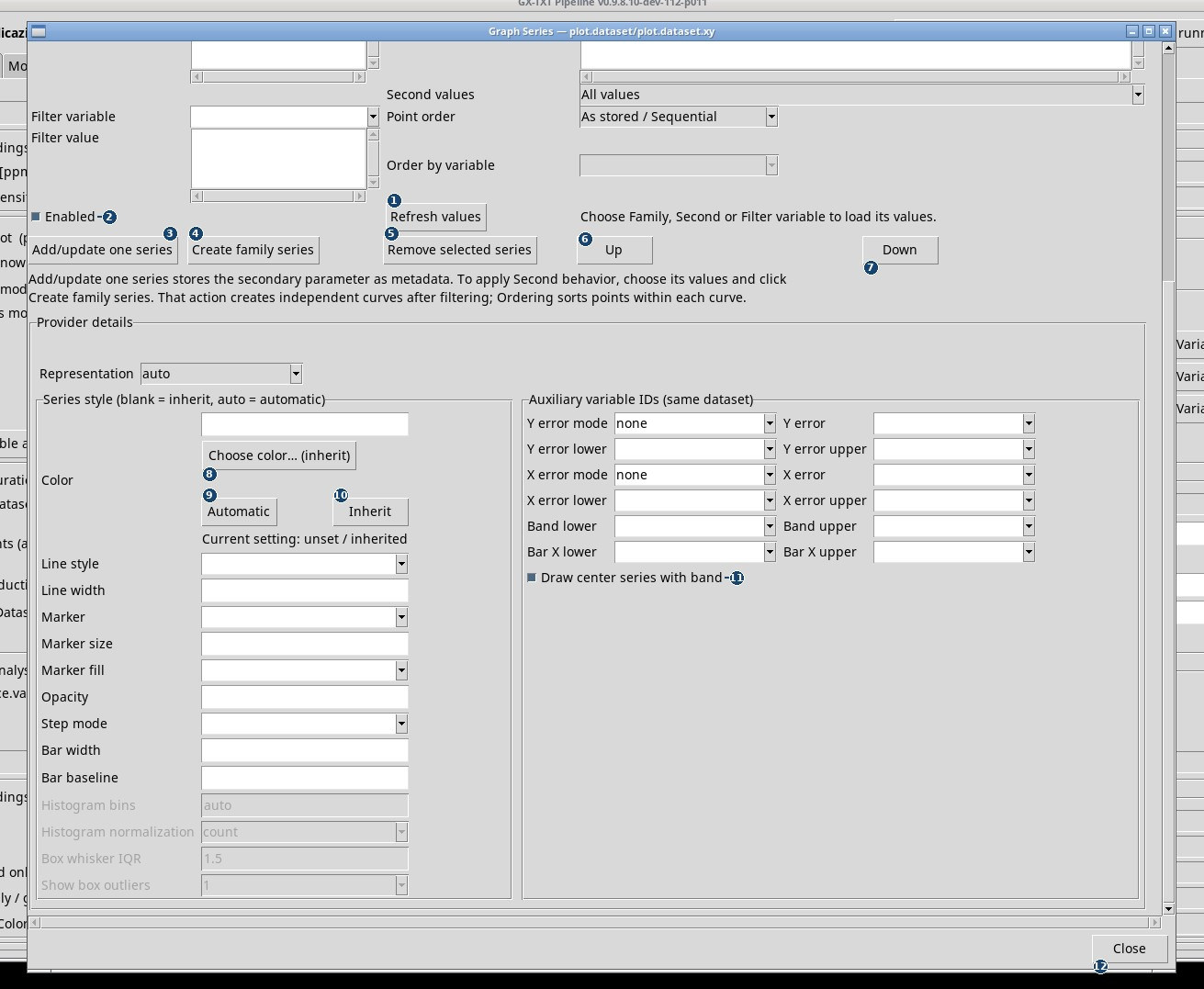
- No.
- 1
- Control
- Refresh values
- Use and effect
- Reloads the values for family, category and filter after choosing the columns. Procedure.
- No.
- 2
- Control
- Enabled
- Use and effect
- Marks the series as included. Save the new state with Add/update one series. Procedure.
- No.
- 3
- Control
- Add/update one series
- Use and effect
- Validates and registers the fields under the current ID. Use a new ID to add a row. Procedure.
- No.
- 4
- Control
- Create family series
- Use and effect
- Expands a family configuration into selected members and assigns derived IDs. Procedure.
- No.
- 5
- Control
- Remove selected series
- Use and effect
- Deletes the selected series; then update the plot to check the effect. Procedure.
- No.
- 6
- Control
- Up
- Use and effect
- Moves the selected row above the previous one. Procedure.
- No.
- 7
- Control
- Down
- Use and effect
- Moves the selected row below the next one. Procedure.
- No.
- 8
- Control
- Choose color… (inherit)
- Use and effect
- Opens the RGB picker from the Color property. The text in parentheses shows the current state. Procedure.
- No.
- 9
- Control
- Automatic
- Use and effect
- Accepts an automatic color choice for this trace or family. Procedure.
- No.
- 10
- Control
- Inherit
- Use and effect
- Clears the specific color choice and reuses the inherited style. Procedure.
- No.
- 11
- Control
- Draw center series with band
- Use and effect
- Shows the center trace together with the band when the representation uses a band. Procedure.
- No.
- 12
- Control
- Close
- Use and effect
- Closes Graph Series. First register any changes to the row with Add/update one series. Procedure.
Graph Series for the rectangle output, initial view.
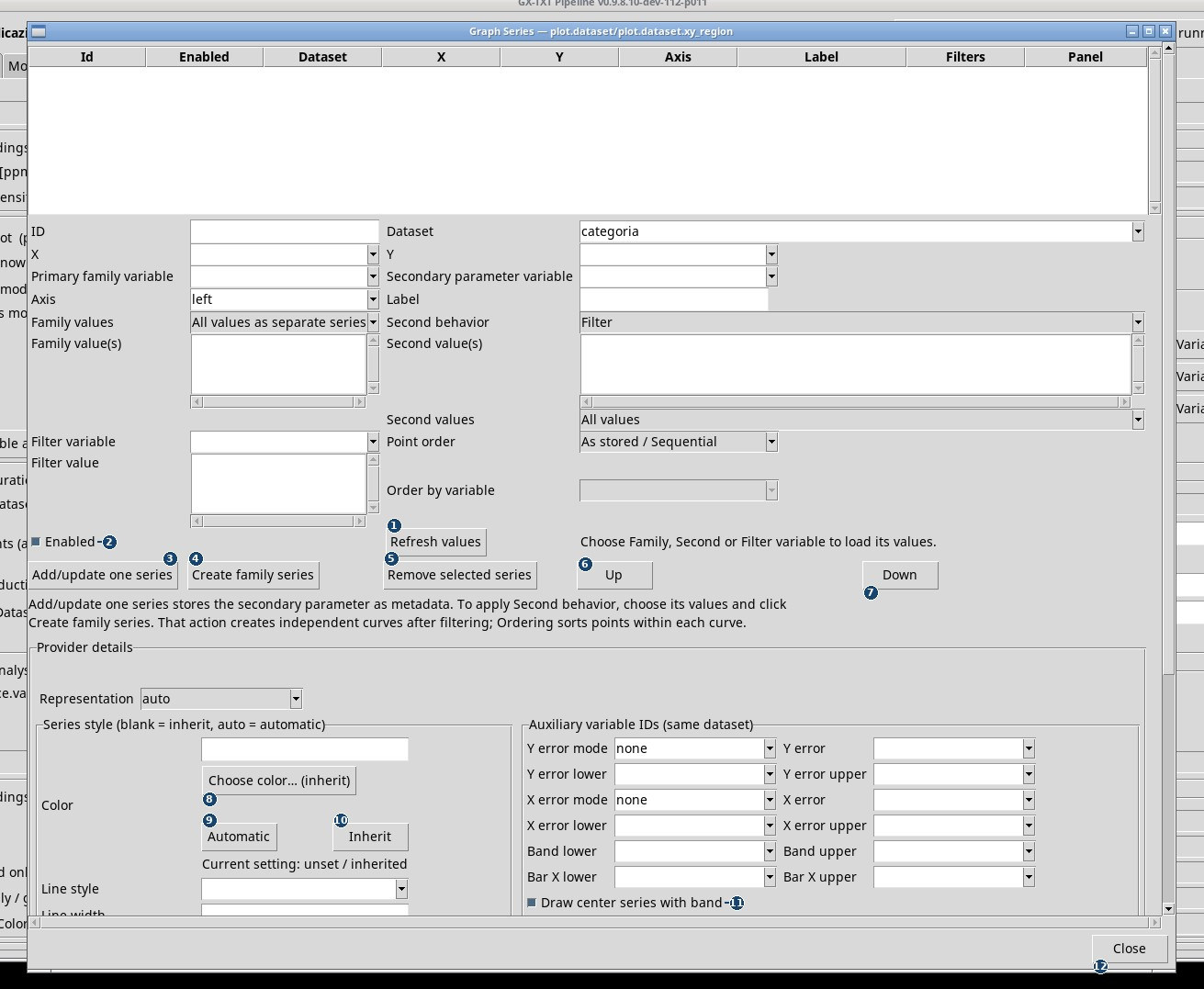
- No.
- 1
- Control
- Refresh values
- Use and effect
- Reloads the values for family, category and filter after choosing the columns. Procedure.
- No.
- 2
- Control
- Enabled
- Use and effect
- Marks the series as included. Save the new state with Add/update one series. Procedure.
- No.
- 3
- Control
- Add/update one series
- Use and effect
- Validates and registers the fields under the current ID. Use a new ID to add a row. Procedure.
- No.
- 4
- Control
- Create family series
- Use and effect
- Expands a family configuration into selected members and assigns derived IDs. Procedure.
- No.
- 5
- Control
- Remove selected series
- Use and effect
- Deletes the selected series; then update the plot to check the effect. Procedure.
- No.
- 6
- Control
- Up
- Use and effect
- Moves the selected row above the previous one. Procedure.
- No.
- 7
- Control
- Down
- Use and effect
- Moves the selected row below the next one. Procedure.
- No.
- 8
- Control
- Choose color… (inherit)
- Use and effect
- Opens the RGB picker from the Color property. The text in parentheses shows the current state. Procedure.
- No.
- 9
- Control
- Automatic
- Use and effect
- Accepts an automatic color choice for this trace or family. Procedure.
- No.
- 10
- Control
- Inherit
- Use and effect
- Clears the specific color choice and reuses the inherited style. Procedure.
- No.
- 11
- Control
- Draw center series with band
- Use and effect
- Shows the center trace together with the band when the representation uses a band. Procedure.
- No.
- 12
- Control
- Close
- Use and effect
- Closes Graph Series. First register any changes to the row with Add/update one series. Procedure.
Graph Series for the rectangle, middle fields.
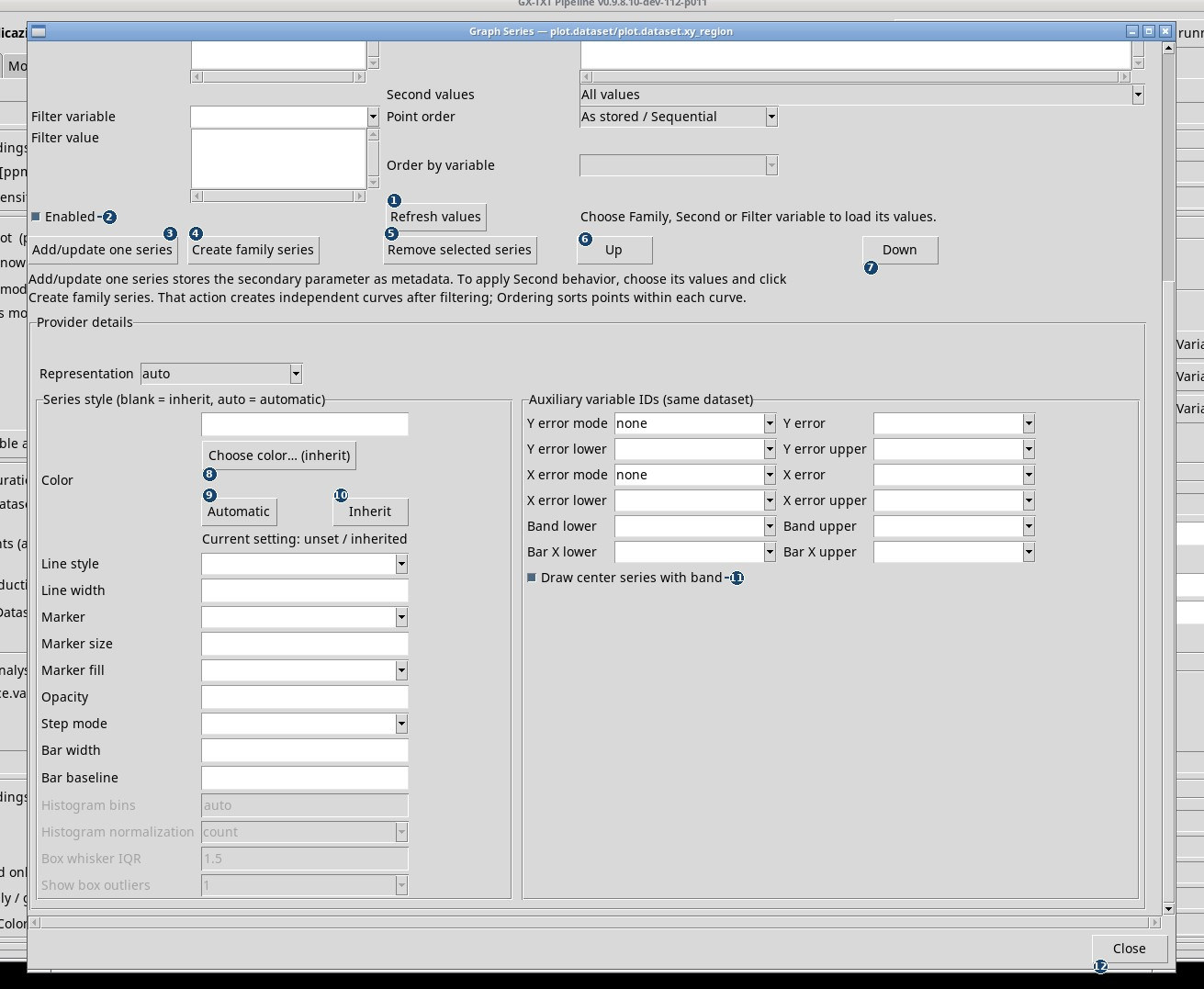
- No.
- 1
- Control
- Refresh values
- Use and effect
- Reloads the values for family, category and filter after choosing the columns. Procedure.
- No.
- 2
- Control
- Enabled
- Use and effect
- Marks the series as included. Save the new state with Add/update one series. Procedure.
- No.
- 3
- Control
- Add/update one series
- Use and effect
- Validates and registers the fields under the current ID. Use a new ID to add a row. Procedure.
- No.
- 4
- Control
- Create family series
- Use and effect
- Expands a family configuration into selected members and assigns derived IDs. Procedure.
- No.
- 5
- Control
- Remove selected series
- Use and effect
- Deletes the selected series; then update the plot to check the effect. Procedure.
- No.
- 6
- Control
- Up
- Use and effect
- Moves the selected row above the previous one. Procedure.
- No.
- 7
- Control
- Down
- Use and effect
- Moves the selected row below the next one. Procedure.
- No.
- 8
- Control
- Choose color… (inherit)
- Use and effect
- Opens the RGB picker from the Color property. The text in parentheses shows the current state. Procedure.
- No.
- 9
- Control
- Automatic
- Use and effect
- Accepts an automatic color choice for this trace or family. Procedure.
- No.
- 10
- Control
- Inherit
- Use and effect
- Clears the specific color choice and reuses the inherited style. Procedure.
- No.
- 11
- Control
- Draw center series with band
- Use and effect
- Shows the center trace together with the band when the representation uses a band. Procedure.
- No.
- 12
- Control
- Close
- Use and effect
- Closes Graph Series. First register any changes to the row with Add/update one series. Procedure.
Graph Series for the rectangle, representation field and auxiliary area.
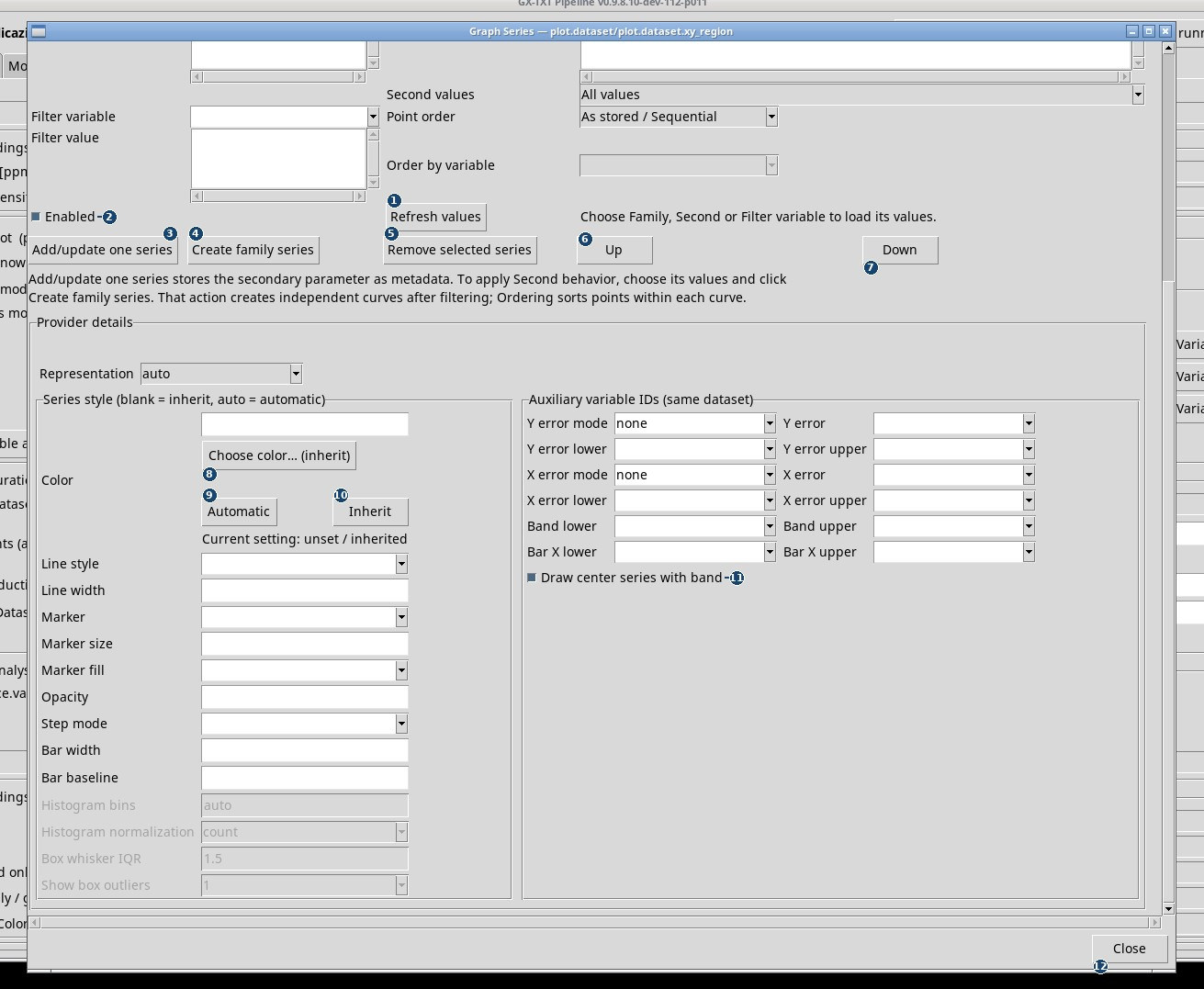
- No.
- 1
- Control
- Refresh values
- Use and effect
- Reloads the values for family, category and filter after choosing the columns. Procedure.
- No.
- 2
- Control
- Enabled
- Use and effect
- Marks the series as included. Save the new state with Add/update one series. Procedure.
- No.
- 3
- Control
- Add/update one series
- Use and effect
- Validates and registers the fields under the current ID. Use a new ID to add a row. Procedure.
- No.
- 4
- Control
- Create family series
- Use and effect
- Expands a family configuration into selected members and assigns derived IDs. Procedure.
- No.
- 5
- Control
- Remove selected series
- Use and effect
- Deletes the selected series; then update the plot to check the effect. Procedure.
- No.
- 6
- Control
- Up
- Use and effect
- Moves the selected row above the previous one. Procedure.
- No.
- 7
- Control
- Down
- Use and effect
- Moves the selected row below the next one. Procedure.
- No.
- 8
- Control
- Choose color… (inherit)
- Use and effect
- Opens the RGB picker from the Color property. The text in parentheses shows the current state. Procedure.
- No.
- 9
- Control
- Automatic
- Use and effect
- Accepts an automatic color choice for this trace or family. Procedure.
- No.
- 10
- Control
- Inherit
- Use and effect
- Clears the specific color choice and reuses the inherited style. Procedure.
- No.
- 11
- Control
- Draw center series with band
- Use and effect
- Shows the center trace together with the band when the representation uses a band. Procedure.
- No.
- 12
- Control
- Close
- Use and effect
- Closes Graph Series. First register any changes to the row with Add/update one series. Procedure.
Variant management for Scientific dataset 2D.
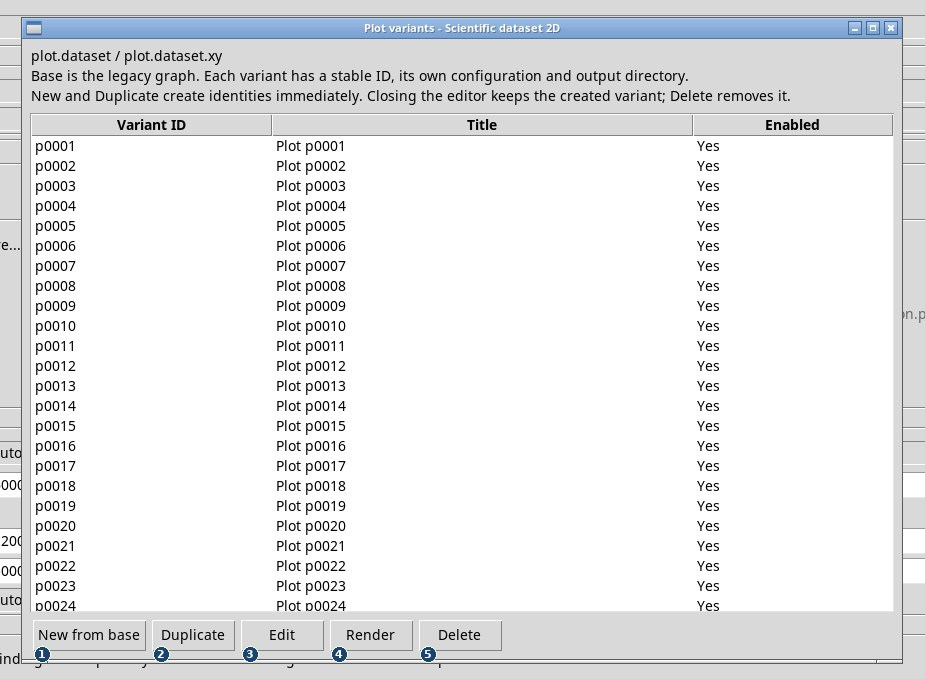
- No.
- 1
- Control
- New from base
- Use and effect
- Creates a new identity from the base and opens the editor. Procedure.
- No.
- 2
- Control
- Duplicate
- Use and effect
- Creates a new identity from the chosen variant. Procedure.
- No.
- 3
- Control
- Edit
- Use and effect
- Opens the configuration of the selected variant. Procedure.
- No.
- 4
- Control
- Render
- Use and effect
- Regenerates the selected variant with the registered configuration. Procedure.
- No.
- 5
- Control
- Delete
- Use and effect
- Removes a selected variant after confirmation. The base has its own Use control. Procedure.
Variant management for the rectangle output.
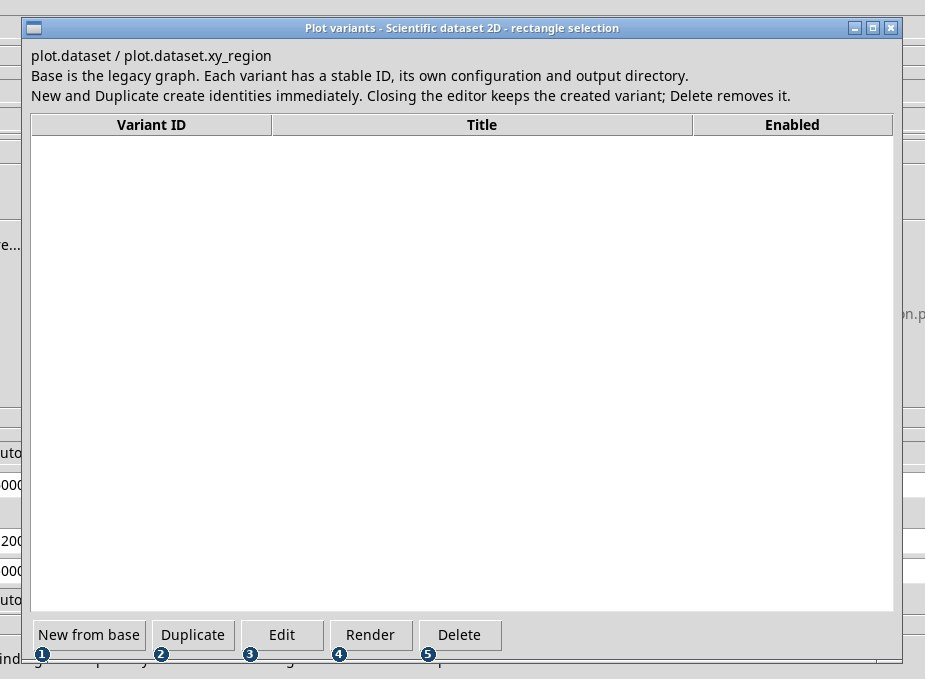
- No.
- 1
- Control
- New from base
- Use and effect
- Creates a new identity from the base and opens the editor. Procedure.
- No.
- 2
- Control
- Duplicate
- Use and effect
- Creates a new identity from the chosen variant. Procedure.
- No.
- 3
- Control
- Edit
- Use and effect
- Opens the configuration of the selected variant. Procedure.
- No.
- 4
- Control
- Render
- Use and effect
- Regenerates the selected variant with the registered configuration. Procedure.
- No.
- 5
- Control
- Delete
- Use and effect
- Removes a selected variant after confirmation. The base has its own Use control. Procedure.
Module graphics, first part of the module graphics overrides.
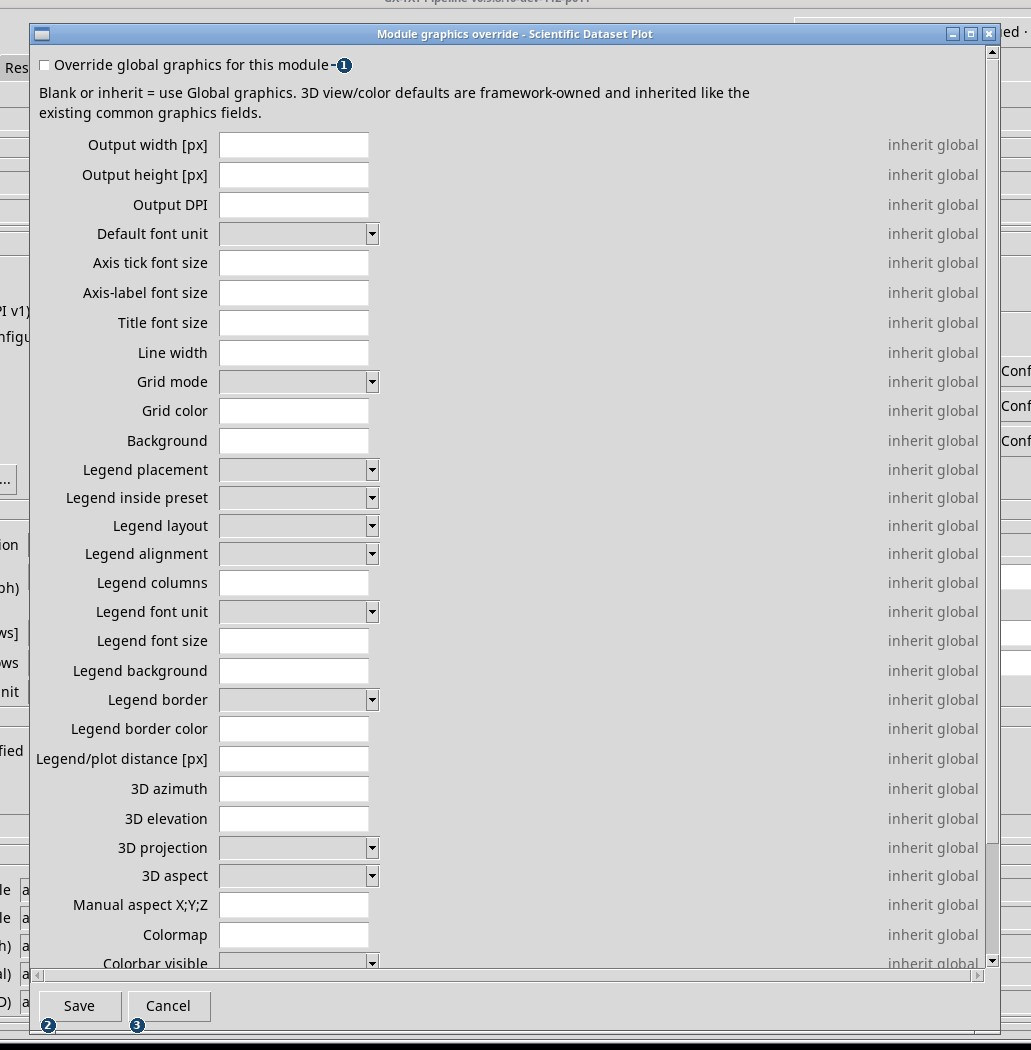
- No.
- 1
- Control
- Override global graphics for this module
- Use and effect
- Enables the module-specific values for the relevant renders. When disabled, the global values remain in effect. Procedure.
- No.
- 2
- Control
- Save
- Use and effect
- Validates and registers the module settings. The PNG is updated with a new render. Procedure.
- No.
- 3
- Control
- Cancel
- Use and effect
- Closes the window and discards the draft changes. Procedure.
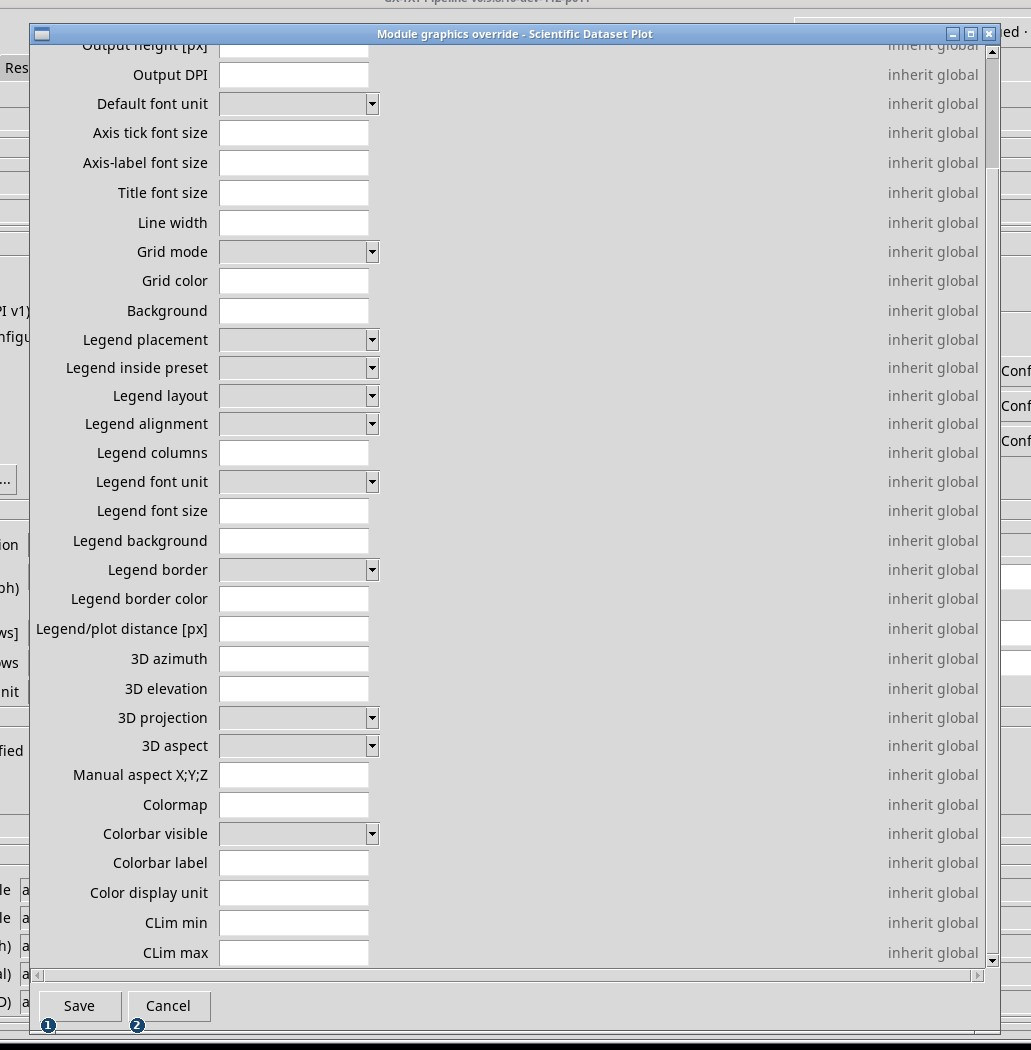
Module graphics, middle options and scrolling.
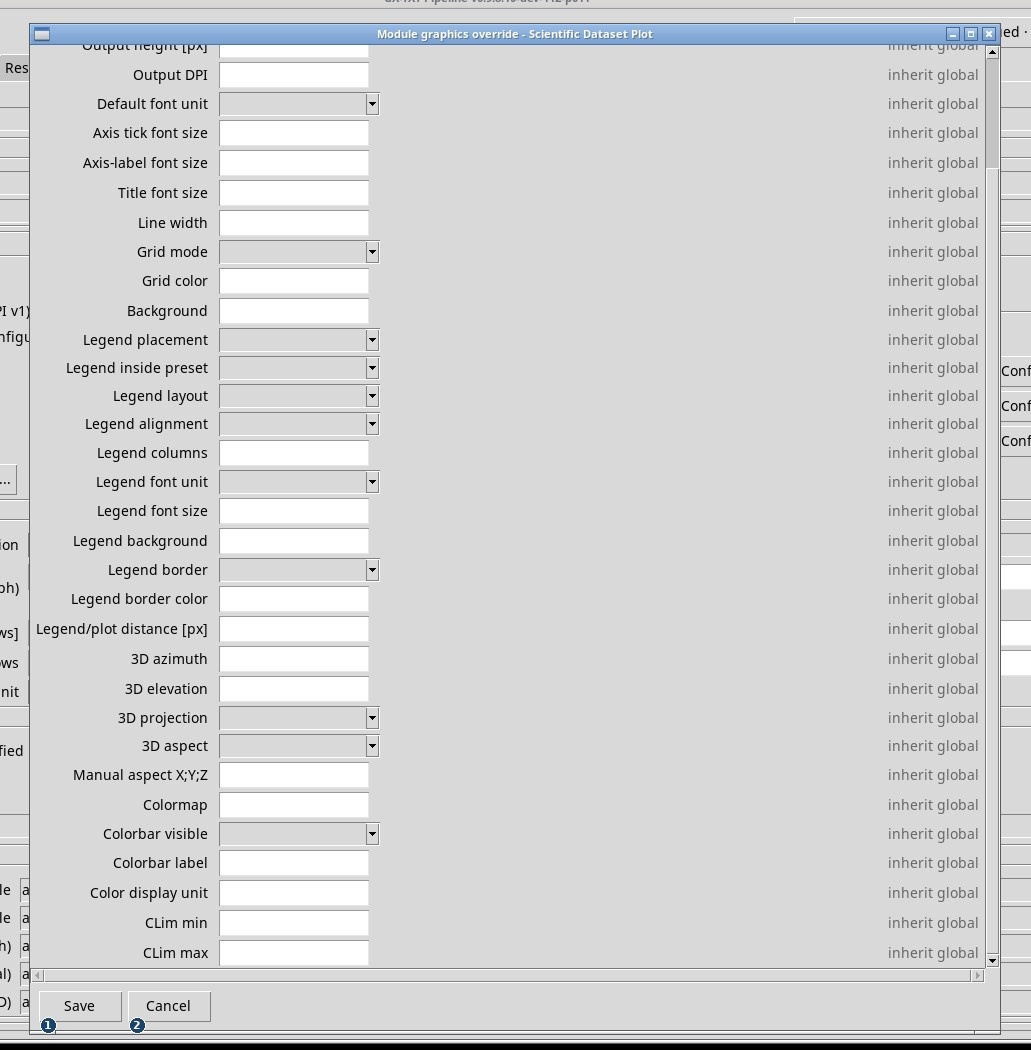
Module graphics, end of the controls.
X pairs editor opened from Axes on the frequency plot.
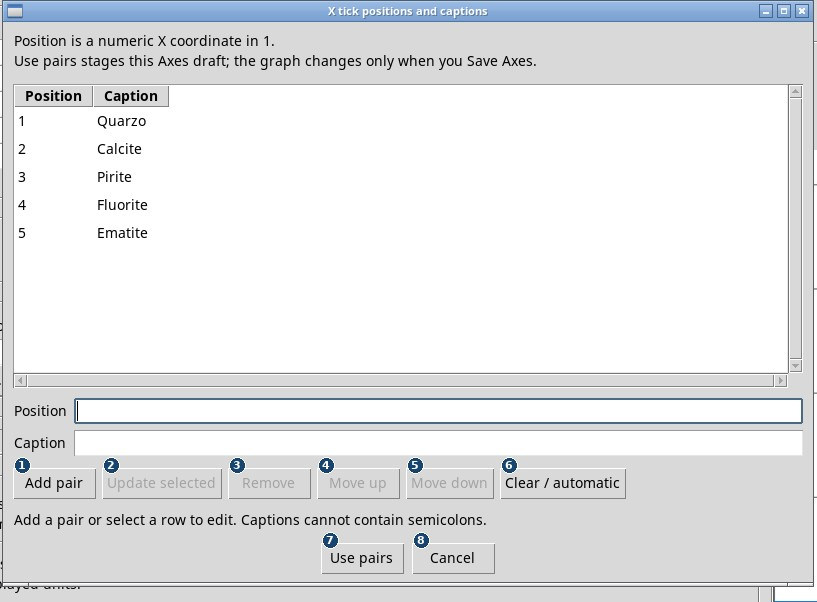
- No.
- 1
- Control
- Add pair
- Use and effect
- Adds Position and Caption after checking finiteness, uniqueness and text. Procedure.
- No.
- 2
- Control
- Update selected
- Use and effect
- Replaces the selected pair with the entered fields. Procedure.
- No.
- 3
- Control
- Remove
- Use and effect
- Deletes the selected pair from the draft. Procedure.
- No.
- 4
- Control
- Move up
- Use and effect
- Moves the selected pair toward the top of the table. Procedure.
- No.
- 5
- Control
- Move down
- Use and effect
- Moves the selected pair toward the end. Procedure.
- No.
- 6
- Control
- Clear / automatic
- Use and effect
- Clears the draft and prepares the return to automatic ticks. Procedure.
- No.
- 7
- Control
- Use pairs
- Use and effect
- Applies the table to the Axes draft. To keep it, use Save or Save and rerender plot in the parent window. Procedure.
- No.
- 8
- Control
- Cancel
- Use and effect
- Returns to the parent window without using the edited table. Procedure.
XY variant editor, Plot tab.
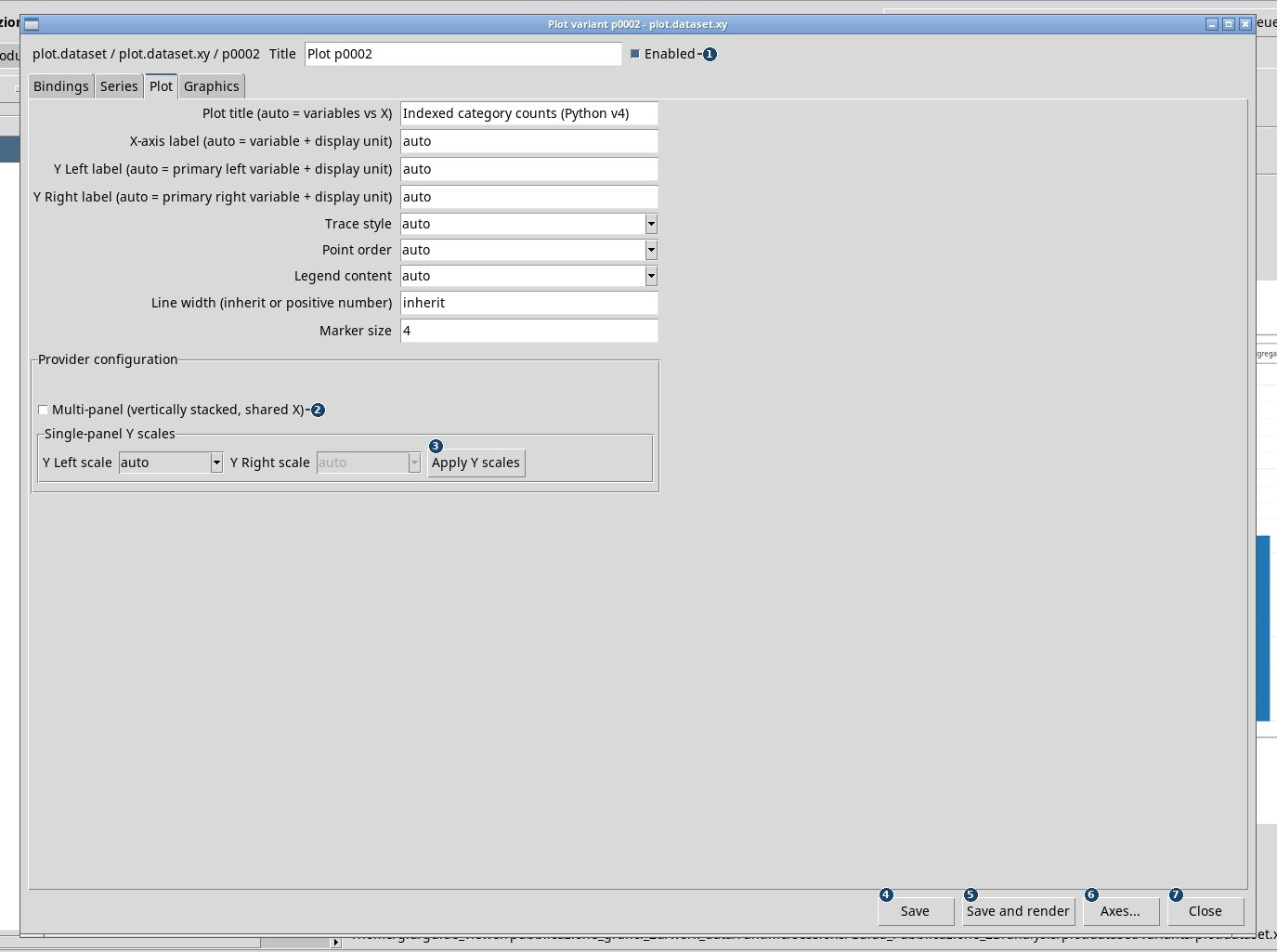
- No.
- 1
- Control
- Enabled
- Use and effect
- Registers the variant state in the editor. Do not confuse it with the Enabled checkbox of an individual series. Procedure.
- No.
- 2
- Control
- Multi-panel (vertically stacked, shared X)
- Use and effect
- Turns stacked panels on or off. Single mode is the default; the checkbox is available for the XY base. Procedure.
- No.
- 3
- Control
- Apply Y scales
- Use and effect
- Applies the scale choices for the Y sides. The right selector becomes available when there are right-axis series. Procedure.
- No.
- 4
- Control
- Save
- Use and effect
- Registers the variant settings and title. The PNG requires a new render. Procedure.
- No.
- 5
- Control
- Save and render
- Use and effect
- Registers the settings and starts rendering the plot. Check the new file from this variant’s row. Procedure.
- No.
- 6
- Control
- Axes…
- Use and effect
- Opens the variant’s axes editor using the same configuration owner. Check ID and title before saving. Procedure.
- No.
- 7
- Control
- Close
- Use and effect
- Closes the editor. If you have just created the variant, its identity remains available in the Variants window. Procedure.
XY variant editor, Bindings tab.
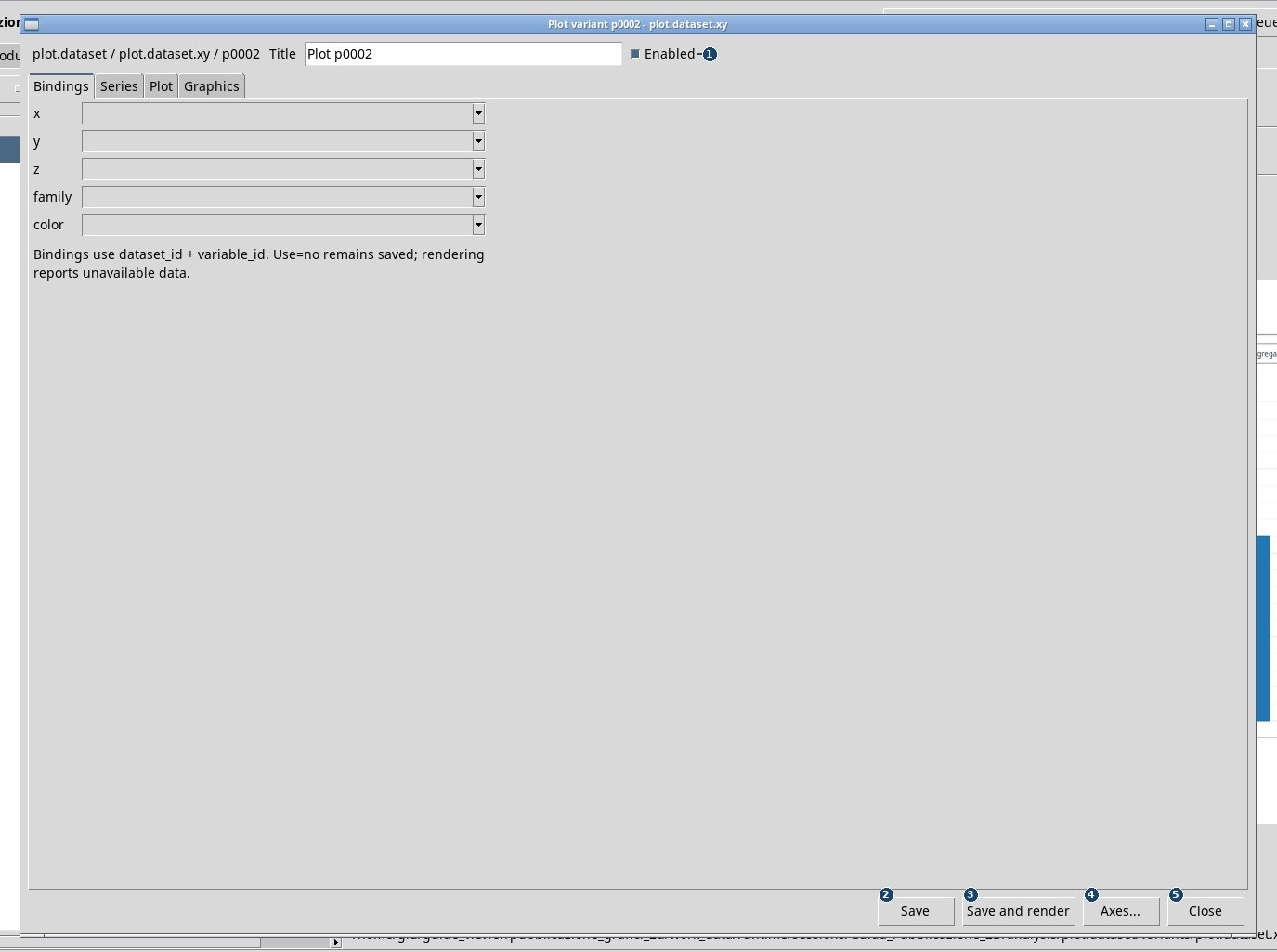
- No.
- 1
- Control
- Enabled
- Use and effect
- Registers the variant state in the editor. Do not confuse it with the Enabled checkbox of an individual series. Procedure.
- No.
- 2
- Control
- Save
- Use and effect
- Registers the variant settings and title. The PNG requires a new render. Procedure.
- No.
- 3
- Control
- Save and render
- Use and effect
- Registers the settings and starts rendering the plot. Check the new file from this variant’s row. Procedure.
- No.
- 4
- Control
- Axes…
- Use and effect
- Opens the variant’s axes editor using the same configuration owner. Check ID and title before saving. Procedure.
- No.
- 5
- Control
- Close
- Use and effect
- Closes the editor. If you have just created the variant, its identity remains available in the Variants window. Procedure.
XY variant editor, Series tab.
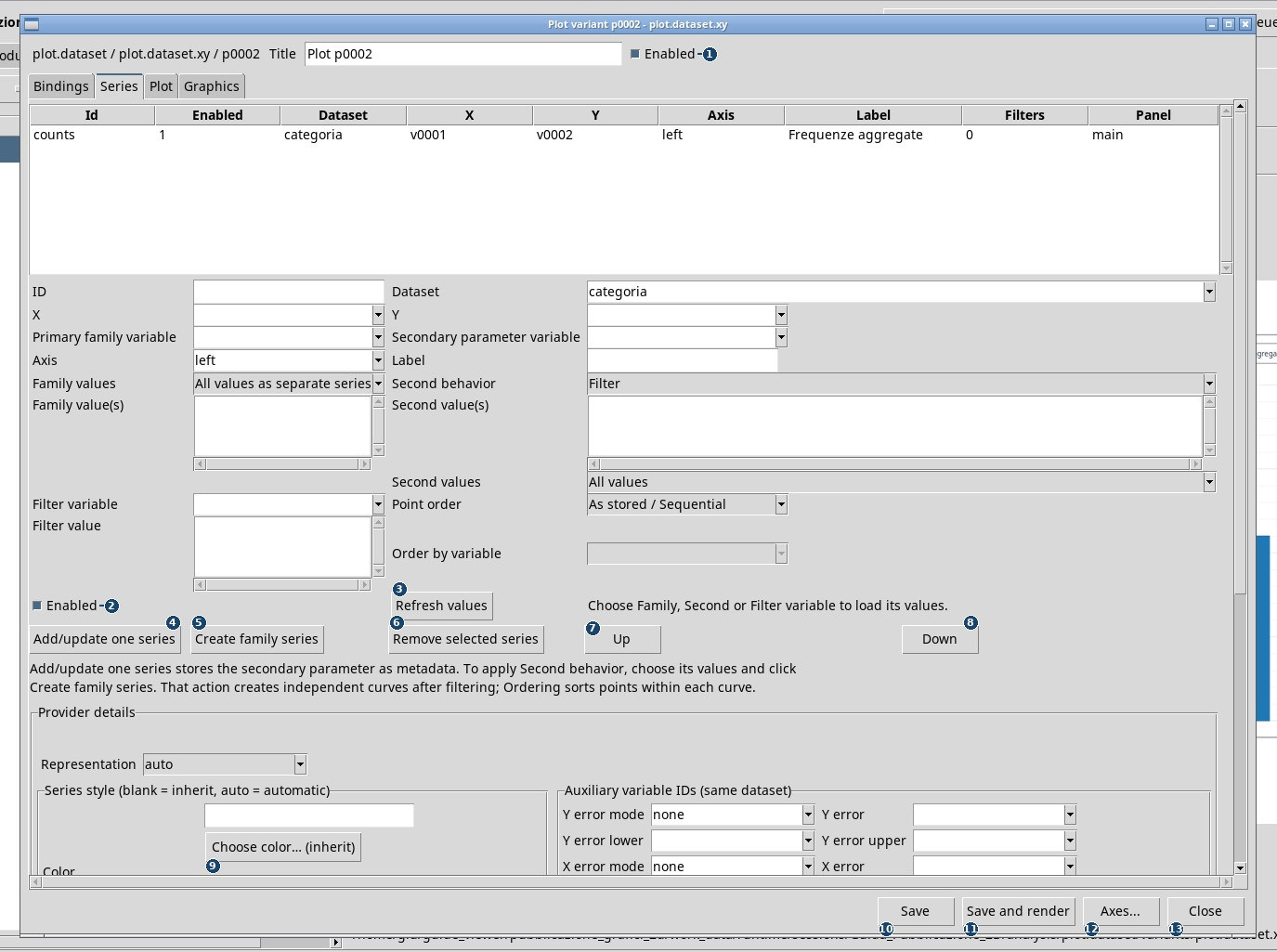
- No.
- 1
- Control
- Enabled
- Use and effect
- Registers the variant state in the editor. Do not confuse it with the Enabled checkbox of an individual series. Procedure.
- No.
- 2
- Control
- Enabled
- Use and effect
- Marks the series as included. Save the new state with Add/update one series. Procedure.
- No.
- 3
- Control
- Refresh values
- Use and effect
- Reloads the values for family, category and filter after choosing the columns. Procedure.
- No.
- 4
- Control
- Add/update one series
- Use and effect
- Validates and registers the fields under the current ID. Use a new ID to add a row. Procedure.
- No.
- 5
- Control
- Create family series
- Use and effect
- Expands a family configuration into selected members and assigns derived IDs. Procedure.
- No.
- 6
- Control
- Remove selected series
- Use and effect
- Deletes the selected series; then update the plot to check the effect. Procedure.
- No.
- 7
- Control
- Up
- Use and effect
- Moves the selected row above the previous one. Procedure.
- No.
- 8
- Control
- Down
- Use and effect
- Moves the selected row below the next one. Procedure.
- No.
- 9
- Control
- Choose color… (inherit)
- Use and effect
- Opens the RGB picker from the Color property. The text in parentheses shows the current state. Procedure.
- No.
- 10
- Control
- Save
- Use and effect
- Registers the variant settings and title. The PNG requires a new render. Procedure.
- No.
- 11
- Control
- Save and render
- Use and effect
- Registers the settings and starts rendering the plot. Check the new file from this variant’s row. Procedure.
- No.
- 12
- Control
- Axes…
- Use and effect
- Opens the variant’s axes editor using the same configuration owner. Check ID and title before saving. Procedure.
- No.
- 13
- Control
- Close
- Use and effect
- Closes the editor. If you have just created the variant, its identity remains available in the Variants window. Procedure.
XY variant editor, Graphics tab.
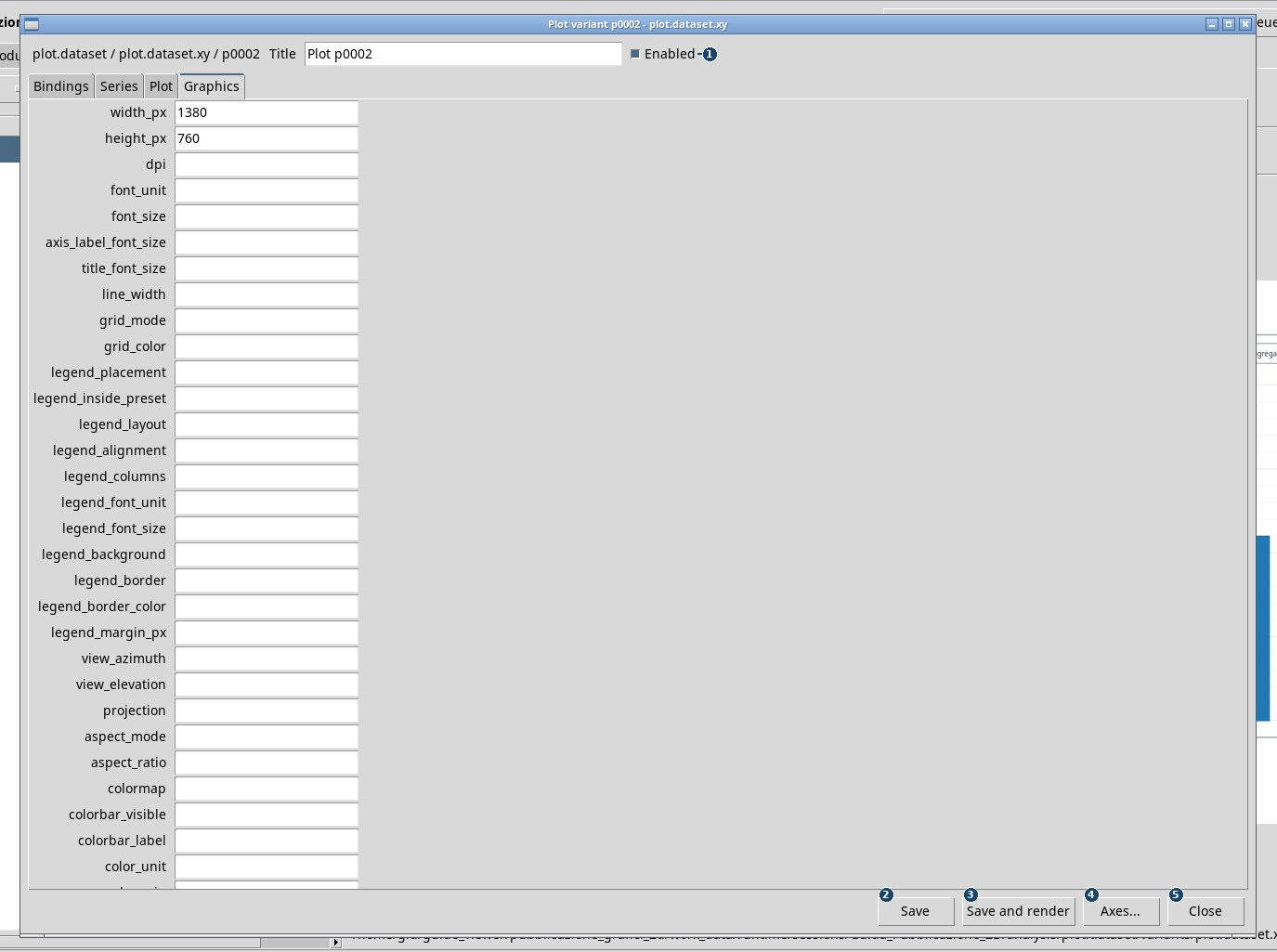
- No.
- 1
- Control
- Enabled
- Use and effect
- Registers the variant state in the editor. Do not confuse it with the Enabled checkbox of an individual series. Procedure.
- No.
- 2
- Control
- Save
- Use and effect
- Registers the variant settings and title. The PNG requires a new render. Procedure.
- No.
- 3
- Control
- Save and render
- Use and effect
- Registers the settings and starts rendering the plot. Check the new file from this variant’s row. Procedure.
- No.
- 4
- Control
- Axes…
- Use and effect
- Opens the variant’s axes editor using the same configuration owner. Check ID and title before saving. Procedure.
- No.
- 5
- Control
- Close
- Use and effect
- Closes the editor. If you have just created the variant, its identity remains available in the Variants window. Procedure.
XY variant editor, end of the Series tab.
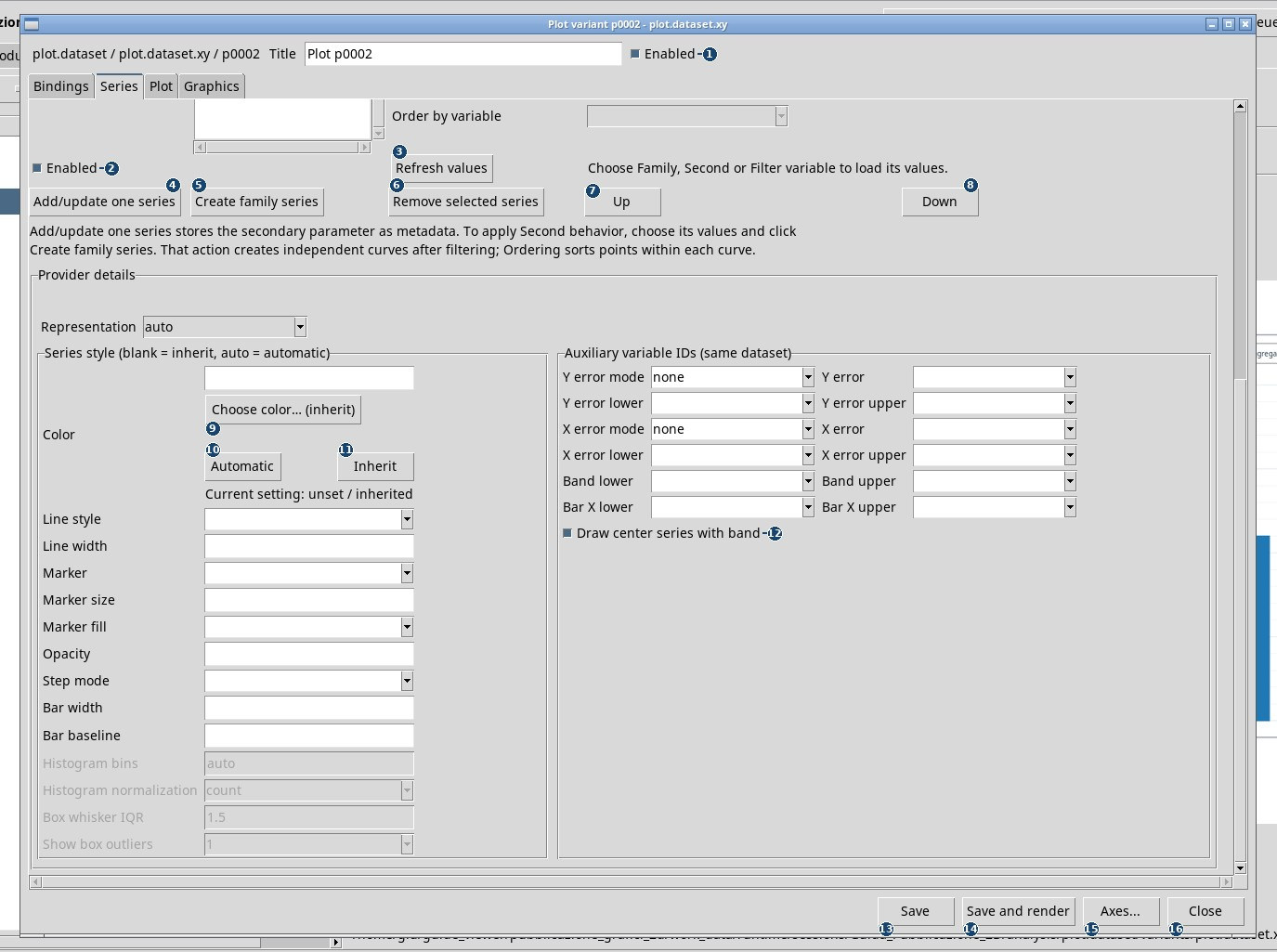
- No.
- 1
- Control
- Enabled
- Use and effect
- Registers the variant state in the editor. Do not confuse it with the Enabled checkbox of an individual series. Procedure.
- No.
- 2
- Control
- Enabled
- Use and effect
- Marks the series as included. Save the new state with Add/update one series. Procedure.
- No.
- 3
- Control
- Refresh values
- Use and effect
- Reloads the values for family, category and filter after choosing the columns. Procedure.
- No.
- 4
- Control
- Add/update one series
- Use and effect
- Validates and registers the fields under the current ID. Use a new ID to add a row. Procedure.
- No.
- 5
- Control
- Create family series
- Use and effect
- Expands a family configuration into selected members and assigns derived IDs. Procedure.
- No.
- 6
- Control
- Remove selected series
- Use and effect
- Deletes the selected series; then update the plot to check the effect. Procedure.
- No.
- 7
- Control
- Up
- Use and effect
- Moves the selected row above the previous one. Procedure.
- No.
- 8
- Control
- Down
- Use and effect
- Moves the selected row below the next one. Procedure.
- No.
- 9
- Control
- Choose color… (inherit)
- Use and effect
- Opens the RGB picker from the Color property. The text in parentheses shows the current state. Procedure.
- No.
- 10
- Control
- Automatic
- Use and effect
- Accepts an automatic color choice for this trace or family. Procedure.
- No.
- 11
- Control
- Inherit
- Use and effect
- Clears the specific color choice and reuses the inherited style. Procedure.
- No.
- 12
- Control
- Draw center series with band
- Use and effect
- Shows the center trace together with the band when the representation uses a band. Procedure.
- No.
- 13
- Control
- Save
- Use and effect
- Registers the variant settings and title. The PNG requires a new render. Procedure.
- No.
- 14
- Control
- Save and render
- Use and effect
- Registers the settings and starts rendering the plot. Check the new file from this variant’s row. Procedure.
- No.
- 15
- Control
- Axes…
- Use and effect
- Opens the variant’s axes editor using the same configuration owner. Check ID and title before saving. Procedure.
- No.
- 16
- Control
- Close
- Use and effect
- Closes the editor. If you have just created the variant, its identity remains available in the Variants window. Procedure.
Variant-specific Axes for the XY variant, opened from its editor.
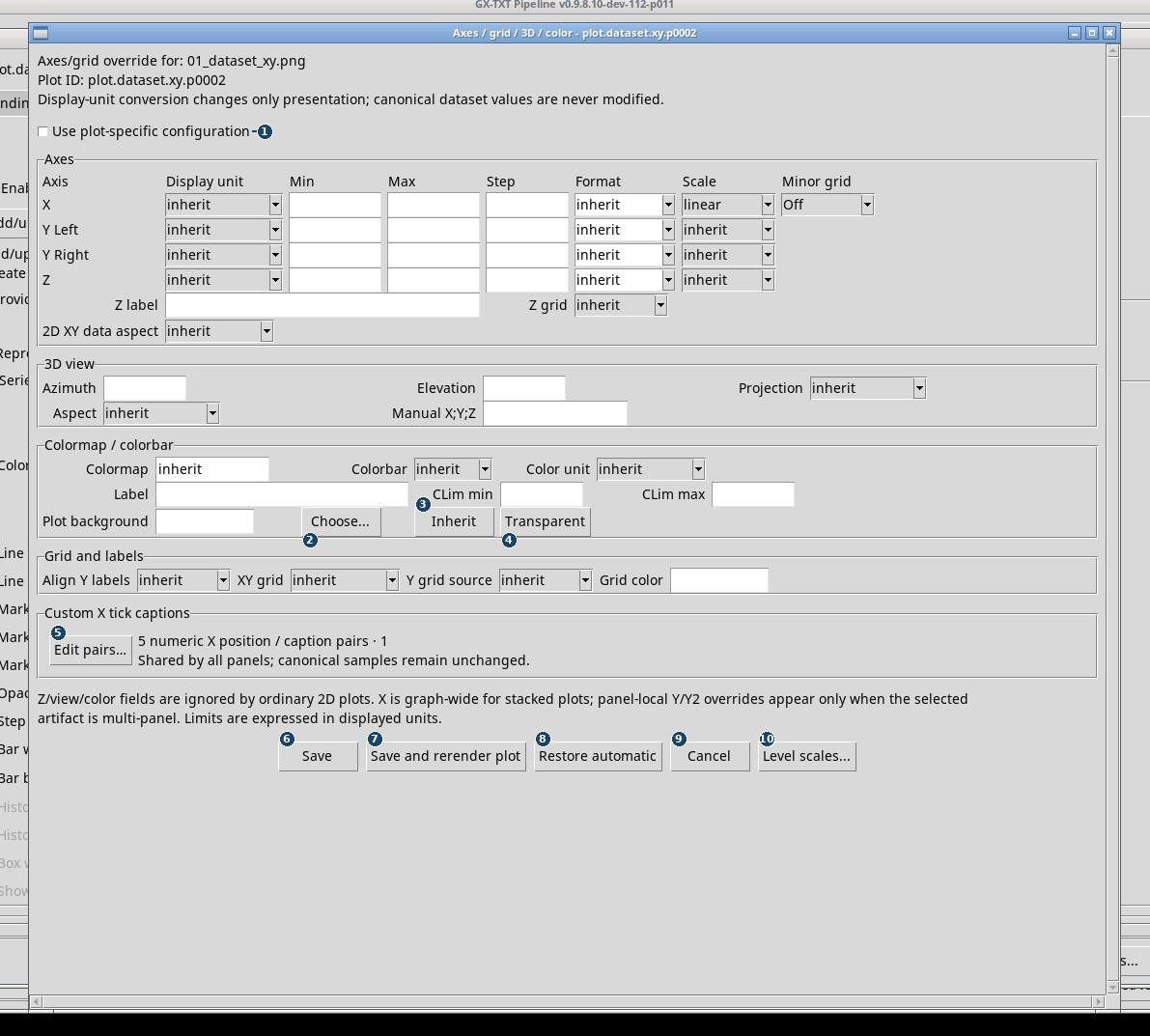
- No.
- 1
- Control
- Use plot-specific configuration
- Use and effect
- Enables the figure overrides. Leave individual fields on inherit if the general setting should apply. Procedure.
- No.
- 2
- Control
- Choose…
- Use and effect
- Opens the color picker for the field next to it, then uses the result in the draft. Procedure.
- No.
- 3
- Control
- Inherit
- Use and effect
- Removes the specific color and reuses the inherited value at render time. Procedure.
- No.
- 4
- Control
- Transparent
- Use and effect
- Uses a background with no fill in the formats and renderers that support it. Procedure.
- No.
- 5
- Control
- Edit pairs…
- Use and effect
- Opens the custom X positions and captions. Use two paired strings with positions in the display unit. Procedure.
- No.
- 6
- Control
- Save
- Use and effect
- Saves the draft choices. Use a later render to update the file. Procedure.
- No.
- 7
- Control
- Save and rerender plot
- Use and effect
- Saves and tries to regenerate the figure. The PNG must be updated to check the effect. Procedure.
- No.
- 8
- Control
- Restore automatic
- Use and effect
- Restores the automatic axis presentation. Use it to remove incompatible overrides. Procedure.
- No.
- 9
- Control
- Cancel
- Use and effect
- Closes the Axes draft, discarding unsaved changes. Procedure.
- No.
- 10
- Control
- Level scales…
- Use and effect
- Opens the level transformations. Select quantity, amplitude, reference and zero policy according to the signal. Procedure.
Rectangle variant editor, Plot tab.
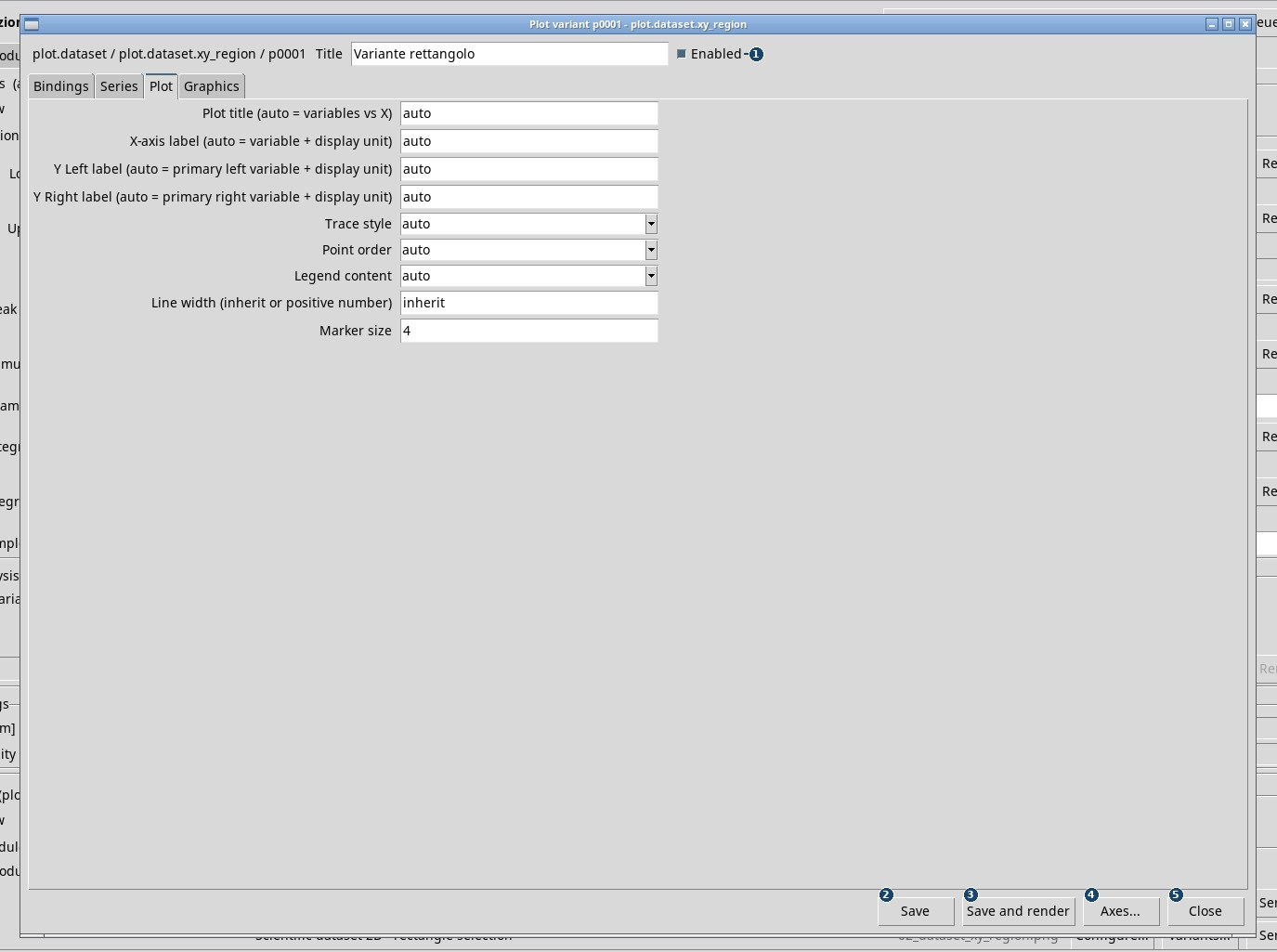
- No.
- 1
- Control
- Enabled
- Use and effect
- Registers the variant state in the editor. Do not confuse it with the Enabled checkbox of an individual series. Procedure.
- No.
- 2
- Control
- Save
- Use and effect
- Registers the variant settings and title. The PNG requires a new render. Procedure.
- No.
- 3
- Control
- Save and render
- Use and effect
- Registers the settings and starts rendering the plot. Check the new file from this variant’s row. Procedure.
- No.
- 4
- Control
- Axes…
- Use and effect
- Opens the variant’s axes editor using the same configuration owner. Check ID and title before saving. Procedure.
- No.
- 5
- Control
- Close
- Use and effect
- Closes the editor. If you have just created the variant, its identity remains available in the Variants window. Procedure.
Rectangle variant editor, Bindings tab.
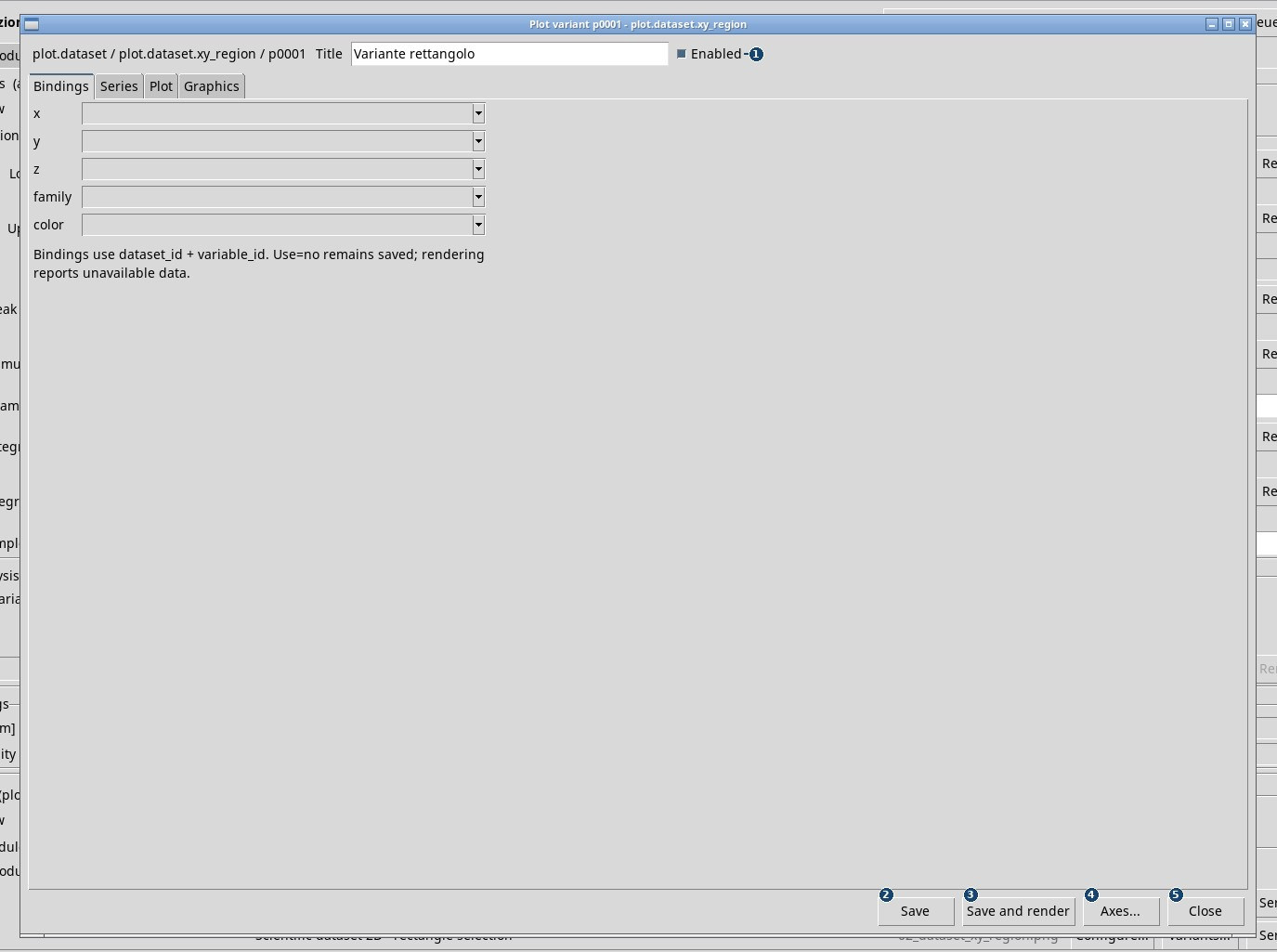
- No.
- 1
- Control
- Enabled
- Use and effect
- Registers the variant state in the editor. Do not confuse it with the Enabled checkbox of an individual series. Procedure.
- No.
- 2
- Control
- Save
- Use and effect
- Registers the variant settings and title. The PNG requires a new render. Procedure.
- No.
- 3
- Control
- Save and render
- Use and effect
- Registers the settings and starts rendering the plot. Check the new file from this variant’s row. Procedure.
- No.
- 4
- Control
- Axes…
- Use and effect
- Opens the variant’s axes editor using the same configuration owner. Check ID and title before saving. Procedure.
- No.
- 5
- Control
- Close
- Use and effect
- Closes the editor. If you have just created the variant, its identity remains available in the Variants window. Procedure.
Rectangle variant editor, Series tab.
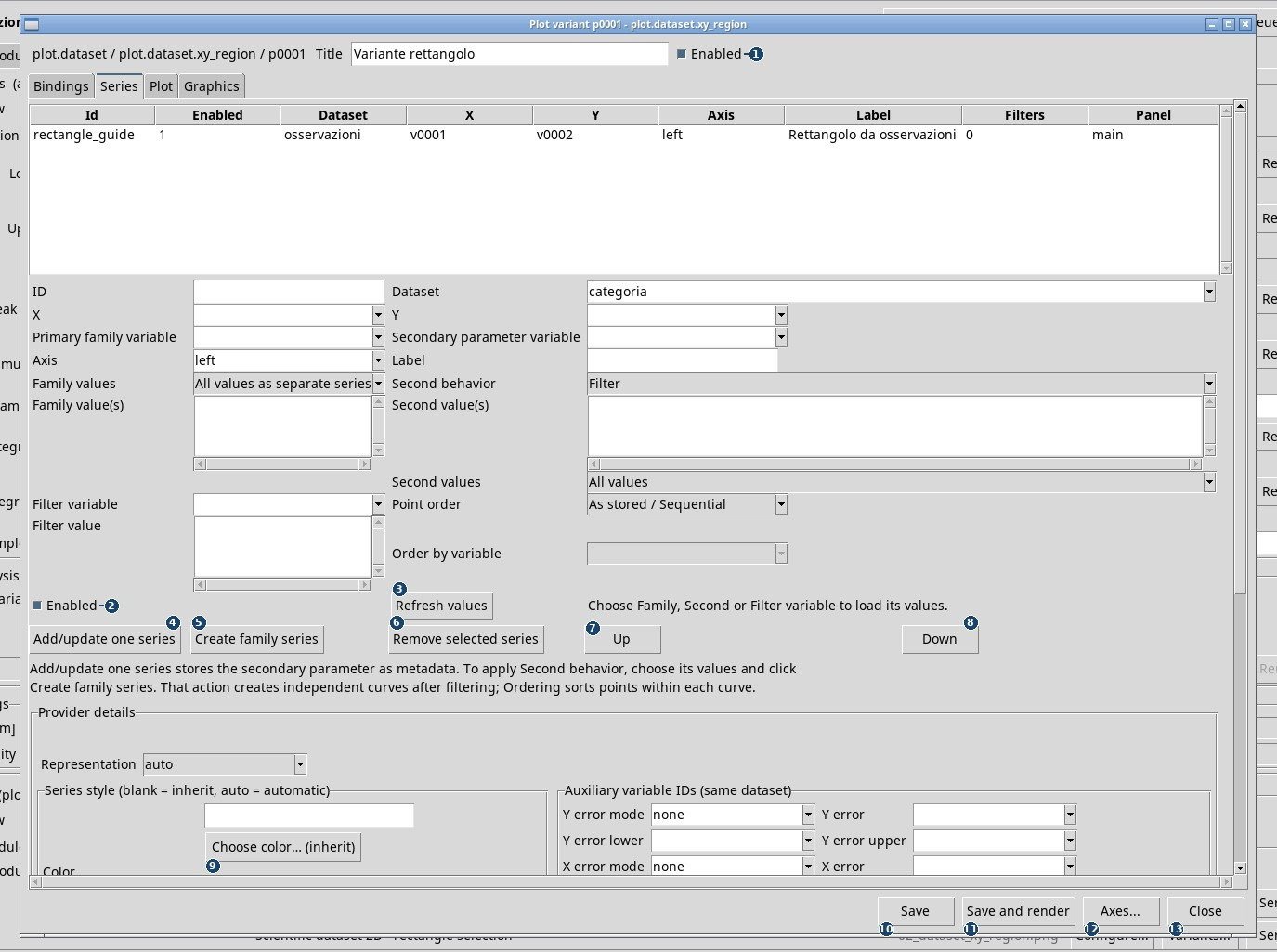
- No.
- 1
- Control
- Enabled
- Use and effect
- Registers the variant state in the editor. Do not confuse it with the Enabled checkbox of an individual series. Procedure.
- No.
- 2
- Control
- Enabled
- Use and effect
- Marks the series as included. Save the new state with Add/update one series. Procedure.
- No.
- 3
- Control
- Refresh values
- Use and effect
- Reloads the values for family, category and filter after choosing the columns. Procedure.
- No.
- 4
- Control
- Add/update one series
- Use and effect
- Validates and registers the fields under the current ID. Use a new ID to add a row. Procedure.
- No.
- 5
- Control
- Create family series
- Use and effect
- Expands a family configuration into selected members and assigns derived IDs. Procedure.
- No.
- 6
- Control
- Remove selected series
- Use and effect
- Deletes the selected series; then update the plot to check the effect. Procedure.
- No.
- 7
- Control
- Up
- Use and effect
- Moves the selected row above the previous one. Procedure.
- No.
- 8
- Control
- Down
- Use and effect
- Moves the selected row below the next one. Procedure.
- No.
- 9
- Control
- Choose color… (inherit)
- Use and effect
- Opens the RGB picker from the Color property. The text in parentheses shows the current state. Procedure.
- No.
- 10
- Control
- Save
- Use and effect
- Registers the variant settings and title. The PNG requires a new render. Procedure.
- No.
- 11
- Control
- Save and render
- Use and effect
- Registers the settings and starts rendering the plot. Check the new file from this variant’s row. Procedure.
- No.
- 12
- Control
- Axes…
- Use and effect
- Opens the variant’s axes editor using the same configuration owner. Check ID and title before saving. Procedure.
- No.
- 13
- Control
- Close
- Use and effect
- Closes the editor. If you have just created the variant, its identity remains available in the Variants window. Procedure.
Rectangle variant editor, Graphics tab.
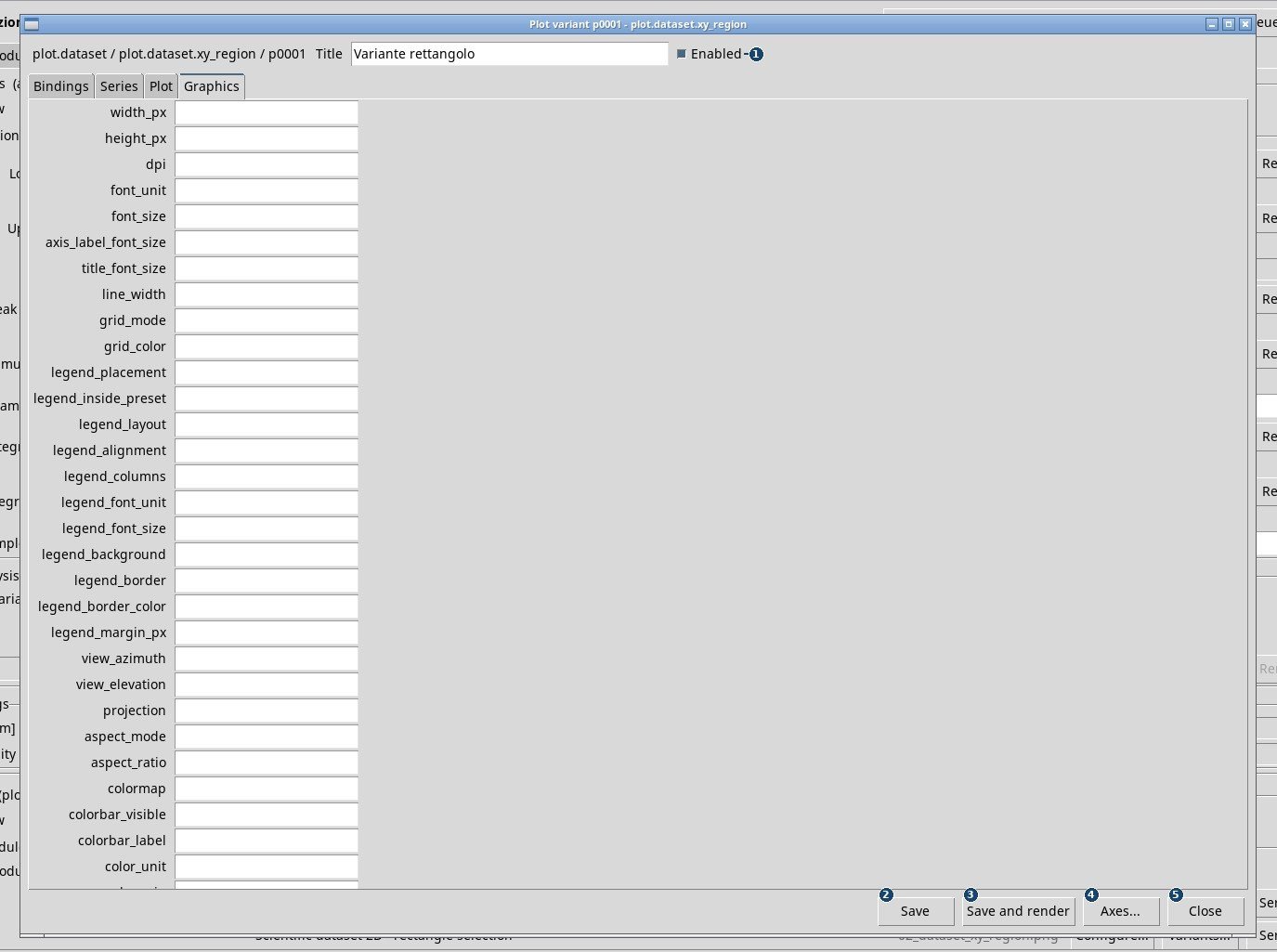
- No.
- 1
- Control
- Enabled
- Use and effect
- Registers the variant state in the editor. Do not confuse it with the Enabled checkbox of an individual series. Procedure.
- No.
- 2
- Control
- Save
- Use and effect
- Registers the variant settings and title. The PNG requires a new render. Procedure.
- No.
- 3
- Control
- Save and render
- Use and effect
- Registers the settings and starts rendering the plot. Check the new file from this variant’s row. Procedure.
- No.
- 4
- Control
- Axes…
- Use and effect
- Opens the variant’s axes editor using the same configuration owner. Check ID and title before saving. Procedure.
- No.
- 5
- Control
- Close
- Use and effect
- Closes the editor. If you have just created the variant, its identity remains available in the Variants window. Procedure.
Rectangle variant editor, end of the Series tab.
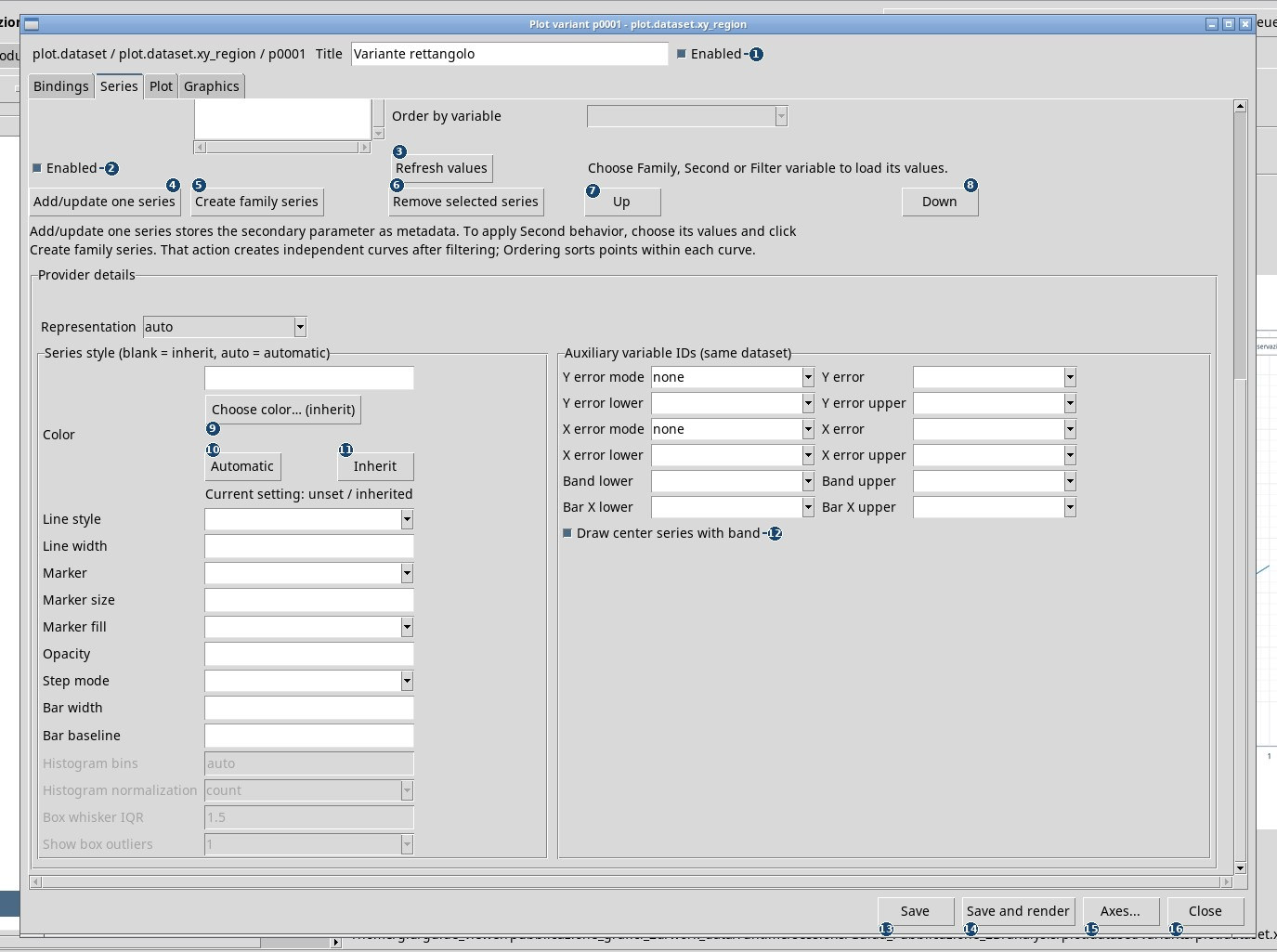
- No.
- 1
- Control
- Enabled
- Use and effect
- Registers the variant state in the editor. Do not confuse it with the Enabled checkbox of an individual series. Procedure.
- No.
- 2
- Control
- Enabled
- Use and effect
- Marks the series as included. Save the new state with Add/update one series. Procedure.
- No.
- 3
- Control
- Refresh values
- Use and effect
- Reloads the values for family, category and filter after choosing the columns. Procedure.
- No.
- 4
- Control
- Add/update one series
- Use and effect
- Validates and registers the fields under the current ID. Use a new ID to add a row. Procedure.
- No.
- 5
- Control
- Create family series
- Use and effect
- Expands a family configuration into selected members and assigns derived IDs. Procedure.
- No.
- 6
- Control
- Remove selected series
- Use and effect
- Deletes the selected series; then update the plot to check the effect. Procedure.
- No.
- 7
- Control
- Up
- Use and effect
- Moves the selected row above the previous one. Procedure.
- No.
- 8
- Control
- Down
- Use and effect
- Moves the selected row below the next one. Procedure.
- No.
- 9
- Control
- Choose color… (inherit)
- Use and effect
- Opens the RGB picker from the Color property. The text in parentheses shows the current state. Procedure.
- No.
- 10
- Control
- Automatic
- Use and effect
- Accepts an automatic color choice for this trace or family. Procedure.
- No.
- 11
- Control
- Inherit
- Use and effect
- Clears the specific color choice and reuses the inherited style. Procedure.
- No.
- 12
- Control
- Draw center series with band
- Use and effect
- Shows the center trace together with the band when the representation uses a band. Procedure.
- No.
- 13
- Control
- Save
- Use and effect
- Registers the variant settings and title. The PNG requires a new render. Procedure.
- No.
- 14
- Control
- Save and render
- Use and effect
- Registers the settings and starts rendering the plot. Check the new file from this variant’s row. Procedure.
- No.
- 15
- Control
- Axes…
- Use and effect
- Opens the variant’s axes editor using the same configuration owner. Check ID and title before saving. Procedure.
- No.
- 16
- Control
- Close
- Use and effect
- Closes the editor. If you have just created the variant, its identity remains available in the Variants window. Procedure.
Variant-specific Axes for the rectangle variant, opened from its editor.
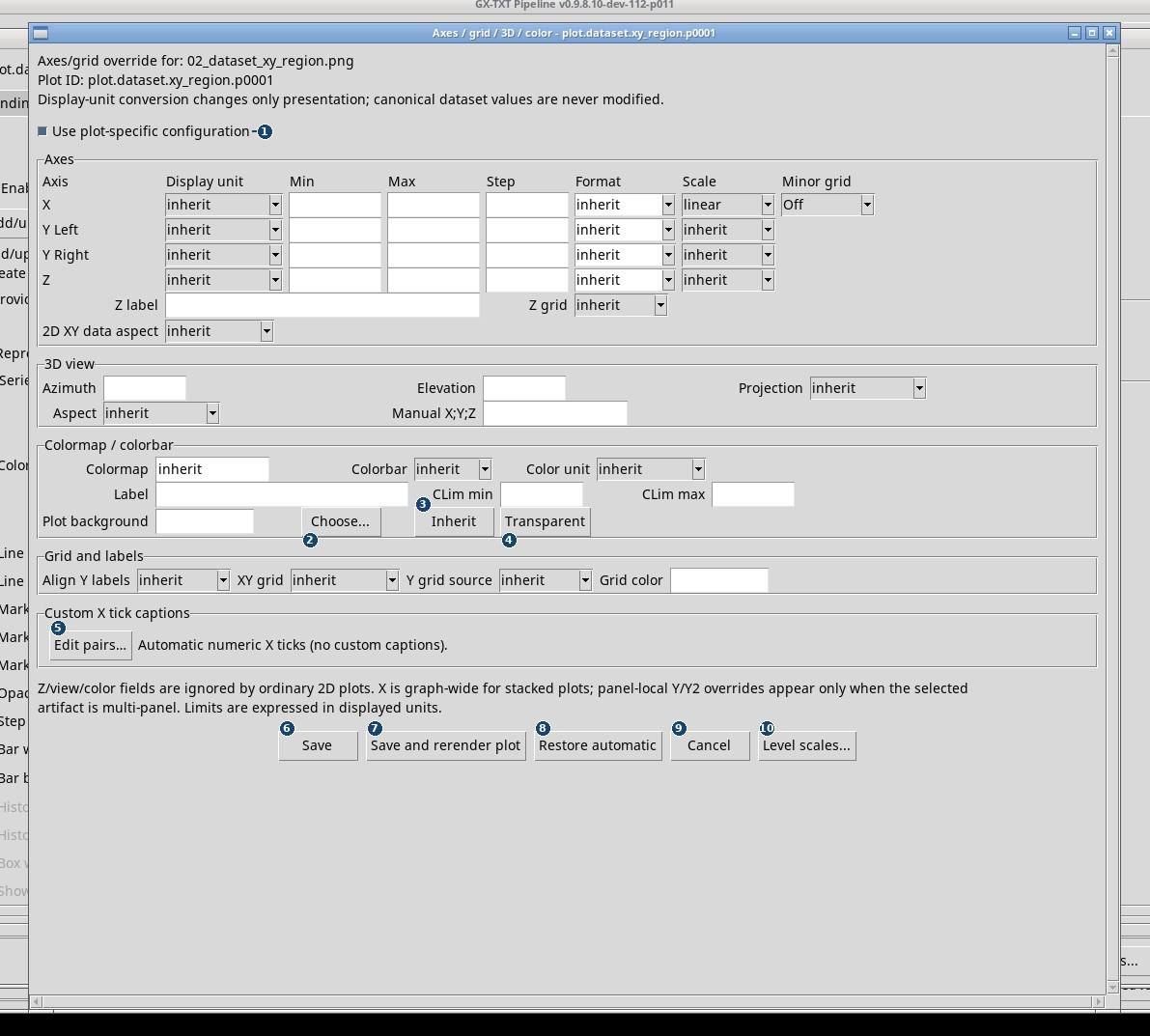
- No.
- 1
- Control
- Use plot-specific configuration
- Use and effect
- Enables the figure overrides. Leave individual fields on inherit if the general setting should apply. Procedure.
- No.
- 2
- Control
- Choose…
- Use and effect
- Opens the color picker for the field next to it, then uses the result in the draft. Procedure.
- No.
- 3
- Control
- Inherit
- Use and effect
- Removes the specific color and reuses the inherited value at render time. Procedure.
- No.
- 4
- Control
- Transparent
- Use and effect
- Uses a background with no fill in the formats and renderers that support it. Procedure.
- No.
- 5
- Control
- Edit pairs…
- Use and effect
- Opens the custom X positions and captions. Use two paired strings with positions in the display unit. Procedure.
- No.
- 6
- Control
- Save
- Use and effect
- Saves the draft choices. Use a later render to update the file. Procedure.
- No.
- 7
- Control
- Save and rerender plot
- Use and effect
- Saves and tries to regenerate the figure. The PNG must be updated to check the effect. Procedure.
- No.
- 8
- Control
- Restore automatic
- Use and effect
- Restores the automatic axis presentation. Use it to remove incompatible overrides. Procedure.
- No.
- 9
- Control
- Cancel
- Use and effect
- Closes the Axes draft, discarding unsaved changes. Procedure.
- No.
- 10
- Control
- Level scales…
- Use and effect
- Opens the level transformations. Select quantity, amplitude, reference and zero policy according to the signal. Procedure.