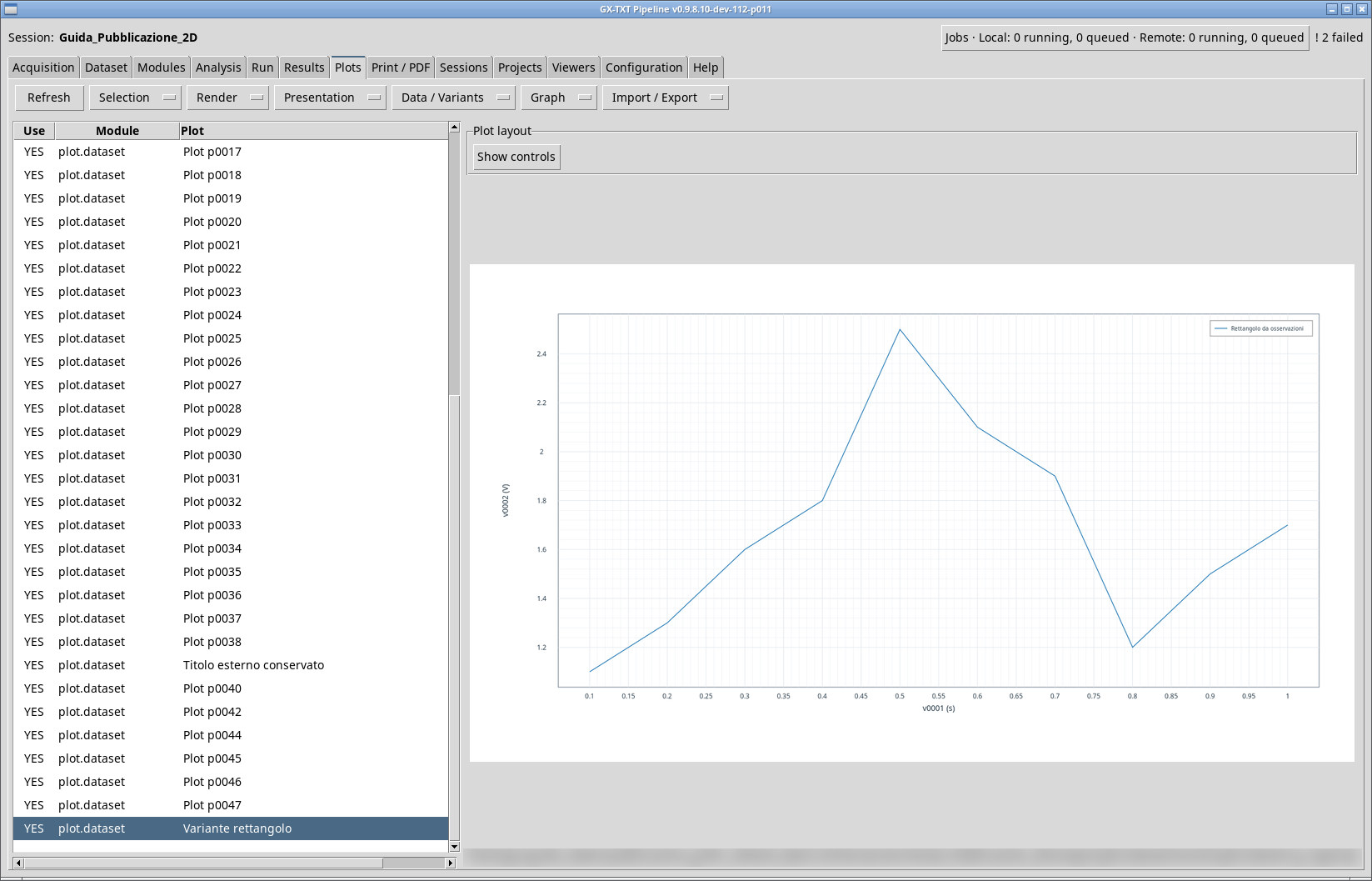
Create, Update, and Keep Plot Variants
GX-TXT P011-bis · Scientific Dataset Plot 4.4.2
Use a variant to keep a second presentation of the same product. The base and each variant have their own identity, configuration and output directory.
Opening variant management
From Analysis, open Variants… in the product row. From Plots, select a plot and open Data / Variants → Variants….
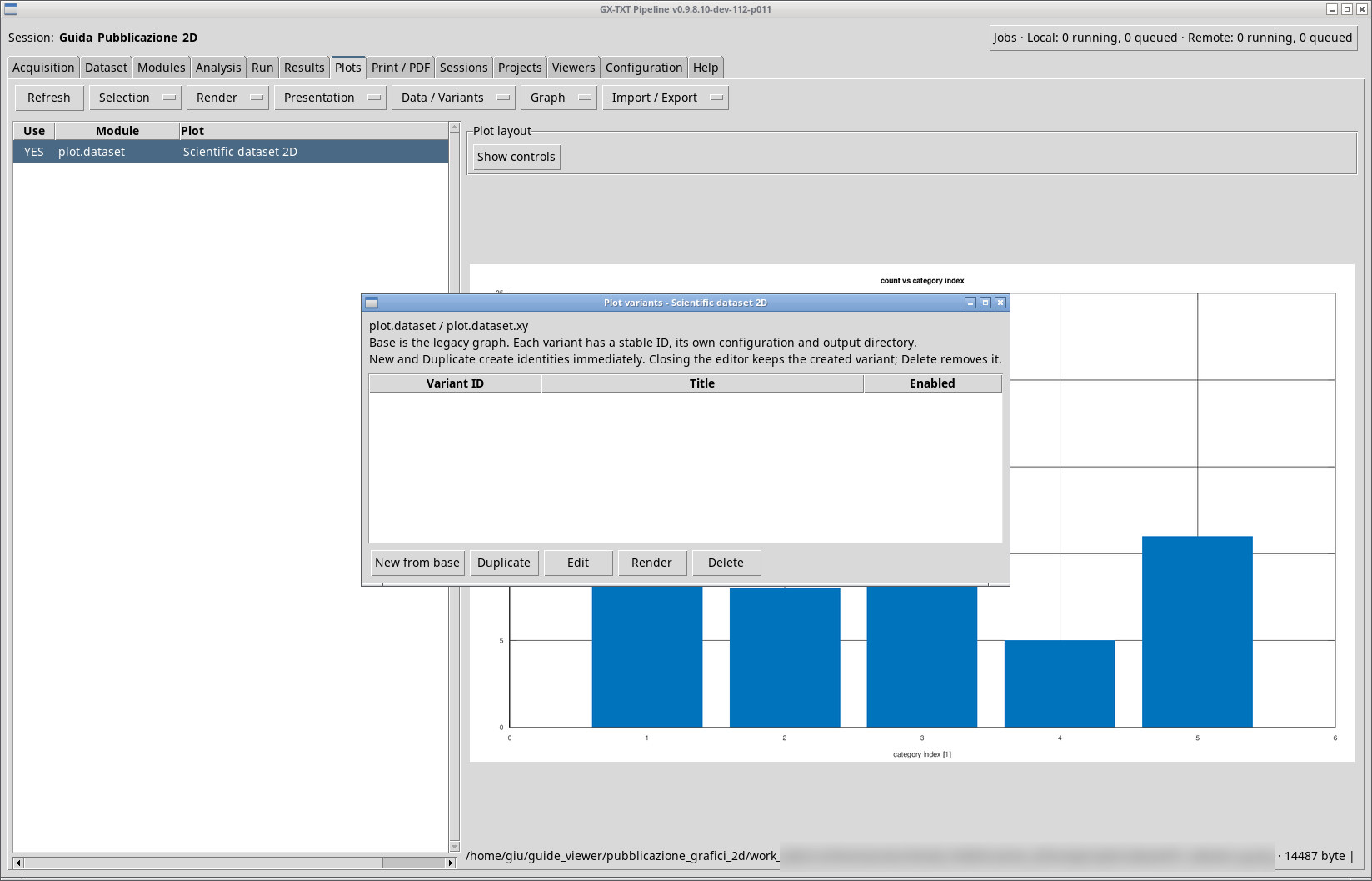
- Action
- New from base
- Prerequisite and outcome
- Creates an identity starting from the base, then opens the editor. The new ID is assigned immediately. Closing the editor keeps the new identity. You can delete it if it was a test.
- Action
- Duplicate
- Prerequisite and outcome
- Select a variant. The copy starts from its values and has a distinct ID. Check the title before rendering.
- Action
- Edit
- Prerequisite and outcome
- Opens the variant fields. The active tabs depend on the product. Edit Title, Enabled, series, axes or graphics where available.
- Action
- Render
- Prerequisite and outcome
- Uses the saved configuration of the selected variant. Check the completion message and its new file.
- Action
- Delete
- Prerequisite and outcome
- Removes the selected variant after confirmation. The base plot is managed with its own output checkboxes and Use. Check the reference before confirming.
Saving and updating
In Plot edits the title, labels, style and scales of the single reference. Bindings shows X, Y, Z, Family and Color in a form shared with the XYZ product. Each choice encodes Dataset and variable ID. A Use=no variable stays listed in the configuration and can turn out to be unavailable at rendering. For the two products based on Graph Series, create or update the X and Y of the series from the tab Series. Graphics isolates the variant values. With Axes… open the overrides of the active reference.
Save keeps configuration and title. Save and render keeps and renders. An edit that keeps the ID updates the same output and the same Plots row. Use another variant when you want a side-by-side comparison. With a variant in disabled state, check whether it needs to be re-enabled before a new rendering.
In variant_panels_octave.m (ZIP), create_plot receives the spec, variant and the ID of the source variant. The recipe edits the panels, toggles the state and removes the test copy. In the GUI the equivalent path starts from Duplicate.