Plots, 3D Preview, and the Session Model
GX-TXT P011-bis · Scientific Dataset Plot 4.4.2
The PNG of the Plots tab, the Native3D inspection and the Workspace representation save different states. Start from the exact reference of the variant and choose the result to keep.
Plots commands on the XYZ row
In the tab Plots selects plot, title and variant. Graph info… shows identity and provenance. Open PNG 1:1 opens the static artifact. Render → Rerender tries to regenerate the row, Rerender selected the enabled rows and Rerender module the module. Presentation opens Legend, Axes, Title and labels, Graphics and Annotate. For the use and saving of the common elements see Presentation.
Data / Variants → Variants… opens the manager. Select data…, Select area and Clear area are disabled for XYZ. The row filter is prepared as a source Dataset and republished from the module.
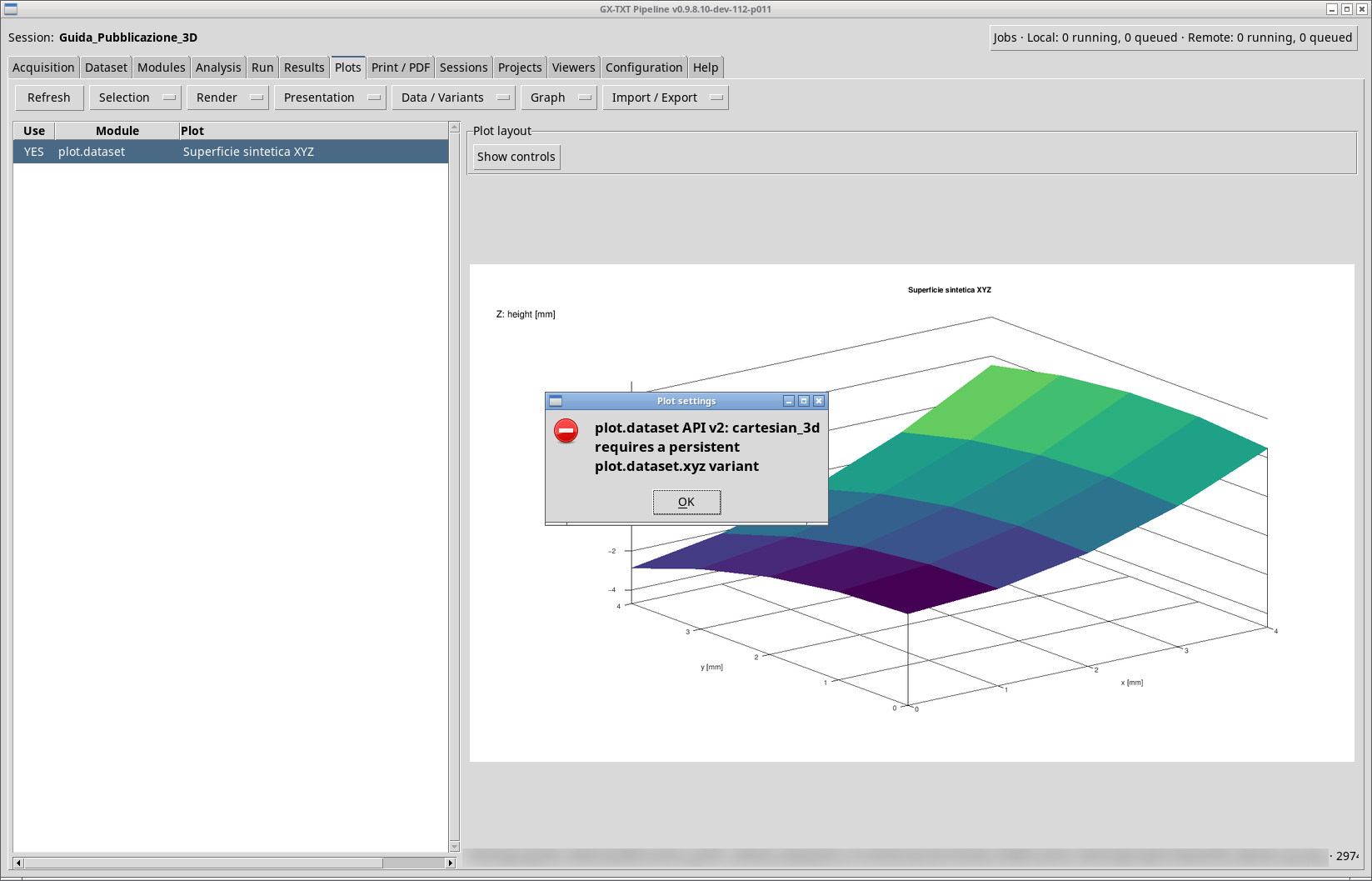
P011-bis · context menu of the base plot. Right-click, the Menu key and Shift+F10 on the base row can stop with cartesian_3d requires a persistent plot.dataset.xyz variant. After OK the preview stays available. Use the top menus for ordinary operations. A variant with valid bindings and result shows the menu, including Colorbar visible in representations with a scale.
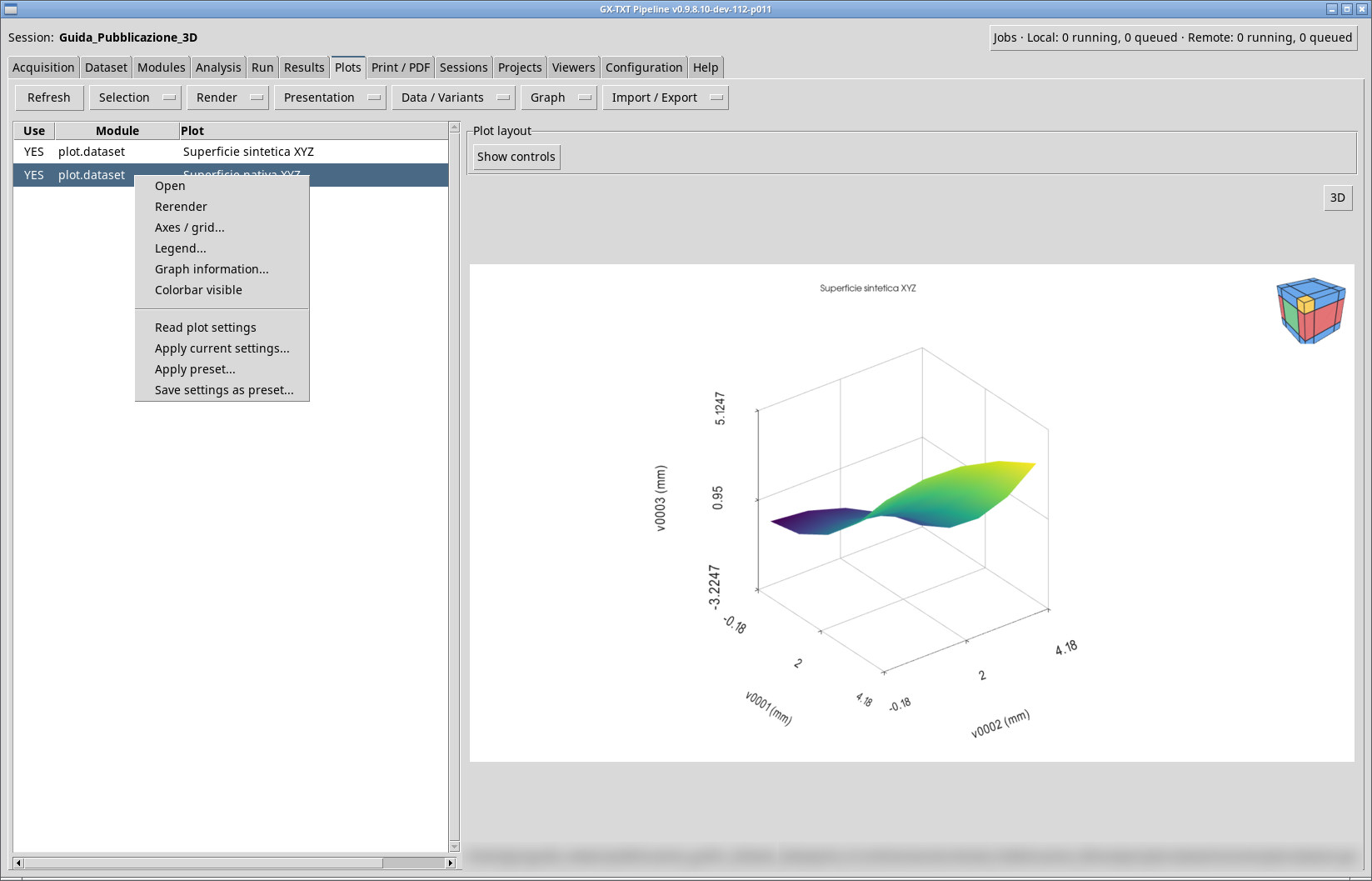
Native3D inspection from Plots
- Select an already rendered XYZ variant, for example Superficie nativa XYZ. Press the 3D button that appears on the compatible preview. Wait for the preparation to complete.
- Drag with the left button to orbit, with the middle button to pan, and use the wheel to zoom. The arrow buttons change the orientation. ■ restores the camera, ▦ shows or hides axes/grid and Fit fits the framing. ✕ returns to the row PNG.
- Double-click in the canvas for the enlarged view. You can inspect the same scene or start publishing the current image. Close the enlarged view to return to the compact one.
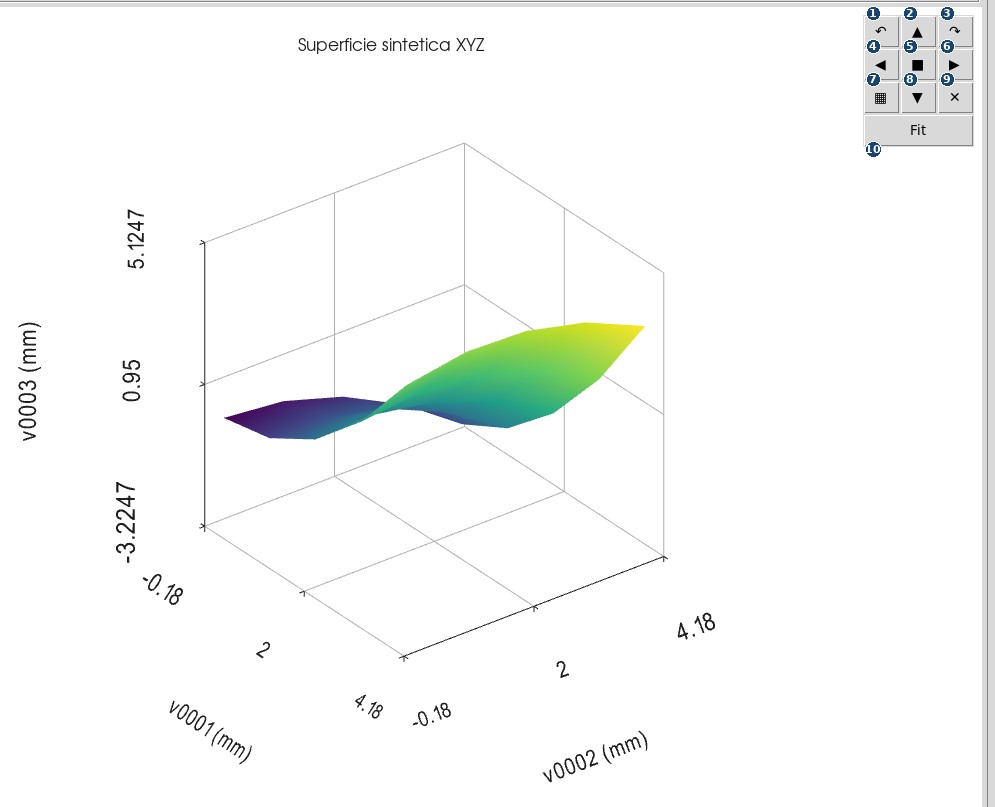
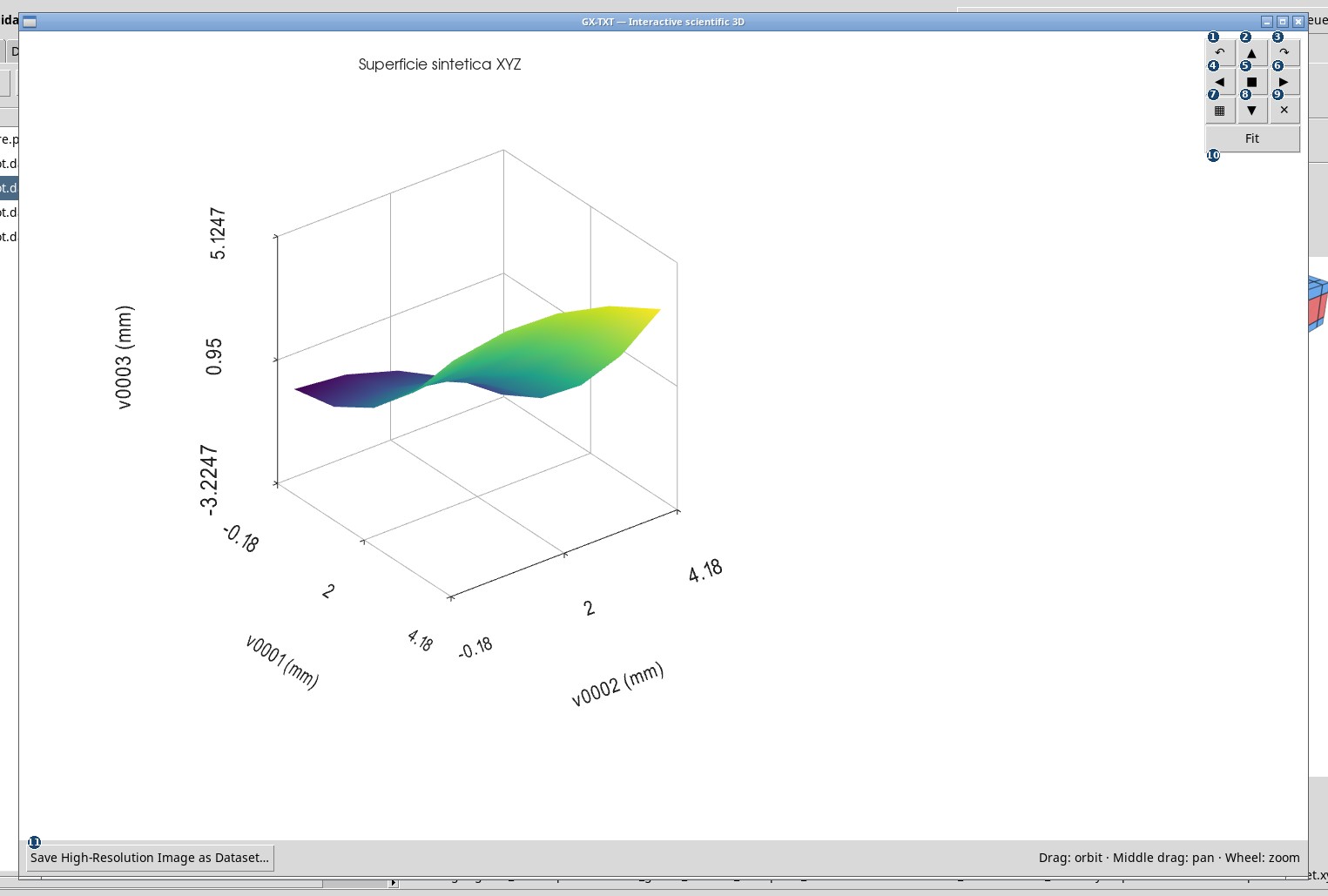
A compatible native row with a valid source and bindings exposes the button. The inspection can wait for preparation, detect a modified source or reject an incompatible legacy option, such as explicit log Step.
Inspection directly from a Dataset
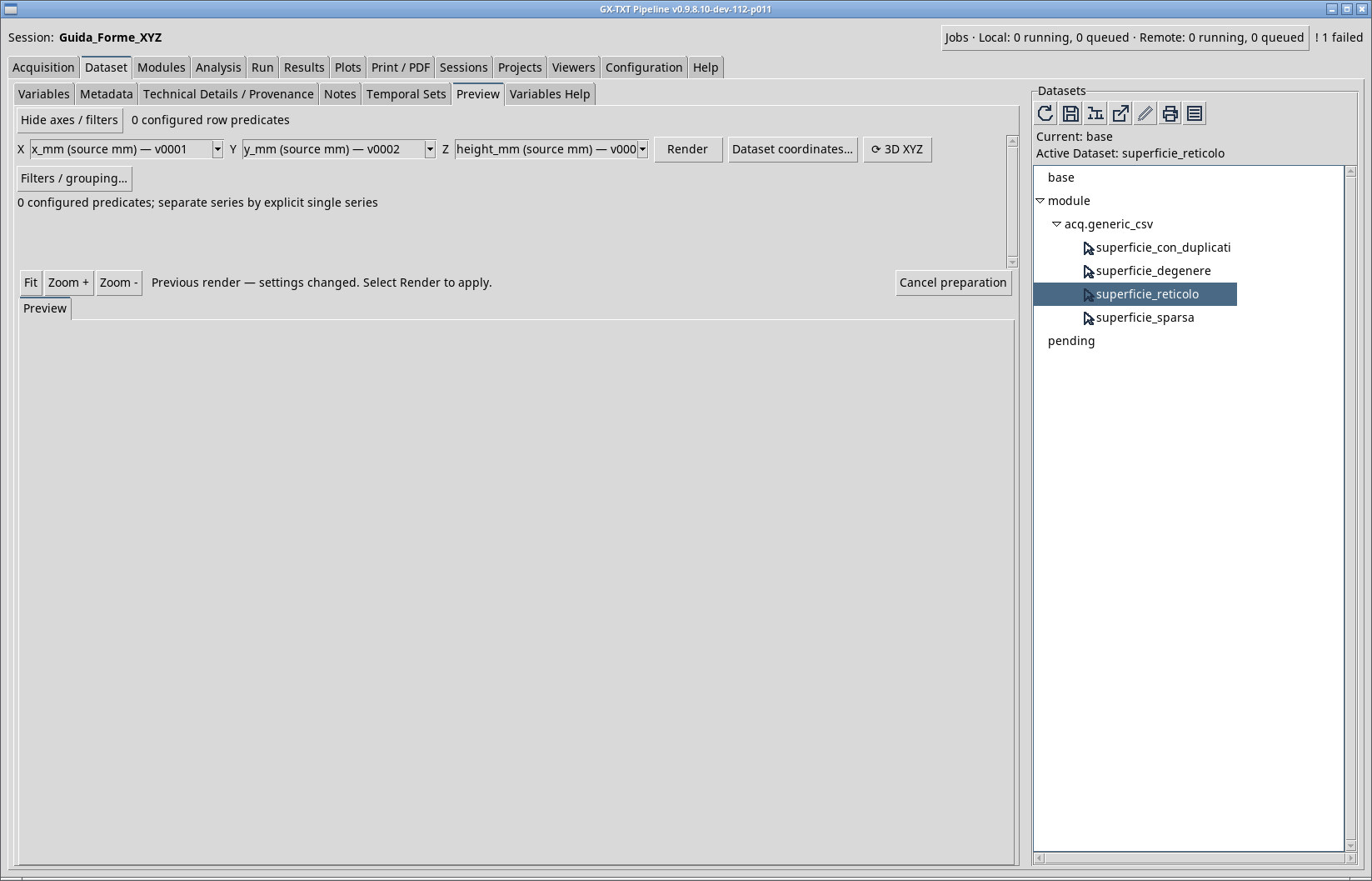
Select a canonical numeric Dataset in the Dataset browser and open its Preview. Expand Show axes / filters. Choose three distinct numeric variables for X, Y and Z, then use 3D XYZ. This view shows the canonical samples without filtering. If a row filter is active, remove it and try again. 2D grouping and sorting are separate settings. A change of source or mapping requires a new 3D XYZ activation.
P011-bis · first 3D start of Preview. If only Detailsappears in the notebook, the first 3D XYZ can show Interactive preview unavailable … plot is not managed. Press Render in the axes section, wait for the tab Plot and repeat 3D XYZ. With the same IDs the 3D canvas opens. The previous message can briefly remain in the status bar.
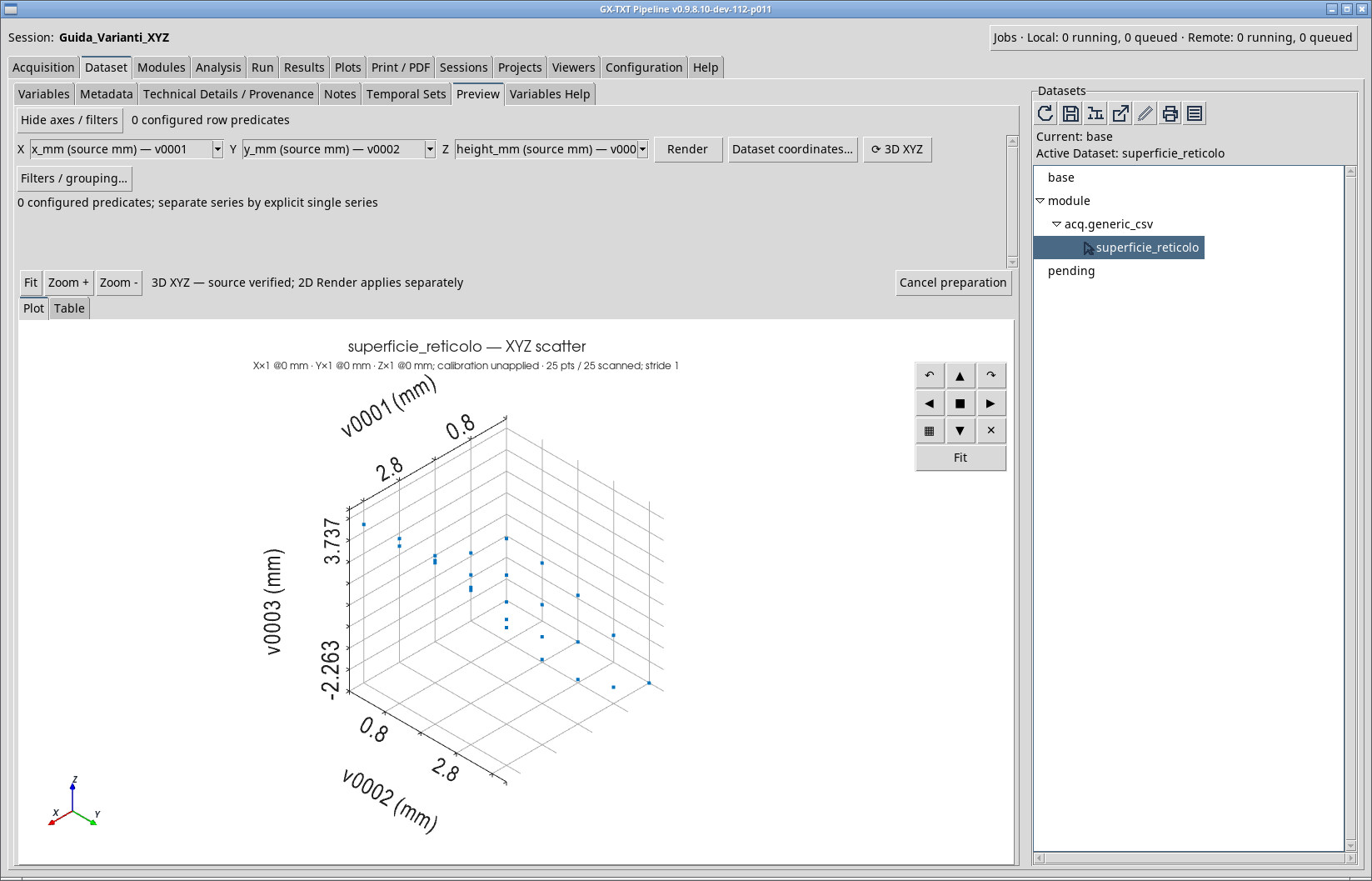
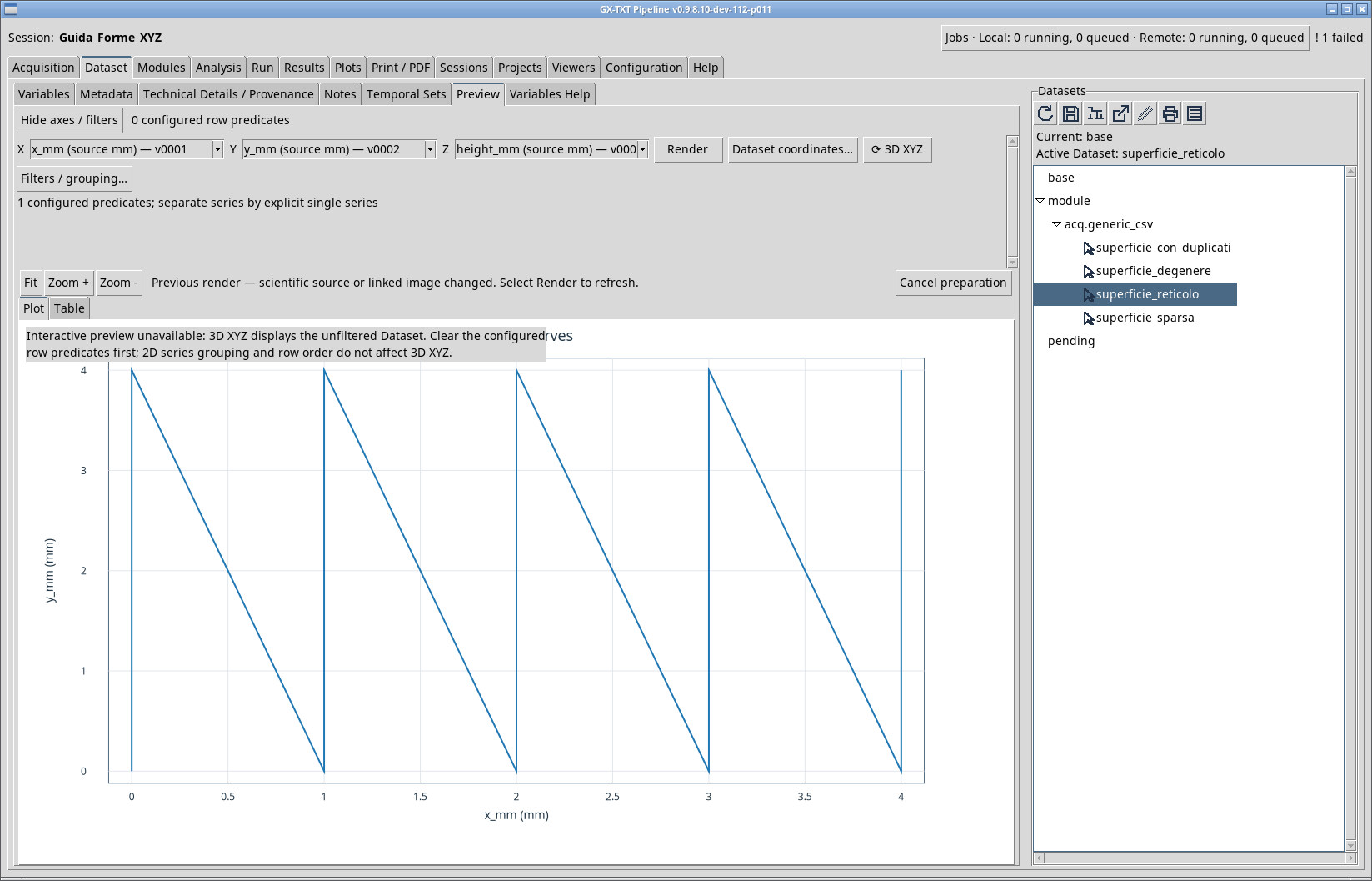
Persistent representations
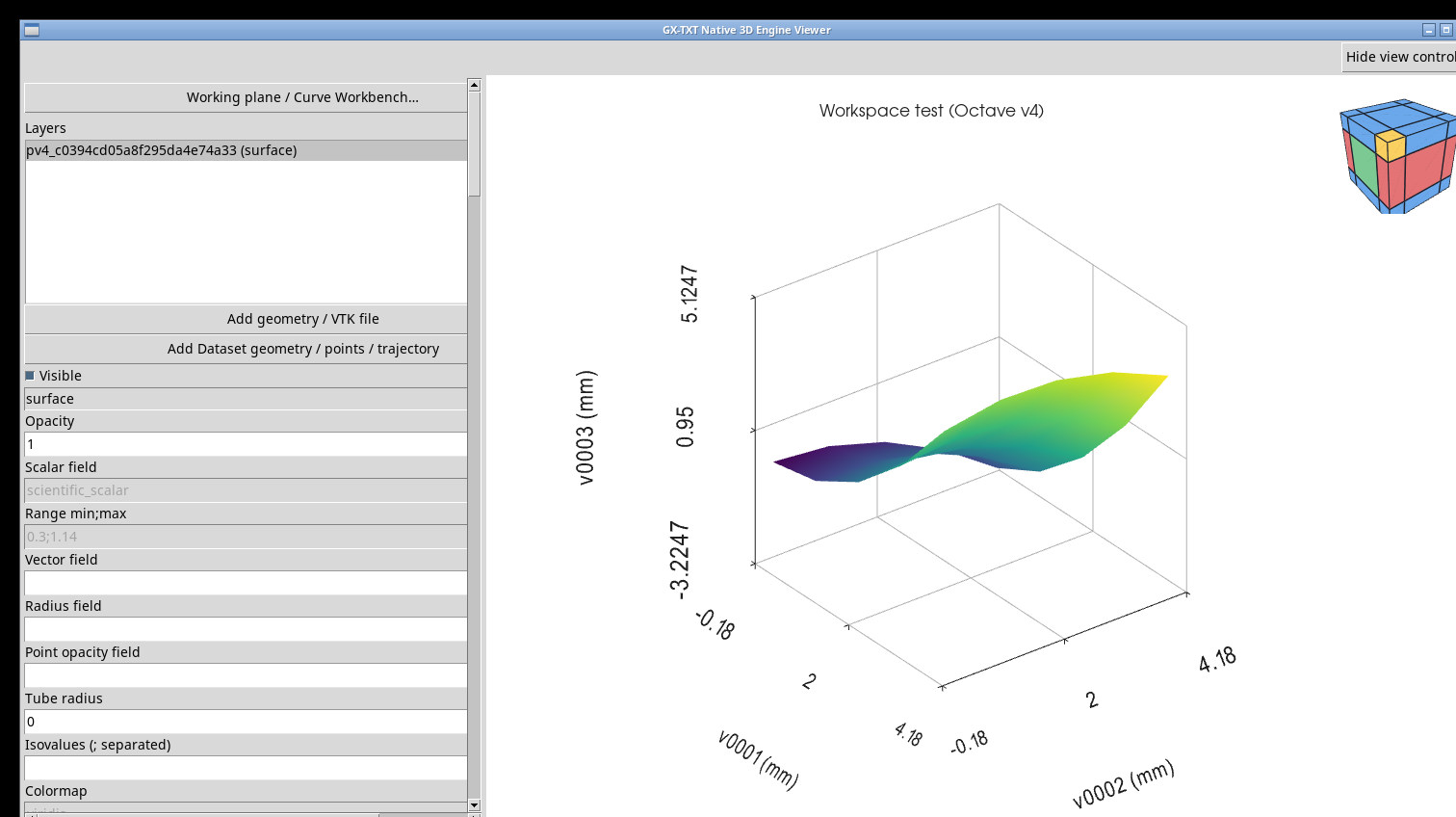
A persistent scientific representation refers to a specific XYZ variant and keeps its own geometries, layers, orientation and the fingerprint of the last Sync. The function build_scene registered in Jobs can create it. The Tk host can also open it with openInteractive or openRepresentation, depending on the version. Use the viewer’s Workspace browser to return to a saved representation. A variant can be the source of several representations.
From Curve Viewer use Advanced → Independent 3D representations… and choose Open retained representation for a v4 ID. Alternatively, the host call openRepresentation opens the same identity in the 3D engine. The Viewer can save the framing of the representation. To reproduce the same camera in the published PNG, apply the presentation to the plot and generate a new output from Plots. The previous temporary inspection closes without creating a Workspace.
State and Sync
- State
SYNCED- Meaning and action
- The fingerprint of the current source matches the last successful synchronization.
- State
OUT OF SYNC- Meaning and action
- Source, binding or relevant presentation have changed. Run an explicit Sync to regenerate the content, keeping the compatible local settings.
- State
SOURCE MISSING- Meaning and action
- The exact source can no longer be resolved. The geometry and presentation already registered remain viewable as long as the independent representation is kept. Sync requires the expected source.
The recipe APIs and representations separates the headless preparation from opening the Tk window.
Saving the current image
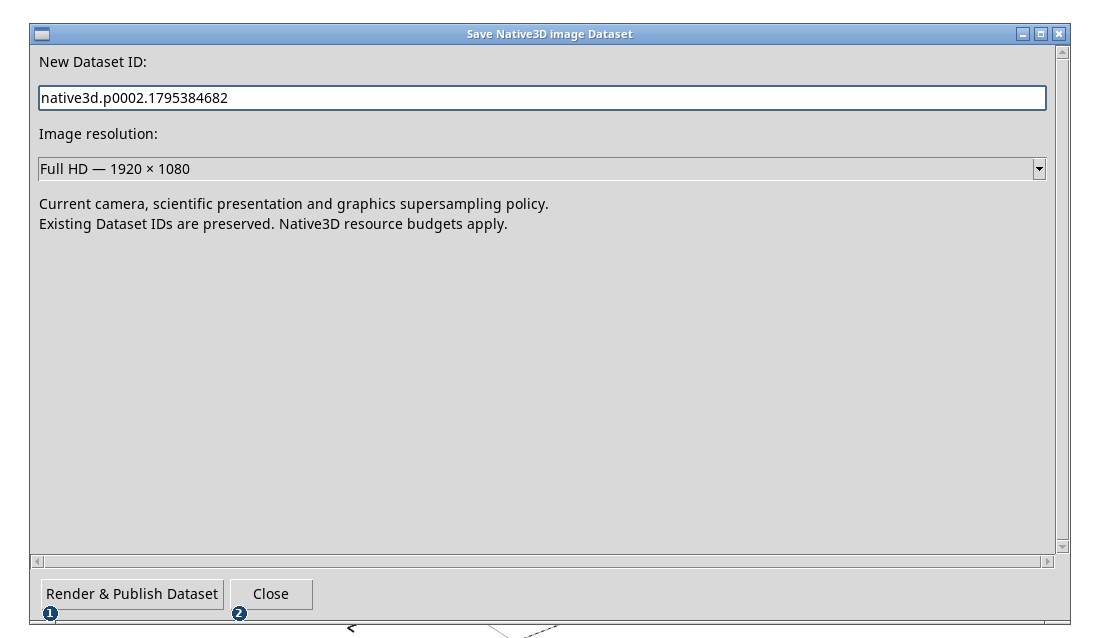
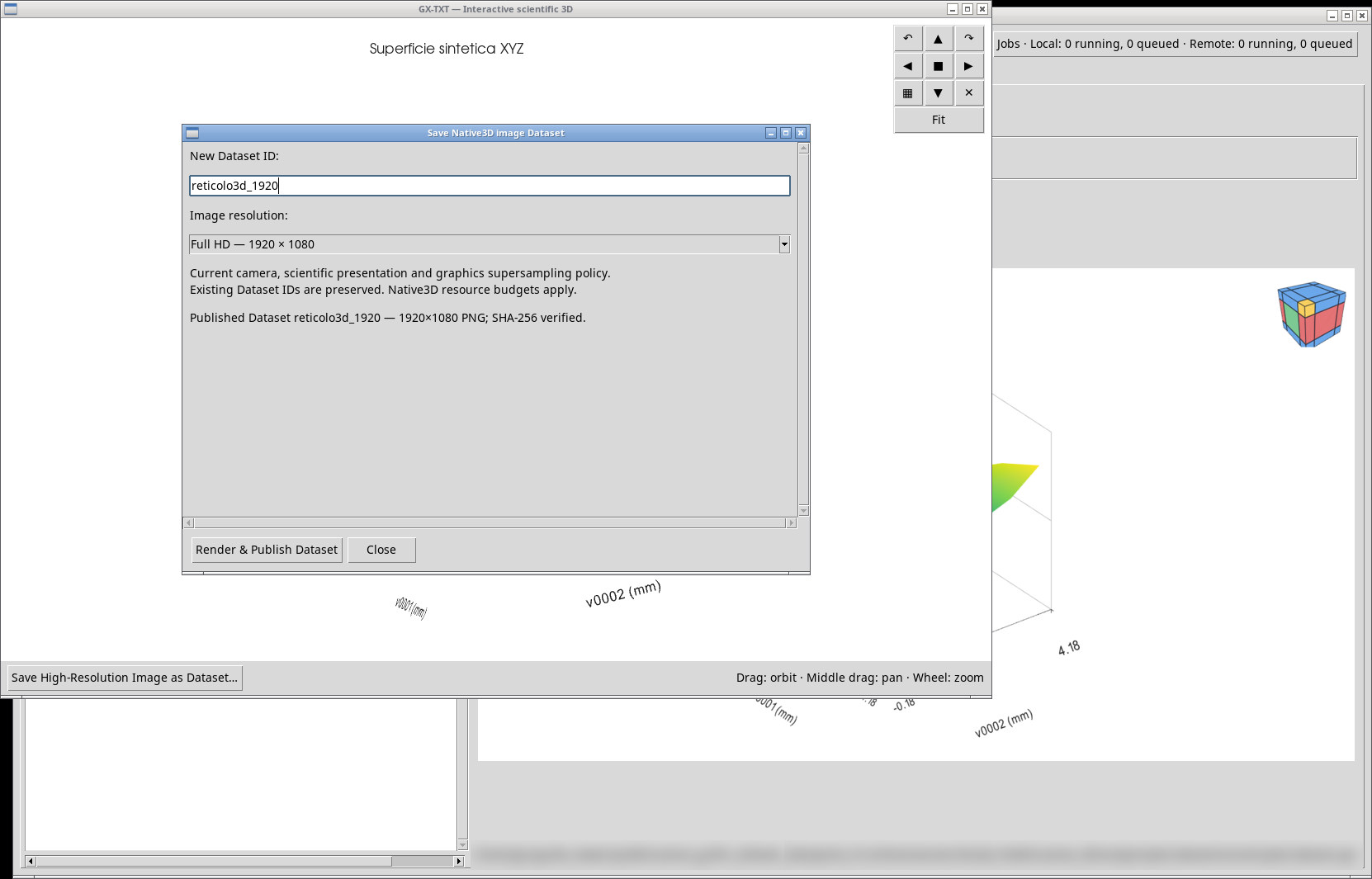
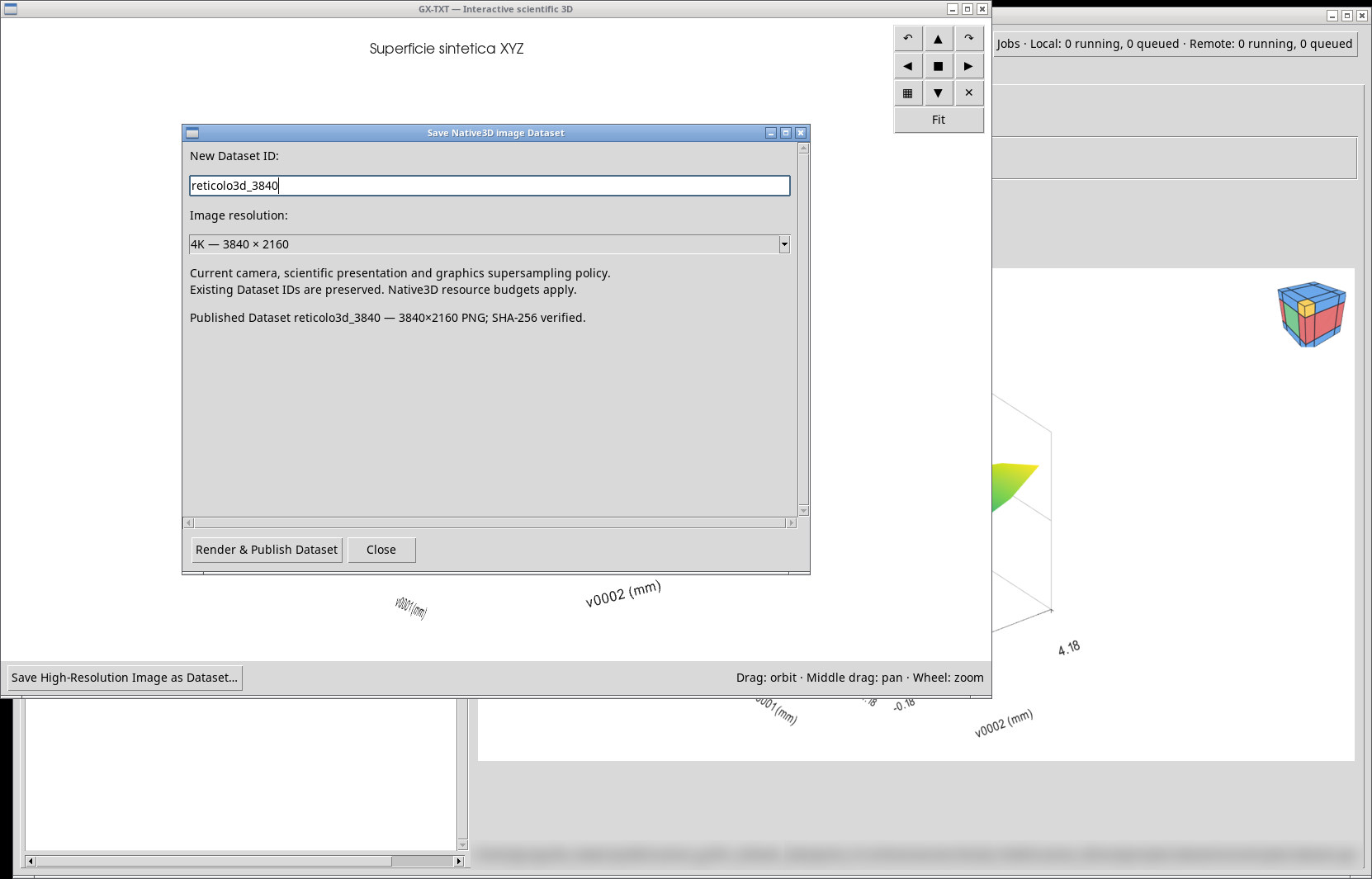
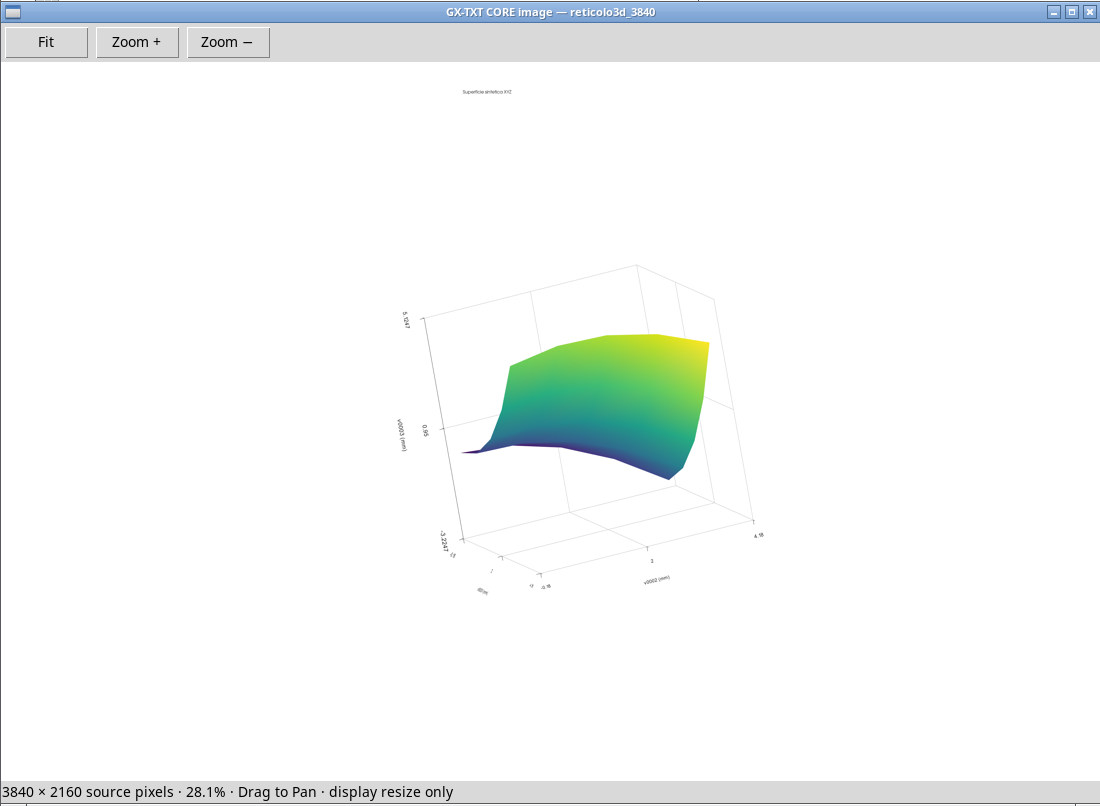
From the enlarged view use Save High-Resolution Image as Dataset…. Set a new Dataset ID and choose the resolution Full HD — 1920 × 1080 or 4K — 3840 × 2160. Confirm with Render & Publish Dataset. The GUI confirms dimensions and SHA-256. To reopen the result, select the image Dataset in the browser. An existing ID requires choosing a free one. Dimensions and supersampling can exceed the renderer budget. In that case, lower the resolution or the supersampling in Configuration and repeat. With 4× supersampling, the 4K attempt reproduced the 256 MiB limit and did not register the Dataset.
Import / Export → Export… exports the static artifact. Export annotated… includes the annotation layer where applicable. PNG and additional format are set in Configure. Export Graph ZIP… is the path to a portable package; it keeps the result only after the integrity check is confirmed.
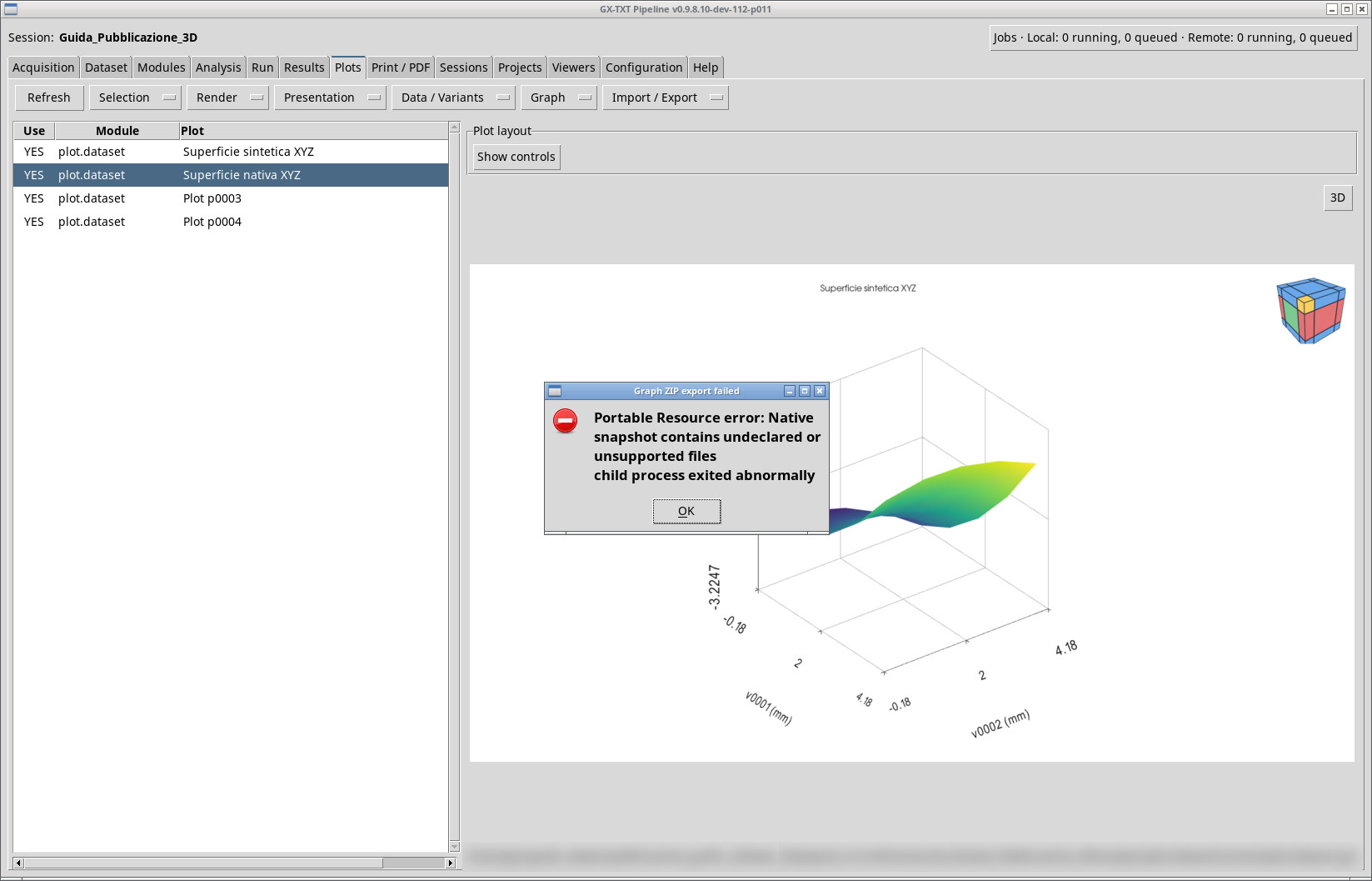
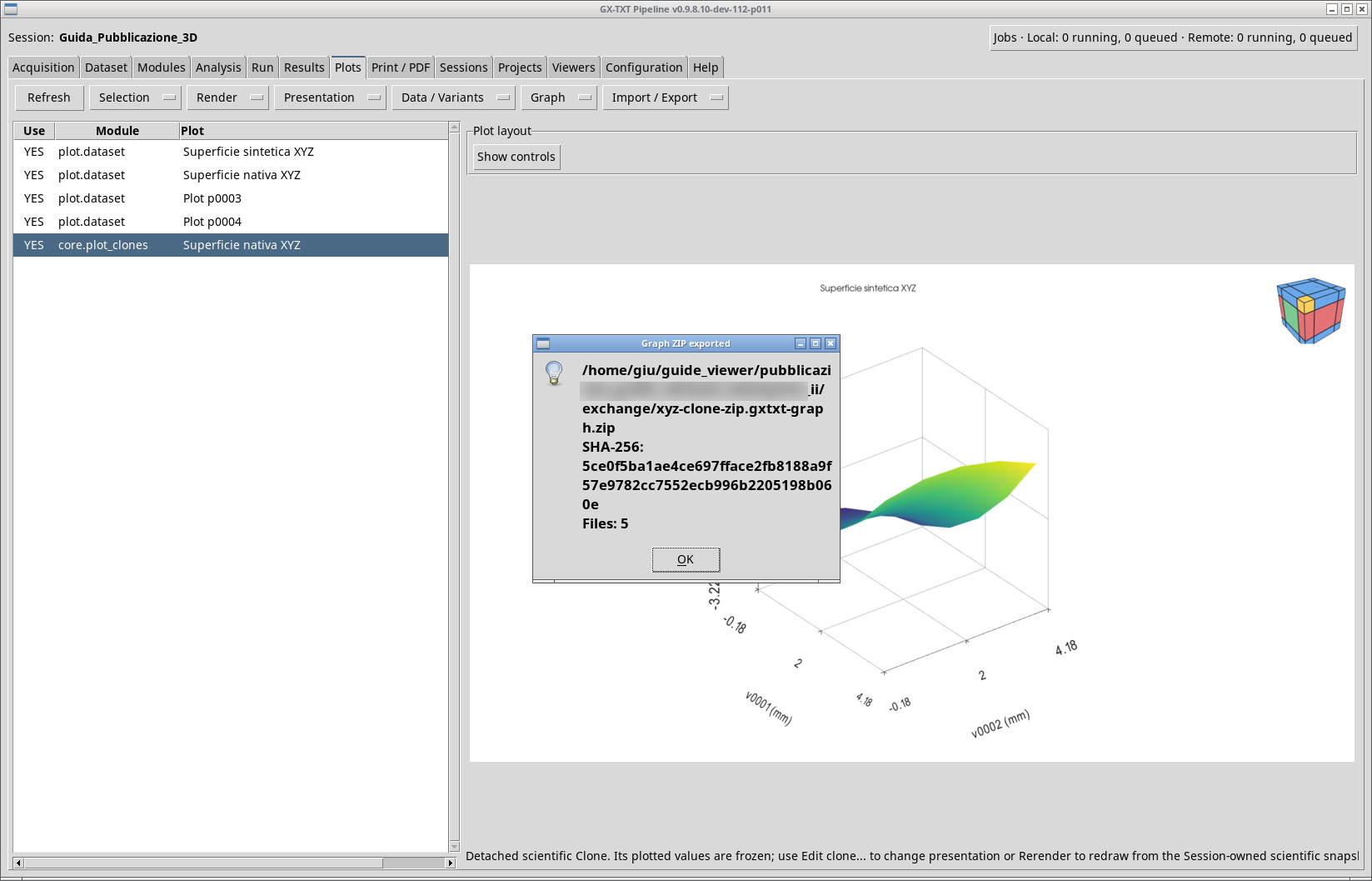
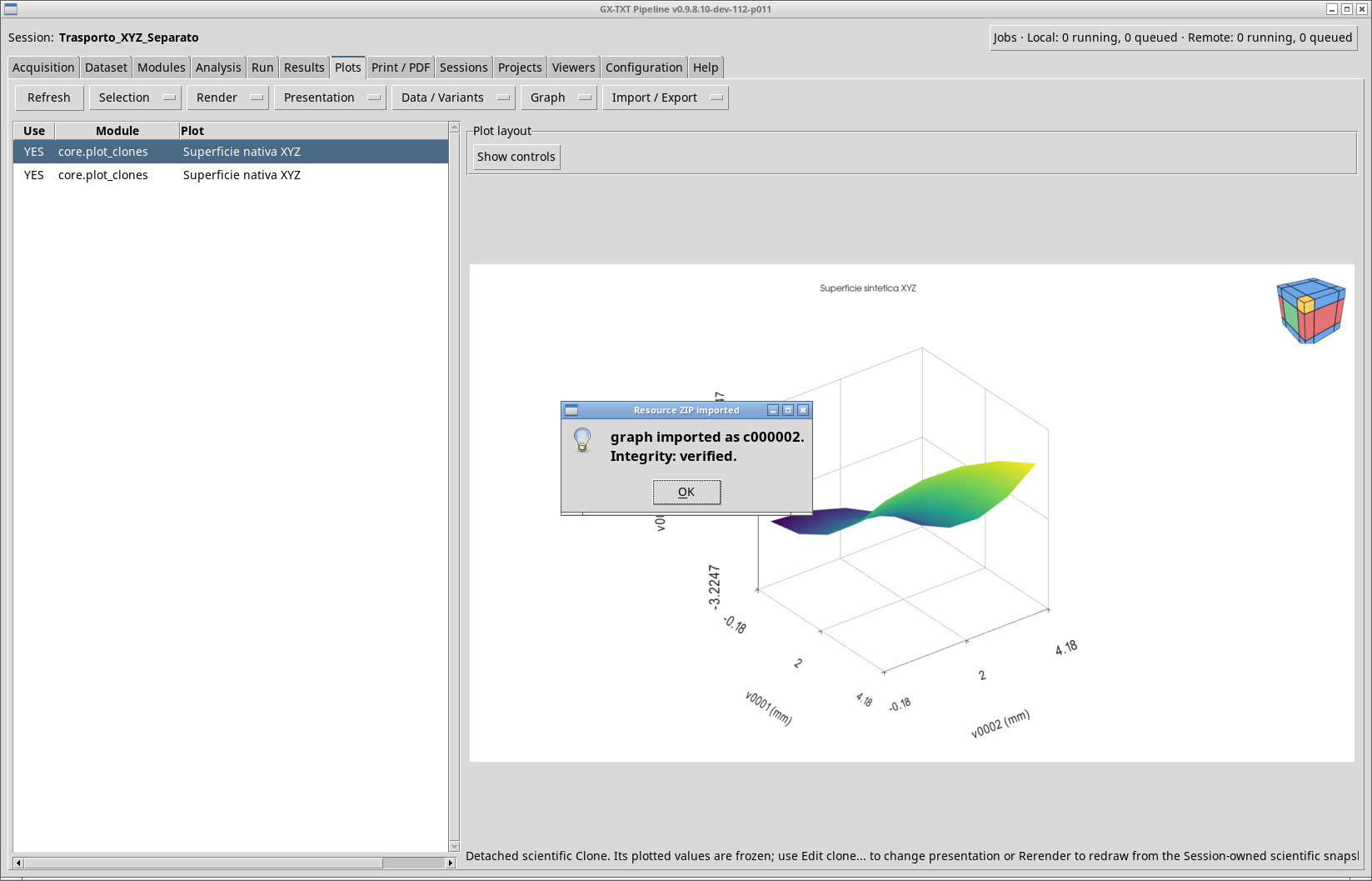
P011-bis · Graph ZIP from the XYZ variant. The attempt can stop with Native snapshot contains undeclared or unsupported files. Check whether the file was actually created. The row PNG stays available. To get a package, select the variant and use Graph → Clone…. Select the scientific clone, run Export Graph ZIP… and check the hash. In a second Session use Import Graph ZIP… and the scientific mode. The frozen Dataset stays inside the clone and appears in the admission summary. The destination Dataset browser keeps its own independent IDs.