

3D Interface Reference
GX-TXT P011-bis · Scientific Dataset Plot 4.4.2
The numbered tables link the buttons to the procedures. Field and tab names follow the English GUI of P011-bis.
Analysis and the Scientific dataset 3D row
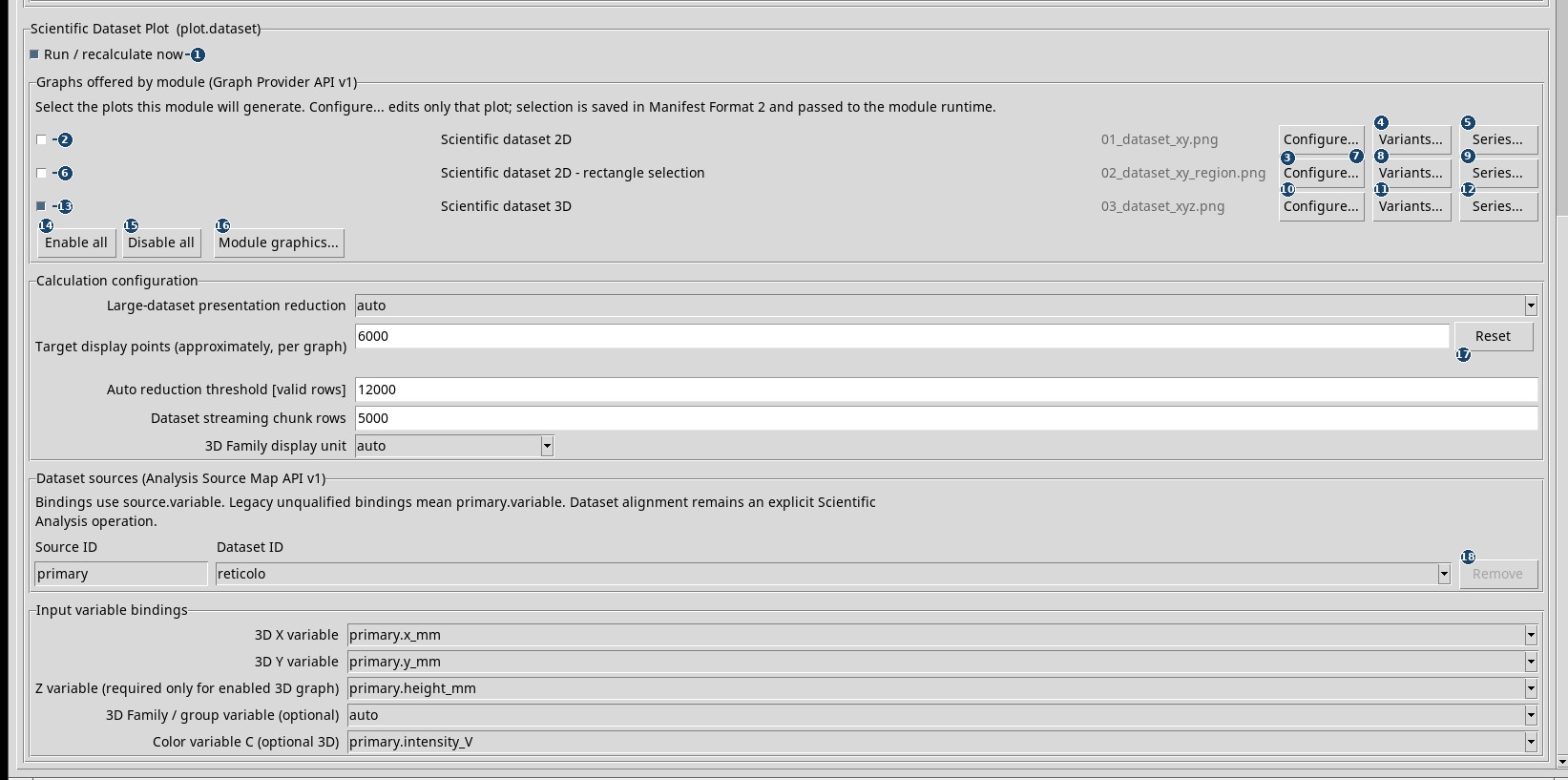
Run / recalculate now includes the module in the plan. The three switches separately enable the XY base, the XY rectangle base and the XYZ base. Each row opens Configure…, Variants… and Series…. The button Module graphics… changes the common rendering of the module. The settings of the two XY bases are described in Part I.
- Area
- Graphs offered by module
- Controls and use
- Enable all selects all bases. Disable all deselects them. If a base is active, first complete the required bindings. Variants keep their own Enabled switch.
- Area
- Calculation configuration
- Controls and use
- Large-dataset presentation reduction, Target display points and Reset define the display budget. Automatic threshold, block size and 3D Family display unit apply to the module. Values and effects.
- Area
- Dataset sources
- Controls and use
- Source ID identifies the alias. The menu Dataset ID binds a Session Dataset. If available, Add source, adds an alias. Remove deletes the removable alias, while
primaryis reserved. Checking the canonical source.
- Area
- Input variable bindings
- Controls and use
- 3D X variable, 3D Y variable and Z variable define the three coordinates. 3D Family / group variable and Color variable C are optional. The menus update after choosing the source.
Before rendering and after publication
Without a Dataset there are no canonical choices. A field can display auto even without a unique role. Use explicit bindings when titles or roles overlap. For the XYZ row the Series editor remains the generic X/Y one. The variant editor offers a complete Binding tab for X, Y, Z, Family and C.
In the browser Plots select the row of the produced plot. Select data…, Select area and Clear area are disabled for this XYZ product. Native3D inspection requires a variant and a compatible type. Titles and actions are covered in more detail in the chapters Variants and Plots and Native3D.
Numbered controls
Scientific Dataset Plot in Analysis, with the three products, the parameters and the XYZ bindings.
- No.
- 1
- Control
- Run / recalculate now
- Action
- Selects the module for the next Run plan, then updates the plan. Go to the procedure.
- No.
- 2
- Control
- Scientific dataset 2D
- Action
- Enables the product’s base row in the Run plan. Go to the procedure.
- No.
- 3
- Control
- Configure…
- Action
- Opens the configuration of the row next to the button. Go to the procedure.
- No.
- 4
- Control
- Variants…
- Action
- Opens the variant manager of the corresponding product. Go to the procedure.
- No.
- 5
- Control
- Series…
- Action
- Opens the product’s Series editor. For XYZ the canonical bindings are those in Analysis or Bindings. Go to the procedure.
- No.
- 6
- Control
- Scientific dataset 2D – rectangle selection
- Action
- Enables the product’s base row in the Run plan. Go to the procedure.
- No.
- 7
- Control
- Configure…
- Action
- Opens the configuration of the row next to the button. Go to the procedure.
- No.
- 8
- Control
- Variants…
- Action
- Opens the variant manager of the corresponding product. Go to the procedure.
- No.
- 9
- Control
- Series…
- Action
- Opens the product’s Series editor. For XYZ the canonical bindings are those in Analysis or Bindings. Go to the procedure.
- No.
- 10
- Control
- Configure…
- Action
- Opens the configuration of the row next to the button. Go to the procedure.
- No.
- 11
- Control
- Variants…
- Action
- Opens the variant manager of the corresponding product. Go to the procedure.
- No.
- 12
- Control
- Series…
- Action
- Opens the product’s Series editor. For XYZ the canonical bindings are those in Analysis or Bindings. Go to the procedure.
- No.
- 13
- Control
- Scientific dataset 3D
- Action
- Enables the product’s base row in the Run plan. Go to the procedure.
- No.
- 14
- Control
- Enable all
- Action
- Enables all rows of the module. Before the Run, check the inputs of each active row. Go to the procedure.
- No.
- 15
- Control
- Disable all
- Action
- Disables the base products. Check Enabled on the variants separately. Go to the procedure.
- No.
- 16
- Control
- Module graphics…
- Action
- Opens the graphics and layout overrides for the whole module. Go to the procedure.
- No.
- 17
- Control
- Reset
- Action
- Restores the indicated parameter or orientation. In Analysis, next to the target, it restores the budget. In Curve Viewer it restores the camera. Go to the procedure.
- No.
- 18
- Control
- Remove
- Action
- Removes the selected alias when it is removable. Primary is reserved. Go to the procedure.
Configure for Scientific dataset 3D. The buttons at the bottom open Axes and close the panel.
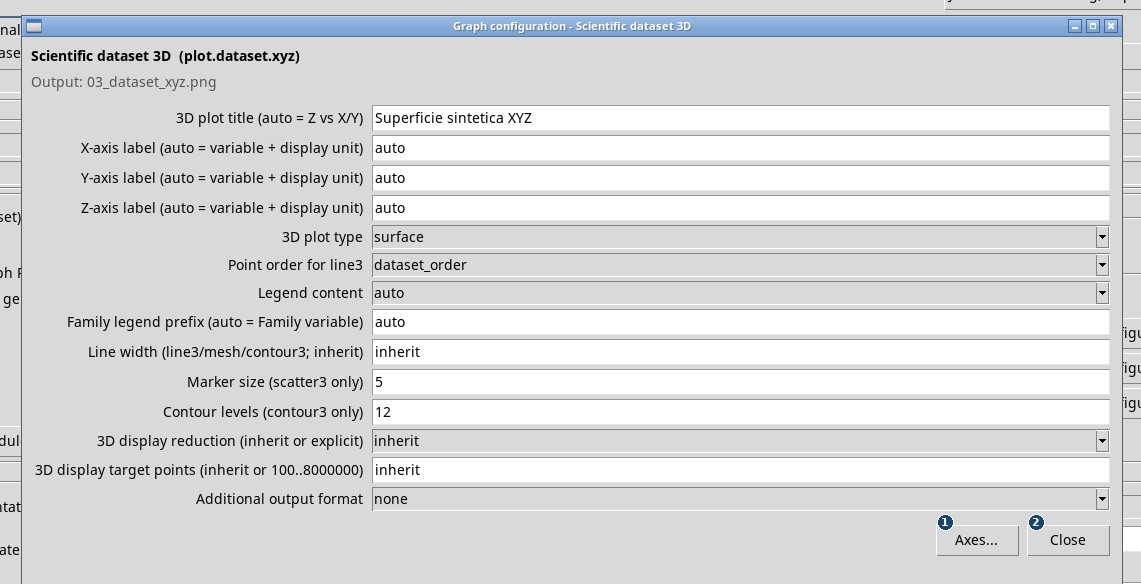
- No.
- 1
- Control
- Axes…
- Action
- Opens the axis and view settings for the current base or variant. Go to the procedure.
- No.
- 2
- Control
- Close
- Action
- Closes the panel. In editors with a Save button, save first if you want to keep the draft. Go to the procedure.
Axes for the XYZ plot, with three axes, view, color and saving.
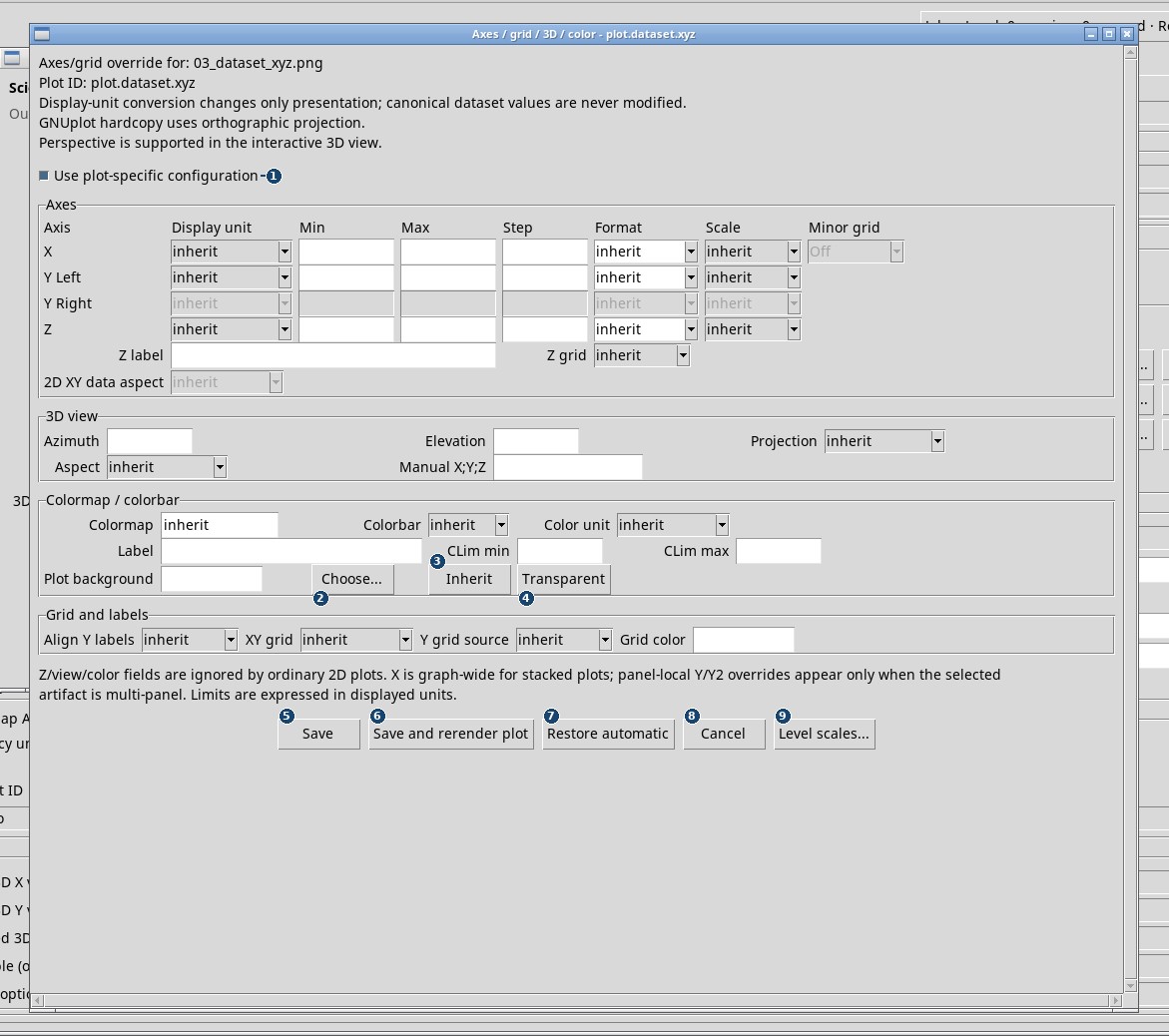
- No.
- 1
- Control
- Use plot-specific configuration
- Action
- Enables the axis, color and view settings for the selected reference. Go to the procedure.
- No.
- 2
- Control
- Choose…
- Action
- Opens the color picker for the background. Go to the procedure.
- No.
- 3
- Control
- Inherit
- Action
- Removes the local value and uses the inherited setting. Go to the procedure.
- No.
- 4
- Control
- Transparent
- Action
- Sets transparency in the current context, according to format and renderer. Go to the procedure.
- No.
- 5
- Control
- Save
- Action
- Keeps the dialog values. Check whether the plot needs to be rendered again. Go to the procedure.
- No.
- 6
- Control
- Save and rerender plot
- Action
- Confirms the overrides and tries to regenerate the selected plot. Go to the procedure.
- No.
- 7
- Control
- Restore automatic
- Action
- Restores the automatic configuration. Confirm and regenerate to check its effect. Go to the procedure.
- No.
- 8
- Control
- Cancel
- Action
- Closes the dialog draft without confirming it. Go to the procedure.
- No.
- 9
- Control
- Level scales…
- Action
- Opens the numeric level transformation for the admitted axes. Go to the procedure.
Level scales for a 3D plot. Check which axes have active controls.
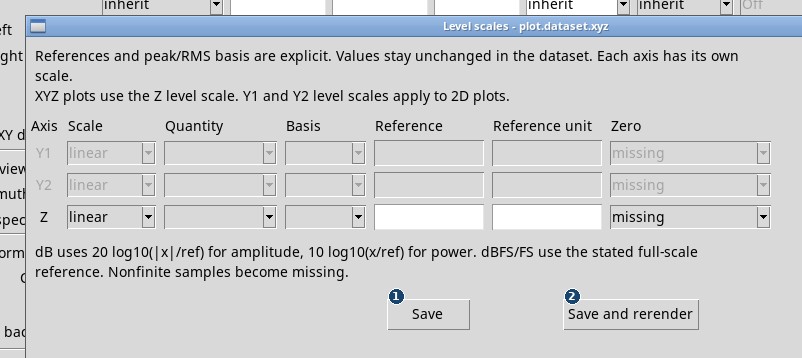
- No.
- 1
- Control
- Save
- Action
- Keeps the dialog values. Check whether the plot needs to be rendered again. Go to the procedure.
- No.
- 2
- Control
- Save and rerender
- Action
- Registers the level transformation and regenerates the current figure. Go to the procedure.
Generic Graph Series editor opened from the XYZ product.
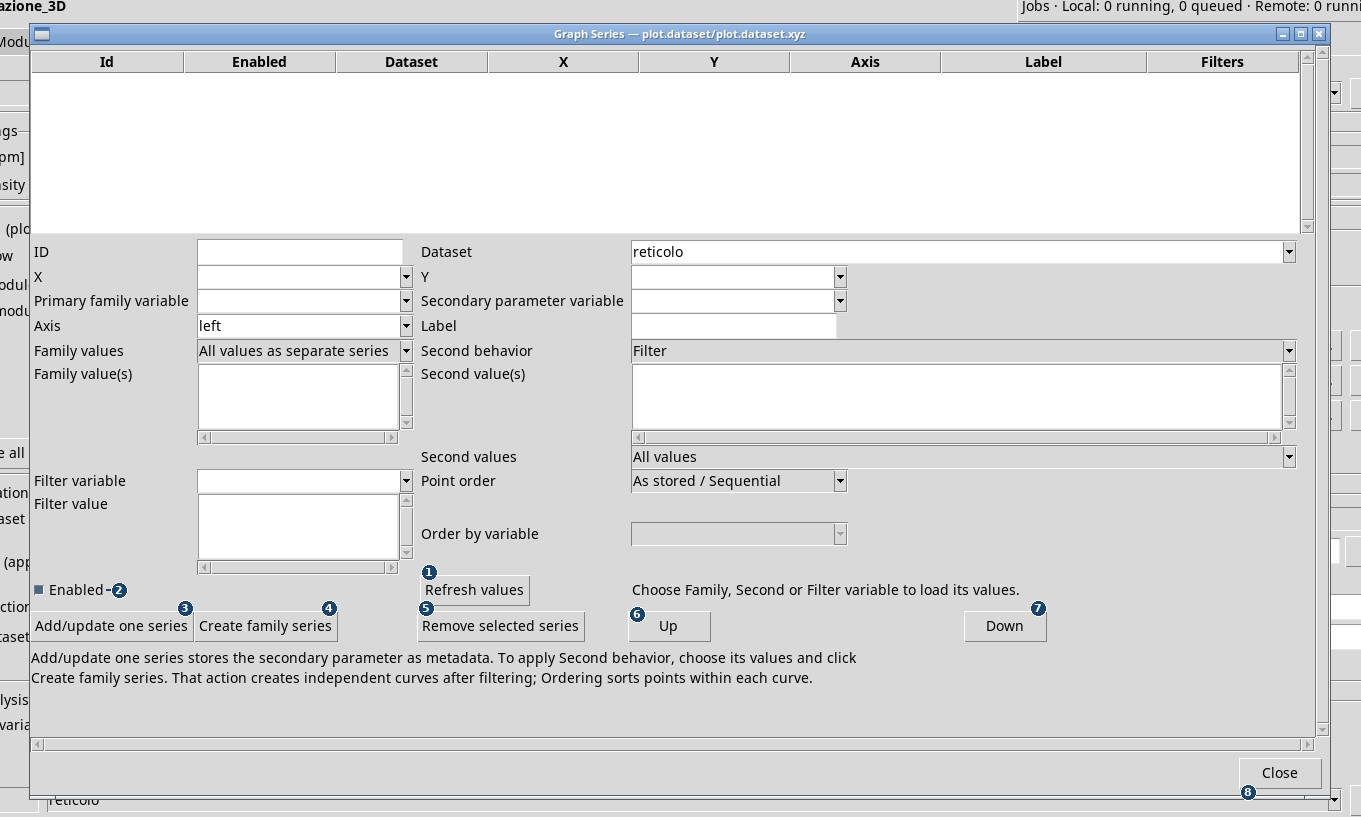
- No.
- 1
- Control
- Refresh values
- Action
- Updates the family, secondary parameter and filter lists after choosing Dataset and variables. Go to the procedure.
- No.
- 2
- Control
- Enabled
- Action
- Sets the inclusion of the current series or variant. Register the change with the save command. Go to the procedure.
- No.
- 3
- Control
- Add/update one series
- Action
- Saves the fields of the generic series under the current ID. Go to the procedure.
- No.
- 4
- Control
- Create family series
- Action
- Expands the selected values into several rows in generic series management. Go to the procedure.
- No.
- 5
- Control
- Remove selected series
- Action
- Removes the selected rows from the generic editor. Go to the procedure.
- No.
- 6
- Control
- Up
- Action
- Moves the selected row up if it has a previous row. Go to the procedure.
- No.
- 7
- Control
- Down
- Action
- Moves the selected row down if it has a next row. Go to the procedure.
- No.
- 8
- Control
- Close
- Action
- Closes the panel. In editors with a Save button, save first if you want to keep the draft. Go to the procedure.
Variant manager of Scientific dataset 3D.
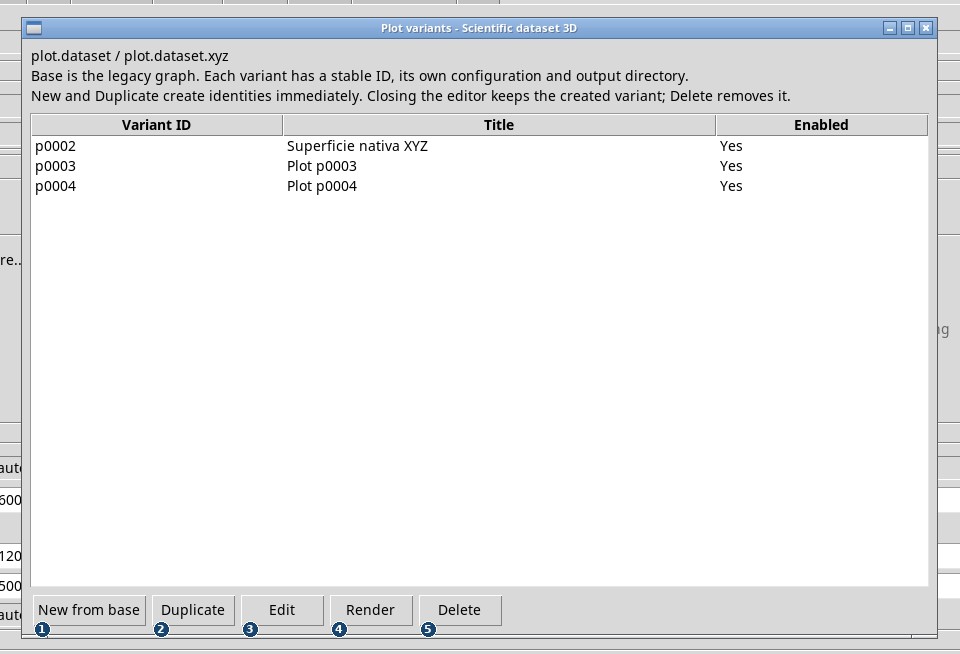
- No.
- 1
- Control
- New from base
- Action
- Allocates a variant from the base settings and opens the editor. Go to the procedure.
- No.
- 2
- Control
- Duplicate
- Action
- Creates a second variant from the selected row, with a distinct ID. Go to the procedure.
- No.
- 3
- Control
- Edit
- Action
- Brings the selected variant into the editor. Go to the procedure.
- No.
- 4
- Control
- Render
- Action
- Regenerates the selected variant and leaves its identity intact. Go to the procedure.
- No.
- 5
- Control
- Delete
- Action
- Asks for confirmation before deleting the variant and its artifacts. Go to the procedure.
XYZ editor, Bindings tab with an explicit choice of each variable.
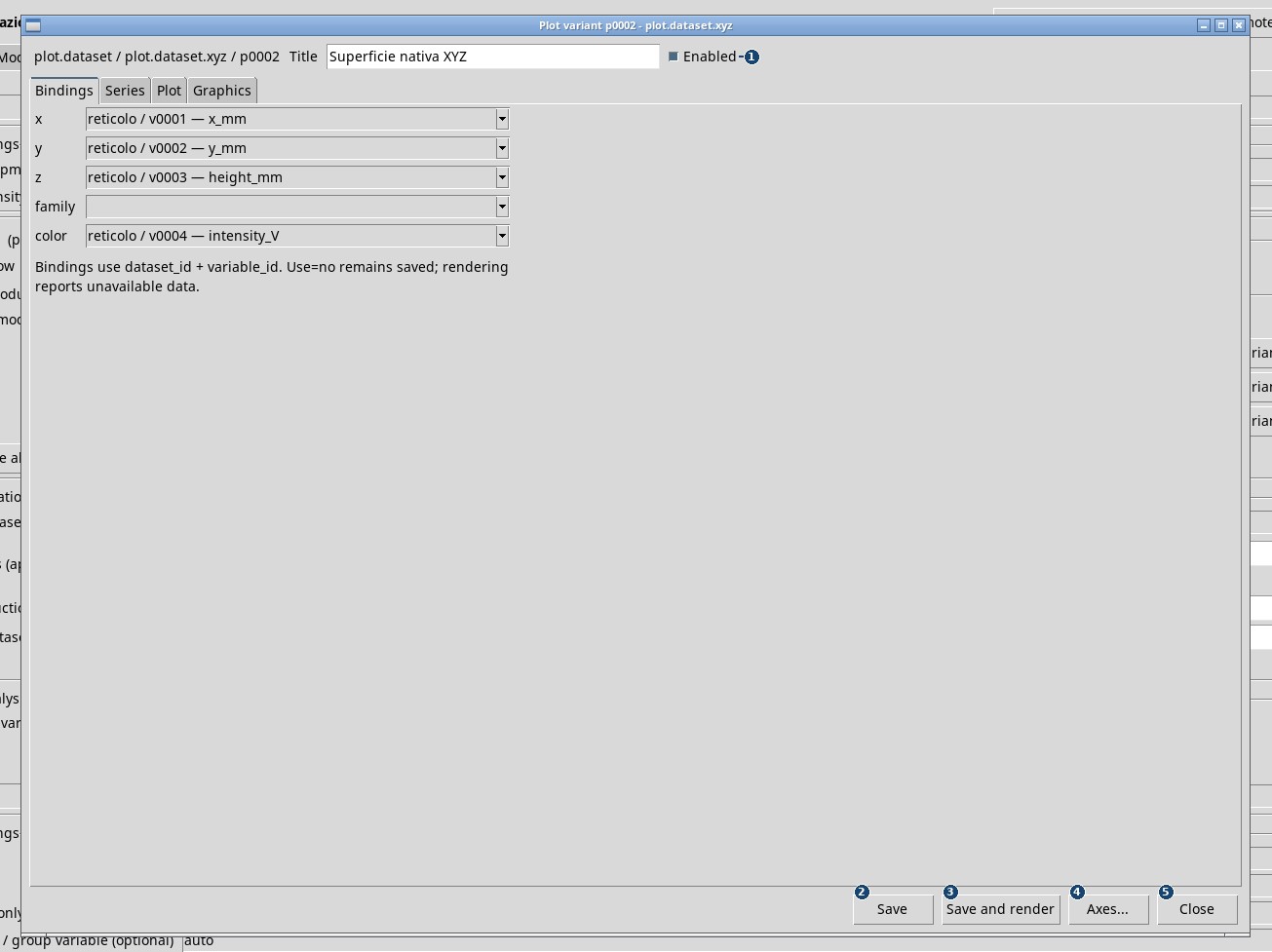
- No.
- 1
- Control
- Enabled
- Action
- Sets the inclusion of the current series or variant. Register the change with the save command. Go to the procedure.
- No.
- 2
- Control
- Save
- Action
- Keeps the dialog values. Check whether the plot needs to be rendered again. Go to the procedure.
- No.
- 3
- Control
- Save and render
- Action
- Confirms the variant and tries the render for its identity. Go to the procedure.
- No.
- 4
- Control
- Axes…
- Action
- Opens the axis and view settings for the current base or variant. Go to the procedure.
- No.
- 5
- Control
- Close
- Action
- Closes the panel. In editors with a Save button, save first if you want to keep the draft. Go to the procedure.
XYZ editor, Plot tab with the plot type and the drawing parameters.
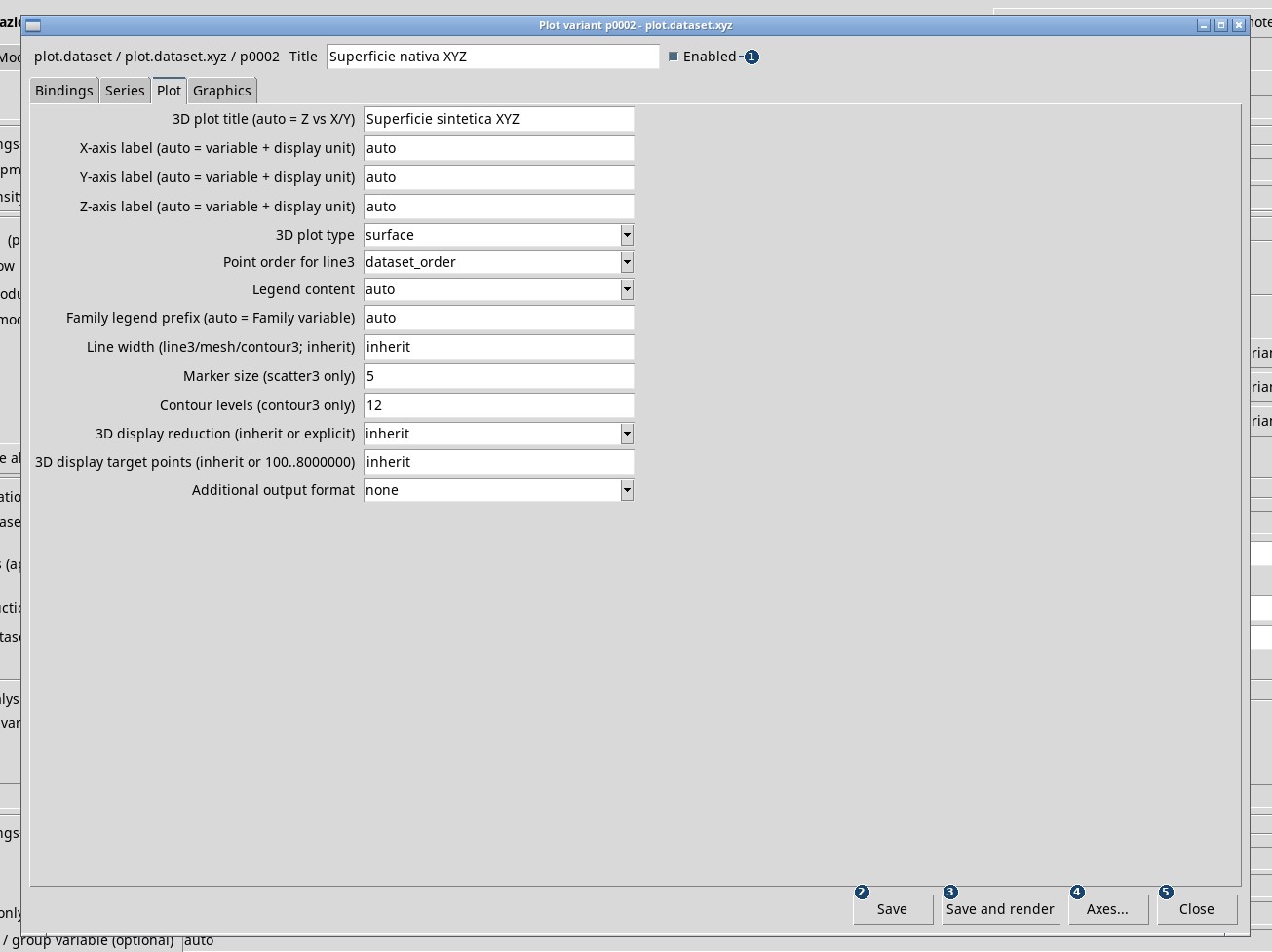
- No.
- 1
- Control
- Enabled
- Action
- Sets the inclusion of the current series or variant. Register the change with the save command. Go to the procedure.
- No.
- 2
- Control
- Save
- Action
- Keeps the dialog values. Check whether the plot needs to be rendered again. Go to the procedure.
- No.
- 3
- Control
- Save and render
- Action
- Confirms the variant and tries the render for its identity. Go to the procedure.
- No.
- 4
- Control
- Axes…
- Action
- Opens the axis and view settings for the current base or variant. Go to the procedure.
- No.
- 5
- Control
- Close
- Action
- Closes the panel. In editors with a Save button, save first if you want to keep the draft. Go to the procedure.
XYZ editor, Series tab of the generic editor.
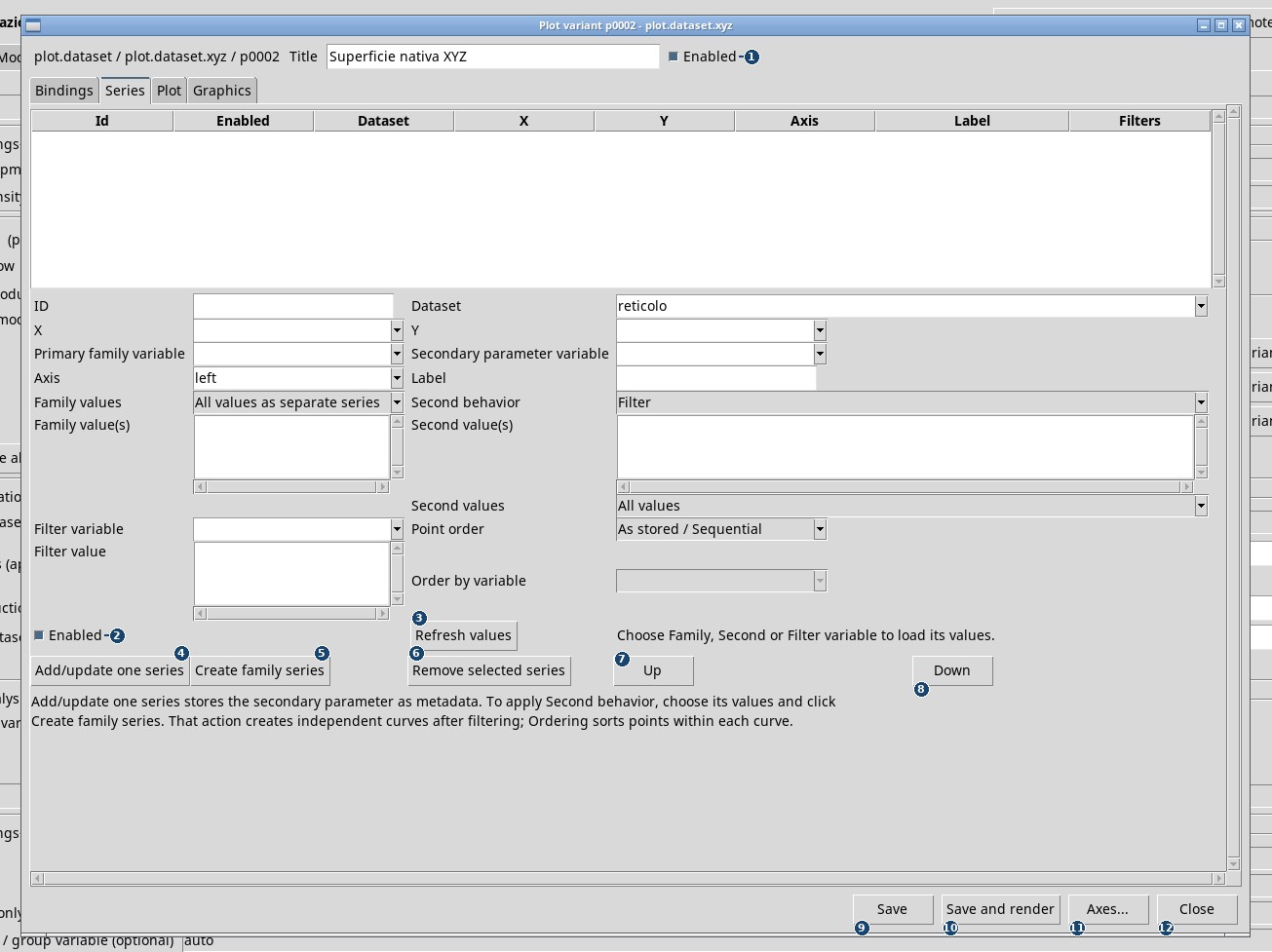
- No.
- 1
- Control
- Enabled
- Action
- Sets the inclusion of the current series or variant. Register the change with the save command. Go to the procedure.
- No.
- 2
- Control
- Enabled
- Action
- Sets the inclusion of the current series or variant. Register the change with the save command. Go to the procedure.
- No.
- 3
- Control
- Refresh values
- Action
- Updates the family, secondary parameter and filter lists after choosing Dataset and variables. Go to the procedure.
- No.
- 4
- Control
- Add/update one series
- Action
- Saves the fields of the generic series under the current ID. Go to the procedure.
- No.
- 5
- Control
- Create family series
- Action
- Expands the selected values into several rows in generic series management. Go to the procedure.
- No.
- 6
- Control
- Remove selected series
- Action
- Removes the selected rows from the generic editor. Go to the procedure.
- No.
- 7
- Control
- Up
- Action
- Moves the selected row up if it has a previous row. Go to the procedure.
- No.
- 8
- Control
- Down
- Action
- Moves the selected row down if it has a next row. Go to the procedure.
- No.
- 9
- Control
- Save
- Action
- Keeps the dialog values. Check whether the plot needs to be rendered again. Go to the procedure.
- No.
- 10
- Control
- Save and render
- Action
- Confirms the variant and tries the render for its identity. Go to the procedure.
- No.
- 11
- Control
- Axes…
- Action
- Opens the axis and view settings for the current base or variant. Go to the procedure.
- No.
- 12
- Control
- Close
- Action
- Closes the panel. In editors with a Save button, save first if you want to keep the draft. Go to the procedure.
XYZ editor, Graphics tab with local overrides.
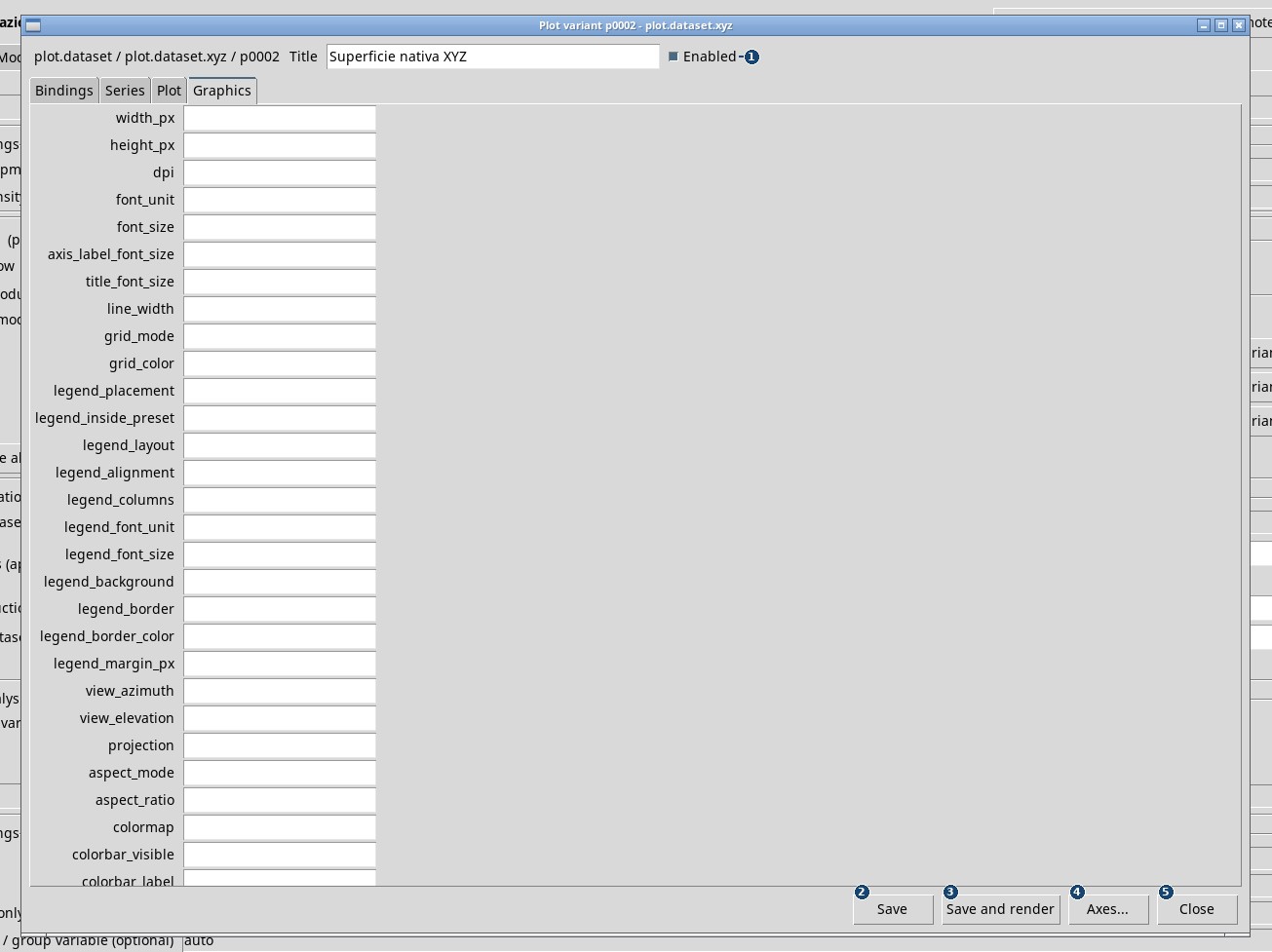
- No.
- 1
- Control
- Enabled
- Action
- Sets the inclusion of the current series or variant. Register the change with the save command. Go to the procedure.
- No.
- 2
- Control
- Save
- Action
- Keeps the dialog values. Check whether the plot needs to be rendered again. Go to the procedure.
- No.
- 3
- Control
- Save and render
- Action
- Confirms the variant and tries the render for its identity. Go to the procedure.
- No.
- 4
- Control
- Axes…
- Action
- Opens the axis and view settings for the current base or variant. Go to the procedure.
- No.
- 5
- Control
- Close
- Action
- Closes the panel. In editors with a Save button, save first if you want to keep the draft. Go to the procedure.
Module graphics for Scientific Dataset Plot, first part.
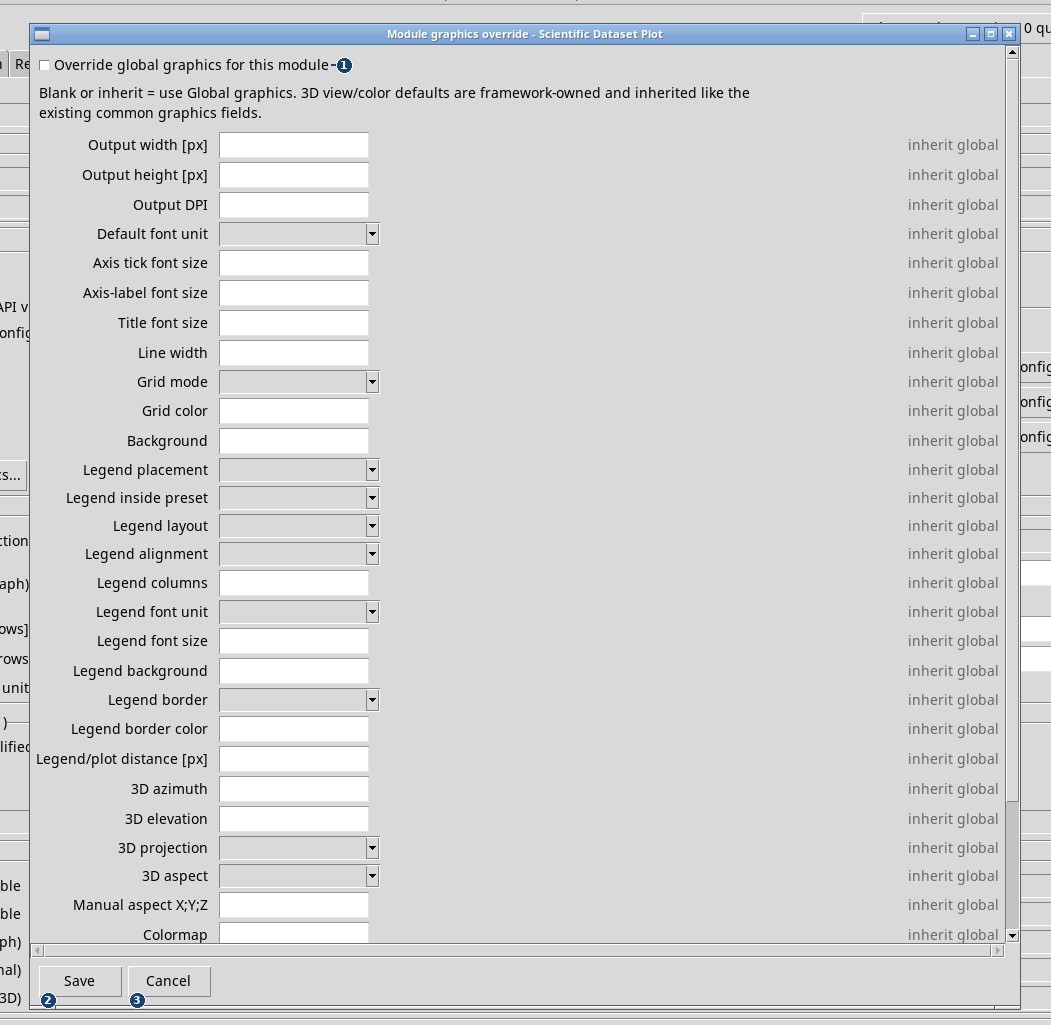
- No.
- 1
- Control
- Override global graphics for this module
- Action
- Applies the module overrides to the filled-in fields and leaves the others inherited. Go to the procedure.
- No.
- 2
- Control
- Save
- Action
- Keeps the dialog values. Check whether the plot needs to be rendered again. Go to the procedure.
- No.
- 3
- Control
- Cancel
- Action
- Closes the dialog draft without confirming it. Go to the procedure.
Module graphics for Scientific Dataset Plot, lower options.
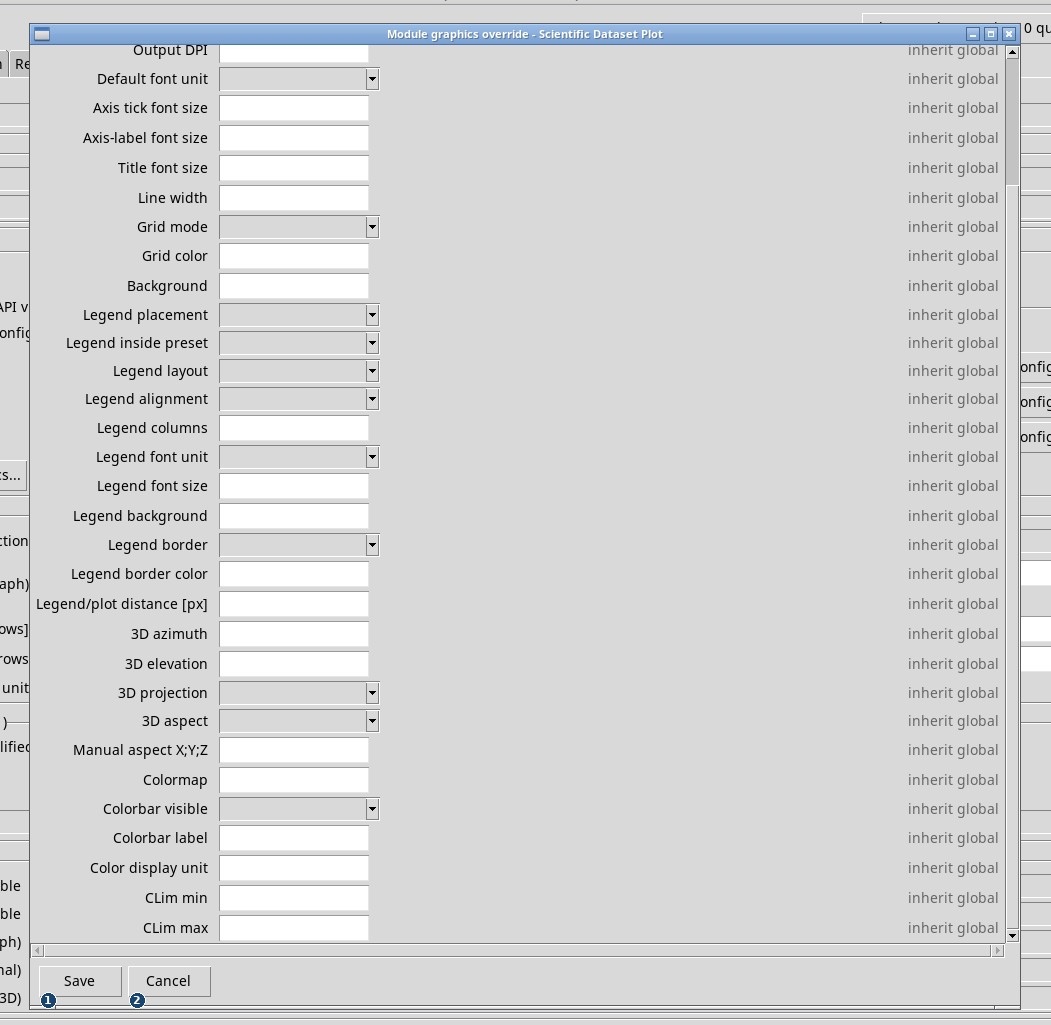
- No.
- 1
- Control
- Save
- Action
- Keeps the dialog values. Check whether the plot needs to be rendered again. Go to the procedure.
- No.
- 2
- Control
- Cancel
- Action
- Closes the dialog draft without confirming it. Go to the procedure.
Native3D view of the plot published in Plots, with camera tools.
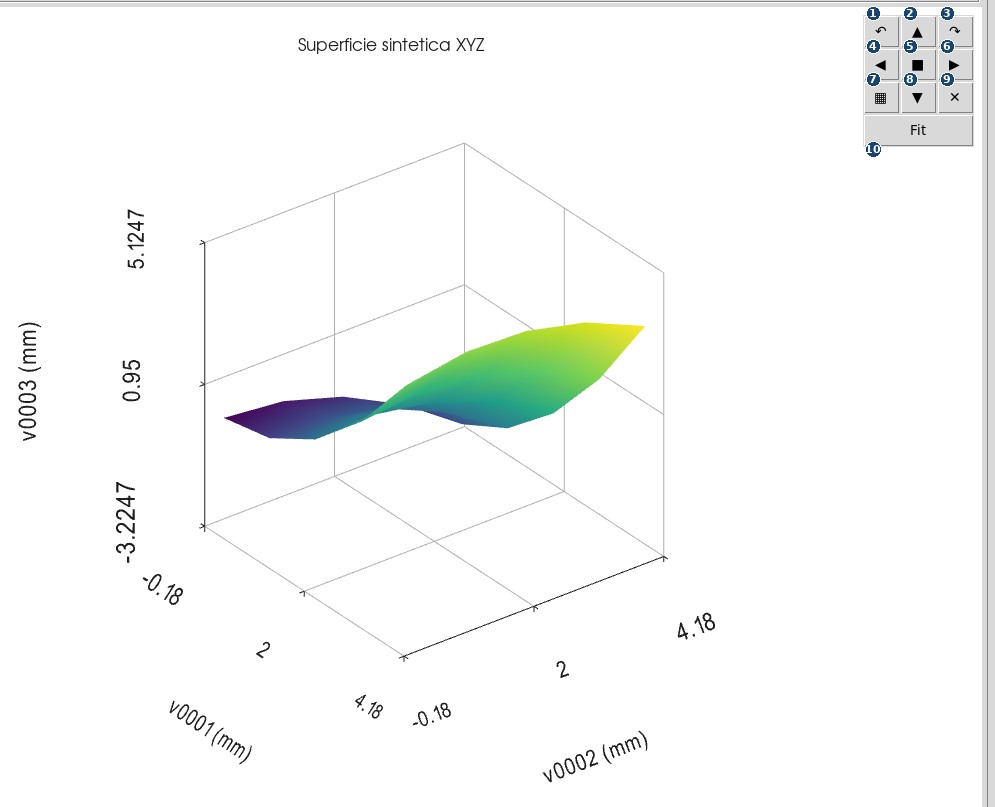
- No.
- 1
- Control
- ↶
- Action
- Rotates counterclockwise. Go to the procedure.
- No.
- 2
- Control
- ▲
- Action
- Tilts the camera up. Go to the procedure.
- No.
- 3
- Control
- ↷
- Action
- Rotates clockwise. Go to the procedure.
- No.
- 4
- Control
- ◀
- Action
- Rotates the camera to the left. Go to the procedure.
- No.
- 5
- Control
- ■
- Action
- Restores the view orientation. Go to the procedure.
- No.
- 6
- Control
- ▶
- Action
- Rotates the camera to the right. Go to the procedure.
- No.
- 7
- Control
- ▦
- Action
- Toggles the visibility of axes and grid in the view. Go to the procedure.
- No.
- 8
- Control
- ▼
- Action
- Tilts the camera down. Go to the procedure.
- No.
- 9
- Control
- ✕
- Action
- Ends the current 3D inspection. Go to the procedure.
- No.
- 10
- Control
- Fit
- Action
- Frames the content of the 3D scene. Go to the procedure.
Enlarged Native3D view with publication and close commands.
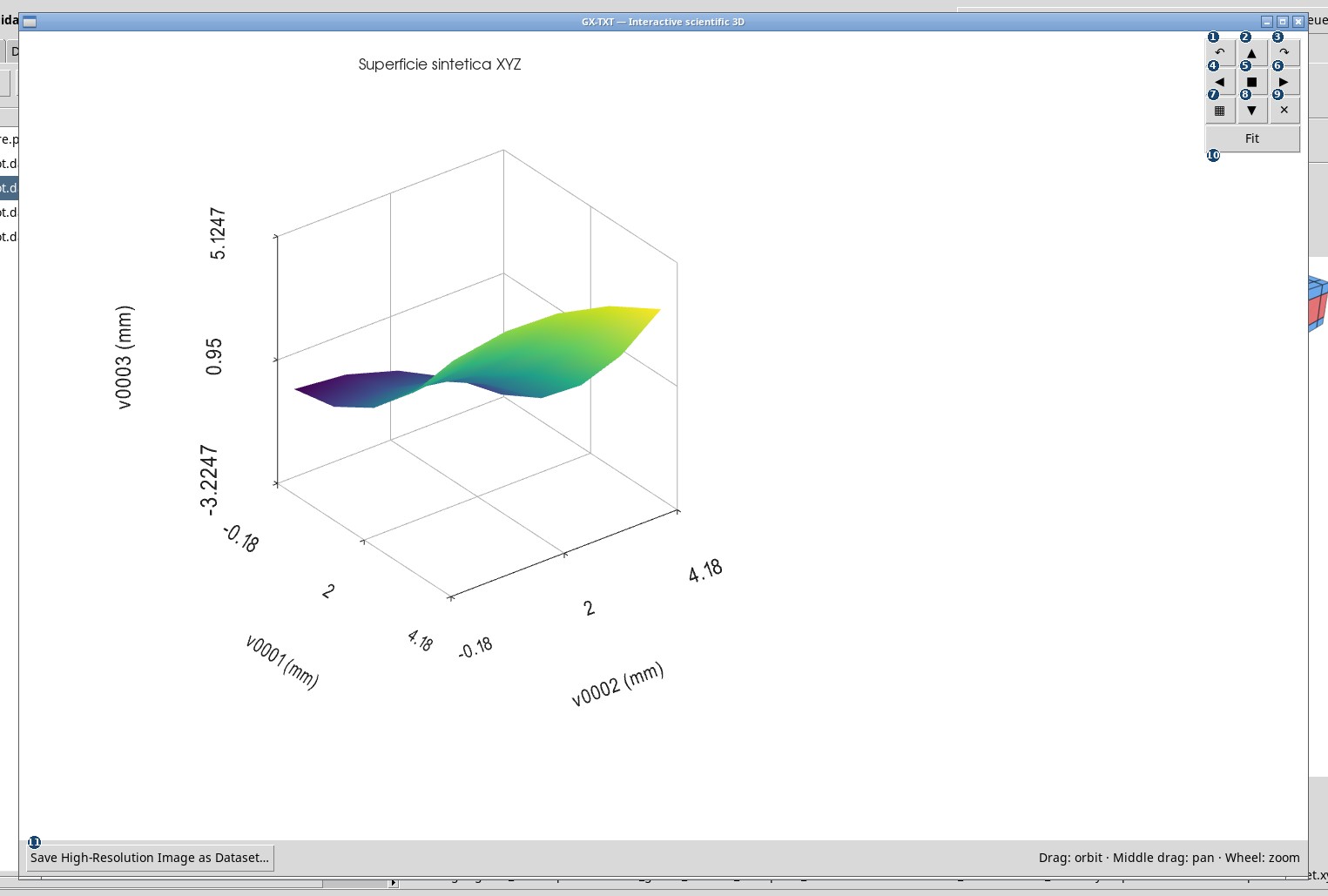
- No.
- 1
- Control
- ↶
- Action
- Rotates counterclockwise. Go to the procedure.
- No.
- 2
- Control
- ▲
- Action
- Tilts the camera up. Go to the procedure.
- No.
- 3
- Control
- ↷
- Action
- Rotates clockwise. Go to the procedure.
- No.
- 4
- Control
- ◀
- Action
- Rotates the camera to the left. Go to the procedure.
- No.
- 5
- Control
- ■
- Action
- Restores the view orientation. Go to the procedure.
- No.
- 6
- Control
- ▶
- Action
- Rotates the camera to the right. Go to the procedure.
- No.
- 7
- Control
- ▦
- Action
- Toggles the visibility of axes and grid in the view. Go to the procedure.
- No.
- 8
- Control
- ▼
- Action
- Tilts the camera down. Go to the procedure.
- No.
- 9
- Control
- ✕
- Action
- Ends the current 3D inspection. Go to the procedure.
- No.
- 10
- Control
- Fit
- Action
- Frames the content of the 3D scene. Go to the procedure.
- No.
- 11
- Control
- Save High-Resolution Image as Dataset…
- Action
- Opens the publication form for the current camera with ID and resolution. Go to the procedure.
Dialog for publishing the Native3D frame as an image Dataset.
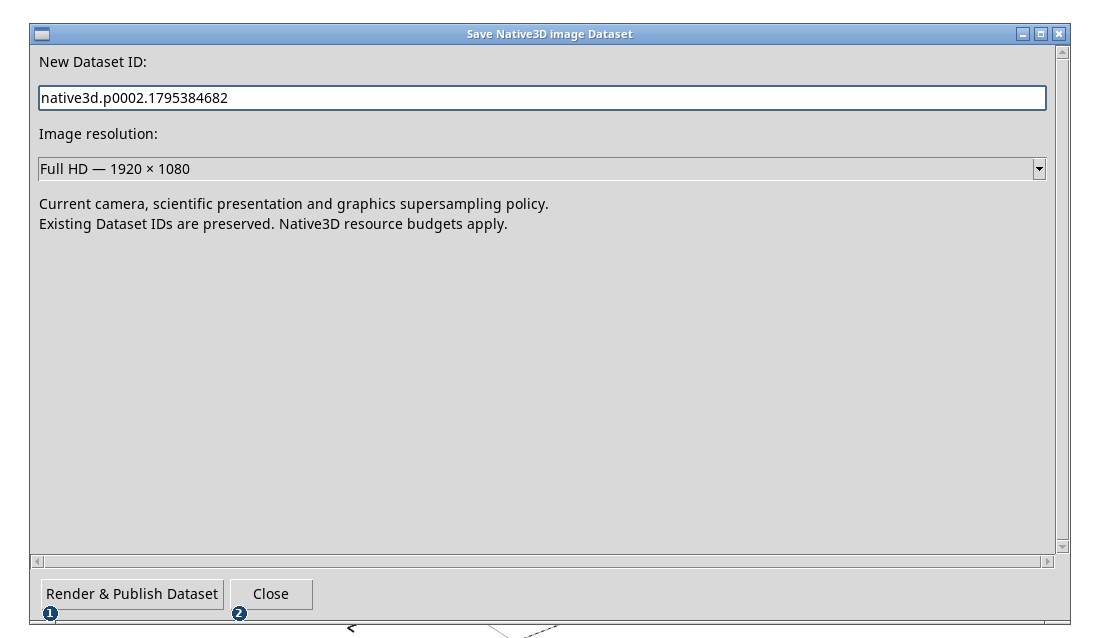
- No.
- 1
- Control
- Render & Publish Dataset
- Action
- Generates the PNG and registers the image Dataset after validating the ID and the budget. Go to the procedure.
- No.
- 2
- Control
- Close
- Action
- Closes the panel. In editors with a Save button, save first if you want to keep the draft. Go to the procedure.
Curve Viewer with the Native3D preview of the draft and the command bar.
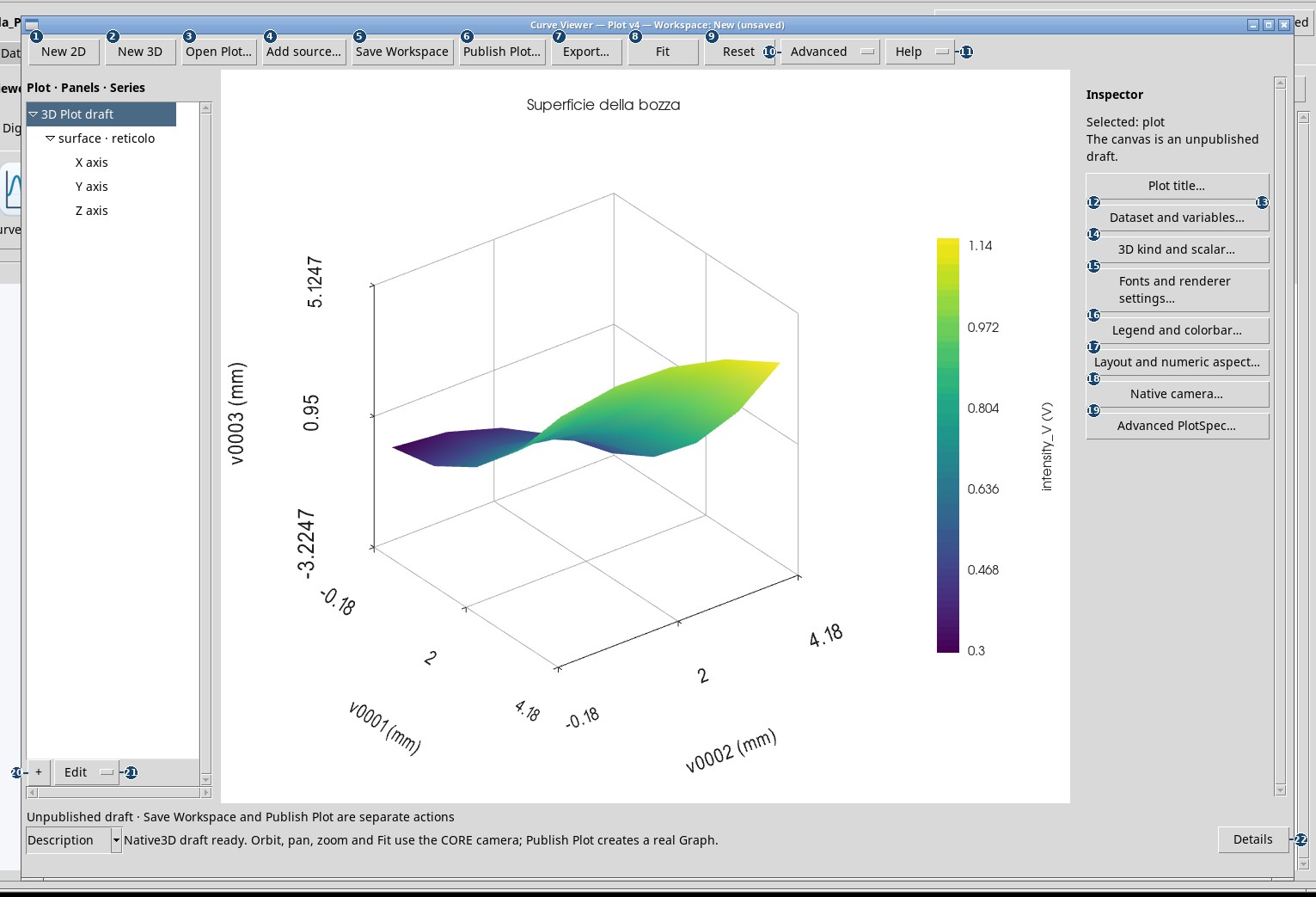
- No.
- 1
- Control
- New 2D
- Action
- Creates a 2D Cartesian draft. Confirm the replacement of the active draft if asked. Go to the procedure.
- No.
- 2
- Control
- New 3D
- Action
- Creates an XYZ draft. Assign X, Y and Z with Add source before preparing the scene. Go to the procedure.
- No.
- 3
- Control
- Open Plot…
- Action
- Loads a figure or variant as a draft and checks whether the v4 owner allows Update. Go to the procedure.
- No.
- 4
- Control
- Add source…
- Action
- Opens the canonical Dataset picker and the dialog for assigning the variables. Go to the procedure.
- No.
- 5
- Control
- Save Workspace
- Action
- Saves the draft and the presentation in the current Curve Viewer document. Go to the procedure.
- No.
- 6
- Control
- Publish Plot…
- Action
- Confirms a create or update action in the Plots browser. Go to the procedure.
- No.
- 7
- Control
- Export…
- Action
- Opens the export of the prepared draft. Choose a format allowed by the renderer. Go to the procedure.
- No.
- 8
- Control
- Fit
- Action
- Frames the content of the 3D scene. Go to the procedure.
- No.
- 9
- Control
- Reset
- Action
- Restores the indicated parameter or orientation. In Analysis, next to the target, it restores the budget. In Curve Viewer it restores the camera. Go to the procedure.
- No.
- 10
- Control
- Advanced
- Action
- Expands the group of advanced inspector controls. Go to the procedure.
- No.
- 11
- Control
- Help
- Action
- Opens help from the Curve Viewer bar. Go to the procedure.
- No.
- 12
- Control
- Plot title…
- Action
- Edits the figure title in the draft. Go to the procedure.
- No.
- 13
- Control
- Dataset and variables…
- Action
- Reopens the source and the canonical bindings of the figure. Go to the procedure.
- No.
- 14
- Control
- 3D kind and scalar…
- Action
- Edits the representation and the role of the scalar in the draft. Go to the procedure.
- No.
- 15
- Control
- Fonts and renderer settings…
- Action
- Opens the graphics settings that apply to fonts and renderer. Go to the procedure.
- No.
- 16
- Control
- Legend and colorbar…
- Action
- Opens the legend and the color scale of the draft. Go to the procedure.
- No.
- 17
- Control
- Layout and numeric aspect…
- Action
- Edits the layout and numeric proportions of the model. Go to the procedure.
- No.
- 18
- Control
- Native camera…
- Action
- Edits the camera parameters of the native draft. Go to the procedure.
- No.
- 19
- Control
- Advanced PlotSpec…
- Action
- Shows the draft contract, with explicit editing subject to validation. Go to the procedure.
- No.
- 20
- Control
- +
- Action
- Opens the addition of a source in the sources pane. Go to the procedure.
- No.
- 21
- Control
- Edit
- Action
- Brings the selected variant into the editor. Go to the procedure.
- No.
- 22
- Control
- Details
- Action
- Shows the details of the action and of the document history. Go to the procedure.
Curve Viewer, read-only inspection of the XYZ provider opened from Plots.
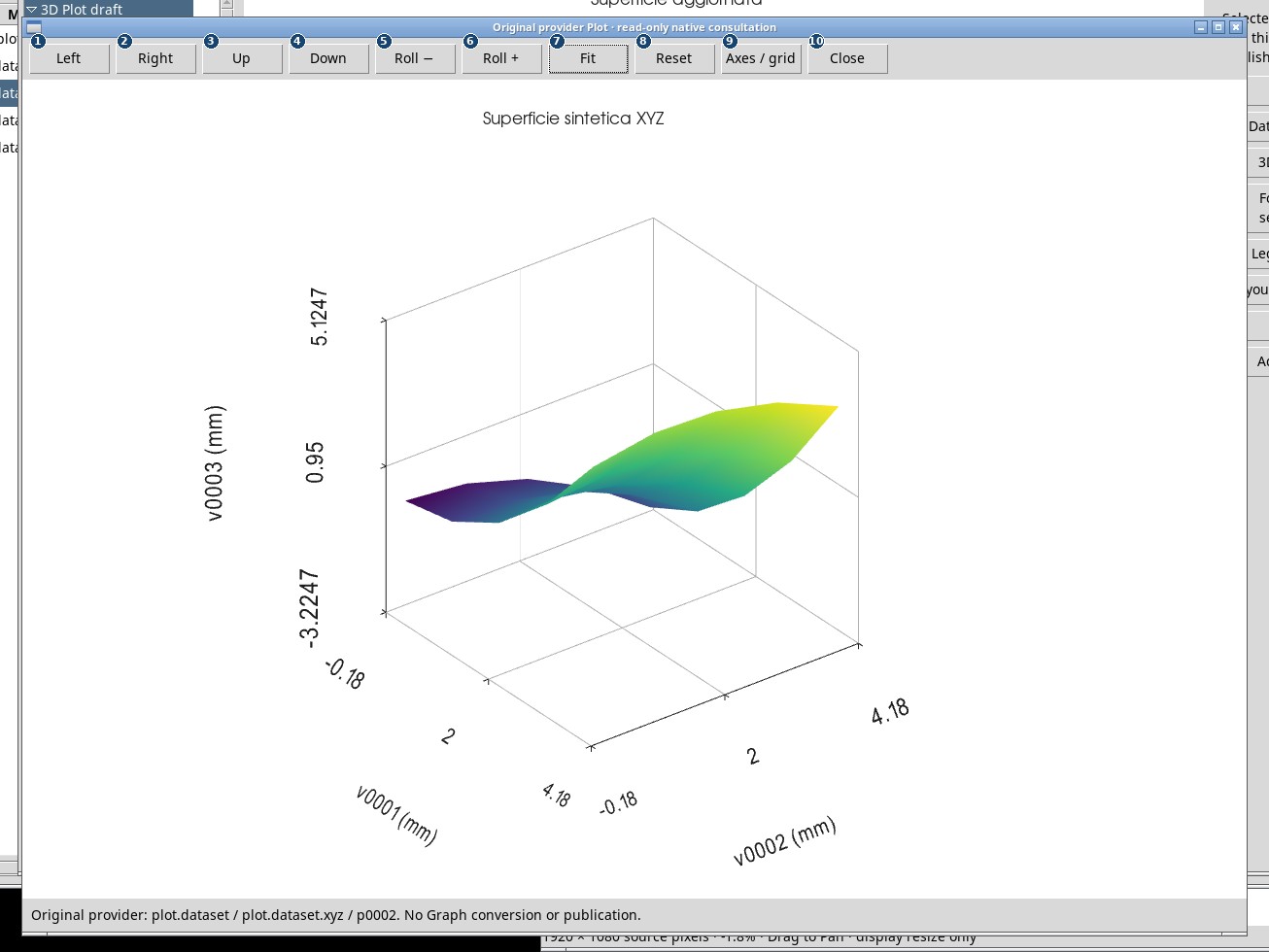
- No.
- 1
- Control
- Left
- Action
- Turns the inspection camera to the left. Go to the procedure.
- No.
- 2
- Control
- Right
- Action
- Turns the inspection camera to the right. Go to the procedure.
- No.
- 3
- Control
- Up
- Action
- Moves the selected row up if it has a previous row. Go to the procedure.
- No.
- 4
- Control
- Down
- Action
- Moves the selected row down if it has a next row. Go to the procedure.
- No.
- 5
- Control
- Roll −
- Action
- Rotates the camera around the viewing axis in the negative direction. Go to the procedure.
- No.
- 6
- Control
- Roll +
- Action
- Rotates the camera around the viewing axis in the positive direction. Go to the procedure.
- No.
- 7
- Control
- Fit
- Action
- Frames the content of the 3D scene. Go to the procedure.
- No.
- 8
- Control
- Reset
- Action
- Restores the indicated parameter or orientation. In Analysis, next to the target, it restores the budget. In Curve Viewer it restores the camera. Go to the procedure.
- No.
- 9
- Control
- Axes / grid
- Action
- Toggles axes and grid in the inspection. Go to the procedure.
- No.
- 10
- Control
- Close
- Action
- Closes the panel. In editors with a Save button, save first if you want to keep the draft. Go to the procedure.