Axes, Camera, Legend, and Color Scale
GX-TXT P011-bis · Scientific Dataset Plot 4.4.2
Configure the axes, set the camera and check legend, projection and color scale of 3D plots.
Opening Axes
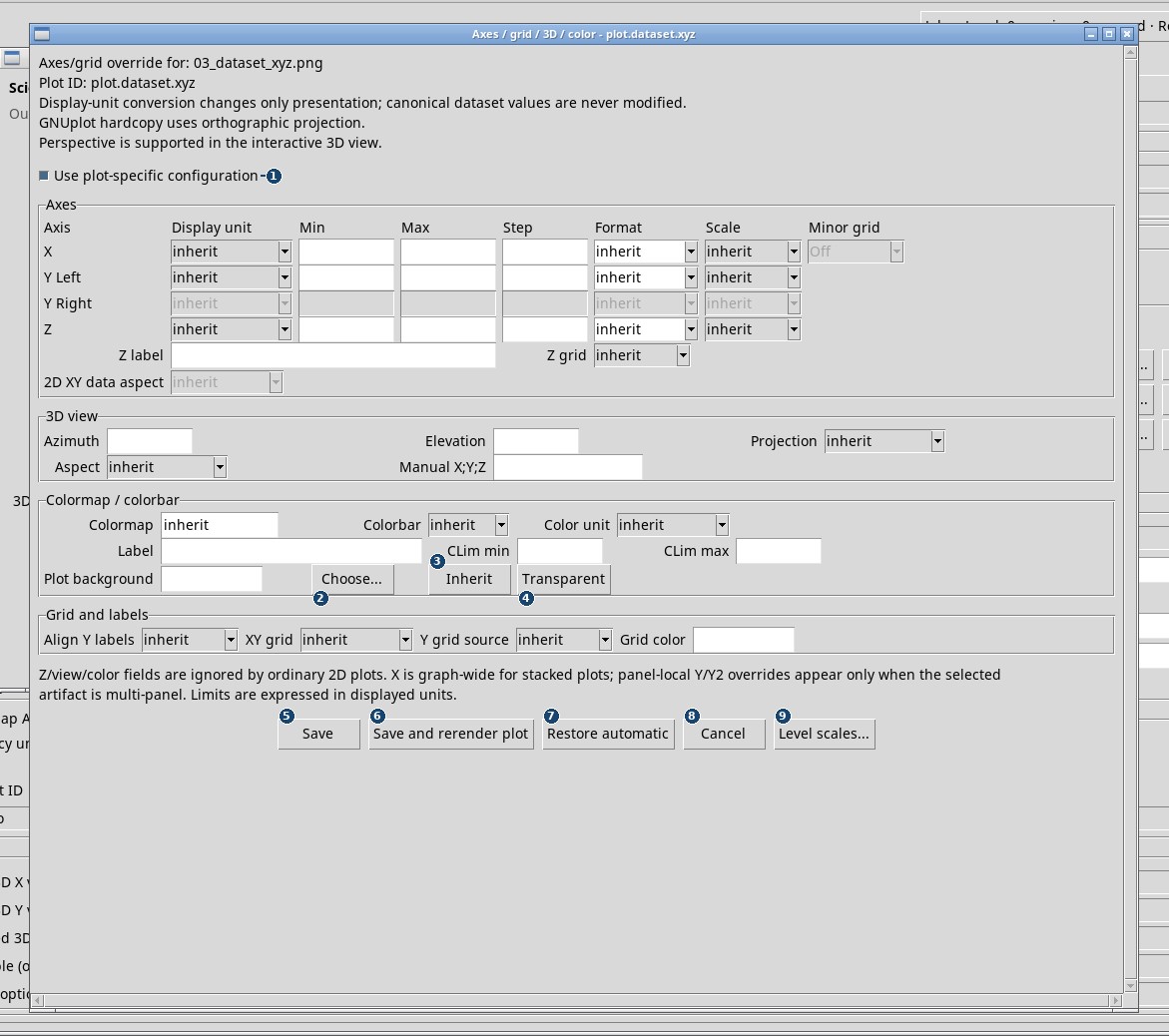
Use Configure… → Axes… on the base, Variants… → Edit → Axes… for a variant or Plots → Presentation → Axes… on the selected plot. Enable Use plot-specific configuration to save overrides for this identity. The fields can already be filled from the last configuration.
- Control
- X, Y left, Z
- Values and conditions
- For each axis choose
inherit,auto,sourceor a proposed compatible unit. For the grid try mm and m. The transformation converts the display. Enter limits in the displayed units and keep scalar, step and limits consistent. The Dataset keeps the canonical values. With the example in mm, the display choices also include m and submultiples of length. With a C in volts the menu also offers mV and the other compatible multiples.
- Control
- Min, Max and Step
- Values and conditions
- Blank lets the renderer or the inherited configuration decide. Write finite limits in increasing order. Step is a positive increment in the displayed units for a linear axis. Read the field label and check the preview. A large number of ticks or a Step defined on a log scale can be rejected. The log scale has its own rules.
- Control
- Format
- Values and conditions
inheritinherits,autodelegates,%guses a compact format,%.0f–%.4ffix the number of decimals. Before rendering, check the display unit.
- Control
- Scale
- Values and conditions
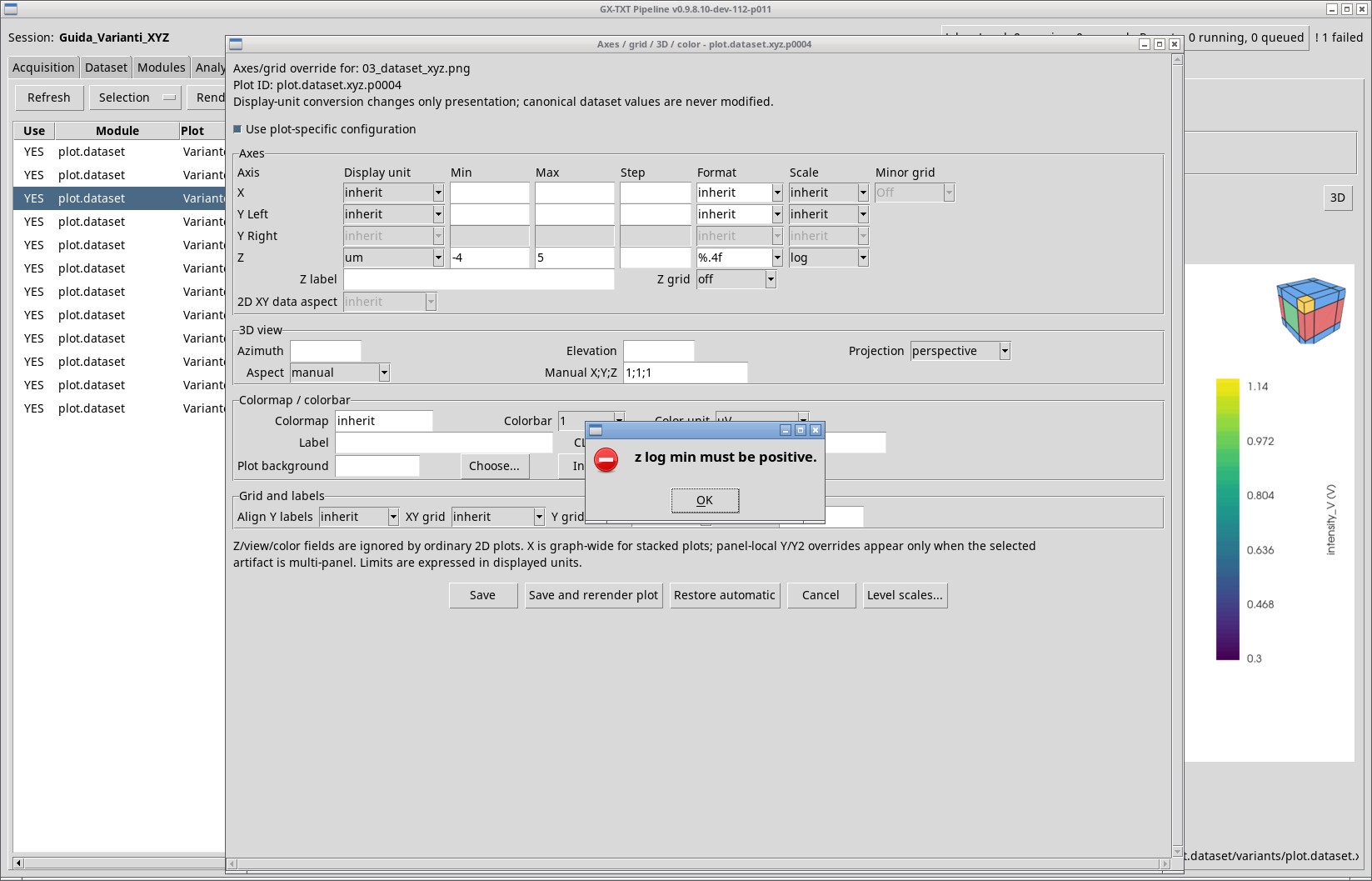
inherit,linearandlog. Explicit log limits require strictly positive values. Try it on entirely positive heights if the reference figure crosses zero.
- Control
- Z grid
- Values and conditions
inherit,onandoff. Adjust the Z grid where the view uses the vertical axis. A planar heatmap keeps its own XY system.
- Control
- Y right, Minor grid X and 2D XY data aspect
- Values and conditions
- Controls reserved for the applicable figures. On the XYZ of this guide they are inactive, as are the custom X pairs when the window shows them disabled.
- Control
- Common grid and background
- Values and conditions
- The grid offers
both,vertical,horizontal,noneorinherit. The color can be explicit. For the presentations that use these common controls, Align Y labels offersinherit,1and0. Y grid source offersinherit,left,rightandnone. In XYZ the Y right field of the axes stays inactive. For the background Choose… opens the picker, Inherit returns to inheritance and Transparent requests a background with no fill.
- Control
- Save, Save and rerender plot, Restore automatic, Cancel
- Values and conditions
- Save keeps the overrides. Save and rerender applies them and starts rendering. Restore automatic recovers the automatic presentation. Cancel discards the current draft. A renderer can reject a combination after the draft has been validated locally.
Camera, projection and proportions
Azimuth and Elevation describe the starting orientation in degrees. Changing them in Axes affects the published rendering. Moving the camera during Native3D inspection changes the current view. Updating a persistent representation uses its own save action.
- Control
- Projection
- Values and effect
inherituses the inherited projection.orthographickeeps lines parallel.perspectiveintroduces convergence and depth dependence.
- Control
- Aspect
- Values and effect
inheritinherits.autouses the renderer’s fit.xy_equalkeeps numeric proportions in XY.data_equalapplies proportions on the three compatible axes.manualuse Aspect ratio with three positive ratios, for example1;1;0.7. Choose consistent units when you compare physical distances.
Colormap and colorbar
Colormap accepts the inherited palette or an identifier allowed by the renderer. Colorbar offers inherit, 0 (hidden) and 1 (visible when a scale exists). Color unit offers inherit, auto, source and compatible units. With an explicit C the unit is that of C, while for the implicit scalar it is that of Z. Colorbar label overrides the text. Color min and Color max are limits in the chosen display unit, with the minimum lower than the maximum.
Try surface with C intensity_V, unit V, an explicit caption and the colorbar on. Repeat with 0 to check that the bar changes. Select inherit to bring the higher-level settings back into play. The context menu Colorbar visible appears on the supported references.
Logarithmic scale and ticks
Set a positive domain before choosing log. The renderer of the v4 variant uses Step as the interval in logarithmic space. With Step 1 you move by one decade. The native rendering rejects non-positive limits and a request exceeding 64 labels. A legacy variant can have a valid PNG and a log Step in display units that prevents native inspection. To return to the 3D view, remove the explicit Step, regenerate the variant and reopen the inspection.
Legend and Level scales
Legend… controls position, layout, columns, margin, font, border and background of the legend. The content comes from the type, the Family values and Legend content. The colorbar has its own setting. Use Title and labels… for title and captions at figure level.
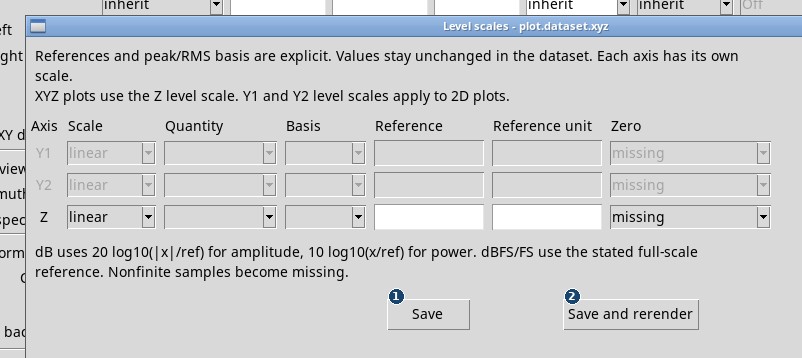
Level scales… opens the common transformations dialog. For XYZ only Z is active. linear preserves the value scale, dB uses the reference, dBFS and FS use the declared full scale. The quantity options are amplitude and power. For amplitude choose peak or rms. Set the reference value and unit. missing makes zero missing and negative_infinity chooses the lower logarithmic limit before excluding non-finite values. Use the explanation of level scales for quantity, unit and reference.
Override precedence
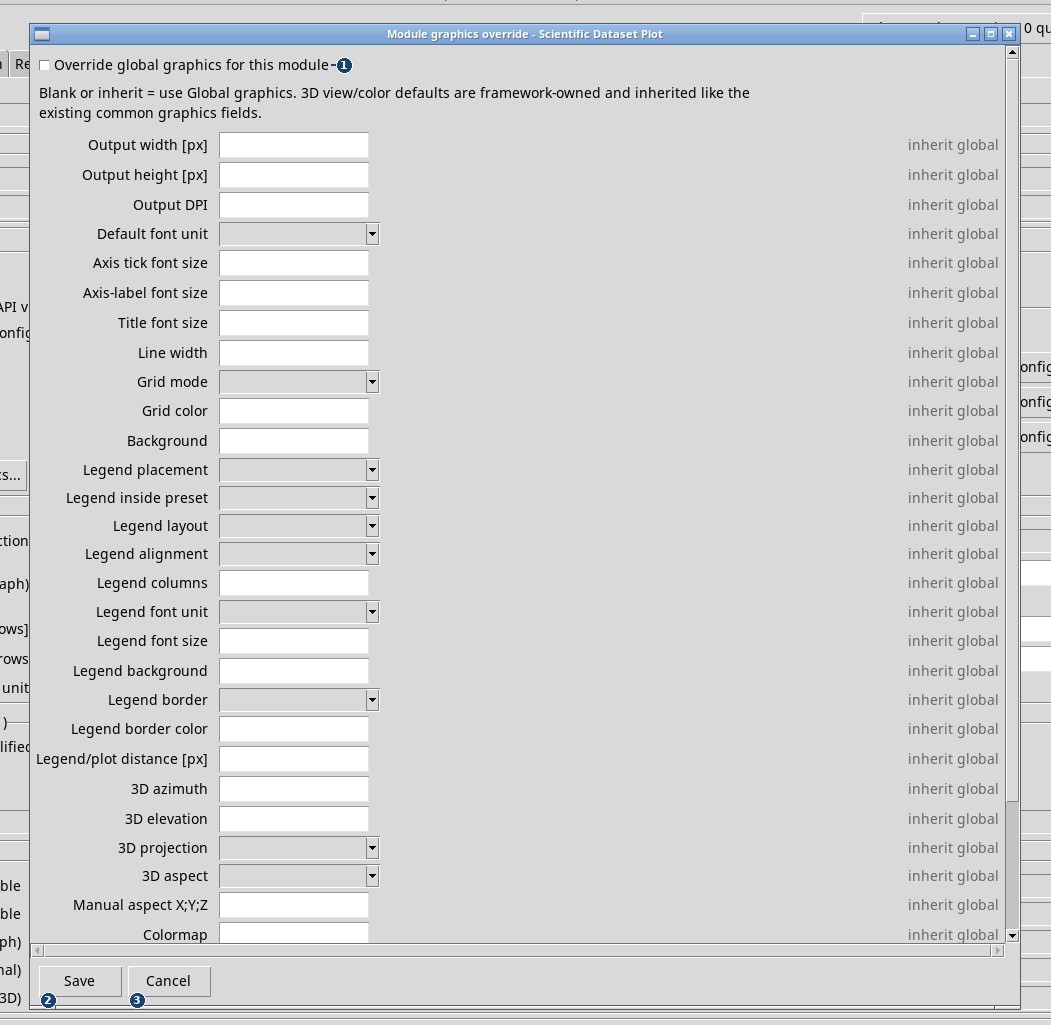
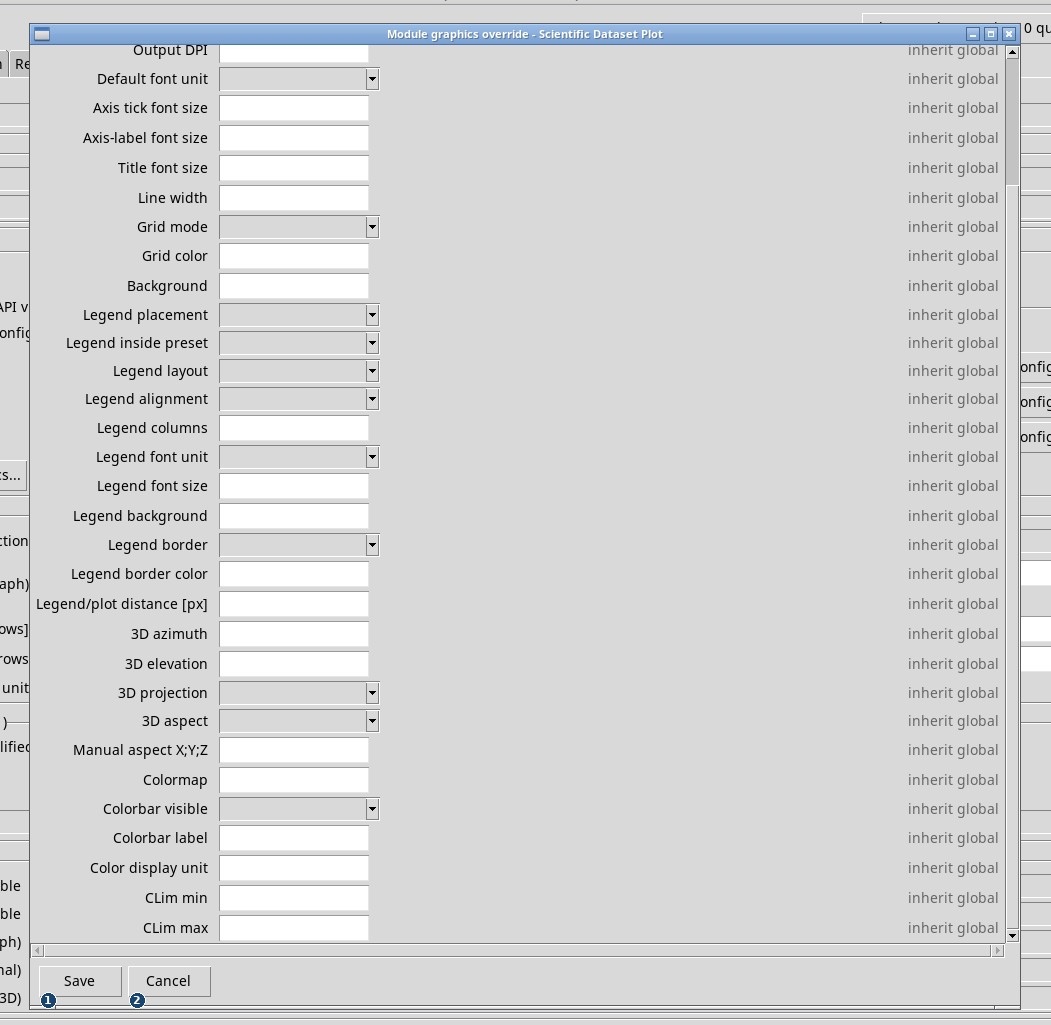
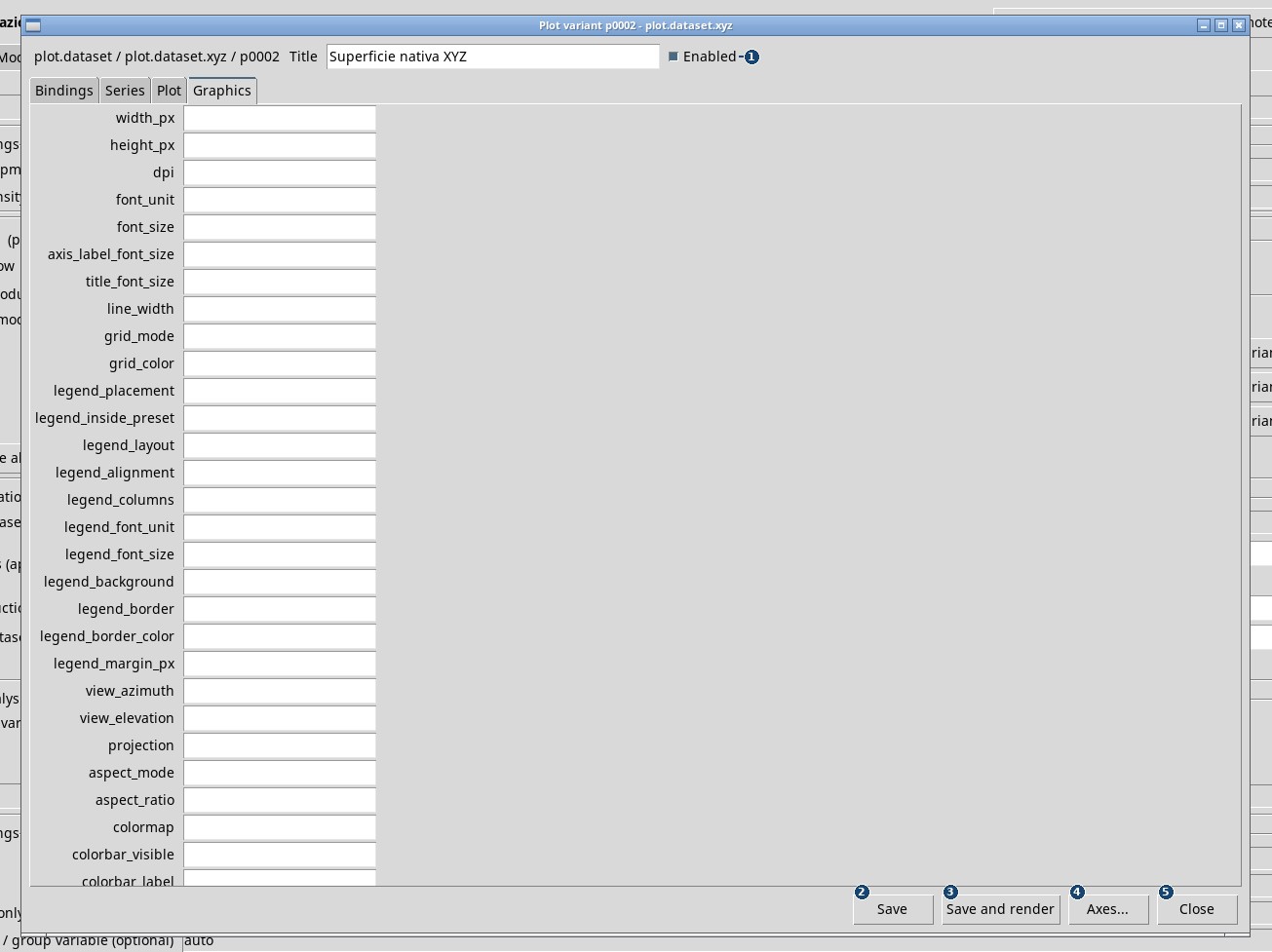
Check, in order, the configuration defaults, the module overrides, the variant Graphics and the specific Axes or Legend overrides. The field inherit lets the relevant level determine the value. The windows Graphics… and Module graphics… include the common settings for format, size, typography, grid, background and legend. Register the changes, regenerate and check the actual PNG. In the test, both the legacy variant and the v4 one produced 1320 × 720 px inherited from the module and 1380 × 760 px with the variant override. Axes and legend use their respective presentation levels.