

Display and point order
Open Options in the central bar. The scope changes which source data you see in the 2D overlay. Automatic sorting can change the processing sequence without changing the measured coordinates.
Show full Dataset and Show selected characteristic / subset
- Show full Dataset
- Factory default. Choose it to see in the 2D chart the complete source context of the Dataset used. With Family and Member the context can show more series observed. The tracks follow the original adjacency and data interruptions. For extended sources it can take more memory and time.
- Show selected characteristic / subset
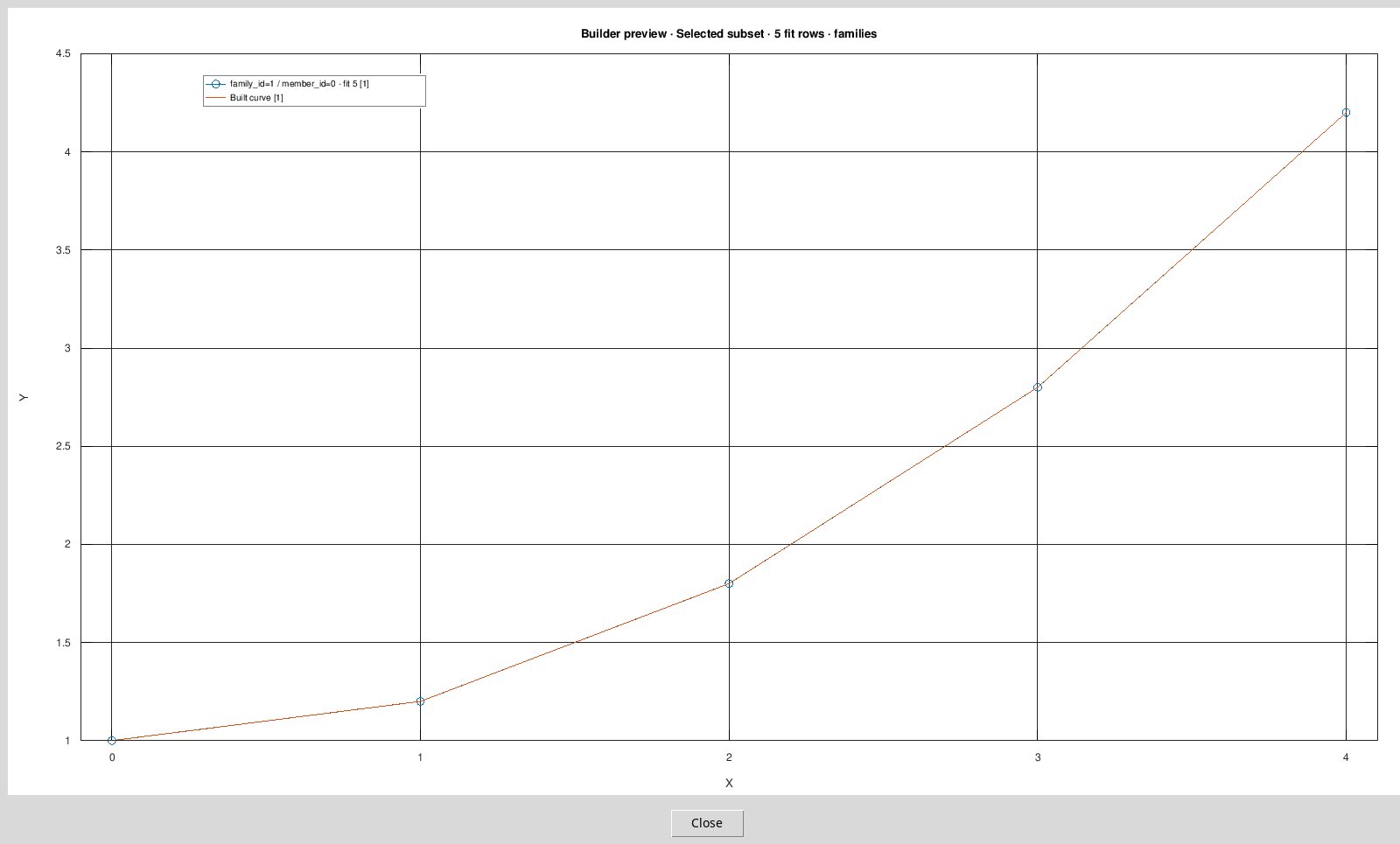
- Choose it to see only the actually marked rows, for example a single member. The graph does not artificially combine two measured rows separated by unselected rows. The title includes Selected subset.
The two options are mutually exclusive and the menu indicates the active one. At the change the valid Preview is reset and the chart closes. Repeat Preview. The selection dots and any revised order are kept. Read the fit rows count to distinguish the calculation points from the context shown. The legend can shorten the long keys and add the count used for a series. Complete identities remain in series filters and origin.
The scope also applies to the 2D overlay opened after publication. The 3D representation of the result is a parametric line.
Auto-order points (non-temporal)
The box starts off with the factory values. When switched off, the Builder uses X increasing in ordinary 2D, t increasing in 3d variable, or the sequence of rows loaded in 3d arc_length. Activate it to propose a verifiable order on non-temporal points. The proposal requires from 2 to 4096 finite points of only one Dataset and one Family/Member feature. With multiple rows, you can store the set and use Preview with Auto-order off or mark a smaller selection.
With a temporal axis or a temporal series contract, the command is disabled. If a preference had been activated, the menu may appear when the window opens of the Auto-order disabled for temporal axes; measured chronology is authoritative. If the revision returns Automatic ordering is unavailable for temporal source axes, reopen Options to update the command status, then repeat Preview. Use t as a parameter when the path is parametric.
Review original / proposed order…
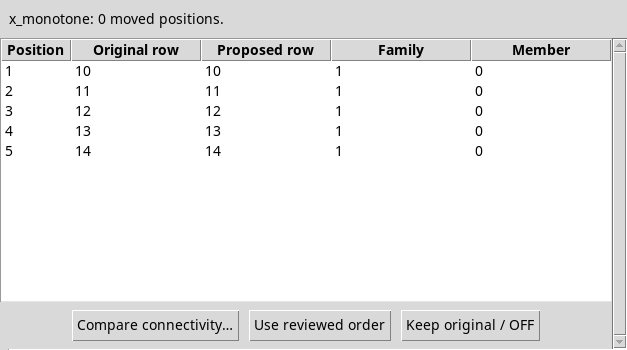
Mark the points and open this entry from Options. You can also press Preview with Auto-order on and without accepted proposal. Original and proposed processing order shows the applied rule and moved positions. x_monotone proposes the order for X or t in 3d variable. geometry_auto with arc_length proposes a geometric path and uses coordinates in the common unit required.
- Position
- Position in the sequence, starting from 1.
- Original row
- Original canonical ordinal that occupied that position.
- Proposed row
- Canonical ordinal proposed in the same position.
- Family
- Key to the family of the proposed point.
- Member
- Key to the member of the proposed point.
Use the scrollbar to control the end rows as well. If you change your selection, Mode or Parameter, review the order again before processing. If Ordering receipt is stale; review again appears, you explicitly reopen this command.
Compare connectivity…
In the review dialog, press Compare connectivity…. The Compare original / proposed connectivity plot shows the Original order and Proposed order traces in the X/Y plane, even in 3D mode. Use it to spot jumps and crossings. The measured coordinates are unchanged. Only the connections between points differ. Close the plot window to return to the review table.
Use reviewed order and Keep original / OFF
- Use reviewed order
- Accept the proposed sequence for these lines, activate Auto-order and close the revision. Check Reviewed candidate selected in the status row and press Preview to calculate.
- Keep original / OFF
- Discard the proposal, turn off Auto-order and close the revision. Preview resumes the normal method criterion, including growing order for X or t when expected.
- Closing the review window
- Go back to the Builder without accepting the proposal. If Auto-order is still on, the next Preview requires a new review.
Point order warnings
| Warning | What it means |
|---|---|
| Indistinguishable neighbors | If several neighboring points are at equivalent distances, compare their connections and the experimental sequence before accepting. |
| Crossings | A path with intersections can be real or derived from the sequence. Check the ordinals and traces in the comparison chart. |
| Disconnected segments | If Preview signals Disconnected source segments cannot be interpolated as one curve, clear the marked points, select one segment and repeat the revision. |
| Repeated endpoint | A final line that explicitly repeats the initial point is preserved at the end in a geometric proposal. An open path remains open. |
| Starting point | The geometric proposal starts at the explicitly specified first row ordinal. Check that it matches the start of the path you want to describe. A shorter path can still connect points in a way that conflicts with the measurements. |
Cancel source request
During prolonged loading, open Options → Cancel source request. The Builder invalidates the request during scanning and can show Source request cancelled or changed. The rows of that canceled request are not added. Check the table before repeating Add source rows.
The command is also available at rest. In that case it invalidates the preview and the eventual order revised. To remove already loaded rows use Restart sources.