

Workspace
The Workspace menu retains your settings, entered values, links to canonical rows and point selections. When you open the Builder normally, the title shows New (unsaved). You can start immediately and save when you need to resume the context later.
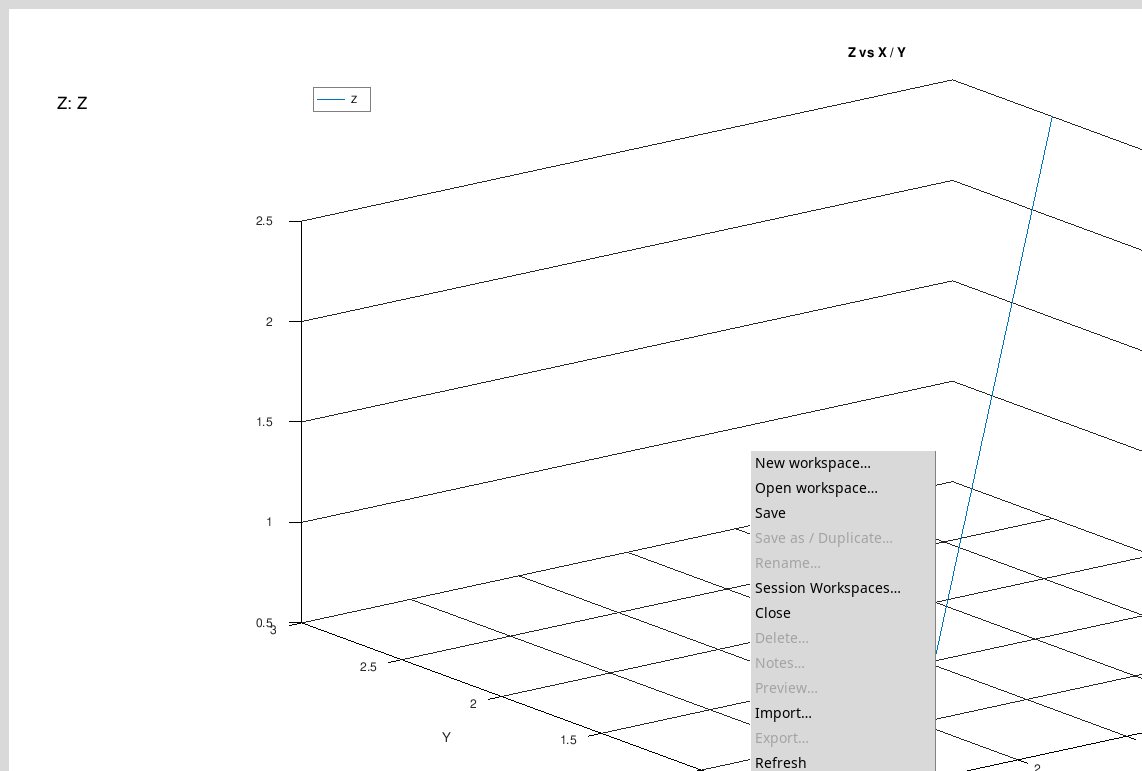
New workspace…
Open Workspace → New workspace…. In New Workspace the Name field offers New Workspace. Enter a name, press Apply and, if required, decide how to handle the current draft. The Builder opens a new context with that name. Press Save to record it at the Session. Close in the name module closes it without creating the draft.
Workspace names are on one line, from 1 to 160 characters after eliminating the spaces on the margins. For a new Workspace or a copy, choose a unique name in the Session. If the application rejects the name, correct it in the field and press Apply again.
Open workspace… and Session Workspaces…
Open workspace… opens Session Workspaces and notes. Select a row and press Open, double-click the row, or press Enter while the table has focus. Session Workspaces… opens the same manager when you want to find, manage or export Workspaces.
When you reopen the Workspace, check its name, restored rows and selection. The Builder checks the source data and scientific schema, including variable identifiers and units. If you see A saved Builder source or scientific schema changed or a canonical row is unavailable, recover the original Dataset or explicitly rebuild the context from the current rows. To restore the temporary plot, press Preview. If Auto-order is on, review the proposal again.
Save
Press Workspace → Save. An unnamed draft gets an automatically named Curve Builder … entry. A draft created with New workspace… keeps the name you chose. An existing Workspace is updated in place. The title and the message Builder working context saved; source Datasets remain unchanged confirm that the save succeeded. Values entered for degree and samples keep their original formatting. The Builder checks whether they are valid numbers when you press Preview.
If Builder Workspace changed in another window; reopen before saving appears, the saved version has changed during work. The Builder retains the open draft. Take note of the changes you want to recover, reopen the updated context and reapply them.
Save as / Duplicate…
Save the context first if you want to include the latest changes. With a registered Workspace choose Save as / Duplicate…, enter a unique name in Duplicate Workspace and press Apply. The suggested name ends with copy. The Builder opens the copy and keeps the original in the Session. If the latest changes are still pending, Yes saves them in the original before the copy, No copies the already saved version and Cancel stops the operation. The command is disabled on the free draft of saved Workspace.
Rename…
On a saved Workspace choose Rename…. In Rename Workspace, Name contains the current name. Replace it with another unique name and press Apply. Check the new title and row in the manager. To leave the change, press Close in the name form.
Close and unsaved changes
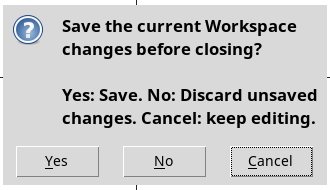
Workspace → Close and window closing control close the Builder. The manager and the dataset remain in the session. When you close, create a new context, open another, duplique or eliminate the active one, the Workspace changes dialog may appear.
- Yes
- Save the changes and continue the requested operation. If saving fails, correct the error in the draft that remains open.
- No
- Continue with the previously saved version and discard the pending changes. If the draft has never been saved, its work will be lost.
- Cancel
- Stop the operation and leave the current draft available to continue. It’s the default button.
Delete…
Select the saved Workspace to delete and choose Delete…. For an active context with changes, the request to save changes appears first. In the Delete Workspace dialog, check the name. OK removes the Workspace and its notes, Cancel leaves the recorded context. The dataset source and the dataset already published are kept.
Notes…
On a saved Workspace choose Notes… to read its annotations. Click on Edit to open the editor of the notes. Here you can record the selection or method reason and save with the editor’s Save button.
The Workspace Preview… command
This entry is enabled with a saved Workspace and leads to Session Workspaces to see context details. Select your line. In the Builder it is normal to read No managed preview is associated with this Workspace. for a context without attached image. To see the numerical curve, open the context and use Preview in the Builder central bar.
Import…
Open Import…. In the Import workspace package dialog, choose a GX-TXT workspace ZIP package and press Open. In the Import Workspace form, replace Imported Workspace with a Unique Workspace name and press Apply. The imported Workspace appears in the manager. Select it and press Open to use it. The context still requires its source Datasets in the Session. Use Cancel in the file picker or Close in the form to cancel the import.
Export…
Choose Export… for a saved Workspace. In the Export workspace package dialog, pick a folder and filename. The suggested filename is nome.gxtxt-workspace.zip. Press Save to write the package. Cancel closes the dialog without writing it. Use the package to transfer the Workspace. To transfer source or published Datasets as well, keep the Session and the corresponding data.
Choose the ZIP file
In the Linux file selector, Directory: indicates the current folder. Use the associated menu to change the path, the top folder button to go up and the list or scroll bar to reach the file. In File name: choose the name from the list or type the name or location. In import, Files of type: shows GX-TXT workspace ZIP (*.zip) packages. In export the type menu is disabled and the proposed name ends in .zip. Dialog can look different depending on the system.
Refresh and Actions
Refresh updates the lists and statuses of Workspace commands. Use it after a change made by another manager and then select the affected row again. Actions contains the provider’s actions for the current Workspace. It is disabled without an available Workspace. With a current Workspace Builder, No owner-defined actions indicates that the provider does not offer any other commands in that submenu.