

Opening Curve Builder and finding your way around
Curve Builder uses rows from Datasets already registered in a Session. Load the rows, mark the points to process, choose a method and check the preview. Save a Workspace to resume your work later. Publish a Dataset to reuse the curve as data.
Open Curve Builder
- Open the Session that contains the data.
- In the main window of GX-TXT open Viewers, locate Curves & Digitization and activate the Curve Builder pane. You can search for Curve Builder in the Search field of the card. The pane opens the Interactive Curve Builder window or shows the open window.
- Choose the Dataset in the Builder window.
If the pane is visible but the Builder does not open, check that there is an active Session, then try again.
If the integrated manual sends back to a compatible Dataset, you can use this path from the Viewers card. The Open active Dataset button in the Dataset browser loads the scientific viewer of the Dataset in the standard configuration verified.
Find your way around the window
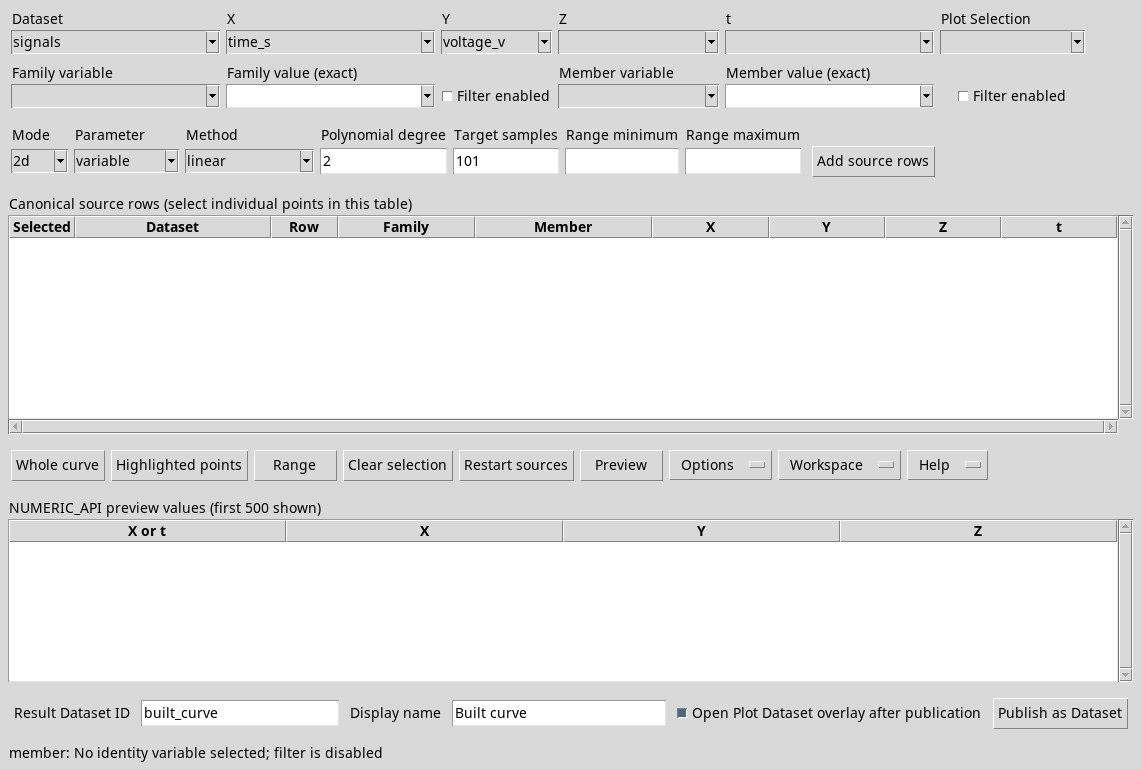
The title distinguishes a New (unsaved) draft from a Workspace named. Below, the status bar reports the most recent control, such as identity options, number of added or selected rows, diagnostics and publication confirmation. During a scan it can show Reading exact source rows with the number of lines read. An error window also shows the message in the status bar. Press OK to return to controls and correct the problem.
The central menus are Options, Workspace and Help. In the bars presenting More open it to reach the commands transferred in the menu when the space is reduced. For the manager, see the action bar. The closing of the window follows the same path as Workspace → Close.
Help and module information
User Manual… opens the integrated guide in a separate window. Press F1 into the Builder to get to the same window. If you want to resume work, go back to the window with the data or close the manual only.
About Module… shows identification, version and information on the installed module. Consult it to identify the version before requesting assistance. Press OK to close the information sheet.
Navigate the built-in manual
In the User Manual window, use Manual for the module text and browse the page with the sidebar. The Interactive Tutorial tab offers a menu for the installed tutorials. For this module, if the menu is empty and No interactive tutorial package is installed for this module. appears, go back to the Manual tab to read the text. User Manual on the bar or in File back to the homepage. Close on the bar or in File closes the consultation window.
Back and Forward, also in the View menu, visit the pages already visited. The respective menu items are enabled when a previous or later page exists. In Find write a word and press Find next to reach the next occurrence. View → Find… or Ctrl + F moves focus to the search field. Zoom out, Actual size (100%) and Zoom in govern the scale of content that support zoom and appear disabled on the observed text page.
In References, Technical manual (Markdown) opens the module reference in Markdown format. API references open their technical data sheets. You can use it to consult statistical semantics ( STATISTICAL_RESULT_SEMANTICS_API_v1), loading viewers ( VIEWER_PROVIDER_API_v1), the Session ( SESSION_INSPECTION_API_v1), the variable schema ( DATASET_VARIABLE_SCHEMA_API_v3), stream of rows ( TABLE_STREAM_API_v3), numerical operations ( NUMERIC_API_v1), the publication ( DATASET_PUBLICATION_API_v2), metadata ( DATASET_METADATA_API_v1), graphs ( PLOT_DATASET_API_v3) and the Builder interface ( INTERACTIVE_CURVE_BUILDER_API_v1).