

GX-TXT Debugger · Guide 05 — Debugging scientific data: vectors, structures and Datasets
This guide is part of the project GX-TXT Script Debugger. The screens come from real executions in GX-TXT dev112-P011-bis, already made for the debugger course; examples use synthetic data. The D codes identify the corresponding exercises of the full course on the debugger.
Download the six practical guides’ scripts (ZIP). To repeat this guide, extract the guide_05/scripts folder files.
D32 — Rows, columns and dimensions
In Octave a row vector and a column vector may contain the same numbers, but have different shapes. The form affects matrice operations and how data is transferred.
Compare shapes in debuggers
Import D32_shapes.m, save it in the Session and set a breakpoint on the first press. The code creates row = [1, 2, 3] and column = row.', so use size to save the size.
Start Start Start Debug. On press break, the column display panel with 3 1 and column_shape shape with 3 1 value; scroll the list to see also row and row_shape.
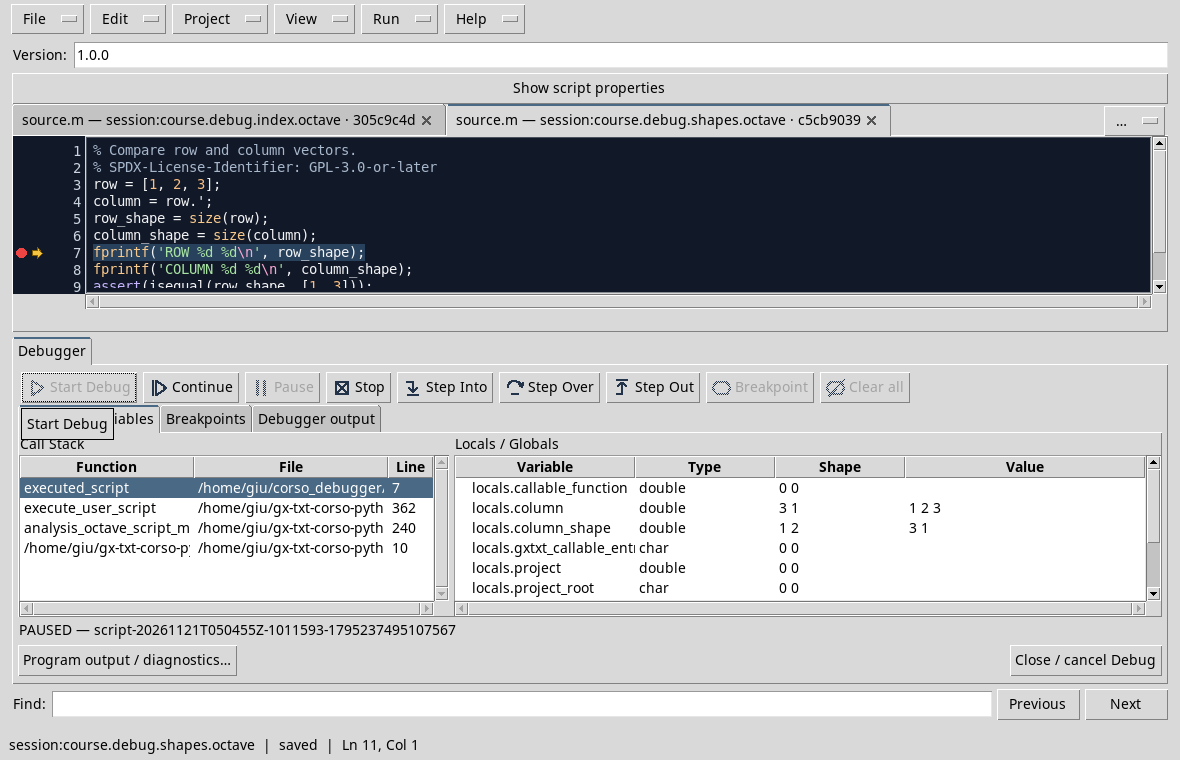
The shape of the line vector is 1 3, that of the column is 3 1. Note that column_shape is in turn a line vector containing two numbers: its shape in the panel is 1 2, while its value is 3 1. It’s two different information.
Continue and verify the output ROW 1 3 and COLUMN 3 1. Here .' is the transposition without conjugation; for complex data the distinction regarding ' is significant.
Exercise
A panel shows 1 2 shape and 3 1 value for column_shape. What is the form of column?
Worked solution
column has 3 1 shape: it is the value saved in column_shape. The 1 2 shape describes the vector that contains the two dimensions.
D33 — Scalar and element-wise operators
In Octave, operators with the point, such as .* and .^, operate element by element. The pointless matrice operators instead follow rules of linear algebra and require compatible dimensions.
Observe intermediate results
Import and record D33_elementwise.m. The script calculates [1, 2, 3] squares with .^ 2 and multiplies each element for the corresponding [2, 2, 2] element with .*.
Set a breakpoint on the first print and start the debug. In the test the samples display panel with 1 2 3 and products value with 2 4 6 value; swipe to see also squares.
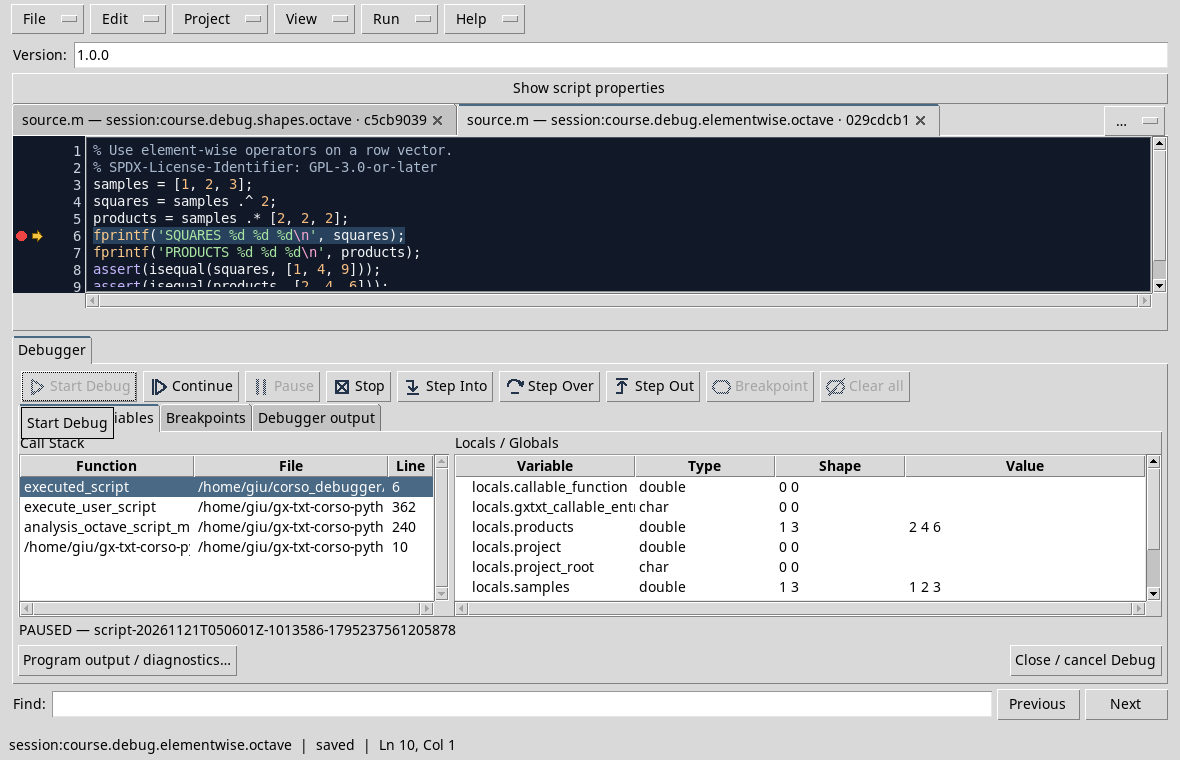
Continue: the expected results are SQUARES 1 4 9 and PRODUCTS 2 4 6. If you replace .* with *, you are not simply changing your handwriting: you are asking for a matrical multiplication, which for these two line vectors has no compatible size.
Exercise
What is the result of [1, 2, 3] .^ 2? Why is .^ appropriate here?
Worked solution
The result is [1, 4, 9]: the square elevation is applied to each element of the carrier.
D41 — Publishing and creating results
A calculation in memory and the publication of a Dataset are two distinct moments. A breakpoint before the call allows you to check inputs before the Session receives a result.
Preparing synthetic data
Use a Test Session and import D41_publish_series.m to Octave Scripts. The code prepares three 0, 1, 2 s times and three 1, 2, 3 V voltages. The request assigns the debug_sensor_series ID and time_s and voltage_v variables.
The Dataset is created-only: if it already exists, use a new Session or change the ID in the script and in those that read it. Save before the test.
Stop before publication
Set a breakpoint on the construction of request, after the definition of the two vectors. Start the debug and check the data in the source and available reepylogues. Request and call to publish_series must still be made:
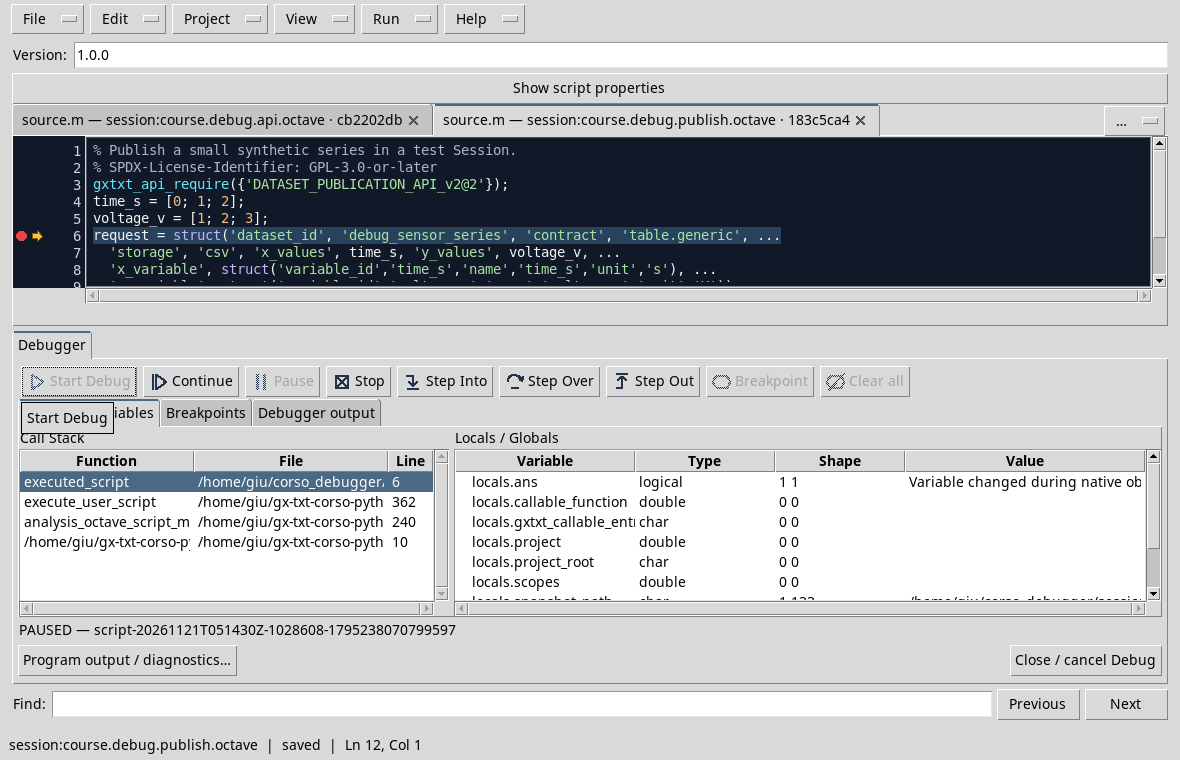
Press Continue. In the test the Job arrives at COMPLETED; the Synthetic Dataset is available at the Session and can be read by the example of the D39.
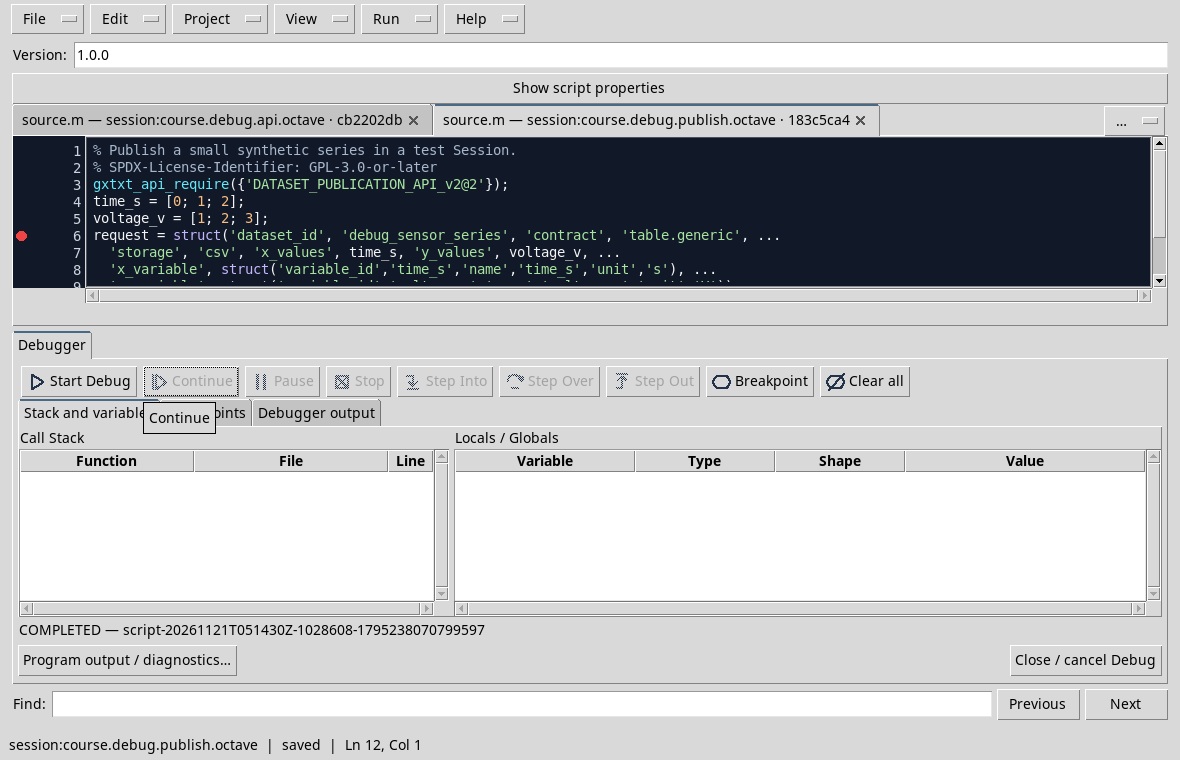
If you repeat the execution with the same ID in the same session, do not assume that the publication overwrites the Dataset: choose a new ID or a new trial session.
Exercise
The program is paused before the construction of the request. Has the Dataset already been published by this execution?
Worked solution
No. The call to publish_series comes after the pause line. After Continue, check the Job outcome and check the Dataset in the Session.
D39 — Reading Datasets and variables
When an analysis reads data from GX-TXT, it controls the Dataset, the required Variable IDs, the number of elements and units before interpreting the result.
Preparing data
In a test session, it creates the debug_sensor_series Synthetic Dataset with D41_publish_series.m, following the D41. The series contains 0, 1, 2 s times and 1, 2, 3 V voltages. The ID is created-only: to repeat the publication use a new Session or change the ID in both scripts.
Import and record D39_read_series.m. Set a breakpoint on the read_range call and start the debug. Before the call you can check dataset_id = debug_sensor_series, time_s and voltage_v, 0 start and 3 required number.
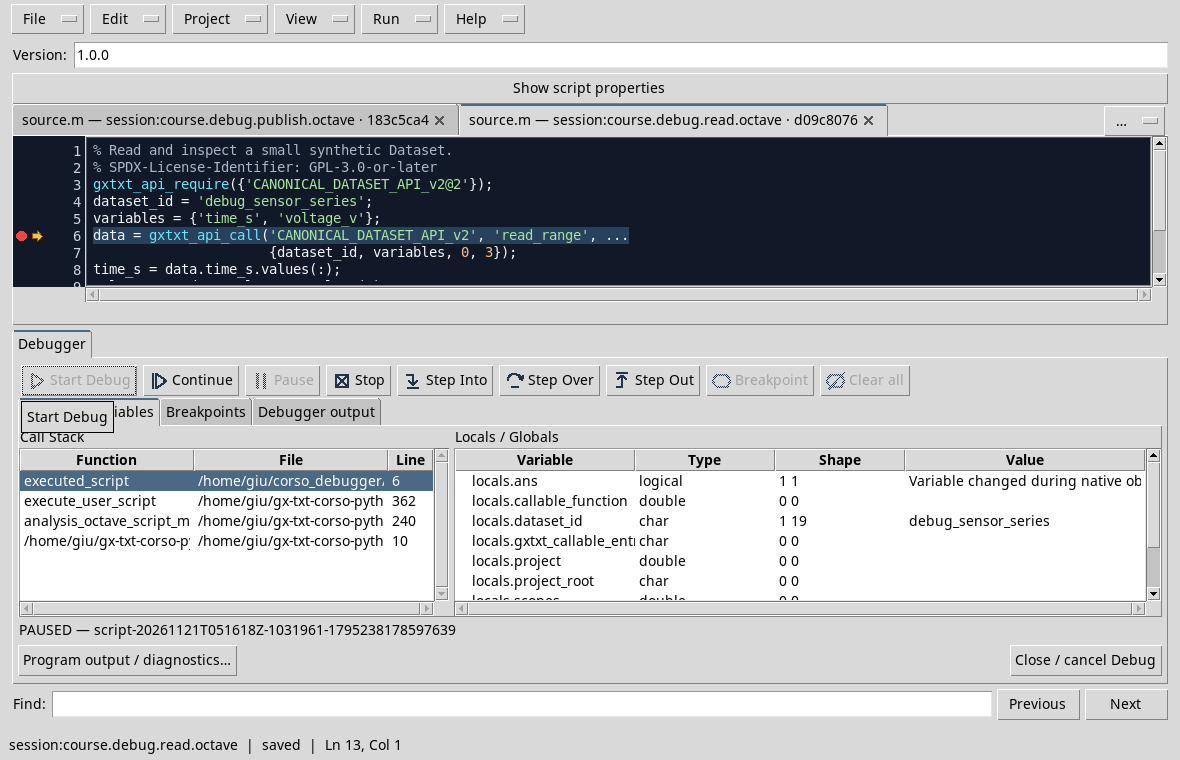
Press Step Over to complete the call, then two more steps to extract the carriers from the returned structure. Locals / Globals: in the test time_s and voltage_v they have shape 3 1 and values respectively 0 1 2 and 1 2 3.
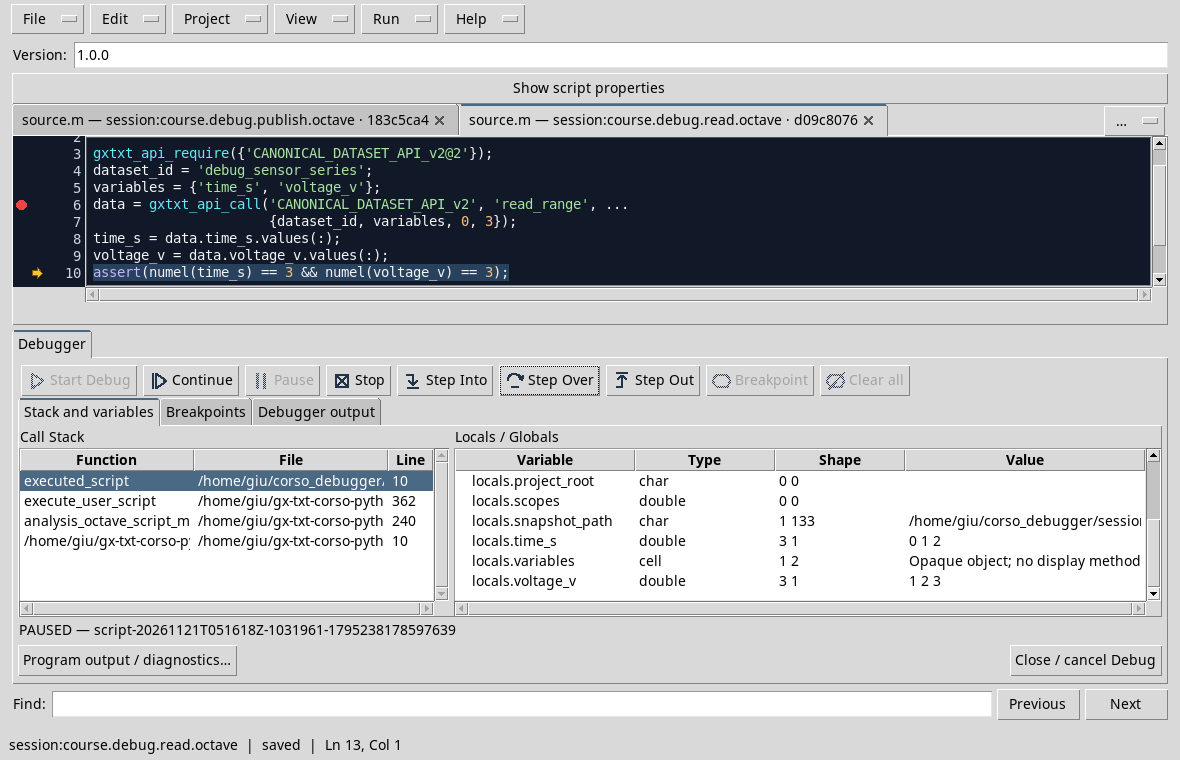
The next assignment checks that both have three elements. The names of variables and units must be consistent with the published Dataset; an operation available alone does not guarantee that a requested ID is correct.
Exercise
Why is size control useful before comparing time and tension?
Worked solution
It helps to detect incomplete readings or carriers of incompatible length. It does not show alone that unity and association between samples are correct: even those must be verified.
Other steps of this project
- Debugging GNU Octave in GX-TXT: Breakpoints, Variables and Public APIs
- GX-TXT Debugger · Module 08 — Projects, revisions and Sessions
- GX-TXT Debugger · Module 09 — Integrated practical cases
- GX-TXT Debugger · Module 10 — Independent debugging and the final project
- GX-TXT Debugger · Guide 06 — Debugging a complete scientific workflow
- GX-TXT Debugger · Module 01 — Foundations and the first Debug Job