

GX-TXT Debugger · Module 08 — Projects, revisions and Sessions
The GX-TXT debugger · 10-module course
A correction that works in the viewer must be reproduced from the same revision and the same inputs. The module follows Session scripts along the registration, changes and context changes, up to a multifile example and the reconstruction of a diagnosis.
Download the Python and GNU Octave examples (ZIP). Extract all the archive folders and keep the multifile examples files together.
D43 — Session scripts and registration
To start the managed debug, you need a session script identity and a saved source. The imported original file and the registered copy in the framework have different roles.
Import and save
Open a trial session, then Python Scripts. Import temperature_fixed.py, choose session, assign an ID and save with Ctrl+S. In the test the bar below shows the identity session:course.debug.temperature.python and the saved status.
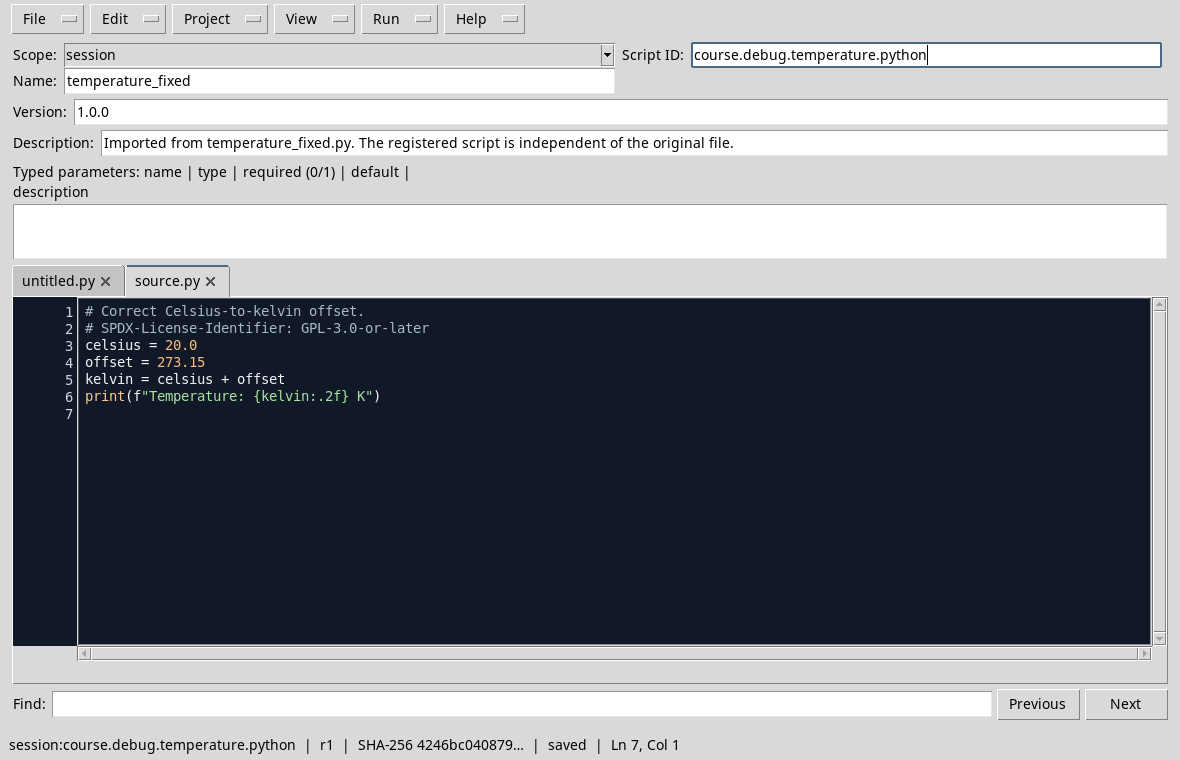
Open View → Debugger: the initial state must indicate that the saved revision is ready. Importing creates a managed copy: modifying the original external file does not automatically update the registered file. Before starting a test, check which card and which identity are active.
Exercise
Why is it useful to write down the Script ID along with the result?
Worked solution
It allows to distinguish the copy and context actually used by other scripts with similar names. To reproduce a test, review, session and input are also required.
Course index · Previous lesson
D44 — Edits while execution is paused
The text shown in the editor may differ from the snapshot that a Job has already started. GX-TXT reports this situation to avoid attributing the Job line or values to a different source.
A controlled change
With temperature_fixed.m, set a breakpoint and start the debug. During the break temporarily change the buffer: in the test we removed a point and comma. The tab shows an asterisk and the panel reports that the source displayed is different from the Job snapshot.
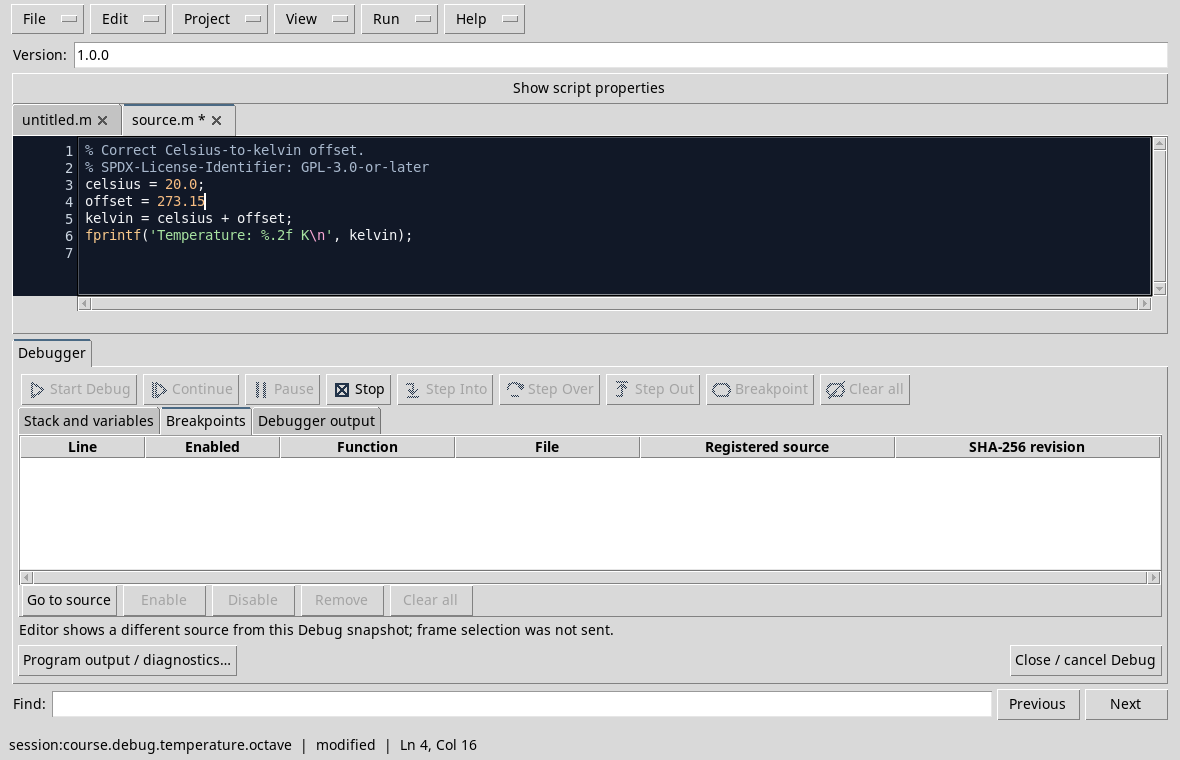
The forward controls on the source are disabled while the identities do not coincide. The change does not retroactively change the code running. Finish the test, restore or complete the desired changes, save and recheck breakpoints before a new start; consult the D11 for the steps.
Exercise
If you change offset while the Job is already on pause, what version should you perform to evaluate the new value?
Worked solution
Save the change and start a new Job consistent with that revision. The previous Job keeps its snapshot.
Course index · Previous lesson
D45 — Switching or closing a Session
The scripts in the broom session belong to the context in which they were recorded. After a session change, a tab left open can refer to the previous session: check the context before starting a new test.
Two separate sessions
In the first Session debugger_course we recorded slow_counter.py. After finishing the active Job, we created a second Session debugger_second:
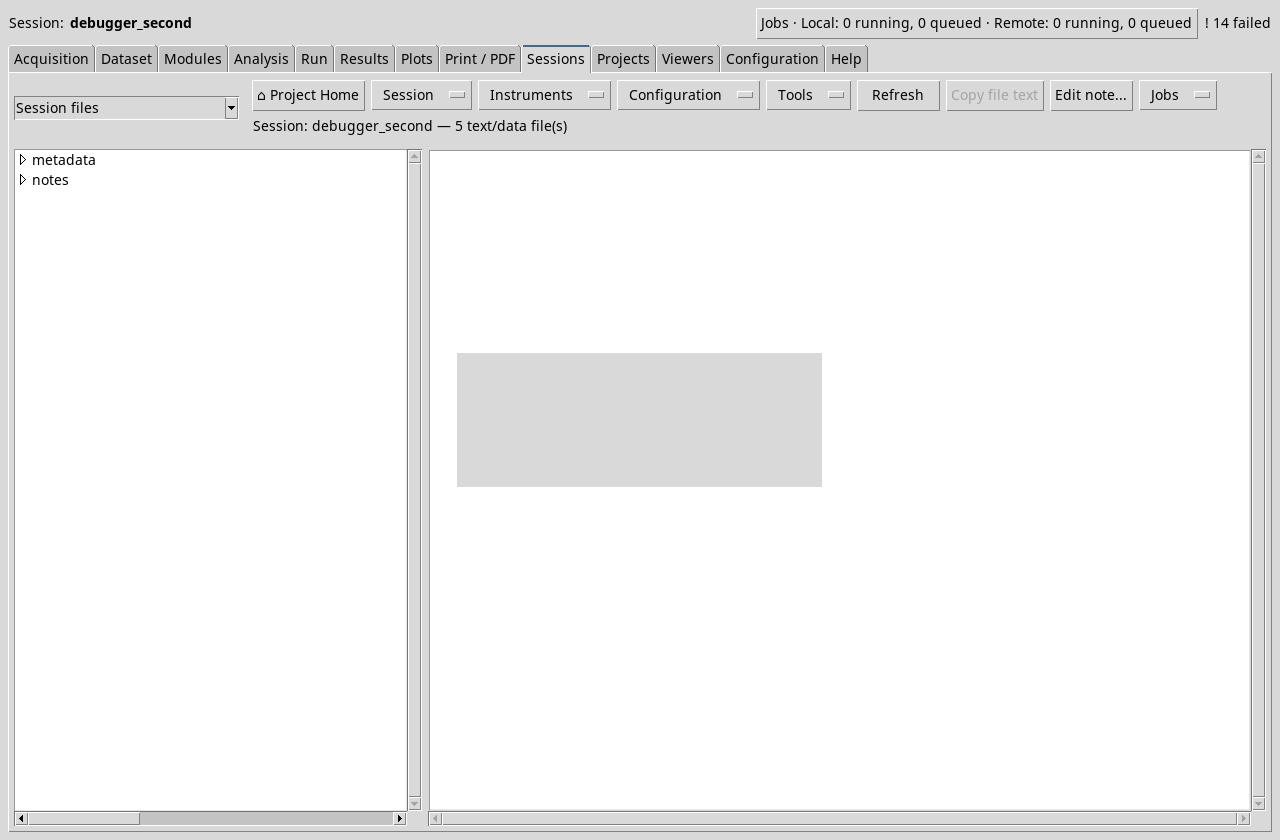
Reopening the viewer left open with the script tab of the first Session, the Start Debug test is disabled. The card should not be interpreted as a script automatically recorded in the second Session:
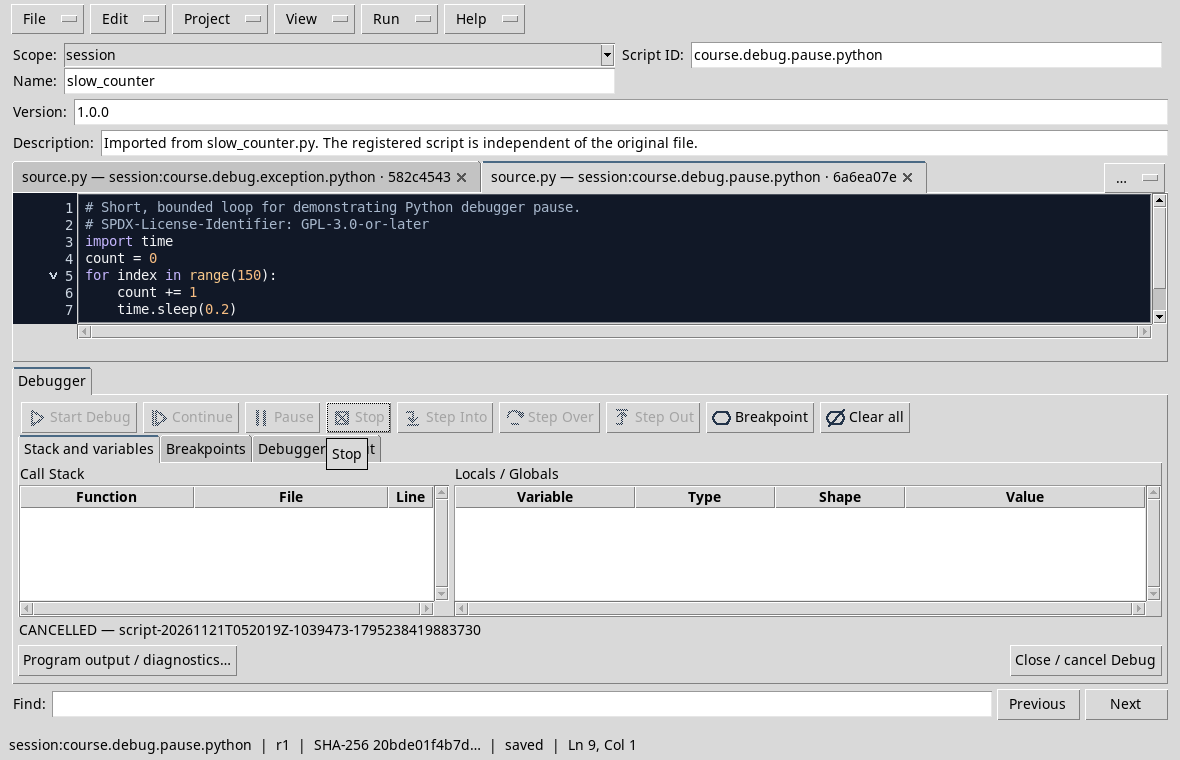
To return to the previous job, use Sessions → Session → Open Session, select the folder of the first Session and reopen the script from the correct identity. In the test we returned to debugger_course:
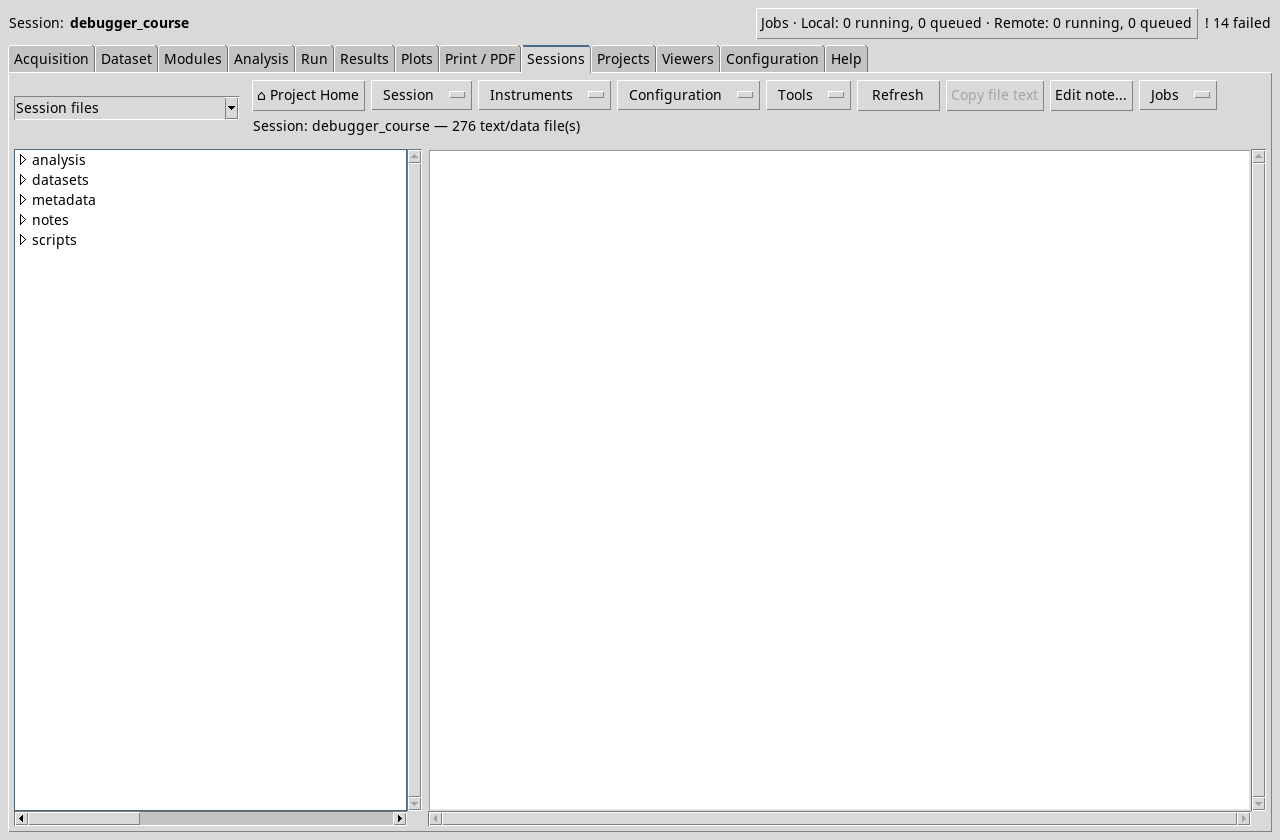
Before changing or closing Session, it keeps any changes not saved according to the editor’s options. Do not automatically assign to a new Session the content of an old tab without verifying identity and destination.
Exercise
You opened a new Session but the viewer still shows an old tab. What information do you check before you start the debug?
Worked solution
Check which Session is open and which identity the card belongs to. Open or register the script in the desired context before starting a new Job.
Course index · Previous lesson
D46 — Hiding or closing the debugger
Hide the debugger panel and delete a Job are different actions. This is useful when you want to recover space to read the source without losing the test in progress.
Hide and restore
Register slow_counter.py, open the debugger and press Start Debug. When the script is paused, choose View → Debugger to hide the panel.
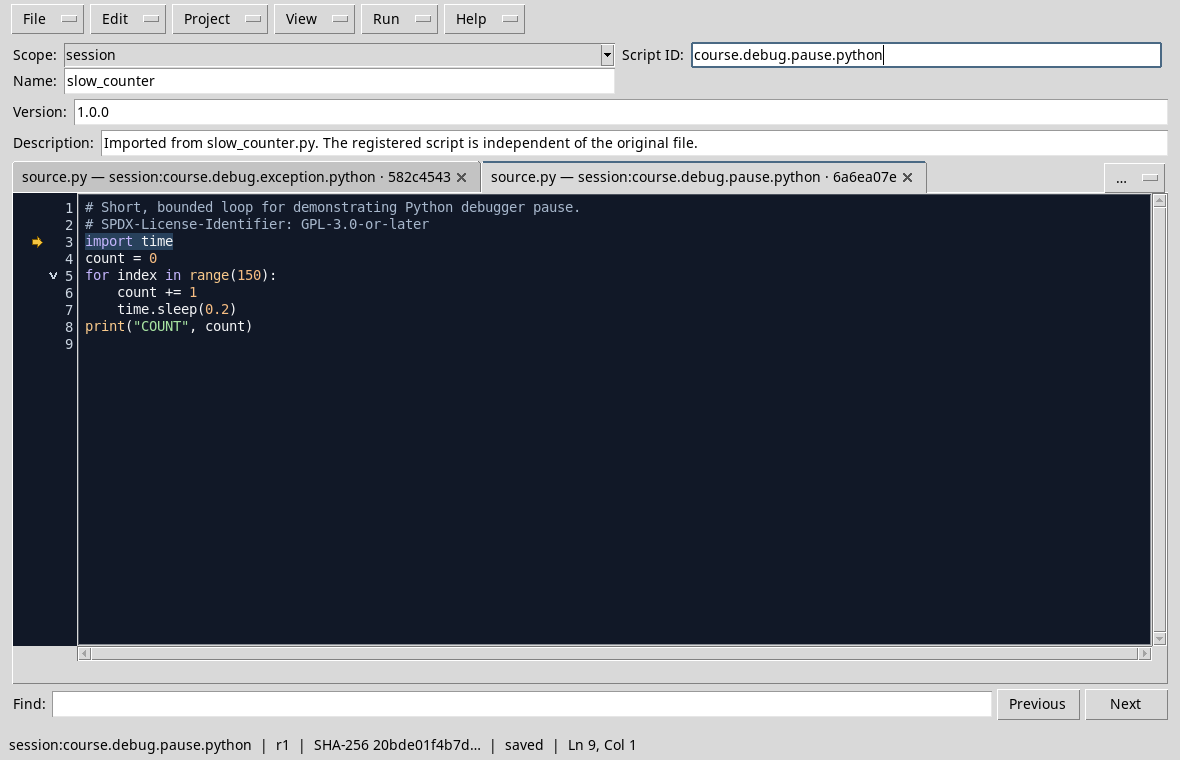
Choose View again → Debugger. In the test the same execution still appears in PAUSED state:
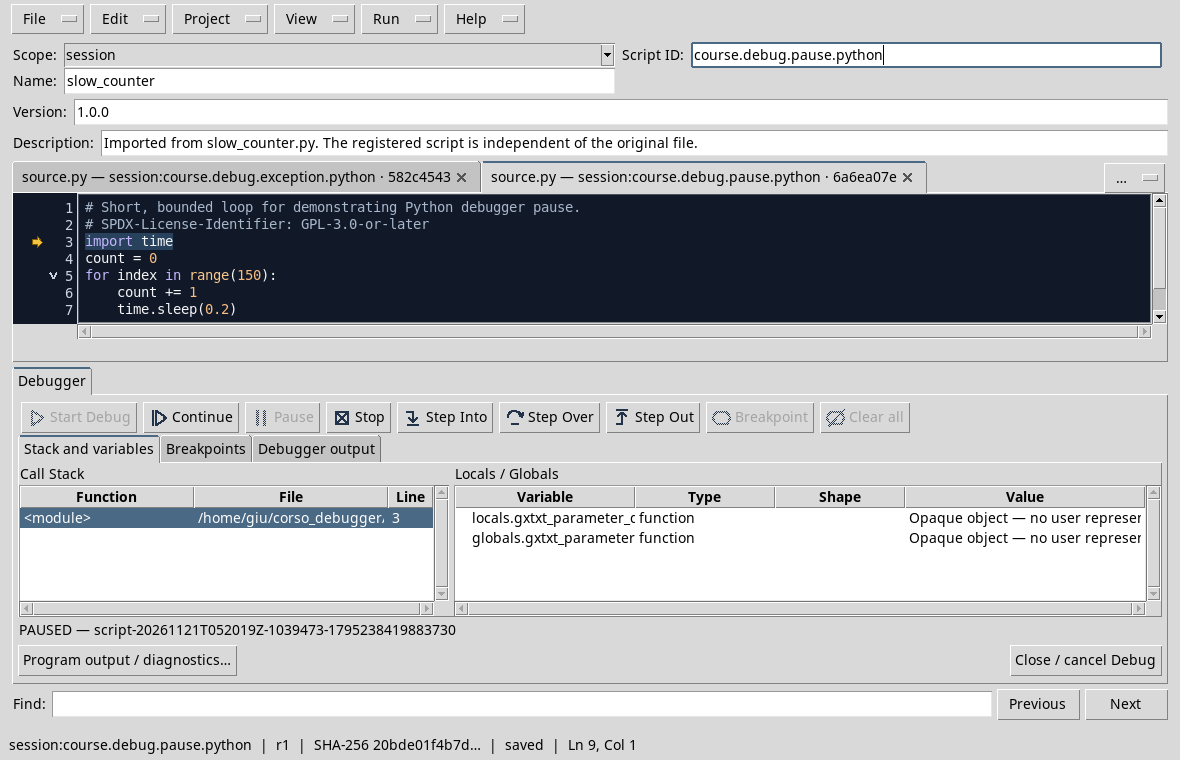
To finish use Continue or Stop. The Close / delete Debug command is different from simple visibility: when a Job is active it requires confirmation for cancellation. Read the confirmation window and choose the action consistent with what you want to do.
Exercise
Hiding Debug through View equals Stop?
Worked solution
No. In the test Job was still paused when the panel was reopened. Stop requires the deletion of Job.
D47 — A multifile project
A project records multiple sources under one identity and an entrypoint. During the debug it is essential to know which file contains the call and which contains the function called.
Follow a Python helper
Prepare the project with main.py and helpers.py following the D18. Save all files and set a breakpoint in the helper file on the increment = value + 1 line.
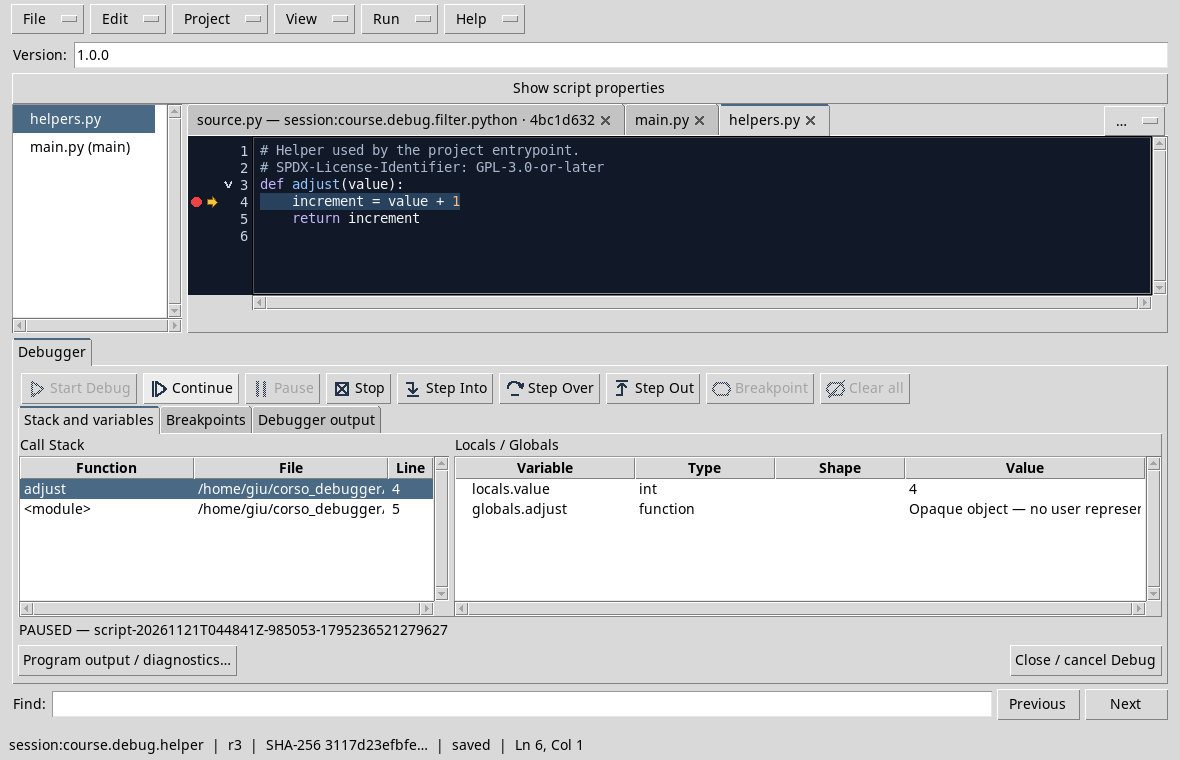
In the test the debugger shows adjust with value = 4 and the calling frame. The project has main.py as entrypoint: the presence of a breakpoint in helpers.py does not change which file is started. After modifying a file, save the project review and remit the necessary points before a new test.
The Octave parallel path is in the D34: the helper also has a separate file and its name corresponds to the function.
Exercise
Why do you need to save the entire project before repeating the debug?
Worked solution
The Job must use a consistent review of the set of files allowed. A file modified only in the buffer should not be confused with the copy already registered or with a previous Job.
D48 — Reproducing a diagnosis
A diagnosis is useful when another person can repeat the case and check the correction. An essential tab collects context, input, expected result, observed result and steps.
Example: incorrect index
Use index_error.py. Note that the list contains 10, 20 and 30, that the call uses the 3 index and that it was intended to read the third element, i.e. 30. Record version of GX-TXT and Python, Session, Identity and Revision of the script; indicate the breakpoint on return samples[index].
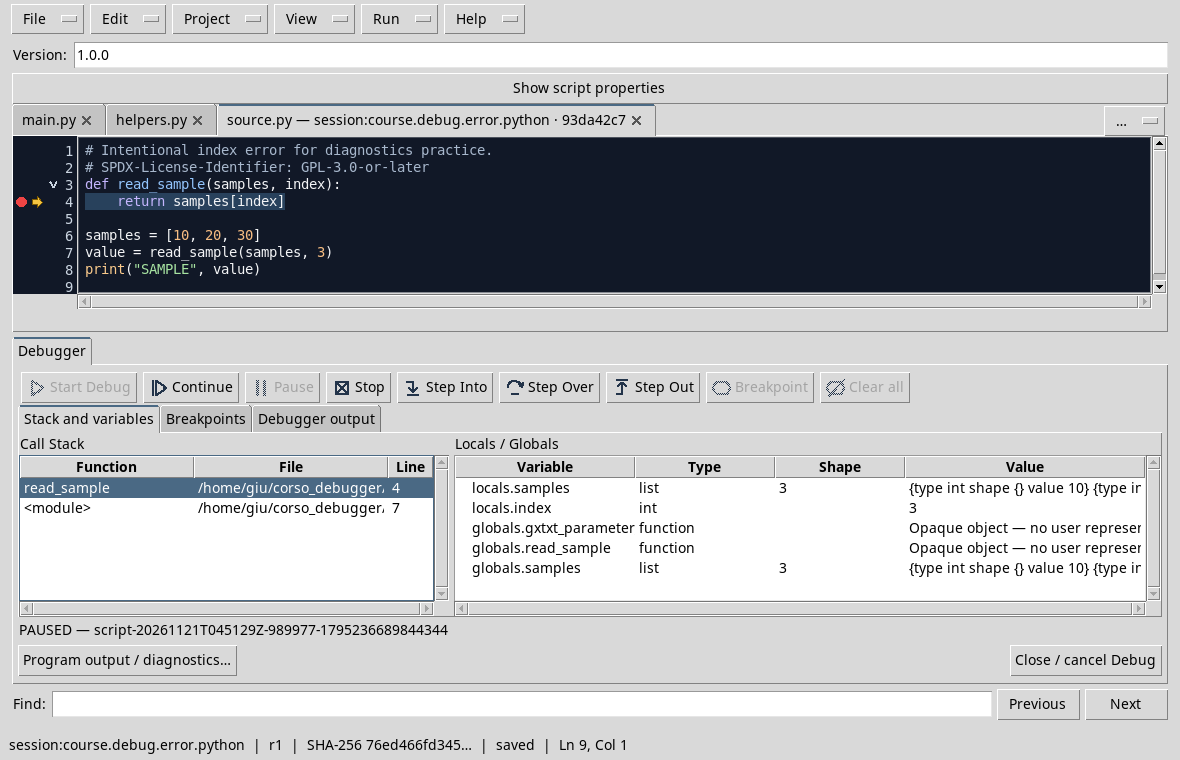
3 and 3 index are shown in the test, followed by IndexError. The index_fixed.py copy uses the 2 index and produces SAMPLE 30. The card must distinguish the intentional error of the exercise from the operation of GX-TXT.
Good reproduction uses minimum data and does not include private information. It is not enough to say “it doesn’t work”: specific what to do, what to expect and what to look at.
Exercise
What two information distinguishes the symptom from the verification of correction in this case?
Worked solution
The symptom is the IndexError with 3 index; the correction verification is the 30 output with 2 index and the same data.
Course index · Previous lesson
The next module puts together these controls in scientific cases in which the symptom emerges downstream of the operation that caused it.
Previous: Module 07 · 10-module course contents · Next: Module 09
Other steps of this project
- Debugging GNU Octave in GX-TXT: Breakpoints, Variables and Public APIs
- GX-TXT Debugger · Module 09 — Integrated practical cases
- GX-TXT Debugger · Module 10 — Independent debugging and the final project
- GX-TXT Debugger · Guide 05 — Debugging scientific data: vectors, structures and Datasets
- GX-TXT Debugger · Guide 06 — Debugging a complete scientific workflow
- GX-TXT Debugger · Module 01 — Foundations and the first Debug Job