

Session Workspaces and notes
Open Workspace → Session Workspaces… or Open workspace…. The manager allows to work on a selected context in the table. Some commands change status according to the selection and active Builder.
Filter and table
Write part of the name, type or provider in Name / type / provider:. The filter is updated as you type. Reset clears the text and restores the initial scope. In the opening from the Builder, the provider menu shows Interactive Curve Builder (curve_builder) and is blocked on this provider. In the general view of Workspace, when available, All providers shows all contexts and the choice of a provider narrows the table.
| Column | Information displayed |
|---|---|
| Name | Name with which you recognize the context. |
| Type | Workspace type, useful when the name alone is ambiguous. |
| Provider | Provider that needs to be available to open it. |
| Preview | none indicates that there is no managed preview, available indicates that a representation is associated with that context. |
Scroll the list with the vertical bar. Select a row to see the name, provider, revision and description of the Preview in the bottom pane. Select one Workspace invites you to select a context. If a managed preview is missing, open the Builder allows you to regenerate the curve from the rows.
Action toolbar
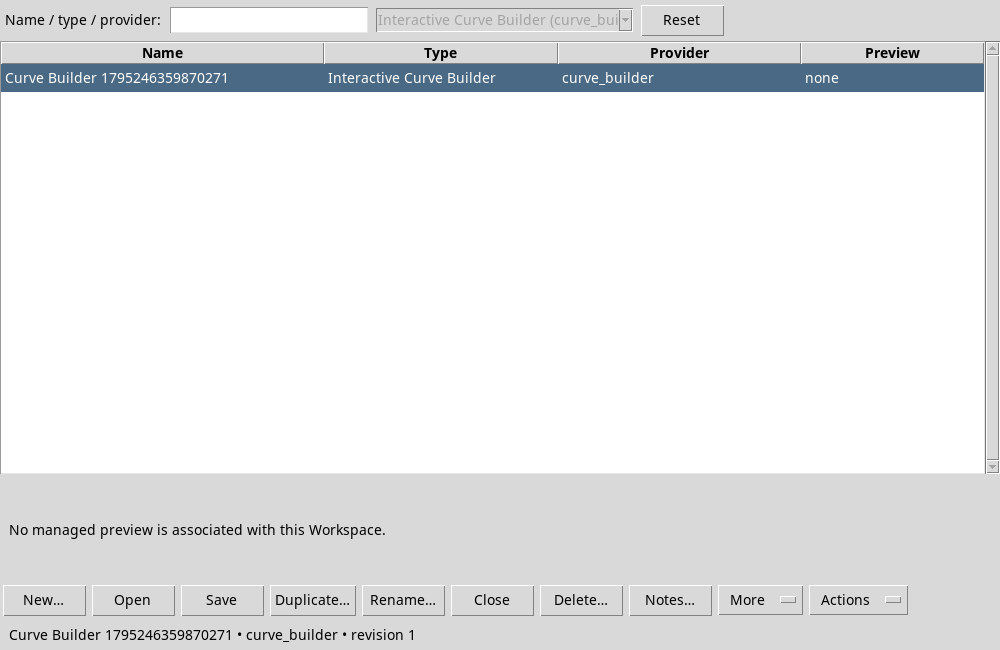
When space is reduced, use More to reach the commands moved from the bar. You can widen the window to make them visible. A disabled command may require a compatible row or a Builder capable of managing the context.
| Command | Action and availability |
|---|---|
| New… | Opens the Name form for a new context if the Builder is available. You can ask to handle the current draft. |
| Open | Opens the selected and compatible line. You can also double-click or press Enter in the table. Before changing context, answer the save request if it appears. |
| Save | Save the Active context in the Builder. It is available without selection or with the active context line, if the Builder is available. |
| Duplicate… | Copy the Selected Workspace under the name you enter. Save any changes to include before. |
| Rename… | Opens the renaming module for the selected row. Confirm with Apply. |
| Close | Close the Active Builder if the selection is empty or corresponds to the open context. To close the only Session Workspaces window, use the window’s close control. |
| Delete… | Proposing delete the selected row. Confirm the name in the dialog before proceeding. |
| Notes… | Opens the selected Workspace Notes. |
| Preview | Show details and any preview managed in the pane below the table. The command can be found in More. |
| Import… | Start import ZIP in the Session, even without a selected line. The command can be found in More. |
| Export… | Launch export ZIP of the selected row. The command can be found in More. |
| Refresh | Reread the current content of the Session and update the table. If the selected revision has changed, select the Workspace again. The command can be found in More. |
| Actions | With a selected Workspace Builder shows No owner-defined actions. Without an available line the menu is disabled. |
Workspace notes editor
Open Notes… → Edit. On the left, GX-Markup / Markdown source contains the text to be edited. On the right, Preview shows the formatted result. Use the scrollbars to switch to another part of the note. The bar between the frames allows to adjust the width.
| Control | Function |
|---|---|
| Undo and Redo | They cancel and restore a change to the text in the editor. |
| Wrap | Toggle word wrap in the source pane. With wrapping off, use the horizontal scrollbar for long lines. |
| H1, H2 and H3 | Format the current line as a level 1, 2 or 3 heading. Check the heading hierarchy in Preview. |
| Italic and Bold | Select text and press the corresponding button to wrap it in * for italics or ** for bold. |
| Inline code | Wrap the selected text in backticks to display it as inline code. |
| Code block | Use it on multiple rows of code to enclose them in a delimited block. |
| Color… | Select the text, open the color selector and confirm. The source uses the [color=#RRGGBB]…[/color] notation. |
| Text color | In Linux rule Red, Green and Blue from 0 to 255 via fields or colored controls. In Selection you can indicate a hexadecimal color and see the sample. OK inserts the color into the text, Cancel leaves the source as it was. |
| Refresh preview | Regenerates the formatted pane from the source content. |
| Save and Close | Save the note with Save, then close with Close. Changes to the note are saved separately from the Builder settings. |
In the source pane you can use Ctrl + A to select everything, Ctrl + Z to cancel and Ctrl + Y or Ctrl + Shift + Z to repeat. Cut, copy and paste use the normal shortcuts of the text. The preview is read-only.