

Reference — History and saved objects
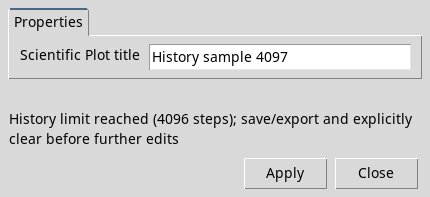
An accepted edit is recorded in History. Use Previous and Next to inspect steps, and Return to latest to return to the current state. Restart here requires confirmation because it discards later local steps. Cancel preserves the timeline. Clear draft History requires the current state to be editable and asks for confirmation. It preserves Datasets and publications. At the History limit of 4,096 steps, first export or save the Workspace to preserve the record. Return to the current state and use Clear draft History to start over. Confirm only after checking the proposed backup. Clearing History deletes the local timeline.
Full status / History details shows the complete record.
Under Workspace, New creates a separate project, Open loads it and checks its sources, Save keeps the draft and view, Duplicate creates an independent copy, and Rename changes its name. Close gives a choice of Save, Discard or Cancel. Delete requires confirmation and deletes the document and its History while preserving the Datasets. When recovering after an interruption, read the recovery options and retain the sources. Saving the entire Session is a separate operation.
Fields in Publish Plot…
| Field | Use and result |
|---|---|
| Explicit publication action | Choose Create new Graph, Publish as new Variant or Update opened Graph/Variant when the open destination allows it. Apply performs the chosen publication, not the Workspace save. |
| Plot title | Title of the Graph or Variant to publish. auto uses the title supplied by the owner. |
Independent 3D view
Open current source or Open retained representation opens GX3DE, a separate 3D owner. In Layers, select the scientific layer. Visible and Opacity control its visibility and opacity. Select Apply layer to confirm. If RGB color is bound to scientific data, Base RGB and its selector may be disabled. Use the supported scalar palette for protected colors.
In the view controls, Background RGB sets the background. Gradient bottom RGB takes effect when Gradient background is active. Lighting, Ambient, Diffuse, Specular, Light direction, Light RGB and Light intensity control lighting. Edit a directional light color… controls a single directional light. Choosing a color stages the change. Select Apply view to accept the view. Lighting changes do not alter scalar values. This independent 3D window owns its own state and controls, separate from the Curve Viewer draft.
Fields in Independent native representations…
| Field | Use and result |
|---|---|
| Action | Open current source opens a new 3D owner from the source. Open retained representation opens a saved representation. Sync retained representation updates the saved representation explicitly and requires the current Plot and retained identity. Open historical v3 read-only inspects only the selected historical Workspace. |
| Current canonical 3D Plot | Identity of the canonical Plot published to open or use for synchronization. The choice must be available at the Session. |
| Retained v4 identity and actual source status | Representation identity and actual source status, such as SYNCED. Required to open or synchronize the retained representation. |
| Historical v3 Workspace (consultation only) | Historical Workspace to open in read-only mode. If none is supplied, the command asks you to choose one. Use Fit to fit the view, Reset to reset the camera, and Front and Top for front and top views. Drag to orbit, Shift-drag to pan, and scroll to zoom. Close read-only view closes the view. Camera changes are temporary and do not save the original Workspace. |
Session Workspaces manager commands
Open Advanced → Session Workspaces…. Use Name / type / provider to narrow the list and Reset to clear it. Select a row before choosing an action. No managed preview is associated with this Workspace in the preview pane indicates that the item has no managed preview.
| Command | Use and effect |
|---|---|
| New… | Create a new project using a viewer adapter available; enter a unique name. |
| Open | Opens the selected Workspace and checks its sources. If the current draft has unsaved edits, choose Save, Discard or Cancel. |
| Save | Saves the current Workspace through the associated viewer. Publishing the graph is a separate operation. |
| Duplicate… | Create an independent copy of the selected Workspace with a distinct name. |
| Rename… | Change the name of the selected Workspace without changing the identity or Dataset. |
| Close | Closes the open Workspace after handling any pending edits. It leaves the saved Workspace intact. |
| Delete… | Asks for confirmation; deletes the associated document, notes and History, leaving the scientific resources and Dataset referenced. |
| Notes… | Shows the notes of the Workspace; Edit opens the editor GX-Markup/Markdown and Save saves them. Notes do not change the source data. |
| Preview | Shows the managed preview if associated; the absence of the preview does not imply that the Workspace is missing. |
| Export… | Export the selected Workspace package to a chosen file. It is a transportable project, not the export of the figure PNG/SVG/PDF. |
| Import… | Choose a valid Workspace package, enter Unique Workspace name and click Apply. The imported copy appears as a separate row. |
| Refresh | Update the manager’s list after changes in the Session. |
| Actions; More | Shows provider actions and commands that do not fit in the available space. Available actions depend on the selection and provider. |
In Open Plot…, the Graph / Variant field lists the Session Graphs and Variants with a loadable specification. Select an item and click Apply to open a local draft, or Close to cancel. Image-only Clones have no editable specification and are omitted. In Publish, Create new Graph adds a Plots entry. Publish as new Variant requires a compatible source Graph. Update opened Graph/Variant requires a supported target explicitly opened for editing. The Viewer checks whether the target has changed. You may still be able to open a legacy provider as a local draft when updating its original owner is unavailable.
Clone captures the published Graph and freezes supported sources. If the derived comparison cannot be detached, retain the Workspace and Datasets or keep the original image capture labeled as image-only. Snapshot requires the complete directory. It checks integrity and renders the figure before opening it for read-only viewing. The 3D representations offer Open current source, Open retained representation, Sync retained representation and Open historical v3 read-only. Check the source status and synchronize only when you explicitly choose to do so.