Session and Plot Graphics Settings
GX-TXT P011-bis · Scientific Dataset Plot 4.4.2
Global settings give the Session a baseline. Module graphics and the variant editors can apply more specific values. Check the file dimensions after rendering to see which level is in effect.
Module graphics
- Open Analysis → Scientific Dataset Plot → Module graphics… and tick Override global graphics for this module.
- Set Width and Height in pixels, DPI and font unit. Try 1230 × 740, 144 DPI, font 13 px, labels 18 px, title 21 px and stroke 2.
- Set grid and background. For an example use grid
vertical, color#88abbb, background#f4f8fb, legendbelowwith layoutrow. Save and choose Rerender on the base 2D product. Check the pixels and the date of the PNG. Clearing the checkbox returns control to the global level; check with a second render.
Graphics controls
- Property
- Width px, Height px and PNG DPI
- Use and effect
- Raster dimensions and density. Enter positive integers within the range shown by the validator. A DPI of zero is rejected. Check the pixels of the result, not only the saved fields.
- Property
- Font unit, Font size, Axis label font size, Title font size
- Use and effect
- Set
pxorptand positive sizes. Title, captions and axis values have distinct roles. The legend has its own sizes.
- Property
- Line width
- Use and effect
- Plot default for series without a specific width. With a series that fixes its style, check which value appears in the PNG.
- Property
- Grid and Grid color
- Use and effect
- Off, shown in the horizontal direction, the vertical one or both, depending on the drop-down. An explicit RGB replaces the inherited color when the grid is visible.
- Property
- Background
- Use and effect
- Color of the area, or transparency where supported. If you want to share a transparent PNG, check the result on a light and on a dark background.
- Property
- Legend placement, location, alignment, layout and columns
- Use and effect
- The position choices include
inherit,none,inside,below,above,right,left,manual. The inside position uses the eight directions in the presets, fromnorthanorthwest. The layout offersauto,row,stacked,wrappedand inheritance. Align withstart,centerorend. A plot override can take precedence. See Legend.
- Property
- Legend font, background, border and margin
- Use and effect
- They separate the rendering of the box from that of the axes. When done, compare the effective values shown under the preview.
- Property
- Azimuth, elevation, projection, 3D aspect, colormap and colorbar
- Use and effect
- Parameters that the shared window exposes for XYZ outputs and for the relevant surfaces/scalar values. For the ordinary XY plot, scale and ratio properties are set in Axes.
Global Graphics and variants
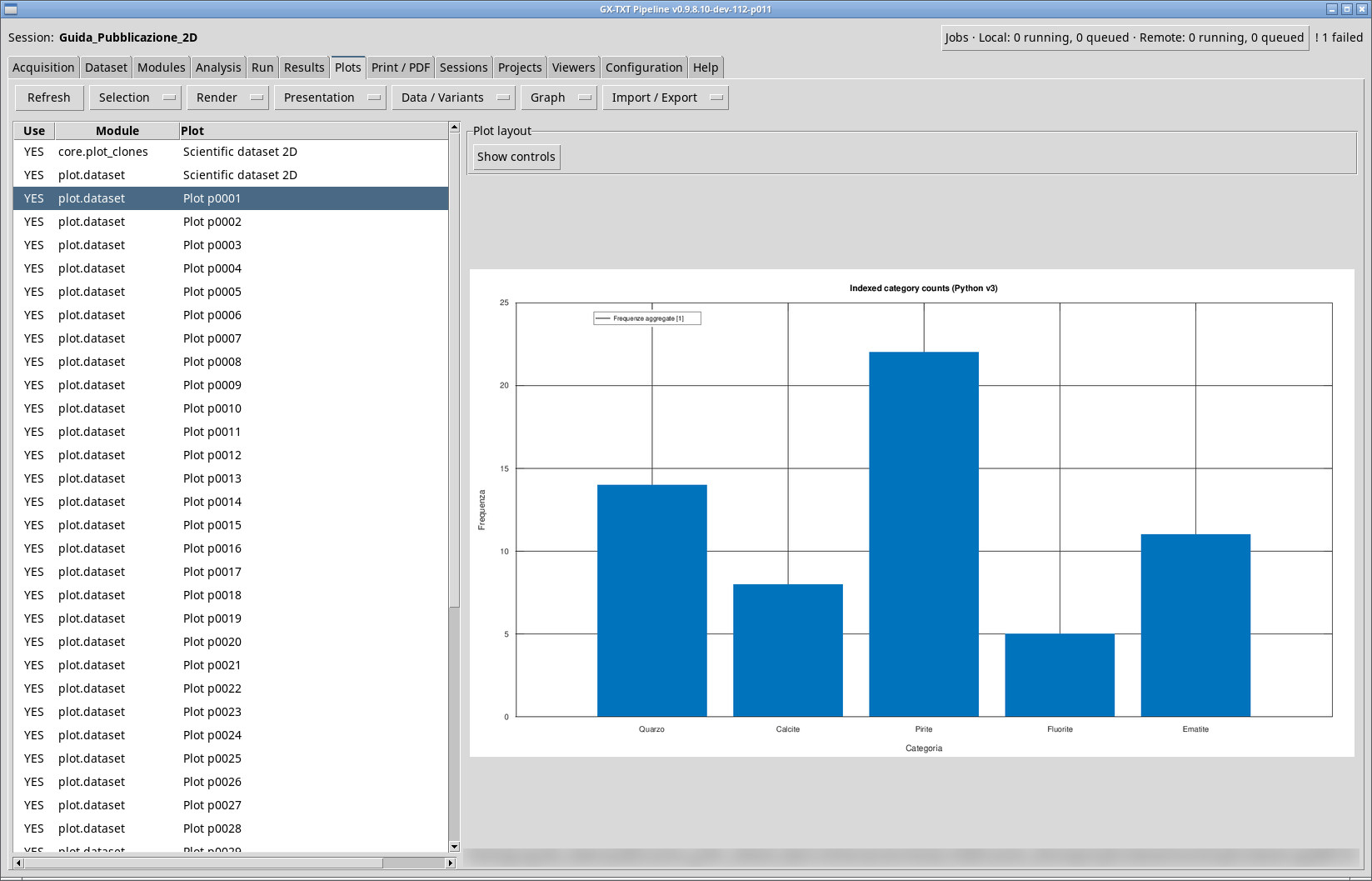
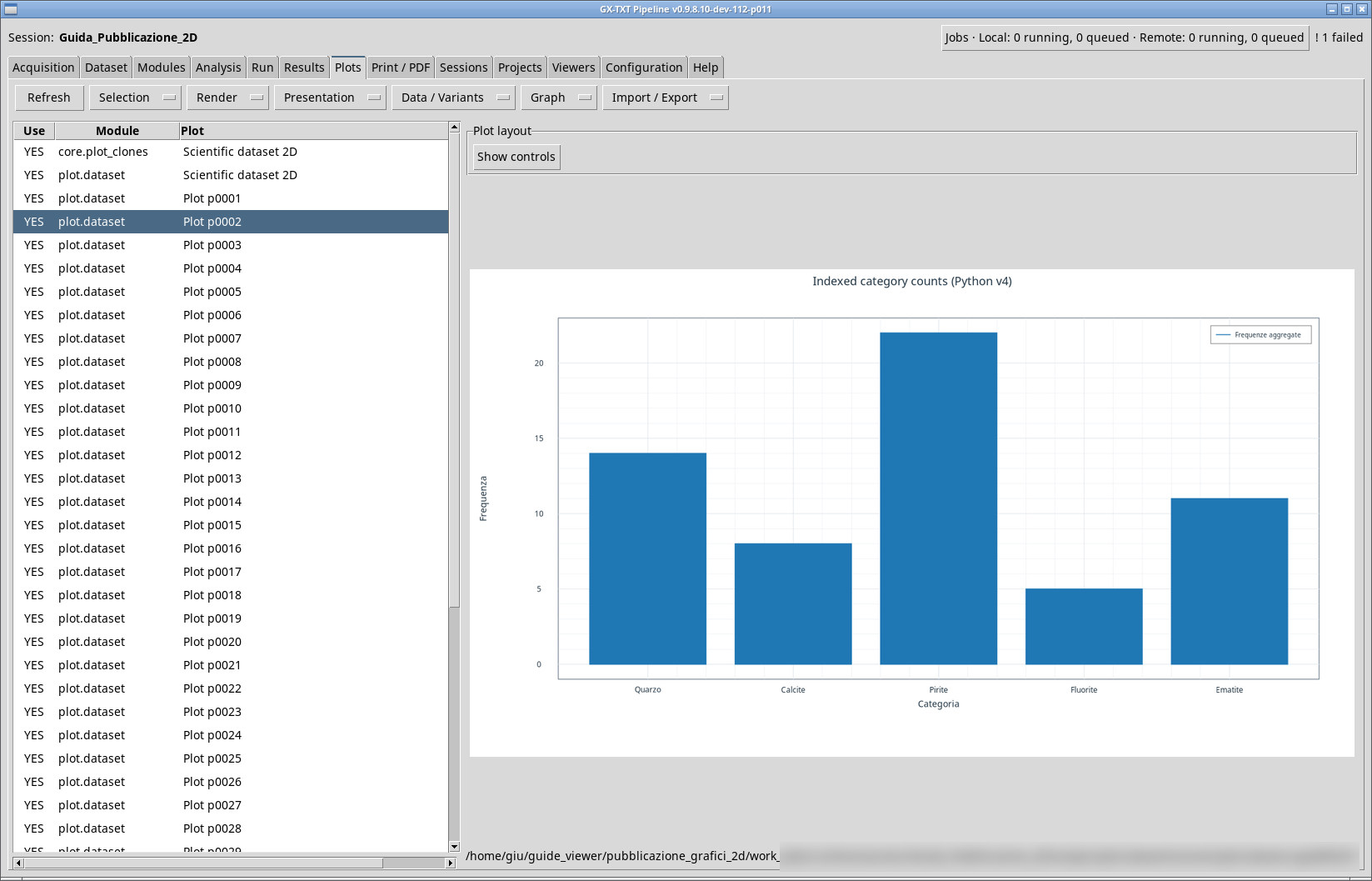
From Plots → Presentation → Graphics…, Apply saves the global settings of the Session and Apply + rerender current plot also tries to update the selected output. The editor Variants → Edit → Graphics keeps the variant properties. Empty fields inherit. The variant has its own identity, settings and output. As a check, configure 1380 × 760 in a legacy Plot Dataset v3 variant and in a native Plot Dataset v4 one. In both, the end result was a 1380 × 760 PNG.
To send a file with a fixed rendering, save the PNG or the appropriate vector file and reopen it at its real size. The presentation file, the PNG and the data unit are checked separately.
Test results