

Publish a Draft from Curve Viewer
GX-TXT P011-bis · Scientific Dataset Plot 4.4.2
Build a Native3D draft in Curve Viewer. Check the preview and publish or update the plot in the Session.
Building an XYZ draft
- In Viewers open Curve Viewer and choose New 3D. If asked, confirm the replacement of the current draft only after saving it, if you need it.
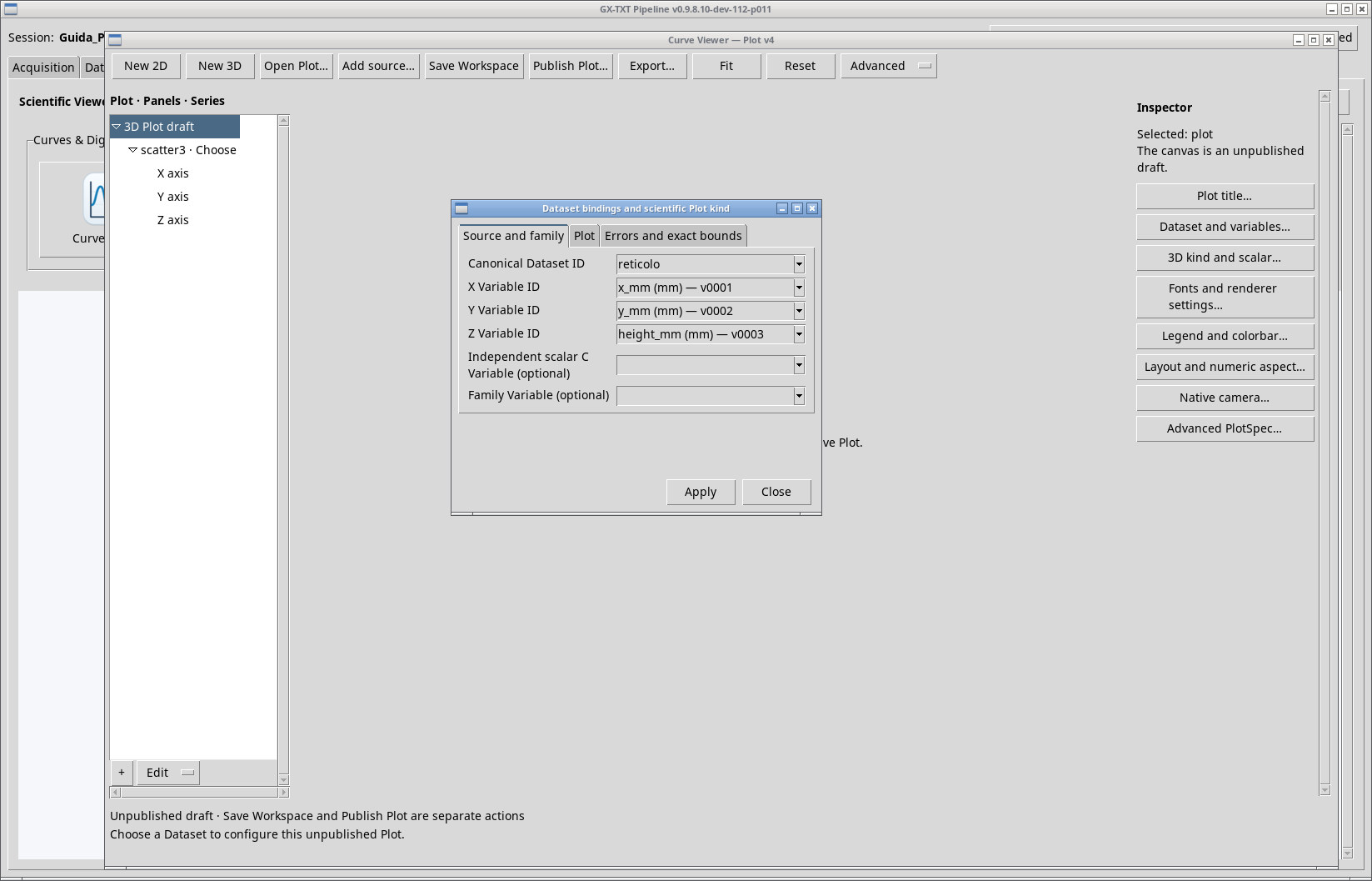
- Use Add Source… and select
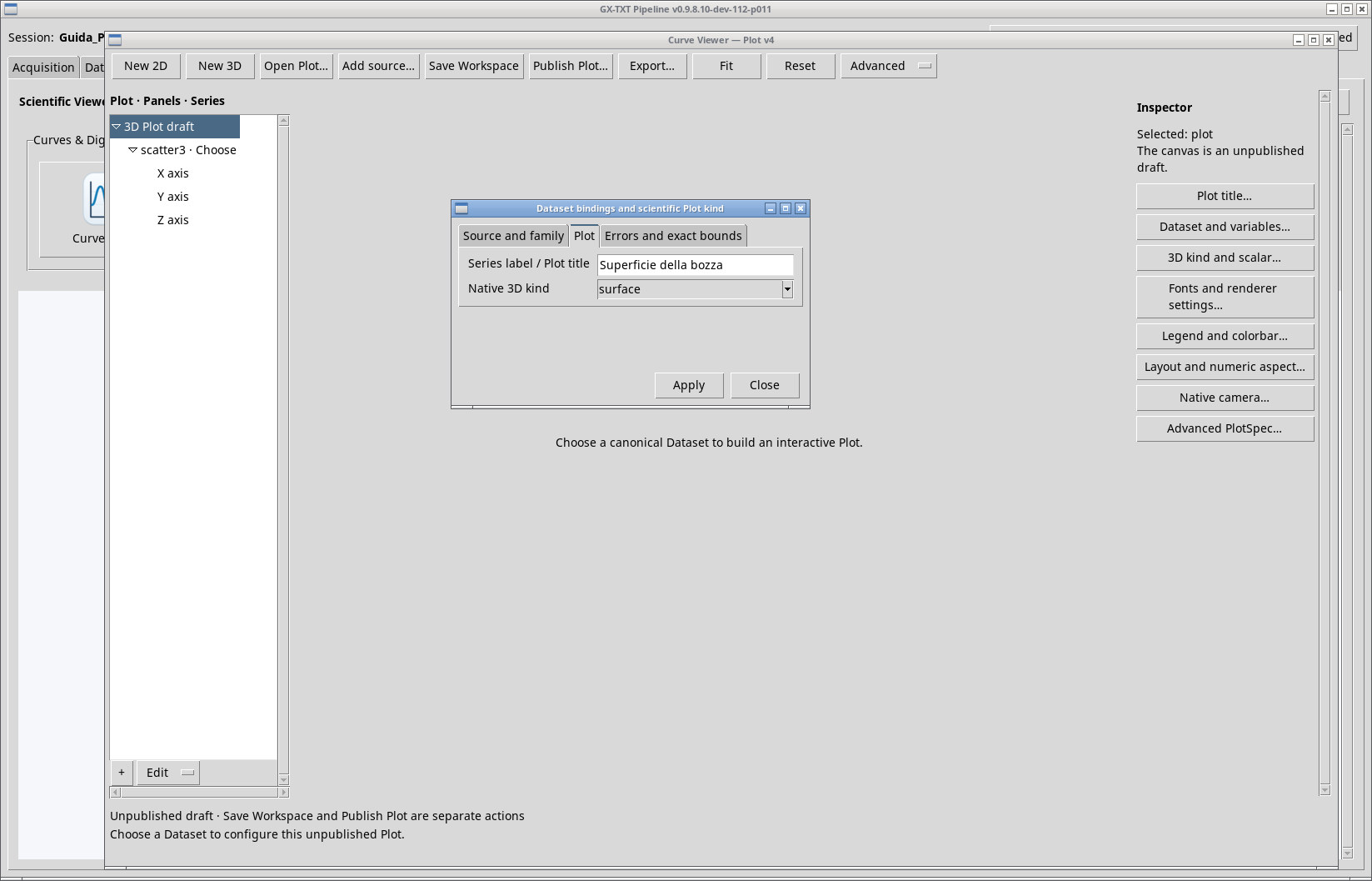
reticolo. The dialog Dataset bindings and scientific Plot kind opens Source and family. Select X, Y, Z and, if you want a distinct scale, Independent scalar C Variable. The stable ID appears after the name and the unit. - In the tab Plot choose Native 3D kind and write a title or label. For the grid set
surface. Confirm with Apply. The path accepts admitted numeric variables of rank one or two depending on the shape.
Checking the draft and the camera
Wait for the indication Native3D draft ready. In the canvas use orbit, pan, zoom and Fit as in the inspection. The source structure lets you go back to the bindings and the presentation inspectors. Close or cancel the dialogs to leave the already accepted draft intact. Changing the specification can require waiting for the preparation before acting again.
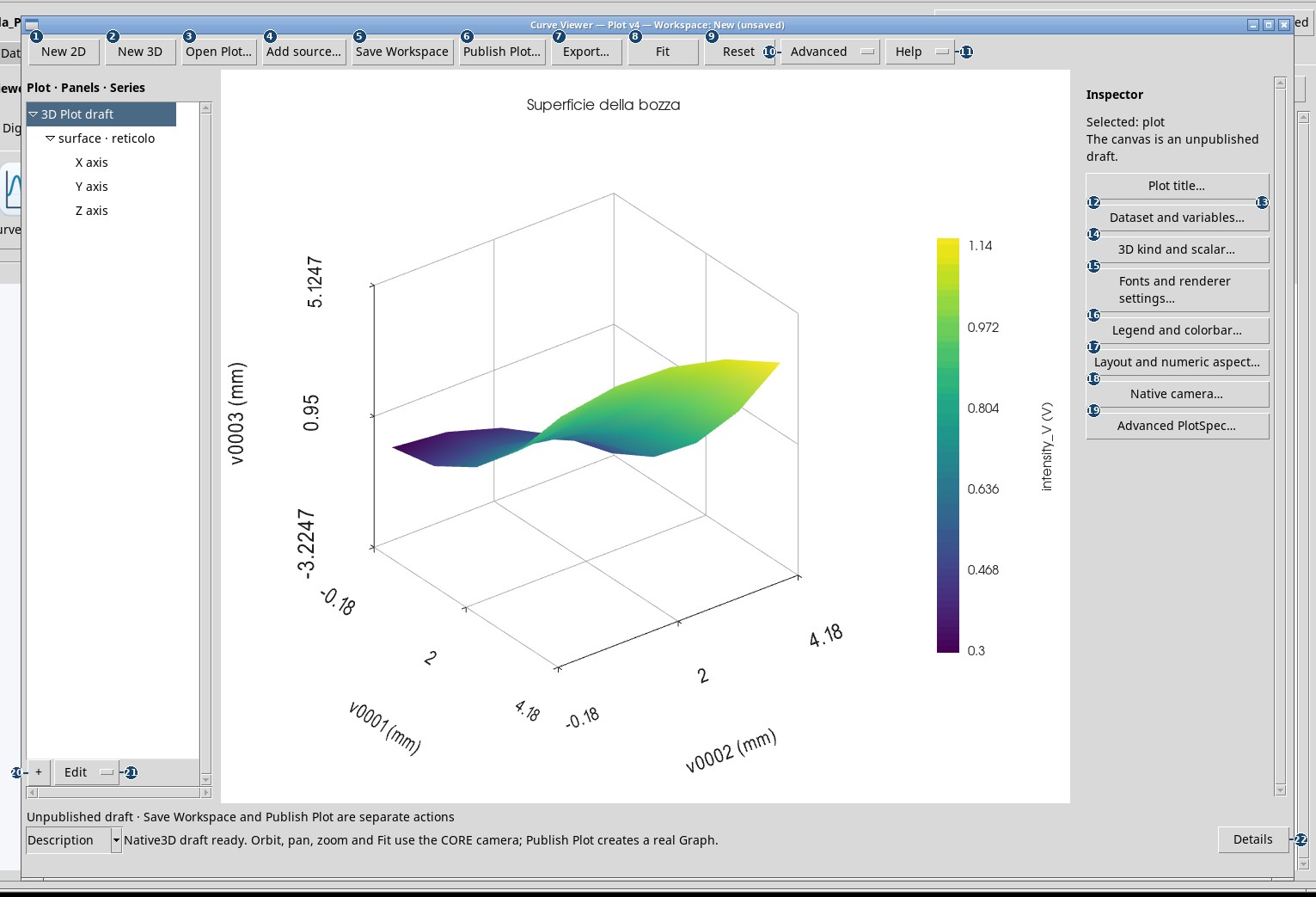
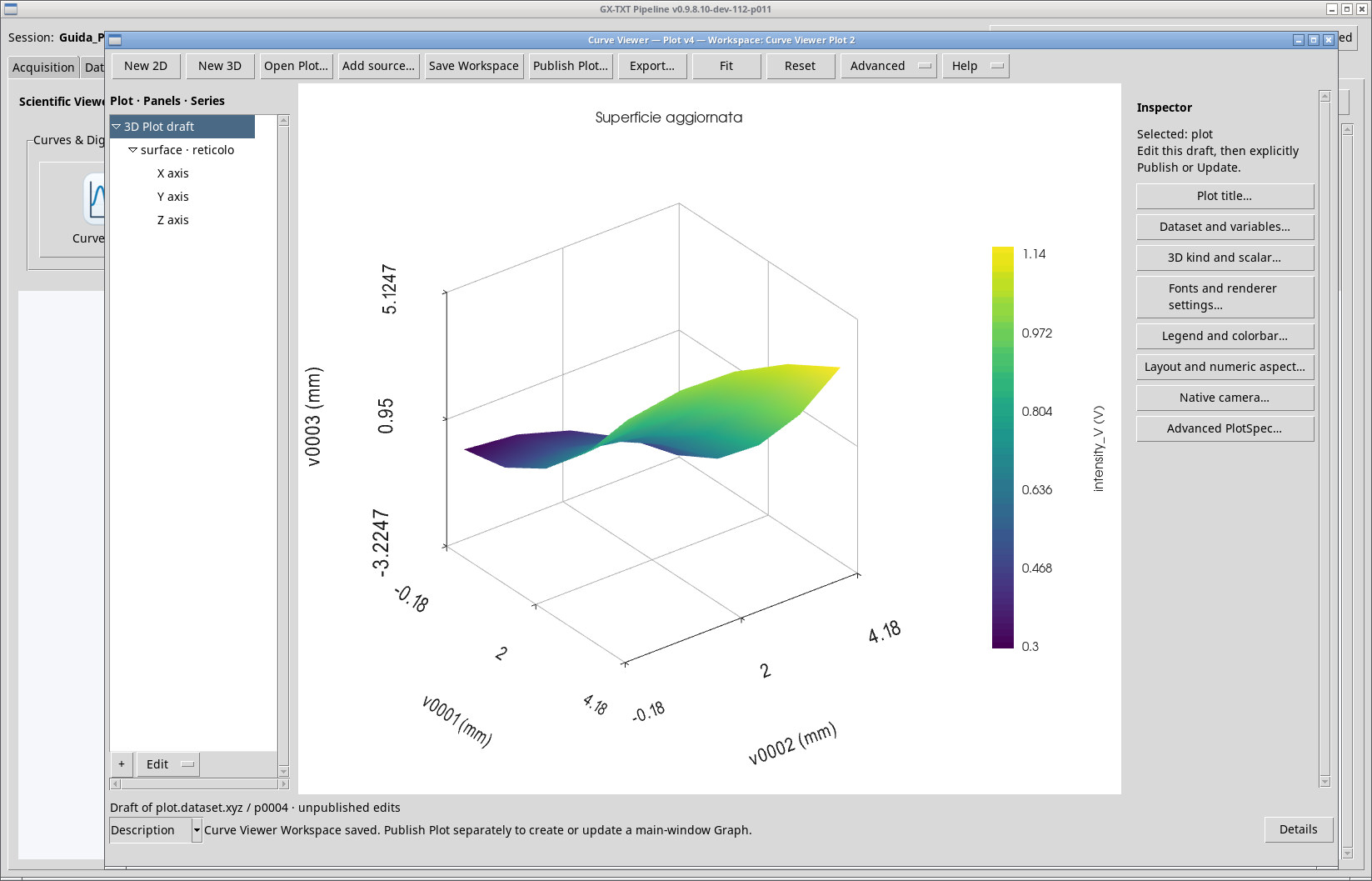
Save Workspace keeps the draft as a Curve Viewer document. Publish Plot… writes a separate plot to Plots. Saving the draft lets you recover the composition even after closing the Viewer. Use Advanced → Open Workspace… or Session Workspaces… to select the document.
Creating, branching or updating the Graph
- Action
- Create new Graph
- Condition and effect
- Check bindings and preview, enter the title and confirm. Creates a new persistent reference
plot.dataset.xyz/pNNNNand generates the PNG as v4 owner.
- Action
- Publish as new Variant
- Condition and effect
- First open or publish a source Graph of the same type, then choose the command. Assigns a distinct ID and keeps the previous identity.
- Action
- Update opened Graph/Variant
- Condition and effect
- First use Open Plot / Variant… on a Graph or variant owned by Plot v4. Choose Update to keep the reference. If the Plot was changed from another window, reopen it before updating. The guard avoids overwriting the external edit.
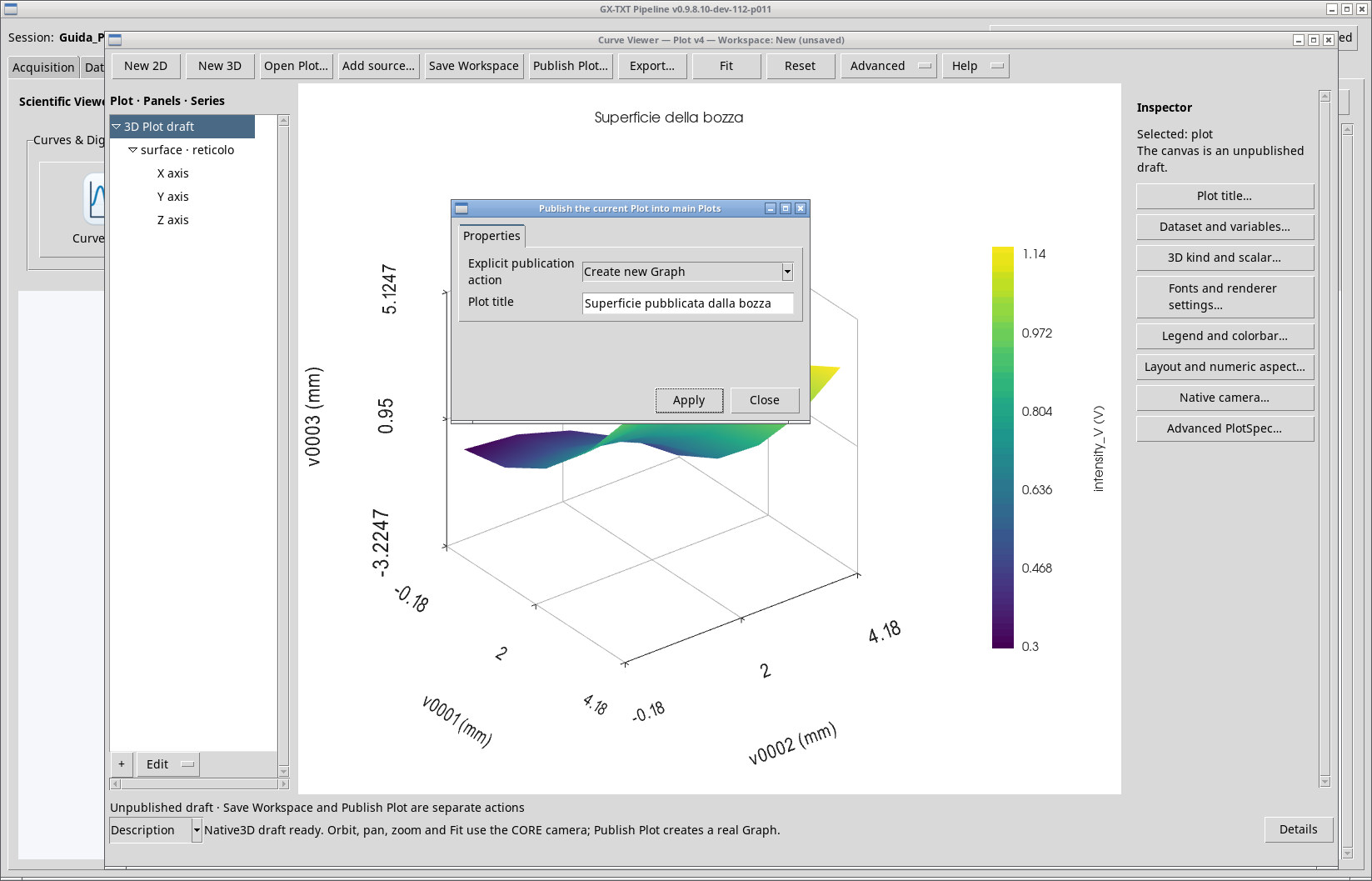
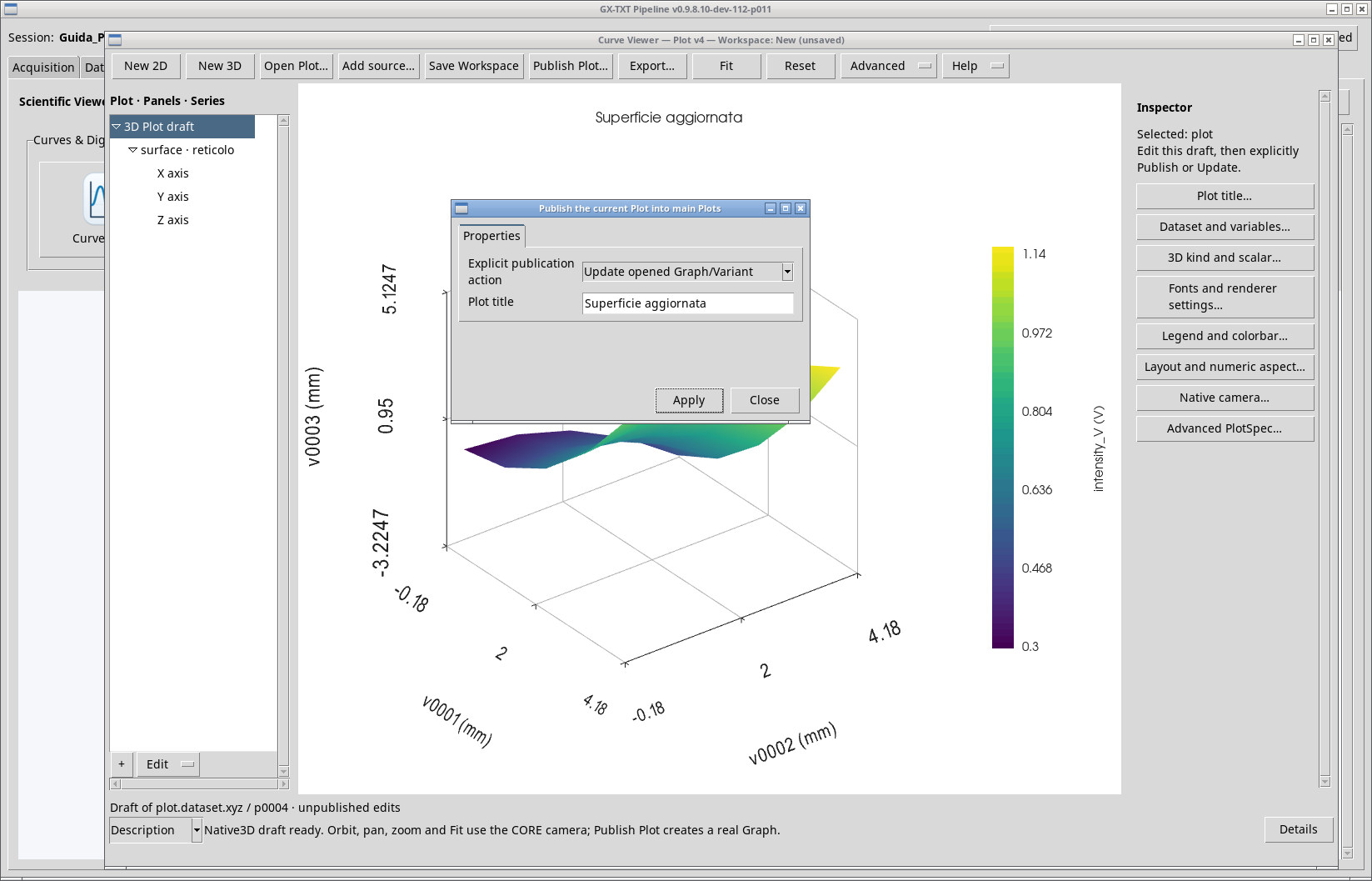
In the surface test, Create and Publish as new Variant created, respectively, p0003 and p0004 in the test Session. Update kept p0004 and regenerated the PNG. The IDs depend on the Session. In Plots the row can show the default label Plot pNNNN, while title and plot are kept in the specification. From a legacy source opened in the draft you can make a new v4 publication. In-place Update is available for the explicitly opened v4 owner identity.
Inspect the provider or open a representation
Select a variant in Plots, go back to Curve Viewer and open Advanced → Consult selected provider 3D Plot…. The window shows the provider reference read-only. Left, Right, Up, Down and Roll − / + orient the camera. Fit frames, Reset restores, Axes / grid toggles the grid. In the test, the provider PNG keeps the same hash.
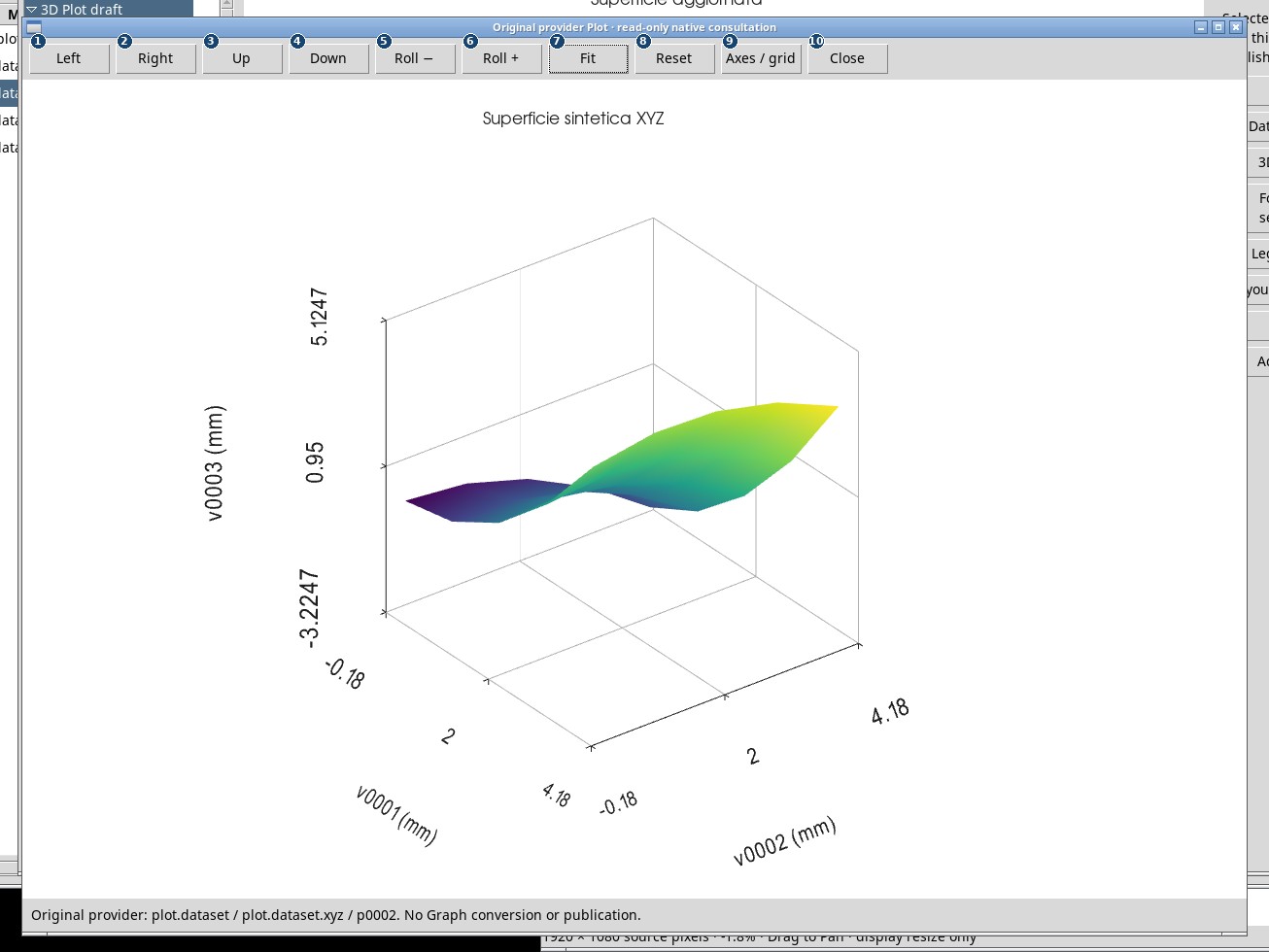
P011-bis · closing the inspection. On this build Close and the window’s X can leave the inspection open with can’t read “dialog”: no such variable. Save the Workspace if needed and close the Curve Viewer parent window. The test removed both windows and the temporary hosts.
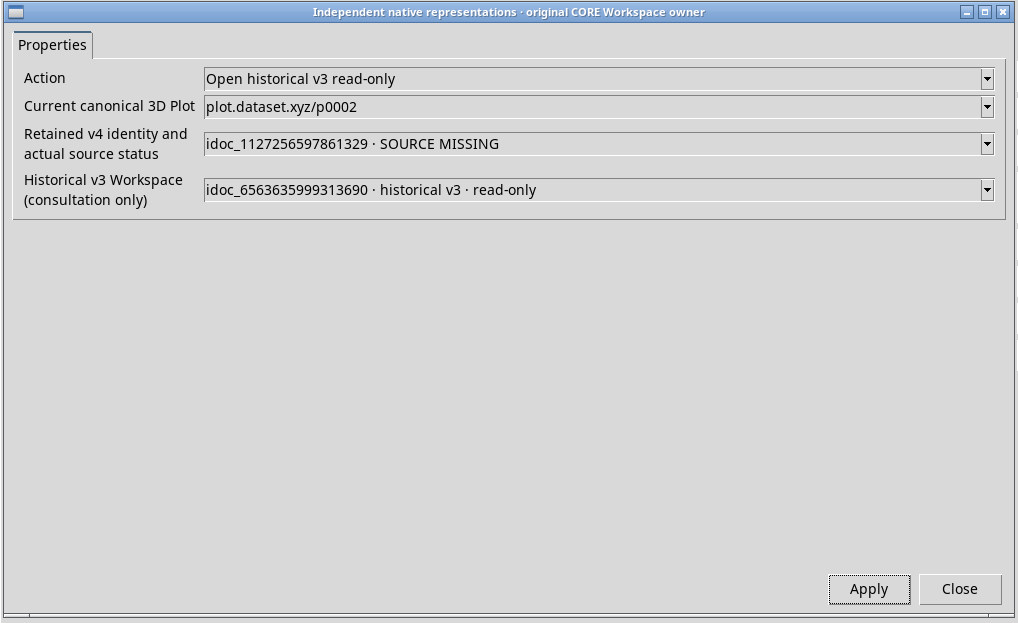
Toggle 3D camera controls shows or hides the controls of the already prepared draft. Independent 3D representations… opens the actions on the provider Workspace. Choose Open current source with an available v4 reference, Open retained representation with an existing ID, Sync retained representation to update that representation or Open historical v3 read-only to inspect a legacy Workspace. Choose the field corresponding to the action and confirm.
Capture scientific Clone… freezes the resources of the published plot. If you are still working on the draft, publish it first to freeze its result. Open scientific snapshot… asks for the complete folder of an admitted snapshot and makes it read-only. Original Plot editor… asks for confirmation and opens the published v4 identity. When done, reopen the Graph in the Viewer if you want to load its changes.
The draft navigation tools include Undo draft edit, Redo draft edit, History timeline… and Clear draft History…. The Workspace menu commands manage the saved document. Series filtering and comparison work on the admitted sources and do not transform the canonical XYZ Dataset of the inspection.