Dataset Extract
GX-TXT DEV112 P011-bis
Extract rows and variables from a dataset and check that the output respects the configured selection.
Enable Dataset Extract and prepare the source
Open Configuration → Modules → Analysis & Services, search for Dataset Extract (dataset.extract) and press Enable module if it is off. In Analysis the checkbox Run / recalculate now includes the module in the next run.
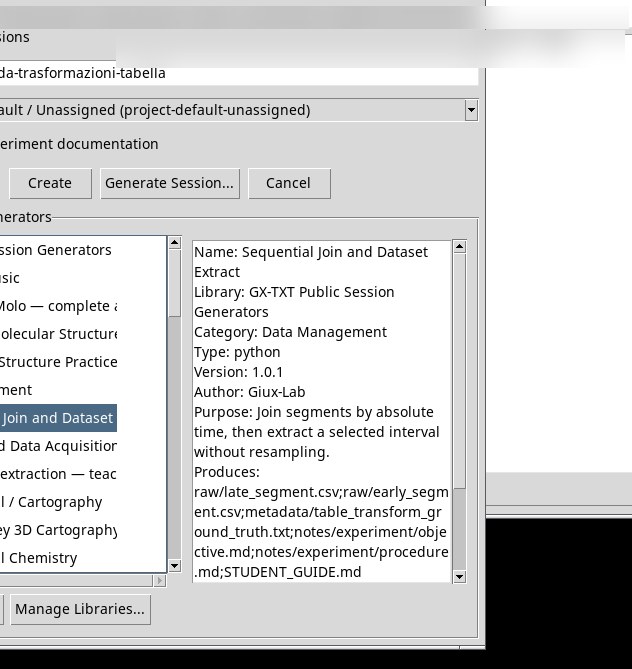
Generate a standalone Session from New Session → Generate Session… with Sequential Join and Dataset Extract (table_join_extract, 1.0.1) and get table_segment.early and table_segment.late. Use Sequential Table Join to publish table_joined.source with timestamp_s absolute and time_s global. In Dataset → Preview check the joined Dataset. In Open Dataset → Canonical table check 200 rows.
Save a selection from the trace
- In Analysis → Scientific Dataset Plot uses
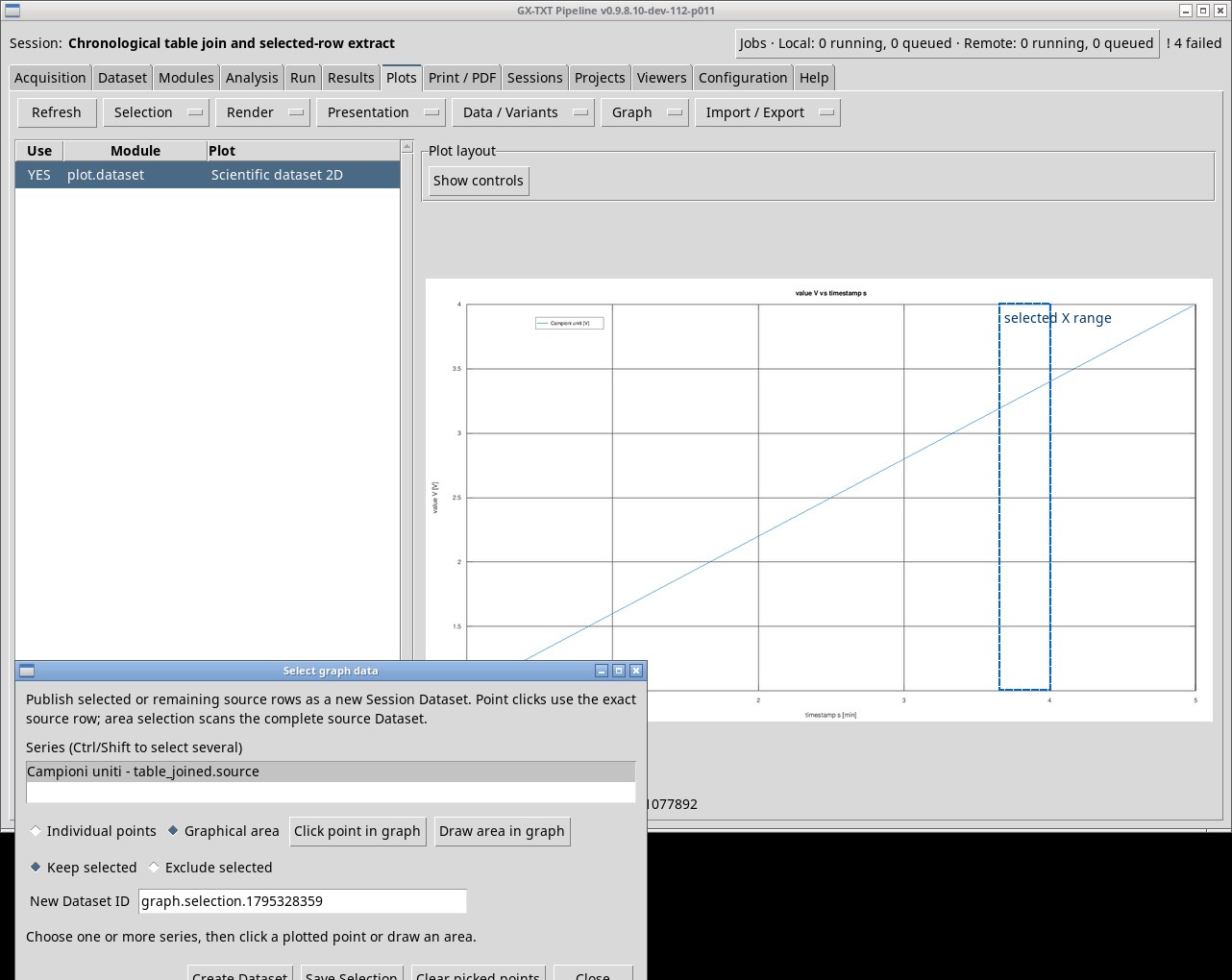
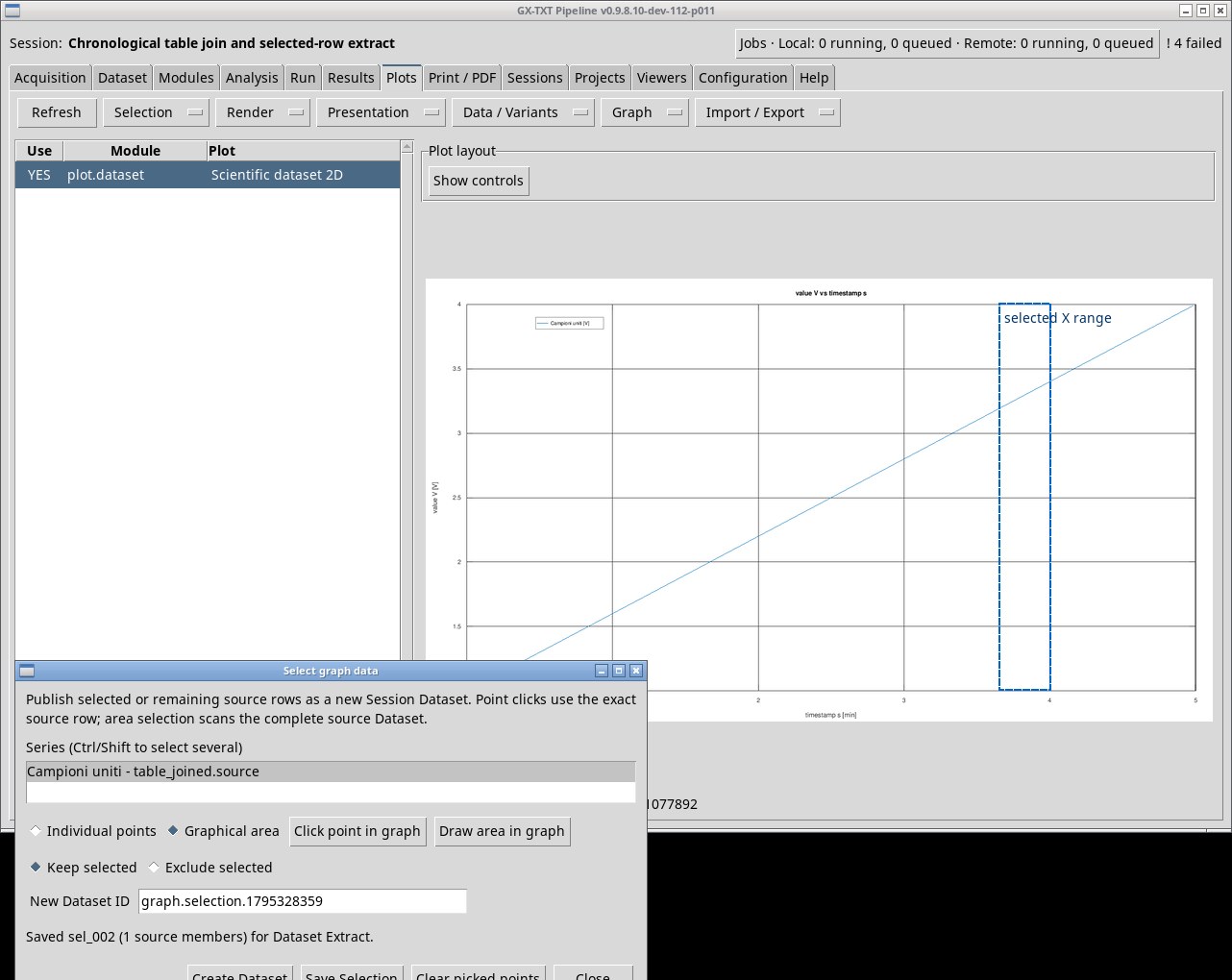
table_joined.sourceas primary. For Scientific dataset 2D open Series…, choose the same Dataset for the series, bindtimestamp_sandvalue_Vto X and Y, add the series. Enable only the 2D figure and launch Scientific Dataset Plot. - In Plots select that plot. Open Data / Variants → Select data…. Select the series Campioni uniti, enable Keep selected and press Draw area in graph. Bound the samples with times from 220 to 240 s. The test plot shows minutes in the view, so drag from about 3.66 to 4.01 min. Check the reading converted to seconds. The saved selection gives, for example, limits of 219.687 and 240.647 s. With samples at integer times it includes exactly 220–240 s.
- Dragging created the X selection
sel_001. With Save Selection in the dialog also savedsel_002, which identifies the rows of the series. Create Dataset in the dialog is a direct publication action. To try Dataset Extract use the saved selection and close the dialog.
Choose rows, columns and ID of the derived Dataset
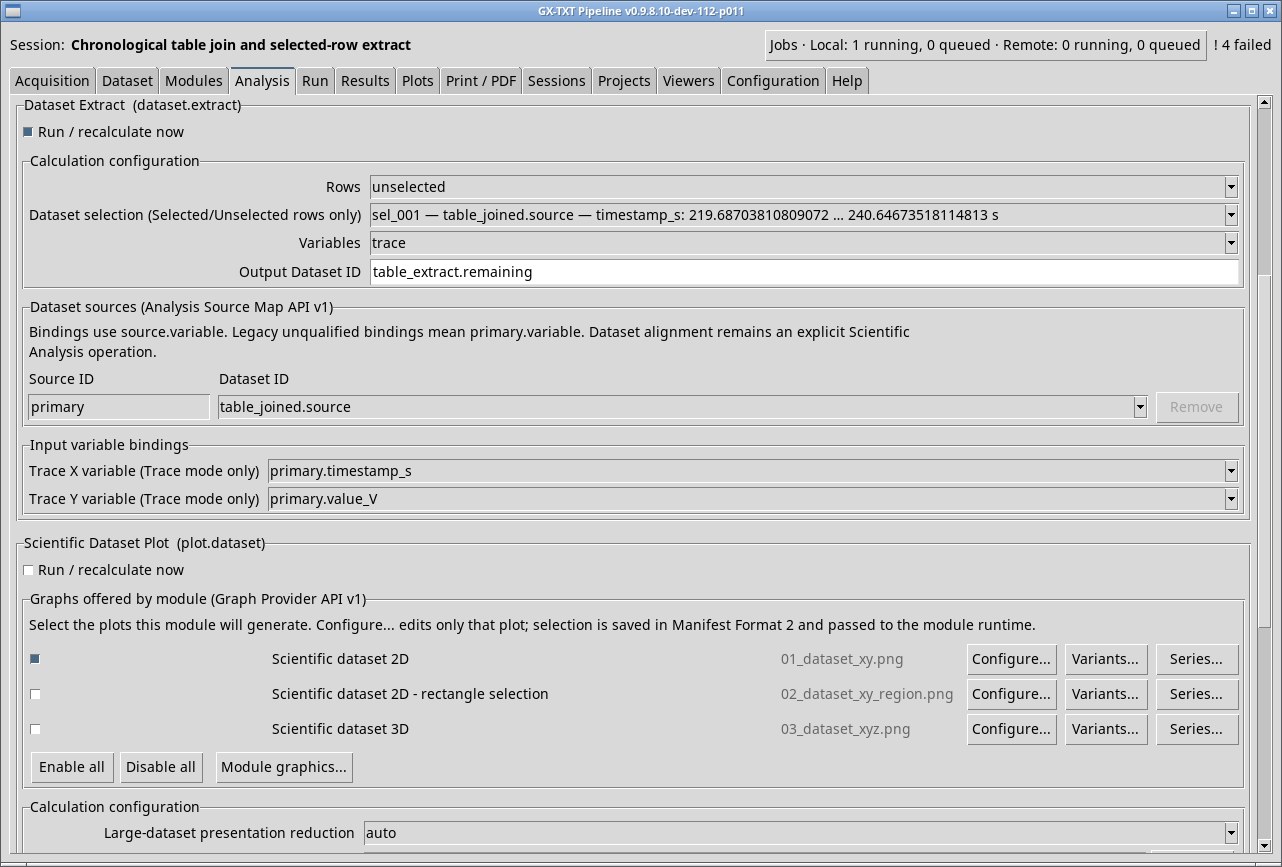
In Dataset sources choose table_joined.source as primary. Configure a single operation with the following entries.
- Control
- Rows
- Choices
selectedis the default and keeps the rows in the selection.unselectedkeeps the complement.allkeeps all rows and does not use the selection.
- Control
- Dataset selection (Selected/Unselected rows only)
- Choices
- For
selectedandunselectedchoose a selection compatible with the source.Noneis the initial state before the selection is created. Usesel_001to reproduce the example result.
- Control
- Variables
- Choices
allthe default, keeps all active canonical columns, their units and the applicable contract.tracekeeps only the fields bound to X and Y. The output can use the general contracttable.generic.
- Control
- Trace X variable and Trace Y variable
- Choices
- In the section Input variable bindings choose explicitly
timestamp_sandvalue_Vfortrace. With both roles onauto, the test on the joined table rejected the modetracewith Trace mode requires X/Y bindings. Assign both columns explicitly. The same X and Y binding can produce a single column, because the projection does not duplicate the canonical identity.
- Control
- Output Dataset ID
- Choices
- Factory default
dataset.extracted. The Generator proposestable_extract.selected. Use distinct names for interval, complement or whole table.
Extract a selection by membership
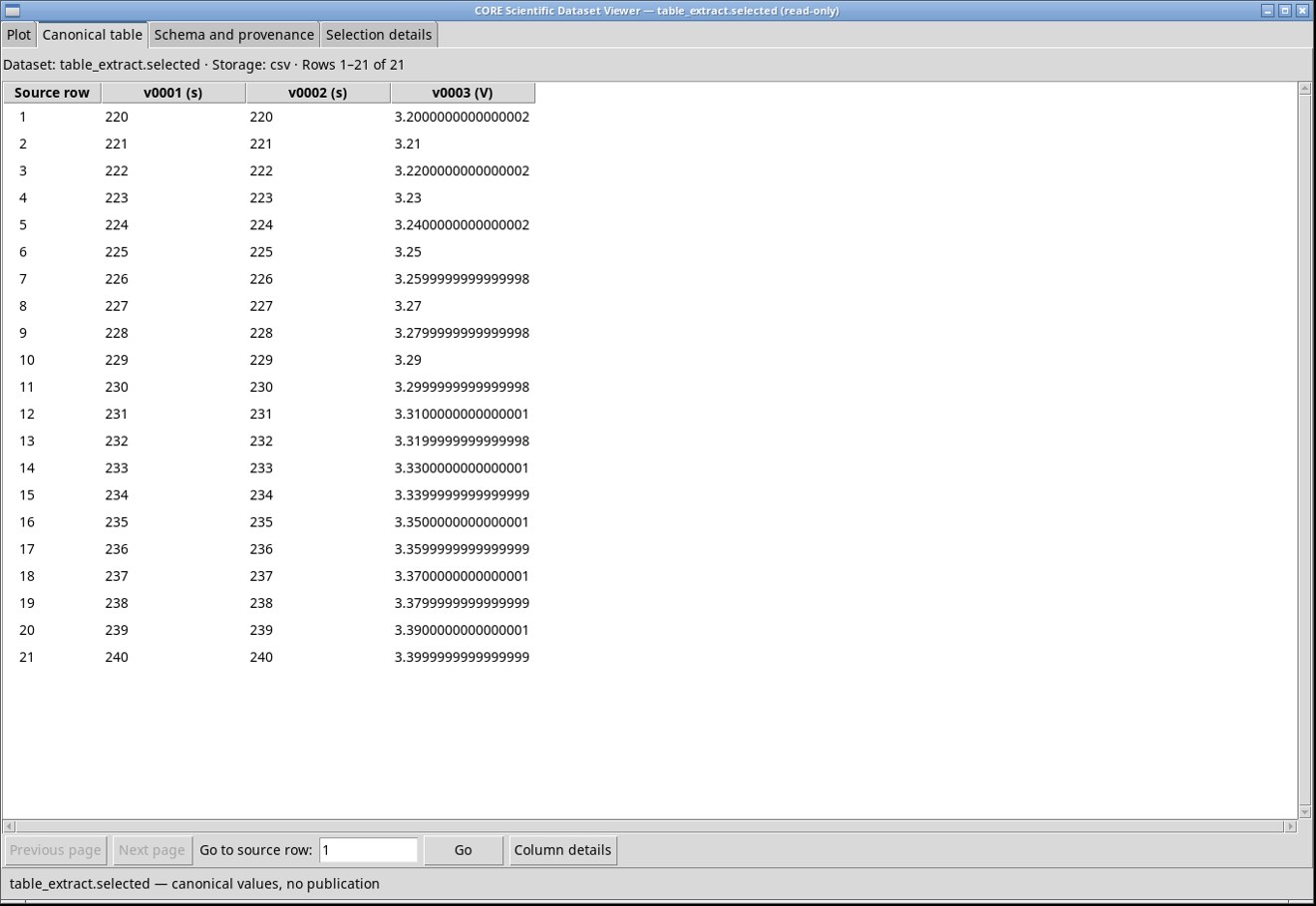
In the selector of Dataset selection the entry sel_002 — 1 source members (Dataset rows) keeps the original indexes of the saved series. With Rows = selected and Variables = trace, the test extract contains 21 rows from 220 to 240 s. Check selection_source_row_ordinal and the column IDs selection_source_x_variable_id and selection_source_y_variable_id. In the example the pair recorded by the member stays timestamp and voltage even when both tab bindings are set to timestamp. To get the coordinate pair you want, create the selection from the series that uses them. With Rows = selected and Dataset selection = None the module refuses to start. Choose the selection or switch to Rows = all.
Compare interval, complement and whole table
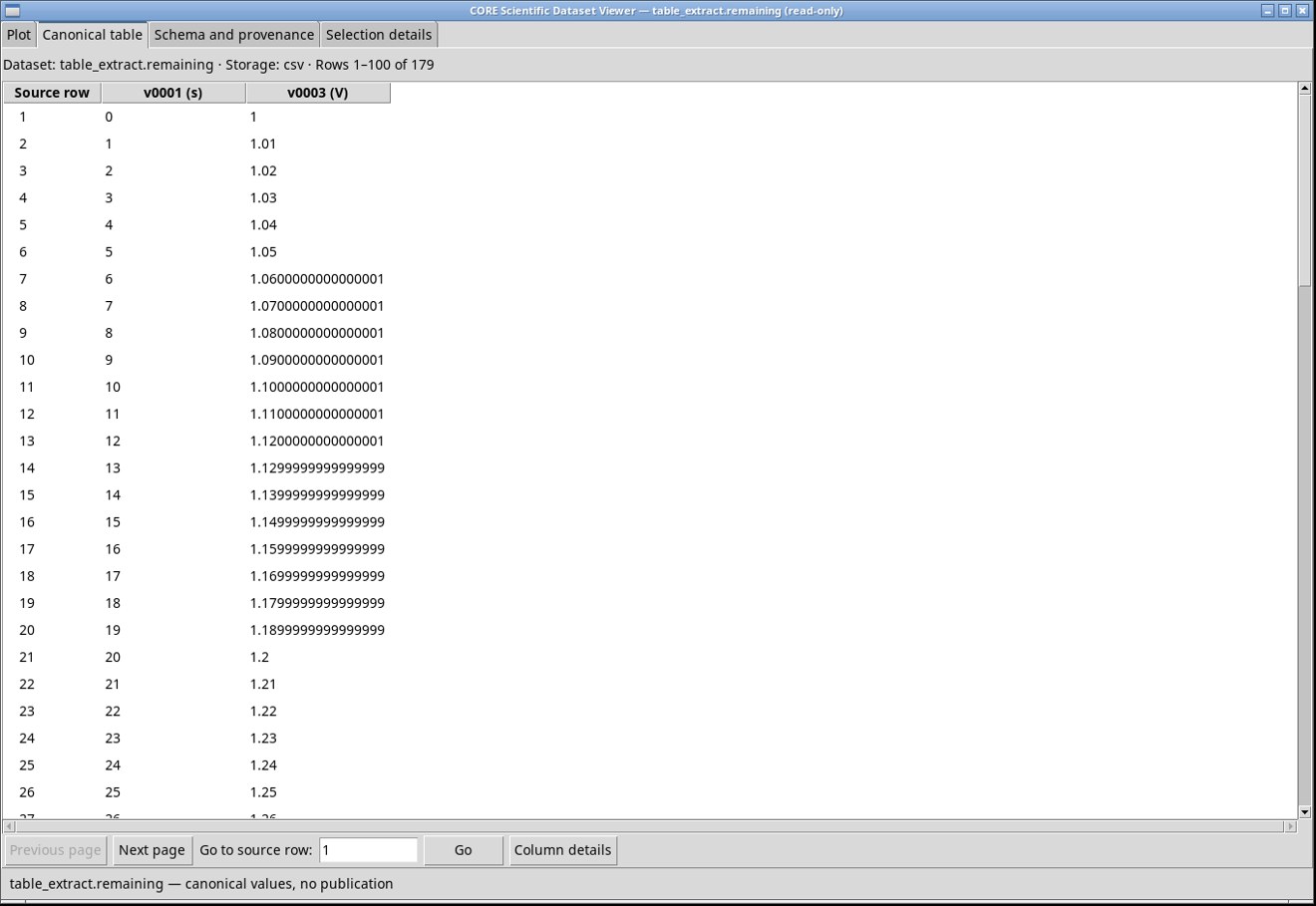
In Run check the source and start Run enabled analyses. For selected + all and sel_001, table_extract.selected has 21 rows and three columns. The first row is (220 s, 220 s, 3.2 V) and the last is (240 s, 240 s, 3.4 V). For unselected + trace table_extract.remaining has 179 rows and two columns. all + all gives 200 rows. The order stays that of the source.
In Results look for the registered derived Dataset. In Dataset look at Preview, Metadata, Technical Details / Provenance and the canonical table. Columns such as v0001 keep the original technical identity. Read the units and the reference to the variables from the metadata. The module publishes a Dataset and the transformation provenance. The exercise plot is prepared by the Scientific Dataset Plot module.