

Running Python Scripts from Analysis
GX-TXT DEV112 P011-bis
Run a Python script from the Analysis tab and publish a UV/Vis family with the downloadable example.
GX-TXT P011-bis · module 1.6.4. Python Script runs a registered revision of a Python script in the Session. The report identifies code and runtime. A program can produce Datasets that can be browsed in GX-TXT if it publishes them explicitly with the appropriate API.
Enable the module
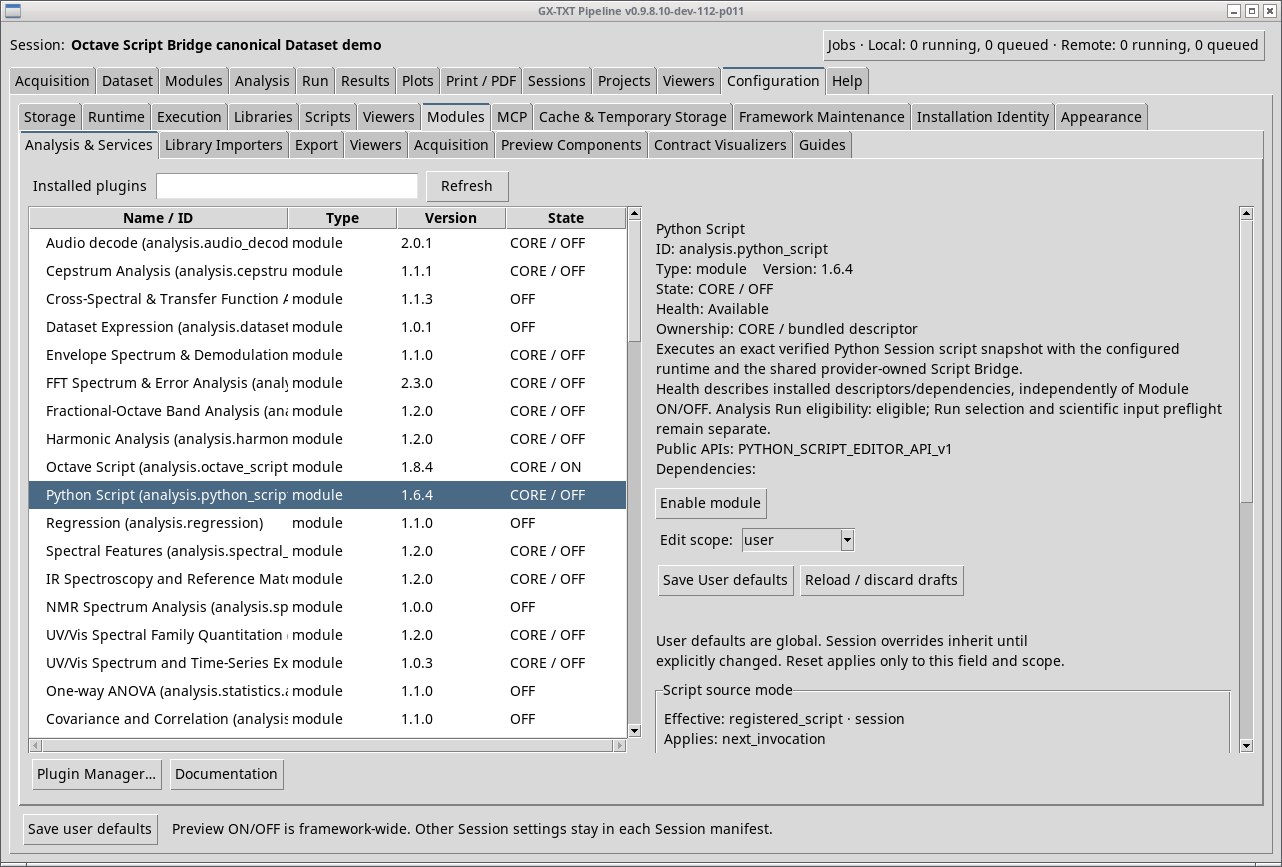
Open Configuration → Modules → Analysis & Services, search for Python Script, check version and Health and choose Enable module. Go back to Analysis and open the module tab. Run / recalculate now includes the tab in the next selective run.
Prepare the Manchester data
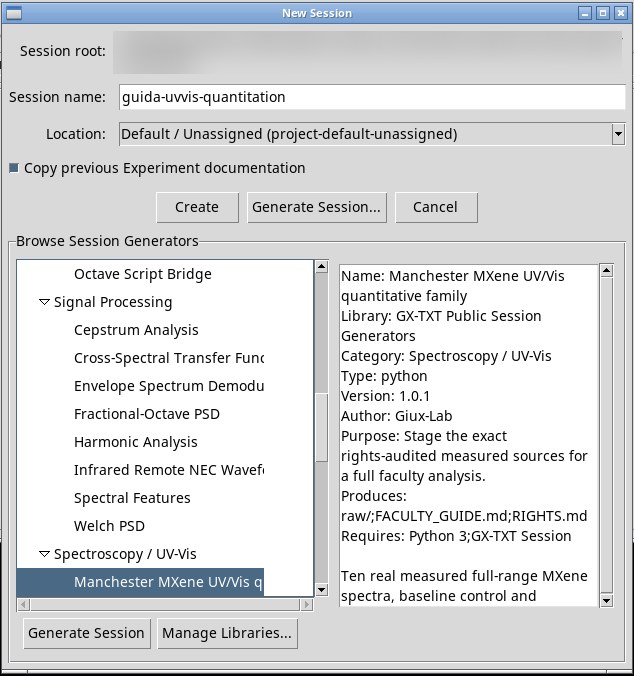
From Session → New Session → Generate Session choose Manchester MXene UV/Vis (manchester_uvvis_faculty), mode Standalone Session, assign the name and generate. The Session contains ten measured spectra uvvis.sample.* and the blank uvvis.blank. In Datasets enable a member, open Preview and Metadata and check wavelength in nm and absorbance. The script uses the Generator’s CSV copies in the subfolder datasets of the Session. The example is based on James Bird’s data, DOI 10.48420/21354474.v1, CC BY 4.0 licence. Dataset and lab notebook of the data producer.
Register the Python revision
- Download publish_uvvis_family.py (ZIP) and open it as text.
- Open the viewer catalog, select Python Scripts and open Python Script Workspace. Choose File → New Script.
- Enter ID
publish_manchester, namePublish Manchester teaching families, scopesessionand paste the code into the editor. Use File → Save. Check in the ID columnsession:publish_manchester, the state saved, the revision and the SHA-256 fingerprint.
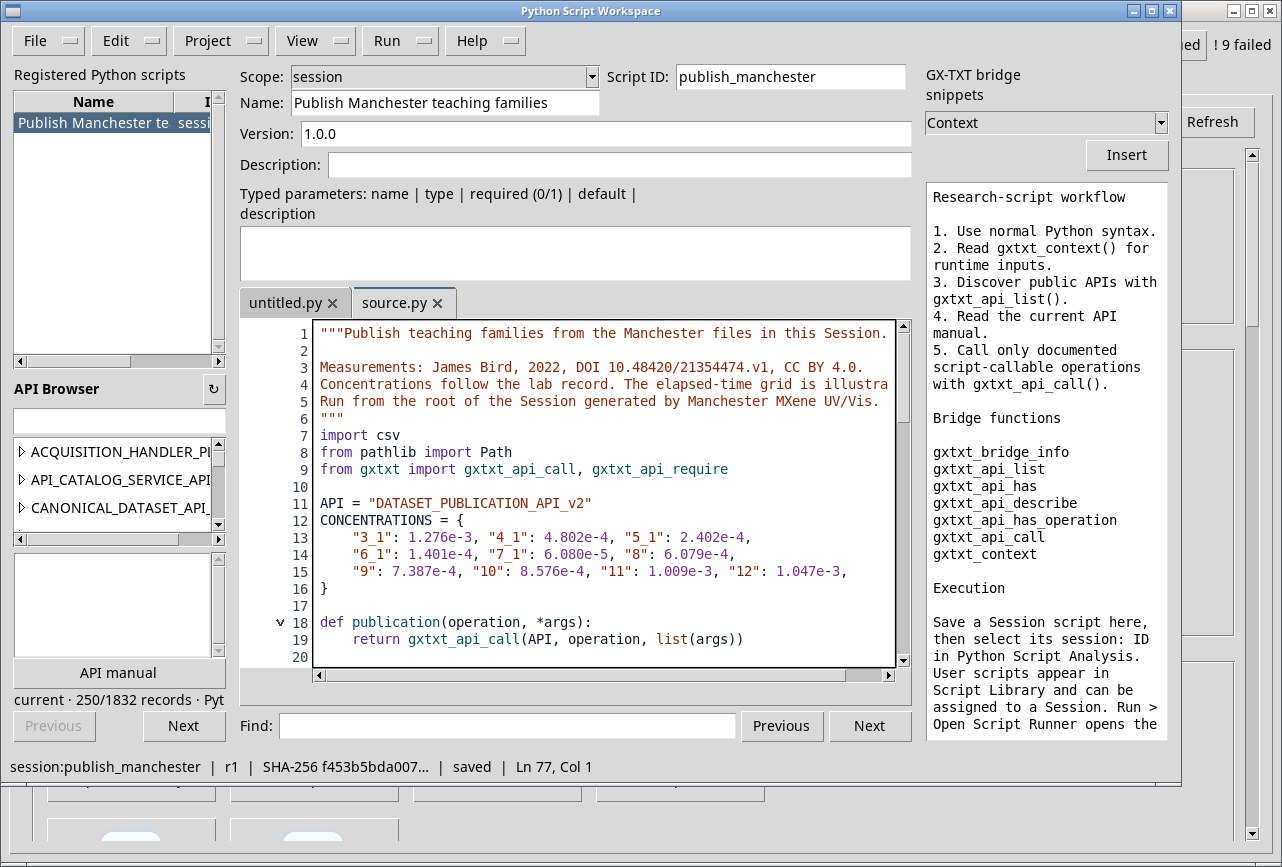
The code declares DATASET_PUBLICATION_API_v2, reads the CSVs, defines schema and provenance, adds the members and finalizes or cancels the writer in case of error. The four IDs required by the UV/Vis analyses are member_id, parameter_value, spectral_x and spectral_y.
Set up the Analysis tab
- Script source mode
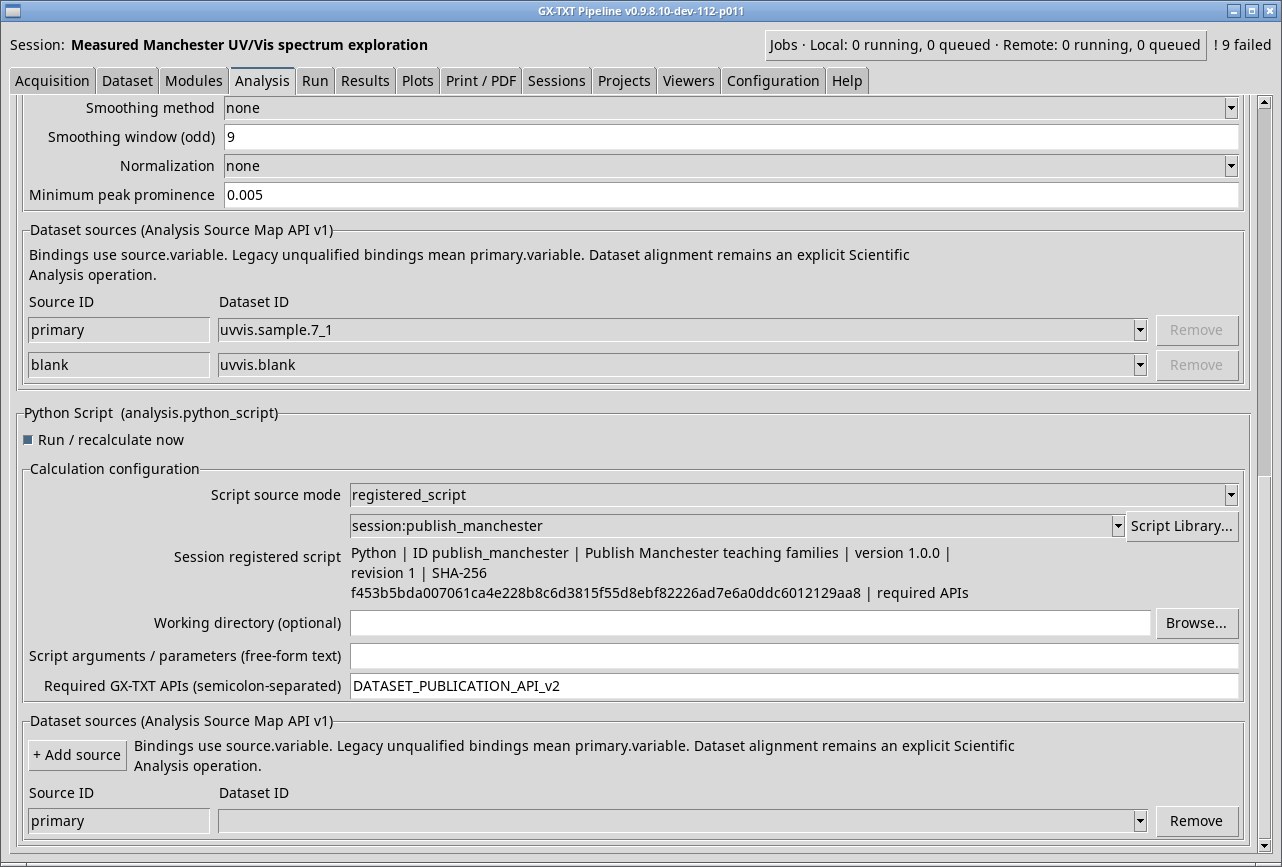
registered_scriptis the value available in the tested build. The source comes from a registered revision.- Session registered script
- Choose
session:publish_manchester. Read language, ID, name, version, revision, SHA-256 and declared APIs in the area below the selector. Refresh the choice after saving a revision. - Script Library…
- Opens the revision catalog. To create and save the example code use the editor Python Script Workspace.
- Working directory (optional)
- Write a folder or choose it with Browse…. In this example the empty value uses the Session’s default working folder. Leave it empty to have
datasets/resolved in that folder. - Script arguments / parameters (free-form text)
- Passes the text to the script context. Its meaning depends on the code. Leave it empty for the Manchester script.
- Required GX-TXT APIs (semicolon-separated)
- Enter
DATASET_PUBLICATION_API_v2. In procedures that use several APIs, separate their IDs with the character;. The availability check comes before execution. - Dataset sources and Source ID
primarydesignates the main source. Choose a Dataset ID if the script reads the source map. + Add source adds an editable alias. Remove releases the Dataset in the main row or deletes an added alias. The example leavesprimaryempty because the program reads the Generator CSVs and records the source IDs in the publication.
Run and check the products
- Select Run / recalculate now on Python Script, open Run, update the plan and start the selective analysis.
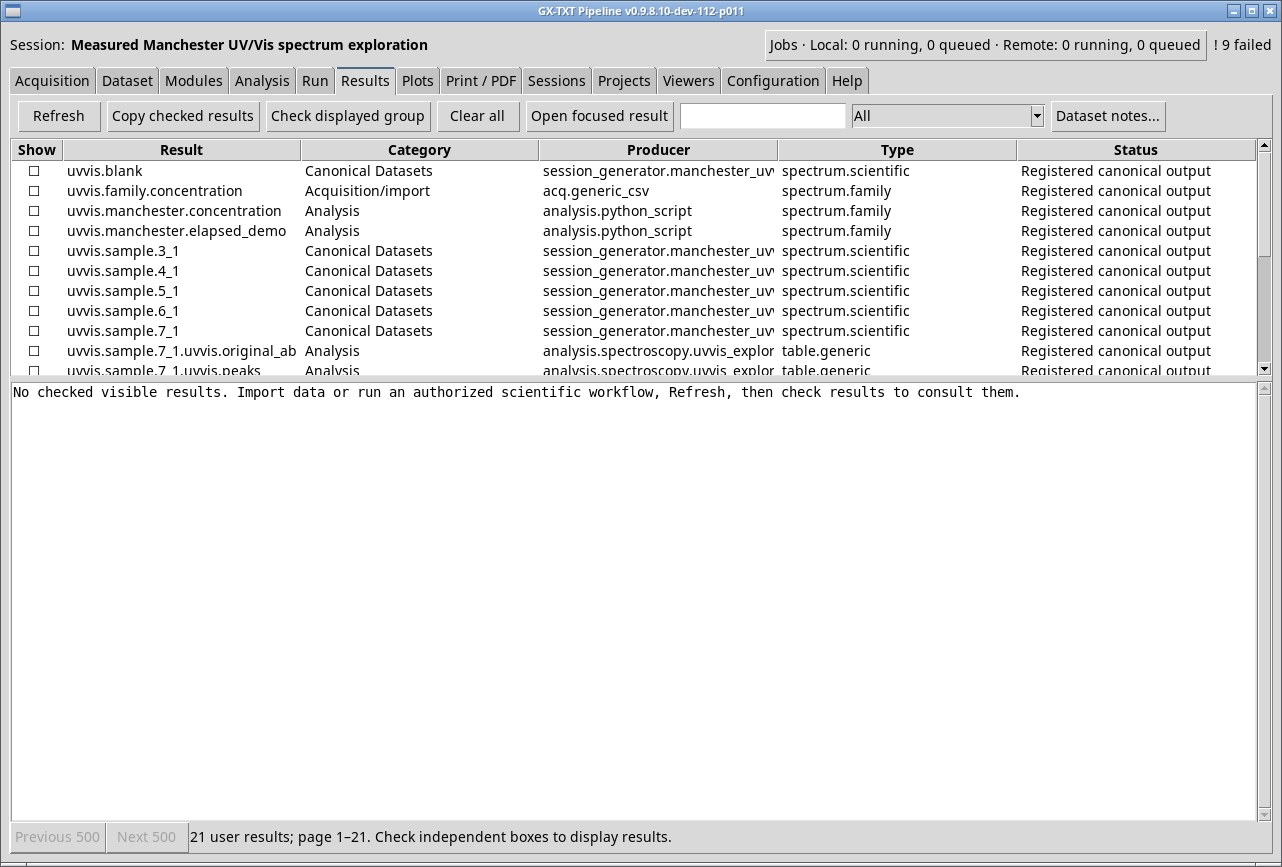
- Wait for Selective analysis completed and open Results. In
python_script_run_report.txtcheckStatus: PASS, Python version, revision, hash, requested APIs and run identifier.executed_script.pykeeps the executed copy. The report and the standard output let you tell the start of the job apart from the finalization of the Datasets. - Open in Datasets
uvvis.manchester.concentrationanduvvis.manchester.elapsed_demo. In Metadata and Technical details check the contractspectrum.family, HDF5 storage, schema, provenance and parameter units. Each family in the test contains ten members of 801 points, for 8,010 rows. Canonical table shows the four registered variables.
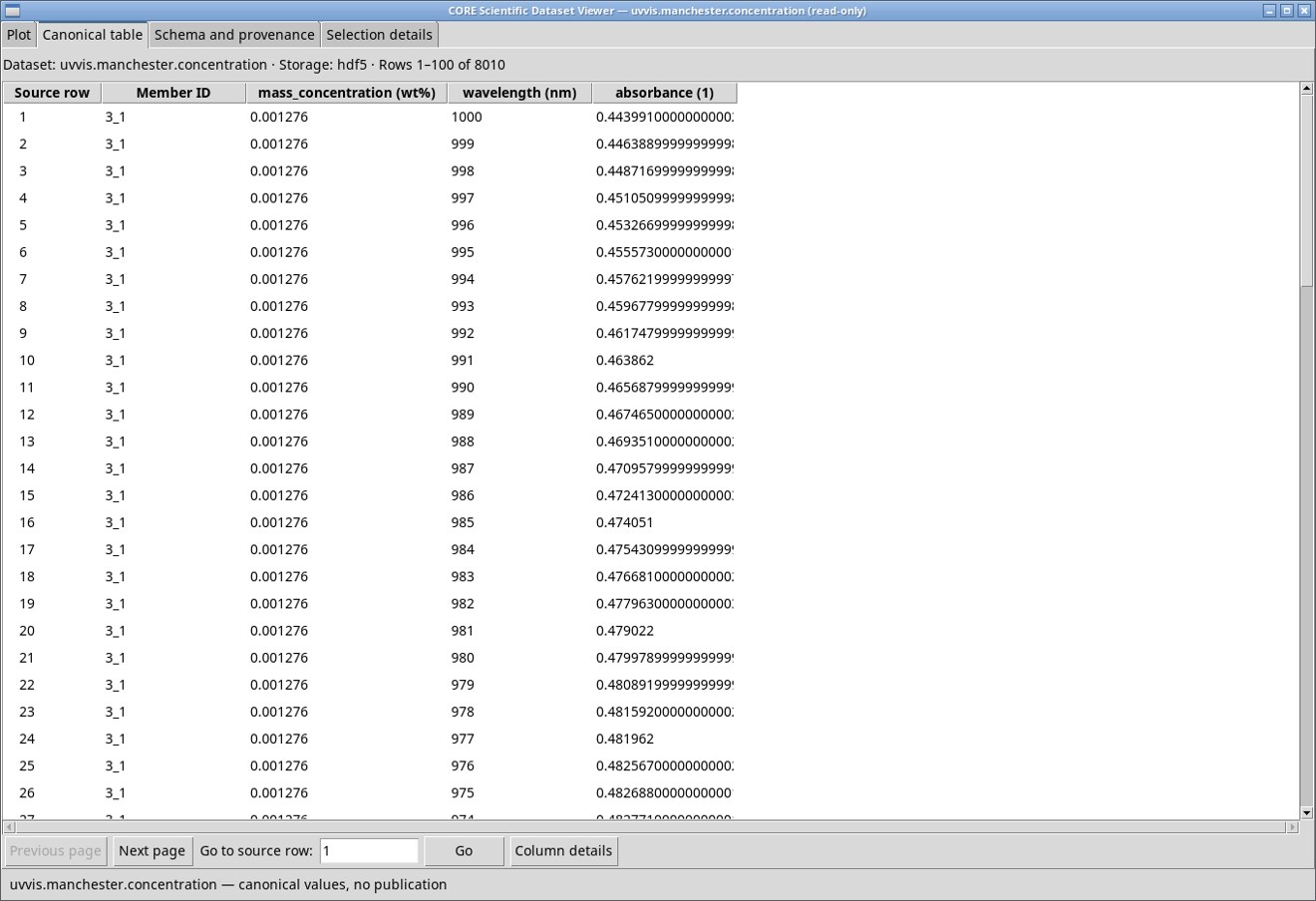
The family concentration uses the concentrations in mass percent given in the lab notebook. elapsed_demo assigns illustrative times from 0 to 90 s in 10 s steps to the same spectra. The time is for teaching only and must be read as an order index, with different concentrations across the members. The script publishes data and report. To plot the data, open a family with a compatible viewer or use it in the UV/Vis exercises.