Dataset Expressions
GX-TXT DEV112 P011-bis
Write expressions on datasets, use columns, metadata and selections as sources and browse the list of functions.
Generate and inspect the Dataset
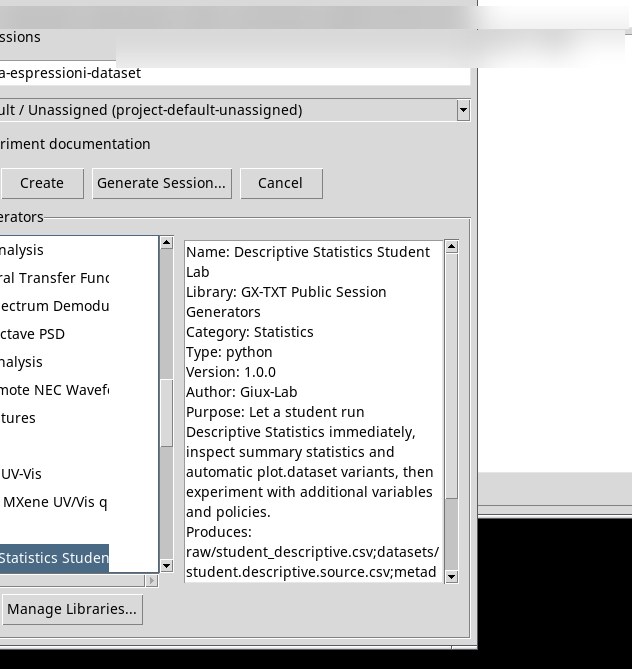
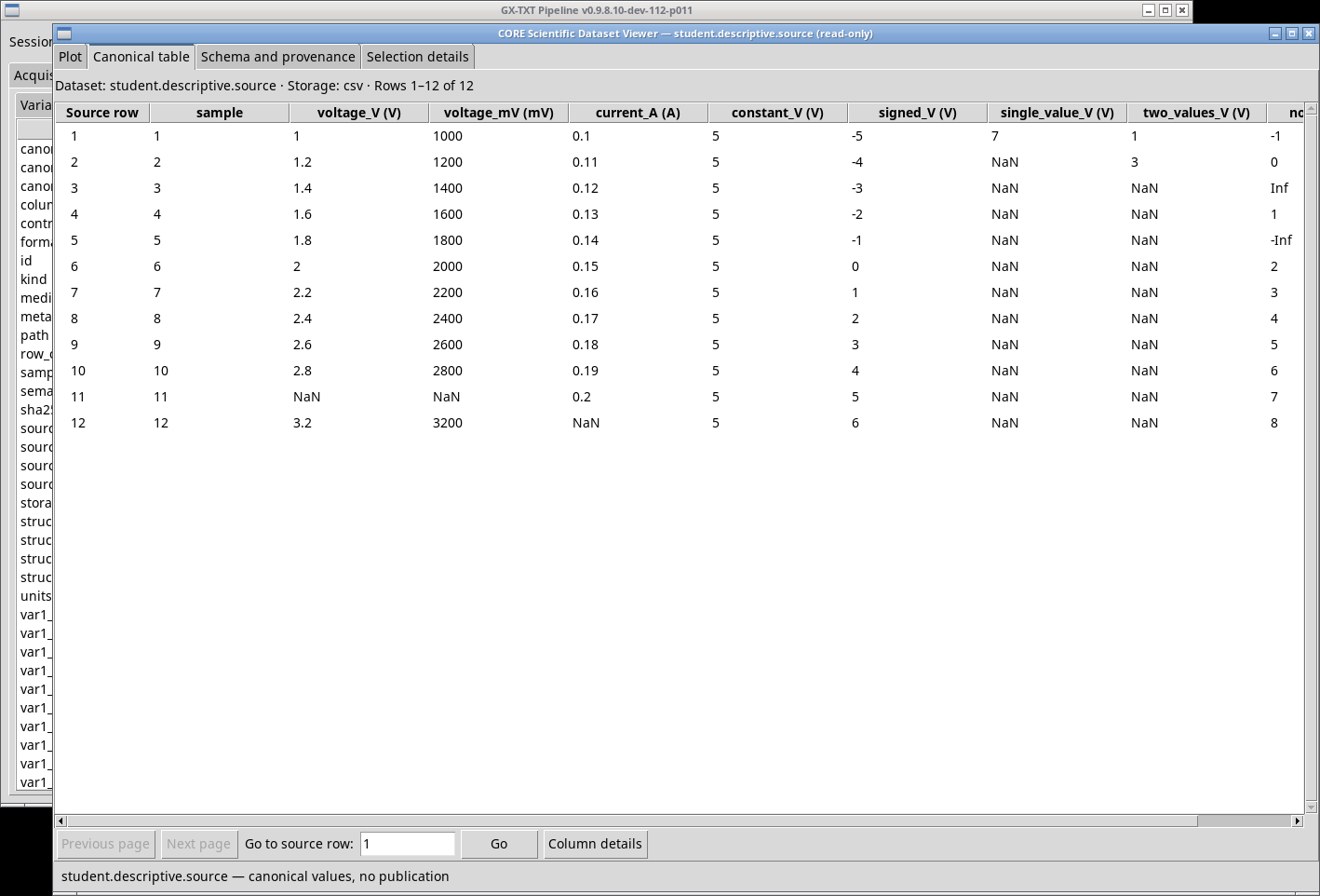
From Session → New Session → Generate Session choose Descriptive Statistics Student Lab and create a Session Standalone. The Generator is in the public GX-TXT catalog. In Configuration → Modules enable Dataset Expression. In Dataset enable student.descriptive.source and open Canonical table. The column signed_V has 12 values from −5 to 6 V, while Metadata contains the numerical value teaching.expected_plot_variants = 4. These two inputs let you check all the exercises by hand.
Define the formula and the series
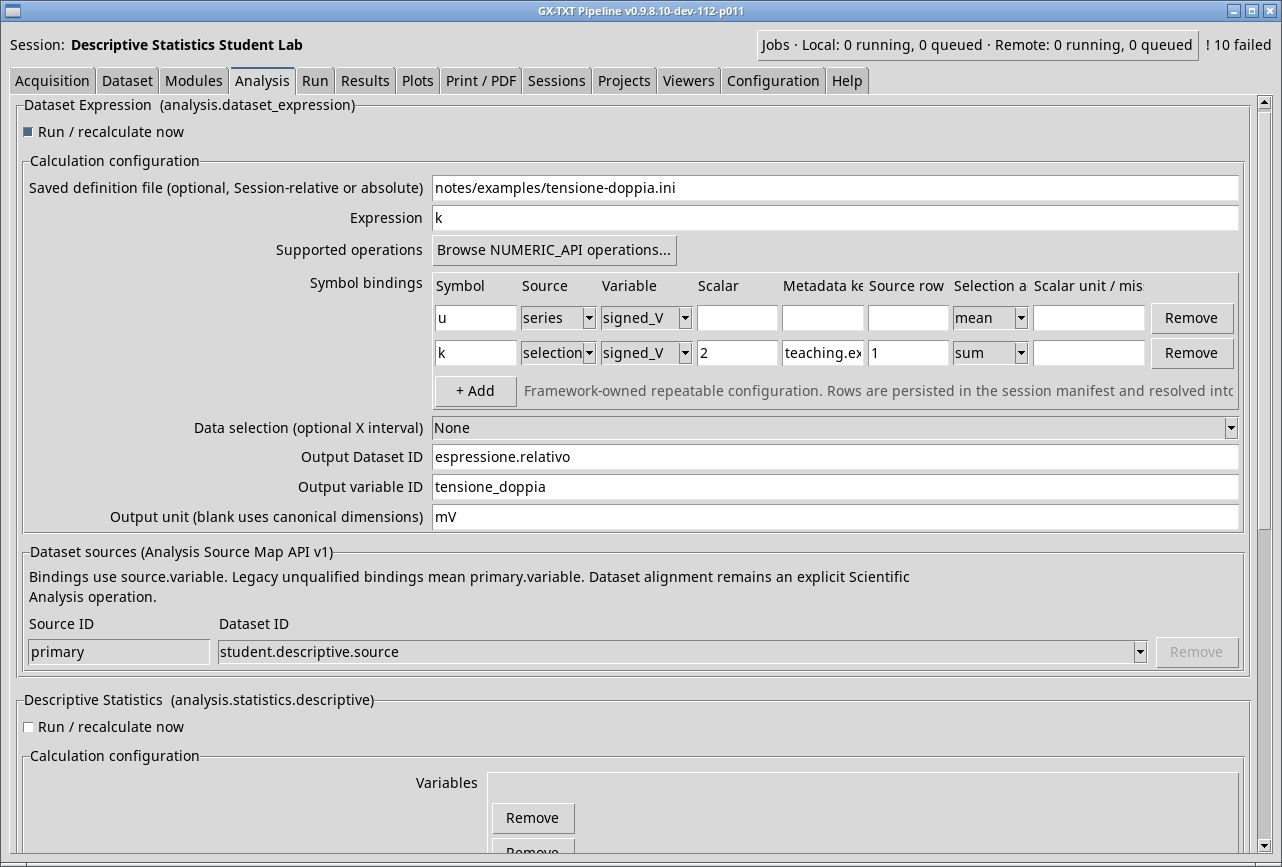
- In Analysis → Dataset Expression choose
student.descriptive.sourcein the rowprimaryof Dataset sources. Use the Dataset already prepared in the Session. To combine rows from different Datasets you need an explicit alignment before the computation. - Leave empty Saved definition file, enter
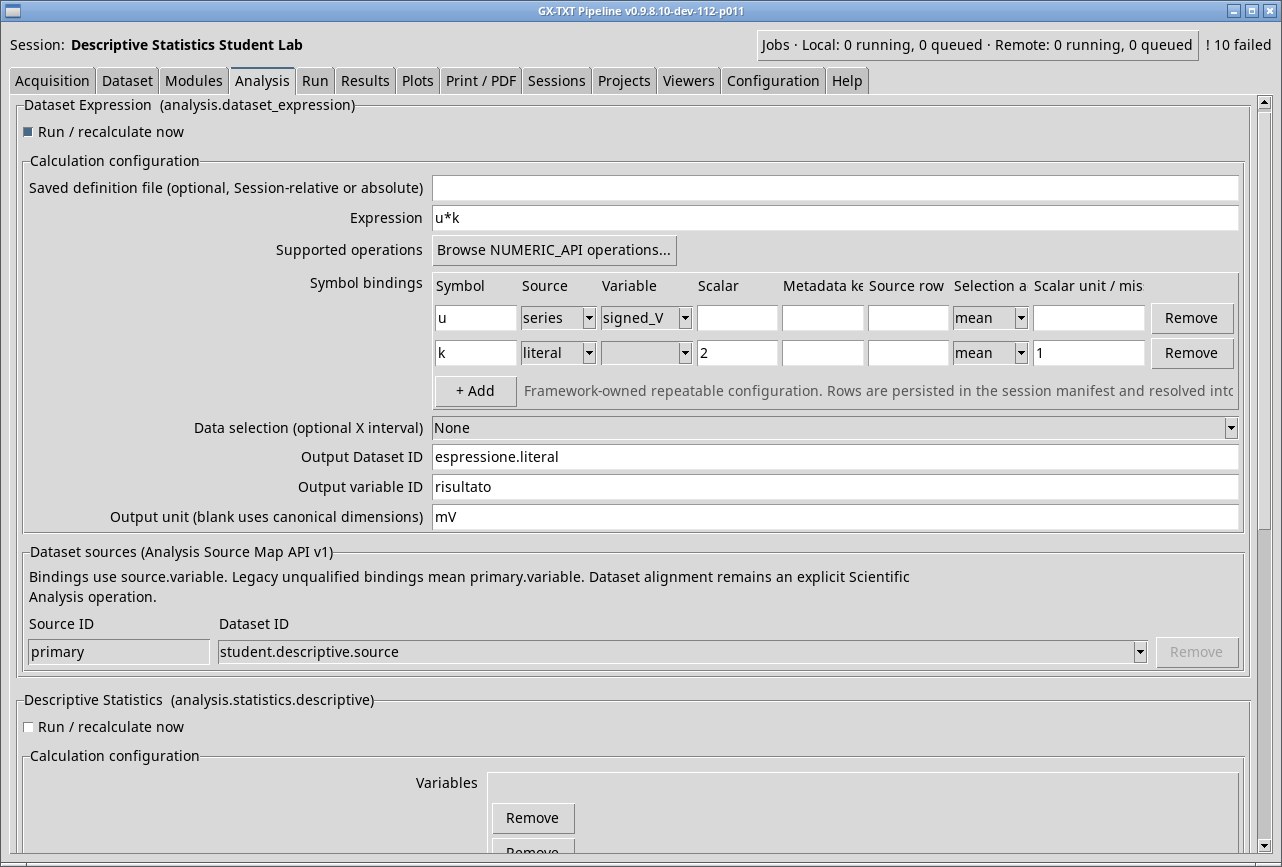
u*kin Expression and open Symbol bindings. In the first row put symbolu, sourceseries, variablesigned_V. Press + Add and createkasliteral, with Scalar 2 and unit1. Remove deletes the corresponding binding. Each symbol used in the formula must have its own definition. - Leave Data selection on
None, set Output Dataset ID onespressione.literaland Output variable ID onrisultato. WritemVin Output unit. The unit must be compatible with the computed value. If you leave it empty, GX-TXT derives the unit from the resulting dimensions. Scalar unit / missing variable unit declares the unit of a literal or completes the missing unit of a variable. A series with a declared unit uses the source schema. - Tick Run / recalculate now. In Run check the input
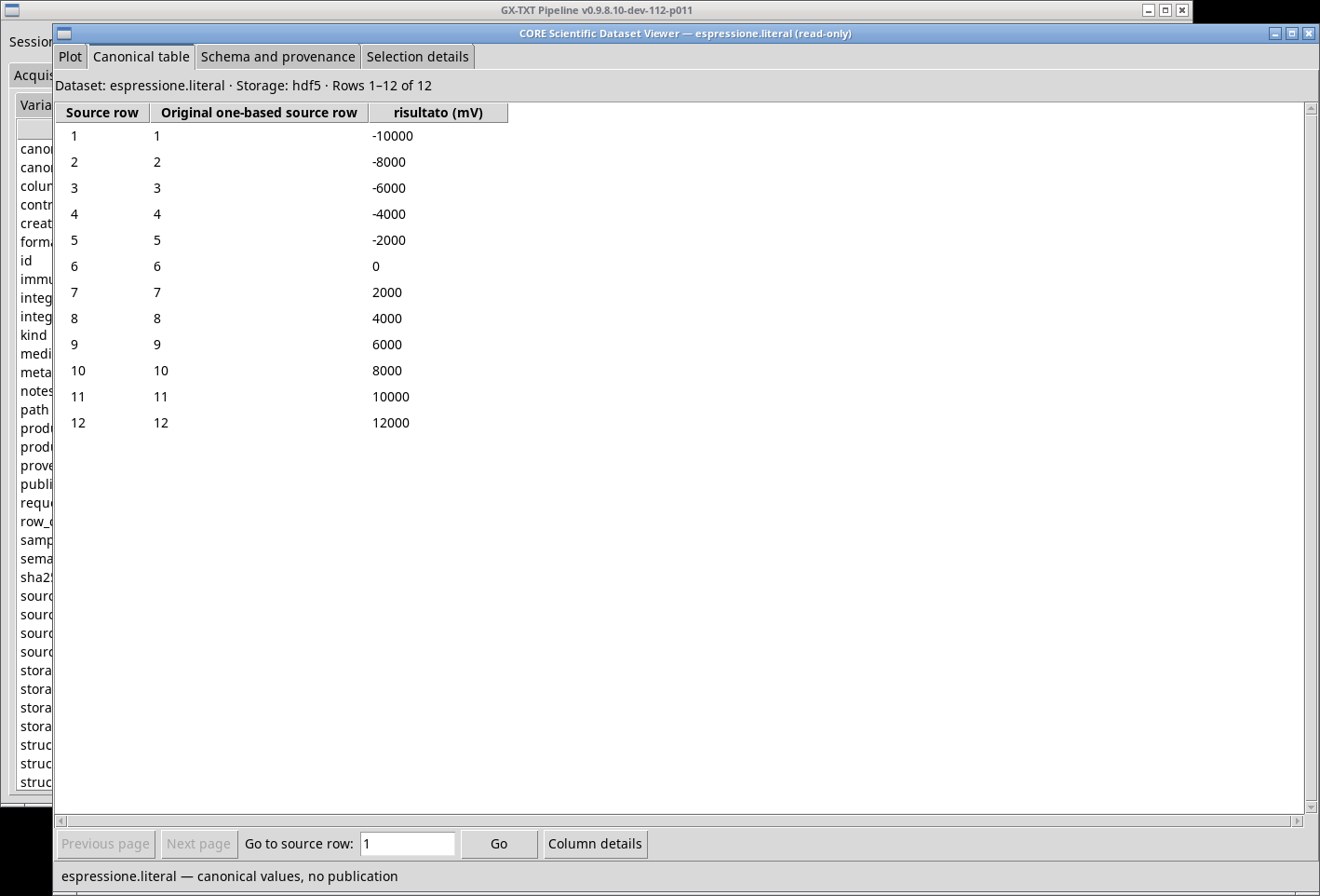
primary, press Run enabled analyses and check Results. Open the resulting Dataset in the canonical table. The values range from −10,000 to 12,000 mV, with one sample per row.
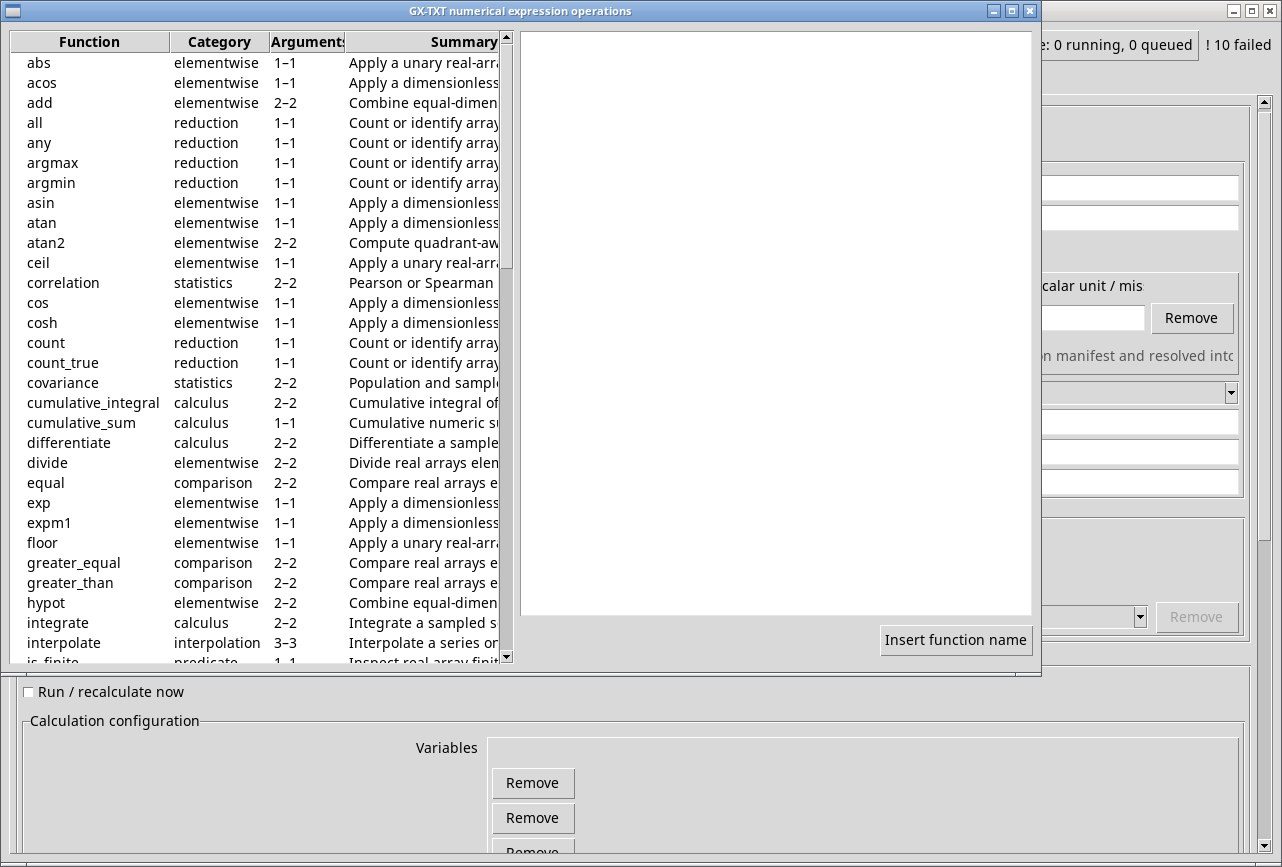
In Supported operations, Browse NUMERIC_API operations… opens the catalog: select a name and read category, number of arguments and description. Insert function name transfers the name into the expression. Complete arguments and parentheses according to the function detail.
Use a metadata value, a row or an aggregate
- Source
metadata- How to set the symbol k
- Enter
teaching.expected_plot_variantsin Metadata key, unit1. Computeu*kin V. - Checkable result
- From −20 to 24 V in 12 rows. The numerical value of the metadata is a scalar.
- Source
row- How to set the symbol k
- Set
signed_V, write 1 in Source row (one-based) and computeu-kin V. - Checkable result
- From 0 to 11 V. Row 1 provides −5 V.
- Source
selection- How to set the symbol k
- Set
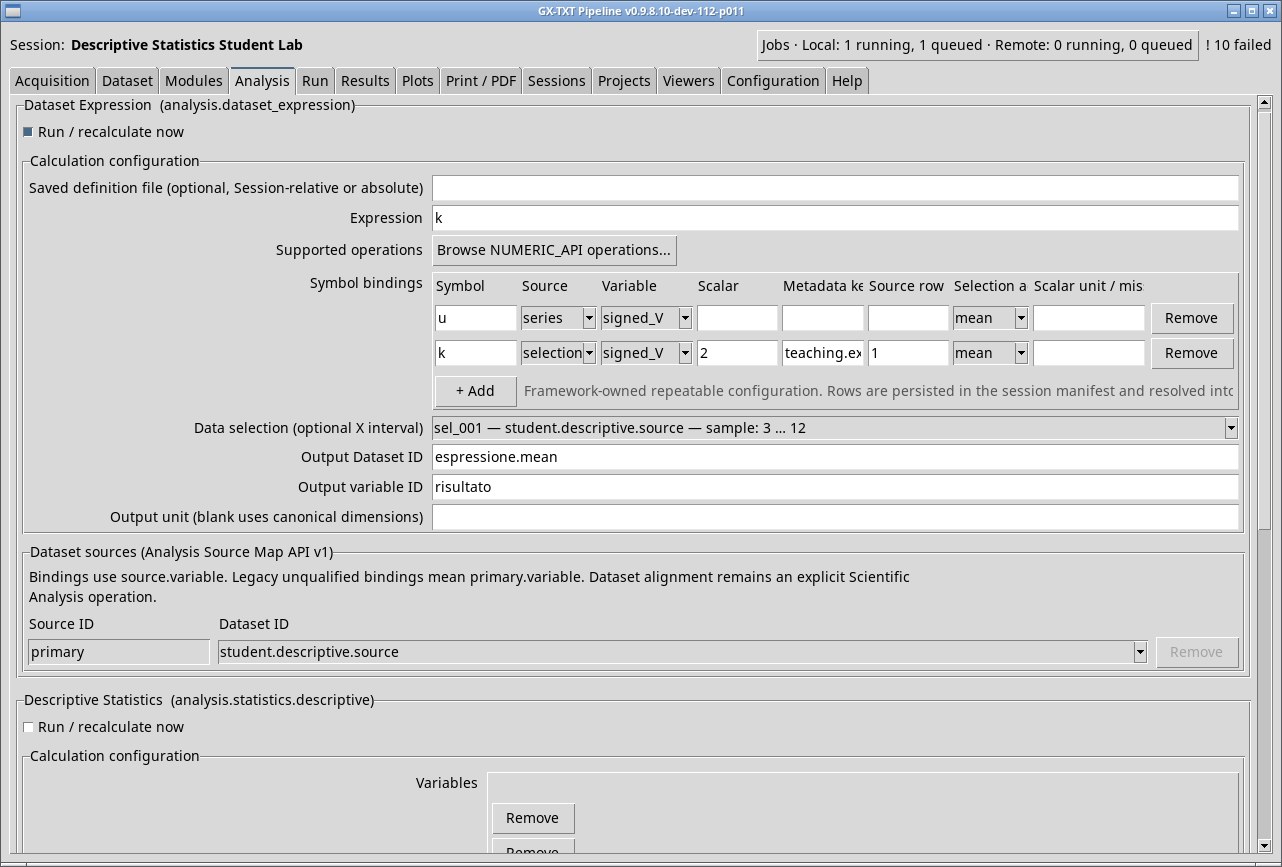
sel_001in Data selection, setsigned_Vand usekalone as the expression. Change the ID for each run. - Checkable result
- On rows 3–12,
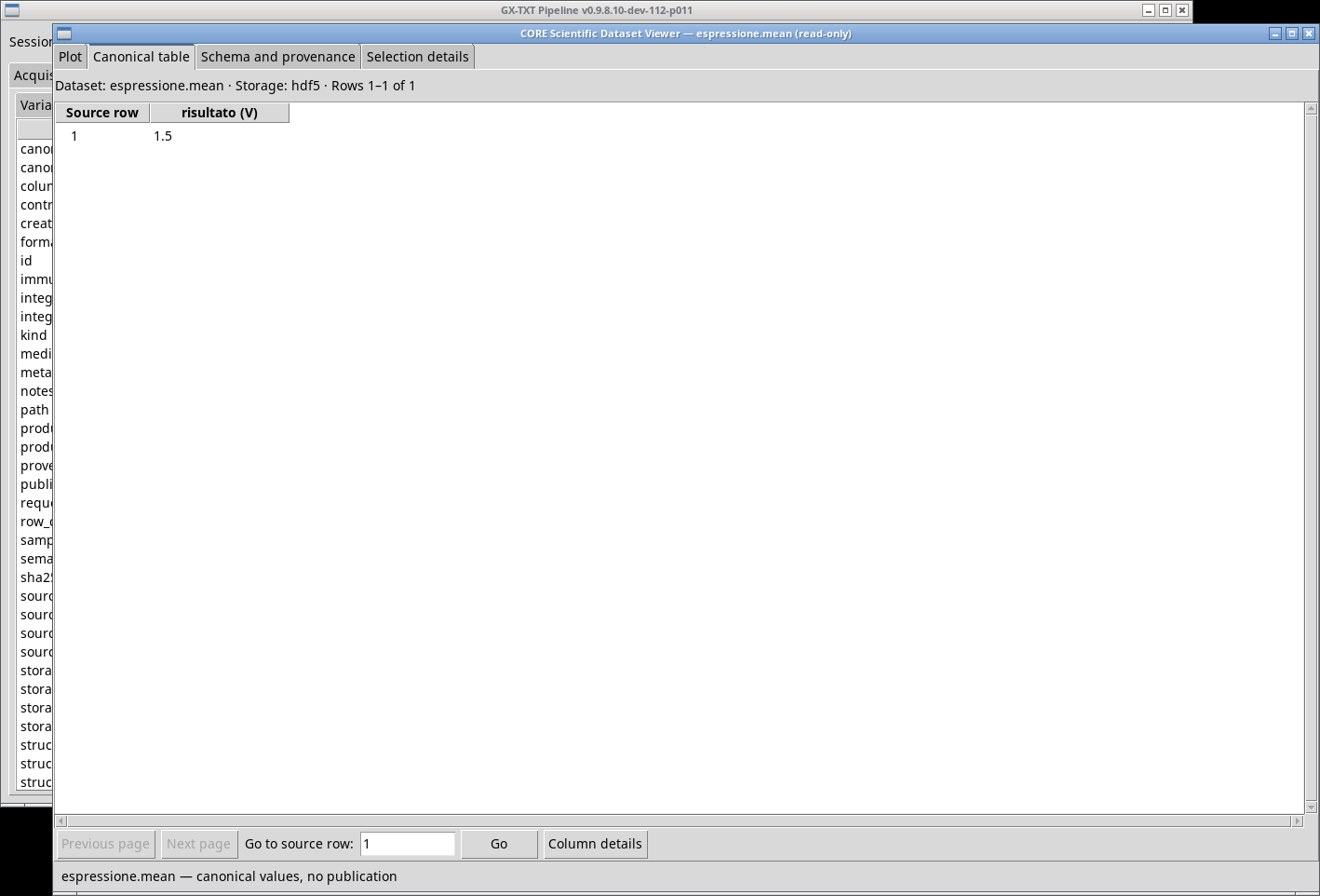
meanandmedianis 1.5 V,minimum−3 V,maximum6 V andsum15 V. Each is published as a single row.
To use a different interval, first save the selection on the X coordinates of the Dataset in the plot and then choose its entry in Data selection. Check the number of samples in the result. Keep the formula and a distinct output ID for each comparison.
Browse the catalog of numerical operations
With Browse NUMERIC_API operations… select the operation in the table and read Arguments and the detail panel. Insert function name inserts the name followed by the opening parenthesis. Complete the arguments and close the parenthesis. In the following groups Arguments gives the number of arguments shown by the browser. For unit, domain, non-finite values and the options of each case use the operation panel. The module accepts a scalar result or a series compatible with the output rows.
To try an operation from the catalog, leave only the binding u to signed_V, remove k with Remove and enter abs(u). Keep the unit V and publish espressione.modulo. On 12 rows, the first value is 5 V and the last 6 V. Inserting the name was also exercised for the other listed operations.
elementwise · 32 operations
Transforms the values one by one. For a binary function check that the dimensions are compatible; logarithms, exponentials and trigonometric functions require arguments suited to the declared domain.
| Function | Arguments |
|---|---|
abs | 1–1 |
acos | 1–1 |
add | 2–2 |
asin | 1–1 |
atan | 1–1 |
atan2 | 2–2 |
ceil | 1–1 |
cos | 1–1 |
cosh | 1–1 |
divide | 2–2 |
exp | 1–1 |
expm1 | 1–1 |
floor | 1–1 |
hypot | 2–2 |
log | 1–1 |
log10 | 1–1 |
log1p | 1–1 |
maximum | 2–2 |
minimum | 2–2 |
multiply | 2–2 |
negate | 1–1 |
power | 2–2 |
reciprocal | 1–1 |
round | 1–1 |
sign | 1–1 |
sin | 1–1 |
sinh | 1–1 |
sqrt | 1–1 |
square | 1–1 |
subtract | 2–2 |
tan | 1–1 |
tanh | 1–1 |
comparison · 6 operations
Compares the operands at each position. The result is logical and can feed the mask operations.
| Function | Arguments |
|---|---|
equal | 2–2 |
greater_equal | 2–2 |
greater_than | 2–2 |
less_equal | 2–2 |
less_than | 2–2 |
not_equal | 2–2 |
predicate · 5 operations
Checks whether each value is finite, NaN or infinite, optionally with a specified sign.
| Function | Arguments |
|---|---|
is_finite | 1–1 |
is_inf | 1–1 |
is_nan | 1–1 |
is_neg_inf | 1–1 |
is_pos_inf | 1–1 |
mask · 6 operations
Combines or applies logical masks. For where, provide the mask and the two alternatives. Check that the resulting length can be published by the module.
| Function | Arguments |
|---|---|
logical_and | 2–2 |
logical_not | 1–1 |
logical_or | 2–2 |
logical_xor | 2–2 |
select | 2–2 |
where | 3–3 |
reduction · 19 operations
Summarizes several values along the given axis. Some reductions produce a scalar. For quantile see the probabilities and options suggested by the browser.
| Function | Arguments |
|---|---|
all | 1–1 |
any | 1–1 |
argmax | 1–1 |
argmin | 1–1 |
count | 1–1 |
count_true | 1–1 |
max | 1–1 |
mean | 1–1 |
median | 1–1 |
min | 1–1 |
product | 1–1 |
quantile | 1–2 |
rms | 1–1 |
std | 1–1 |
std_population | 1–1 |
sum | 1–1 |
valid_count | 1–1 |
variance_population | 1–1 |
variance_sample | 1–1 |
statistics · 8 operations
Computes a measure or statistic with declared options. Check the handling of pairs, the scale and the result type in the detail panel.
| Function | Arguments |
|---|---|
correlation | 2–2 |
covariance | 2–2 |
local_cloud_fit | 3–3 |
mad | 1–1 |
power_level | 1–1 |
rank | 1–1 |
spectral_features | 2–2 |
welch_aggregate | 2–2 |
calculus · 4 operations
Computes sums, integrals or derivatives on samples. For integrals and derivatives check the order of the axes, the domains and the units of X and Y.
| Function | Arguments |
|---|---|
cumulative_integral | 2–2 |
cumulative_sum | 1–1 |
differentiate | 2–2 |
integrate | 2–2 |
interpolation · 3 operations
Recomputes a series on target coordinates. Check the method, the domain coverage and the length of the output grid.
| Function | Arguments |
|---|---|
interpolate | 3–3 |
resample | 3–3 |
resample_uniform | 3–3 |
Rerun a definition and check the provenance
The computation writes expression_definition.ini in the module folder. Get the file of the double-voltage example (ZIP) and copy it into the Session as notes/examples/tensione-doppia.ini. In a Session of the same lab, enable the Dataset student.descriptive.source and write that path in Saved definition file. You can also use the absolute path to the file. Use a new ID and check the 12 values in mV again. To go back to a typed formula, clear the file field.
In Dataset → Preview look at the structure. To compare the numbers use Canonical table, with Metadata and Technical Details for identity and provenance. To plot the result use a Plot module, choosing the new Dataset as the source. Dataset Expression publishes the computed column and the definition.