

OpenFOAM on a Linux server, working from Windows: SSH, FileZilla, PowerShell, logs and ParaView client/server
This guide is the operating manual of the Learning OpenFOAM 14 path for anyone who has to use OpenFOAM installed on a Linux server while working day to day from a Windows PC. It does not depend on a particular server or user: the examples use OpenFOAM Foundation 14, ParaView 5.13.2, Windows 10/11 and a Linux server reachable over SSH/SFTP.
The guide is also available as a PDF, to print or keep next to the terminal:
Programs used on the Windows PC: FileZilla Client, Notepad++, klogg, ParaView and the SSH client built into Windows (how to enable and use it).
General-purpose operating guide, independent of any particular server or user
Edition: 16 October 2026 · Examples: OpenFOAM Foundation 14, ParaView 5.13.2, Windows 10/11, Linux with SSH/SFTP.
Goal. Prepare and edit cases on Windows, transfer them with FileZilla, run only the necessary commands from PowerShell, download and inspect logs on Windows, and visualize results using ParaView for Windows connected to Linux pvserver. You do not need to install OpenFOAM on Windows for this workflow.
1. Architecture: what runs where

| Task | Windows PC | Linux server |
|---|---|---|
Edit dictionaries in system/, constant/, 0/ | Notepad++ or VS Code | Holds the execution copy |
| Transfer cases, scripts and logs | FileZilla over SFTP | SSH service and case directories |
| Start meshing, checks and simulations | PowerShell → SSH | OpenFOAM, CPU/RAM and storage |
| Monitor computation | PowerShell for commands; FileZilla for log copies | tail, grep, growing log files |
| Examine logs | Notepad++, klogg, spreadsheet or Python | Optional text-processing commands |
| Visualize CFD data | ParaView GUI | pvserver, which reads simulation results |
Replace three names in the examples: USER is your Linux account, SERVER is the reachable DNS name/IP address, and myCase is the case directory. All instructions assume authorized SSH access, normally on port 22. If the server uses a different SSH port, use ssh -p PORT and set the corresponding port in FileZilla.
Deep dive · Why work on the server instead of installing OpenFOAM on Windows
OpenFOAM Foundation is developed and distributed for Linux. Windows has indirect routes (WSL2 with Ubuntu, Docker containers, virtual machines) that are handy for studying on a laptop, but the server remains the right place for computation: more cores and more RAM, storage sized for time directories, and the ability to leave a run going for hours or days without keeping the PC switched on.
The workflow described here separates the roles clearly. Windows keeps the graphical tools and the working copy of the configuration files; the server holds the executed copy of the case, the results and the logs. Three channels connect them, all encrypted and all based on SSH:
- SFTP (the SSH port, usually 22): file transfer, used by FileZilla;
- interactive SSH (same port): a Linux terminal inside PowerShell;
- SSH tunnel (local port forwarding): carries ParaView traffic from Windows
localhost:11111to the server’spvserverwithout opening ports to the network.
One service to authorize (SSH) and one secret to protect (password or key): this is the setup system administrators prefer, and the reason this guide does not use plain FTP, remote desktops or exposed ParaView ports.
2. One-time setup on the Windows PC
- Install FileZilla Client (not FileZilla Server) from https://filezilla-project.org/ .
- Install Notepad++ from https://notepad-plus-plus.org/ . VS Code is an alternative, particularly for navigating many files.
- Install ParaView for Windows, preferably the same version as Linux
pvserver(5.13.2 in these examples): https://www.paraview.org/download/ . Avoid mixing different client and server versions. - Check the OpenSSH client: open PowerShell and run
ssh -V. If it is missing, enable the optional Windows feature OpenSSH Client. There is no need to install OpenSSH Server on your PC. - Optional but useful: klogg, a viewer for very large logs, from https://github.com/variar/klogg .
For example, create C:\CFD\cases\myCase and C:\CFD\logs\myCase. The first directory stores your working copy of the case configuration; the second stores downloaded logs. Establish one authoritative location for edits to avoid conflicting copies.
Deep dive · Enabling the OpenSSH client from the command line
On Windows 10 (from version 1809) and Windows 11 the OpenSSH client is an optional feature that is usually already present. From the interface: Settings → Apps → Optional features → Add a feature → OpenSSH Client. From PowerShell run as administrator:
# state of the OpenSSH features
Get-WindowsCapability -Online | Where-Object Name -like 'OpenSSH*'

# install the client only
Add-WindowsCapability -Online -Name OpenSSH.Client~~~~0.0.1.0

# check (new PowerShell window)
ssh -V
If Get-WindowsCapability reports State : Installed for OpenSSH.Client, there is nothing else to do. The Windows OpenSSH server is not needed: the PC only acts as a client.
Deep dive · Key-based login instead of a password
With a key pair you do not type the password at every connection, and FileZilla and PowerShell use the same identity. Generate the key on the PC (the private part never leaves Windows) and copy only the public part to the server. Before doing so, check that the administrator allows key authentication.
# PowerShell: generate the key pair (Enter for the proposed path,
# then a passphrase to protect the private key)
ssh-keygen -t ed25519

# Windows has no ssh-copy-id: append the public key with a single command
type $env:USERPROFILE\.ssh\id_ed25519.pub | ssh USER@SERVER "mkdir -p ~/.ssh && chmod 700 ~/.ssh && cat >> ~/.ssh/authorized_keys && chmod 600 ~/.ssh/authorized_keys"

# test: the connection now asks for the key passphrase, not the password
ssh USER@SERVER
In FileZilla’s Site Manager choose Logon Type: Key file and point it to C:\Users\NAME\.ssh\id_ed25519: FileZilla offers to convert it to its own .ppk format and uses it from then on. Permissions 700 on ~/.ssh and 600 on authorized_keys are mandatory: with looser permissions the SSH server ignores the key and falls back to asking for the password.
Deep dive · An SSH configuration file so you do not retype everything
The Windows OpenSSH client reads C:\Users\NAME\.ssh\config (a text file with no extension). An alias collects host, user, port, key and even the ParaView tunnel:
Host cfd
    HostName SERVER
    User USER
    Port 22
    IdentityFile ~/.ssh/id_ed25519
    ServerAliveInterval 60

Host cfd-paraview
    HostName SERVER
    User USER
    Port 22
    IdentityFile ~/.ssh/id_ed25519
    LocalForward 11111 127.0.0.1:11111
    ServerAliveInterval 60
From then on ssh cfd opens the terminal and ssh cfd-paraview opens the terminal with the tunnel of section 9. ServerAliveInterval 60 sends a keep-alive every minute and reduces disconnections caused by routers or firewalls that drop idle sessions.
3. FileZilla: connect with SFTP and transfer files
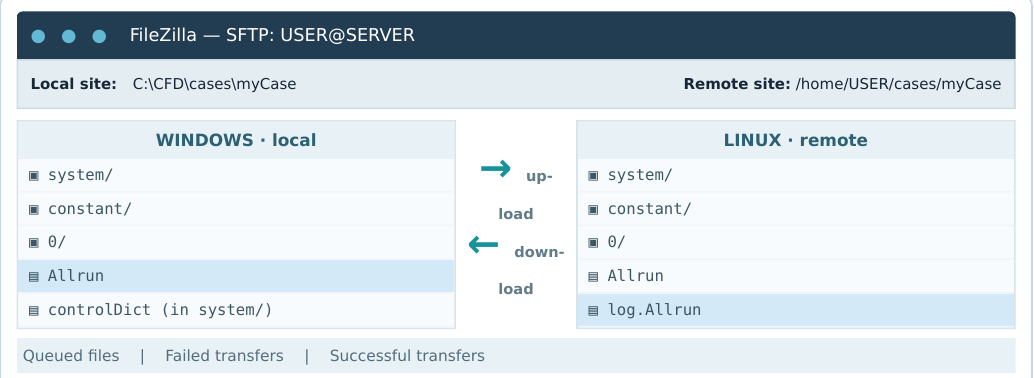
- In FileZilla choose File → Site Manager → New site.
- Set Protocol to
SFTP - SSH File Transfer Protocol(not unencrypted FTP). - Set Host to
SERVERand Port to22, unless configured otherwise. - Under Logon Type, select Interactive / Ask for password (depending on FileZilla version), or Key file if key-based authentication has been configured. Set User to
USER. - Click Connect. On first connection, compare the SSH host-key fingerprint with one supplied by your administrator. Do not blindly accept an unknown fingerprint.
- In the left pane, open
C:\CFD\cases\myCase; in the right pane, navigate to/home/USER/cases/myCase(or the actual path assigned to you). - Drag left to right only the files you want to upload. Drag right to left the logs you want to inspect. Review the Failed transfers and Successful transfers tabs.
Mind the transfer direction: uploads can overwrite server files, and downloads can overwrite local files. Back up dictionaries before substantial edits; when FileZilla reports a conflict, compare timestamps and file sizes before replacing anything. A log that is still being written is only a snapshot when downloaded, not the final log.
Suggested case layout:
myCase/
├── 0/                  # initial and boundary conditions
├── constant/           # physical properties and mesh
├── system/             # controlDict, fvSchemes, fvSolution...
├── Allrun              # optional run script
└── log.*               # outputs from utilities and solvers
Do not automatically transfer large time directories (0.1/, 0.2/, …), processor*/, or the entire postProcessing/ directory when using a client/server workflow: ParaView reads the data on Linux. FileZilla can also remember default local and remote directories in the site’s advanced settings.
Deep dive · Checking the host-key fingerprint
The fingerprint identifies the server: if it matches the expected one, you are talking to the right server and not to an intermediary. The administrator obtains it on the server with:
ssh-keygen -lf /etc/ssh/ssh_host_ed25519_key.pub
# example output:
# 256 SHA256:Xy3k...q8M root@server (ED25519)
The same fingerprint appears in FileZilla’s dialog and on the first ssh connection from PowerShell. Once accepted, Windows stores it in C:\Users\NAME\.ssh\known_hosts and FileZilla in its own configuration. If you later get a warning that the host key has changed, stop and ask the administrator: it may be a server reinstallation, but it may also be an interception attempt.
Deep dive · SFTP does not convert line endings
FileZilla has a Transfer type setting (Auto/ASCII/Binary), but line-ending conversion only applies to FTP. Over SFTP files always travel byte for byte: a file saved with Windows line endings (CRLF) reaches the server with CRLF. That is why Unix line endings (LF) must be set in the editor, as section 4 explains, rather than left to the transfer program.
Deep dive · Command-line alternatives: scp and tar archives
The Windows OpenSSH client also includes scp, useful for repetitive transfers or scripts. From PowerShell, in C:\CFD\cases:
# upload the whole case (configuration only, a small directory)
scp -r .\myCase USER@SERVER:~/cases/

# upload a single edited dictionary
scp .\myCase\system\controlDict USER@SERVER:~/cases/myCase/system/

# download a log into the logs directory
scp USER@SERVER:~/cases/myCase/log.foamRun C:\CFD\logs\myCase\
When you need many small files (for example postProcessing/ data or all logs), pack them into one archive on the server and download a single file:
cd ~/cases/myCase
tar czf ~/myCase_logs_post.tgz log.* postProcessing/
ls -lh ~/myCase_logs_post.tgz
Windows 10/11 includes tar and extracts the archive with tar xzf myCase_logs_post.tgz from PowerShell.
4. Notepad++: edit OpenFOAM dictionaries and Linux scripts safely
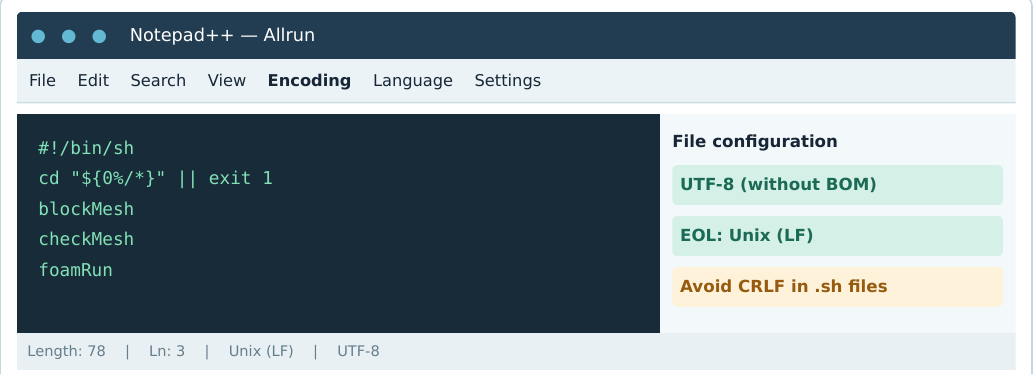
OpenFOAM files are generally plain text, even when they have no filename extension. Notepad++ works well with controlDict, fvSchemes, fvSolution, blockMeshDict, field files under 0/, and Allrun/Allclean scripts.
- Select Encoding → UTF-8 without BOM. Avoid UTF-16 and UTF-8 with BOM for shell scripts and configuration files.
- Select Edit → EOL Conversion → Unix (LF), especially for
Allrunand.shfiles. In Settings → Preferences → New Document, you can choose Unix line endings and UTF-8 as defaults. - Use Language → C/C++ for approximate syntax highlighting of dictionaries, or Shell for scripts; highlighting does not validate OpenFOAM syntax.
- Preserve case-sensitive filenames: Linux distinguishes
controlDictfromcontroldict. Do not let the editor append.txtto names such asfvSolution. - Avoid modifying server-side dictionaries while a simulation is using them unless you understand the consequences. Prepare a revision, transfer it, and then restart the appropriate procedure in a controlled way.
Example excerpt from system/controlDict:
application     foamRun;
startFrom       startTime;
startTime       0;
endTime         100;
deltaT          1;
writeControl    timeStep;
writeInterval   10;
This excerpt is illustrative only: do not replace the whole controlDict of a real case with it. In OpenFOAM 14, foamRun uses a solver module selected from the case configuration. Read the dictionaries already present before changing the run setup.
Common error: ./Allrun: /bin/sh^M: bad interpreter. This almost always indicates Windows CRLF line endings in a shell script. Convert to LF in Notepad++ and upload it again. If unsure, check file Allrun on Linux.
Deep dive · Where the solver is chosen in OpenFOAM 14
Since Foundation version 11 the individual executables such as icoFoam or simpleFoam have been replaced by foamRun, which loads a solver module. The module is named by the solver entry in system/controlDict:
application     foamRun;
solver          incompressibleFluid;
That is why the guide’s excerpt must be read as a fragment: in a real case the solver entry sits next to application, and the other entries (endTime, deltaT, writeControl) have values tied to the physics of the case. Each entry is explained in Part 4: controlDict and simulation control. To read the current value without opening the file:
foamDictionary -entry solver system/controlDict
foamDictionary -entry endTime system/controlDict
Deep dive · Seeing and fixing CRLF, BOM and the shebang
In Notepad++ View → Show Symbol → Show All Characters displays the line terminators: CR LF means Windows, LF means Unix. The status bar always shows the current format (Windows (CR LF) or Unix (LF)) and the encoding.
On the server, diagnosis and correction are immediate:
file Allrun
# Allrun: POSIX shell script, ASCII text, with CRLF line terminators   <- needs fixing
# Allrun: POSIX shell script, ASCII text                               <- correct

sed -i 's/\r$//' Allrun      # removes the CRs (equivalent to dos2unix)
head -c 3 Allrun | od -c     # 357 273 277 means the file starts with a UTF-8 BOM
The first line of a script must be exactly #!/bin/sh (or #!/bin/bash), with no space between # and ! and no BOM in front: this line tells the system which interpreter to use. Foundation tutorial scripts start with #!/bin/sh followed by cd ${0%/*} || exit 1, which moves the script into its own directory whatever directory it is launched from.
Deep dive · Upper and lower case in filenames between Windows and Linux
The Windows file system is case-insensitive, Linux is case-sensitive. On Windows U and u cannot coexist in the same folder; on Linux they are two different files, and OpenFOAM looks for exactly 0/U, 0/p, system/fvSchemes. If a file reaches the server as fvschemes or fvSchemes.txt, the error will read like cannot find file "system/fvSchemes". Check with ls -l system/ after every upload, and turn off the File Explorer option that hides known extensions, so an accidental .txt stays visible.
5. PowerShell: log in to Linux and navigate directories
PowerShell acts as your remote terminal. After running ssh, you are at a prompt for the Linux server’s shell: subsequent commands are Linux commands, not PowerShell commands.
# From Windows PowerShell:
ssh USER@SERVER
# SSH on a port other than 22:
ssh -p 2222 USER@SERVER
# After logging in to Linux:
whoami # current account
pwd # current directory
ls -lh # readable listing with file sizes
ls -la # also show hidden files
cd ~/cases # go to your cases directory
cd myCase # enter your case
cd .. # parent directory
cd ~ # return to your home directory
mkdir -p ~/cases/myCase # create a directory if necessary
find . -maxdepth 2 -type f # list files to depth 2
exit # close SSH; return to PowerShellIf foamVersion is not found, the OpenFOAM environment may not have been loaded into the shell. For a Foundation installation under /opt/OpenFOAM-14:
source /opt/OpenFOAM-14/etc/bashrc
foamVersion
command -v blockMesh
command -v foamRun
The installation path is an example, not a promise: the actual location depends on your server. Some servers load the environment automatically at login. Use command -v and the installed programs’ --help where appropriate to check what is available.
Deep dive · Where the OpenFOAM environment lives and how to load it at every login
The Foundation Ubuntu packages install OpenFOAM 14 in /opt/openfoam14 (all lower case, no hyphen); a source build usually sits in $HOME/OpenFOAM/OpenFOAM-14; other servers use their own paths or the modules of the computing environment. To find the right file:
ls -d /opt/openfoam* /opt/OpenFOAM* $HOME/OpenFOAM/OpenFOAM-* 2>/dev/null
module avail 2>&1 | grep -i foam        # only if the server uses Environment Modules
If the environment is not loaded automatically, add one line at the end of ~/.bashrc (once), after testing it by hand:
echo 'source /opt/openfoam14/etc/bashrc' >> ~/.bashrc
# new SSH connection, then:
foamVersion          # must print version 14
Do not add the line if the administrator has already set up another mechanism: loading two different environments produces inconsistent PATH values and errors that are hard to read.
Deep dive · PowerShell and bash are not the same thing
Two worlds share the same window. Before ssh, PowerShell commands and Windows paths apply (C:\CFD, separator \); after login, bash and Linux paths apply (/home/USER, separator /, ~ for home). Some names exist in both (ls, cd, pwd are aliases in PowerShell) but behave differently: options such as -lh only work with Linux ls.
- Pasting: in the Windows terminal paste with a right click or
Ctrl+V(Windows Terminal); selecting with the mouse copies. - Interrupting:
Ctrl+Cinterrupts the running Linux command, not the connection. - Reading a long file:
less log.foamRun(arrows to scroll,/textto search,qto quit);head -n 50andtail -n 50for the beginning and the end. - Completion: Tab completes file and command names; two Tabs list the options.
- History: up arrow recalls previous commands,
history | tail -n 30lists them.
6. Run a case without becoming a shell expert
First run and mesh checks
cd ~/cases/myCase
ls -l Allrun system/controlDict
sed -n '1,100p' Allrun        # READ the script before running it
blockMesh 2>&1 | tee log.blockMesh
checkMesh 2>&1 | tee log.checkMesh
Run blockMesh only if the case uses a blockMeshDict and its mesh is meant to be generated with this utility. Allrun may already handle meshing; avoid running unnecessary or duplicate steps, and follow the case’s prescribed sequence. checkMesh examines an existing mesh.
Run the Allrun batch script
cd ~/cases/myCase
chmod u+x Allrun                 # if executable permission is missing
./Allrun 2>&1 | tee log.Allrun   # show output and save it to a log
Not every case has an Allrun: it is a convention, not a requirement. Some cases use a different script, or run foamRun directly.
Deep dive · What 2>&1, tee and the tutorial functions mean
2>&1 merges the error stream (stream 2) into the normal output (stream 1): without it, FOAM FATAL ERROR messages would appear on screen but not in the log. tee duplicates the stream: it shows it in the terminal and writes it to the named file.
Foundation tutorial Allrun scripts often use the functions in $WM_PROJECT_DIR/bin/tools/RunFunctions:
#!/bin/sh
cd ${0%/*} || exit 1
. $WM_PROJECT_DIR/bin/tools/RunFunctions

runApplication blockMesh        # writes log.blockMesh
runApplication foamRun          # writes log.foamRun
runApplication creates log.<program> by itself and refuses to rerun a step whose log already exists, printing a message like blockMesh already run on ... remove log file 'log.blockMesh' to re-run. It is a safeguard, not an error: to start again use ./Allclean (if present) or remove the logs concerned. Reading the script before running it tells you exactly which logs it will produce and where to look.
Keep the simulation running if your connection drops: tmux (recommended)
tmux new -s cfd_myCase
cd ~/cases/myCase
./Allrun 2>&1 | tee log.Allrun
To detach without stopping the job, press Ctrl+B, release, then D. To reconnect after a new SSH login:
tmux ls
tmux attach -t cfd_myCase
Ctrl+C interrupts the active command, so do not use it as a way to disconnect. Typing exit in an ordinary shell may end the session: detach from tmux first. If the case has no run script, launch the appropriate executable (foamRun in many Foundation 14 cases) only after checking its configuration.
Without tmux (less interactive): nohup ./Allrun > log.Allrun 2>&1 < /dev/null & is an option if tmux is unavailable and the script supports non-interactive execution.
Deep dive · The tmux commands you actually need
| Action | Command or keys |
|---|---|
| New named session | tmux new -s cfd_myCase |
| Detach, leaving everything running | Ctrl+B then D |
| List sessions | tmux ls |
| Reattach | tmux attach -t cfd_myCase |
| Scroll back through output | Ctrl+B then [, arrows or PgUp/PgDn, q to leave |
| Second window in the same session | Ctrl+B then C; switch with Ctrl+B then N |
| Close a finished session | exit inside it, or tmux kill-session -t cfd_myCase |
A tmux session lives on the server: it survives closing PowerShell, switching off the PC and network drops. It does not survive a server reboot. If tmux is not installed, screen provides the same function (screen -S name, detach with Ctrl+A then D, reattach with screen -r name).
Deep dive · Parallel runs and sharing the server with other users
A server is usually shared. Before starting a heavy run, find out how many CPUs and how much memory there are and how busy they are:
nproc                 # number of available cores
free -h               # total and free memory
uptime                # load average over 1, 5, 15 minutes
top                   # active processes (q to quit); htop if installed
The OpenFOAM parallel workflow, covered in case 05: parallel computing with MPI, runs like this, with the number of subdomains set in system/decomposeParDict:
decomposePar 2>&1 | tee log.decomposePar
mpirun -np 4 foamRun -parallel 2>&1 | tee log.foamRun
reconstructPar 2>&1 | tee log.reconstructPar
The -np value must equal numberOfSubdomains. Follow the server’s rules: some impose a maximum number of cores per user or require a job scheduler (for example Slurm, with sbatch); in that case the run is not started in tmux but with the job script provided by the administrator.
7. Monitor execution and logs from the terminal
cd ~/cases/myCase
ls -lh log*
tail -n 40 log.Allrun               # last 40 lines
tail -f log.Allrun                  # follow new lines (Ctrl+C stops tail only)
grep -n -E 'FOAM FATAL|Error|error|Courant|Solving for|Time =' log.Allrun
ps -u "$USER" -o pid,etime,cmd    # processes owned by your account
A process listed by ps may still be stalled or producing an invalid solution; it is not proof of convergence. Likewise, an End message is not by itself validation of physical results. Many cases have individual logs such as log.blockMesh, log.checkMesh, or log.foamRun. Inspect the files the actual workflow produces.
Typical OpenFOAM logs contain simulation time (Time =), field residuals (Solving for ... Initial residual ... Final residual ...), Courant Number, elapsed/execution time, and error messages. The values and acceptance criteria depend on the model: small residuals alone do not establish physical correctness.
Deep dive · Reading one block of a foamRun log
Each time step (or iteration, in steady cases) produces a block like this; the exact form depends on the solver module and on the algorithms chosen in fvSolution:
Courant Number mean: 0.0742 max: 0.4121
Time = 0.005s

smoothSolver:  Solving for Ux, Initial residual = 0.0213, Final residual = 4.1e-07, No Iterations 3
smoothSolver:  Solving for Uy, Initial residual = 0.0390, Final residual = 6.2e-07, No Iterations 3
GAMG:  Solving for p, Initial residual = 0.214, Final residual = 0.0097, No Iterations 4
time step continuity errors : sum local = 1.2e-08, global = 3.4e-10, cumulative = 3.4e-10
GAMG:  Solving for p, Initial residual = 0.0182, Final residual = 8.8e-07, No Iterations 9
ExecutionTime = 1.52 s ClockTime = 2 s- Courant Number: ratio between the distance the fluid moves in one step and the cell size; compare the maximum with
maxCowhen the time step is adaptive. - Initial residual: how far the previous field is from satisfying the equation at the start of the step; this is the value to follow over time.
- Final residual and No Iterations: where the linear solver stopped and how many iterations it took, according to
toleranceandrelTol. - continuity errors: mass conservation error after the pressure correction.
- ExecutionTime / ClockTime: CPU time and elapsed wall time; the gap grows when the server is busy or the disk is slow.
Residuals, tolerances and algorithms are developed in Part 6: fvSolution, linear solvers and algorithms.
Deep dive · Stopping a run cleanly
Interrupting with Ctrl+C or kill stops the process without writing the last time. If runTimeModifiable is on (the default), OpenFOAM rereads controlDict during the run, so you can request a clean stop:
cd ~/cases/myCase
foamDictionary -entry stopAt -set writeNow system/controlDict
# the solver writes the current time and exits at the next step
tail -f log.foamRun
After the stop, set stopAt back to endTime before restarting. Use kill PID only if the process is stuck (read the PID with ps); kill -9 is the last resort. Stop and restart options are described in Part 4.
Deep dive · Disk space and time directories
Each written time contains every field on every cell; with large meshes and frequent writes the disk fills quickly, and a full disk stops the run with write errors. Check often:
df -h ~                     # free space on the home file system
du -sh ~/cases/myCase       # size of the case
du -sh ~/cases/myCase/* | sort -h | tail   # the largest directories
In controlDict, purgeWrite N keeps only the last N times; writeCompression on compresses the written fields. Before deleting results, ask whether they are needed for comparison or validation: deletion on Linux does not go through a recycle bin.
8. Download logs with FileZilla and analyze them on Windows
- In FileZilla, navigate in the right pane to the remote case directory. Open
C:\CFD\logs\myCasein the left pane. - Look for
log.Allrun,log.foamRun,log.checkMesh, or otherlog.*files and select those you need. - Drag the files right to left, or choose Download. Check the transfer queue for errors.
- If you want to archive a run, rename only the Windows copy, for example
log.foamRun_2026-10-16_runA.txt. - Open small or medium logs in Notepad++. For very long logs use klogg, which supports fast searching, regular expressions, highlighting, and navigation between matches.
Useful search terms in klogg or Notepad++: FOAM FATAL, Floating point exception, Courant Number, Time =, Initial residual, Final residual, ExecutionTime, End.
Example regular expression for solver-status lines: Solving for|Initial residual|FOAM FATAL|Courant Number.
To plot residuals, extract a table with two columns (iteration/time and residual) using a short Python script, or use existing data produced by OpenFOAM function objects if the case provides them. Do not expect a raw solver log to import into Excel as a consistent rectangular table: it requires parsing first.
Practical rule: FileZilla is not a remote tail -f. For live monitoring, use PowerShell + SSH; for more detailed analysis, download a copy of the log. Repeated downloads of a growing log can yield incomplete snapshots, and you may have to refresh the local file manually.
Deep dive · klogg in practice
- Opening: klogg indexes the file in the background and opens logs of hundreds of megabytes without trouble, which Notepad++ handles with difficulty.
- Searching: the box at the bottom accepts regular expressions; matches appear in a separate pane and one click jumps to the line in the full file.
- Highlighters: define fixed colours for
FOAM FATAL,Courant Number,Time =, so the important lines stand out while scrolling. - Follow: in follow mode klogg rereads the file when it changes; useful on a local copy you refresh periodically, but it does not replace
tail -fon the server.
The project website is https://klogg.filimonov.dev/; source code and release notes are on GitHub.
Deep dive · Extracting residuals: foamLog on the server or Python on Windows
OpenFOAM includes the foamLog utility, which reads a log and creates a logs/ directory with a two-column file (time, value) for each quantity: for example logs/Ux_0, logs/p_0, logs/CourantMax_0. On the server:
cd ~/cases/myCase
foamLog log.foamRun
ls logs/
tar czf logs_residuals.tgz logs/    # a single file to download with FileZilla
Alternatively, on Windows, a Python script reads the downloaded log and writes a CSV that opens in Excel or feeds a plot:
# residuals.py  -  usage: python residuals.py log.foamRun
import re, sys, csv
t = None
rows = []
rx_t = re.compile(r'^Time = ([0-9.eE+-]+)')
rx_r = re.compile(r'Solving for (\w+), Initial residual = ([0-9.eE+-]+)')
seen = set()
with open(sys.argv[1], encoding='utf-8', errors='replace') as f:
    for line in f:
        m = rx_t.match(line)
        if m:
            t = float(m.group(1)); seen = set(); continue
        m = rx_r.search(line)
        if m and t is not None and m.group(1) not in seen:   # first residual of the step
            seen.add(m.group(1))
            rows.append((t, m.group(1), float(m.group(2))))
with open(sys.argv[1] + '.csv', 'w', newline='') as f:
    w = csv.writer(f); w.writerow(['time', 'field', 'initial_residual']); w.writerows(rows)
print(len(rows), 'rows written to', sys.argv[1] + '.csv')
The script keeps only the first Initial residual of each field in each step, which is the meaningful value when pressure is solved several times within the same step. In Excel, build a scatter chart with a logarithmic vertical axis and filter by field.
9. ParaView in client/server mode: how it works
The ParaView GUI on Windows controls a pvserver process on Linux. pvserver opens meshes and results in the Linux filesystem, performs data reading and filtering, and sends the necessary information to the Windows client. You do not need to download every solution field. Once connected, File → Open browses the server’s files, not your local C: drive. ParaView’s documentation warns that pvserver does not authenticate clients and that its protocol is not encrypted by default. Use an SSH tunnel rather than exposing TCP port 11111 directly.
Recommended method: one SSH terminal with a tunnel
Step A. From Windows PowerShell, provided TCP port 11111 is available locally:
ssh -L 11111:127.0.0.1:11111 USER@SERVERThis command opens an SSH terminal and simultaneously forwards Windows localhost:11111 to the server’s 127.0.0.1:11111. Keep this PowerShell window open throughout the visualization session.
Step B. In the Linux shell opened by that SSH connection:
command -v pvserver
pvserver --server-port=11111 --bind-address=127.0.0.1
--bind-address is available in ParaView 5.13.x and limits listening to the server’s loopback interface. If pvserver is not on PATH, locate its installed executable (for example /opt/paraview-5.13.2/bin/pvserver) and use that path. Wait for a message similar to Waiting for client....
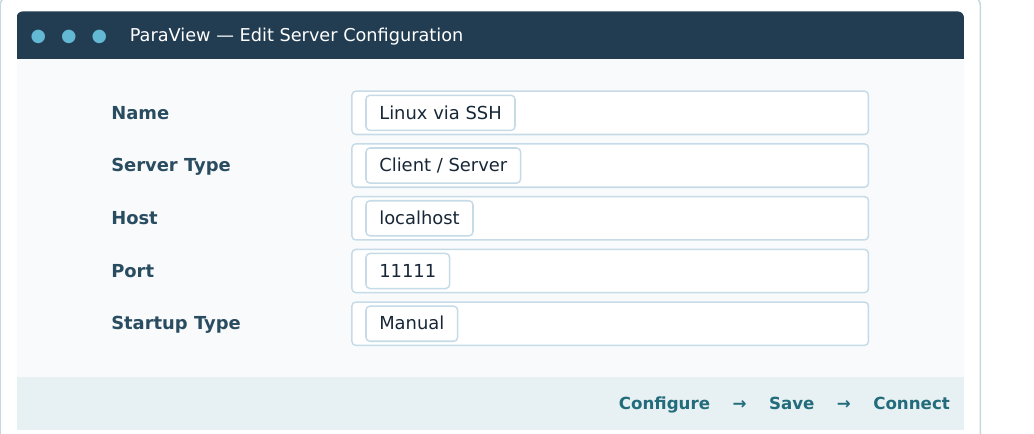
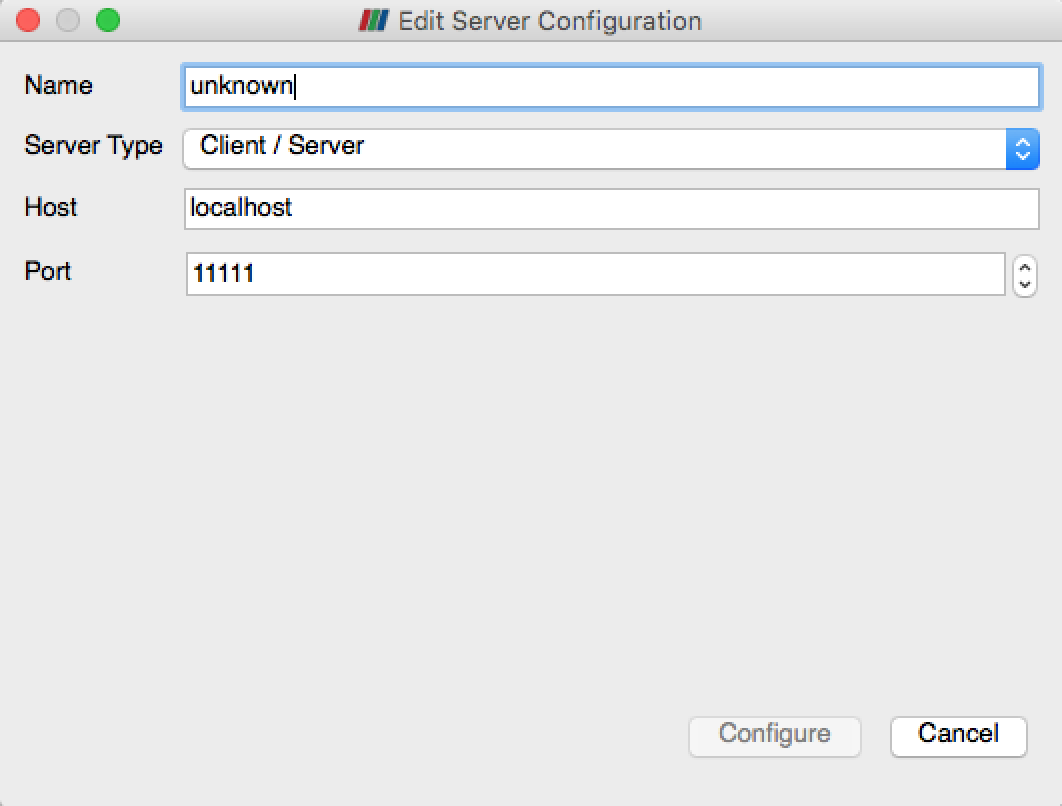
Step C. In ParaView for Windows select File → Connect → Add Server:

| Setting | Value |
|---|---|
| Name | Linux via SSH |
| Server Type | Client / Server (not reverse connection) |
| Host | localhost |
| Port | 11111 |
| Startup Type | Manual |
Save the settings and click Connect. A successful connection appears in Pipeline Browser as something like cs://localhost:11111 rather than the local-only builtin server.
Deep dive · What the tunnel does exactly
The option -L 11111:127.0.0.1:11111 reads: local port 11111 on the Windows PC → destination 127.0.0.1:11111 as seen from the server. ParaView connects to localhost:11111 on the PC; the SSH client takes that traffic, encrypts it inside the already authenticated SSH connection, and the SSH server delivers it to pvserver, which listens only on its own loopback thanks to --bind-address=127.0.0.1. Nobody outside sees port 11111.
If you prefer to keep tunnel and terminal apart, open the tunnel alone with -N (no remote command) in a dedicated window, and start pvserver from a second SSH session or inside tmux:
# window 1 (stays open, shows no prompt)
ssh -N -L 11111:127.0.0.1:11111 USER@SERVER

# window 2
ssh USER@SERVER
pvserver --server-port=11111 --bind-address=127.0.0.1
With the ~/.ssh/config file from section 2, ssh cfd-paraview is all you need.
Deep dive · Client and server versions, ports in use
ParaView client and server must have the same major and minor version (for example 5.13 with 5.13): with different versions the connection is refused with an incompatibility message. On the server read the version with pvserver --version; on Windows in Help → About.
If the port is busy (Address already in use), find out what is using it:
# Windows PowerShell
netstat -ano | findstr :11111
# Linux
ss -ltnp | grep 11111
Often it is a pvserver left running from an earlier session: stop it with Ctrl+C in its session, or with kill PID if the session is lost. On a multi-user server it is better for each user to have their own port, for example 11112: ssh -L 11112:127.0.0.1:11112, pvserver --server-port=11112 and port 11112 in the ParaView configuration. All three must match.
Open an OpenFOAM case on the server
In a Linux shell, from the case directory:
cd ~/cases/myCase
touch myCase.foam
touch creates an empty placeholder file, not a copy of the results. With ParaView connected to the server, choose File → Open and browse to the Linux directory /home/USER/cases/myCase. Select myCase.foam, choose the OpenFOAM reader, and press Apply. Then select fields, regions or boundary patches and the timestep to display. Reader availability depends on the components installed with pvserver.
If the simulation is decomposed into processor0/, processor1/, etc., check whether the reader supports Decomposed Case mode; alternatively use reconstructPar when appropriate. Do not reconstruct a large case just to open it without first checking the reader’s options.
Deep dive · The OpenFOAM reader options that matter
- Case Type:
Reconstructed Casereads the time directories in the case root;Decomposed Casereadsprocessor*/directly and in parallel, ifpvserverruns with several processes. - Mesh Regions:
internalMeshis the volume; individual patches (inlet,outlet,walls) are enabled separately and show quantities on the boundaries. - Cell Arrays: the fields to load; loading only those you need saves memory and time.
- Skip Zero Time: on by default, it hides the
0/directory with the initial conditions; turn it off to see them. - Refresh (or Reload Files): while a run is still going, it updates the list of written times without reopening the case.
Parallel cases and the choice between decomposed reading and reconstruction are covered in case 05.
Finish the session
Choose Disconnect in ParaView, then stop pvserver in the Linux terminal with Ctrl+C if it is still running; type exit to close SSH. Once the tunnel closes, the Windows GUI cannot reconnect until it is reopened.
If the window is empty or OpenGL errors occur: installing OpenFOAM on Windows is not the solution. Check whether pvserver has an appropriate graphics backend (X11, EGL, or software rendering, depending on its build and server), inspect its terminal messages, and consult your administrator about the configured rendering mode. Having no active Linux display does not automatically mean every pvserver build can render without additional configuration.
Deep dive · Rendering on a headless server, and alternatives
ParaView builds for servers without a screen use EGL (graphics card) or OSMesa (software rendering on the CPU). With a build that supports them, --force-offscreen-rendering avoids looking for an X11 display:
pvserver --server-port=11111 --bind-address=127.0.0.1 --force-offscreen-rendering
# several processes for large datasets (MPI-enabled build):
mpiexec -np 4 pvserver --server-port=11111 --bind-address=127.0.0.1
If the server has no usable pvserver, two routes remain. The first is to extract on the server only what you need and download it: for example foamToVTK -latestTime writes VTK files of the last time, which ParaView opens locally after the download. The second is to automate images with pvbatch or pvpython on the server and download only the PNGs. Either way, check the volume of data first with du -sh.
10. End-to-end practice: Windows to simulation results
- Open
C:\CFD\cases\myCase\system\controlDictin Notepad++; make an agreed-upon change and save with UTF-8 without BOM and LF line endings. - Connect FileZilla via SFTP, compare the files, and upload only the edited
controlDictinto the correct remotesystem/directory. - From PowerShell run
ssh USER@SERVER, thencd ~/cases/myCase. Check the location withpwdandls system/controlDict. - Read
Allrunbefore running it. Start atmuxsession, launch the procedure, and savelog.Allrun. - Watch the log with
tail -f(in another SSH session) and check for critical errors. - Download the log with FileZilla to
C:\CFD\logs\myCase; open it in klogg and search for errors and residual information. - When computation finishes, start a new SSH session with port forwarding, launch
pvserver, connect ParaView for Windows, and open the.foamfile directly from the Linux filesystem. - Save images, tables, and analysis notes on Windows. The CFD results stay on the server unless you explicitly export files.
Deep dive · A ready-made test case: the cavity tutorial
To do the exercise without a case of your own, copy a tutorial into your working area. With the OpenFOAM environment loaded:
mkdir -p ~/cases
cp -r $FOAM_TUTORIALS/incompressibleFluid/cavity ~/cases/myCase
cd ~/cases/myCase
ls
foamDictionary -entry solver system/controlDict
The case is small, runs in seconds and contains a complete mesh, fields and dictionaries. To work on it from Windows, download the whole directory once with FileZilla into the local copy C:\CFD\cases\myCase (before any time directories exist) and follow the procedure from there. If the tutorial path differs in your installation, ls $FOAM_TUTORIALS/incompressibleFluid lists those available.
11. Common problems and diagnostics
| Symptom | What to check / do |
|---|---|
ssh: command not found on Windows | Enable the Windows OpenSSH Client feature; reopen PowerShell. |
SSH/SFTP Permission denied | Check username, password/key, permissions, and the host-key fingerprint. |
| FileZilla opens the wrong directory | Check the full remote path and permissions; / is not the same as your home directory. |
foamRun / blockMesh: command not found | Load the OpenFOAM environment or check the installation and PATH. |
./Allrun: Permission denied | Inspect ls -l Allrun and, where appropriate, use chmod u+x Allrun. |
bad interpreter: /bin/sh^M | Change CRLF to LF and upload the script again. |
| SSH disconnects and the simulation stops | Run in tmux, and detach before closing the terminal. |
| ParaView cannot connect | Is pvserver running? Is the SSH tunnel open? Do the ports match? Are versions compatible? |
Address already in use | Port 11111 is in use on Windows or Linux; release it or configure matching alternative ports. |
.foam file is missing | Run touch myCase.foam in the correct directory and check that you are browsing server-side files. |
| Missing fields or reader failure | Check case format, mesh, decomposed data, and the reader available to pvserver. |
| Black view / OpenGL error | Check rendering capabilities and pvserver messages instead of randomly changing X11/GPU settings. |
12. Printable quick-reference sheet
WINDOWS / POWERSHELL
ssh USER@SERVER
ssh -L 11111:127.0.0.1:11111 USER@SERVER   # ParaView SSH tunnel

LINUX / CASE
pwd ; ls -lh ; cd ~/cases/myCase
foamVersion
sed -n '1,100p' Allrun
blockMesh ; checkMesh                         # ONLY if the case needs them
tmux new -s cfd_myCase
./Allrun 2>&1 | tee log.Allrun
# Detach: Ctrl+B, then D
# Reattach: tmux attach -t cfd_myCase
tail -n 40 log.Allrun
tail -f log.Allrun

LINUX / PARAVIEW (IN THE SSH SESSION WITH PORT FORWARDING)
pvserver --server-port=11111 --bind-address=127.0.0.1
cd ~/cases/myCase ; touch myCase.foam

WINDOWS / PARAVIEW
File > Connect > Add Server > Client/Server
Host localhost ; Port 11111 ; Startup Manual
File > Open > /home/USER/cases/myCase/myCase.foam
Deep dive · Extra commands worth keeping at hand
# environment and checks
source /opt/openfoam14/etc/bashrc      # Foundation Ubuntu package path
command -v foamRun ; foamVersion

# scripts and files
file Allrun ; sed -i 's/\r$//' Allrun  # diagnose and fix CRLF
foamDictionary -entry endTime system/controlDict

# resources and space
nproc ; free -h ; uptime ; df -h ~ ; du -sh ~/cases/myCase

# clean stop
foamDictionary -entry stopAt -set writeNow system/controlDict

# residuals in columns
foamLog log.foamRun ; tar czf logs_residuals.tgz logs/

# ports in use
ss -ltnp | grep 11111                  # Linux
netstat -ano | findstr :11111          # Windows
13. Official resources and further reading
- OpenFOAM Foundation, OpenFOAM 14 and getting started: https://openfoam.org/version/14/ and https://openfoam.org/download/14-ubuntu/ .
- ParaView, Remote and Parallel Visualization, 5.13.2 manual: https://docs.paraview.org/en/v5.13.2/ReferenceManual/parallelDataVisualization.html .
- ParaView, Loading Data, 5.13.2 manual: https://docs.paraview.org/en/v5.13.2/UsersGuide/dataIngestion.html .
- ParaView, 5.13 release notes (
--bind-address): https://www.paraview.org/paraview-docs/v5.13.2/cxx/md__builds_gitlab-kitware-sciviz-ci_Documentation_release_ParaView-5_813_80.html . - FileZilla Wiki, Site Manager and SFTP authentication: https://wiki.filezilla-project.org/Site_Manager .
- Notepad++ User Manual, New Document / encoding / line endings: https://npp-user-manual.org/docs/preferences/ .
- Microsoft Learn, OpenSSH on Windows: https://learn.microsoft.com/en-us/windows-server/administration/openssh/openssh_install_firstuse .
- klogg, log viewer: https://github.com/variar/klogg .
Reference screenshots available online: FileZilla SFTP (https://www.ionos.com/help/fileadmin/images/hosting/ftp/2938/EN/2938_EN_transfer_files_filezilla_linux_05.png), Notepad++ Unix LF menu (https://i.sstatic.net/sndcy.jpg), ParaView server configuration in the Kitware guide (https://docs.paraview.org/en/v5.11.1/_images/serverconfig.png). Screenshots may show versions or interface arrangements different from those currently installed.
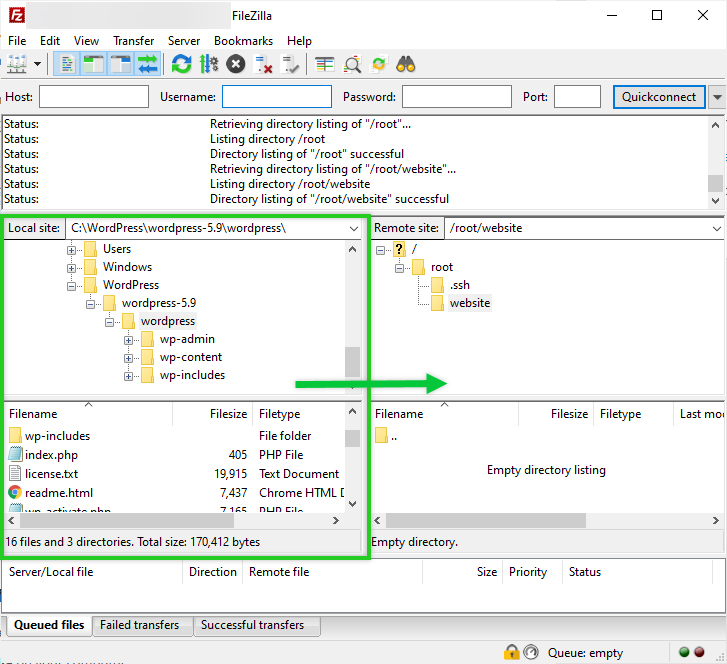

About the illustrations: The figures in this guide are schematic reconstructions of the important controls, not screenshots of any specific computer. Interfaces may vary with software version or language; the reference links above also lead to original application screenshots.
Further useful references
- OpenFOAM User Guide v14: https://doc.cfd.direct/openfoam/user-guide-v14/.
- klogg, log viewer: https://klogg.filimonov.dev/.
Back to the path: Learning OpenFOAM 14.