Running GNU Octave Scripts from Analysis
GX-TXT DEV112 P011-bis
Register and run a GNU Octave script from the Analysis tab and check log and output in the Session.
Enable Octave Script
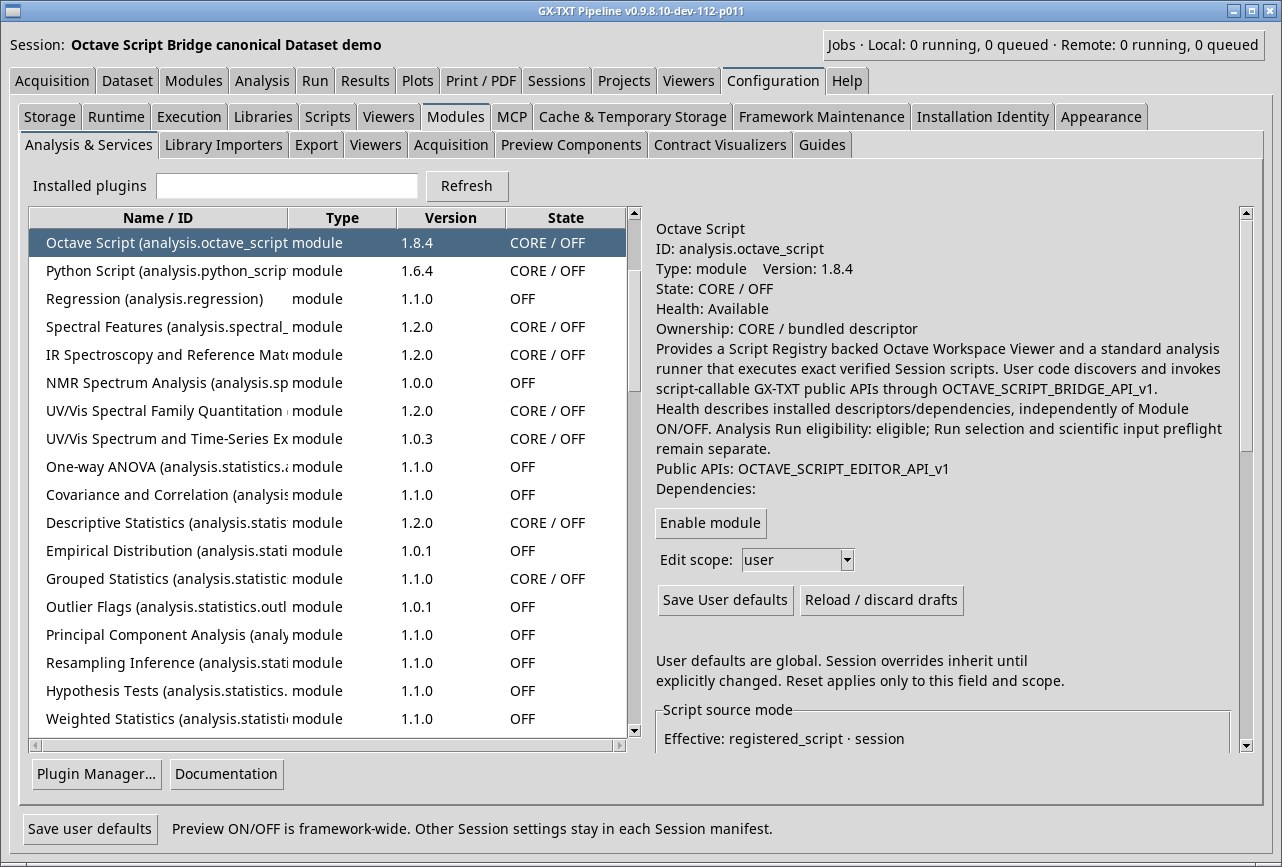
In Configuration → Modules → Analysis & Services, choose Octave Script, ID analysis.octave_script, version 1.8.4 in P011-bis. Check Health and use Enable module if it is off. Open Analysis and select Run / recalculate now to include it in the next Run.
Generate the Session and check the Dataset
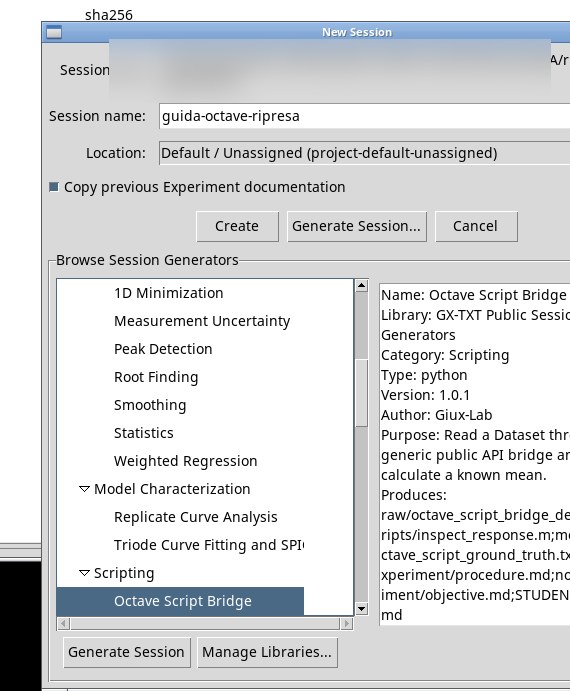
Open New Session… → Generate Session…. In the GX-TXT Public Session Generators catalog choose Scripting → Octave Script Bridge, octave_script_bridge 1.0.1. Use Standalone Session, enter a name and generate. The lab prepares octave_script.source and the Session script session:inspect_response 1.0.0. The synthetic response is 2 × index + 1 over 256 rows, with an expected mean of 256.
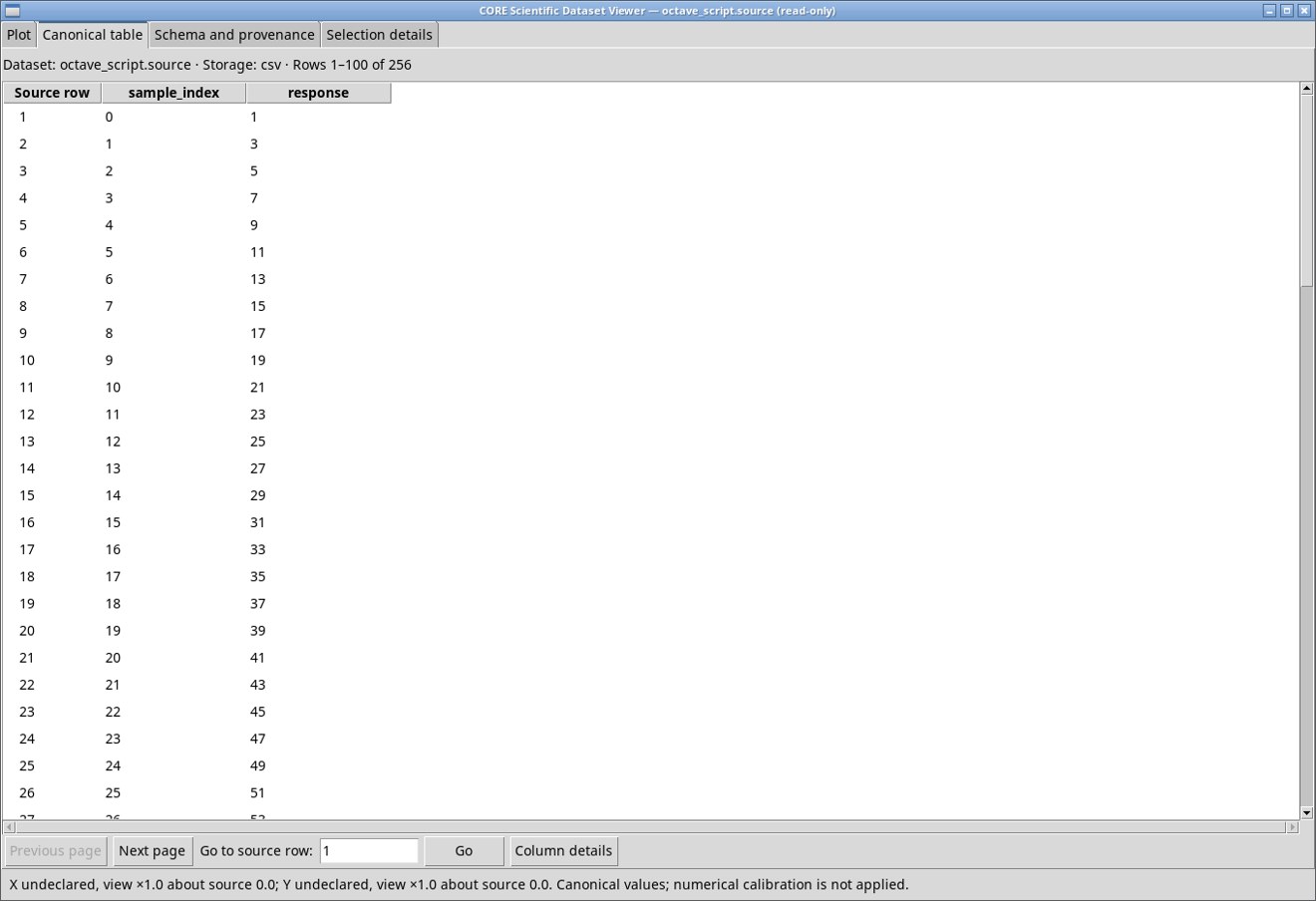
Enable the Dataset, use Preview to identify it and Open Dataset → Canonical table to look at index and response. In Technical details read columns, units and provenance. The module can publish only a report if the script reads and summarizes the Dataset, as in this example.
Choose a registered script or an external file
- Script source mode
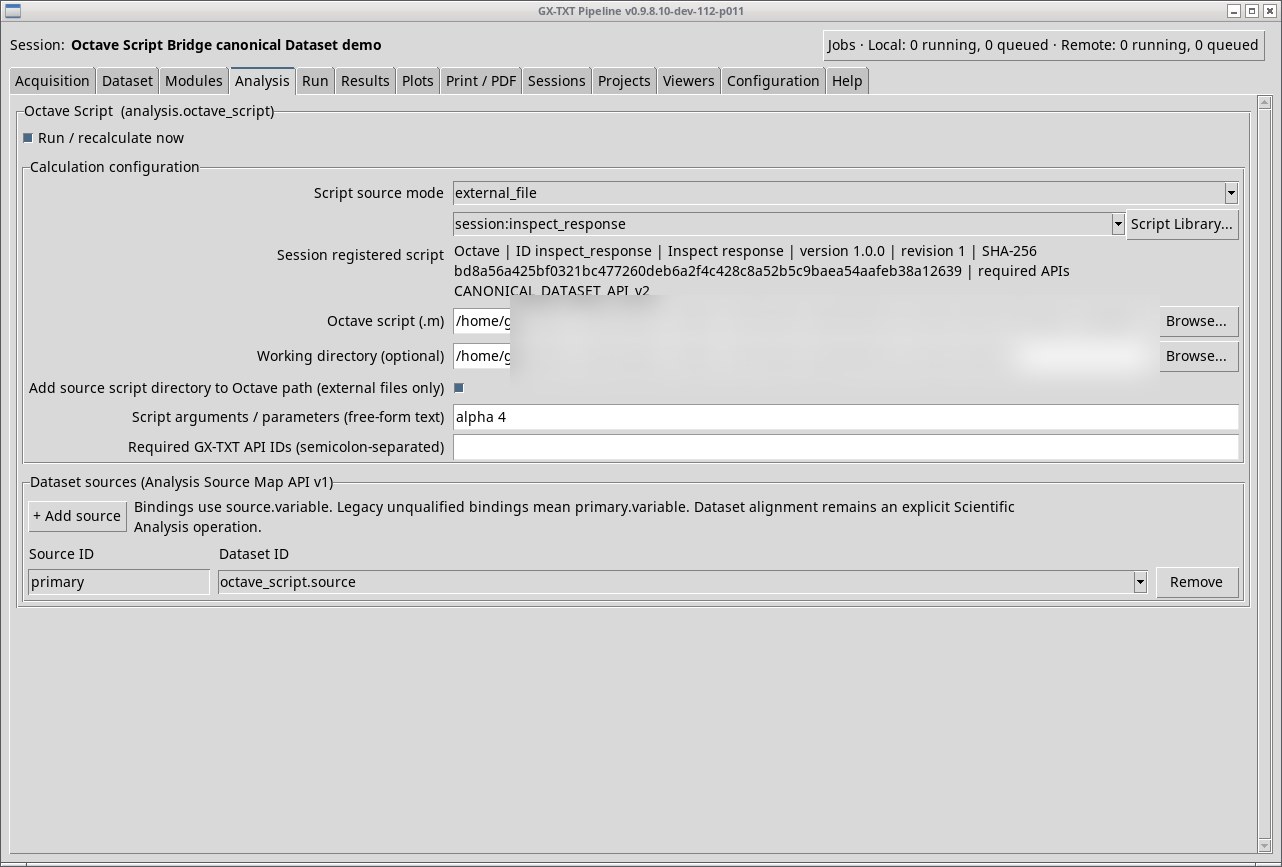
registered_script, the default, selects a script from the Session.external_fileruns the explicitly given Octave file.- Session registered script
- With
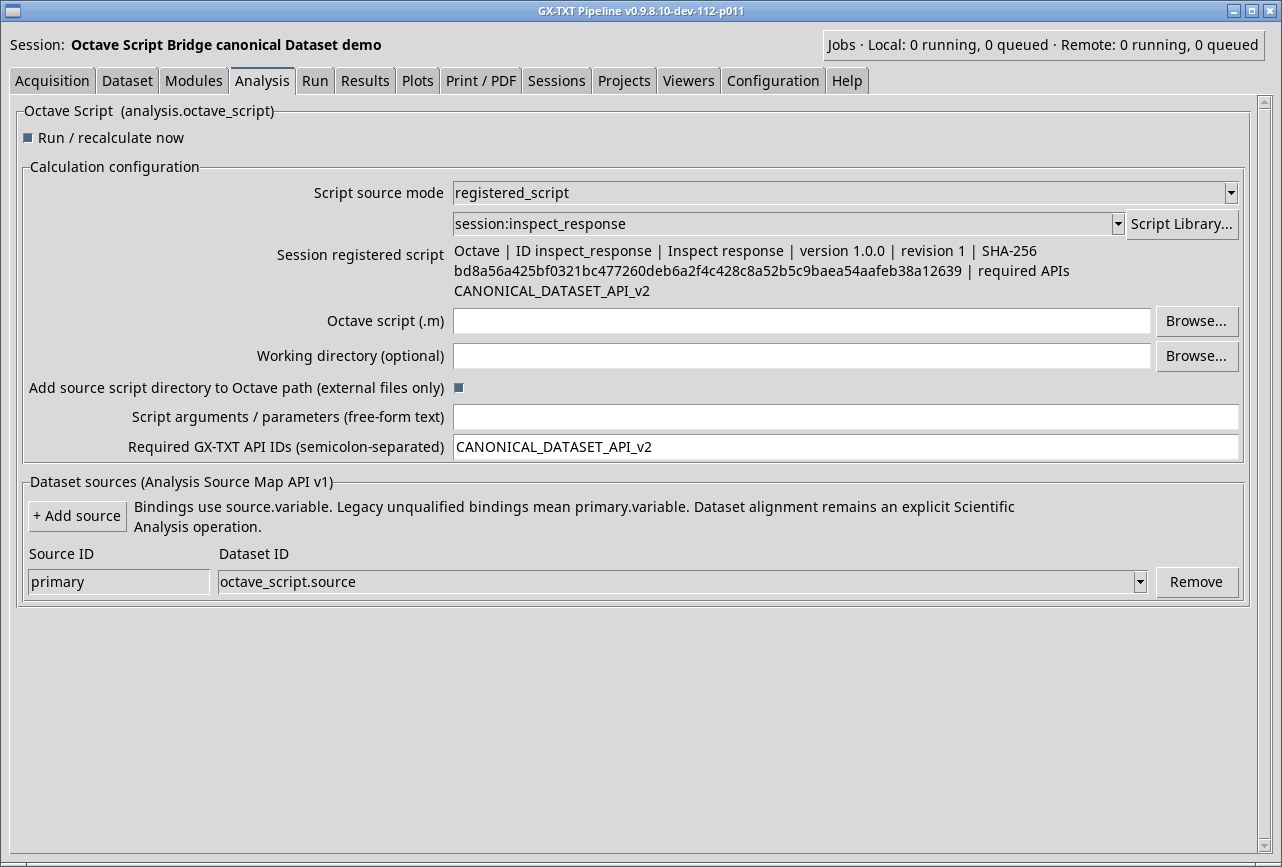
registered_script, selectsession:inspect_response. The pane shows language, ID, version, revision, SHA-256 and expected APIs. Script Library… opens the library where you can browse or assign scripts. Reopen the Analysis menu to check that the assigned identity is available. - Octave script (.m)
- For
external_fileuses Browse… or give a file.mthat exists in the chosen path. - Working directory (optional)
- With Browse… you can select an existing folder for the script’s relative paths. Empty uses the directory of the execution context. The report gives the resolved folder, which the registered example took from the Session.
- Add source script directory to Octave path (external files only)
- Selected by default. For an external file it adds the functions in its folder to the search path. The registered script uses its verified Session context. If you clear the checkbox, use functions already reachable from Octave or set up the path in the code.
- Script arguments / parameters (free-form text)
- Optional and empty at first. Enter the form expected by the script. The report shows the text actually passed to the Run. In the external case the string
alpha 4appears in the receipt. - Required GX-TXT API IDs (semicolon-separated)
- Give the required IDs separated by
;. The registered lab declaresCANONICAL_DATASET_API_v2. Leave it empty when your computation example does not use GX-TXT APIs.
In Dataset sources, primary identifies the source of the script. For inspect_response choose octave_script.source in the field Dataset ID. Remove on primary clears the Dataset and keeps the reserved role. With + Add source a row appears such as source2. Set a distinct Source ID and its Dataset. Remove on an added row removes that binding. The script resolves the response column with the canonical API. Any other inputs must be assigned according to the script’s contract.
Run and check the result
In Run check the plan and start the Analysis. After Selective analysis completed, open Results. In octave_script_run_report.txt check Status PASS, source, mode, version, revision and fingerprint. executed_script.m keeps the executed source. The log of the registered script shows rows=256 mean_response=256. The two examples in this chapter leave the starting Dataset as the only Dataset and do not generate automatic plots.
To try the external mode, download inspect_example.m (ZIP) and guide_helper.m (ZIP) into the same directory. Choose external_file and the first file. Set a working directory, leave on the addition of the script directory to the Octave path and run. The code prints the mean 256 and Local helper result: 7. Use the report and the Session log to find the results.