

Open and Configure Scientific Libraries
Registry, folders, modules, Sessions and built-in help.
Open the window
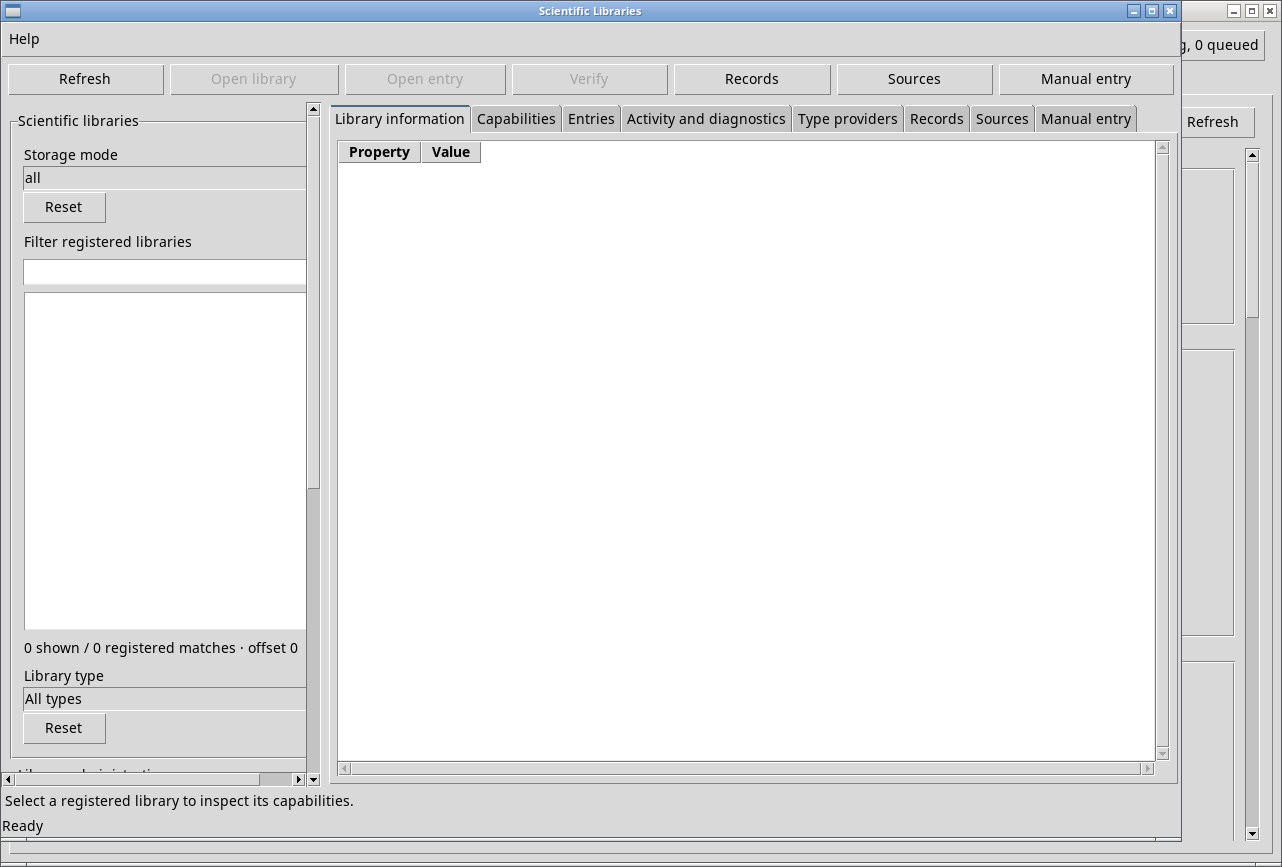
In GX-TXT, open Viewers → Scientific Data & Mathematics → Scientific Libraries. You can also use Configuration → Libraries → Open Libraries…. Both paths open the same catalog. Commands are at the top, filters and administration controls on the left, and tabs on the right. The status line shows requests, results and errors. Scroll within the pane in a small window.
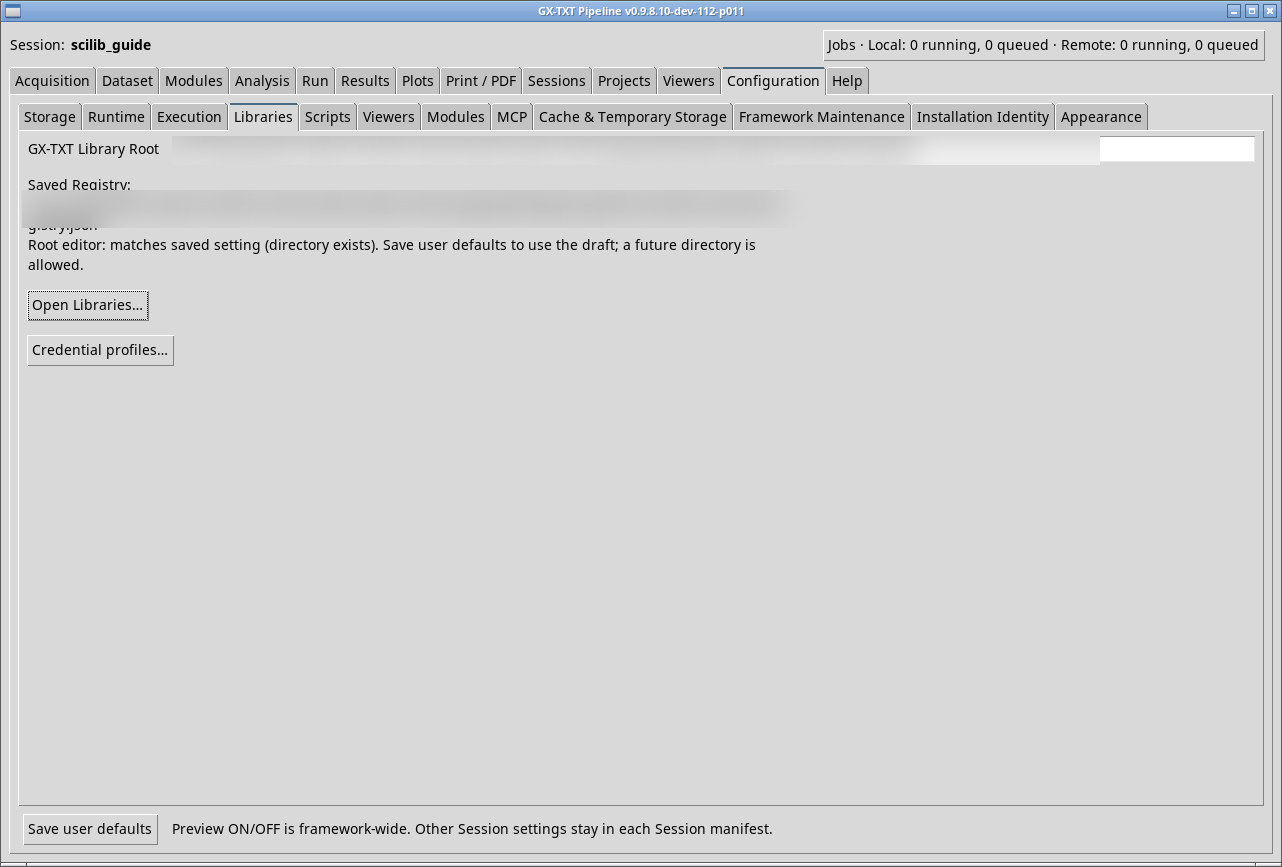
Library root and registry
Configuration → Libraries shows GX-TXT Library Root, the root for managed content, and Saved Registry, the library registry. You can edit the root. While editing, Saved Registry still shows the saved path and Root editor describes the draft. You can enter a folder that does not yet exist. Use Save user defaults to apply the draft, check the saved path and reopen Scientific Libraries if it was already open. Credential profiles… opens the protected credential manager, and Open Libraries… opens the catalog. Sessions under the same profile share the root. An empty catalog may mean the active profile uses another registry or the filters exclude every row.
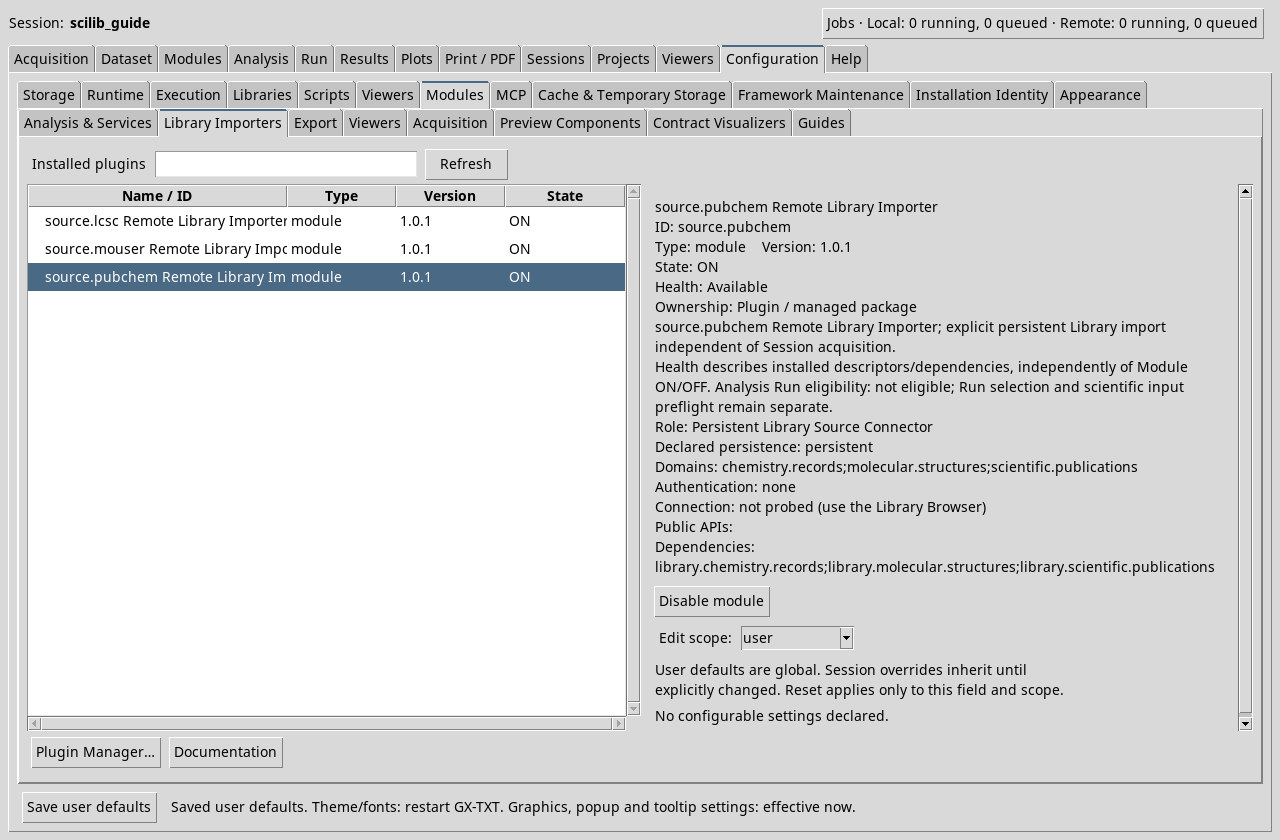
Module availability
Open Configuration → Modules → Library Importers and select PubChem, Mouser and LCSC. An enabled module shows ON. Health: Available means the module is available in this installation. Test the connection with Look up (read only) in Sources. Use Save user defaults to keep a change in user preferences. Reopen the viewer if its source list does not update. Check the available library types in Type providers.
How libraries relate to a Session
A remote registration, managed package or Manual entry record belongs to the Library. To work with scientific data or content as a Dataset, explicitly acquire it into an existing Session. If you switch Sessions while browsing, close and reopen Scientific Libraries before following a reference to the new Session. Reopening reloads the catalog and may clear the previous selection.
Help and module information
- Help → User Manual…, oppure F1
- Opens the module page in the GX-TXT Documentation Browser. Return to Scientific Libraries to continue browsing the catalog.
- Help → About Module…
- Shows the viewer’s identity and version. Use the build version when a label or provider differs in your installation.