

Record Local Data and Files
Technical records, specifications, models, attachments and revisions.
Prepare a new record
Open Manual entry. If you have used the module before, start with Cancel draft and check that the attachments table is empty. Switching tabs can keep a draft. Check the attachment list again after changing the schema.
- Record schema
- Choose a record type that matches the content. Your choice determines the input fields and format. Asterisks mark required fields. The choices depend on the installed providers. Records derived from managed projections are available for browsing, with creation handled elsewhere.
- Source / attribution
- Enter the actual source, such as the manufacturer and its official reference. The value appears under
provenance.source_id. - Library ID
personalis the initial value. Enter a stable ID with no spaces for a new managed library or an existing one of a compatible type. Use separate libraries for different domains.- Entry label
- Readable name displayed in Records. Choose a name you can find again in search.
- Stable entry ID (blank creates new)
- Leave this blank to generate an ID, or enter a stable ID for the new entry. To change a saved entry, use Edit displayed record… from the current record.
Sources of component specifications
Complete an electronics.component record
- Manufacturer / Manufacturer part number
- Enter the manufacturer and exact MPN. Both are required. To distinguish similar versions, check the markings and Variant / package, which records the variant or package.
- Supplier / source / Supplier part code (for example Mouser SKU)
- If known, enter the supplier and its order code. The code identifies that supplier’s offer. Keep the manufacturer part number in its own field.
- Component category
- A blank value omits the category.
Power connectoridentifies a power connector,Capacitora capacitor,Memory ICa memory IC andOtherother components. - Field template
General componentstarts with no preset rows.Power connectoroffers current, voltage, contacts, mounting, protection and family.Capacitoroffers capacitance, rated voltage, tolerance, dielectric, ESR, ripple current and package.Memory ICoffers capacity, interface, supply voltage, operating temperature, package and ECC. Select the template before entering data. Changing it updates the suggested rows while retaining completed properties. Check any existing category and set it explicitly if needed. Rows without an original value are omitted when saving specifications.- Technical specifications → Add / Edit / Remove
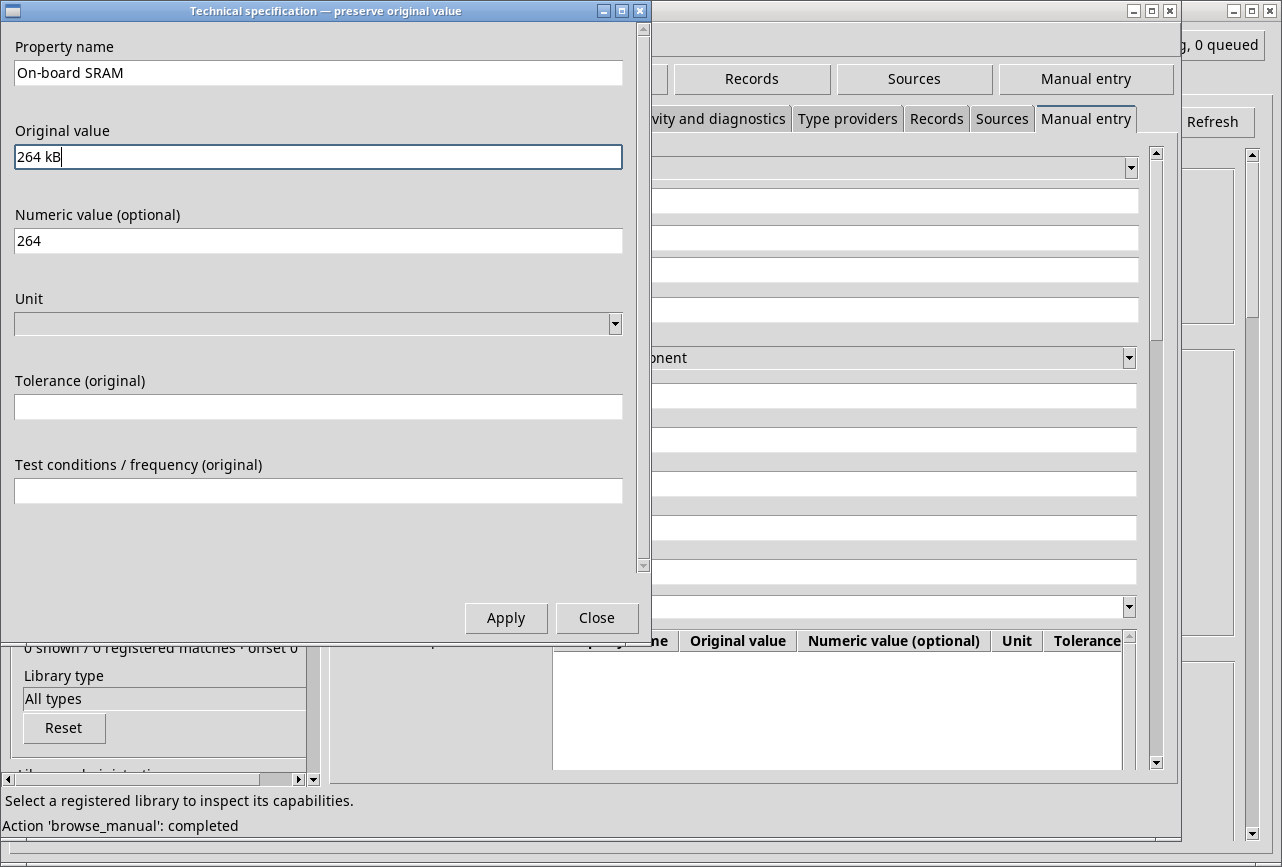
- Add opens a new row, Edit edits the selected row, and Remove removes it from the draft. In Technical specification, complete Property name and Original value. Numeric value (optional) provides a separate numeric value when the original can be interpreted without losing information. Unit is optional. Tolerance (original) and Test conditions / frequency (original) retain the declared range or deviation and conditions, respectively. Apply confirms the draft row. Close leaves the form without applying changes.
- Unit
- Leave this blank to retain the original value without assigning a unit from the menu.
F,pF,nFandµFare capacitance units.Vis for voltage,AandmAfor current,ohmandmΩfor resistance,Hz,kHzandMHzfor frequency,°Cfor temperature,bit,kbitandMbitfor memory capacity, andmmfor length. The menu assigns a unit to the entered value. Keep units absent from the menu in Original value. - Additional supplier identities
- Use Add to enter Supplier and Supplier SKU for another supplier, then press Apply. Use Edit and Remove on the selected row. Changing suppliers does not change the MPN.
- Technical notes / Original pasted specifications
- Use the notes for conditions, errata and references. The original field preserves the transcribed technical text. Paste original specifications interprets
nome[TAB]valoreornome: valorelines when the schema declares a mapping, such aselectronics.component. Check values and attribution in the preview.
Raspberry Pi Pico component record example
- Check the official Raspberry Pi Ltd datasheet for Raspberry Pi Pico, specifically the version without wireless or soldered headers. The Ordering code table lists
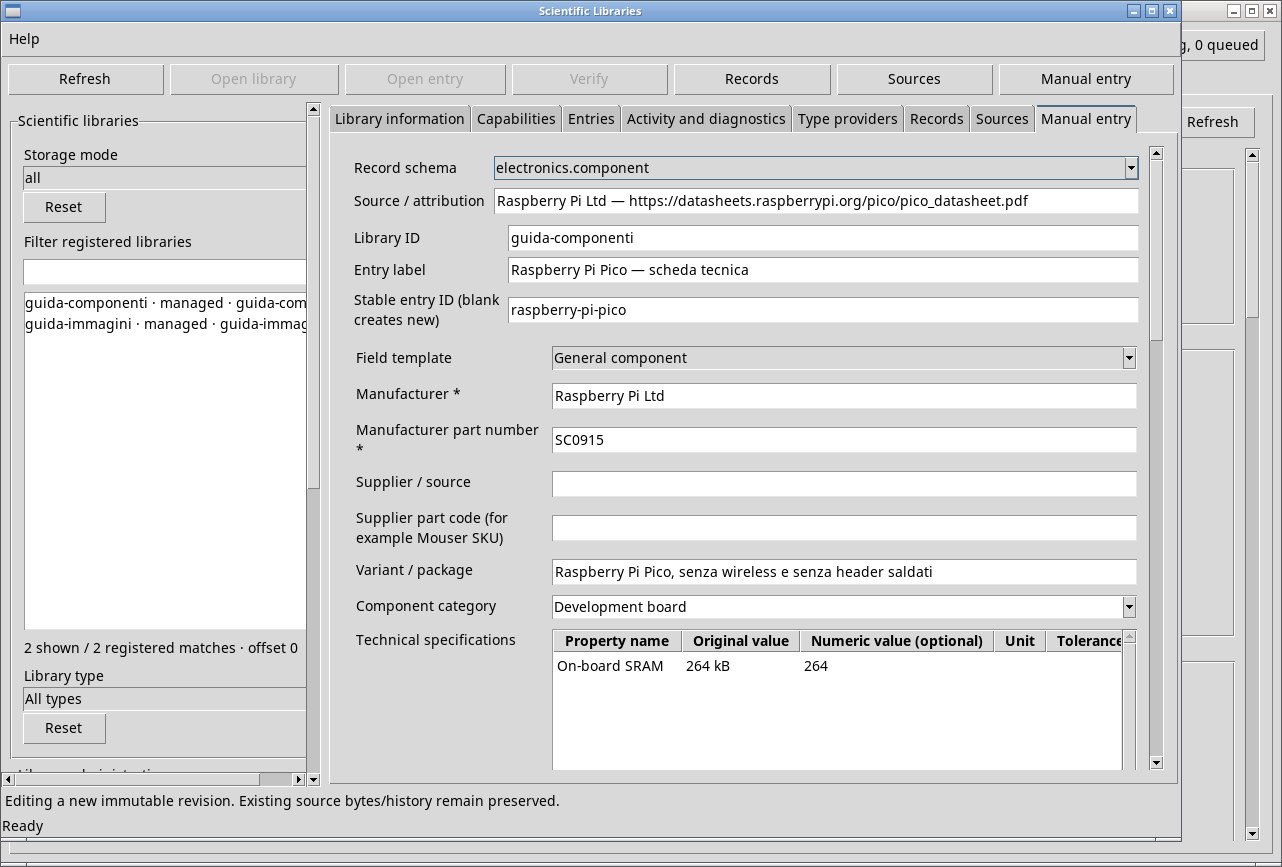
SC0915for this board. The PDF used in the example shows release 22 and a build date of 19 November 2026. Check your document’s revision and any applicable errata for your board. Useelectronics.componentand schema General component. - Set Source / attribution to Raspberry Pi Ltd and add the manufacturer’s URL. For the Library use
guida-componenti. Assign the labelRaspberry Pi Pico — scheda tecnica, IDraspberry-pi-pico, manufacturerRaspberry Pi Ltd, MPNSC0915and variantRaspberry Pi Pico, senza wireless e senza header saldati. - In Technical specifications, choose Add. Enter
On-board SRAMand paste264 kBinto Original value. Press Apply. The original value retains the kB unit. Add other verified values the same way. - Select
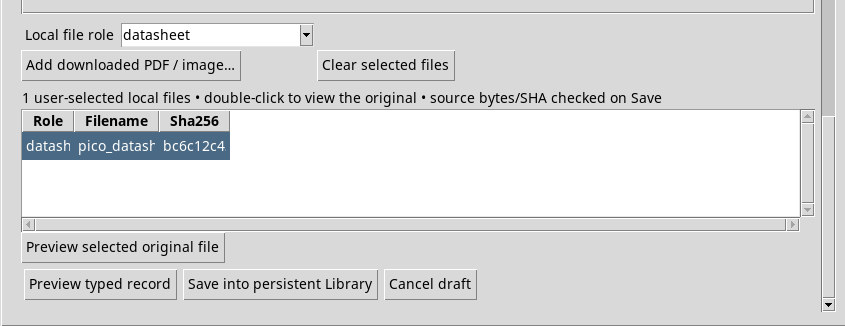
datasheetin Local file role, choose Add downloaded PDF / image… and attach the manufacturer PDF from disk. Check the filename, role and SHA-256. - Use Preview typed record to check the specification and attachment, then choose Save reviewed entries. In Records, search for
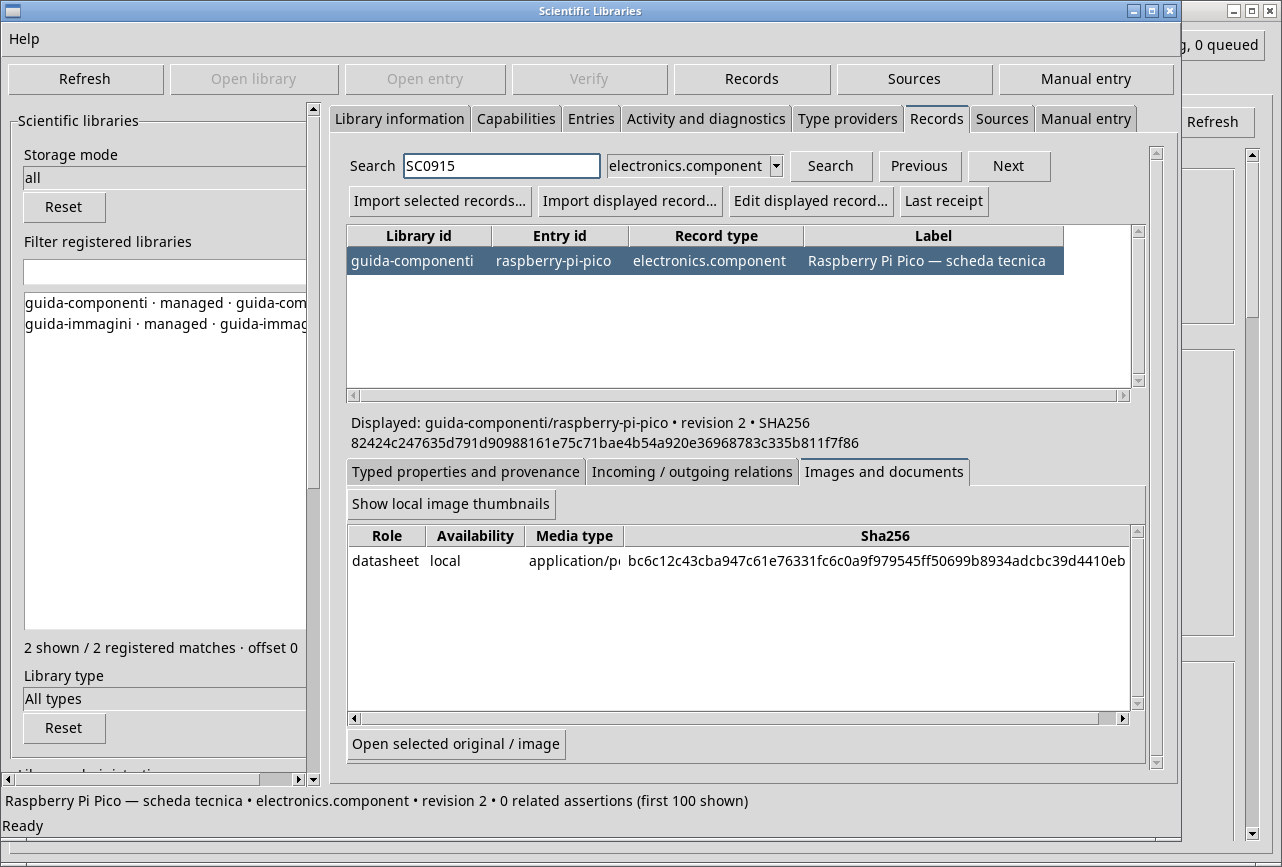
Raspberry Pi Pico, selectelectronics.componentand open the record. Search forSC0915as a second check of the identifier. The datasheet remains in Images and documents after reopening Scientific Libraries.
Manufacturer sources for specifications, variant and document. The example preserves the PDF copy intact. Official Pico Series Documentation · Raspberry Pi Pico Datasheet.
Local attachment roles and commands
In Local file role, document is the initial role for a general document, datasheet is for a datasheet, photo for a photo, drawing for a drawing, pinout for a pinout and footprint_illustration for a footprint illustration. The role is metadata. A footprint illustration opens as an image.
Add downloaded PDF / image… opens the local file picker and assigns the current role to the chosen files. Supported formats are PDF, PNG, JPEG and GIF, with up to 32 MiB per file and 32 attachments. Clear selected files clears the draft’s attachments. Select a row and use Preview selected original file or double-click to inspect the copy. Back to page returns to the draft. Saving preserves the file bytes and hash in the Library.
Add declared candidates
Suggestions are separate records with a declared relation. In Optional pasted suggestions, use Copy schema TSV header to see the required columns. Prepare TSV rows with a distinct candidate_id for each. label and source_id are optional metadata. Paste the TSV and choose Parse candidates. On first read, all candidates are unchecked.
Filter reviewed rows filters the view. Check all and Uncheck all change the checkboxes. Double-click or use Space to toggle a row. Inspect selected candidate… or Enter shows original fields and identity. Check the full selection before continuing.
Include individually checked candidates (off by default) enables explicit inclusion. In Declared relation, choose a relation supported by the schema. Enter the source in Suggestion source / attribution and the literal evidence in Original suggestion / differences. In Assertion by, user attributes the assertion to the record author and source to a cited source. The declared type explains the relation, and the evidence lets you evaluate it. Verify technical compatibility using the documentation for each component.
Check, correct and create a revision
- Preview typed record / Save reviewed entries / Cancel review
- Shows the interpreted fields, tables, file hashes and any suggestions. Check each section, then save the reviewed entries or cancel the review and return to the draft.
- Save into persistent Library
- Saves the current draft. Schema or destination errors appear in the status line. After success, check the ID, version, receipt and presence in Records. Saving a record leaves Dataset creation to explicit acquisition.
- Cancel draft
- Discards the draft. Saved data remains in the Library. Closing a window with changes may prompt for confirmation.
- Edit displayed record…
- From Records, open the exact entry, edit the fields and explicitly save. The entry’s history retains the previous revision. If the record changed during editing, read the current version before proceeding.
See also the full reference for record types and fields.
Revisions with a large PDF
If Preview typed record returns Invalid Library domain response while editing a saved entry, check whether it holds a large PDF. This occurred with the approximately 17.3 MiB Pico datasheet. In the test, after checking the draft fields, Save into persistent Library saved the revision. From Records, check the new revision and verify the expected attachment SHA-256 in Images and documents. To view an existing PDF, open it directly from the record.
Documents, images and scientific schemas
For technical.document and technical.media, complete document_role or media_role, respectively, along with title. source_url identifies the source and notes records the context. Also select the original file and its role in the attachments section. For scientific.spectrum, numeric_source requires actual CSV or JCAMP-DX data and matching format options. description_only requires the scientific description in measurement. Descriptive types do not produce numeric data. To supply the bytes of a CSV or JCAMP file, use the managed data package.