

Scientific timeline and frames
Assign assets to sample times, play a selected interval on the scientific timeline, and preserve the scene state.
Assign layers to sample times
Set and save the layer styles before building the timeline. Fill in Timeline ID, Time unit, and Frame times, for example 0;2;5 in days, and click Create timeline. The times must increase strictly. Enter Track ID and one Frame layer IDs entry per time. Separate IDs with semicolons. An empty entry is a frame without that track’s layer. Click Add changing layer track. Track objects change as the frame changes. A static layer stays outside the frame list. A second track uses new IDs mapped to the same time values.
Select timeline uses the entered ID. Current frame is zero-based, and Current time uses the declared unit. Click Frame or Time to apply the frame or time respectively. For times between samples, the engine draws the nearest sample. With times 0;2;5, entering 3.9 in Time shows frame 2, while the status retains 3.9 as the current time. Selecting frame 2 instead sets the time to 5.0. Use Previous or Next to step by one sample, then check the index and time in the status.
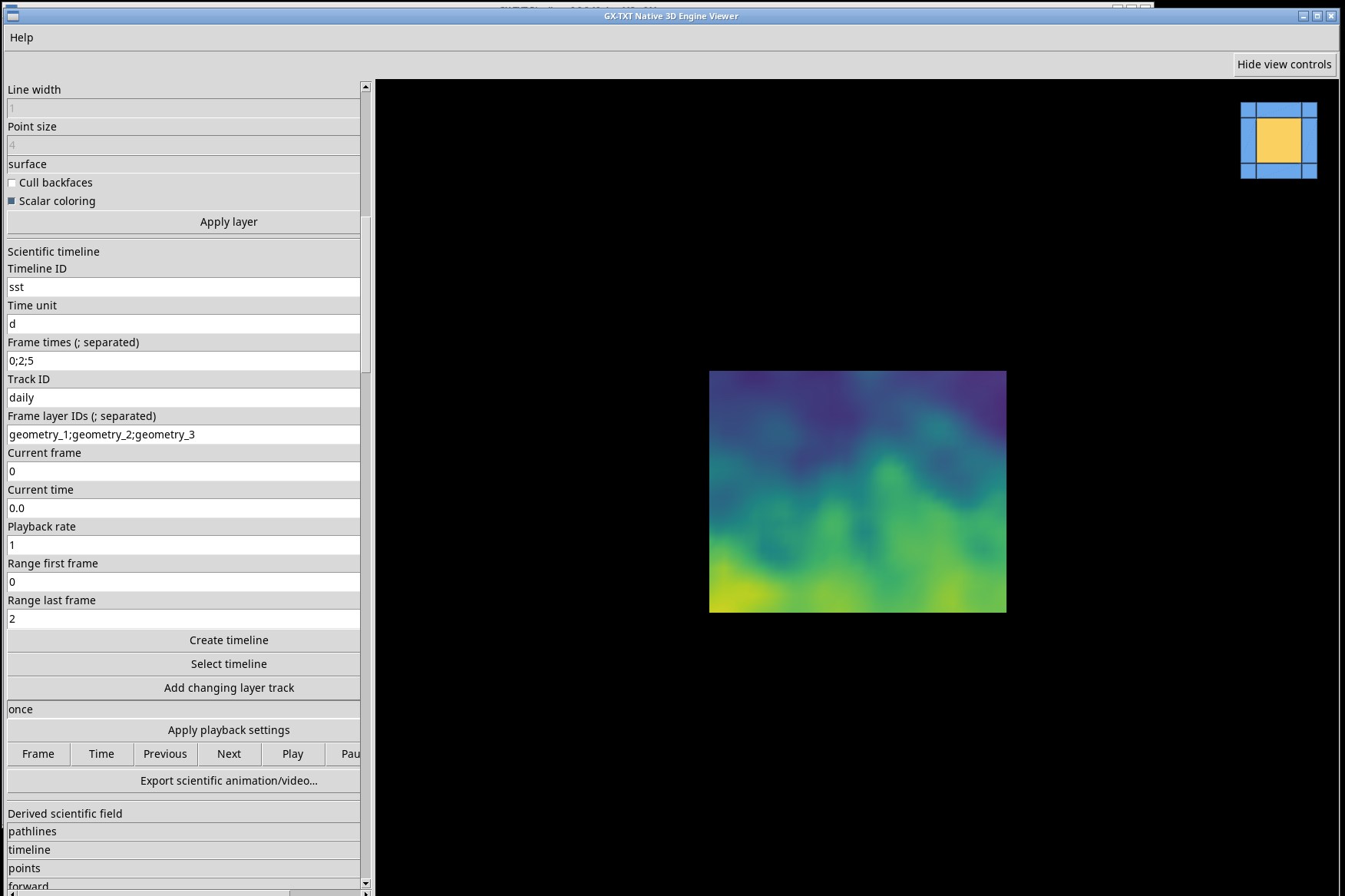
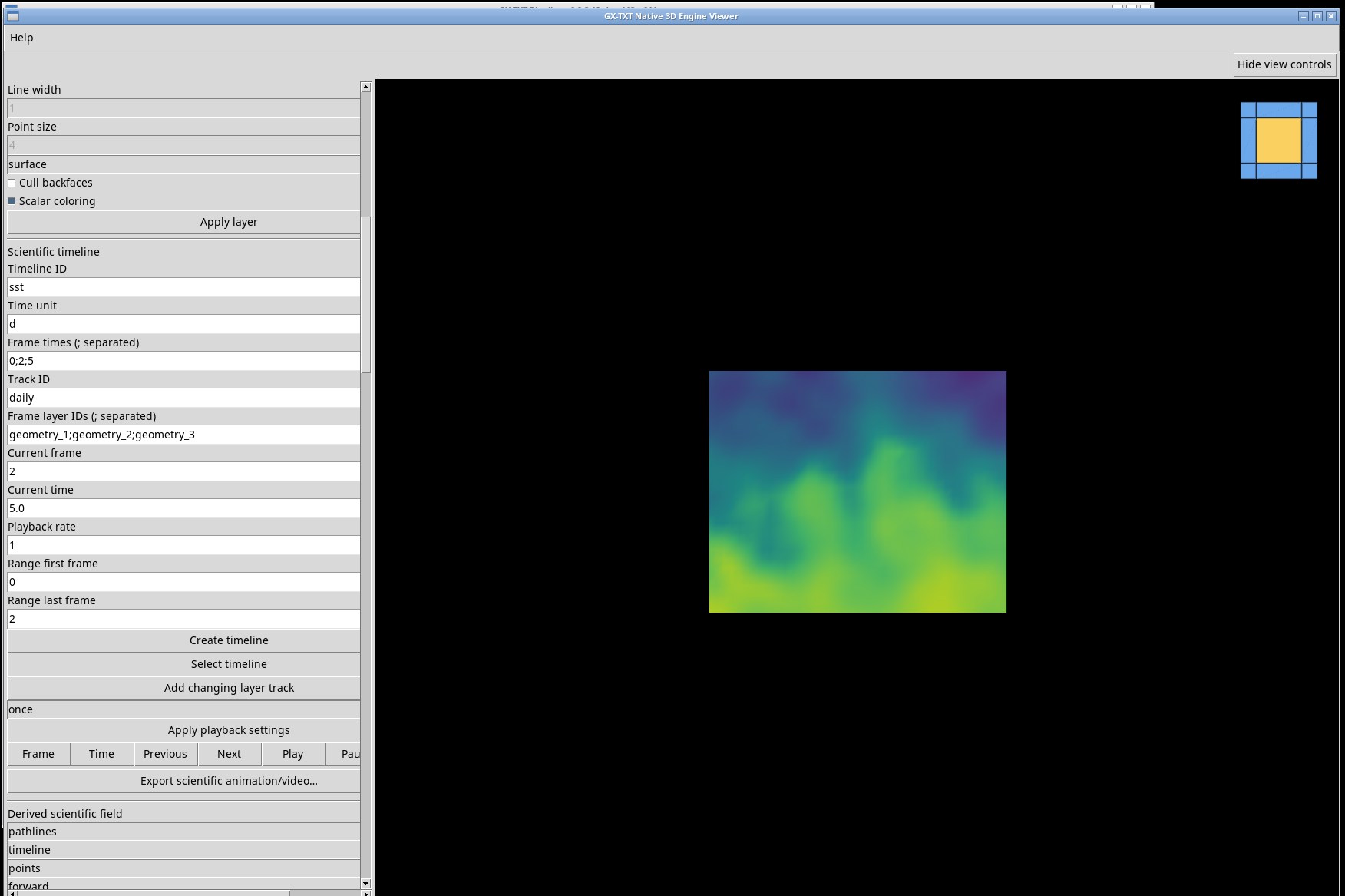
Play a range and retain the scene state
Set the inclusive Range first frame and Range last frame. Playback rate sets how much declared time passes per unit of elapsed playback time. Small values can be hard to distinguish. Choose once, loop, or ping_pong, and click Apply playback settings. Play starts playback, Pause pauses on the current frame, and Stop stops playback and returns to the beginning of the selected range. Use a Session with a few frames to compare the modes. Playback settings are separate from the MP4 frame rate.
Commands and settings
- Scientific timeline
- Contains the controls for building and playing time tracks.
- Timeline ID
- Enter a name for Create timeline or the exact ID for Select timeline.
- Time unit
- Declares the unit of Frame times. Pathline time step uses the same unit.
- Frame times (; separated)
- Enter strictly increasing times separated by semicolons. The list 0;2;5 creates three irregularly spaced samples.
- Track ID
- Assigns an ID to the group of layers that changes over time. The same ID can be used as a time source for derived fields.
- Frame layer IDs (; separated)
- Enter one token per time, separated by semicolons, using IDs from Layers. An empty inner token leaves that track empty at the corresponding sample.
- Current frame
- Enter the zero-based index and click Frame. The status shows the active sample.
- Current time
- Enter a time in the declared units and click Time. Check the frame index and the reported time when the value falls between samples.
- Playback rate
- Sets playback speed. The default is 1. Click Apply playback settings to apply the change.
- Range first frame
- Sets the inclusive, zero-based first frame index.
- Range last frame
- Sets the inclusive last frame index. It must be in the frame list and at least as large as the first index.
- Create timeline
- Creates and activates the timeline. Then add at least one track.
- Select timeline
- Activates the entered ID. Check the current-frame controls before navigating.
- Add changing layer track
- Adds the track with the specified time-to-layer mapping. Check the list if an entry is missing or an ID is unknown.
- Playback mode ·
once - Plays once through the end of the range.
- Playback mode ·
loop - Returns to the start after the last position.
- Playback mode ·
ping_pong - Reverses direction at the ends of the range.
- Apply playback settings
- Applies the range, rate, and loop mode to the active timeline.
- Jumps to the index entered in Current frame.
- Jumps to the time entered in Current time according to the declared samples.
- Displays the previous sample allowed by the range.
- Displays the next sample allowed by the range.
- Starts playback with the applied rate, range, and mode.
- Pauses playback and keeps the current sample.
- Stops playback. Check that it returns to the beginning of the selected range.