

Camera, selection, and navigation
Frame a scene with camera presets, then learn how to select objects and navigate while new frames are rendering.
Orient and frame the scene
Click Fit scene when geometry is far from the origin or at a different scale from the current view. Change the viewing direction through the preset menu and click Apply camera preset. Use top to inspect XY and front or left to see elevation changes. Change projection after selecting the preset, then click Apply view. A preset overwrites the camera and can reset its projection. With perspective, distant objects look smaller. With orthographic, the scale on the image plane is independent of distance.
Apply the projection after choosing a preset to retain it. To set the camera manually, use Camera position, Camera target, and Camera up, each as a triplet separated by ;. The position and target must differ, and the Up vector must define a vertical direction compatible with the view direction. Apply the settings and check the orientation against the cube and, if needed, the world axes.
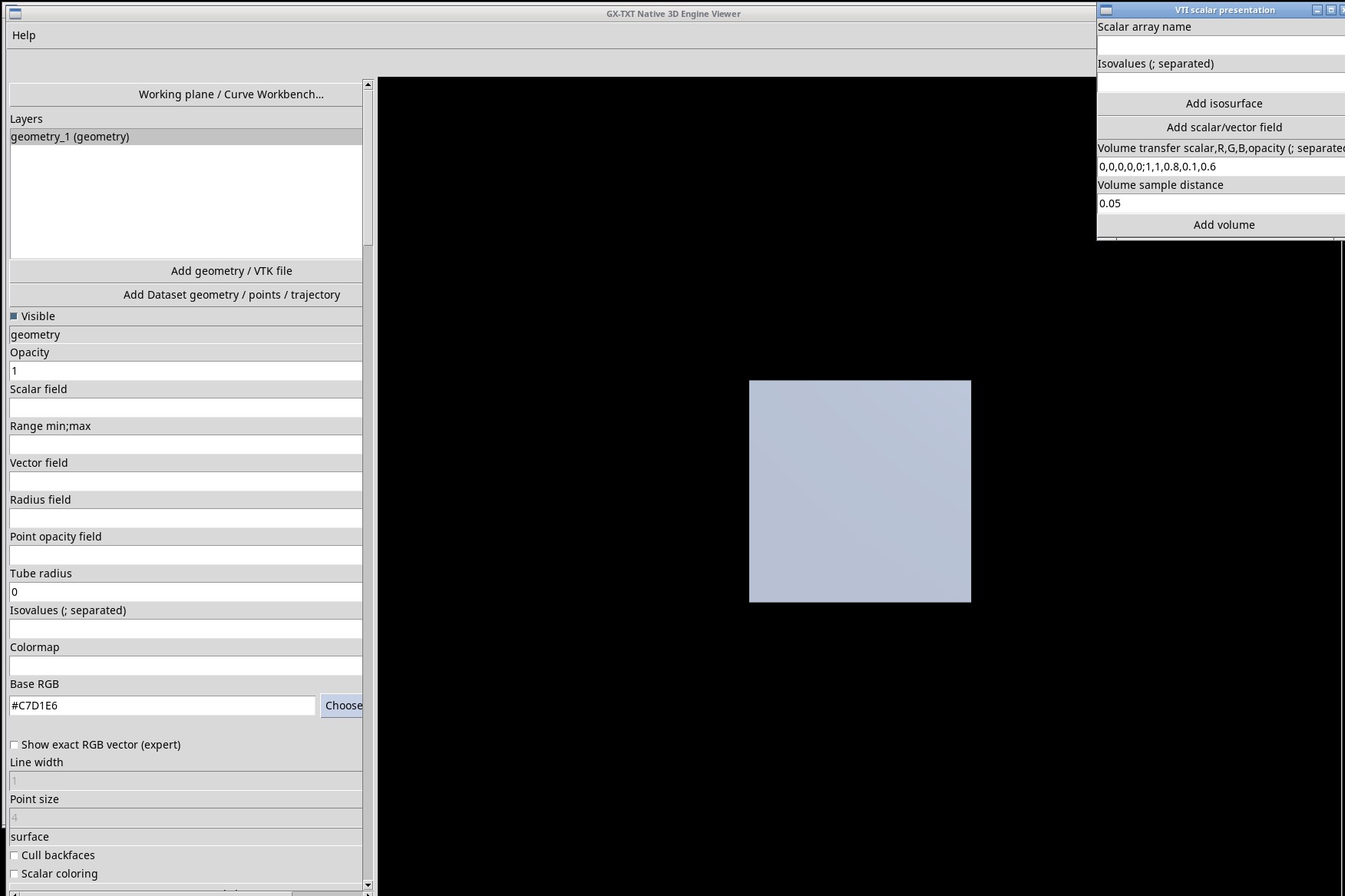
Click, drag, and wait for the frame
Click the cube to set the view direction. Its faces give axial views, edges give views along two directions, and vertices give views along three. Away from the cube, click the object briefly to pick a point. The status shows the layer and position. Highlighting a layer in Layers alone can cause fit_selection to return camera preset: NOT_FOUND. Pick a point on the canvas first, or use fit_object with the selected layer. Clicking the background returns No geometry at …. Left-drag over the canvas to orbit, middle-drag to pan, and use the wheel to zoom. Click Fit scene to bring the scene back into view.
When plane dragging is active or a gizmo handle is visible, the left button can manipulate the scene. Check the canvas to see which control is active. Wait for Full ready before picking a point, and distinguish a request still in progress from a click on the background. See the measurements chapter for how to use the picked point.
Commands and settings
- Camera position x;y;z
- Camera position as a world-coordinate triplet. Distance and direction relative to the target control the view.
- Camera target x;y;z
- Triplet for the point the camera looks at. Use the center of a region to aim at it.
- Camera up x;y;z
- Camera up vector. It must not be parallel to the viewing direction from the camera to the target.
- Projection ·
perspective - Distance changes the scale on the image plane.
- Projection ·
orthographic - Projection scale is independent of depth along the viewing direction.
- Camera preset ·
front - View from the −Y side to inspect the XZ plane.
- Camera preset ·
back - View from the opposite side along +Y.
- Camera preset ·
left - Look along X from the left side.
- Camera preset ·
right - Look along X from the opposite side.
- Camera preset ·
top - Look down along Z onto the XY plane.
- Camera preset ·
bottom - Look at the XY plane from below.
- Camera preset ·
isometric - Oblique view with a component along all three axes.
- Camera preset ·
fit_scene - Frame all scene geometry.
- Camera preset ·
fit_object - Frame the selected layer or object.
- Camera preset ·
fit_selection - Frame the renderer’s current selection.
- Apply camera preset
- Apply the current preset, then check the projection and orientation. Use the appropriate target for fit_object or fit_selection.
- Fit scene
- Frame the scene geometry. Use it after adding a layer outside the view or after zooming far in or out.
- canvas
- Use the canvas for picks and gestures. The cube at the top right accepts clicks on faces, edges, and vertices. Orbit, pan, and zoom control the camera.