

Files, canonical Datasets, and portability
Choose how to import files and canonical Datasets, bind data columns to coordinates, and transfer a scene to another Session.
Choose how to import your data
| Available input | Steps in Studio | Expected result |
|---|---|---|
| An OBJ, STL, STEP/STP, VTP, VTU, or VTI file | Use Add geometry / VTK file, select the file with the 3D filter, and confirm. For VTI, choose the operation in the separate dialog. | A layer with ID geometry_… and a copy of the file attached to the Session. The All filter also lists other files, but format validation still applies. Cancel leaves the scene as it was. |
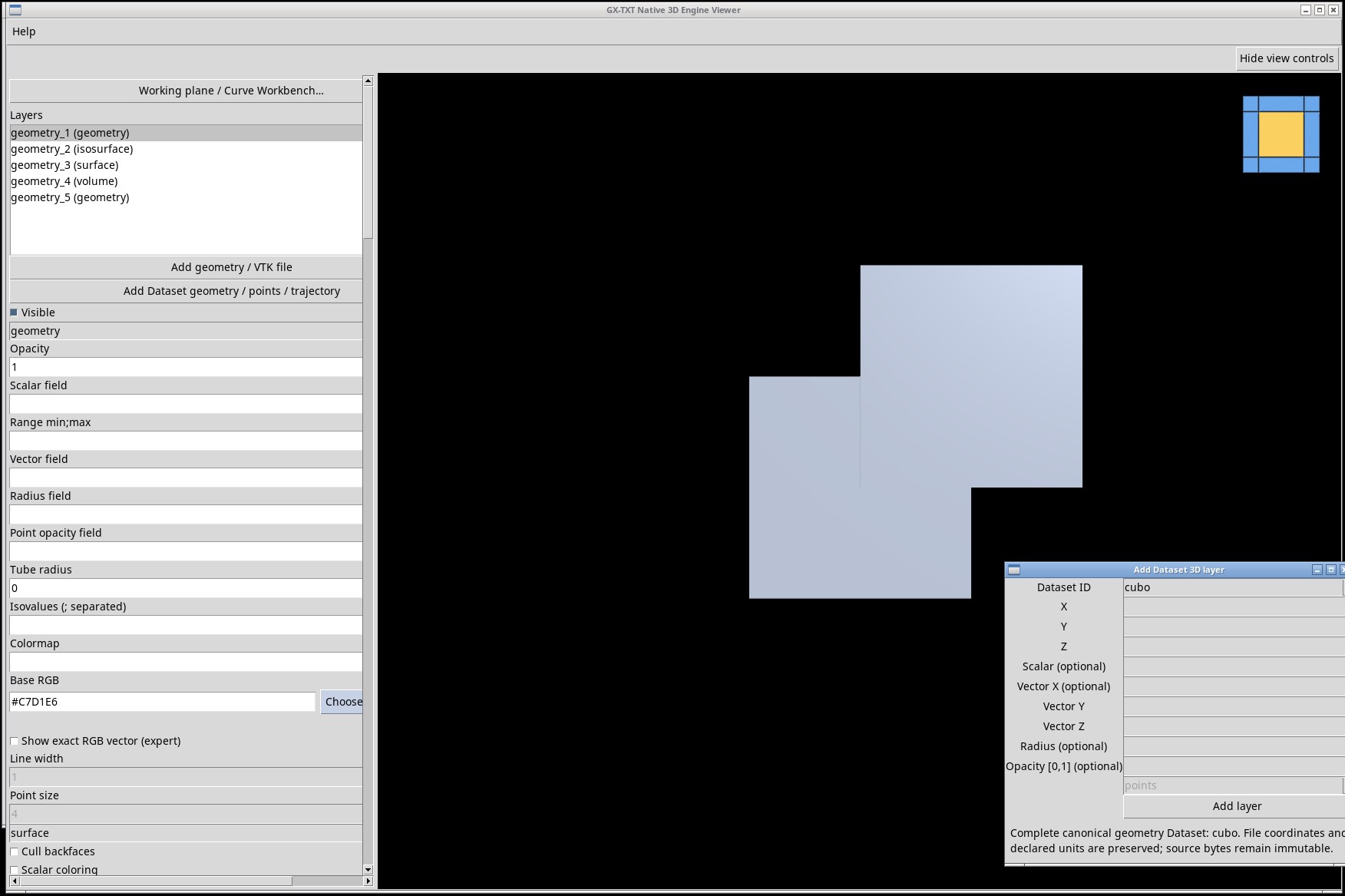
| A Dataset registered as geometry.mesh or model.cad | Add Dataset geometry / points / trajectory → Dataset ID → Add layer. | Imports the entire geometry in native coordinates. The X/Y/Z fields, optional roles, and layer type are disabled. |
| A tabular Dataset with a CSV payload | Add Dataset geometry / points / trajectory → ID → three numeric variables → points or trajectory. | A dataset_… layer built row by row. Acquisition prepares the Dataset, and the Studio command attaches it to the scene. On the Dataset tab, Activate Dataset and Open bring up the read-only CORE Scientific Dataset Viewer. To use the Dataset in the scene, return to the 3D Studio tile and select it through Add Dataset geometry / points / trajectory. |
| An existing layer | Select it in Layers to style it, use the gizmo, or use it as the source for an operation. | Studio reads the same payload again. Add two instances to compare independent settings. |
Bind columns without losing the reference frame
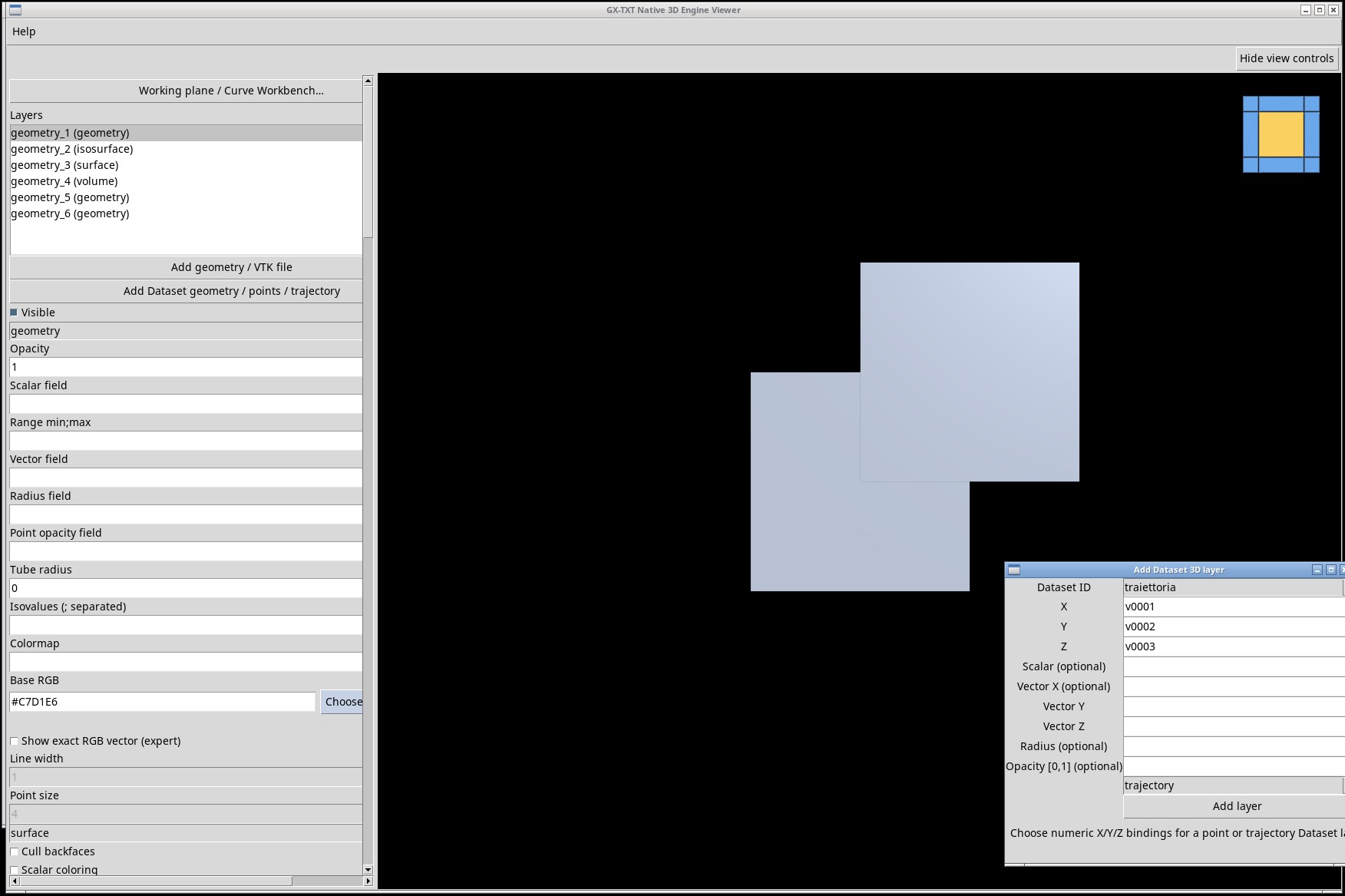
Import the exercise CSVs through Acquisition → Generic CSV. Add the file to the queue, set the ID and table.generic contract, and use Import into current Session. Open the Dataset registry and read the numeric column IDs. Studio proposes the first three enabled numeric IDs. Whenever you switch Datasets, check all three fields and clear any optional bindings you do not need. In P011-bis, Opacity can remain populated even after switching Sessions. If a reused ID points to a column outside [0,1], set Dataset point opacity: INVALID_ARGUMENT can recur on later renders. Check the field before adding the layer. If you already have an invalid scene, start again from a new Session or a valid copy. When a Dataset has fewer than three numeric columns, the extra fields can retain previous values. Prepare three consistent columns, for example Z=0 with the plane documented for truly 2D data, and check the IDs in the registry again.
Enter a column ID such as v0001 in each of X, Y, and Z. Coordinates, tolerances, radii, and distances use the units of the values. Check row order before creating a trajectory, since it connects samples in CSV order. points displays independent samples. Scalar specifies the quantity mapped to color. Vector X/Y/Z form a three-component vector in the same reference frame. An empty vector X field makes the loader omit the entire vector. If X is set, fill in Y and Z. Use Radius for a per-sample radius and Opacity for a weight from 0 to 1. Click Add layer and check the new row in the list.
Transfer a scene to another Session
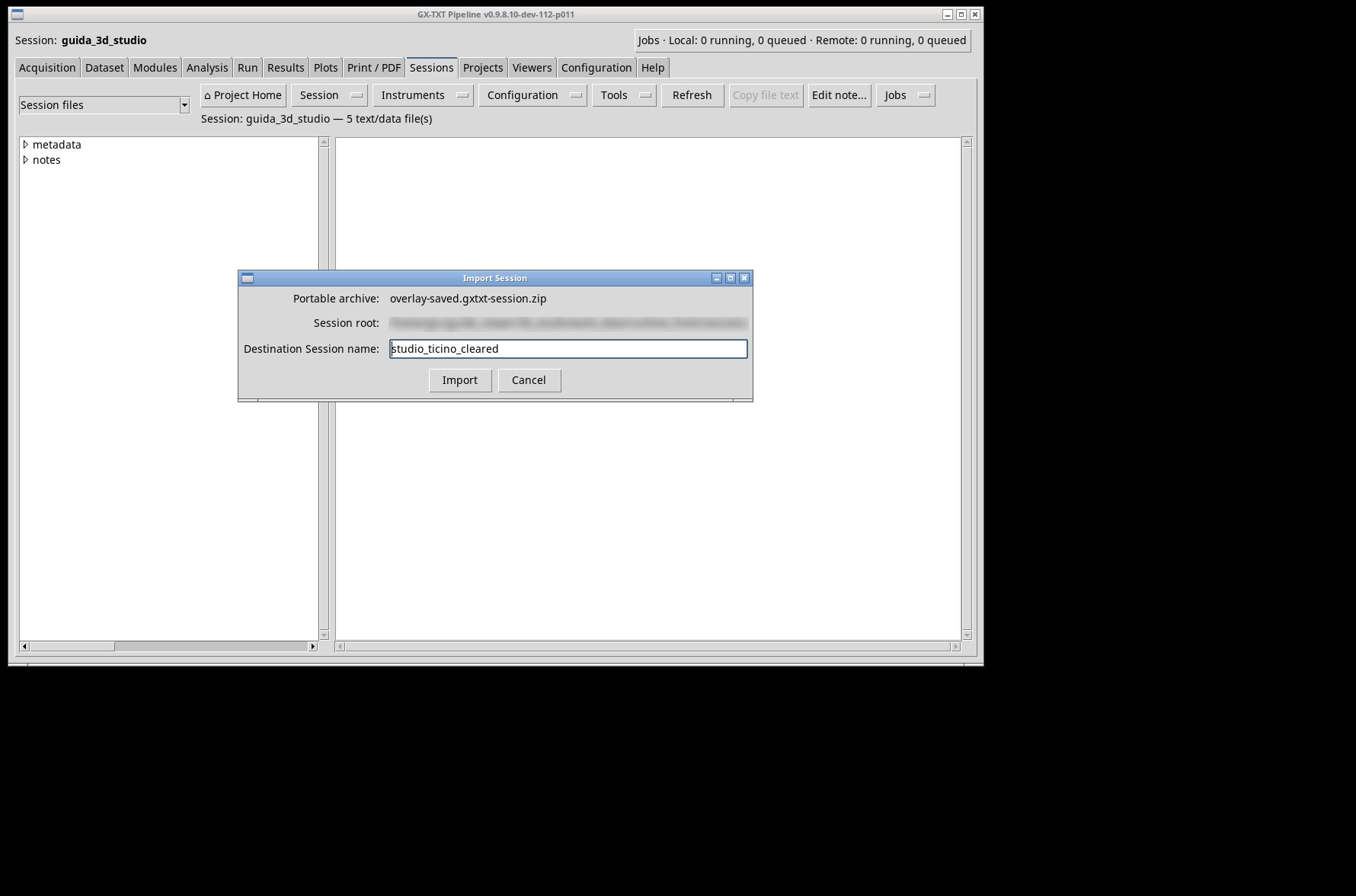
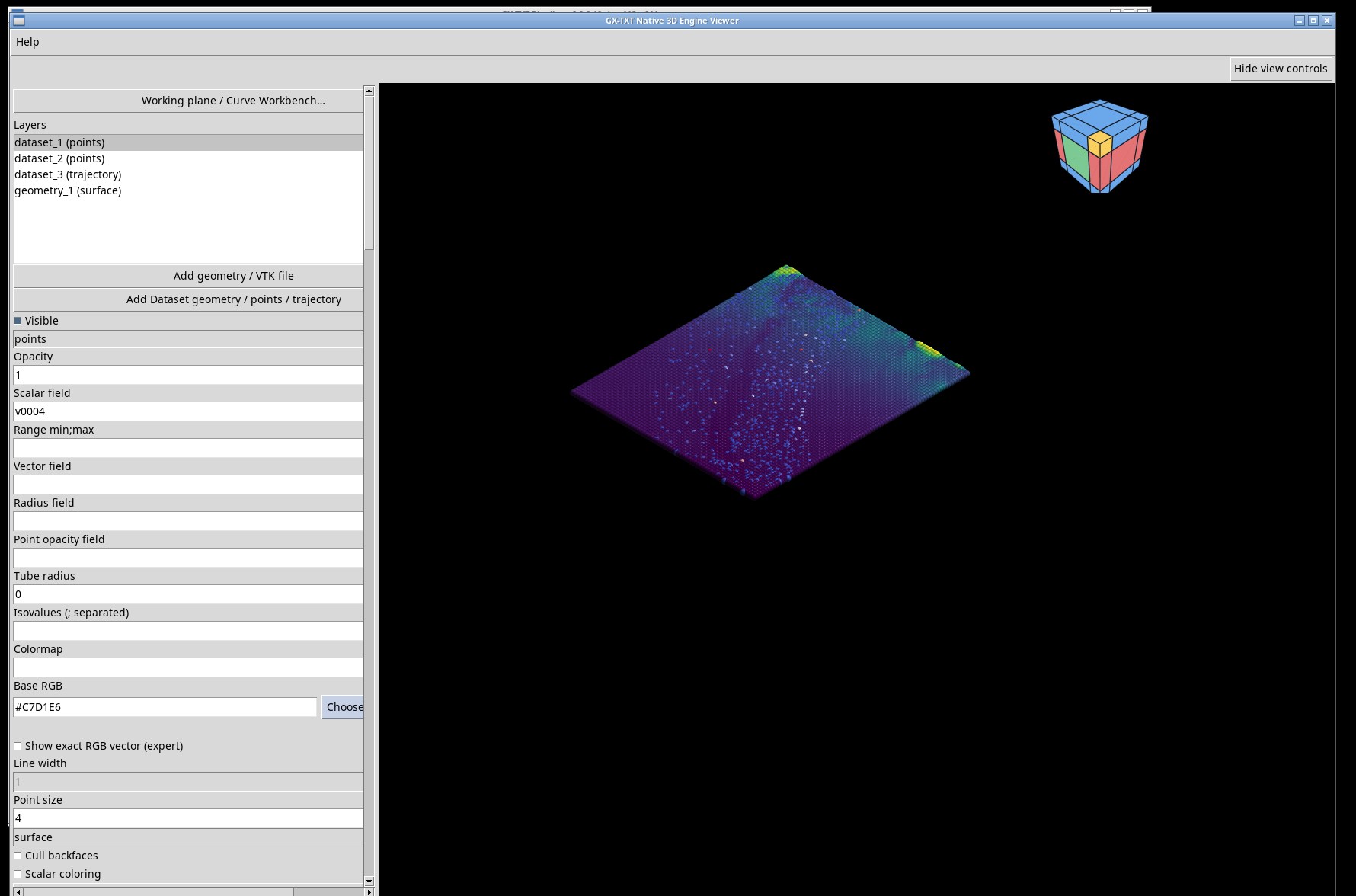
Keep the source Session before transferring the scene. Explicitly save the full scene in Session files → Session → Save configuration. Changes appear in the viewer as soon as you apply them. In P011-bis, reopening the Session or exporting it as a ZIP before saving may restore only the layers and camera from the last manifest. Then use Session files → Tools → Export Session… to create a portable archive. Read the attachment count and external dependencies reported in the confirmation. In a fresh profile, use Session files → Tools → Import Session…, select the ZIP, and give the imported Session a new name. Open 3D Studio again from Viewers, check that the layers appear, test a frame or trajectory, and compare the camera and styles. Studio identifies files by content and by path in the Session. Global rendering preferences come from the receiving profile. Save separately any output you wrote outside the Session.
If a file is missing or has changed, keep the original package and work on a second imported copy. The renderer verifies the declared identity of the resource. Loading a different version creates a new scientific reference. To retain the original, reimport the intact ZIP under a new name and compare the result. In a test, modified bytes prevented Studio from opening in the receiving profile. In the restored copy, the intact ZIP recreated four objects and retained the same camera. If the archive has external dependencies, obtain the required files and plug-ins or recreate the corresponding input in the receiving profile.
Commands and settings
- Add geometry / VTK file
- Opens the file picker for STL, OBJ, STEP/STP, VTP, VTU, and VTI. Selecting a VTI opens the dialog with three operations.
- Add Dataset geometry / points / trajectory
- Choose a Dataset from the Session. Bindings are disabled for canonical geometry. For CSV, set X/Y/Z and any optional fields.
- Dataset ID
- Choose a Dataset from the Session. Bindings are disabled for canonical geometry. For CSV, set X/Y/Z and any optional fields.
- X
- Numeric column ID for X. Check the suggested column when switching Datasets.
- Y
- Numeric column ID for Y, in the same reference frame as the other coordinates.
- Z
- ID for elevation or the third coordinate. For planar data, use a constant numeric column and document what it represents.
- Scalar (optional)
- Optional numeric column ID for scalar coloring.
- Vector X (optional)
- ID of the first vector component. Leave it empty to omit the whole vector.
- Vector Y
- ID of the second component. Fill it in together with vector X and Z.
- Vector Z
- ID of the third component. Fill it in together with vector X and Y.
- Radius (optional)
- Optional column ID for a per-row radius. Clear it if the current Dataset does not contain this variable.
- Opacity [0,1] (optional)
- Optional column ID for a weight in [0,1]. Clear it when changing Datasets if you do not need it. P011-bis can retain the previous value even across Sessions.
- Dataset layer type ·
points - Adds one sample for each valid row. Configure the size or optional roles as needed.
- Dataset layer type ·
trajectory - Connects rows in CSV order. Check the order and units before applying Tube radius.
- Add layer
- Creates a layer from the Dataset and current bindings. Check the list and render. Canonical geometry ignores the table bindings.
- Complete canonical geometry Dataset: cubo. File coordinates and declared units are preserved; source bytes remain immutable.
- Check whether Studio identified complete canonical geometry or needs numeric column bindings.