

Getting started with 3D Studio
Open the 3D Studio viewer, identify the active Session, and use the Help menu and status indicators before loading data.
3D Studio is in alpha. The viewer will be expanded substantially. This guide describes the features available in the version tested.
Open the viewer and identify the active Session
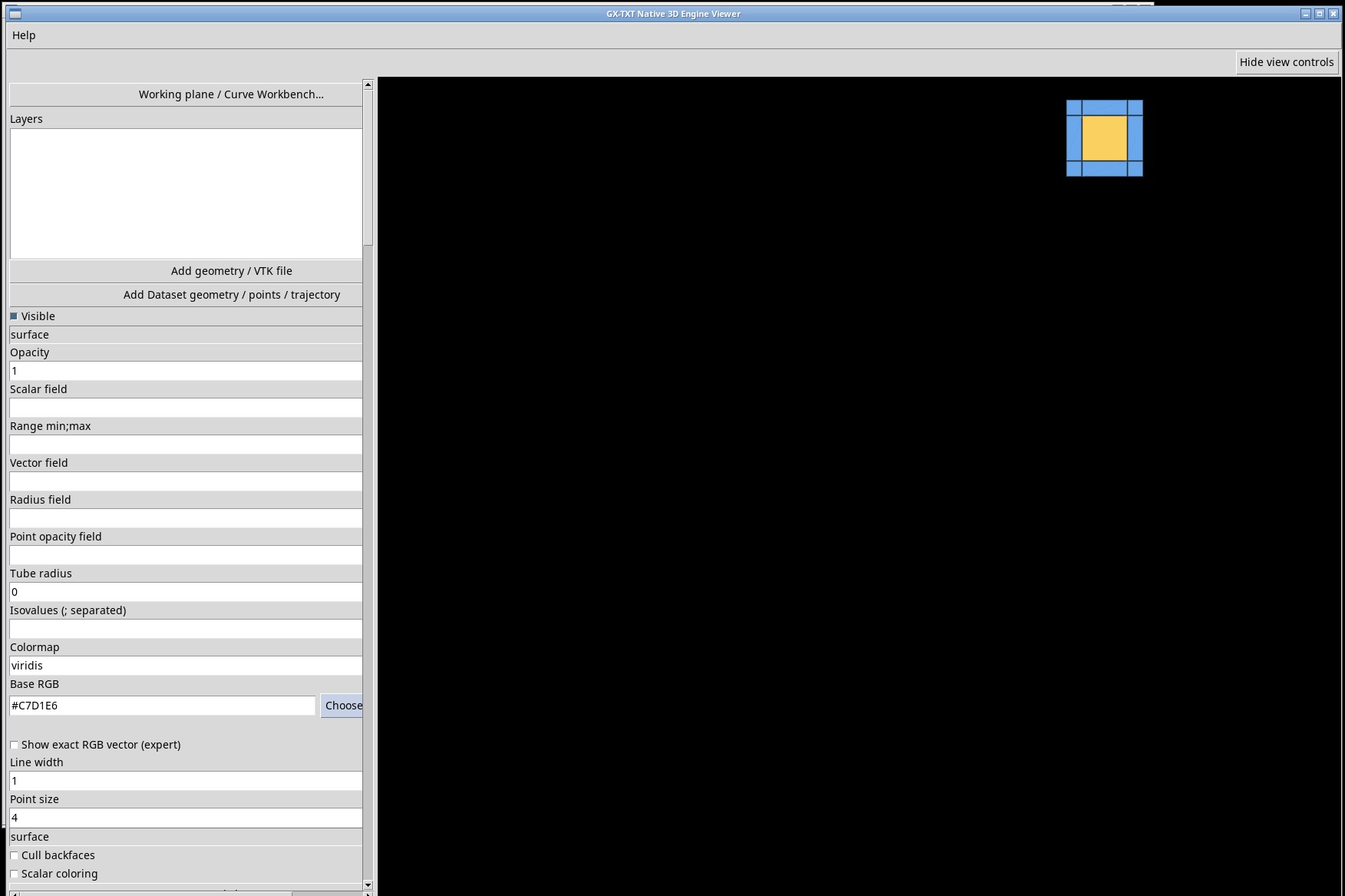
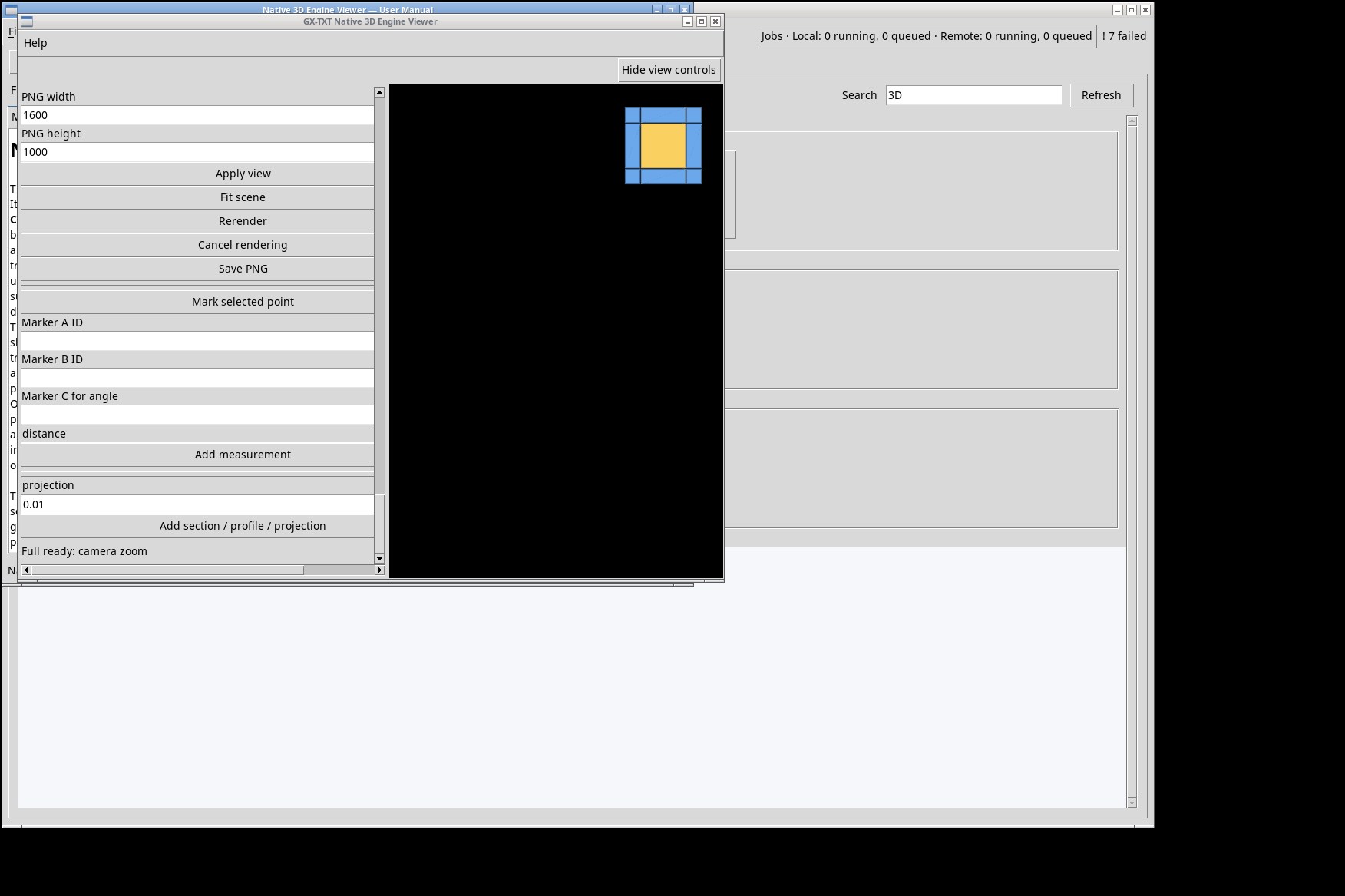
Create or open a Session from the Sessions tab on the Session files page. If you open the viewer tile without a Session, GX-TXT stays in the main window and prompts you to open one. Go to Viewers, find 3D Studio, and open its tile. The window is titled GX-TXT Native 3D Engine Viewer. Any layers you add belong to the active Session. The Layers list contains the registered inputs. A single layer can produce multiple native objects, as with an assembly or a computed result.
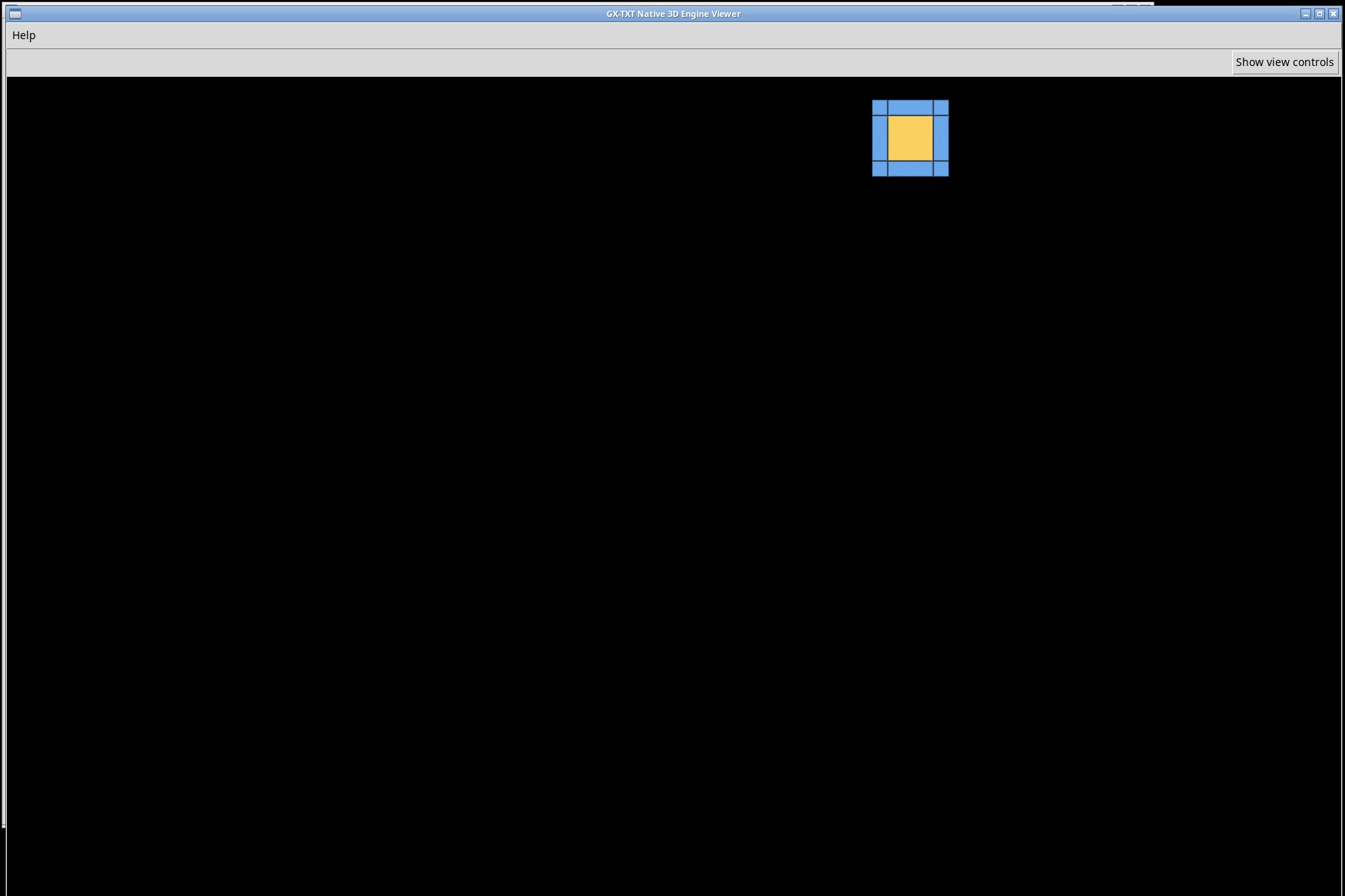
The canvas is on the right. The colored cube at the top right orients the camera. The left sidebar scrolls both vertically and horizontally. Scroll to the bottom for status, measurements, and curves. The mouse wheel scrolls the controls over the sidebar and zooms over the canvas. Hide view controls gives the canvas more room. Click Show view controls to restore the controls.
Help and status indicators
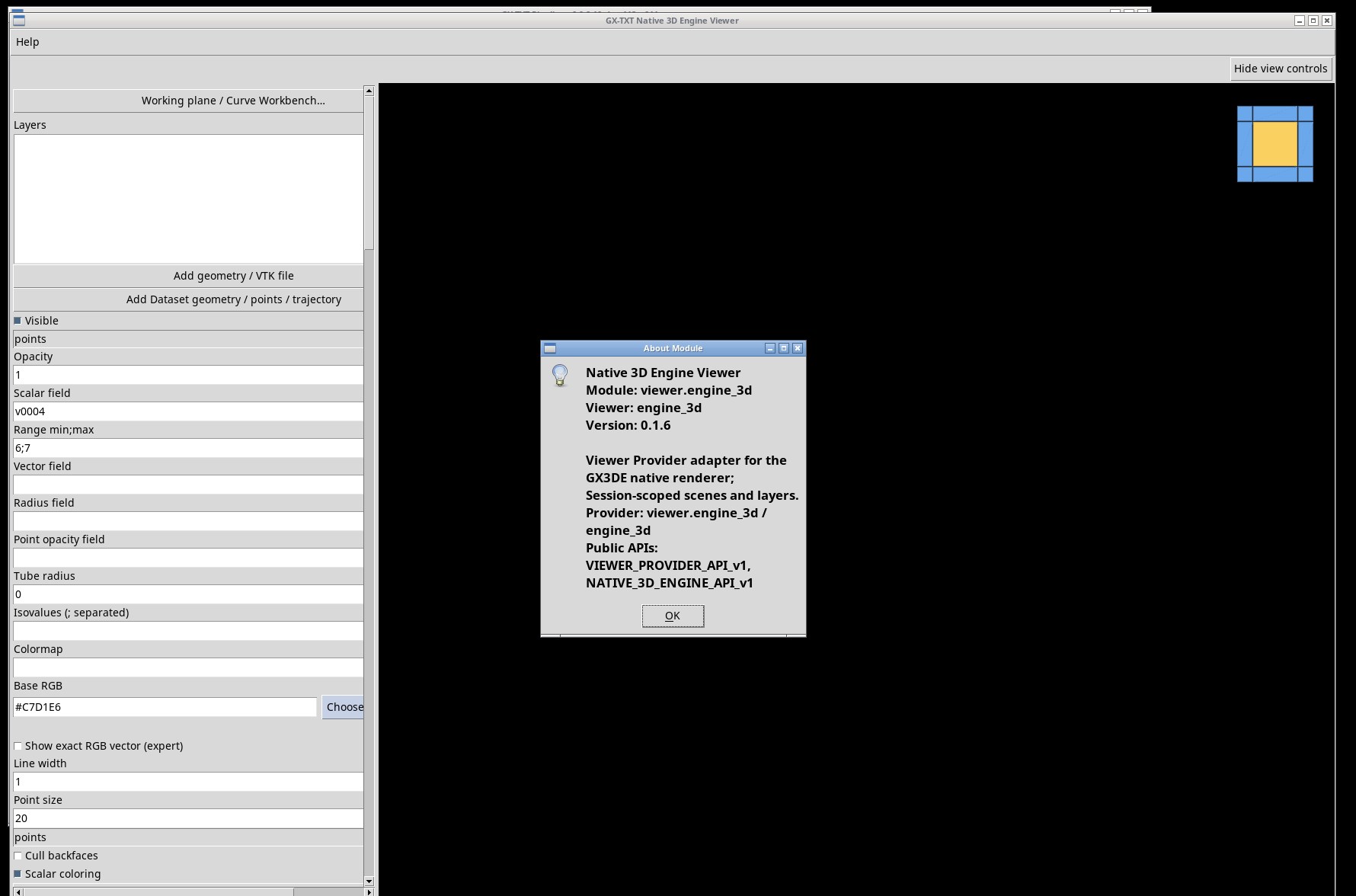
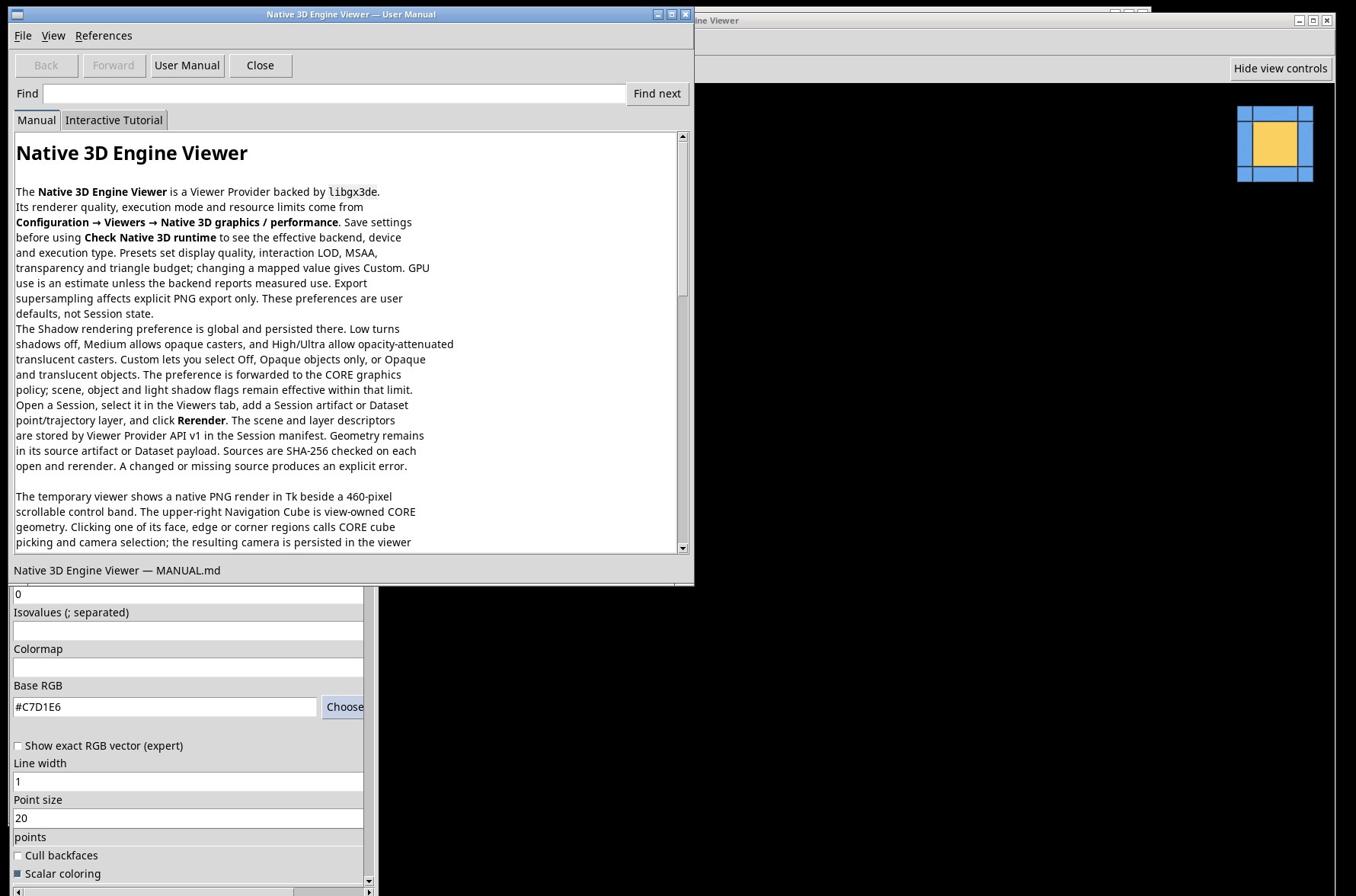
The Help menu is in the top bar. User Manual… opens the module documentation, and About Module… displays its identity. With the window focused, press F1 to open the same Native 3D Engine Viewer — User Manual window. Close the manual to return to the canvas.
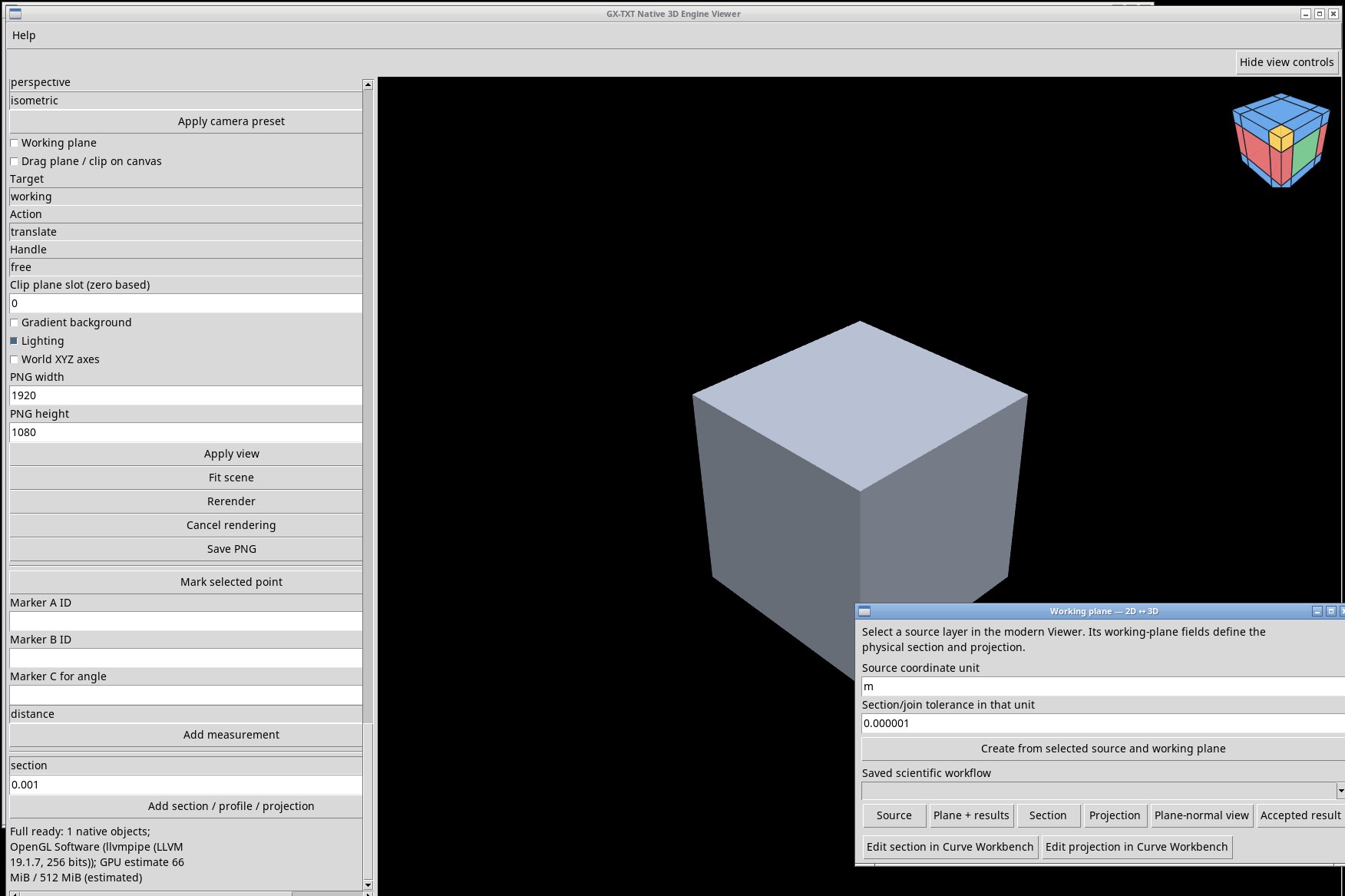
When Rendering… appears, wait for the image to stabilize before using the pick data. Full ready indicates that a full frame is ready and shows the backend and memory estimate when available. A missing-selection message tells you which action to repeat. A rendering error points to the engine or a parameter saved in the scene. See the renderer chapter for details and recovery tests.
Commands and settings
- Hide view controls
- Click the button above the canvas. Its label changes to Show view controls when the sidebar is hidden. Click it again to restore the sidebar.
- side.scroll
- Scroll vertically in the sidebar and use its horizontal scrollbar to reach the ends of long fields. Use the wheel over the canvas to zoom.
- Layers
- Lists the registered layers you can select in the current scene.
- baseColorColor.entry
- Set the base color with #RRGGBB. Enable exact mode for a higher-precision RGB triplet.
- Choose color…
- Opens the layer’s base color picker. Select a color to update the field and click Apply layer to confirm.
- baseColorColor.error
- This message indicates an invalid color. Enter a valid #RRGGBB code or normalized RGB triplet.
- backgroundRgbColor.entry
- Enter a #RRGGBB code and apply the view to confirm.
- Choose color…
- Open the color picker and confirm or cancel the selection. Click Apply view to commit the change.
- backgroundRgbColor.error
- This message indicates an invalid color. Enter a valid #RRGGBB code or normalized RGB triplet.
- backgroundBottomRgbColor.entry
- Enter a #RRGGBB code and apply the view to confirm.
- Choose color…
- Open the color picker and confirm or cancel the selection. Click Apply view to commit the change.
- backgroundBottomRgbColor.error
- This message indicates an invalid color. Enter a valid #RRGGBB code or normalized RGB triplet.
- lightingColorColor.entry
- Enter a #RRGGBB code and apply the view to confirm.
- Choose color…
- Open the color picker and confirm or cancel the selection. Click Apply view to commit the change.
- lightingColorColor.error
- This message indicates an invalid color. Enter a valid #RRGGBB code or normalized RGB triplet.
- Gradient background
- Use two background colors after clicking Apply view. With the checkbox cleared, Studio uses the base background color.
- Apply view
- Applies the camera, clipping, working plane, background, lights, and axes together. Read the status and compare the canvas.
- Full ready: 0 native objects; OpenGL Software (llvmpipe (LLVM 19.1.7, 256 bits)); GPU estimate 32 MiB / 512 MiB (estimated)
- Read progress, failures, the backend, and the object count. The count includes derived objects sent to the renderer.
- side.xbar
- Move the horizontal scrollbar to reach the right end of long rows. The camera stays in place.
- side.bar
- Move the vertical scrollbar to reach the timeline, view controls, PNG controls, measurements, and status. Scrolling leaves the scene as it was.
- Open Help from the top bar and choose User Manual… or About Module…. F1 opens the module manual.