Rendering a field as a volume
Render the WOA23 temperature field as a volume in 3D Studio and compare the effects of different transfer-function settings.
Exercise files
- woa23_natl_t_z300.vti (extract the ZIP first)
Procedure in 3D Studio
Use the WOA23 z300 temperature field from the previous exercises. Keep the camera and sample distance fixed for the comparison. World Ocean Atlas 2023
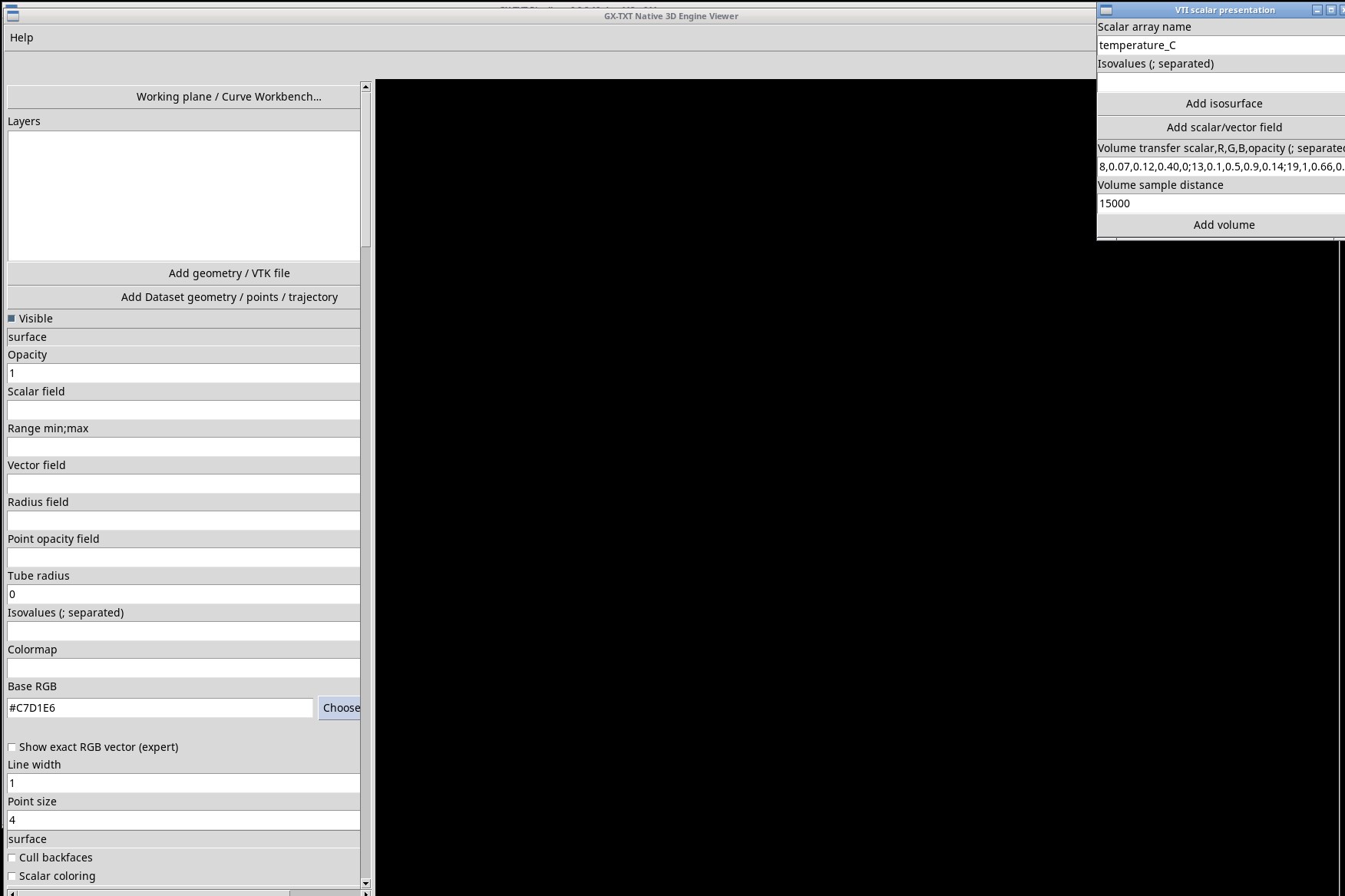
- Open the VTI, select
temperature_C, and set Volume sample distance to15000in the rendering copy’s coordinate units. - Enter the nodes
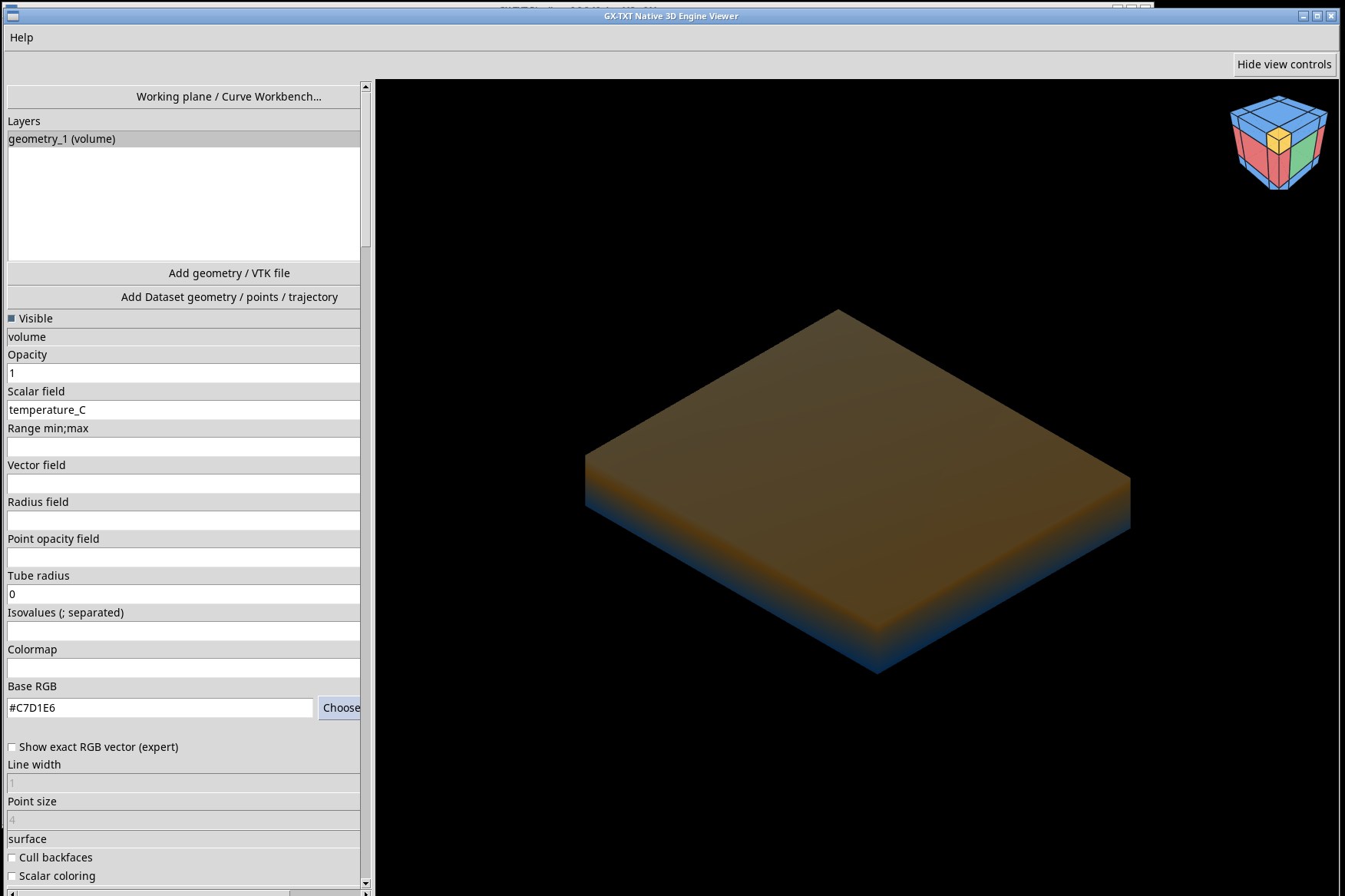
8,0.07,0.12,0.40,0;13,0.1,0.5,0.9,0.14;19,1,0.66,0.16,0.5;27,1,0.96,0.8,0.85. Click Add volume, then Fit scene. - Hide the first volume with Visible and Apply layer. Reload the VTI and enter
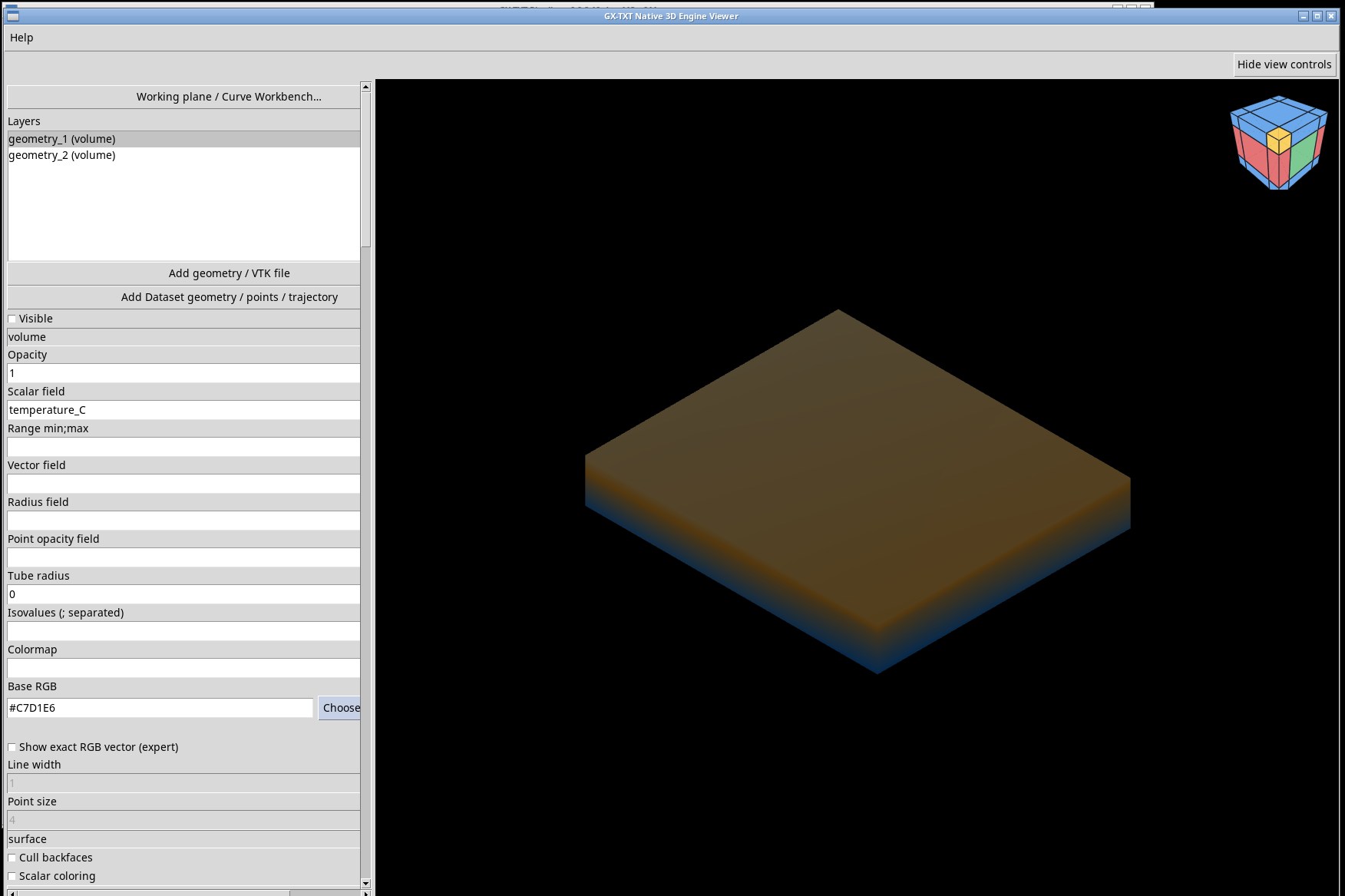
8,0.07,0.12,0.40,0;13,0.1,0.5,0.9,0.45;19,1,0.66,0.16,0.08;27,1,0.96,0.8,0.03. Use the same sampling step.
The second transfer function progressively attenuates the warmer parts and makes the cooler parts contribute more visibly along the viewing rays. Both functions change the image while preserving the temperature samples.
Screenshots and results