Exporting OISST samples as a video
Set up a reference scene, review the NOAA OISST samples, and export the sequence from 3D Studio as an MP4 file.
Exercise files
- sst_20200317.vtp (extract the ZIP first)
- sst_20200319.vtp (extract the ZIP first)
- sst_20200322.vtp (extract the ZIP first)
- sst_riferimento_video.vtp (extract the ZIP first)
- sst_20200317_22.mp4
Procedure in 3D Studio
Start from the OISST exercise timeline in a dedicated Session. The video shows all three NOAA samples using the same camera and color scale. NOAA NCEI OISST v2.1
- In P011-bis, also load
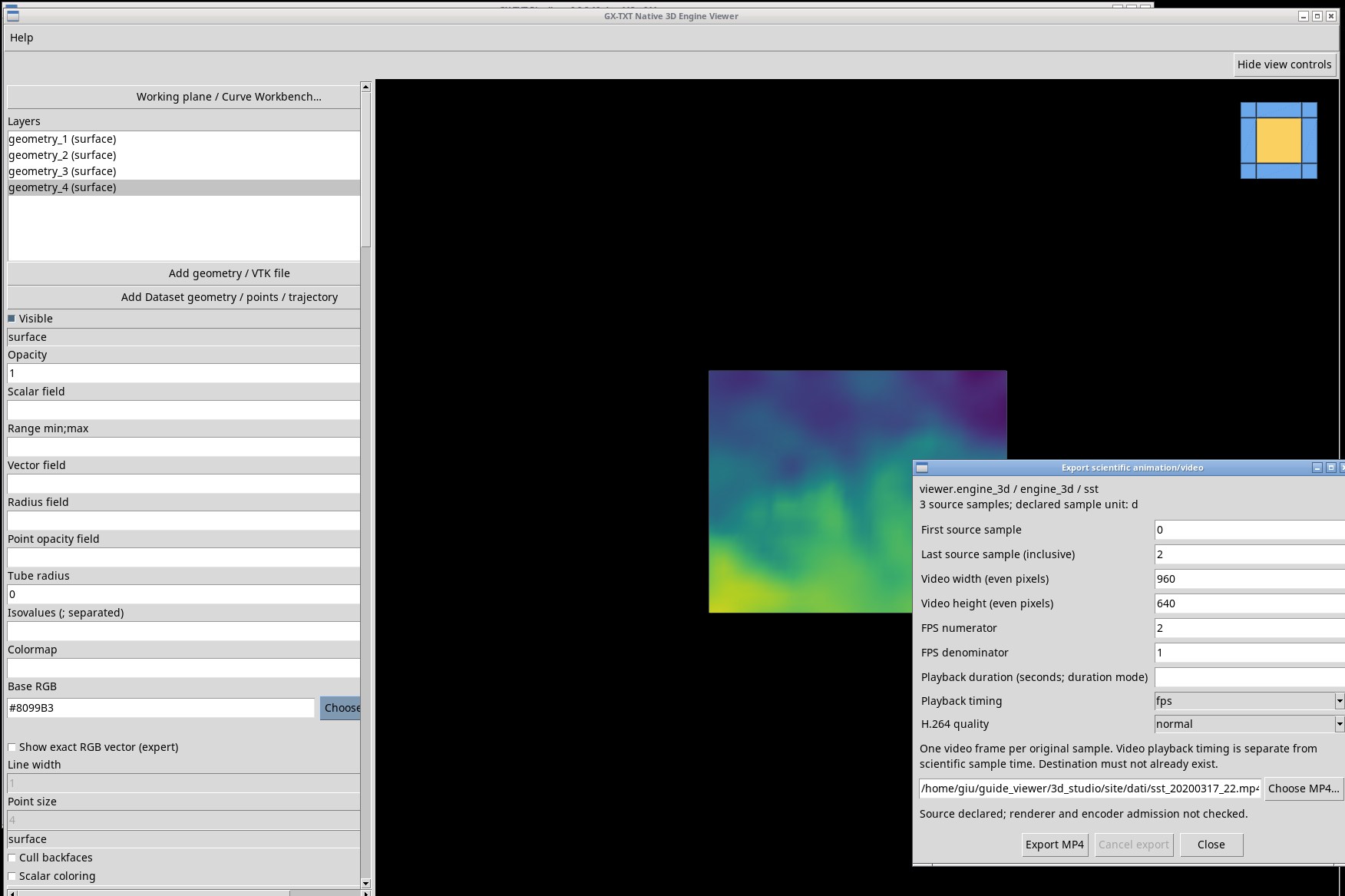
sst_riferimento_video.vtp. It is a static frame below the plane at Z=−1000 m. Keep it visible and outside the track. Every frame then has 3D extent, while SST data stay at Z=0. The frame serves as a visual reference. - Open Export scientific animation/video…. Set First to 0 and Last to 2, use 960×640, set
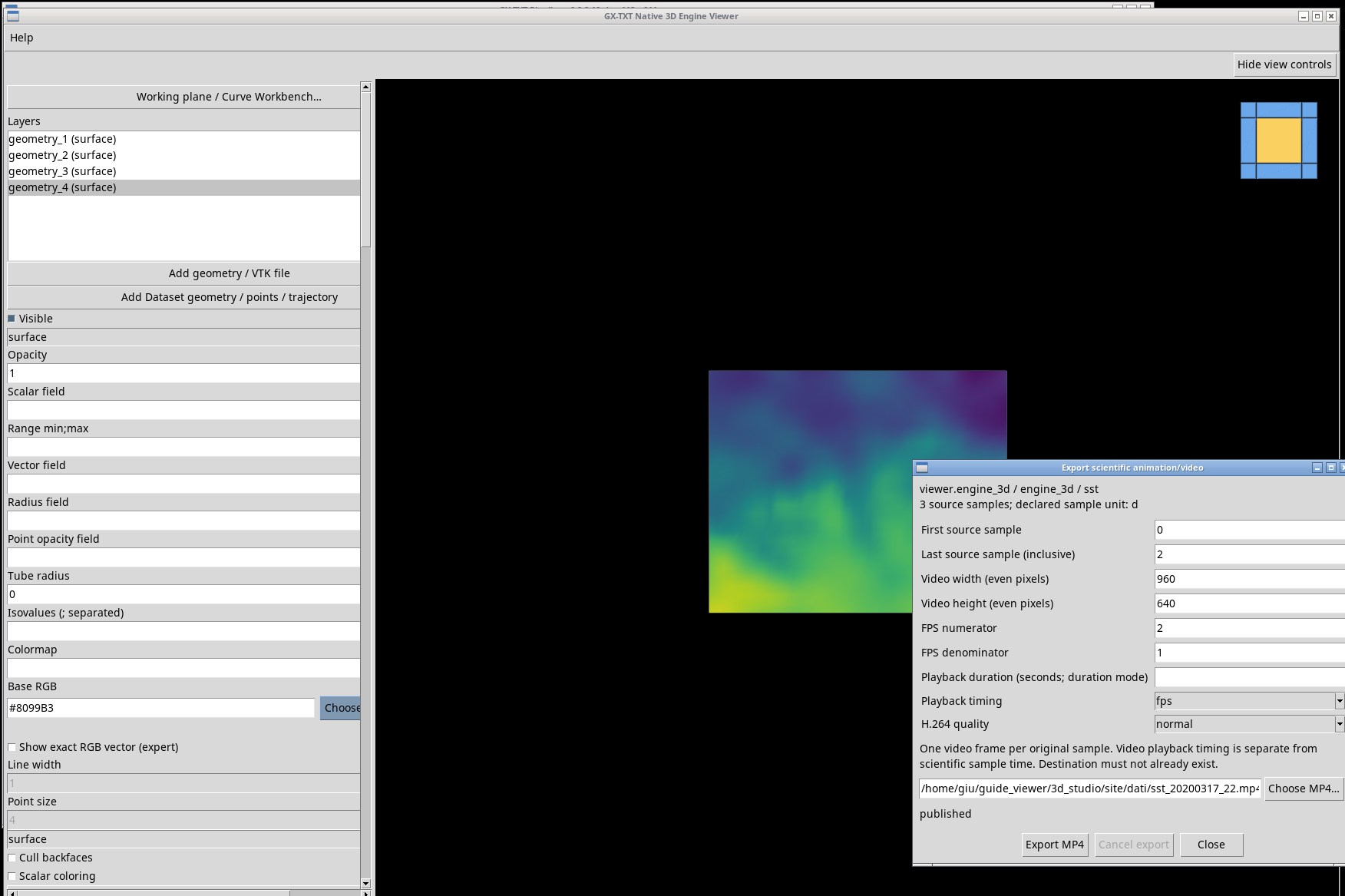
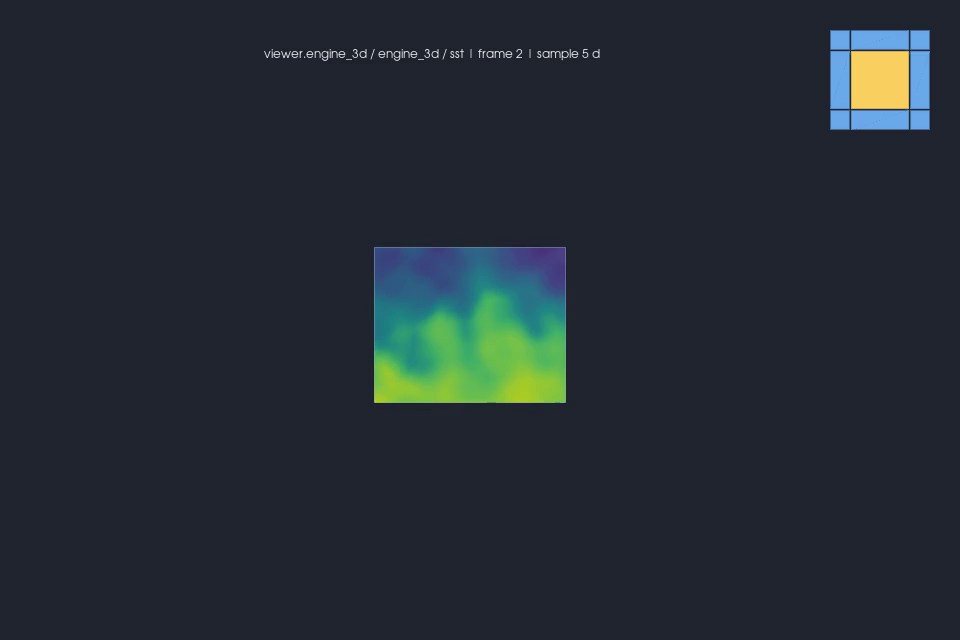
fpsto 2/1, and choosenormalquality. Choose a new MP4 path and click Export MP4. - Wait for published, then open the video. Check that its three captions correspond to days 0, 2, and 5. To verify the frame count and running time, use your player or
ffprobe -v error -select_streams v:0 -count_frames -show_entries stream=codec_name,width,height,avg_frame_rate,nb_read_frames,duration file.mp4.
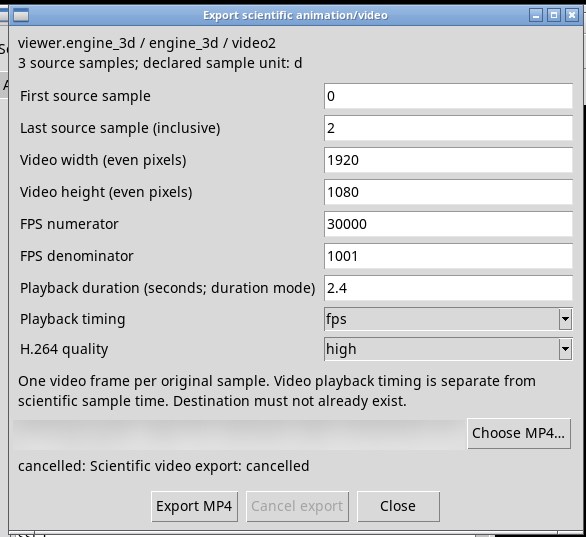
The reference export is H.264, 960×640, with three frames at 2/1 fps and a duration of 1.5 s. To try duration mode, set 2.4 s at 480×320 with draft quality. The separate test produced three frames at 5/4 fps. With the reference frame hidden, the Session remains planar, and P011-bis may show Native scientific renderer failed its frame request after you open the dialog. If it does, first check that the reference frame is visible.
Screenshots and results