

Renderer, quality, and recovery
Identify the active renderer and find quality, interaction, and recovery controls for working with complex 3D scenes.
Identify the active renderer
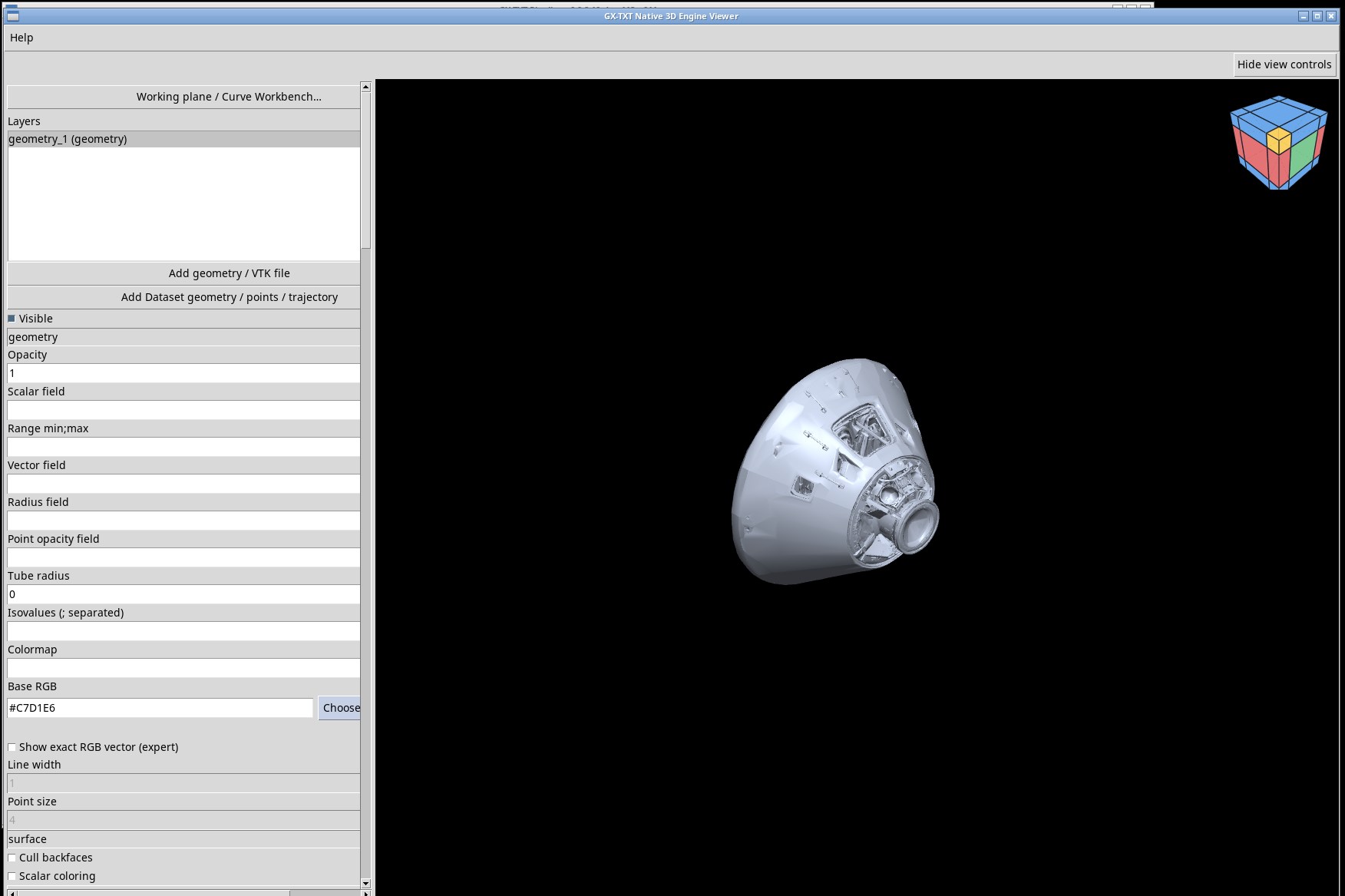
Rerender evaluates the current state and source references again. For demanding scenes, a preview may appear before the final render. Cancel rendering interrupts the current render. Wait for a stable scene before retrying. During a render, a new click may be deferred with Wait for the current Native3D transaction before starting a gesture. After Native rendering cancelled, you can use Rerender. The test confirmed that the layer remained available. For a gesture that supports rollback, press Esc before release to cancel it. A background click, a deferred pick, and a rendering error have different effects. Read the status and test a small resource if the problem seems tied to loading.
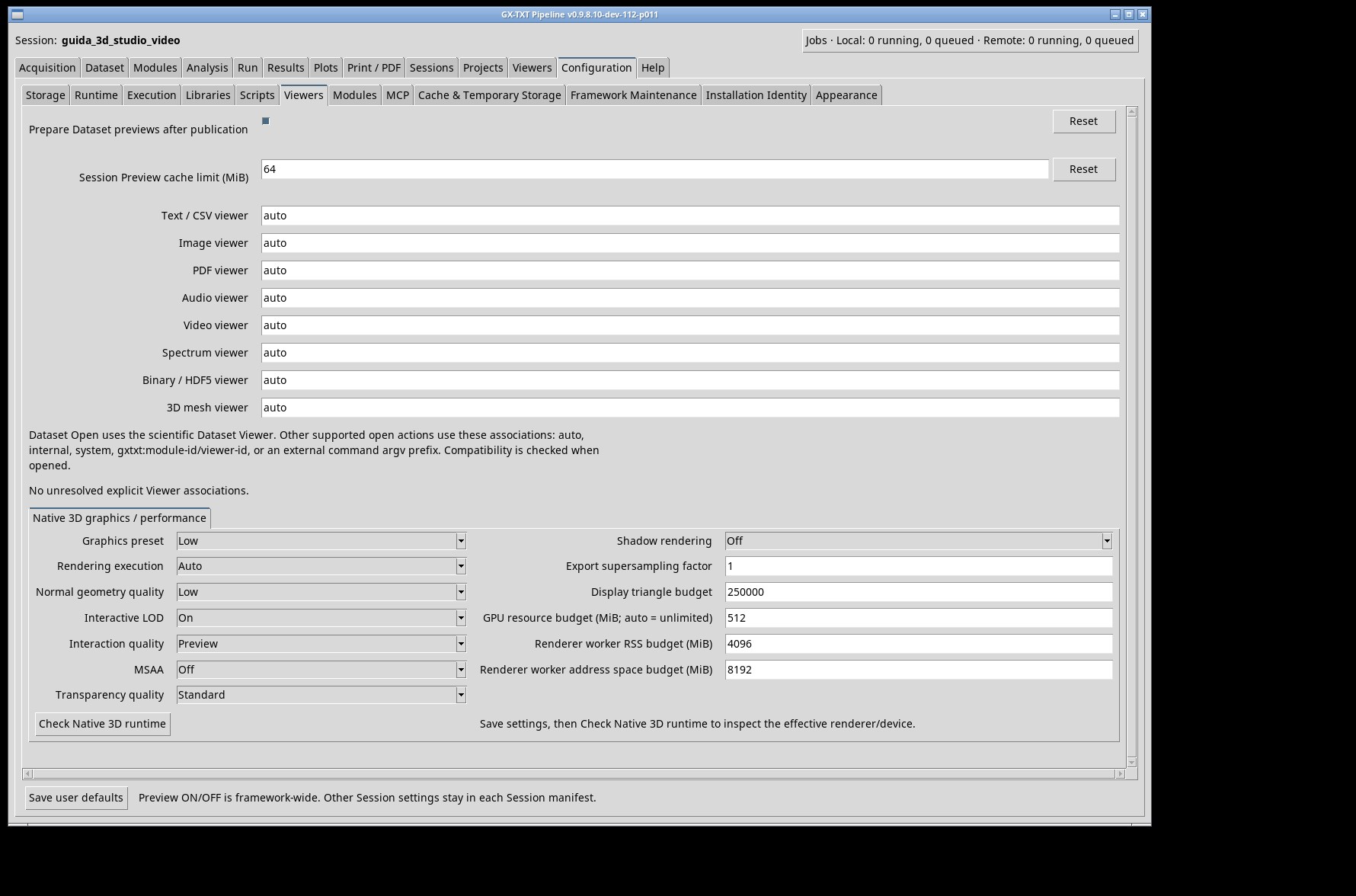
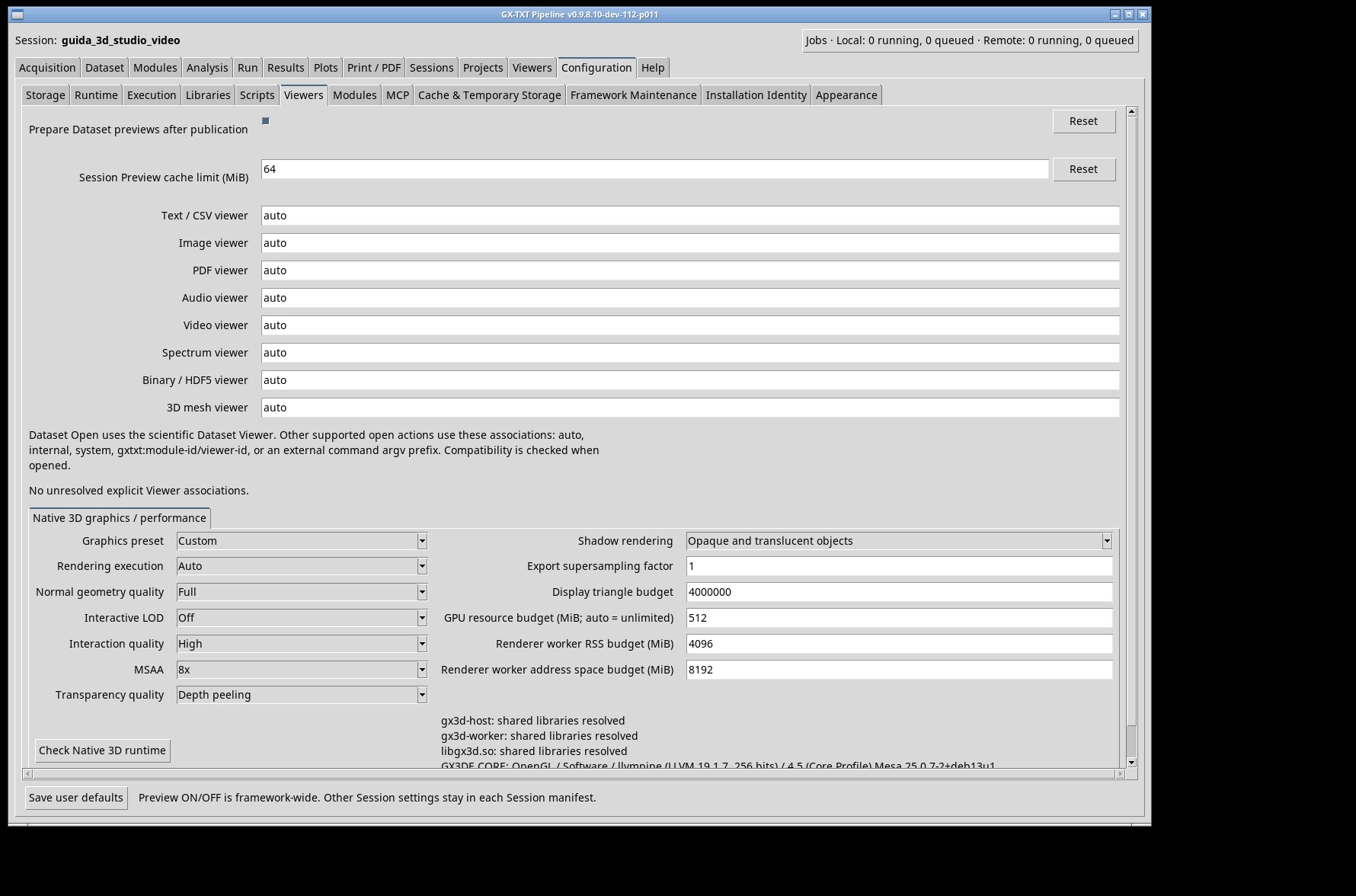
To check the installation settings, open Configuration → Viewers → Native 3D graphics / performance. Save any preference changes before running Check Native 3D runtime. Check the libraries, backend, active execution mode, hardware or software renderer, and whether a memory estimate is available. The GPU estimate and any process memory measurement describe different quantities. Preferences are saved in the profile, and the view is saved in the Session.
Set quality, interaction, and resource limits
For dense assets, start at a lower view quality and check the shape, source identity, and whether rendering completes. The Low, Medium, High, and Ultra presets populate their associated settings, while Custom lets you set them explicitly. Rendering execution controls execution. Auto can fall back to Software when hardware rendering fails along a supported path. Hardware requires an accelerated device. On the test profile the runtime check returned hardware rendering was required but the active device is not hardware with llvmpipe. Software opened llvmpipe, and Auto selected the same backend.
Set normal quality, interaction LOD, and quality during gestures separately. Increase MSAA to smooth edges on supported profiles. Transparency controls how overlapping surfaces are combined. Shadow rendering sets the global maximum for shadows, whose appearance also depends on the scene. Export supersampling factor applies to PNG export. Display triangle budget limits display complexity, GPU budget sets an engine threshold, and RSS and address space apply to the worker process. Before increasing a limit, try a smaller resource and check which limit was reached.
Commands and settings
- Rerender
- Renders the scene again using the applied parameters and Session references. It can reuse data that is already ready.
- Cancel rendering
- Stops the current render request. Wait until the control returns before rerendering or trying another pick.
- Graphics preset ·
Low - Low quality, LOD On/Preview, MSAA Off, Standard transparency, Shadows Off, and a budget of 250,000 triangles.
- Graphics preset ·
Medium - Medium quality, LOD On/Low, MSAA 2×, Standard transparency, opaque shadows only, and a budget of 500,000 triangles.
- Graphics preset ·
High - High quality, LOD On/Medium, MSAA 4×, Depth peeling, translucent shadows included, and a budget of 1,000,000 triangles.
- Graphics preset ·
Ultra - Full quality, LOD Off, MSAA 8×, Depth peeling, translucent shadows included, and a budget of 4,000,000 triangles.
- Graphics preset ·
Custom - Keeps the values chosen for each control. Changing a coupled setting may switch the preset to Custom.
- Rendering execution ·
Auto - Selects a compatible execution path and can retry in software for certain startup errors.
- Rendering execution ·
Hardware - Requires hardware acceleration. Check the actual result after saving.
- Rendering execution ·
Software - Requires Mesa software rendering, tested here with llvmpipe.
- Normal geometry quality ·
Preview - Prioritizes speed when getting an overview of the model.
- Normal geometry quality ·
Low - Reduces geometry detail for large inputs.
- Normal geometry quality ·
Medium - Uses an intermediate level of detail.
- Normal geometry quality ·
High - Increases detail below Full level.
- Normal geometry quality ·
Full - Uses the full normal quality permitted by the source and policy.
- Interactive LOD ·
Off - Disables replacement by the interactive quality level.
- Interactive LOD ·
On - Uses Interaction quality during manipulation.
- Interaction quality ·
Preview - Uses minimal detail during a gesture.
- Interaction quality ·
Low - Uses a low level of detail during manipulation.
- Interaction quality ·
Medium - Uses an intermediate level of detail during manipulation.
- Interaction quality ·
High - Uses the highest detail this selector offers during a gesture.
- MSAA ·
Off - Disables multisampling.
- MSAA ·
2x - Requests two antialiasing samples per pixel.
- MSAA ·
4x - Requests four samples.
- MSAA ·
8x - Requests eight samples on a compatible profile.
- Transparency quality ·
Standard - Uses standard compositing for transparent surfaces.
- Transparency quality ·
Depth peeling - Separates overlapping layers by depth at additional cost.
- Shadow rendering ·
Off - Disables shadows globally.
- Shadow rendering ·
Opaque objects only - Includes contributions from opaque surfaces.
- Shadow rendering ·
Opaque and translucent objects - Includes contributions from opaque surfaces and attenuated contributions from translucent surfaces.
- Export supersampling factor
- Integer supersampling factor from 1 to 4 for PNG export. Higher values increase rendering cost.
- Display triangle budget
- From 1,000 to 4,000,000 triangles for the on-screen display. Reduce the budget for a large asset and compare the render.
- GPU resource budget (MiB; auto = unlimited)
- Use Auto or 16–16384 MiB. Compare the renderer’s estimate with the actual limit.
- Renderer worker RSS budget (MiB)
- From 128 to 65536 MiB of resident memory for the worker. Exceeding this limit can interrupt the work.
- Renderer worker address space budget (MiB)
- From 512 to 65536 MiB of address space for the worker. This is separate from the resident-memory limit.
- Check Native 3D runtime
- Reads the runtime status using saved preferences. Reports libraries, backend, execution mode, device, and estimates.
- gx3d-host: shared libraries resolved gx3d-worker: shared libraries resolved libgx3d.so: shared libraries resolved GX3DE CORE: OpenGL / Software / llvmpipe (LLVM 19.1.7, 256 bits) / 4.5 (Core Profile) Mesa 25.0.7-2+deb13u1 GPU resource estimate: 4.2 MiB (estimated); measured usage: unavailable
- Displays the result of the last Check Native 3D runtime. A GPU estimate can be available without a measured value.