

Configure recognition settings
Before recognizing a text you must correctly configure Recognition settings. The Unified Documents panel collects OCR languages, PSM and PDF text method, three distinct parameters that affect future extraction paths.
This guide uses a synthetic two-page PDF and synthetic PNG image, already imported as Canonical Dataset GX-TXT. We will examine the real behavior of the controls and their validity conditions. No OCR recognition will be performed: the actual verification of the extraction and its accuracy belongs to the next guide.
1. Prepare Session and Sources
Open the Session GX-TXT that contains a PDF Dataset or image. Start Viewers → Unified Documents from the main window of the framework.
u05.synthetic_document, a two-page PDF A4 with already embedded text, and u05.synthetic_image, a PNG of 1200 × 780 pixels are available for this demonstration. Both are instructional documents, without experimental measurements.
2. Locate Recognition settings
The top bar of the viewer contains a control with the settings icon, identified as Recognition settings. When the window is opened the panel is normally closed.
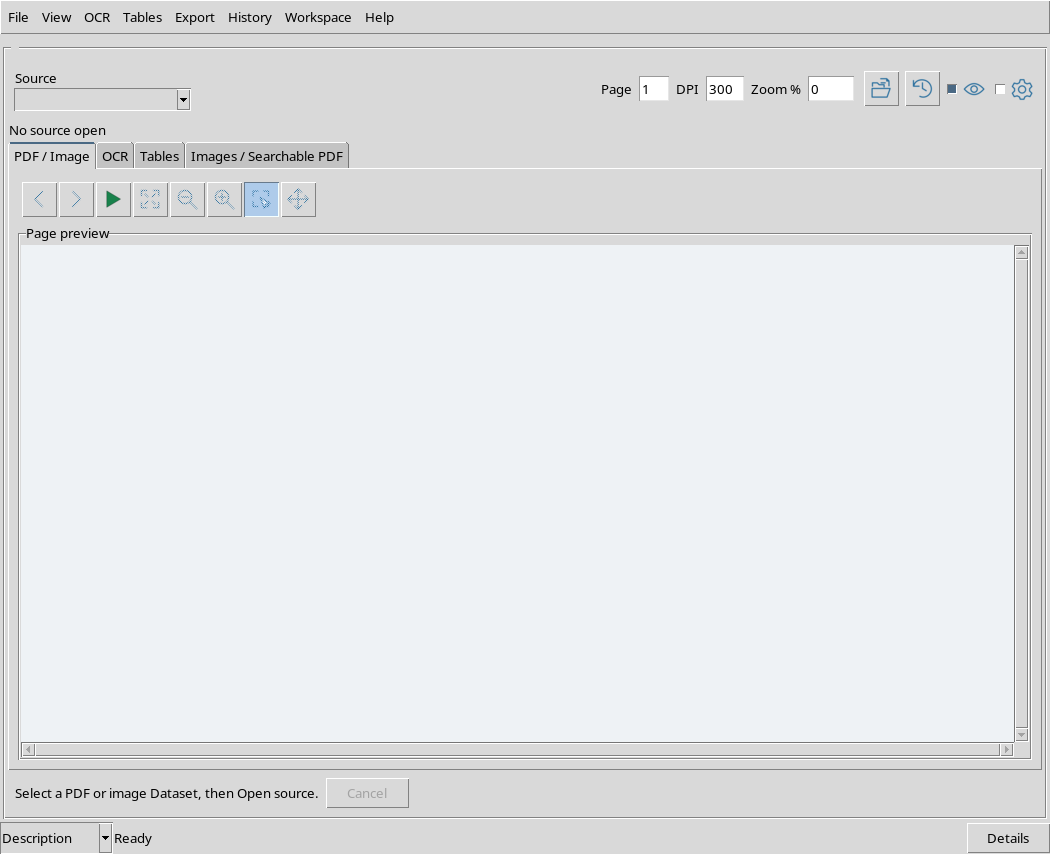
Its closure does not prevent you from consulting PDFs or images. The settings exist anyway and can be displayed when preparing a recognition operation.
3. Open the panel
Click on Recognition settings. Immediately below the Source, Page, DPI and Zoom bar opens the section of the same name.
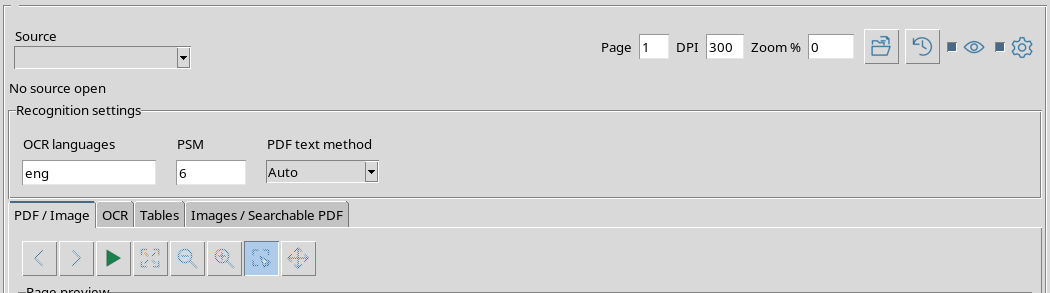
The observed default values are:
| Field | Initial value |
|---|---|
| OCR languages | eng |
| PSM | 6 |
| PDF text method | Auto |
The three controls are accessible without having to run OCR or create a new Dataset.
4. OCR languages: identify the correct language
OCR languages specifies the code of the language(s) that the Tesseract engine will need to use when optical recognition is actually required.
For example, eng means English and ita means Italian. The field requires installed language package identifiers, not words translated as “English” or “Italian”.
5. Available languages depend on installation
On the system used for the example, Tesseract has both eng and ita. The actual list can be verified in a Debian terminal with:
tesseract --list-langs
For a mixed English/Italian text you can enter eng+ita, as long as both languages are available. The presence of the value in the box does not, by itself, constitute proof that the relevant package is installed.
The presence of a readable preview does not yet equal the OCR recognition of its content.
6. PSM: page segmentation mode
PSM means Page Segmentation Mode. It is a Tesseract parameter that describes how to interpret the text layout: for example a uniform block, a page with free layout or single lines.
The initial 6 value indicates that the image should be treated as a single uniform block of text. It is often useful when a region contains an already isolated paragraph or block.
7. PSM 3 and the recognition of a page
The 3 value indicates an automatic page segmentation, with no orientation and writing detection.
For a page with variable structure it can be a starting point, but does not guarantee better recognition in every situation. The choice should be evaluated in relation to the concrete document.
8. PDF text method: choose policy
PDF text method determines the policy of reading PDF text in extraction paths that use this parameter. It is not the Dataset selector and does not replace the OCR workflow field of the OCR tab.
The field is a selection-only menu: it does not freely accept arbitrary values.
9. The three real menu options
Open the PDF text method menu.
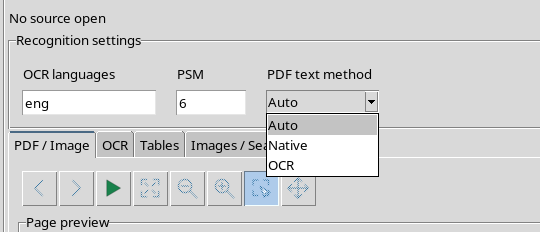
The entries in the verified version are Auto, Native and OCR. They refer to three distinct strategies for getting text from a compatible PDF source.
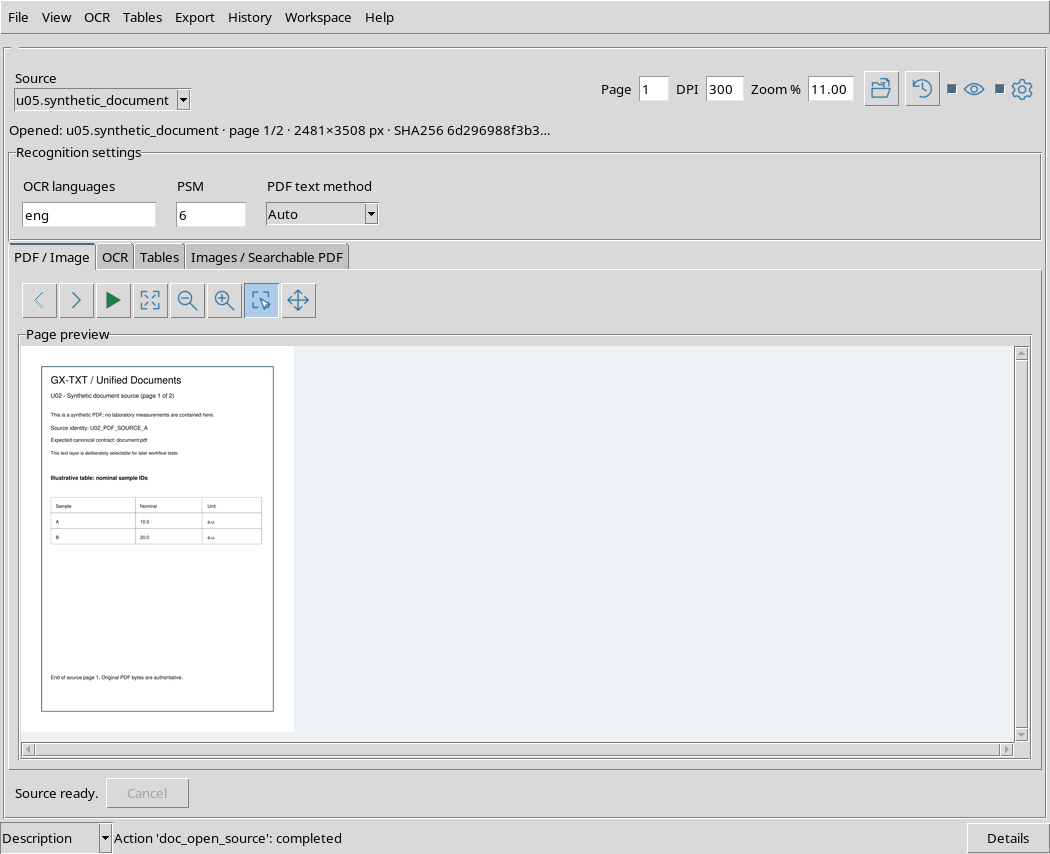
After opening a PDF Dataset, the panel remains available above the preview, without replacing the document.
10. Auto: first native text, then possibly OCR
With Auto, the PDF extraction service tries before using the text already embedded in the document. If the result does not meet the minimum threshold expected, it can switch to image recognition.
A PDF containing already text does not necessarily require new optical processing. However, the Auto choice is not a guarantee of correctness of the final text: the result must be checked anyway.
11. Native: read the text already present in the PDF
With Native, the service attempts to extract the text layer present in the PDF, without automatically switching to OCR reading.
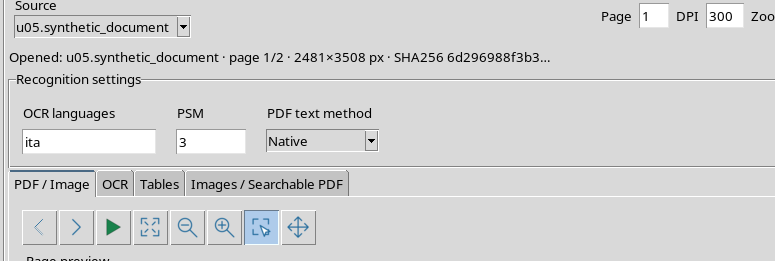
In the figure we set ita, PSM 3 and Native. the viewer accepted these values and transferred them to the actual request of the rendering process, using the internal name of the native method.
It is important to distinguish this control from the result: we verified the configuration and its transition to the request, did not perform a text extraction.
12. OCR: Request optical reading where expected
With OCR, the PDF extraction path that uses this parameter can rasterize the page and defer reading to Tesseract, even when the file contains a text layer.
It is useful to know this distinction so as not to confuse native text and recognized text. The quality of the OCR also depends on the language, PSM, page and readability of the image.
13. An example with two languages and PSM 11
Set OCR languages = eng+ita, PSM = 11 and PDF text method = OCR.
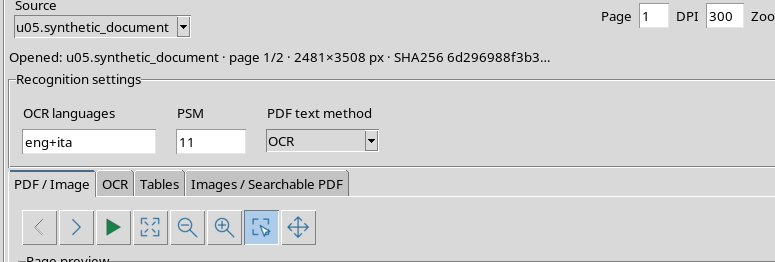
PSM 11 is the Tesseract mode for the scattered text: it searches for text in different locations without imposing a continuous reading order. It may be useful for isolated labels or writings, but the resulting text sequence will need to be verified.
In the test, the rendering request actually received the values eng+ita, 11 and ocr. The rendering did not run OCR; the recognition result will be verified in another procedure.
14. The relationship between PDF text method and OCR workflow
In the OCR tab there is also a separate option, OCR workflow, with paths such as PDF OCR and Document OCR. The two choices are not synonymous with the PDF text method menu.
In the Document OCR path, extracting the PDF can use the Auto/Native/OCR policy. The PDF OCR path can instead switch from rasterized image recognition without using that same selection as a native text choice strategy.
You then need to check both the Recognition settings and the selected workflow in the OCR tab before interpreting a result. This guide checks the parameters; actual extractions and differences between workflows will be shown later.
15. The lower limit PSM: value 0
The PSM field allows integers from 0 to 13. We have set 0 and verified that the configuration is accepted.
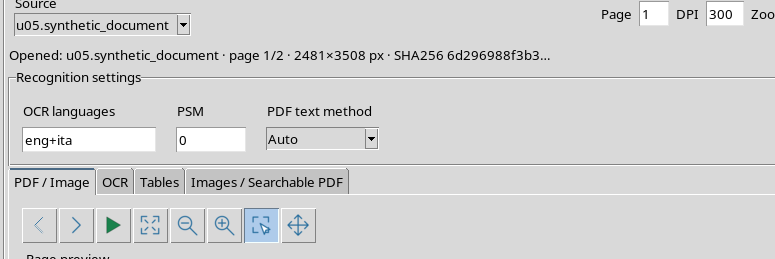
For Tesseract, PSM 0 indicates guidance and writing detection only (OSD). It is therefore a numerically valid value, but not suitable for directly obtaining a normal transcribed text. The validity of the range does not mean that each mode is appropriate to each document.
16. The upper limit PSM: value 13
The 13 value is the maximum limit allowed by the configuration.
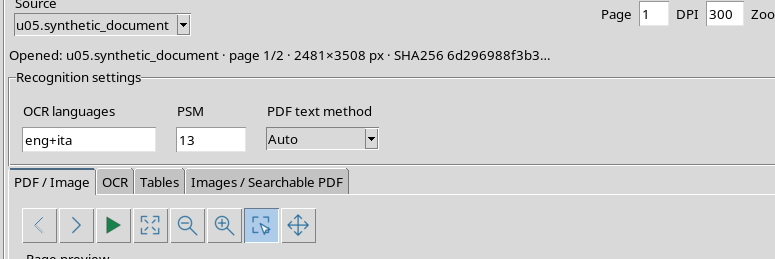
In Tesseract, PSM 13 treats the image as a single row of raw text, avoiding some specific transformations. It should not be selected indiscriminately for an entire page with multiple paragraphs.
17. PSM 14: value out of range
Enter 14 in the PSM field and try to apply the configuration using Render page.
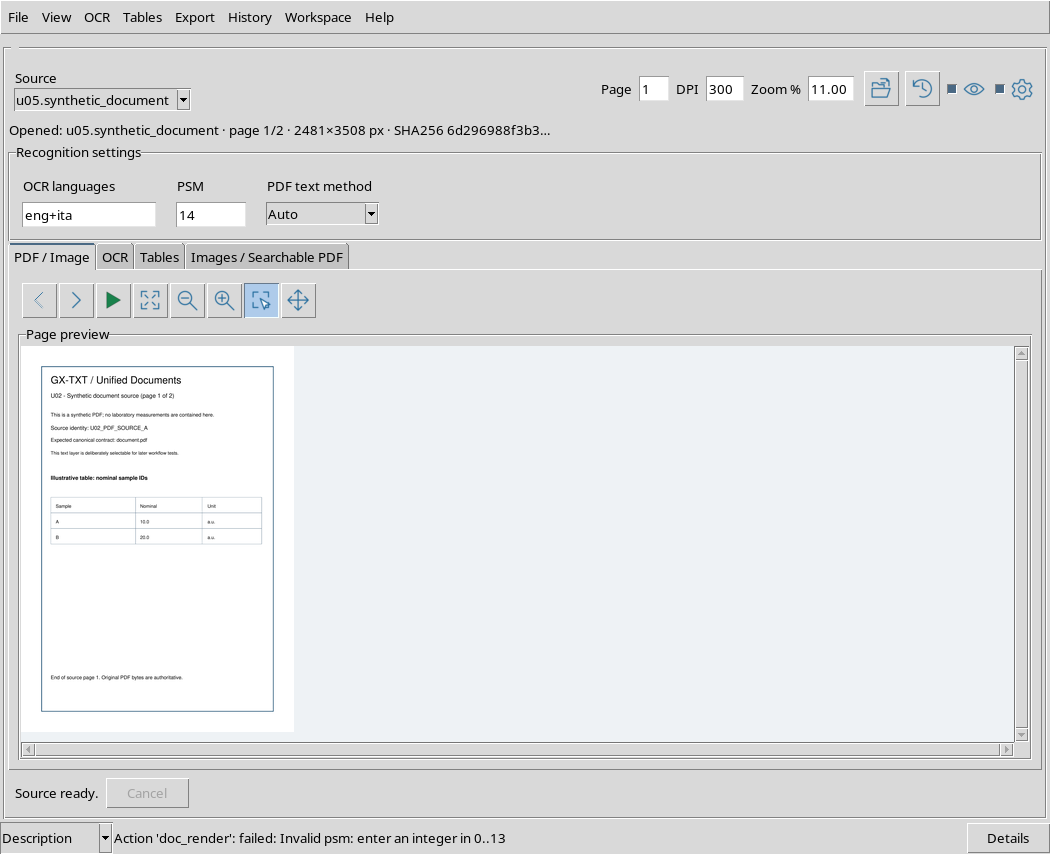
The reject value Viewer. The bottom bar reports the request for an integer between 0 and 13; no new rendering is started and the previously opened page remains available.
It is an effective interface protection, not a PDF readability issue.
18. Non-numeric PSM: value abc
The PSM field is a text field, but the service only accepts a whole number in its range.
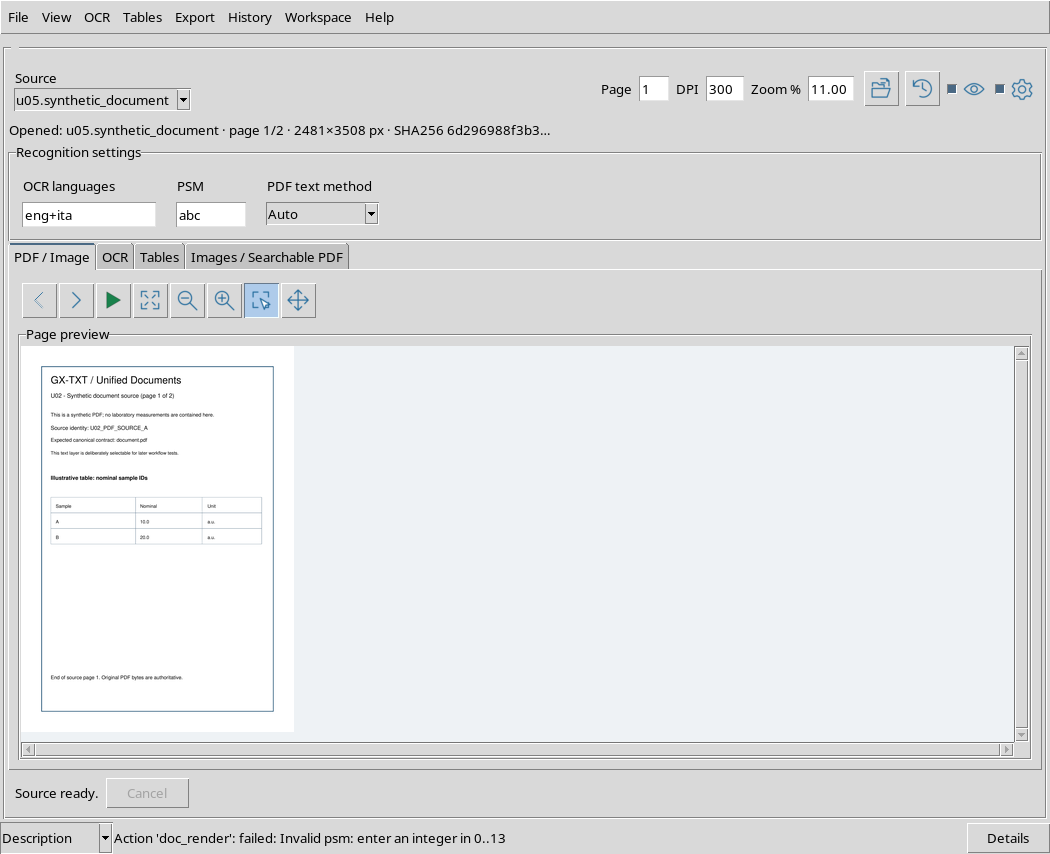
With abc, the operation is rejected. Configuration must be corrected before retrying. The previous valid request continues to identify the same PDF source.
19. Negative PSM: − value 1
Even a negative number like −1 is rejected.
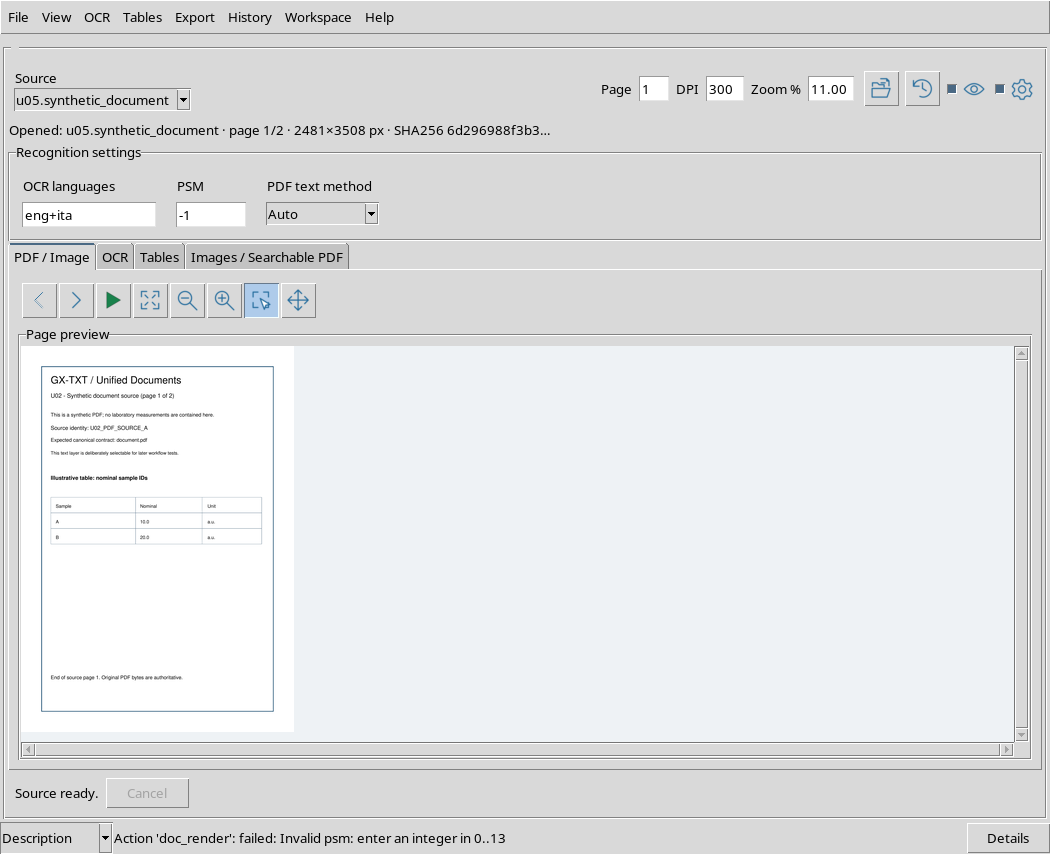
You do not need to reopen or import the source again after an entry error: just replace PSM with a valid integer, for example 6, and apply the request again.
20. Empty OCR languages is not a valid language for OCR
We tried to leave OCR languages empty.
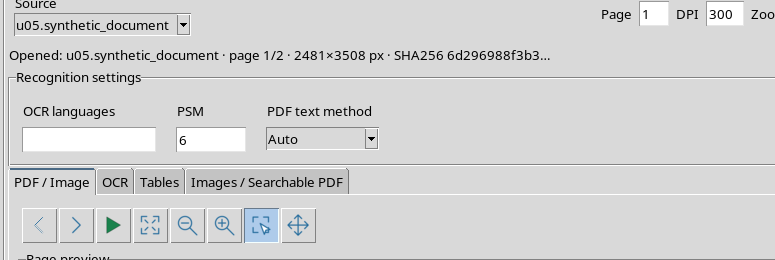
A preview obtained with Render page can still succeed: the rendering is limited to preparing the image of the page and does not have to interpret its text. This does not mean that an empty language field is valid for subsequent recognition.
OCR APIs explicitly require a not empty language value. Before running OCR, then check the field content.
21. No such language code is not verified by rendering
The field can also accept a character sequence that does not match any installed language package.
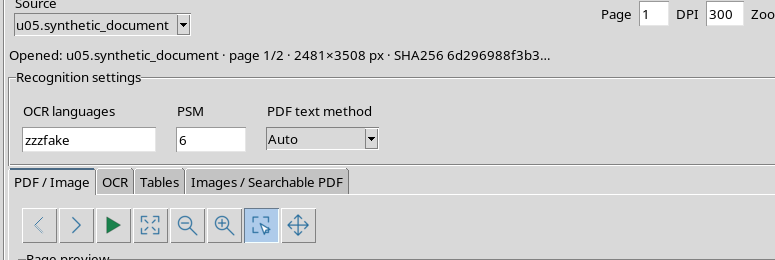
In the configuration test, an unavailable code was transmitted to the rendering request only. Tesseract was not launched to recognize the text, so you can’t infer that that code works in OCR.
Use identifiers from Tesseract’s actual list. Package availability should not be affected by a simple successful preview.
22. Restore an ordinary configuration
To return to a configuration suitable for an English text document, set OCR languages = eng, PSM = 6 and PDF text method = Auto.
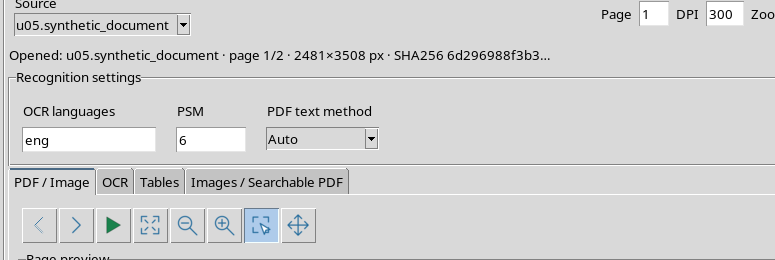
We applied this combination to the PDF rendering process. The actual request reported eng, 6 and auto, maintaining the same Dataset and its SHA-256 fingerprint.
23. Reclose Recognition settings without losing values
Click Recognition settings again to close the panel.
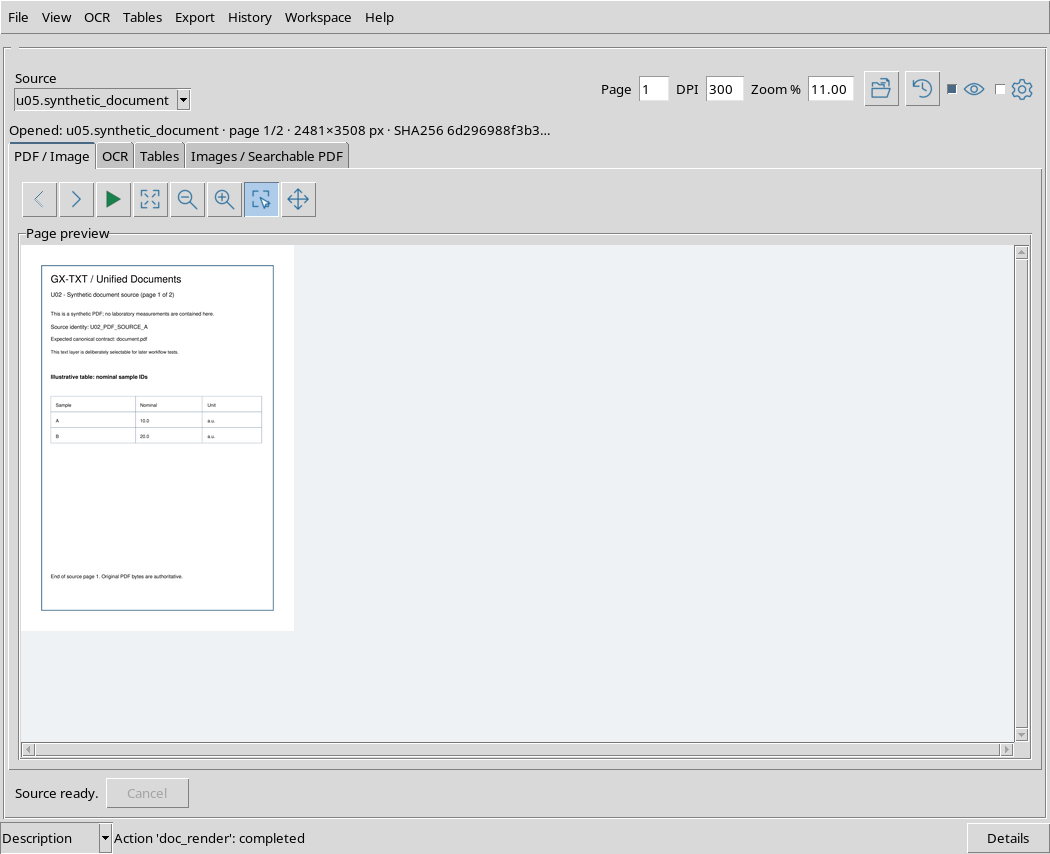
The main bar and preview remain visible. Configuration values are not deleted: when the panel is reopened, the previously set data is found.
24. Settings are shared between tabs
Select the OCR tab, then show Recognition settings again.
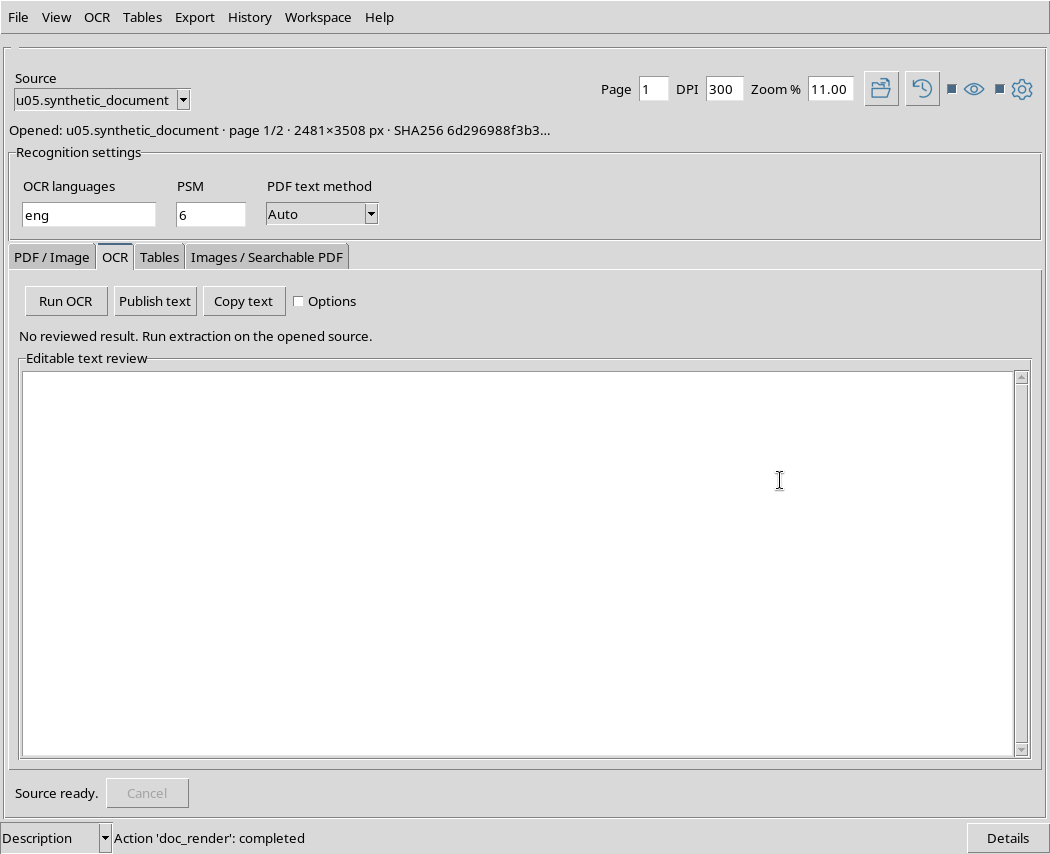
The same values remain available in this tab as well. The Recognition settings section is distinct from the Options specifications of the OCR workflow, which will be illustrated in the next guide.
At this stage we did not press Run OCR, Copy text or Publish text: no recognized text or derived Dataset was created.
25. Maintaining settings by changing source
Go back to the PDF / Image tab, select a canonical PNG Dataset and use Open source.
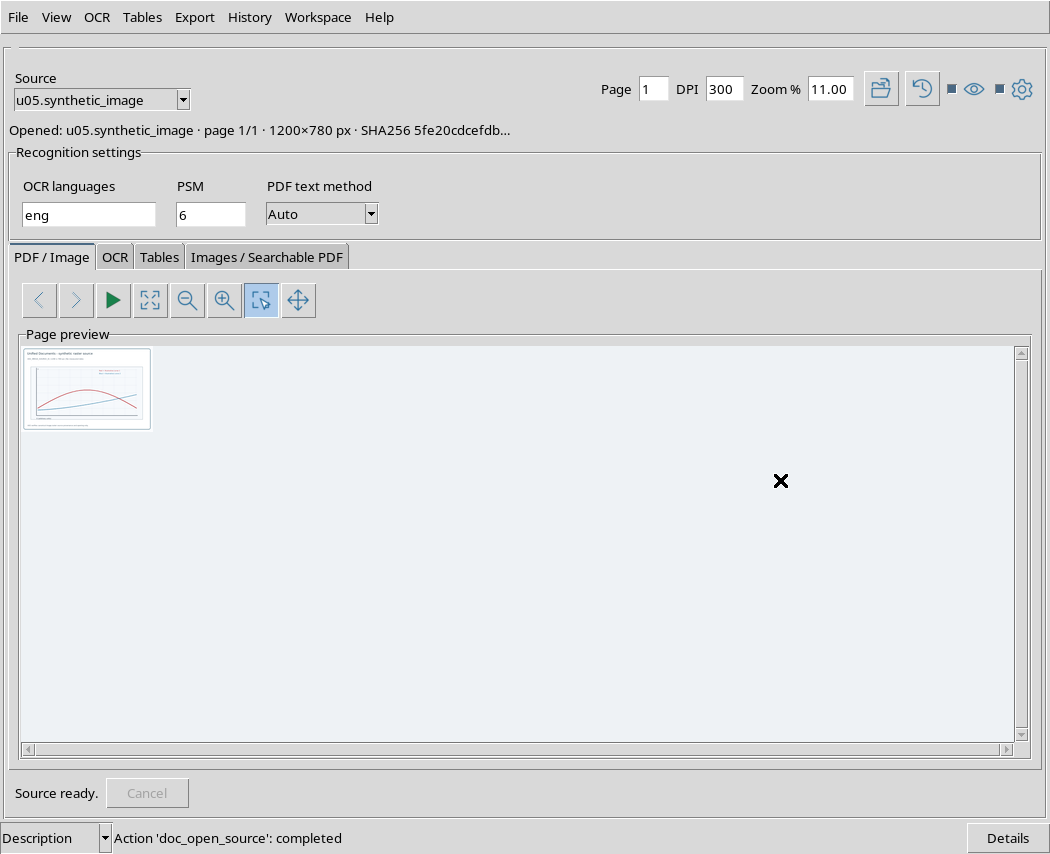
The new source is opened as a 1200 × 780 pixels image, while the Recognition settings remain eng, PSM 6 and Auto. The PNG rendering request also retains these parameters.
In our case, the image initially appears small because Zoom % keeps about 11% from the previous PDF preview. This does not reduce the pixels of the original file: you can use Fit page to adapt the new source to the window.
The PDF text method entry remains visible in the shared panel, but the Native/Auto/OCR strategy for PDF text does not automatically turn a raster image into a PDF. Parameters will be relevant according to the next extraction workflow.
26. Recommended procedure and next guide
Before starting a recognition, choose the correct Dataset with Source and check the line Opened:. Show Recognition settings, enter really installed language codes, select a PSM appropriate to the text structure and choose a PDF policy consistent with the document type and OCR workflow.
For a normal block of English text you can start with eng, PSM 6 and Auto; for mixed Italian/English texts you can use eng+ita if the two packages are installed. Avoid out-of-range PSM and do not interpret a simple preview as OCR quality verification.
The next guide will address Real OCR execution, OCR/Document PDF workflows, Scope, and processing states, using synthetic texts with known content and independent controls of the result.