

Save, close, and restore with Workspace and History
In GX-TXT Unified Documents 1.2.0 operations Workspace and History are integrated into the shared services of the framework. There is no need to create a separate archive of the viewer: a Session can contain the identity of scientific documents and Workspaces describing the state of the interface and revisions.
This guide shows you how to save a real job, close it, reopen it and restore it even after a new start of GX-TXT. We use a bilingual electronic datasheet, with correct OCR text, a selected region and a extracted table. We will check which items are stored, distinguishing them from simple temporary interface messages.
1. Why use Workspace
A scientific work may take several steps: choose the document, set the page, extract a text, correct some errors, delimit a region, reconstruct a table and examine the results.
A Workspace allows this context to be retained for later resuming. It should not be confused with Publish text, Publish table or Publish page, which instead create derived canonical Datasets.
2. Workspace and Session are not synonyms
The Session is the scientific context that contains the available Datasets and their identifiers. The Workspace records a working status associated with a Viewer, including settings, selections and revisions where supported.
A Workspace does not replace the PDF source. After a proper reopening, the viewer must find the original Dataset in the Session and check that its identity is still valid.
3. The shared service of GX-TXT
The History and Workspace menus, present in Unified Documents, belong to the common services of the framework. The save and open functions use the same general mechanisms as the Viewers that support them.
You do not need to manually export a Digitizer settings file or build a second draft archive for Unified Documents. The save must take place in the Workspace provided by GX-TXT.
4. The reference document
We use the manufacturer’s datasheet ZH0371BH001-01A, containing 13 physical pages with descriptions in English and Simplified Chinese.
The material allows to verify the retention of Unicode characters, electrical values, page number, work region and table structure. No need to intervene on the bytes of the original PDF.
5. Open the source and set the page
Import the datasheet with the normal Acquisition Handler PDF into the Session, open Viewers → Unified Documents, select Dataset in Source and press Open source.
In the PDF / Image tab set Page = 4 and DPI = 200, then use Render page.
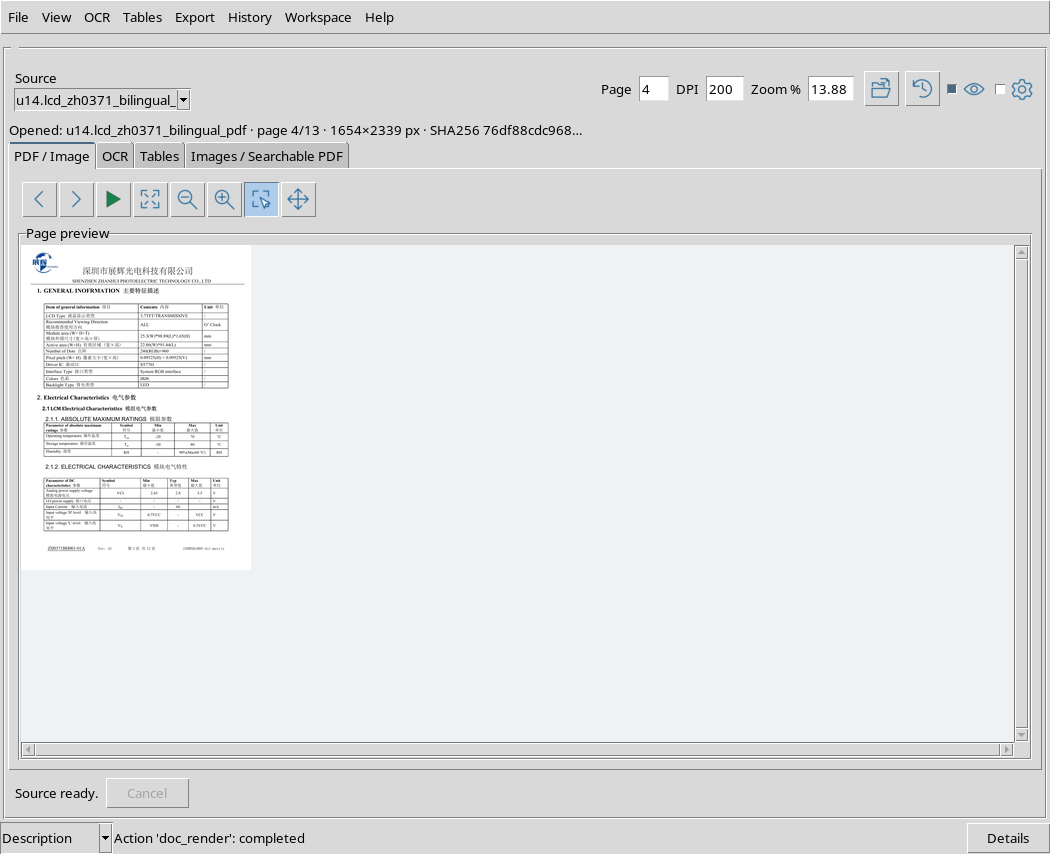
the viewer thus links the rendered page to an identifiable source Dataset. The Workspace may retain its identifier, page, resolution and provenance.
6. Prepare bilingual OCR
Open Recognition settings and select eng+chi_sim as languages. For the example use PSM = 3 and PDF text method = OCR.
In the OCR tab set OCR workflow = PDF OCR and Scope = Page.
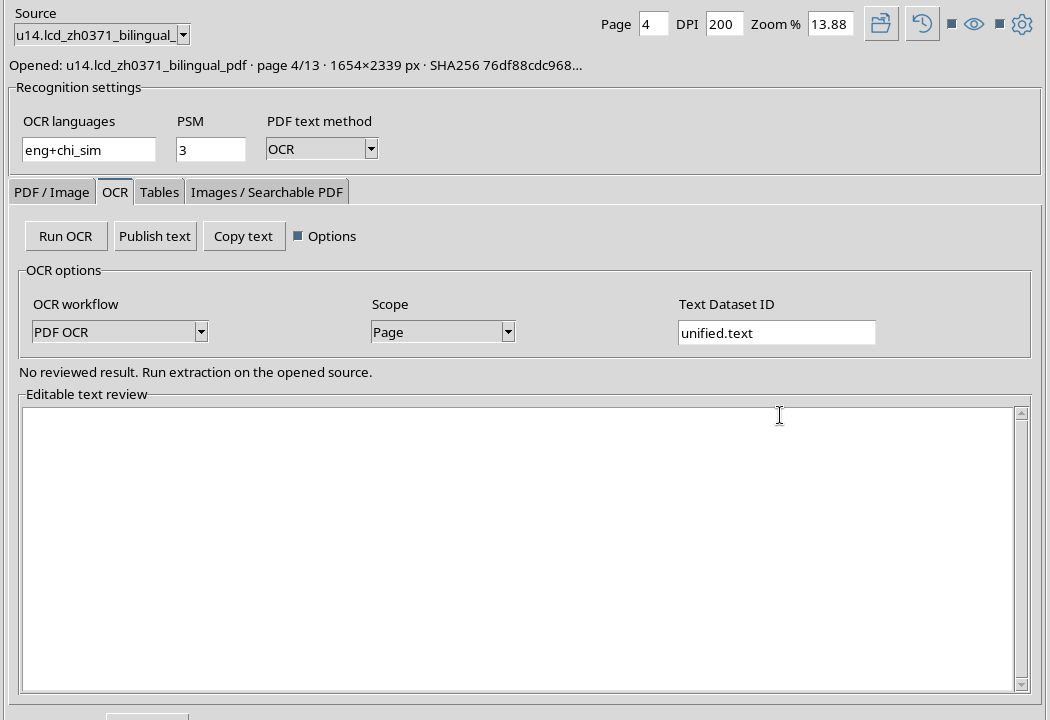
These controls define the context of recognition. Actual results should always be compared with the datasheet, in particular by electronic digits and acronyms.
7. Run OCR
Press Run OCR and wait for processing to complete. The text appears in the Editable text review area.
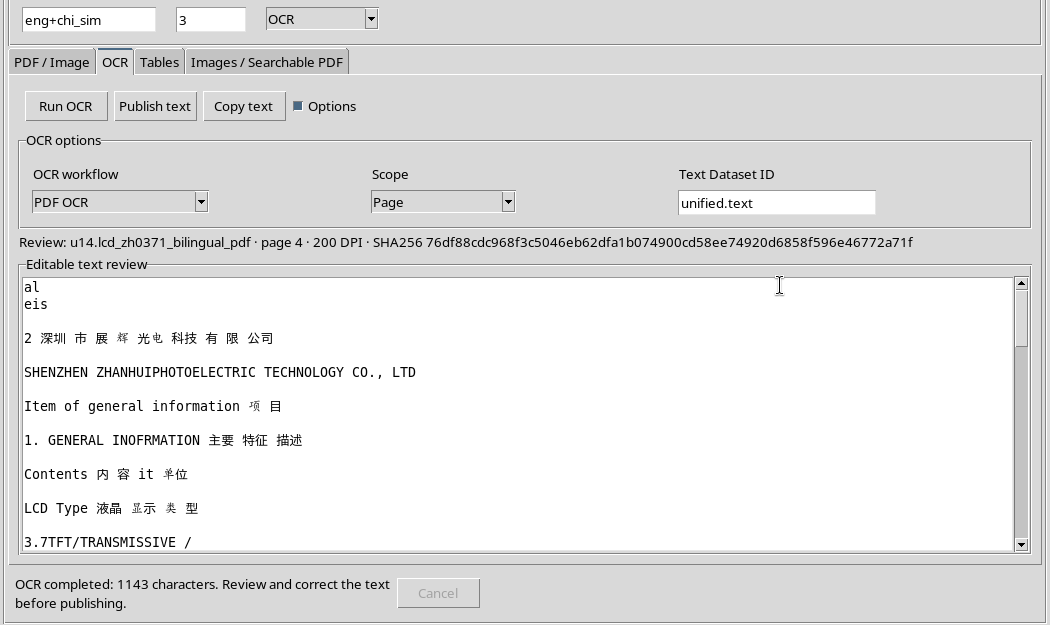
In our example the initial recognition produced 1.143 Unicode characters, including 137 Chinese characters. This quantity describes the output, not an accuracy index.
8. Recognize a revisionable draft
The text in the editor is a draft linked to the source that generated it. It is not automatically published as Dataset document.text and should not be considered already validated.
Before saving it to the Workspace, check what corrections are needed. The Workspace retains the work and its context, while a later scientific publication requires a distinct operation.
9. Correct OCR text
Comparing the original page, we corrected the driver initials from 驱动 TC to 驱动 IC and the sequence 3.5 Vv in 3.5 V.
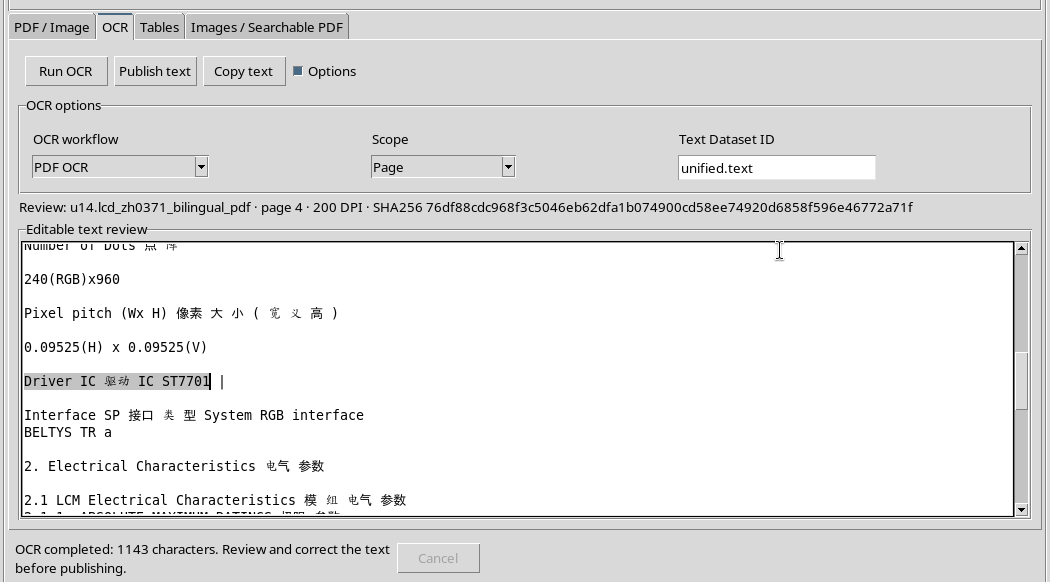
The revised draft contains 1.142 Unicode characters, with the 137 Chinese characters preserved. None of these changes rewrite the source PDF.
10. Define a region of the page
Go back to PDF / Image, activate Region and drag mouse around table 2.1.2 Electrical Characteristics.
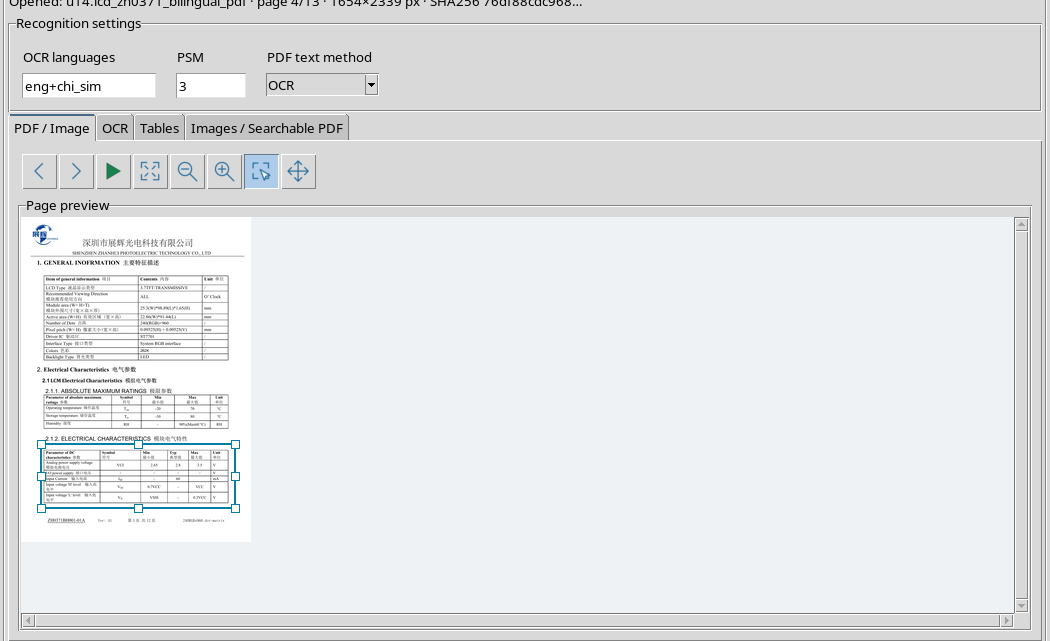
The selection is recorded by normalized coordinates with respect to the source page. It is distinct from the size of the screen window and can be stored in the context of the Workspace.
11. Extract a table from the region
Switch to the Tables tab, temporarily open Options and choose Document Tables, with Expected columns = 0 and Table number = 1.
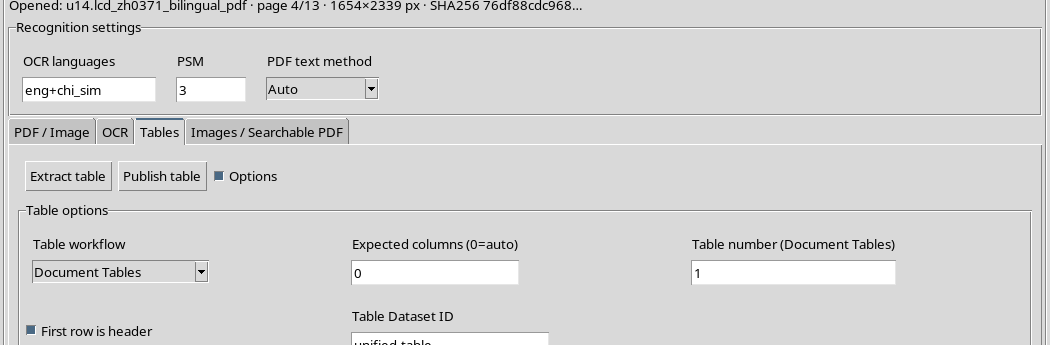
For the selected table use Extract table. The reconstruction belongs to the scientific review of the viewer: it is not yet a published Dataset table.generic.
12. Examine the table without unnecessary panels
After configuration is complete, close Options to leave more room for the Editable table (Enter / Escape) grid.
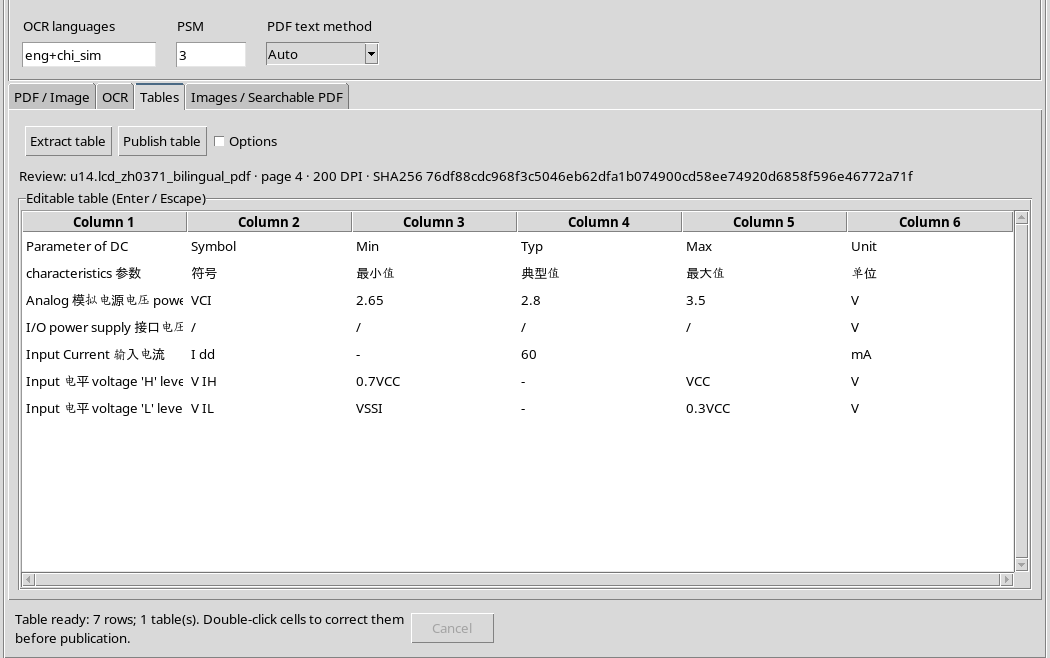
In our example the result includes 7 rows and 6 columns: two lines of bilingual header and five lines of electrical characteristics. The structure is a useful element to compare after reopening.
13. What to check before Save
Before saving the Workspace, verify the presence of the correct PDF source, Page = 4, DPI = 200, the selected region, revised OCR text and extracted table.
You don’t need to publish the data as new Datasets in order to verify if the Workspace can recover an ongoing revision. However, a saved Workspace does not automatically constitute a canonical scientific publication.
14. The History Menu
In the viewer menu bar you will find History. Among the available commands are Undo (Ctrl+Z), Redo (Ctrl+Y), the Description / History bar display, History details… and the Named History functions.
History belongs to the shared review mechanism. It should not be confused with the command history of an external OCR processing program.
15. Use Undo
If there are any previous history states, choose History → Undo or use the shortcut given in the menu.
In the example the shared History cursor moved from the 20 state to the 19 state. This check checks history navigation, but does not mean that a single text character necessarily has to change at each Undo.
16. Use Redo
After Undo, the History → Redo command returns to the next state.
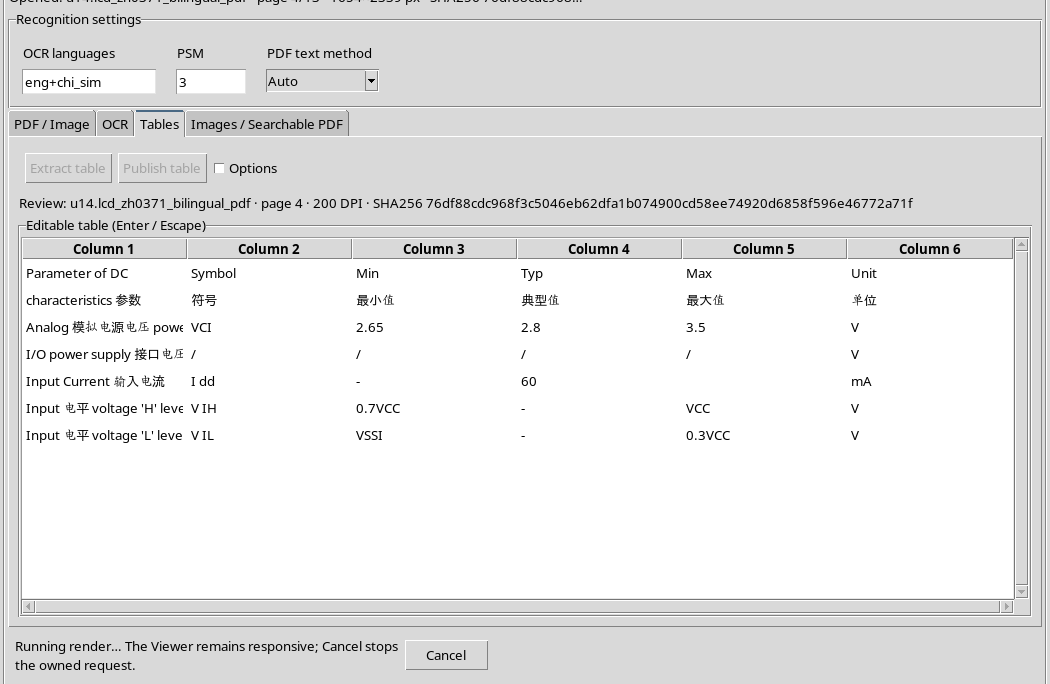
In our test the cursor returned from 19 to 20, keeping the scientific draft and table examined. The behavior depends on the succession of changes recorded in the Workspace.
17. History and modification of cells
A revision of the OCR text or a cell may be recorded in the history of the viewer, but the contents of History relate to the scientific state of the interface, not necessarily one isolated action at a time.
Before using Undo and Redo on an important job, check the source and revision you are returning to. Do not assume that the command always cancels only the last key typed.
18. The Workspace Menu
Open Workspace in the menu bar. There are commands New workspace …, Open workspace …, Save, Save As…, Session Workspaces… and Close, along with available management functions.
To save the current revision, use Workspace → Save. To search for available Workspaces and reopen them, use the Session Workspaces… manager.
19. Save with Workspace → Save
With the document, text and table ready, select Workspace → Save. The GUI uses the shared service of the framework and records the status connected to the Session.
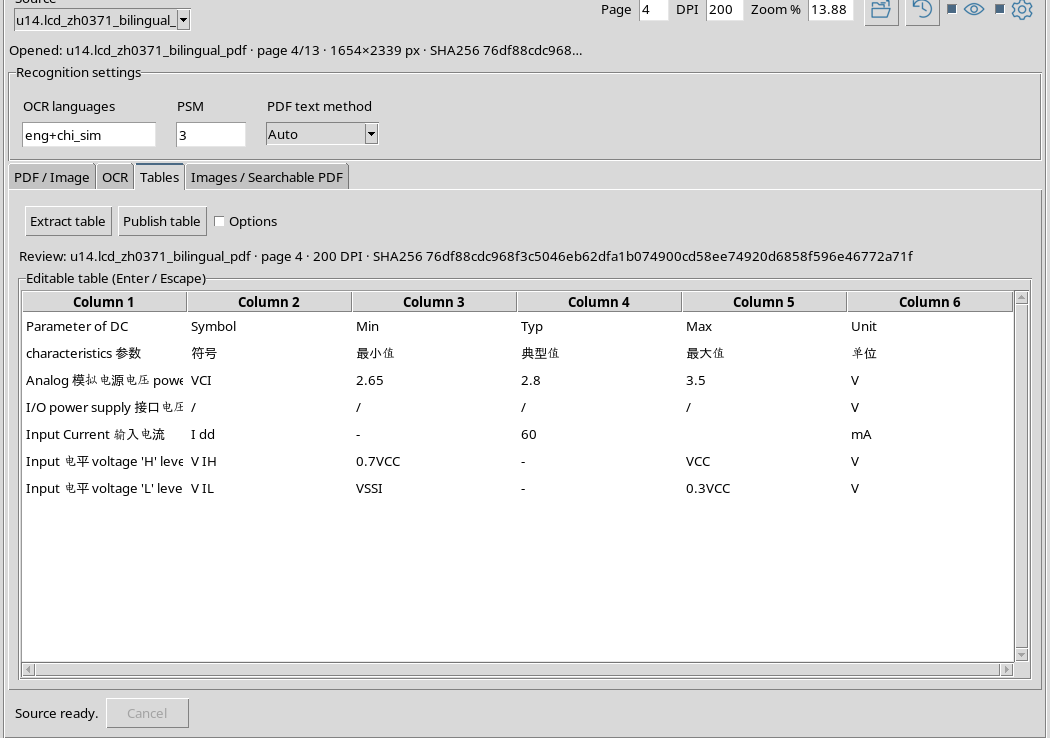
In our example the save created a Workspace called Unified Documents. The save did not produce a published numeric or textual Dataset: the source PDF remained the only canonical Dataset of the Test Session.
20. What is saved
The Workspace includes the source Dataset identifier, its SHA-256 fingerprint, page, DPI, zoom, normalized region, revised text, table rows and source information of the two revisions.
Control status and supported history are also retained. Source data remains governed by the Session; the Workspace does not become an independent copy of it.
21. Open the Session Workspaces Manager
Choose Workspace → Session Workspaces…. The shared manager window opens, with the list of available Workspaces.
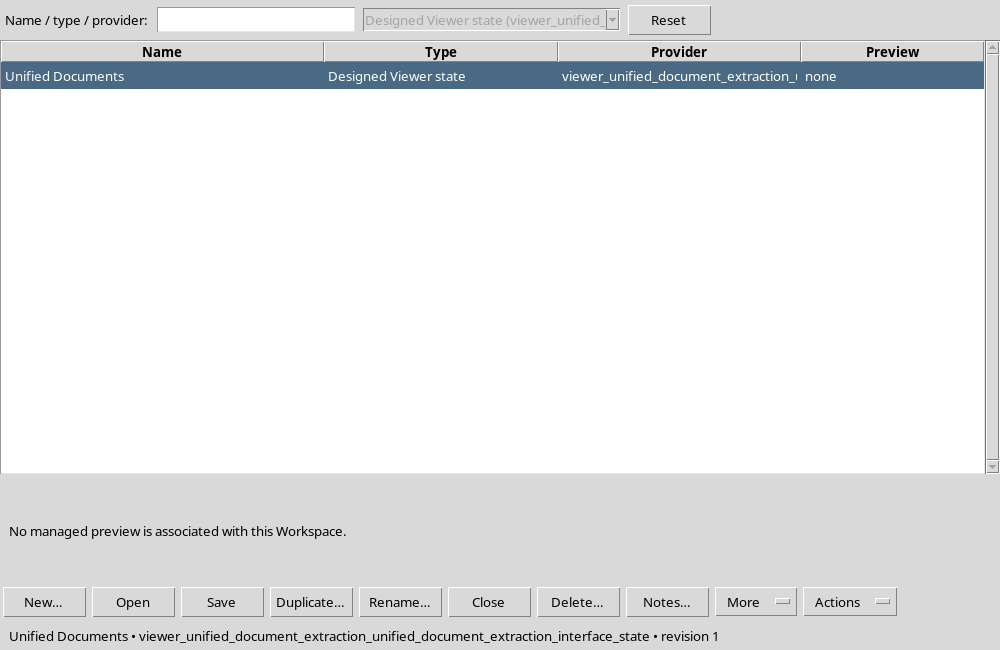
Selecting Unified Documents, the handler shows the Workspace type, provider and actions Open, Save and other management functions. The lack of a managed preview in this example does not mean that saved content is absent.
22. Save before closing
Before closing the viewer, check that the most recent changes have been saved. In case of unsaved changes, the GUI can ask to confirm the behavior to be taken.
In our example the Save command completed the operation and the status of the Workspace was unmodified (clean) compared to the revision just recorded.
23. Close the viewer from the shared menu
Select Workspace → Close. The Unified Documents window is closed, but the saved Workspace and the source PDF remain in the Session.
This operation is different from deleting a Workspace: Close closes the current interface, does not delete the saved work.
24. Reopen with Open button
From the Session Workspaces manager, select the Saved Workspace and press Open. GX-TXT opens a new instance of the viewer associated with the same Workspace identity.
Opening may require the application to reconstruct the PDF preview. Wait for completion before interpreting an image not yet visible as job loss.
25. Verification of first reopening
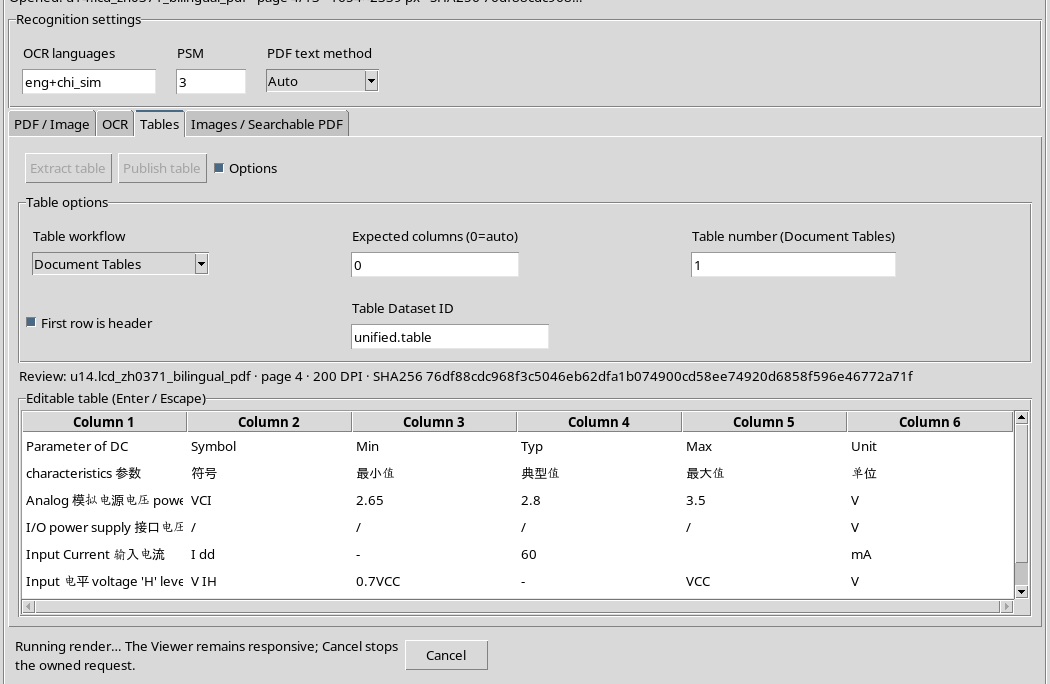
After normal closing and re-opening by the shared manager, the Tables board returned to active and the grid again showed 7 rows and 6 columns.
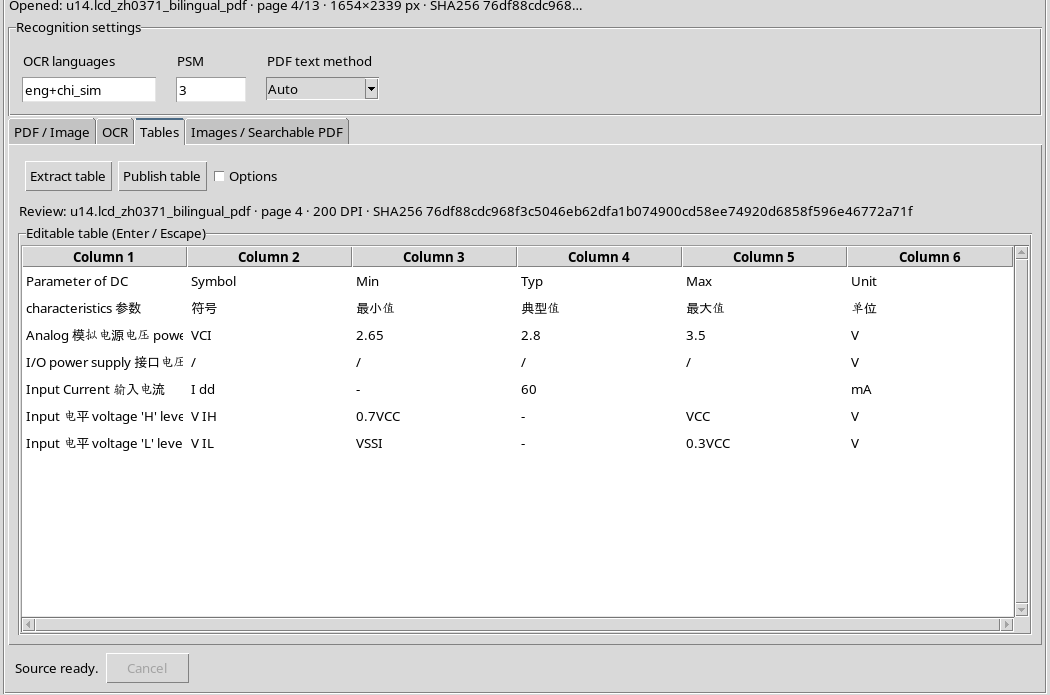
Revised text and region coordinates were also recovered, without creating a new copy of the original Dataset.
26. Why also check for a new startup
A re-opening in the same application process alone does not prove that the data has been recorded to disk: part of the state may still be in the program’s memory.
For this it is useful to close the viewer, terminate GX-TXT normally and restart the application before performing a second verification.
27. Reopen Session after Restart
After you restart GX-TXT, open the Session itself which contained the PDF and saved Workspace. Do not create a new empty Session or import the document again just to get the job back.
The Workspace Manager must find the recording associated with the Session actually open.
28. Reopen Workspace After Restart
In the shared manager, select the Workspace Unified Documents again and press Open.
The window is rebuilt from the saved Workspace, using existing GX-TXT services to retrieve document context, history, and controls.
29. Check for cold reopening
After the program was completely shut down and restarted, the GUI restored the Tables tab, the six-column table, and the same document source.
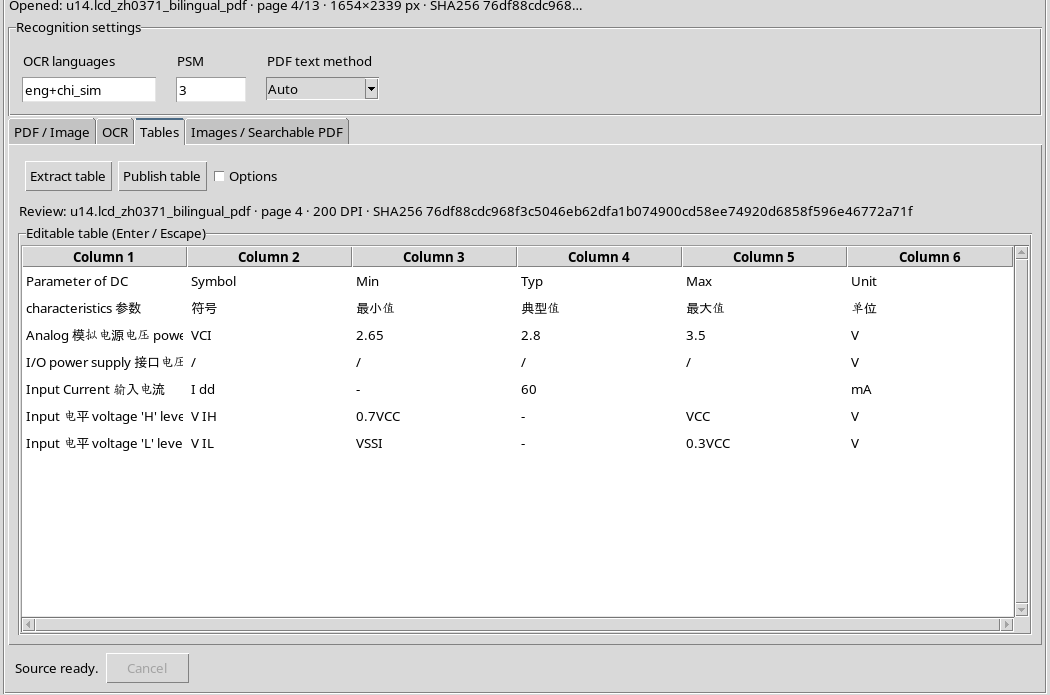
This is an authentic screen of the new instance: it is not an artificial reproduction of the previous window. Correspondence has also been verified on the state of the data, not only on the graphical appearance.
30. Check restored bilingual text
The OCR revision retained after the new startup still contains 1.142 Unicode characters, including 137 Chinese characters.
The 驱动 IC Driver ST7701 and 3.5 V corrections have remained present. Revisions do not require you to run OCR again to be simply displayed.
31. Check ROI, Source and Table
Even after cold re-opening, the Region’s own four normalized coordinates and 7 rows and 6 columns table are present.
The Review: labels of the results continue to refer to the same PDF source, 4 page and 200 DPI. The source identifier and fingerprint allow a restored revision to be distinguished from a new recognition.
32. Check History after restart
The shared History is still available with 20 states and the cursor on the last state in the Session of our test.
This result confirms the persistence of the recorded history; it does not imply that any external application or any modification ever made can be cancelled. The history maintains its management contract within the Workspace.
33. One Workspace, no duplicate archive
The test cycle has maintained a Registered Workspace only and only one source PDF Dataset. A second document library or an autonomous collection of OCR copies has not been created.
To preserve independent and reusable results from other tools, continue using canonical publishing commands. To resume the interface and drafts, use Workspace Save/Open.
34. Limits and final controls
A save is reliable when you can find the correct Workspace in the Session, open it from the manager, verify the source and compare the restored revisions. The Workspace name alone is not a guarantee of identity.
In case of missing document or modified source, do not take automatic recovery for granted: check the identity of the Dataset and any source messages. In our cycle the original PDF has remained unchanged.
In the next chapter, U15 — Life cycle, interruptions and safe waste, we will look at negative cases of source change, ongoing requests, Cancel and closure of the viewer.