

Handle interruptions and recover drafts
With GX-TXT Unified Documents 1.2.0 operations on documents can take a few seconds or more: page rendering, OCR recognition and table reconstruction are performed without blocking the entire interface. However, the viewer must protect an already accepted revision when the work is cancelled, when the source changes or when a parameter does not match the page actually opened.
This guide explains how to recognize disabled controls, use Cancel, resume a job, manage retained drafts and keep the saved document after a close. The example uses an original electronic datasheet in English and Chinese, so as to verify both the text contents and the values and columns of a real table.
1. Why the viewer’s working state matters
A scientific procedure is not limited to getting a correct result when everything works. It must also prevent an interrupted process from publishing partial data, a revision of the previous page from being attributed to a different page, or an error in the editor from overwriting an already accepted version.
In our path we will always distinguish the Source canonical Dataset, the revisionable draft in the interface and any published result. An error in the current operation does not have to automatically transform the draft into a new Dataset.
2. Prepare the example source
We use the manufacturer’s datasheet ZH0371BH001-01A, composed of 13 physical pages and containing technical descriptions in English and Chinese.
Next to the original is a second source, a PNG actually obtained from physical page 4 image of the same document, at 150 DPI. The two files are imported through the Acquisition Handlers of GX-TXT as distinct canonical Datasets. This allows you to observe the source change without modifying the original PDF.
3. No open source: checks and prerequisites
Open Viewers → Unified Documents in a Session containing Datasets, but without running Open source yet.
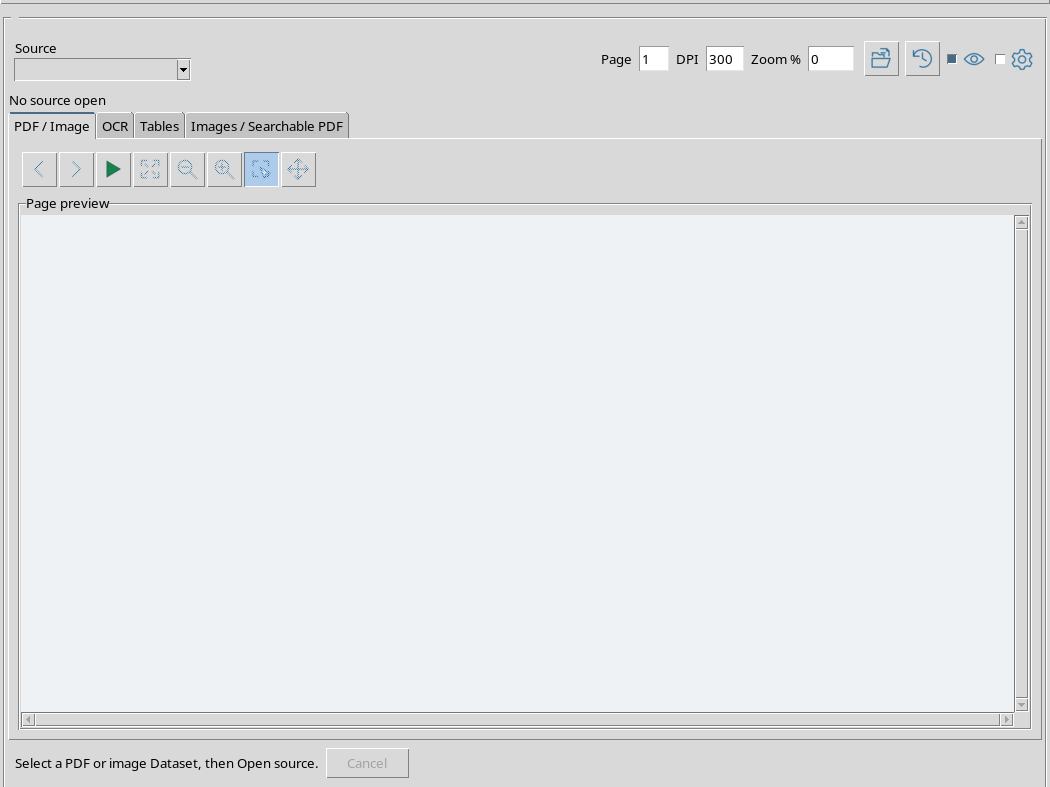
In this condition Run OCR and Cancel are disabled. Some selection and opening controls remain visible and usable, but processing cannot start without an actually open Dataset.
4. What happens when a command needs an open source
A request for OCR without an active source is rejected by the viewer with the indication Select a canonical PDF or image Dataset and open it.
The error does not generate an output file and does not start a recognition worker. The solution is to choose a valid Dataset in the Source field, then use Open source.
5. Open the PDF and confirm context
Select the original datasheet, press Open source, set Page = 4, DPI = 200 and press Render page.
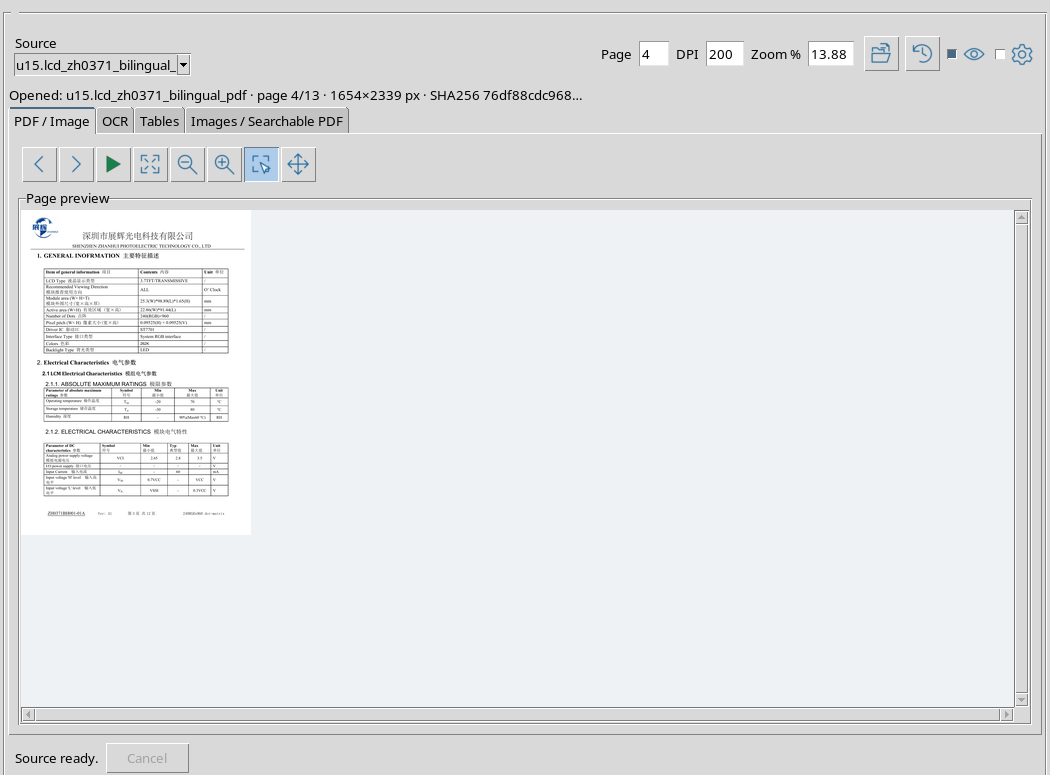
The actual rendered page must match the one indicated by the Page field. Check the page number, origin and the displayed fingerprint, especially when multiple documents are opened in the same Session.
6. Numerical checks: allowed intervals
The main numeric fields are verified before starting processing.
| Field | Input range accepted |
|---|---|
| Page | Entire from 1 to 100000 |
| DPI | Entire from 72 to 600 |
| PSM | Entire from 0 to 13 |
| Expected columns | Entire from 0 to 100 |
| Table number | Entire from 1 to 1000 |
They are ranges of validation of inputs, not a promise that a PDF contains a hundred thousand pages or a thousand tables. For example, Page must still refer to a really existing page.
7. How an invalid number is rejected
A value such as DPI = 601, PSM = 14, Expected columns = 101 or Table number = 0 causes a message with the required field and range. Page = 0 is also rejected.
In the test, each of these five requests was rejected before starting a new job, leaving the contents of the original Dataset unchanged. Restores a valid value before repeating the command.
8. Prepare a longer OCR job
Open Recognition settings, choose OCR languages = eng+chi_sim, PSM = 3 and PDF text method = OCR. On the OCR tab set OCR workflow = Document OCR and Scope = Document.
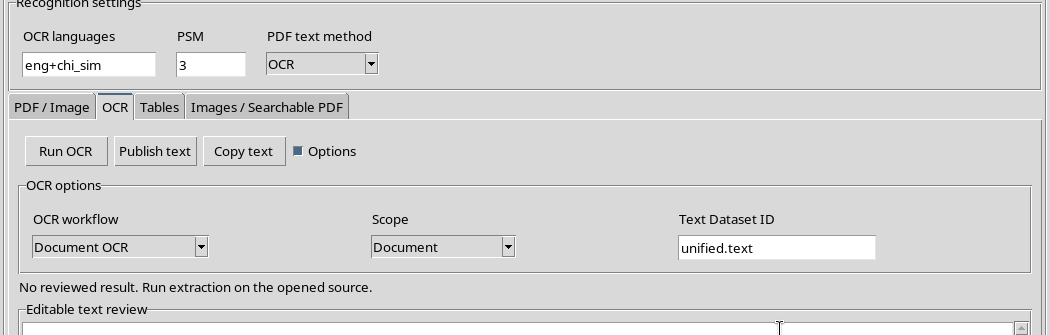
The document has thirteen pages: processing the entire document is a concrete example of an operation that can remain in progress longer than the 4 page alone.
9. Start Run OCR and watch the status
Press Run OCR. the viewer shows a message like Running ocr … the viewer remains responsive; Cancel stops the owned request.
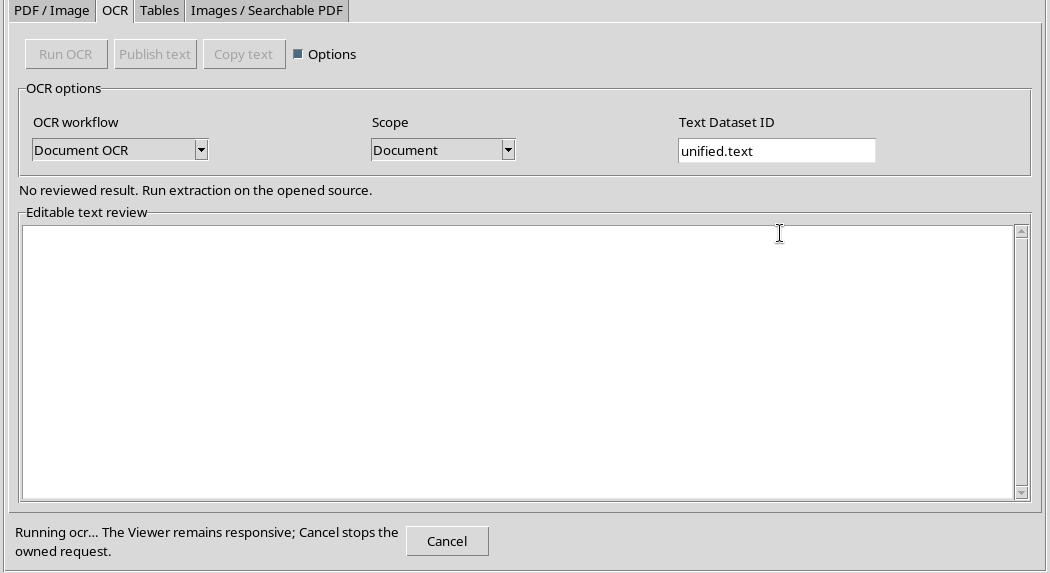
While the work is pending, other protected processing and navigation buttons, including Run OCR, Open source, Render page and Extract table, are disabled. The Cancel button is available.
10. Do not start a second operation on the same job
If an operation is already present, the viewer does not allow a second command to be started on the same context at the same time. A request to change source during the worker is rejected with Wait for the current document operation or cancel it.
This prevents the result of an old job from being accepted while a new document or page is taking its place.
11. Use Cancel
When you want to stop the current processing, press Cancel.
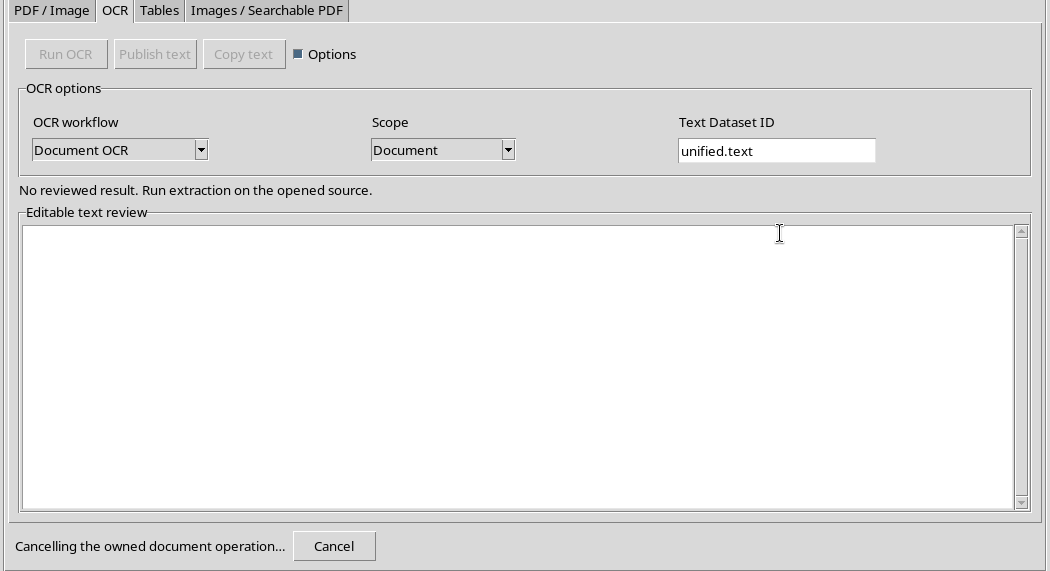
The Canceling the owned document operation … message indicates that the break request has been forwarded. It is not yet equivalent to confirming that the worker has finished: wait for it to be completed or deleted before proceeding.
12. After cancellation
In our example the work ended with the state Document ocr: deleted. A new OCR draft was not accepted and no Dataset derived from the aborted operation was published.
Cancel acts on the pending work, not on the original document. If there is a previously accepted revision, you do not have to consider undoing it as an automatic delete command of that revision.
13. Safely repeat the operation
After the cancellation is concluded, choose a more circumscribed processing: OCR workflow = PDF OCR, Scope = Page, keeping the original source and Page = 4.
Press Run OCR again. The work on the page only completes correctly.
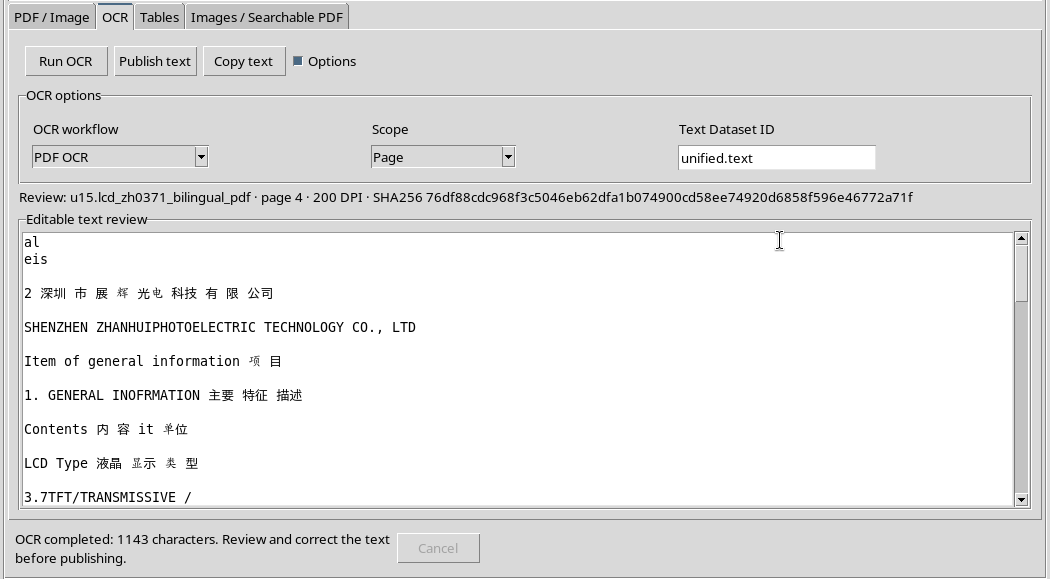
The editor returns 1.143 Unicode characters, including English and Chinese characters. This number is the recognized text size, not a measure of accuracy.
14. Review the text without publishing it
Comparing the result with the original page, we can correct 驱动 TC in 驱动 IC and the sequence 3.5 Vv in 3.5 V.
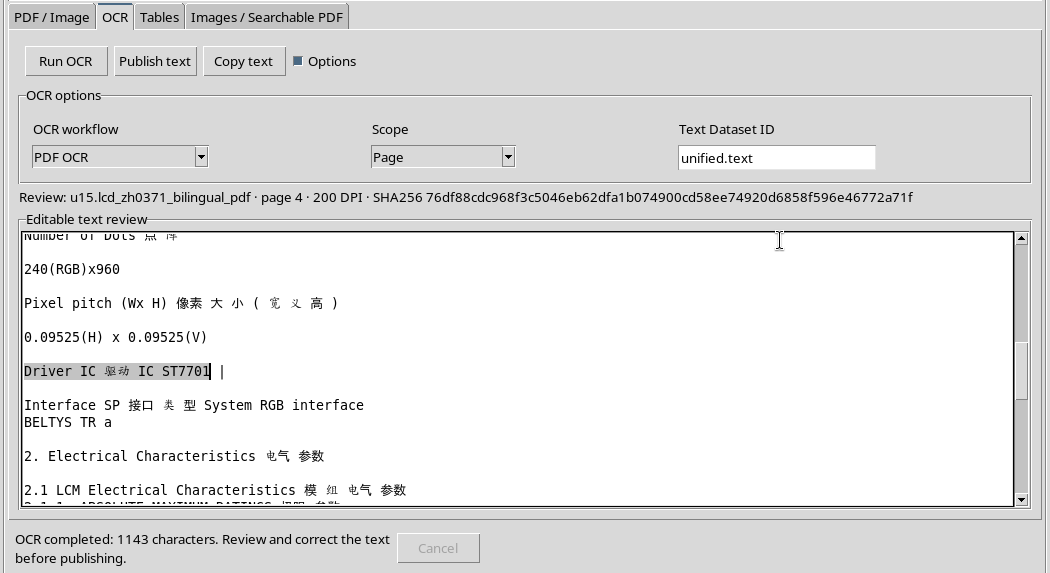
The correct draft contains 1.142 Unicode characters, of which 137 Chinese characters, and is still a revision text. Until you use Publish text, a new Dataset document.text is not created.
15. Why Page and DPI are part of the provenance
The OCR revision retains the link to the source Dataset, its fingerprint, Page = 4 and DPI = 200.
If you change the page number without applying it through Render page, the text in the editor may remain visible; however, the page indicated by the input no longer matches the source of the revision. the viewer must prevent publishing that draft as if it belonged to the new context.
16. Try a different page without losing text
Edit Page from 4 to 5 without running a new OCR. A request to publish the revision of the 4 page is rejected.
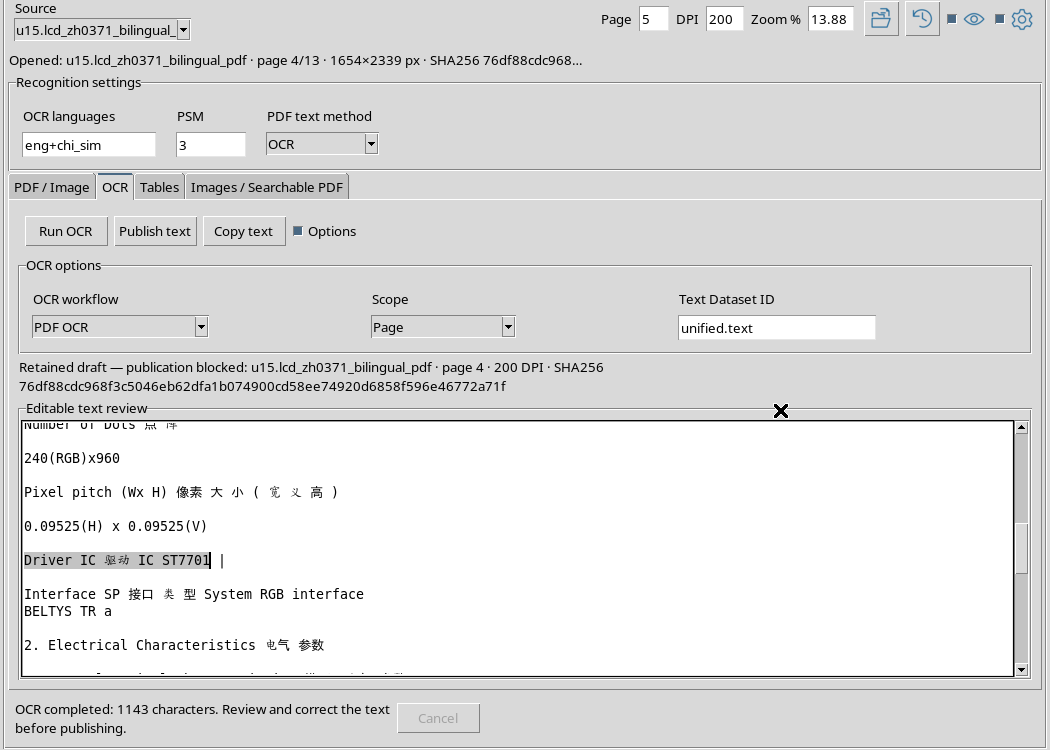
The Retained draft — publication blocked message appears with references to the original source. The text is not attributed to the 5 page and no wrong Dataset is created.
17. Restore a page and update the view
If you bring Page back to 4, the context match may return valid, but the Retained draft visual label can stay until the interface updates the rendering.
To get a consistent indication back use Render page on the correct page, then check the Review: information again. This particularity of reporting is covered in the chapter on publication of tables.
18. Change Source while maintaining a draft
With the PDF still open you can select a different source, for example the PNG from the 4 page, and press Open source after finishing the work in progress.
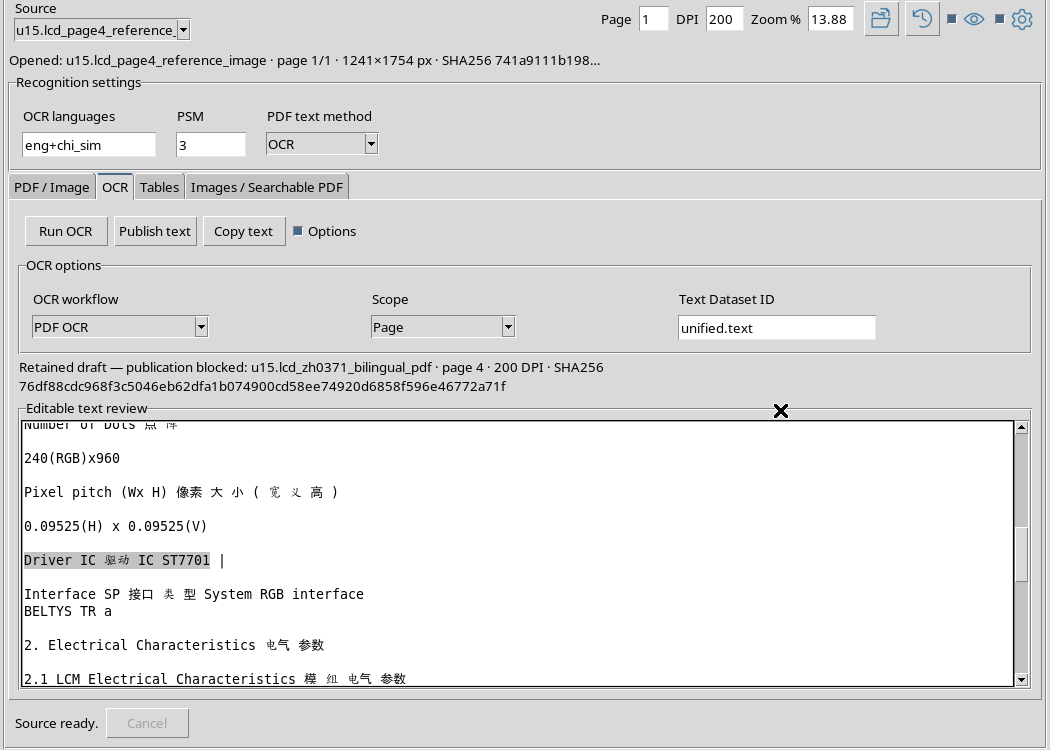
The previous text draft may remain in the editor, but the viewer reports it as Retained draft — publication blocked. Text still belongs to the PDF, not the newly opened PNG.
19. Return to original source
Select the original PDF again, set the page and DPI of the revision, then use Open source or Render page to reopen the context.
When identifier, fingerprint, page and DPI match, the previous revision can be reused and the Review: indication returns consistent. You do not need to copy text manually from one editor to another.
20. Verify the document fingerprint
In addition to the name of the Dataset, the viewer uses the SHA-256 imprint of the source. If an expected revision other than the available canonical bytes is required, the control refuses access with The canonical source changed; open its current version explicitly.
In our case the check was verified with a fingerprint expected intentionally different, without modifying the PDF. It does not mean that the datasheet was really altered. In a normal case, explicitly reopen the current version of the Dataset.
21. The review text size limit
The text editor protects the already accepted content when the draft exceeds 4 MiB bytes UTF- 8, equal to 4.194,304 bytes.
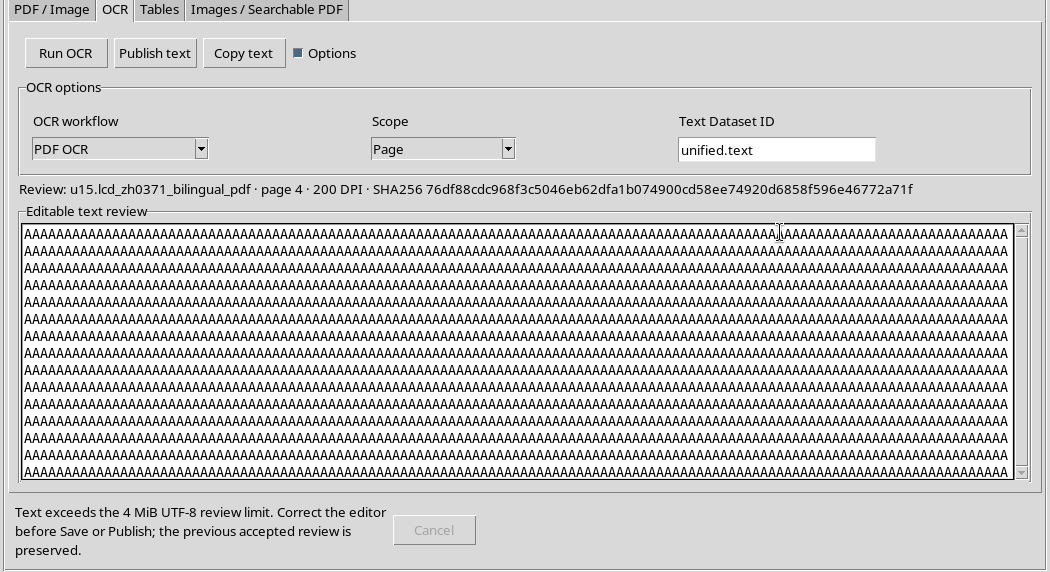
A test with 4.194,305 bytes was rejected by the original check, with the message Text exceeds the 4 MiB UTF- 8 review limit. The verification considers the UTF-8 bytes, not just the displayed number of characters.
22. Restore accepted version
If you exceed the limit, reduce the text or restore a valid revision before using Save or Publish. the viewer retains the previously accepted version as a reference, rather than overwriting it with excessive input.
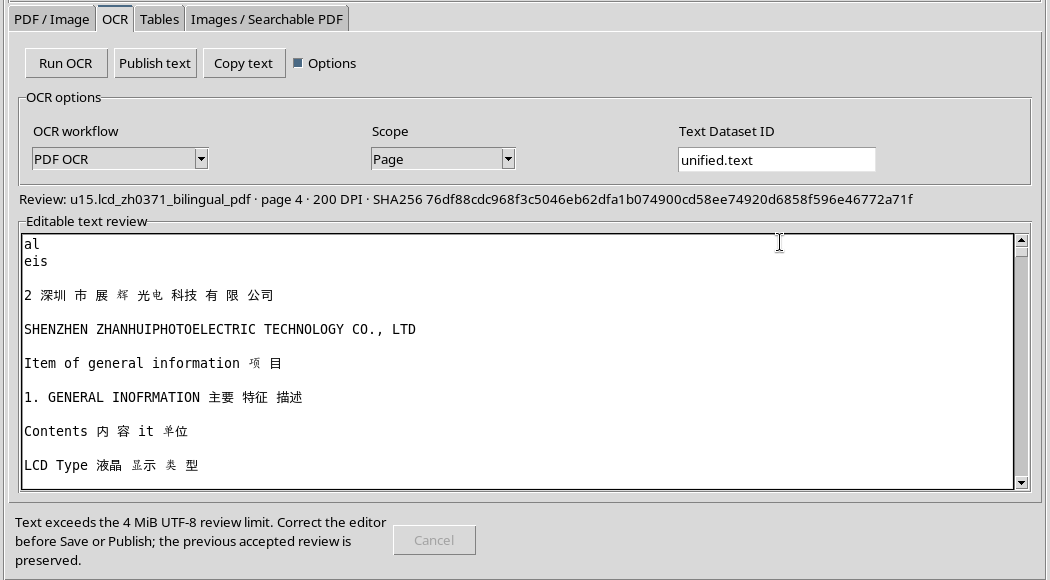
In the example, the English/Chinese draft of 1,142 characters was fully restored and compared to the previously accepted version.
23. Prepare the region for a table
To also verify the table revision, go back to PDF / Image, activate Region and delimit the Electrical Characteristics table on the original page.
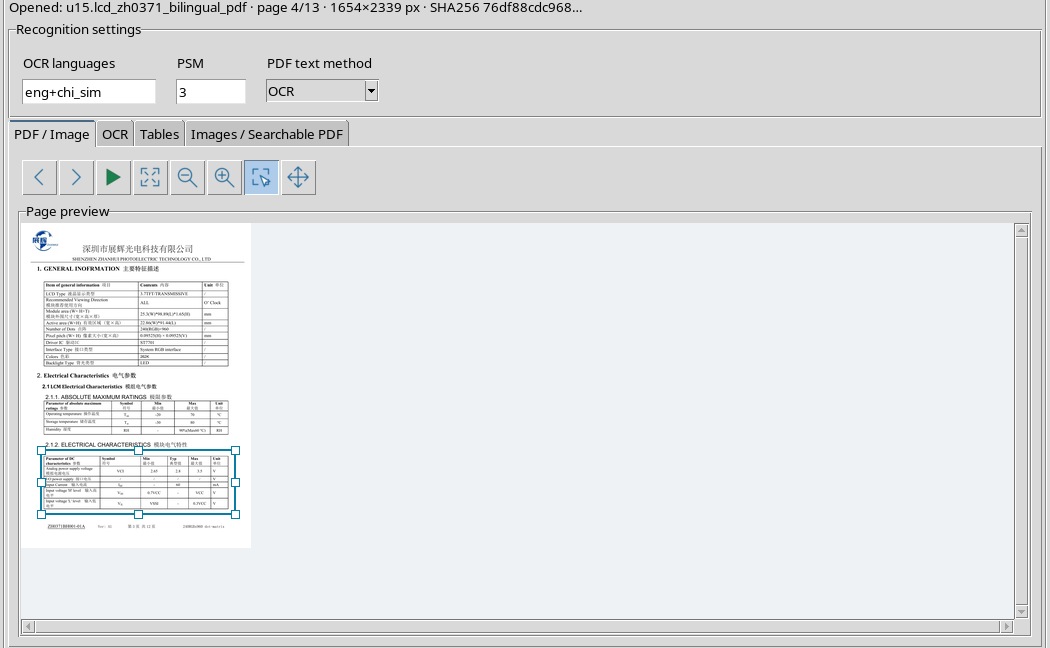
The selection is referenced to the document through four normalized coordinates. It does not in itself create a Dataset and does not alter the pixels or text of the PDF source.
24. Extract a real table
On the Tables tab choose Document Tables, set the number of columns expected to 0 (car) and start Extract table.
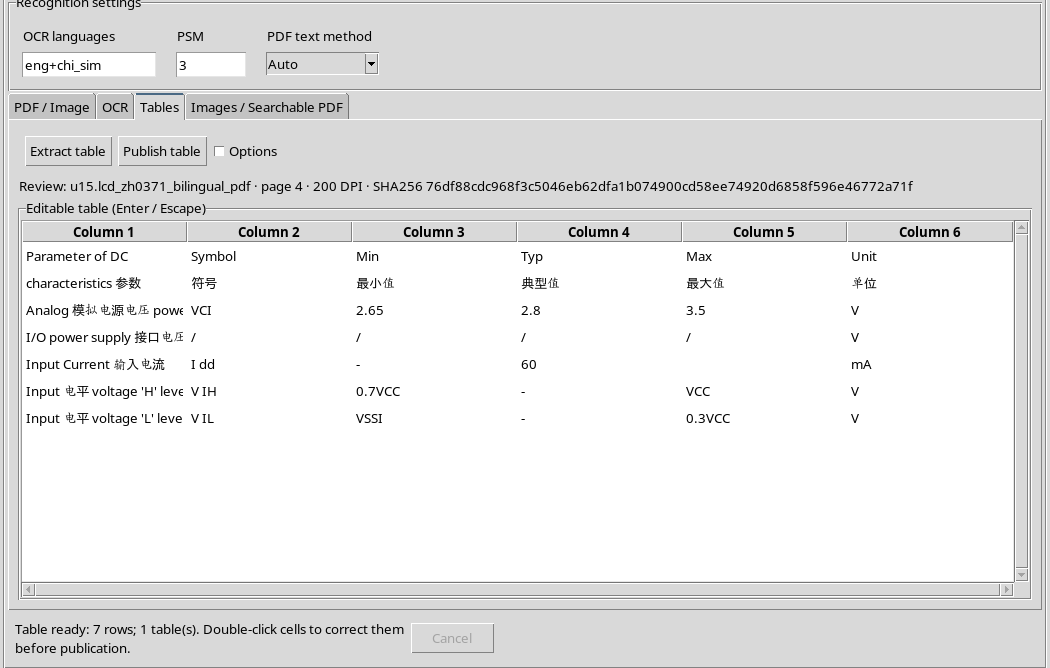
The region produces a revisionable table with 7 rows and 6 columns, including two bilingual header lines and five rows of electrical specifications. The VCI values 2.65, 2.8 and 3.5 V are in separate cells.
25. The table cannot be attributed to another Source
If you open the derived PNG while the table extracted from the PDF remains in the editor, the Publish table command is rejected.
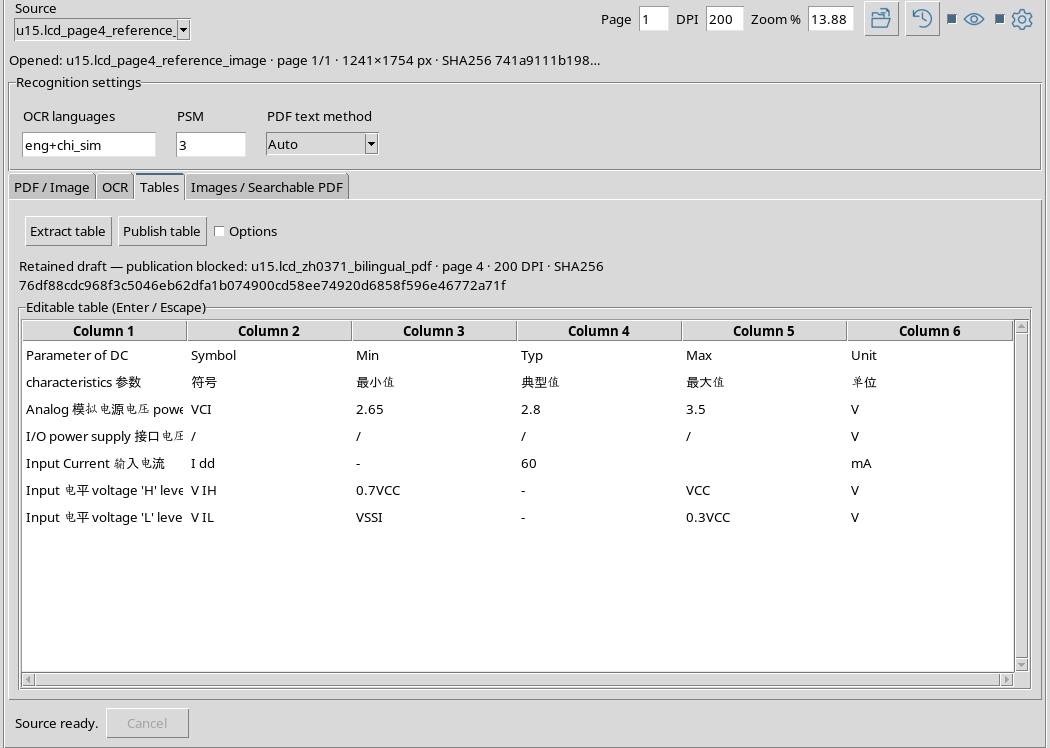
The Retained draft — publication blocked indication means that the revised content and the current Dataset do not match. the viewer keeps the table for a possible resume, but does not publish it under a wrong provenance.
26. What changes when you switch the source
Changing Source doesn’t necessarily delete textual and tabular drafts. You can then see previous results as you browse a new document.
This possibility is useful to recover the work, but requires attention: seeing a table in the editor doesn’t mean it belongs to the currently open source. Before publishing, always check the Review labels and the identity of the source.
27. Save work before a new operation
When text and table are in a state you want to preserve, use Workspace → Save.
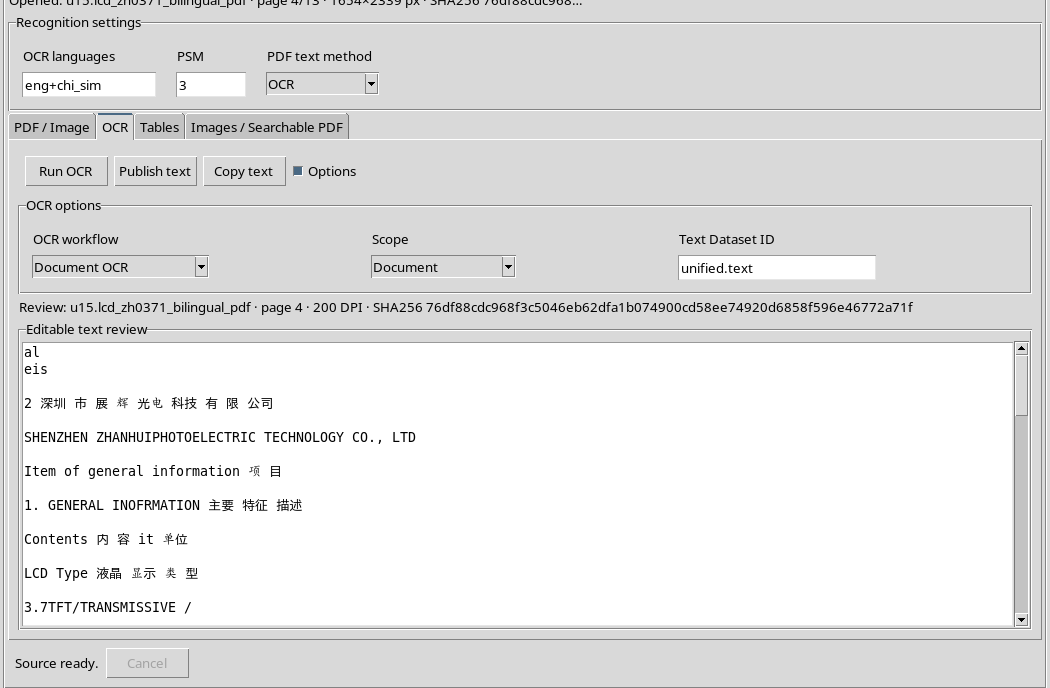
GX-TXT’s Shared Workspace records accepted revisions and information needed for reopening. This save does not amount to publishing the text or table as new canonical Datasets.
28. A new job can leave unsaved changes
If, after Save, you start another Document OCR operation, the current result or subsequent changes may differ from the last Workspace saved.
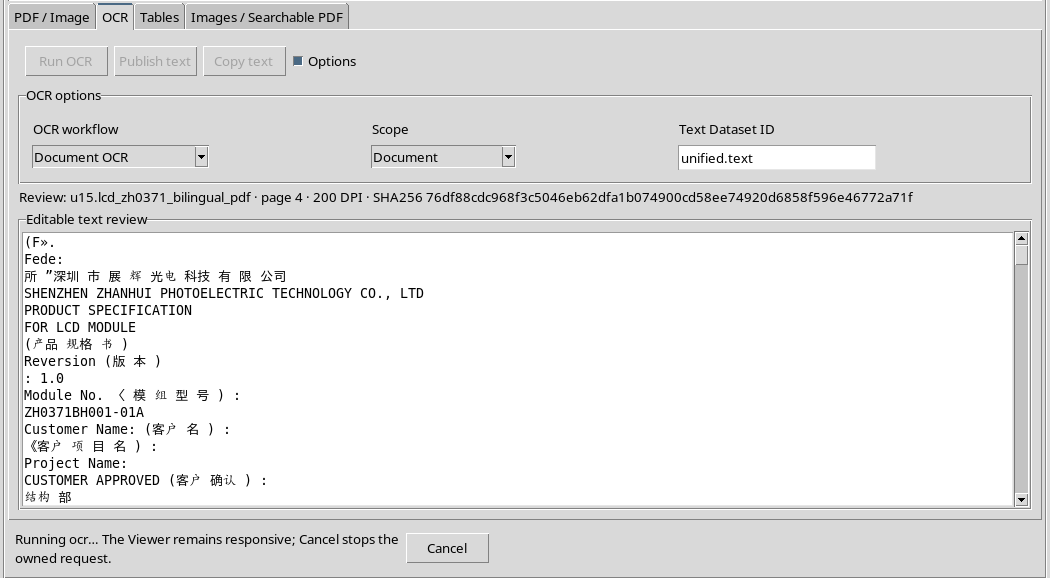
Before closing, the most linear choice is Cancel to stop work, check the status of revisions and explicitly decide whether to save or discard changes. Closing does not automatically have to assume which version of work you prefer.
29. Closing and discarding the pending draft
GX-TXT distinguishes the revision saved from unsaved changes and has a closing path that stops jobs still belonging to the window. The Session and the last recorded Workspace are not deleted just because the viewer closes.
In this example, we verified the closure with a really pending job, discarding only the unsaved revision. The two source Datasets and the last saved Workspace remained unchanged. In ordinary operations, consciously choose the response to any GUI confirmation requests.
30. Reopen from Shared Manager
The Workspace → Session Workspaces… command opens the framework manager, in which you can select the previously saved Workspace.
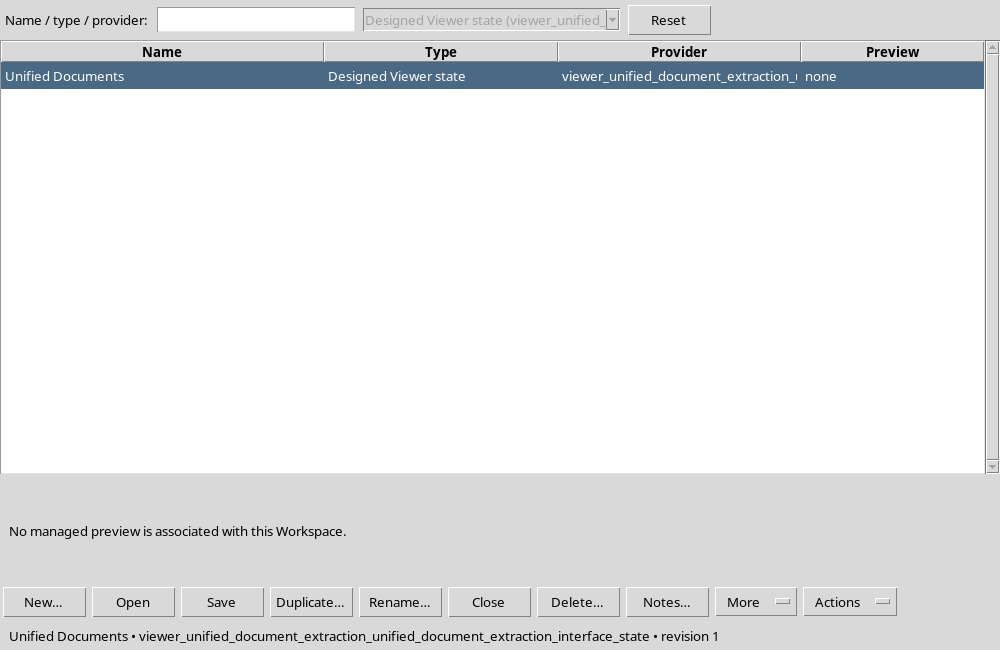
Use Open on the correct Workspace. GX-TXT rebuilds the viewer and associated revisions, instead of creating a new document archive.
31. When History is different from the Saved Workspace
A close after unsaved changes can leave a History verified but different from saved document. In this circumstance the Recover History window may appear.
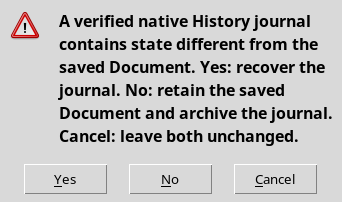
The message does not necessarily mean that the original PDF is corrupted. It indicates that the framework has detected two distinct versions of the working state, and requires an explicit decision before continuing.
32. The Three Choices of Recover History
There are three alternatives in the recovery window:
| Choice | Meaning |
|---|---|
| Yes | Retrieve status from verified History newspaper. |
| No | It keeps the saved document and archives the diverging newspaper. |
| Cancel | It leaves both unchanged without deciding yet. |
If you don’t know which version should prevail, Cancel is the prudent choice: leave the items to compare intact. Choose Yes or No only after identifying the revision you want to keep.
33. Keep the Workspace known as valid
In our example the revision we wanted to recover was the last saved Workspace before of the discontinued OCR work. For this reason No was chosen: keep the saved document and archive the divergent History newspaper.
The service kept the copy of the newspaper in the Session archive, without intervening on the bytes of the source Dataset. This choice is relevant to the case described, not a universal rule for all Recover History windows.
34. Check that the table has been recovered
After the recovery was concluded, the same PDF source was re-opened with Page = 4, DPI = 200, revised OCR text and 7 rows and 6 columns table.
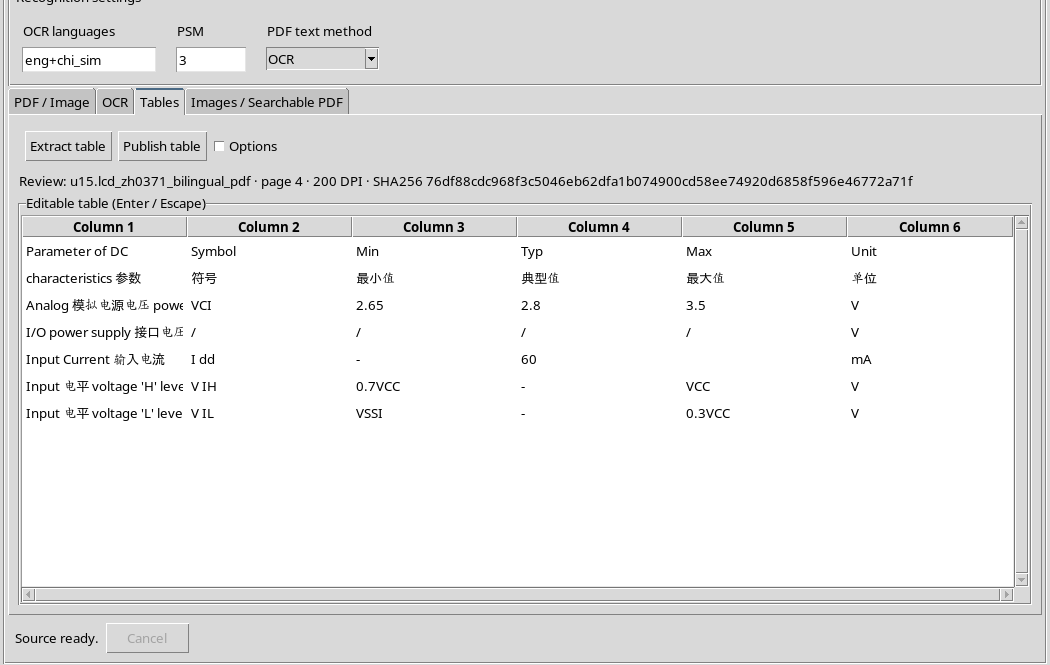
The Unicode content retrieved corresponds exactly to the version accepted before the work stopped. The table retains the original lines and symbols, including verified electrical values.
35. Checks for saving and recovering your work
| Situation | Verified Behavior |
|---|---|
| No open source | Run OCR disabled, sourceless request rejected |
| Invalid numeric input | Message with range allowed, no worker started |
| OCR in progress | Incompatible commands disabled, Cancel available |
| Cancel | Work stopped without new publication |
| Different Page or Source | Publication of previous drafts blocked |
| SHA waiting different | Request refused without changing source |
| Text over 4 MiB UTF- 8 | Input rejected, revision accepted preserved |
| Closure with hanging work | Waste management and protection of saved Workspace |
| Divergent History | Explicit choice of recovery or storage |
These checks refer to the operations actually examined. They do not replace the scientific verification of the recognized content.
36. Conclusions and next step
Unified Documents protects the work with controls on source, page, DPI, worker status and text size. When a break occurs, you can distinguish an accepted draft from a pending result and resume processing without attributing the data to a wrong source.
For reliable use: save the Workspace, knowingly undo jobs you don’t want to complete, check provenance before publishing and explicitly decide how to deal with any differences in History.
The next chapter, U16 — Reference to menus, shortcuts and accessibility, will collect the interface commands for quick and verifiable consultation.