

Run bilingual English and Chinese OCR
In this guide we perform a real Optical Recognition (OCR) with GX-TXT Unified Documents on an electronic datasheet containing English text, simplified Chinese and numerical specification tables on the same page. We use Tesseract with the languages eng and chi_sim, both of which are present on Debian.
We compare PDF OCR and Document OCR workflows, Region, Page and Document, and Native/OCR modes with different PSMs. We also document the errors actually observed. The recognized text should be considered to verify, not an automatically reliable transcription of electrical characteristics.
1. A true mixed English and Chinese datasheet
The document chosen is the datasheet ZH0371BH001-01A, published by Shenzhen Zhanhui Photoelectric Technology Co., Ltd. (深圳市展辉光电科技有限公司), relating to an elongated TFT LCD module of about 3,7 inches, 240 × 960 resolution and ST7701 driver.
You can download the original manufacturer’s PDF. It is technical documentation belonging to the manufacturer: the guide refers to the original, without republishing as its own the full datasheet.
2. Import a canonical source
Import the PDF using GX-TXT’s Acquisition Handler PDF and open Viewers → Unified Documents. Choose Document Dataset in the Source box and press Open source.

The Dataset must be contracted document.pdf; the Session retains its provenance and SHA-256 imprint. The rendering and consultation does not alter the original PDF.
3. Attention to numbered pages
The file contains 13 physical pages, although the contents of the datasheet bear an internal numbering of 12 pages. The printed page 3/12 therefore corresponds to the viewer’s 4/13 page; the printed page 4/12 corresponds to the 5/13 Physical Page.
In this guide the numbers given in Page always refer to the physical pages of the file, not just the printed numbering.
4. Choose the page with the electrical parameters
Enter Page = 4 and press Render page. At 300 DPI the viewer produces a raster preview of the page equal to 2481 × 3508 pixels.
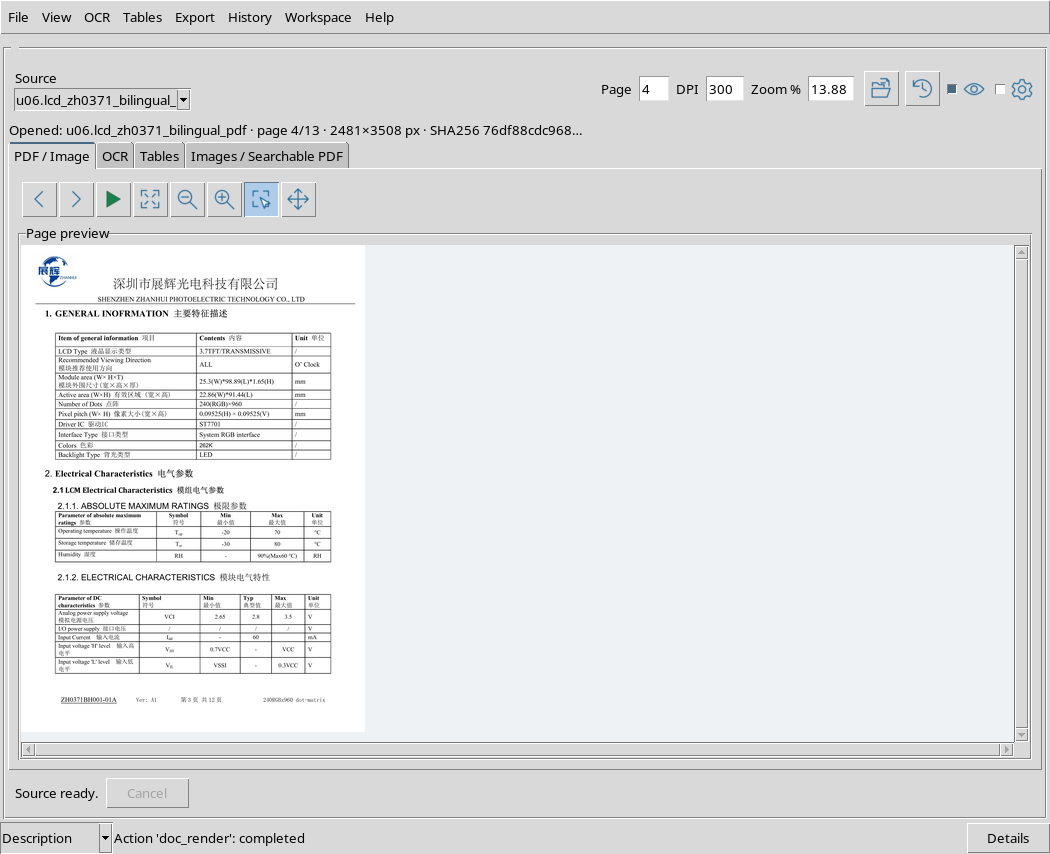
The page contains information about the module, bilingual text and tables of Electrical Characteristics. In the original, the analog voltage VCI has minimum, typical and maximum values of 2,65 / 2,8 / 3.5 V. A typical input current of 60 mA also appears.
These are features stated in the document, not measures taken during this guide.
5. Distinguish embedded text from OCR
This PDF already contains a selectable text layer. Extracting that layer directly does not mean you have optically recognized the letters in the image.
To verify Tesseract we then have to choose a path that processes the rendered page pixels. Only later will we compare the result with the native text of the same PDF.
6. Configure PDF OCR on the 4 page
Open the OCR tab and configure Recognition settings with OCR languages = eng+chi_sim, PSM = 3 and PDF text method = OCR. In the Options of the OCR tab choose OCR workflow = PDF OCR and Scope = Page.
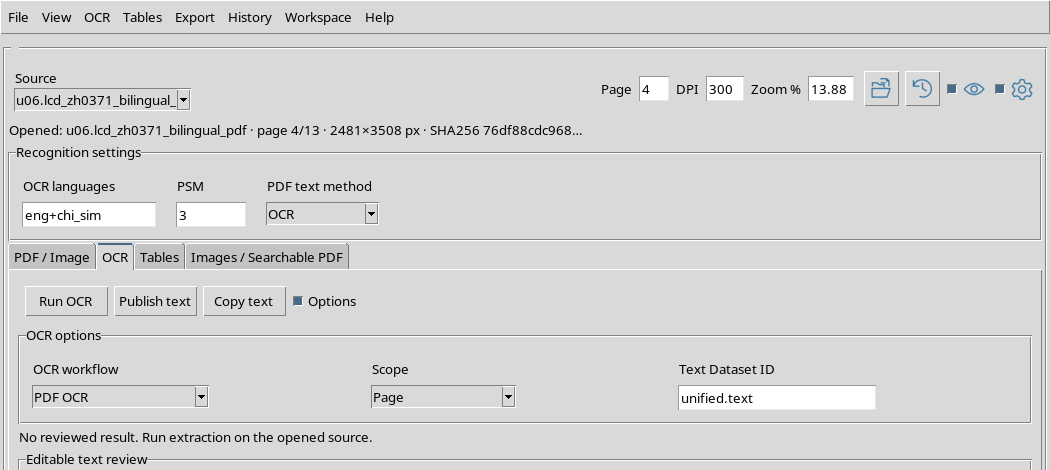
PSM 3 uses automatic page segmentation. Scope Page limits recognition to the open 4 page, without processing all others.
7. Perform the first optical recognition
Press Run OCR and wait for completion. Product text appears in area Editable text review.
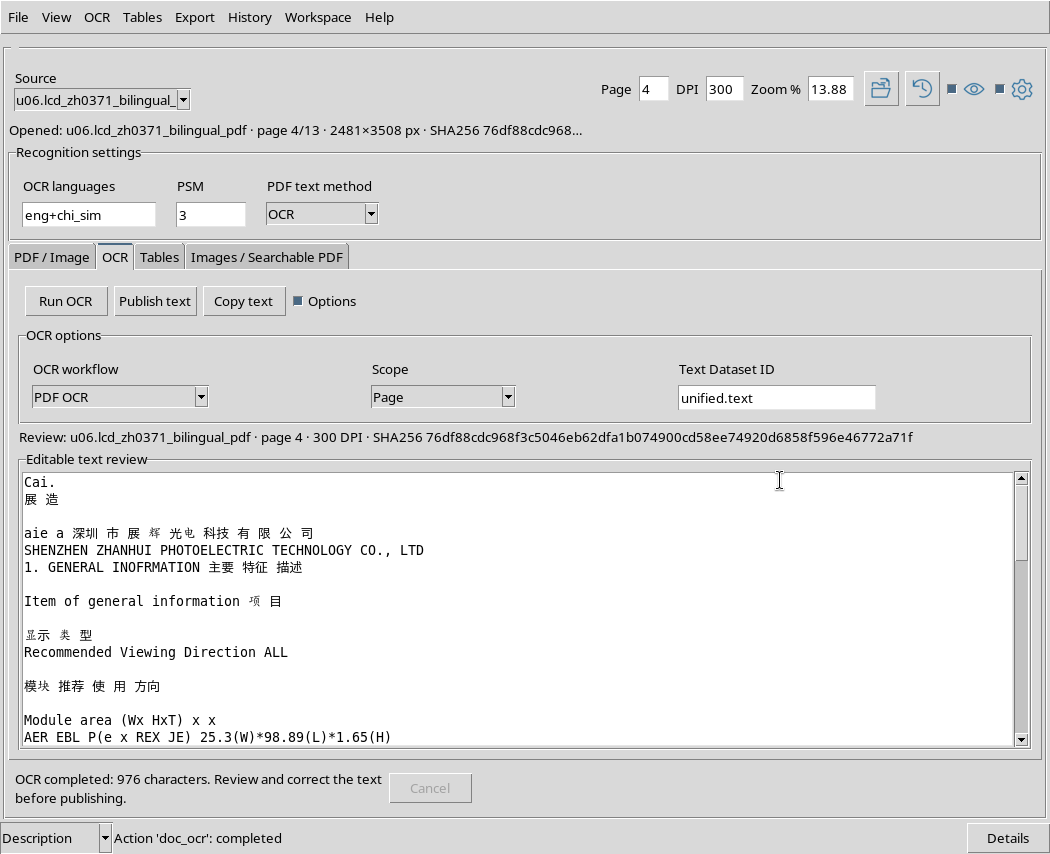
The first test returned 976 Unicode characters, including 109 Chinese characters and 534 Latin letters. Bilingual recognition really happened, but the conclusion of the job does not guarantee that all labels and values were read correctly.
8. Real errors on electrical quantities
The name of the ST7701 controller and part of the module description appear in the OCR text. However, the VCI symbol and fundamental values such as 2.65 V and 3.5 V are not recovered correctly.
Do not automatically publish these lines as numeric data. For an electronic specification, a cipher, sign, unit or header error can completely change the meaning of the information.
9. The number of characters does not equal the accuracy
The total of returned characters is a descriptive data, not a correct recognition percentage. The OCR can add spaces between ideograms, break words, change the order of columns and confuse similar digits.
For a scientifically significant comparison we verify some well-defined references: component model, electrical acronyms, voltages, currents and units of measurement.
10. Read native text as reference
Keep the same page open 4, choose OCR workflow = Document OCR, Scope = Page and PDF text method = Native.
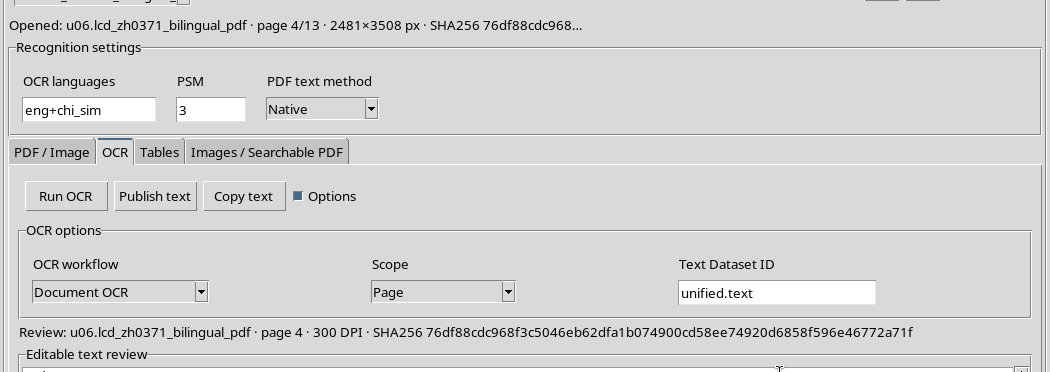
In this case the service attempts to read directly the text layer present in the PDF. The button used remains Run OCR, but the actual method is not an optical OCR.
11. The Native result of the same page
Press Run OCR in the Native configuration.
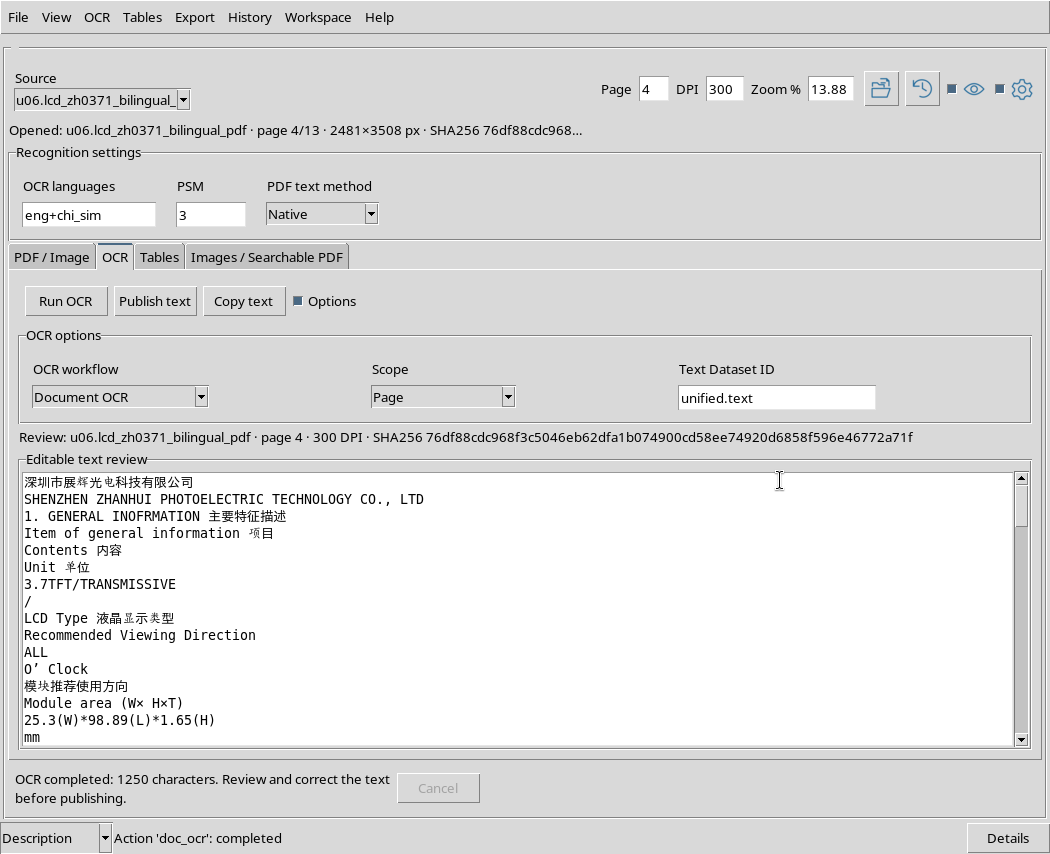
Native reading produced 1,250 characters, of which 159 Chinese. The strings VCI, 2.65, 2.8, 3.5 and 60 are present in the original result. This comparison shows that missing data from the first OCR test is actually contained in the PDF.
12. Why Native may be preferable
When a PDF has a usable text layer, Native avoids interpreting pixels again. It is often the most direct choice to get the original digital text.
Not all PDFs, however, contain selectable text. In addition, the presence of text does not ensure that rows and columns are returned in the visual order of a table.
13. Document OCR with PSM 11 and OCR method
For a new optical test, keep Document OCR and Scope = Page, set PDF text method = OCR, PSM = 11 and OCR languages = eng+chi_sim.
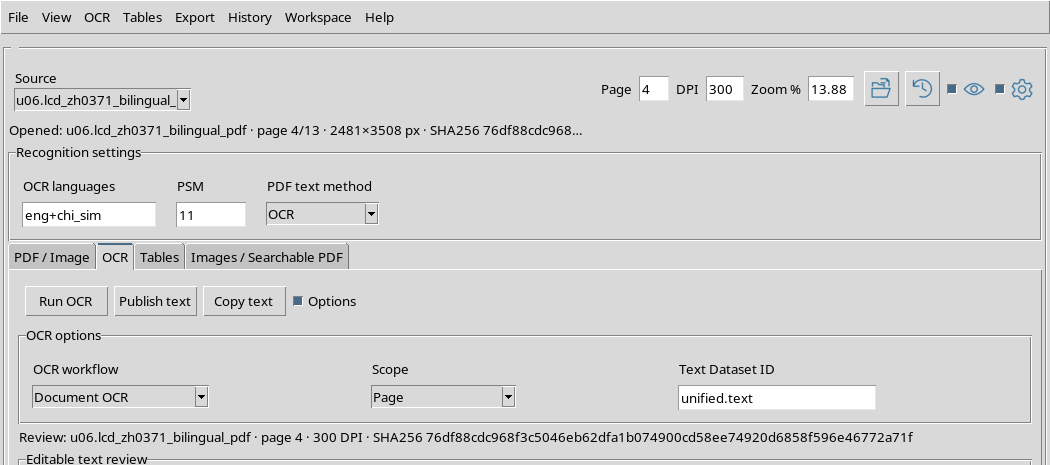
PSM 11 searches for scattered text on the page and does not force Tesseract to interpret the entire content as a continuous block. It can be useful when there are titles, tables and short distributed entries.
14. An OCR that recovers voltages
Press Run OCR again.
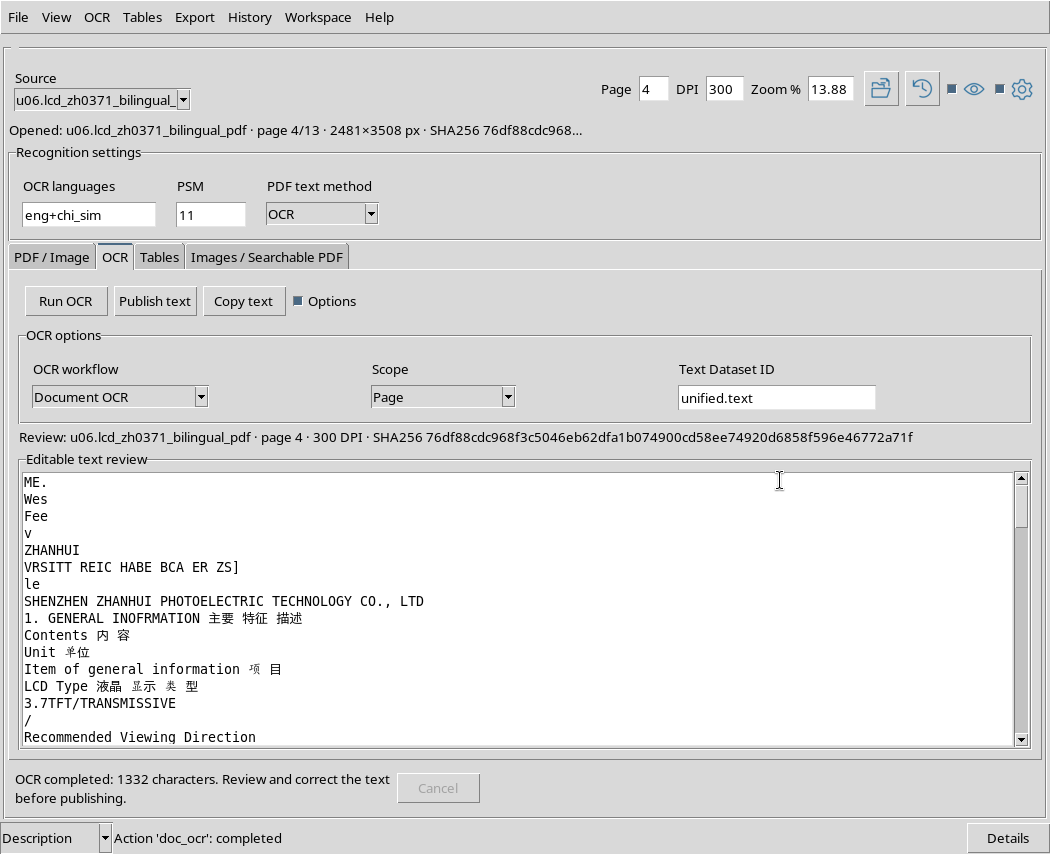
The result contains 1,332 characters, including 146 Chinese, and this time reports VCI, 2.65, 2.8, 3.5, 60 and ST7701. However, altered Chinese words, added spaces and a reading order not always consistent with the columns remain.
The configuration differs from the first for both workflow and PSM: the improvement should not be attributed to a single parameter without a controlled experiment.
15. Comparison of the three routes on page 4
| Processing | Fonts | Chinese Characters | VCI and voltages 2.65–3.5 V |
|---|---|---|---|
| PDF OCR, PSM 3, eng+chi_sim | 976 | 109 | Incomplete |
| Document OCR, OCR method, PSM 11, eng+chi_sim | 1.332 | 146 | Recognized |
| Document OCR, Native method | 1.250 | 159 | Present in the original |
These numbers do not constitute an index of accuracy. The presence of multiple characters does not necessarily mean that transcription is better: they count the correct technical references.
16. The Meaning of the Three Scopes
Page uses the current page; Region limits processing to the selected rectangular area; Document requires an operation on the entire PDF. The concrete effect also depends on OCR workflow and PDF text method.
In particular, Document OCR with Native can process the embedded text of all pages, while PDF OCR with Document can require optical recognition of the entire document, at a very different processing cost.
17. Go back to the page to choose a Region
Select the PDF / Image tab, again on the 4 page. Set Zoom % = 0, press Render page to adapt the image and activate Region.
Draw a rectangle that contains the electrical features section, avoiding including as much of the entire top of the page as possible.
18. A real selection with the mouse
The example selection was plotted directly on the document using the pointer.
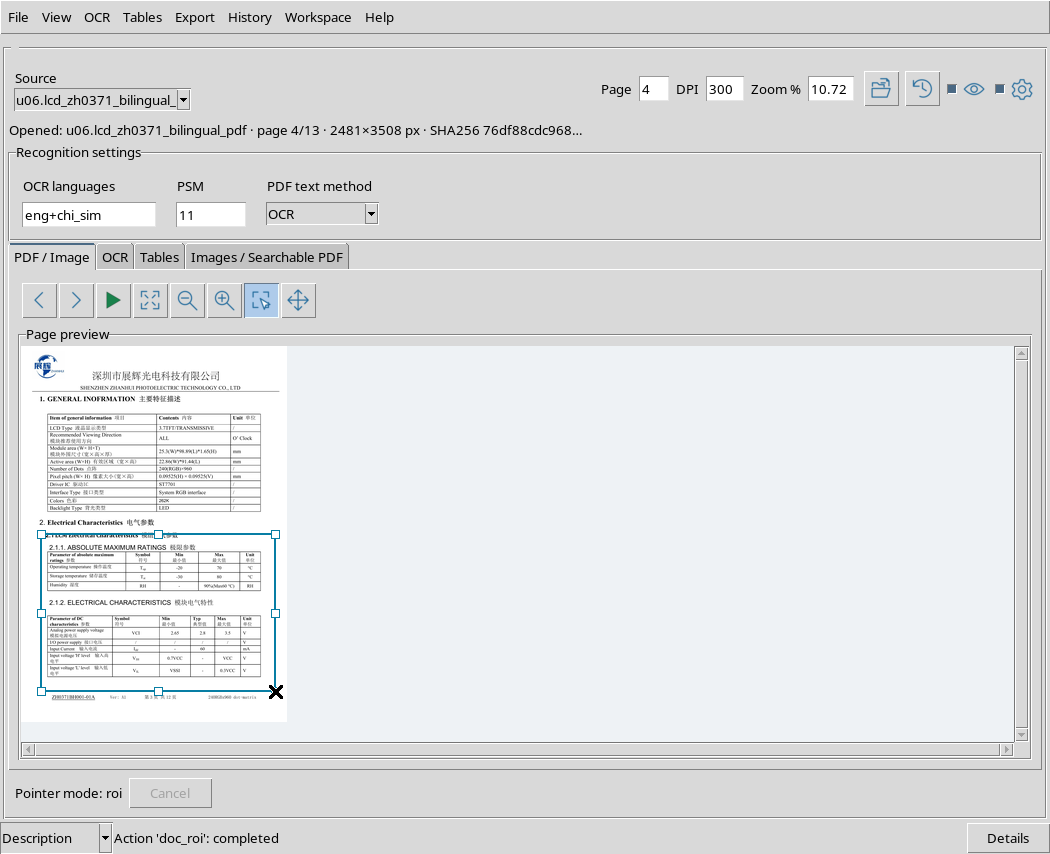
The normalized coordinates were about X = 0.075–0.955 and Y = 0.500–0.918. On the page raster at 300 DPI they roughly correspond to the pixels (187, 1754) – (2369, 3219). They are coordinates of the rendered page, not the desktop window.
19. Set OCR of Region Only
Switch to the OCR tab, leave OCR languages = eng+chi_sim, choose OCR workflow = PDF OCR, Scope = Region, PSM = 6 and PDF text method = OCR.
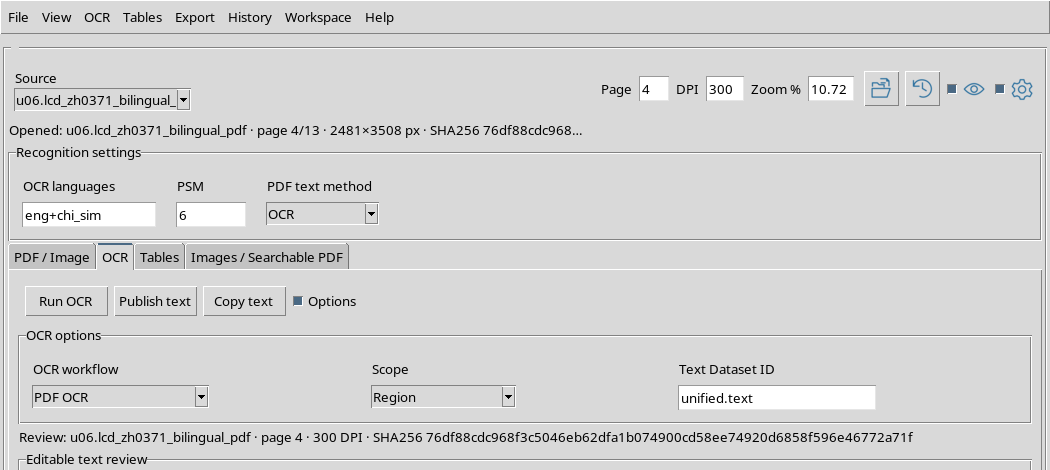
With Scope = Region the viewer transmits to the recognizer the portion of the image you have selected. The page number and geometry of the selection remain important: the area is not a new standalone file and the original is not cropped or modified.
20. Read the Region result
Press Run OCR. The recognition returned 500 characters, of which 60 Chinese characters. In the text appear VCI, 2.65, 2.8 and 3.5; some rows, descriptions and associations between columns remain altered however.
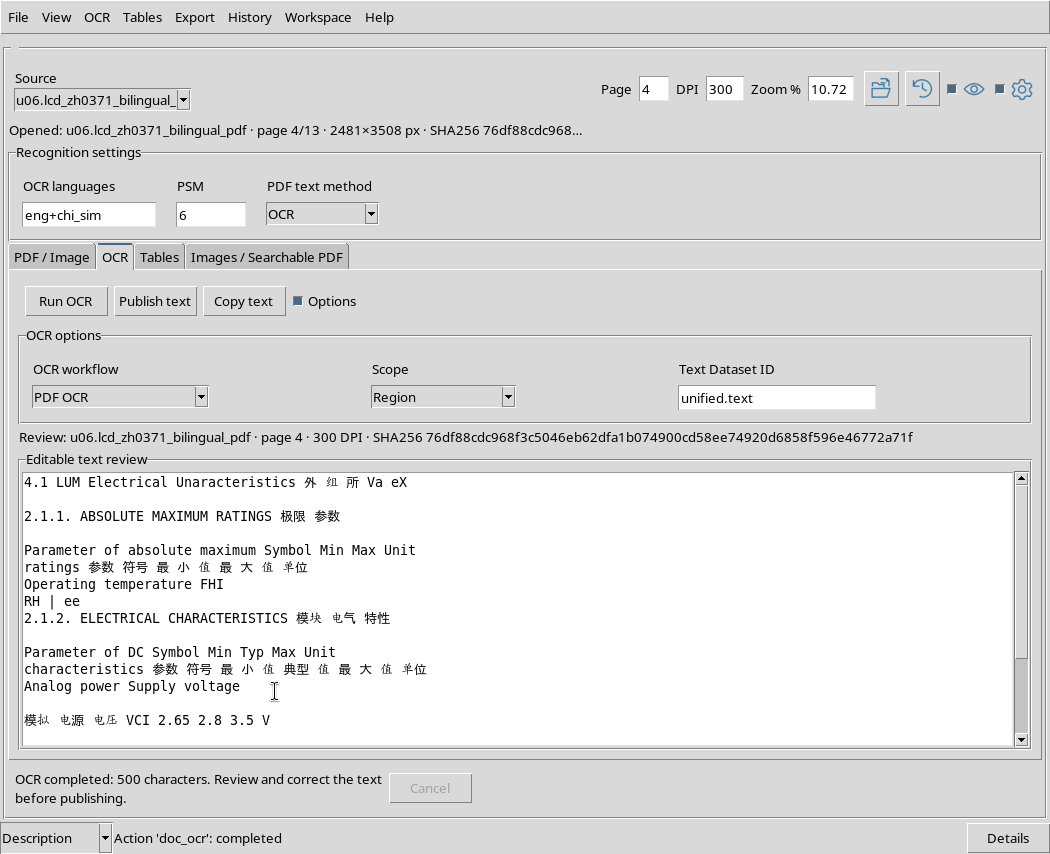
Region can reduce foreign text, but does not automatically convert a table to structured data. Before reusing the specifications, compare each line with the original image.
21. Select the entire document
To distinguish the Scope from the read method, set OCR workflow = Document OCR, Scope = Document, PDF text method = Native. The source remains the same PDF from 13 pages.
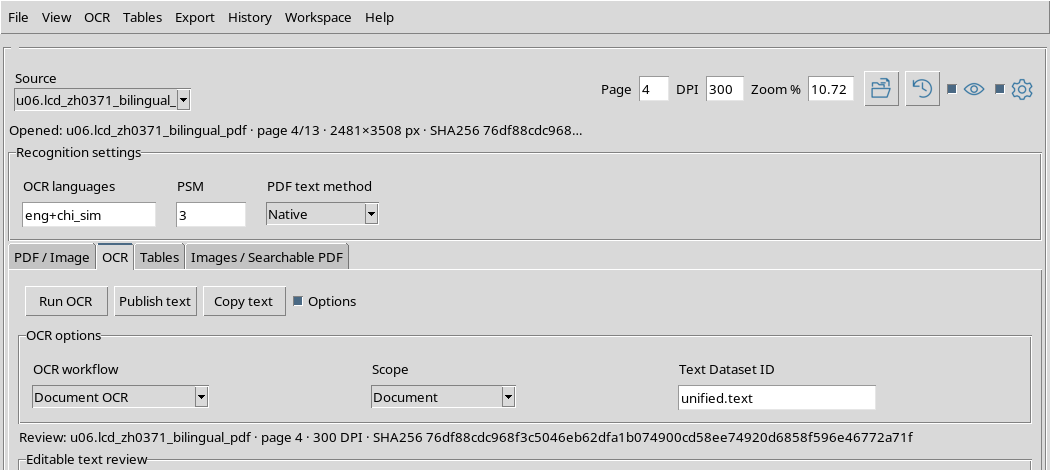
The Native method is possible because this document incorporates digital text. The operation over the entire document does not obligate Tesseract to optically recognize each page.
22. Extract the native text of the thirteen pages
Press Run OCR: All 13 physical pages, equal to 11,921 characters, including 1.322 Chinese characters, is loaded into the revision area.
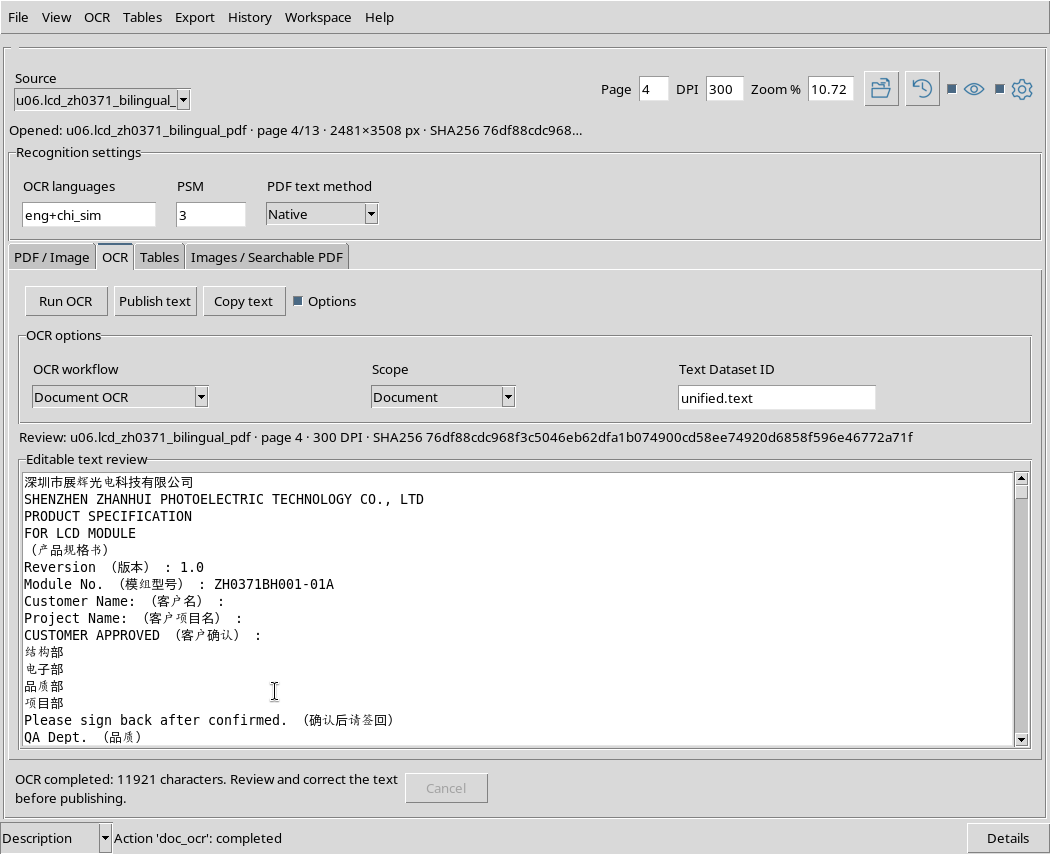
This is a result of the Document OCR + Native + Document path: it is not a measure of the accuracy of the OCR. Collected text may require reconstruction of titles, columns and tables before being used.
23. Start and can cancel the complete optical OCR
To verify job management, set OCR workflow = PDF OCR, Scope = Document, PDF text method = OCR, PSM = 3 and eng+chi_sim. Press Run OCR: During processing the command Cancel becomes available.
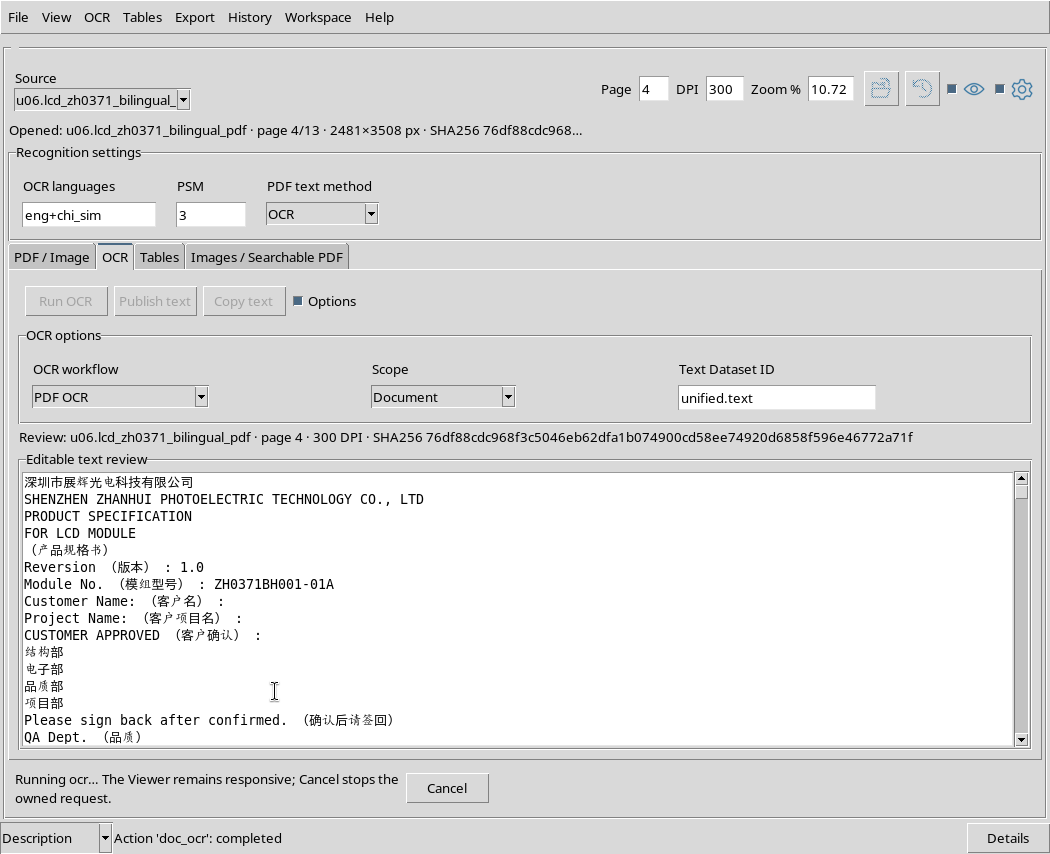
The optical OCR of 13 high-resolution pages requires different and potentially more challenging processing than just reading Native. The guide does not assume that a Document/OCR job has already finished just because it was started.
24. Undo without losing previous text
Press Cancel during the job. the viewer returns to the ready state for a new Run OCR; the native text of the 13 pages that was already present in the Editable text review area remains visible.
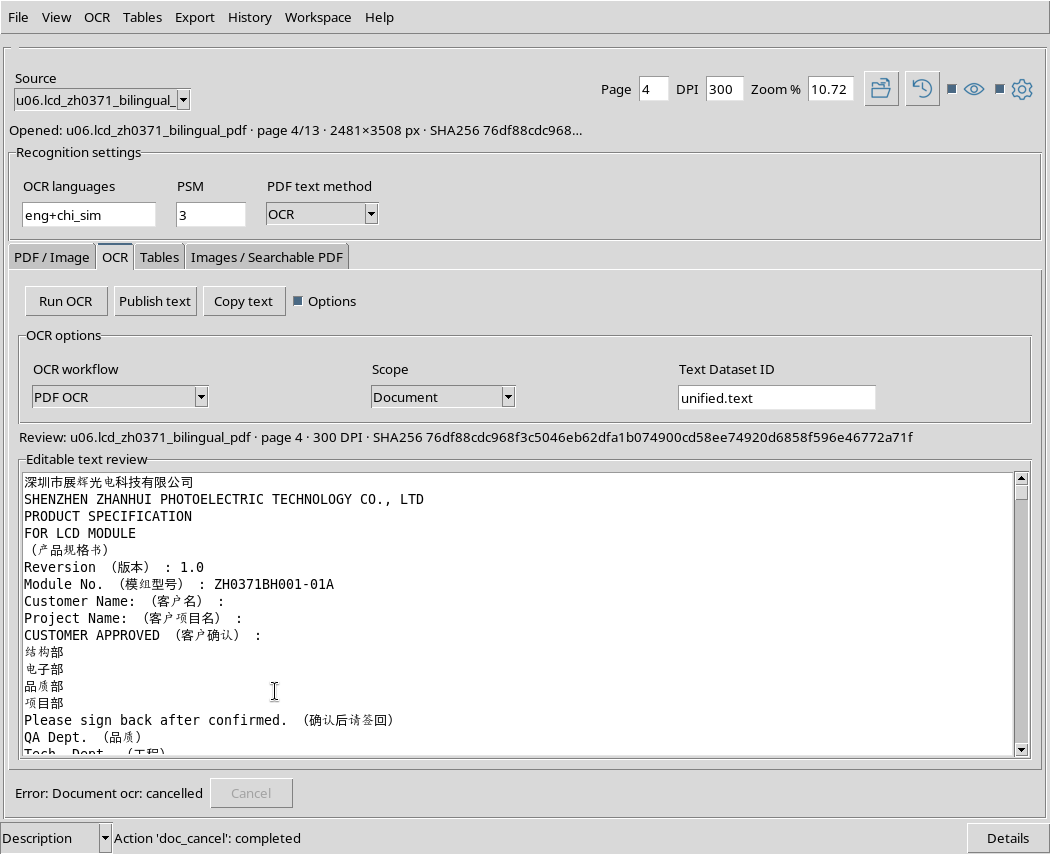
The documented undo concerns the current request: not is proof that the text of all pages has been optically recognized. If you intend to reuse the text present after Cancel, always check which processing it belongs to.
25. Check the effect of OCR language
On the page 4, choose Document OCR, Scope = Page, PDF text method = OCR, PSM = 11, but this time set OCR languages = eng.
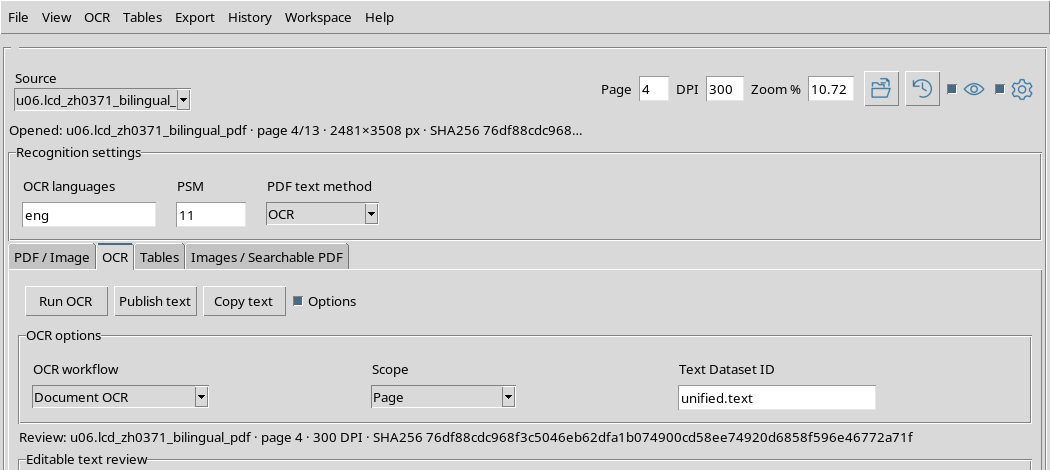
Compared to the bilingual optical test with Document OCR/PSM 11, we keep the same document, the same page, the same workflow and the same PSM: the language configuration changes only.
26. OCR with English only: what changes
The result with eng contains 1,378 characters, but no Chinese character. The bilingual test with eng+chi_sim, on par with the other options, contained 146.
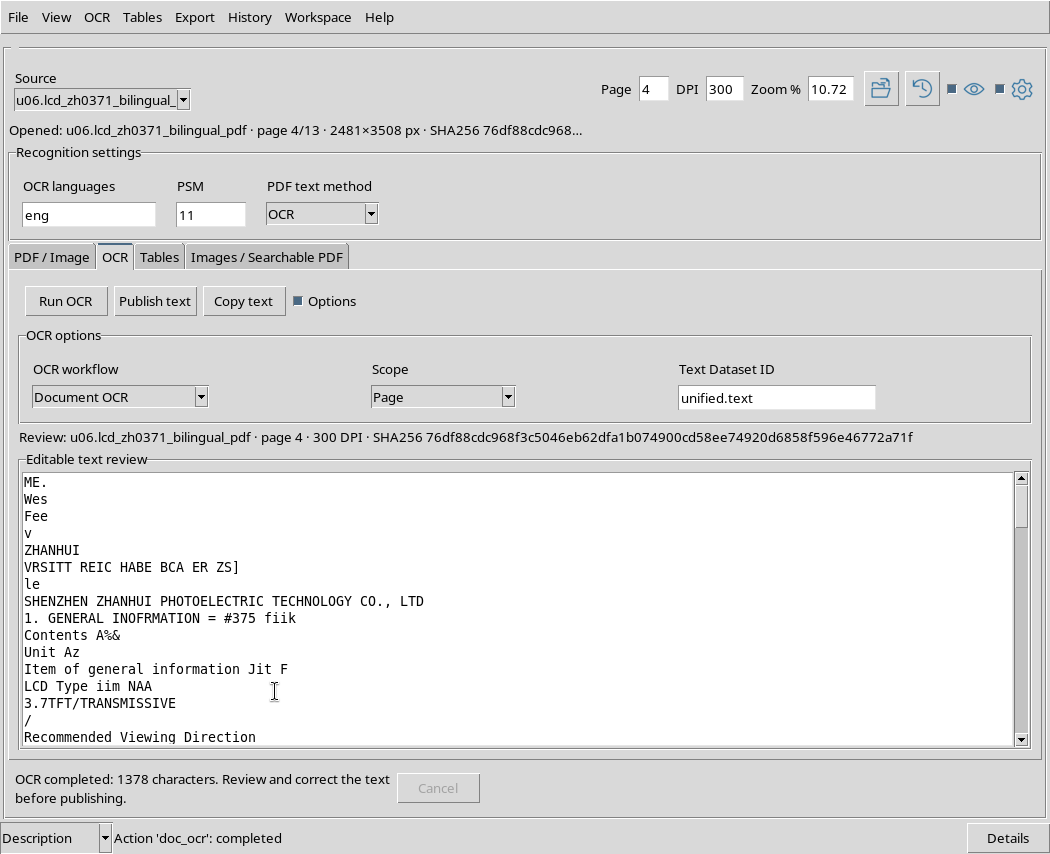
More Latin letters does not mean better recognition: numerous Chinese sequences can be replaced with meaningless Latin symbols or characters. For a mixed datasheet, enable the language models actually present and always check the output.
27. Another table from the same datasheet: Backlight Characteristics
Go back to PDF / Image, enter Page = 5 and press Render page. This physical page contains the bilingual table Backlight Characteristics related to backlighting.
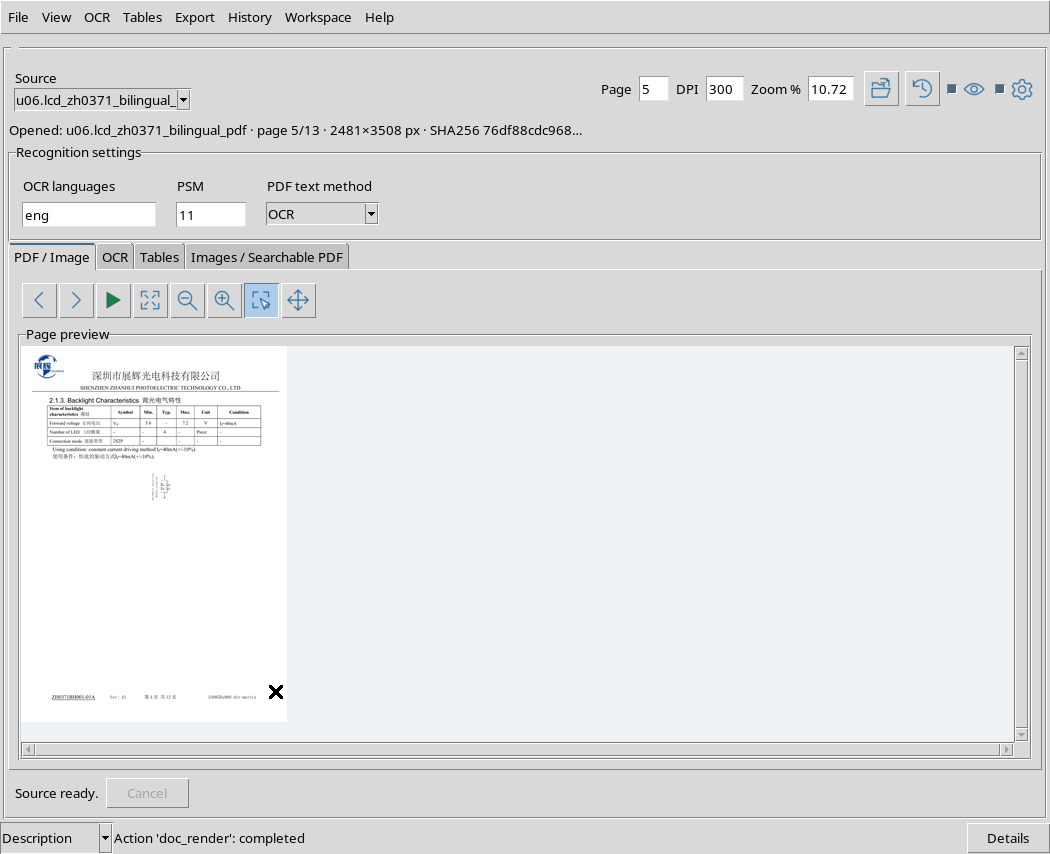
The original document reports, among other conditions, a voltage in the range 5.6–7.2 V and the current If = 40 mA (± 10%). These are values declared by the manufacturer, to be read together with their respective headers and test conditions.
28. Run the OCR on the backlight table
On the OCR tab, restore OCR languages = eng+chi_sim, set Document OCR, Scope = Page, PDF text method = OCR, PSM = 11 and then press Run OCR.
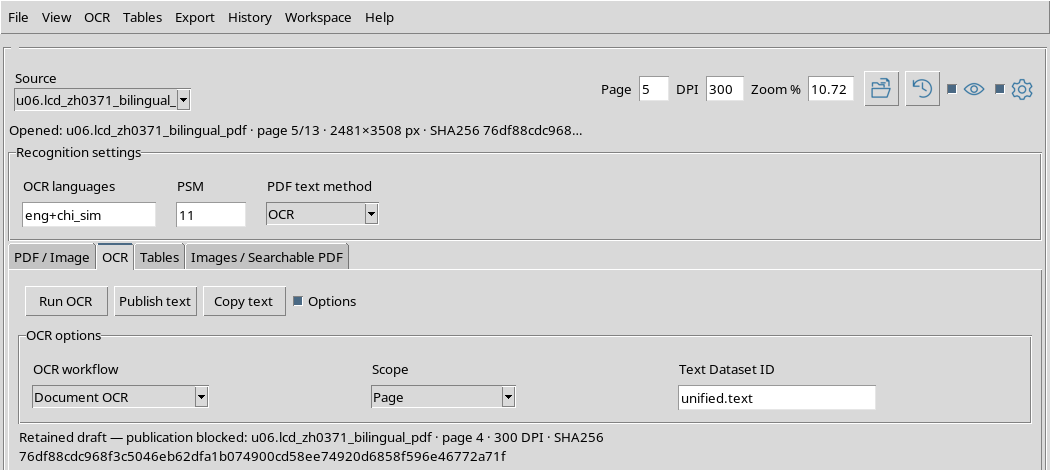
This way you reuse the same canonical source and optical procedure as the 4 page, but operate on the 5 page. You don’t need to create a cropped PDF or copy the content out of GX-TXT.
29. OCR result: voltages and current
The actual result of the 5 page contains 499 characters, of which 32 Chinese characters. The 5.6, 7.2 and 40mA, but headers and surrounding text still require verification.
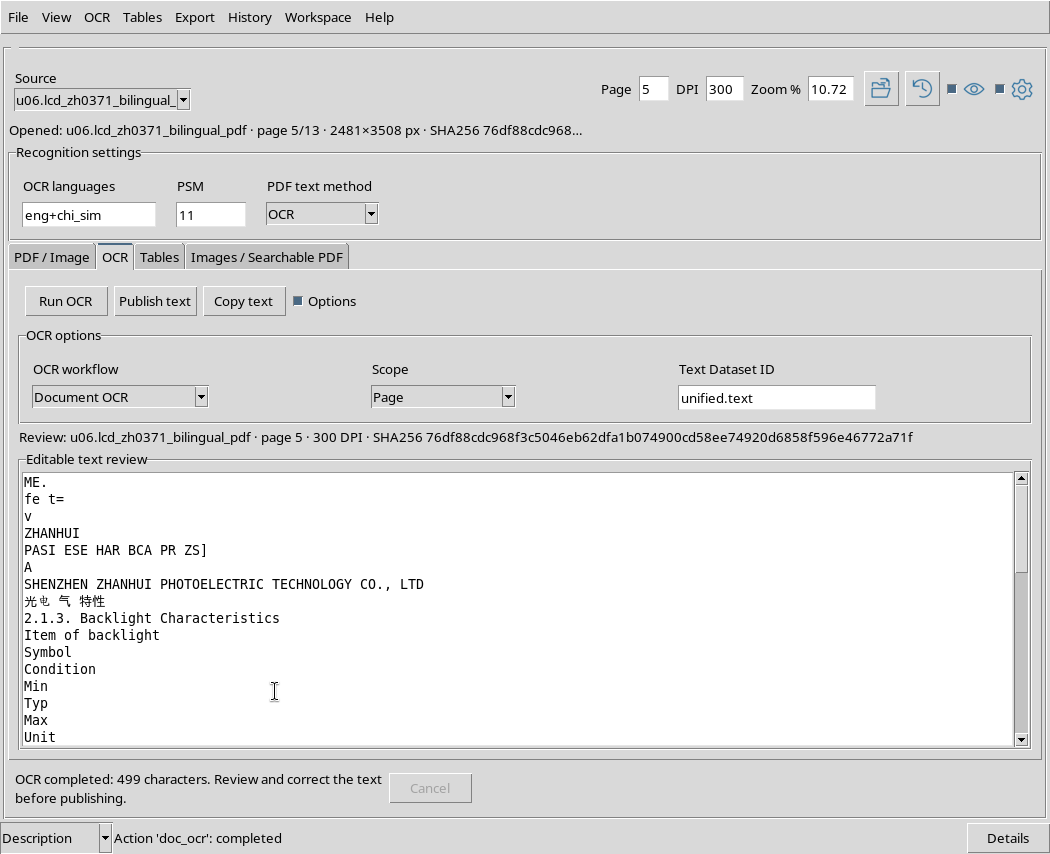
An isolated numeric value is not a reliable structured data: without correct unit, symbol, row and column it can be attributed to the wrong parameter.
30. Prepare work on tables
Preserve this same original datasheet for the next chapter dedicated to Unified Documents tables. The physical pages 4 (electrical features) and 5 (backlighting) will offer real cases with English and Chinese headers and numeric columns.
The text recognition shown here is not a proof of Extract table and does not prove that the cells have been successfully extracted or published. These operations must be verified separately in the Tables tab.
31. Review of result and provenance
After Run OCR, Editable text review contains text obtained from the workflow and selected page or region. Do not confuse automatic recognition with a verified human transcription.
In this chapter we have read and compared the results; we have not edited, copied or published a Text Dataset. Manual correction, draft behavior and provenance of revised text will be addressed in dedicated chapters.
32. Criteria for scientifically using the recognized text
Before using specifications in a calculation, component list or table:
- retains the link to the original PDF and physical page;
- verifies each digit, decimal sign, symbol and unit of measurement on the visual document;
- Distinguish Native from OCR optical reading and record language, PSM and Scope;
- for tables, check the correct association between headers, columns and cells;
- do not turn the number of characters recognized into an alleged percentage of accuracy.
The concrete differences between Page, Region and Document and between PDF OCR and Document OCR are visible in the results described. The original PDF remains the source to be consulted when a recognized data is ambiguous.