

Review OCR and retain drafts
With GX-TXT Unified Documents 1.2.0 the result of a recognition can be checked and corrected directly in the OCR tab, before producing a Text Dataset. Revision is associated with the source, page and version of the document: changing context must not attribute a correction to a different file.
This guide continues the example on the ZH0371BH001-01A electronic datasheet, which contains English, Simplified Chinese and tables. We perform real corrections, select them with the editor and check what happens by changing page and source. We don’t publish the text yet: The Publish text command will be addressed in the next chapter.
1. Purpose of review
A complete OCR is not necessarily correct. The most dangerous errors in a datasheet are those that change the symbol of a size, digit, unit, component identifier or the association between rows and columns.
The Editable text review area allows you to arrange text without modifying the source PDF. The operation remains distinct from automatic extraction: it is a human intervention that requires comparison with the original.
2. Open the reference document
Import as Dataset document.pdf the original manufacturer datasheet, then open Viewers → Unified Documents. In the Source field choose the PDF Dataset and press Open source.
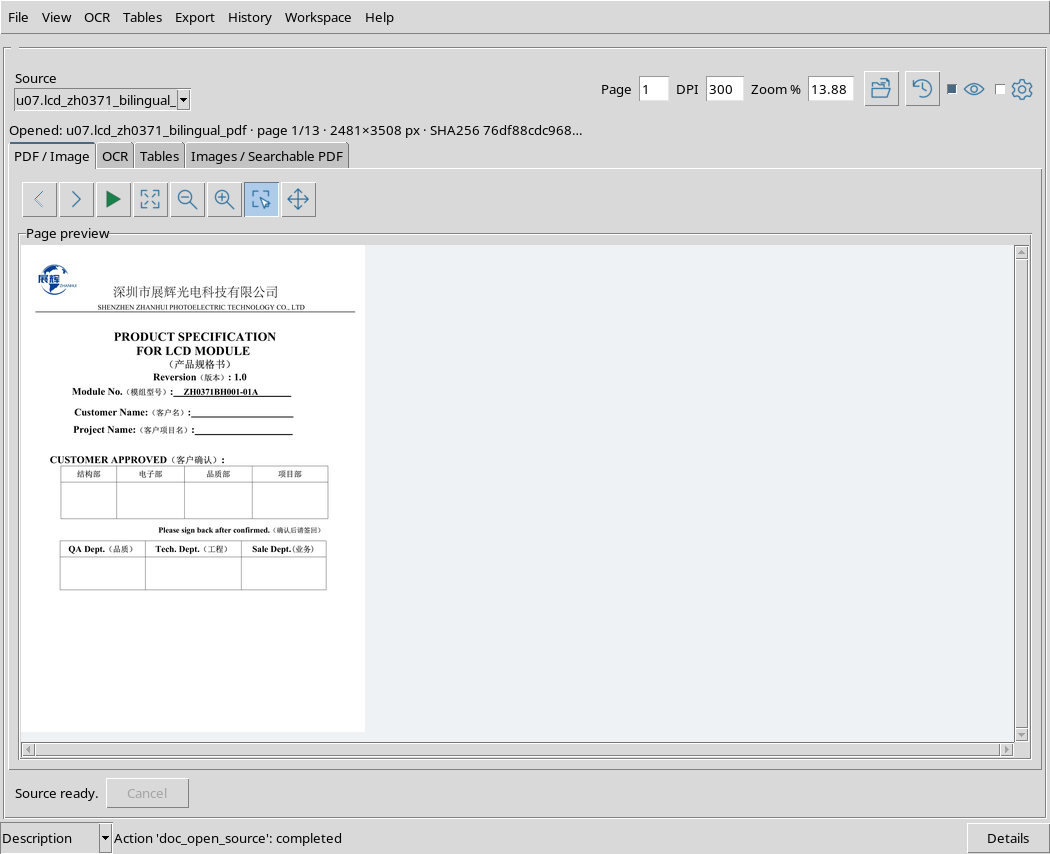
The document has 13 physical pages. The text printed on the sheet can use a different numbering than the file: for the Page field you must always use the actual position in the PDF.
3. Locate the correct page
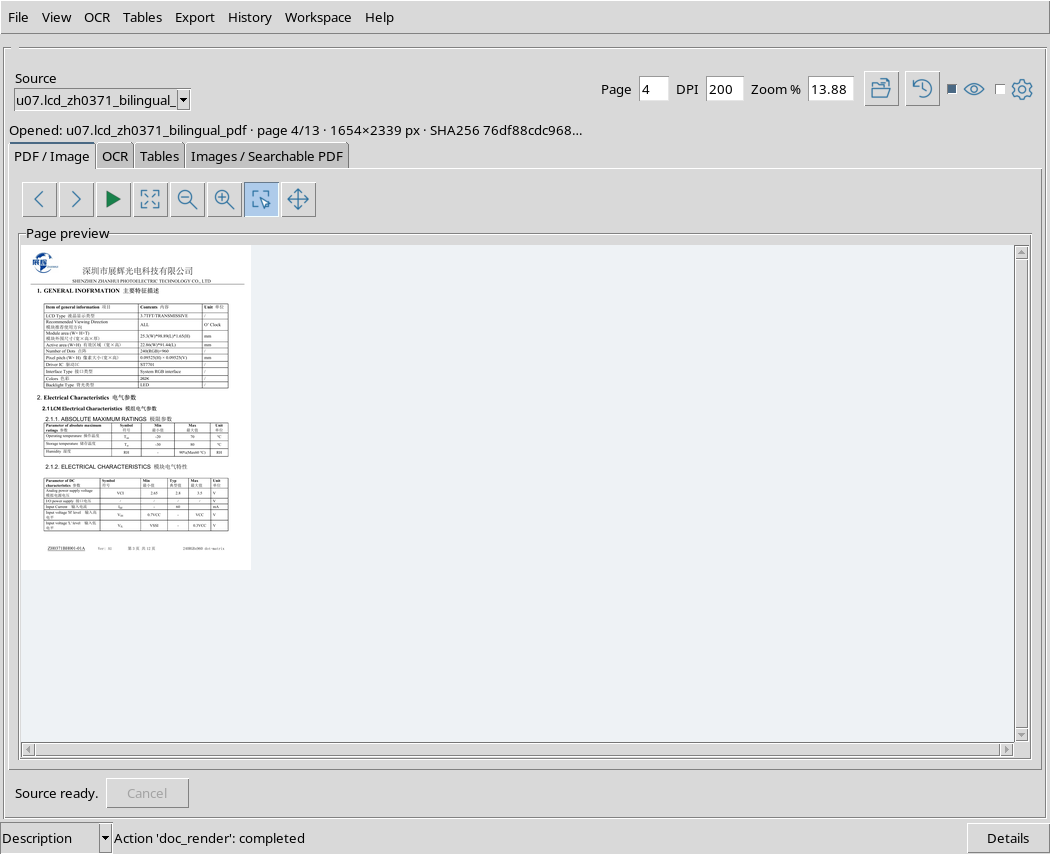
In PDF / Image set Page = 4 and DPI = 200, then press Render page. This page contains general information about the display and section Electrical Characteristics.
The original table shows, among other things, VCI with values 2.65 / 2.8 / 3.5 V. They are specifications declared by the manufacturer, not measurements made in GX-TXT.
4. Configure a truly optical OCR
Open Recognition settings and set OCR languages = eng+chi_sim, PSM = 3 and PDF text method = OCR. Switch to the OCR tab, expand Options and choose OCR workflow = PDF OCR and Scope = Page.
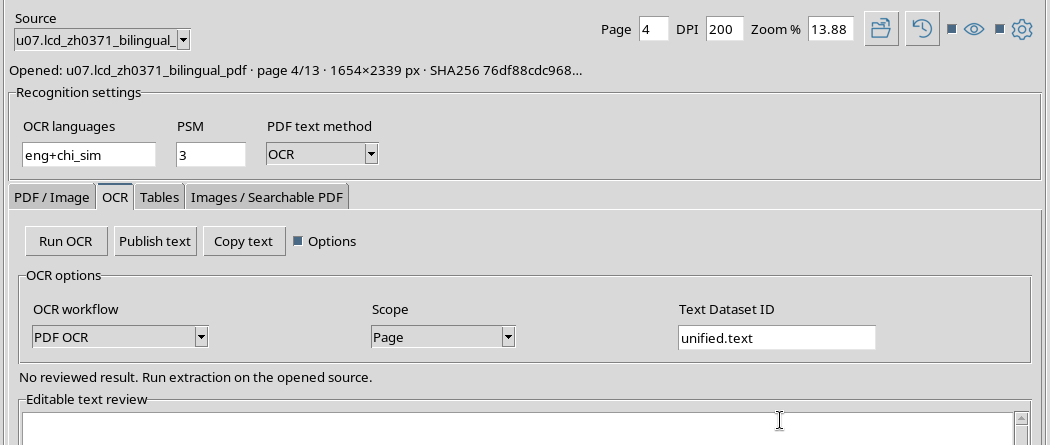
The OCR choice forces pixel recognition. The Native method, on the other hand, would read text already embedded in the PDF and would not be an independent verification of the optical engine.
5. Get text to revise
Press Run OCR. When finished, editable text appears in the Editable text review box. In our example this execution returned 1.143 Unicode characters, including 137 Chinese characters.
The number of characters does not measure accuracy. To judge the result you have to compare words and values with the original document.
6. Recognize the review area
The OCR tab shows the commands Run OCR, Publish text, Copy text, the option for settings and the actual editor. The text in the editor is not a modified file apart: it belongs to the revision status of the Session.
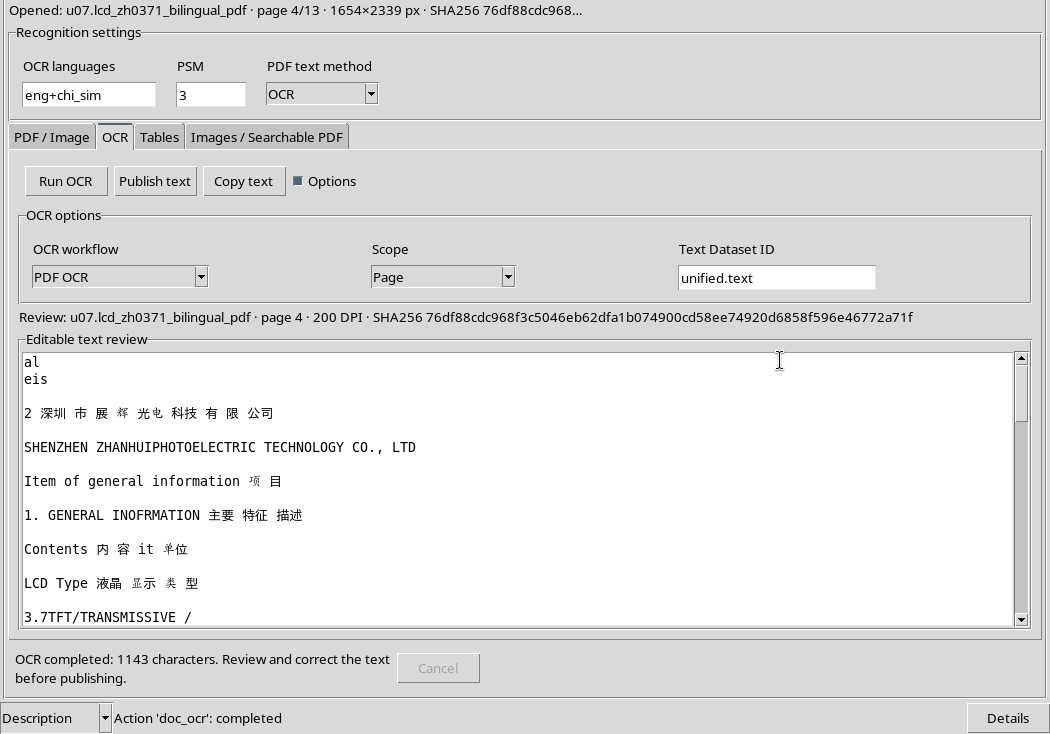
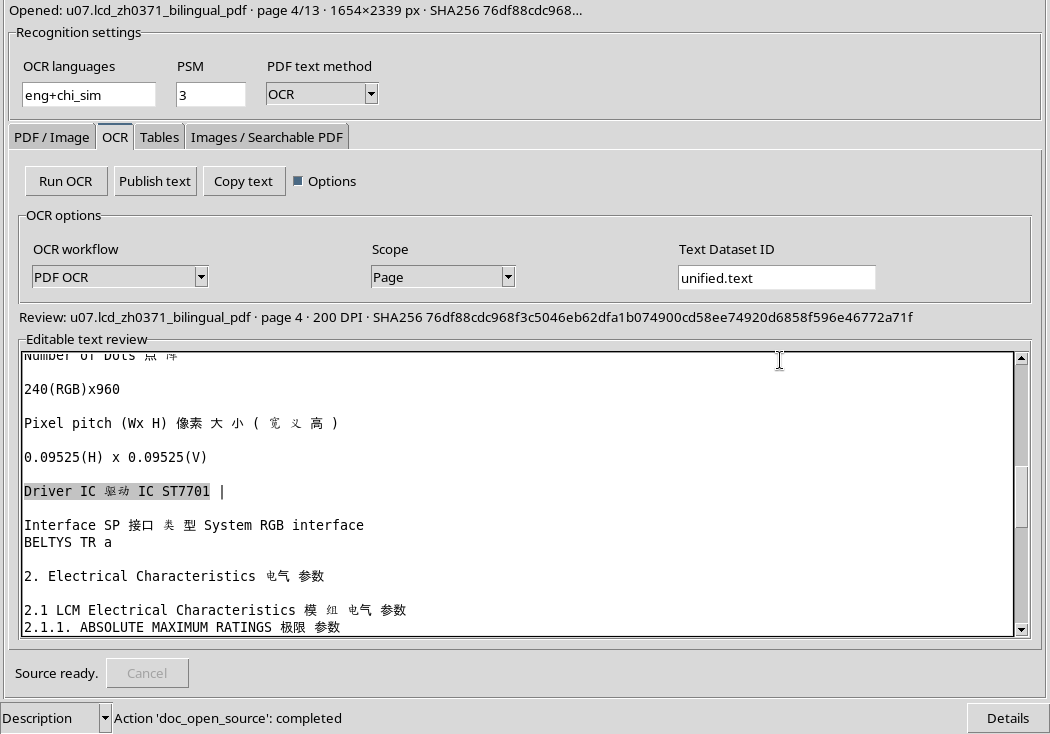
The pane is a Tk text editor, not an image of the result: you can place the cursor, select parts of the text and correct characters.
7. Recognize errors before correcting
In the optical output of this page appears the sequence Driver IC 驱动 TC ST7701. Comparing the same entry in the original document verifies that the correct Chinese/English signature is 驱动 IC.
3.5 Vv also appears in the feed parameter line, where the second final character is an OCR artifact: the original value shows 3.5 V.
These two fixes are documented because they can be verified; do not automatically turn the unusual printouts printed by the manufacturer into errors.
8. Perform two controlled fixes
In the editor correct 驱动 TC in 驱动 IC and 3.5 Vv in 3.5 V. Do not copy the entire table and do not delete unverified text. In our example the first replacement keeps the text length, while the second deletes a character.
The output switches from 1.143 to 1.142 Unicode characters, retaining the 137 Chinese characters. This is a review integrity check, not an OCR quality measure.
9. Locate and select the correct text
Take the cursor to the driver entry and select 驱动 IC Driver ST7701. The visual selection allows you to verify exactly the correct part.
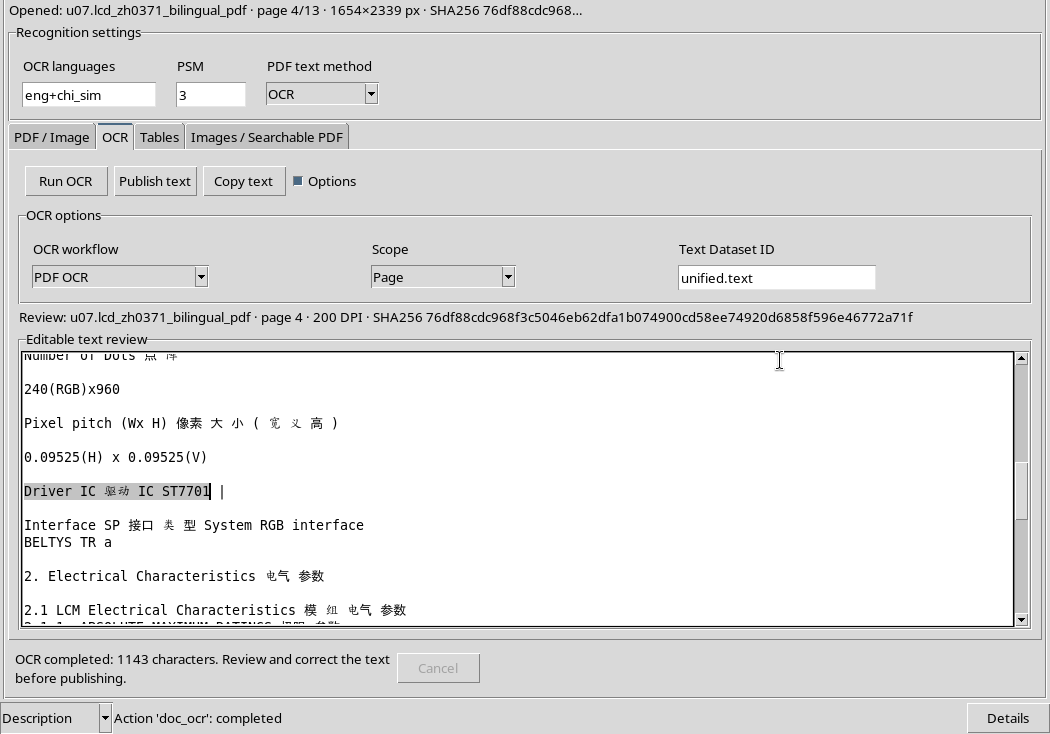
When a string contains Latin letters and ideograms, it also verifies spaces and character order. It avoids turning a still dubious OCR string into a new scientific value.
10. The original is not rewritten
Changes occur in the draft contained in the viewer. The imported PDF remains identical: you can re-open the preview and compare words or digits with the original page.
Correction of OCR and source modification are separate operations. If you later publish the text, the resulting Dataset will be an elaborate derivative, not a new original PDF.
11. Understanding the Message Review
Below the revision area appears a message that starts with Review: when the draft matches the current context. It reports the source Dataset, page, DPI and SHA-256 fingerprint of the document.
This link is important: the same characters extracted from the 4 page should not be attributed to the 5 page or another image.
12. What identifies a draft
The draft retains revised text and a context that includes Source Dataset, SHA-256, Page and DPI. The context acquired from the extraction also includes recognition settings, such as Scope, method and languages.
If you change a field or load another source, the draft information is not automatically rewritten to fit the new situation.
13. Change page without losing corrections
Go back to the Page control, set 5 and press Render page, keeping the original datasheet. Then look at the OCR tab again.
The correct text of the 4 page remains visible in the editor: has not been replaced with a new OCR of page 5.
14. The Message Retained draft
With the 5 page open, provenance is referred to as Retained draft — publication blocked. The message continues to refer to the 4 page, while the active page is the 5.
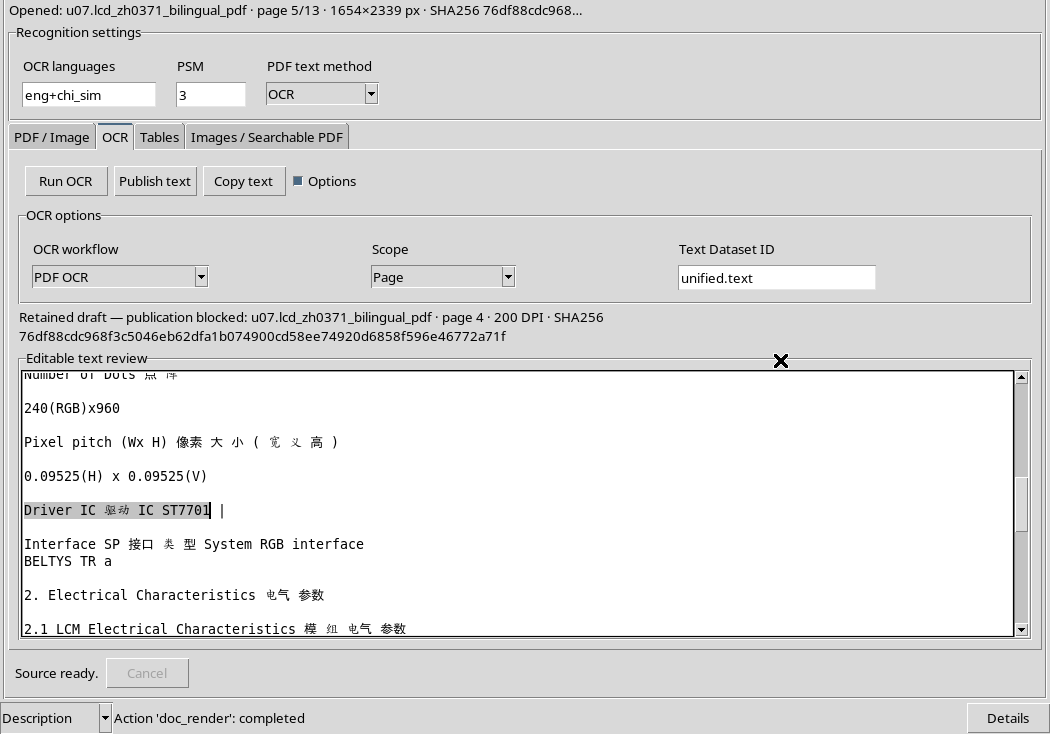
This report distinguishes the preserved draft from a result that is consistent with the current page. It does not mean that the text has disappeared or that the correction has been cancelled.
15. Why publication is rejected
When the draft belongs to the 4 page but you are viewing the 5 page, Publish text does not have to create a Dataset with false provenance. In this situation the command rejects publication and reports that the text belongs to another source, page or revision.
The same protection applies when editing the source revision; before publishing, an actual match must be re-established or a new recognition performed on the current context.
16. Return to the original page
Reset Page = 4 and DPI = 200, then use Render page. Without running a new OCR, the revision returns to coincide with the open document.
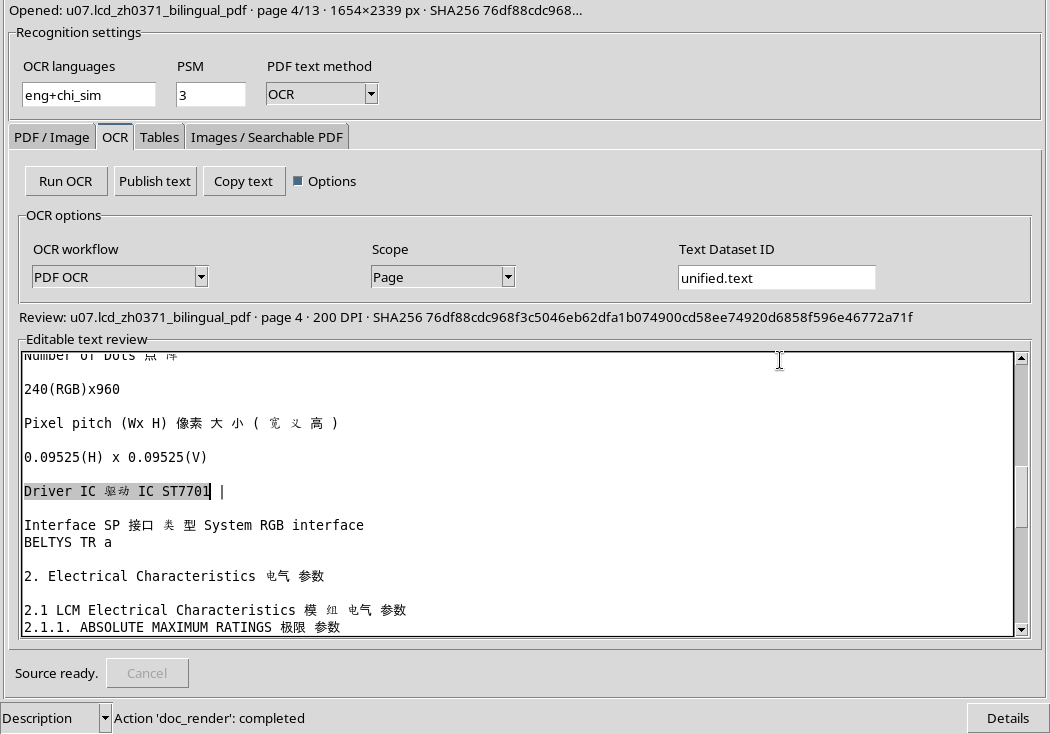
The two fixes were not lost. The message returns to start with Review:. Do not exchange this restore of provenance for a publishing operation.
17. A second source in the Session
To distinguish the page from the document problem, you can also open a second canonical Dataset, for example an imported image.raster image in the same Session. Use Refresh sources if the new source does not appear immediately in the Source field.
Select the image and press Open source. the viewer now shows a different origin, while the text from the previous extraction continues to be preserved.
18. Draft still belongs to PDF
Even after the new image is opened, the editor contains the text of the datasheet, but the Retained draft — publication blocked message signals its different source.
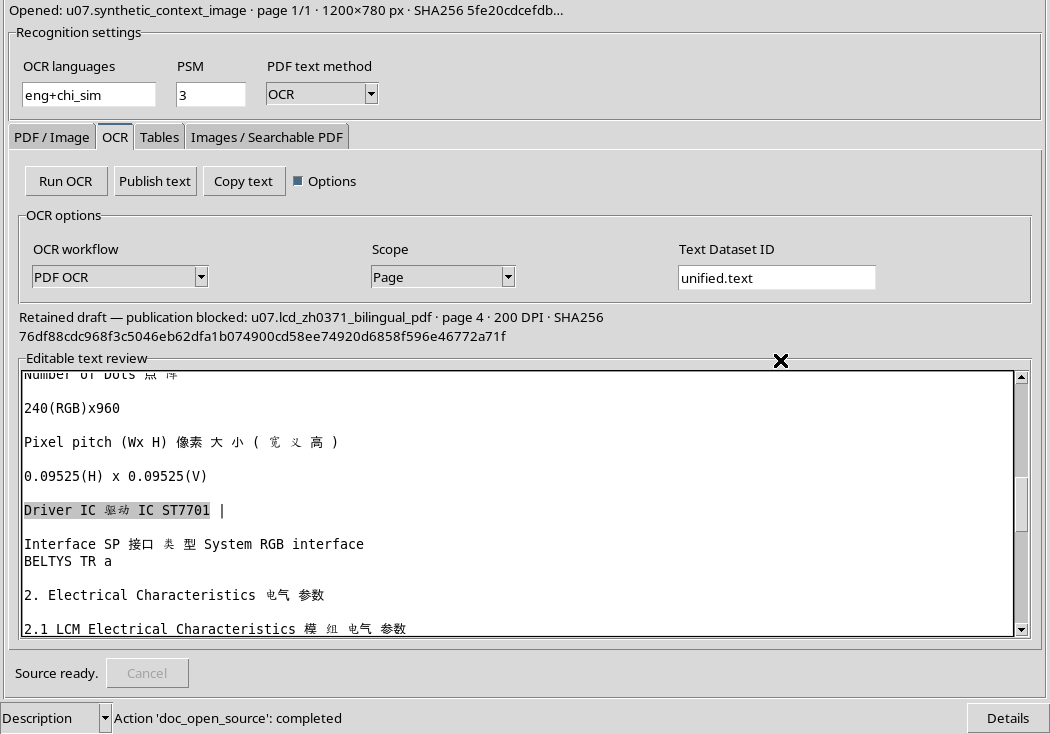
This notice prevents you from misrepresenting the PDF OCR as coming from the image. Again an attempt to publish out of context is rejected.
19. How to Recover a Previous Review
If you wish to continue working on that draft, select the Original PDF again in Source, set its page 4, keep DPI = 200 and press Open source or Render page, according to current status.
Correspondence must relate to the actual source, not just a name or page with similar content.
20. Check full restoration
The source message returns to Review: and the correct content remains in the editor, with 1,142 characters and the two replacements still present.
In this test it was possible to switch between two pages of the same PDF and between two Dataset without losing the draft. A new run of Run OCR, on the other hand, would produce a new text proposal to be revised: do not use it to attempt to change only the source page of an existing draft.
21. Focus and selection via keyboard
To edit text, click in the Editable text review pane and check your cursor. Navigation with Right Arrow and selection with Shift + Right Arrow have been verified in the editor, without changing the content.
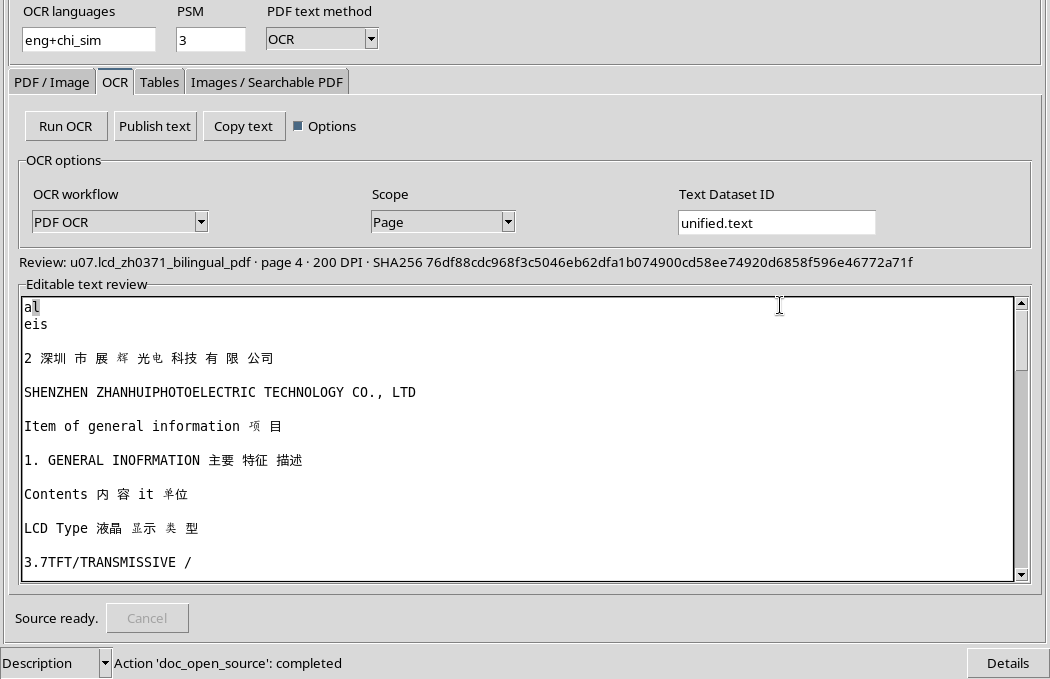
Do not automatically consider Ctrl+A a complete selection shortcut: in the Tk/X11 configuration used here it has not selected all text. The shortcuts depend on the real associations of the application and will be summarized in the reference guide.
22. Corrections and size limits
Text is handled in UTF-8, to store Latin letters and Chinese characters. the viewer applies a limit of 4 MiB UTF- 8 to the accepted revision: excessive text must be reduced before saving or publishing; no silent cut of the accepted content is expected.
The limit is expressed in UTF- 8 bytes, not in number of characters: ideograms generally occupy more bytes than ASCII letters.
23. When to make a new extraction
Repeat Run OCR if you really want to extract the currently open page, use another Region, change PSM or choose a different method. After extraction compare the result again with the document: a new OCR does not automatically inherit the correctness of previous human changes.
If you want to complete a revision that has already started, go back to its original source/page/DPI and check the Review: message.
24. Before Publish text
Before publication, check that the text is readable, that the numeric values and units are verified on the original, that any corrections are intentional, and that the Retained draft — publication blocked warning is not visible.
The next step is Copy text and Publish text: we will generate and actually read a Dataset document.text, verifying its content, coding and provenance. In this chapter we stopped to review the draft.