

Use menus, keyboard shortcuts, and accessibility features
1. Orient yourself before you start
Unified Documents brings together in a single Viewer the opening of PDF and image sources, OCR recognition, table extraction and publication of canonical results in the GX-TXT Session. This guide shows how to use menus, keyboard shortcuts, focus and help windows without replacing the scientific procedures described in the previous chapters.
Command names remain in English because they correspond to the real entries of the application. A visible command is not necessarily available: its activation depends on the source, page, revision and any ongoing operation.
2. A real document for reference
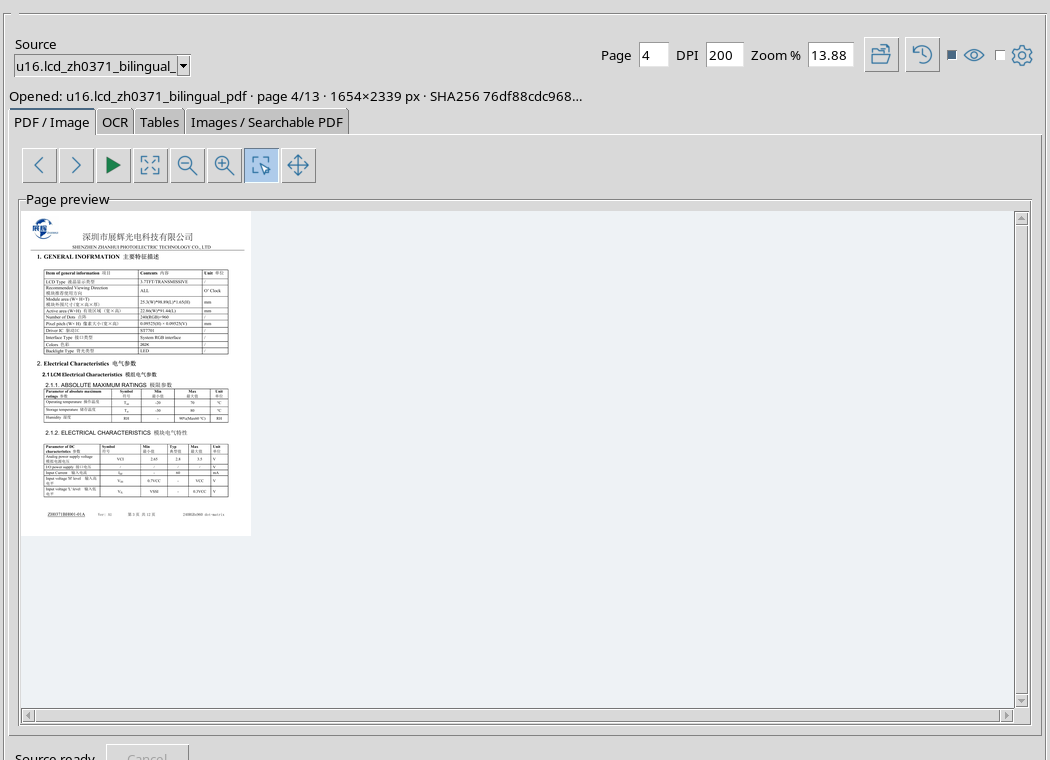
To observe commands in their normal context, an original electronic datasheet is opened in English and Chinese. The source was acquired as Canonical Dataset PDF; the example uses the physical page 4, with DPI 200. The name of the Dataset is shown in the box Source, followed by Page, DPI and Zoom %.
The top bar allows you to open or update the sources, show or hide Tools and open Recognition settings. The four main tabs are PDF / Image, OCR, Tables and Images / Searchable PDF. The Description / History strip remains available at the bottom.
3. Read menu status before executing a command
Menus are available at the top of the window: File, View, OCR, Tables, Export, History, Workspace and Help. A gray entry indicates that the action is not currently selectable. With an open source operations become available that were disabled in the initial state without a document.
Warning: an enabled command is only a possible entry point. Before publishing, the viewer still checks for a revision associated with the source, page and, when required, the correct region. For OCR or table extraction, menu availability does not equal an already validated result.
4. File: open and update sources
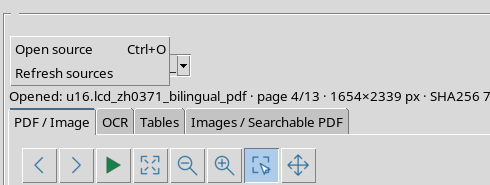
The File menu contains two operations:
- Open source — opens the chosen PDF/image Dataset in the Source selector.
- Refresh sources — updates the list of canonical Datasets available in the Session.
The shortcut shown for Open source is Ctrl+O. In the example it was also run on the original window and started opening the source; the operation must end before any further processing can be done.
5. View: preview and navigation commands
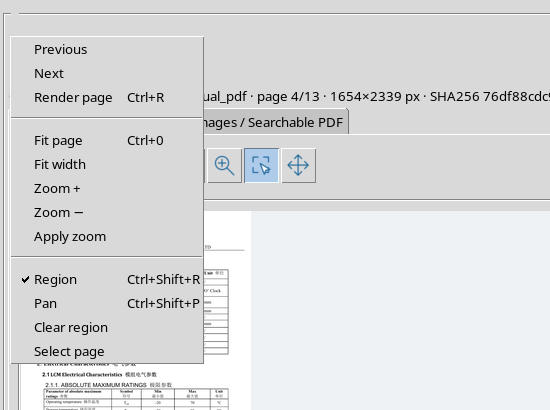
The View menu collects Previous, Next, Render page, Fit page, Fit width, Zoom +, Zoom −, Apply zoom, Region, Pan, Clear region and Select page alternative graphics card.
Previous and Next are used to navigate between pages; Render page updates content according to the page and parameters set. Region and Pan entries are alternative selections of preview interaction.
6. Rendering, adaptation and zoom
Ctrl+R calls back Render page: it was verified with a real rendering of the PDF page. Ctrl+0 corresponds to Fit page; in the test it modified the actual magnification of the preview to adapt the document to the visible space.
Fit width adapts the width, while Zoom + and Zoom − change the zoom by steps. If you enter a value in the box Zoom %, Apply zoom applies the setting. Page and DPI remain distinct controls: changing the visual zoom does not change the source Dataset.
7. Region and Pan are not the same function
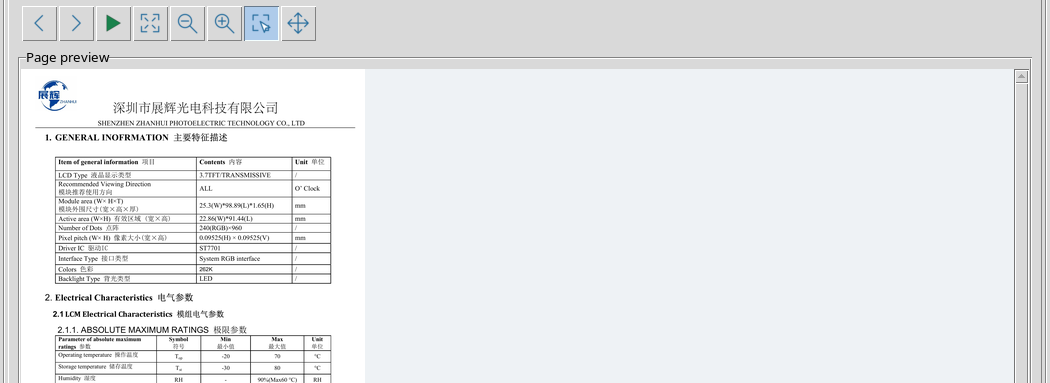
With Region you delimit an area of the page for operations that accept a selection. With Pan you move the view without creating a new extraction area. The menu indicates which mode is selected; the graphics palette shows its status.
Shortcuts are Ctrl+Shift+R for Region and Ctrl+Shift+P for Pan. Both were exercised on the GUI with the document open. Clear region deletes the current selection; it is not synonymous with deleting the source or a published Dataset. Precise handling of mouse gestures is described in the chapter dedicated to Pan and Region.
8. OCR: recognition, review and publication
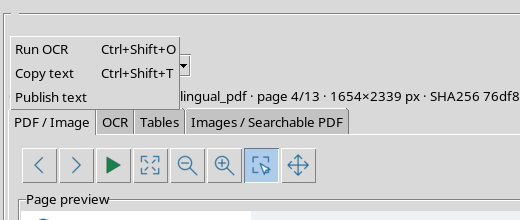
The OCR menu includes:
- Run OCR — performs recognition with the selected settings and Scope.
- Copy text — copies the text currently in the review editor.
- Publish text — attempts to publish the revision as canonical textual Dataset.
The presence of Publish text in the menu does not eliminate the need to check its provenance of the revised text, especially after a page or source change.
9. Two distinct OCR shortcuts
Ctrl+Shift+O starts Run OCR; Ctrl+Shift+T calls back Copy text. They are not equivalent. The first command may require processing and edits the revision text; the second copies the one already available in the editor.
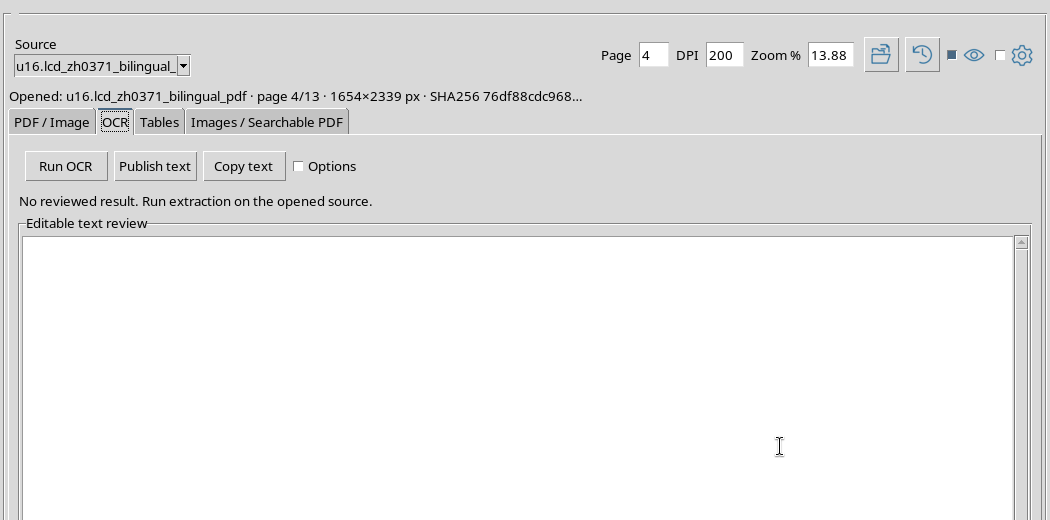
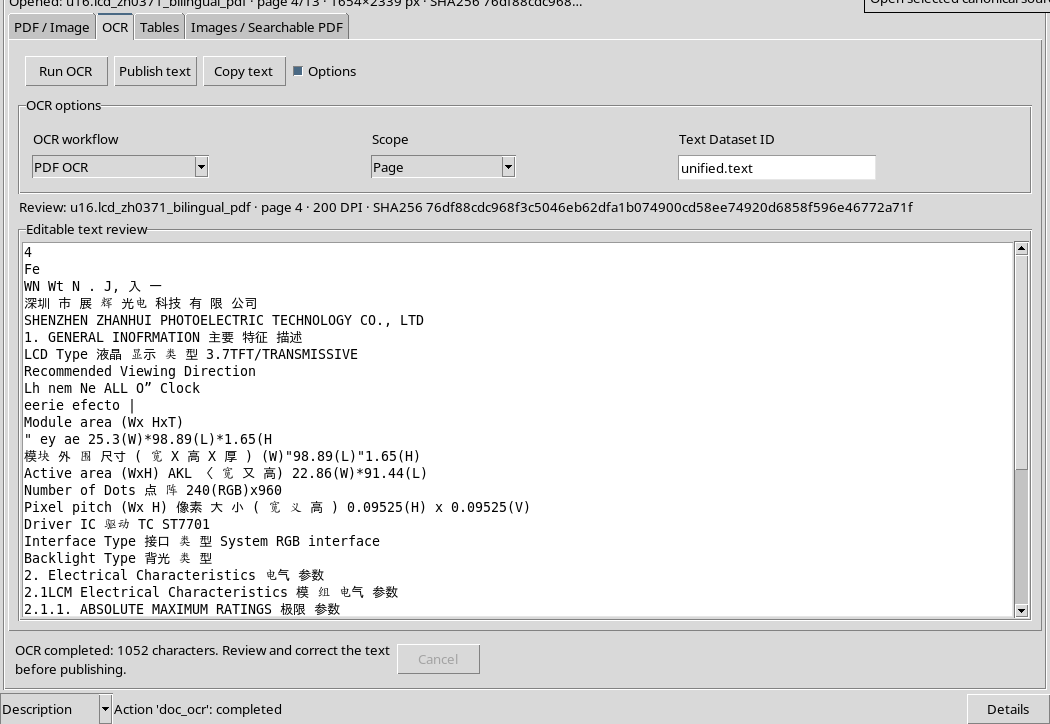
For the 4 page of the datasheet, with eng+chi_sim languages, PDF OCR workflow and Scope Page, the keyboard action produced 1,052 characters. The subsequent copy with Ctrl+Shift+T returned exactly the same 1.052 Unicode characters. This equality demonstrates the fidelity of the copy from editor, not the scientific accuracy of the document.
10. Tables: extract and publish a table
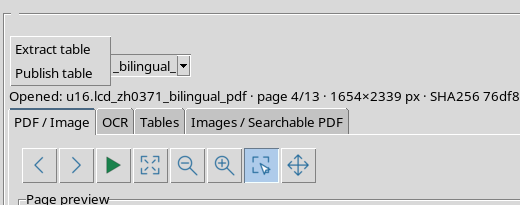
The Tables menu contains Extract table and Publish table. The first starts the extraction according to the workflow and options of the Tables tab; the second publishes the revised table when the requirements are met.
Cell corrections, bilingual headers and numerical value verification belong to the specific procedures of tables. Before publishing it is necessary to compare cells with the original image, especially for Chinese headers, units, separators and characters.
11. Keyboard Edit in table grid
In the review grid, the keys actually used in previous procedures are F2 or double-click to start editing, Return/Enter to confirm it, Escape to undo the current edit and Tab / Shift+Tab to move between cells according to context.
These are not global commands keys: they acquire meaning when the focus is in the grid or its cell editor. Similarly, a numeric field of the viewer must first be focused if you intend to modify its contents.
12. Export: searchable images and PDFs
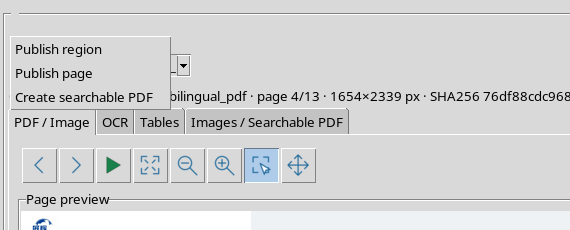
The Export menu contains three commands: Publish region, Publish page and Create searchable PDF. The first two allow you to create Image Dataset from the selected region and full page respectively; the third starts the creation flow of a PDF with searchable text.
The result is a new Session Dataset, distinct from the original file. The availability of the action does not imply that a region or revision is valid: in case of missing prerequisites, the viewer can refuse publication.
13. Choose the right Export result
Before Publish region, select and verify the edges of the desired area; before Publish page, check the page number. For Create searchable PDF, check source and OCR settings. The searchable PDF may contain imperfect recognitions, even when the text layer is present.
For scientific images and tables it is essential to maintain the link between source, SHA, page and possible ROI; outputs never replace the original. Detailed publication procedures are illustrated in the previous chapters.
14. History: back to work states
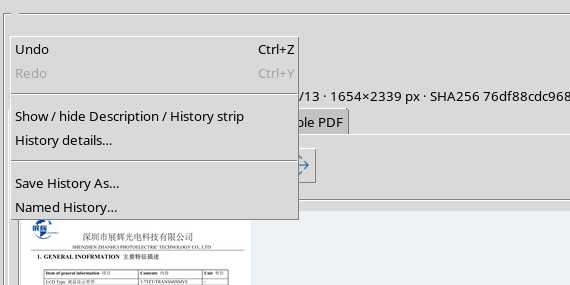
The History menu, shared with the framework, features Undo, Redo, Show / hide Description / History strip, History details…, Save History As … and Named History ….
Undo and Redo respectively bear the labels Ctrl+Z and Ctrl+Y. They can be enabled or disabled depending on the history actually available. They should not be confused with a generic nullification of any scientific operation already published.
15. History and Description: where to check actions
The bottom stripe shows a description and the outcome of recent actions. History details… opens access to shared history; Save History As … and Named History … belong to framework functions, not the OCR engine.
It is useful to check the status reported in the lower band after a menu or keyboard command. During a long task, Cancel may be active and other commands disabled: wait for the conclusion or cancel the operation before changing document.
16. Workspace: Preserve Revised Work
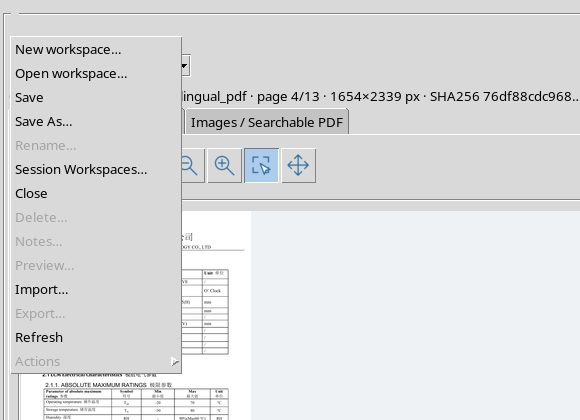
The Workspace menu offers New workspace …, Open workspace …, Save, Save As…, Rename …, Session Workspaces…, Close, Delete …, Notes …, Preview …, Import …, Export …, Refresh and the submenu Actions. Several entries are disabled in the normal context observed: this depends on the selected state and object.
Save and Save As… are about working status. Session Workspaces… accesses the shared manager. Reopening a saved revision is described in the chapter on Workspace and History.
17. Workspace commands not available
A gray entry such as Rename …, Delete …, Notes …, Preview … or Export … should not be treated as a malfunction. It may require a selected Workspace or a different state. Avoid activating destructive commands just to check the menu.
In the example, the list and enabling state were observed without creating or deleting Workspace. Evidence of scientific rescue and reopening is documented separately.
18. Help: the module manual
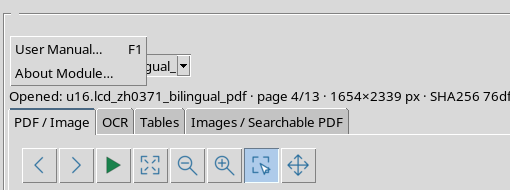
The Help menu offers User Manual … and About Module …. User Manual … reports F1 as a shortcut. The F1 key was really pressed in the viewer window: the document browser with title Unified Documents — User Manual opens.
About Module … is a present and enabled entry; no unobserved result is attributed to its possible opening in this command reference.
19. Move between the four tabs
the viewer uses a native tab control. When the focus is on the notebook, Ctrl+Tab switches to the next tab and Ctrl+Shift+Tab returns to the previous one. In the test, Ctrl+Tab led from PDF / Image to OCR; the reverse command brought back to the first tab.
The step does not automatically change the source and does not publish the content in the editor. Revision fields and their controls remain associated with their context.
20. Tab and Shift+Tab: move focus between controls
The Tab key, when the focus is in the Source selector, is switched to the Open source button; with Shift+Tab, from Page, the focus is returned to the previous control in the native sequence. This demonstrates the real movement of the focus between window Tk controls.
The sequence may depend on the active tab and the open panels. It should not be confused with table cell navigation: Tab and Shift+Tab follow grid editor rules there.
21. Quick Reference to Viewer Shortcuts
| Keys | Command in the GUI | Remark |
|---|---|---|
| Ctrl+O | Open source | Open source started on original GUI |
| Ctrl+R | Render page | Rendering of the page actually started |
| Ctrl+0 | Fit page | Adaptation of the verified page |
| Ctrl+Shift+R | Region | Region mode selection verified |
| Ctrl+Shift+P | Pan | Pan mode selection verified |
| Ctrl+Shift+O | Run OCR | Real OCR page 4 completed |
| Ctrl+Shift+T | Copy text | Unicode text copied in full, 1.052/1,052 characters |
| Ctrl+Tab | Next tab | PDF / Image → OCR |
| Ctrl+Shift+Tab | Previous tab | OCR → PDF / Image |
| F1 | User Manual … | Open Module Manual |
| Ctrl+Z / Ctrl+Y | Undo / Redo | Labels and History integration; state-dependent availability |
Not all menu items have associated acceleration. No further shortcuts are documented that do not appear in the original GUI.
22. Use the viewer at its minimum size
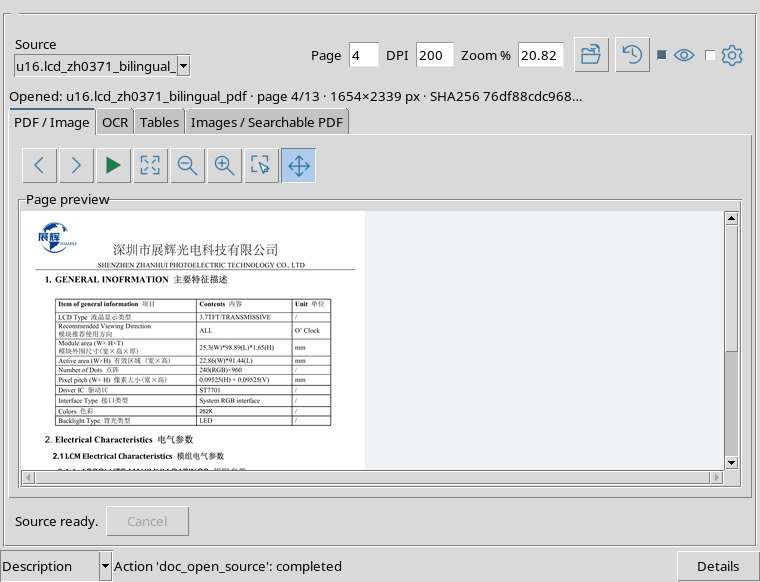
the viewer declares a minimum window body size of 760 × 582 pixels. At this size, the fields Source, Page, DPI, Zoom %, the main buttons and tabs remain present, while the preview uses the scrollbars.
To read densely paginated tables it is not necessary to always keep the window at the minimum size: it is better to enlarge it or use the navigation tools of the page.
23. A wider window
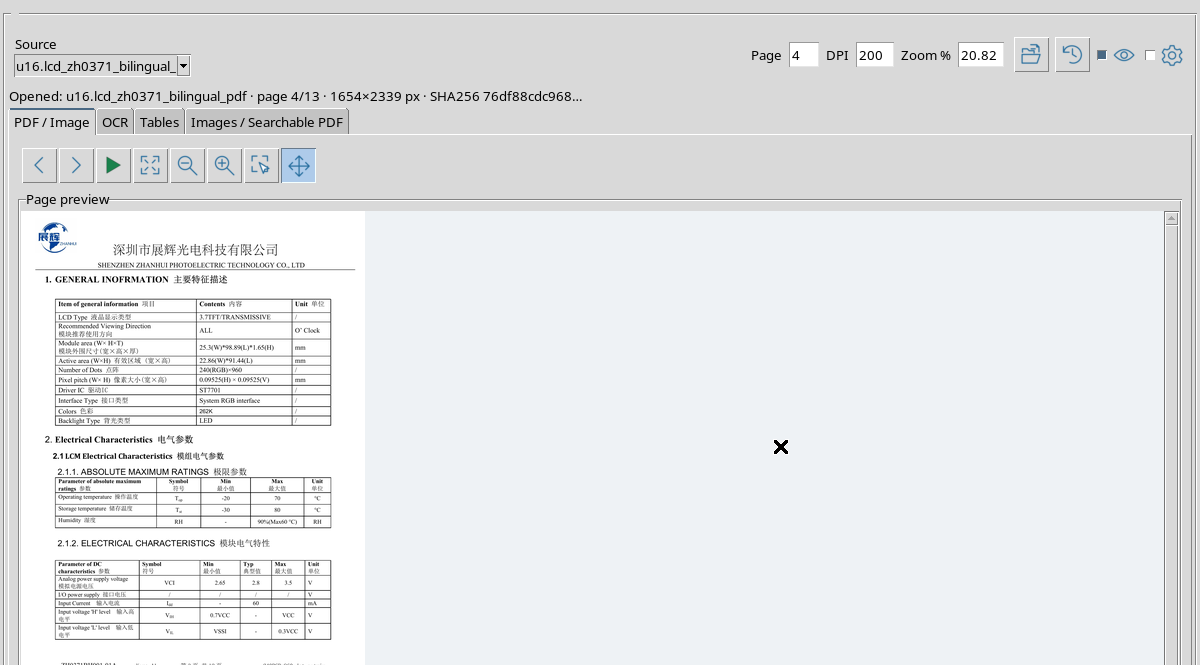
The 1200 × 880 pixels window body test leaves more surface available at preview. The same operations remain in the respective menus and tabs.
Size refers to the native window observed at 96 DPI. They do not constitute a compatibility certification with any font magnification, screen reader or OS accessibility setting.
24. Read button tooltips without visible text
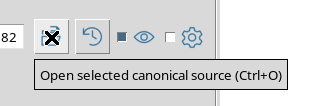
Several buttons use icons. To know a command without calling it, stop the pointer over the button: in the example Open source the tooltip Open selected canonical source (Ctrl+O) appears.
The tooltip was observed on the original window. If the hint exits the viewer’s edge, it still remains an autonomous graphical window: it is not a part of the PDF page nor a result of processing.
25. F1 opens a contextual guide
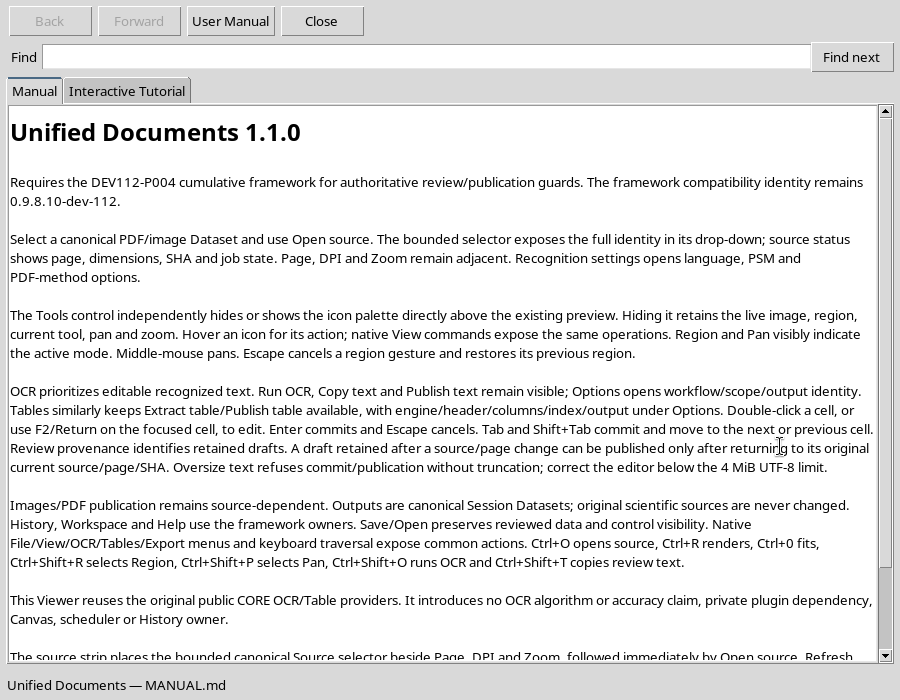
Pressing F1 in the viewer opens a User Manual window dedicated to Unified Documents. The manual includes navigation of sources, use of tabs and menus, review panels and linking to shared services.
The internal title of the displayed manual can report 1.1.0, while the installed component is 1.2.0. To establish available functions, use the actual controls of the installed version; the manual is a guidance guide and does not replace behavior verification.
26. Start OCR from the keyboard
With the English/Chinese datasheet open on page 4 and Scope = Page, Ctrl+Shift+O was pressed. the viewer completed the operation and showed in the Editable text review the recognized text: 1.052 Unicode characters.
The text includes English terms and Chinese characters, but contains visible recognition errors. Do not publish it without comparing it with the original page. Ctrl+Shift+T, used later, copied exactly the current revision; did not correct or recalculate it.
27. Return to Region after Pan
In the open PDF document, Ctrl+Shift+P selected Pan. The next press of Ctrl+Shift+R reactivated Region. The palette shows the current mode even when commands are started by keyboard.
Before creating a new ROI, verify that the selected mode is Region. Pressing the shortcut does not automatically draw a selection and does not change the pixels in the document.
28. Best Practices and Limitations of this Guide
- Check the Source, the number of Page and the context before activating OCR, Tables or Export.
- During processing do not repeatedly force disabled commands; wait for completion or use Cancel when available.
- Distinguish the original OCR text from human corrections; the correct Unicode copy does not in itself prove that recognition is accurate.
- Save the Workspace when the revised job needs to be resumed at a later time.
- Use the Help menu and tooltips to locate iconic commands without assuming their meaning.
The keyboard navigation, focus, tooltips and scaling described here have been observed on the native GUI in a virtual screen environment at 96 DPI. They do not amount to complete certification of accessibility or the execution of each menu item. Provenance of results and scientific review remain central criteria in all Unified Documents workflows.