

Clipping, working plane, curves, and the 2D bridge
Use visual clipping and the working plane, extract section curves, and open a saved workflow to continue in 2D.
Clip the view and set the working plane
Use Clipping nx,ny,nz,d to define a half-space from a normal and its d term. The clipping box takes six bounds. Apply them with Apply view, using the terrain exercise to check their order. To clear the clipping, empty the field and apply again. The source remains available. The tested OpenGL renderer supports up to six simultaneous clipping planes. A box already uses six faces, so clear Clipping before applying a box. Working plane uses Plane origin, Plane normal, and Plane U axis. Enter three values separated by ; in each field. The normal must have a defined direction, and U must be projectable onto the plane. Check Working plane to display it in the scene.
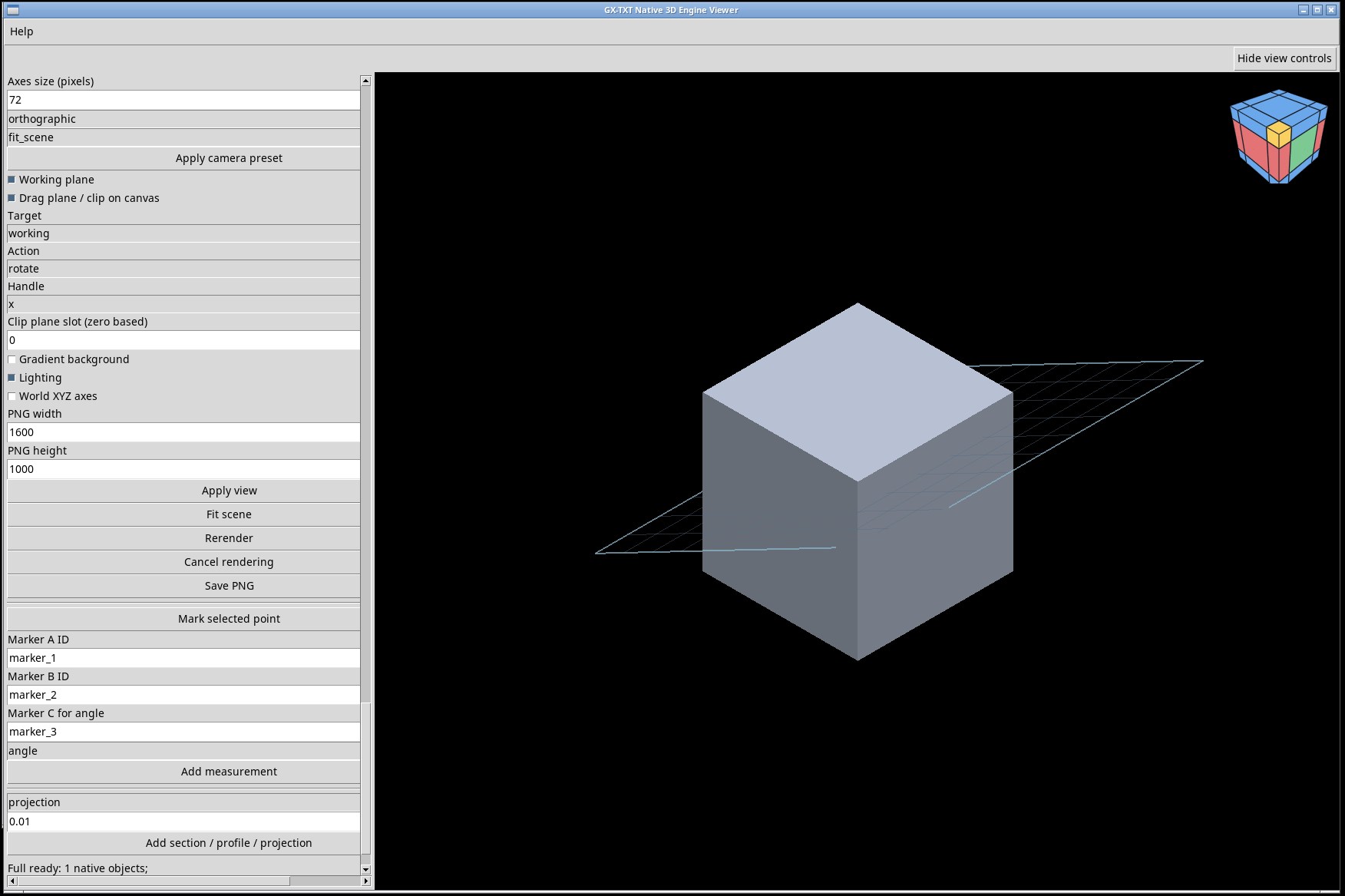
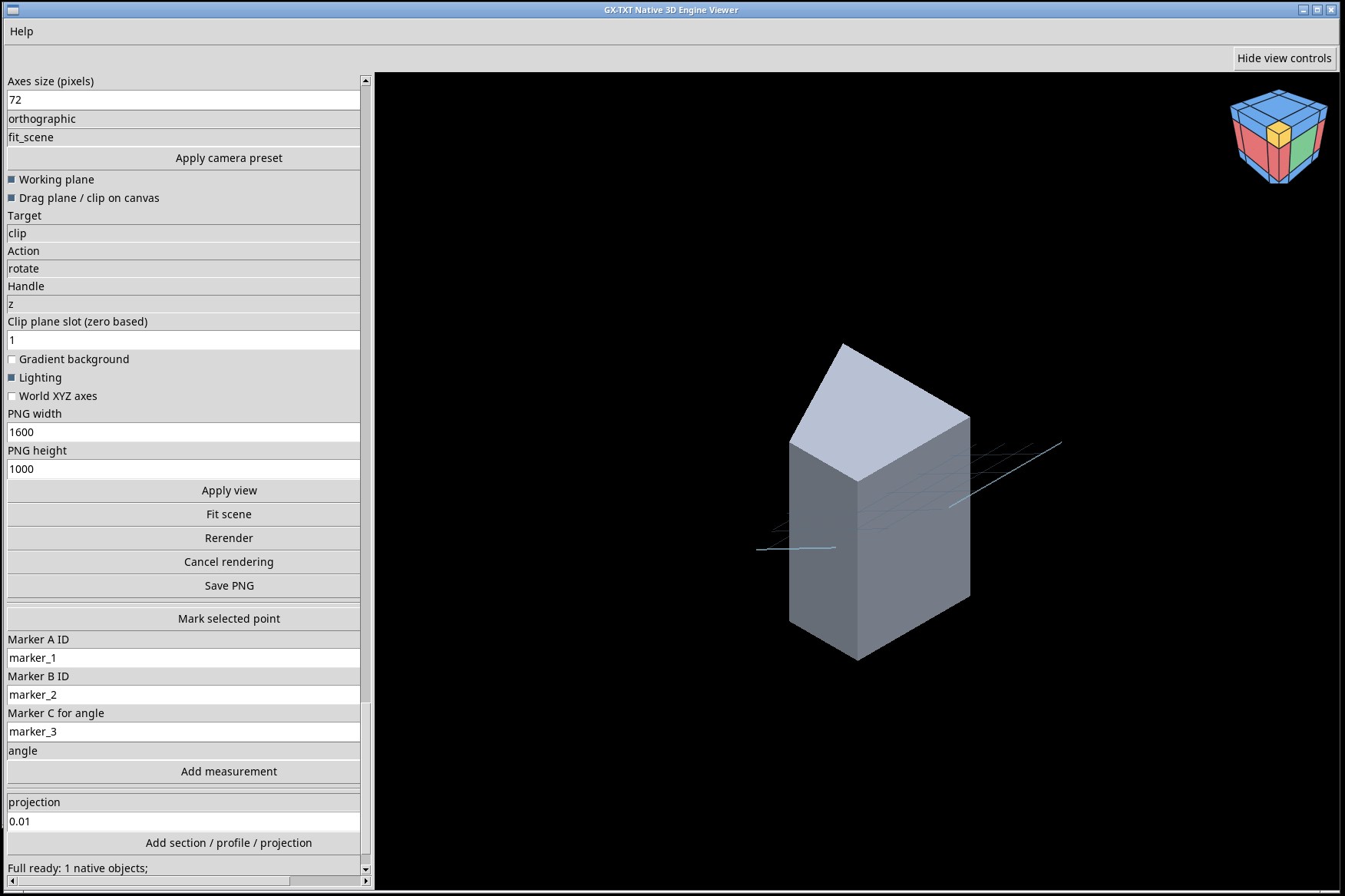
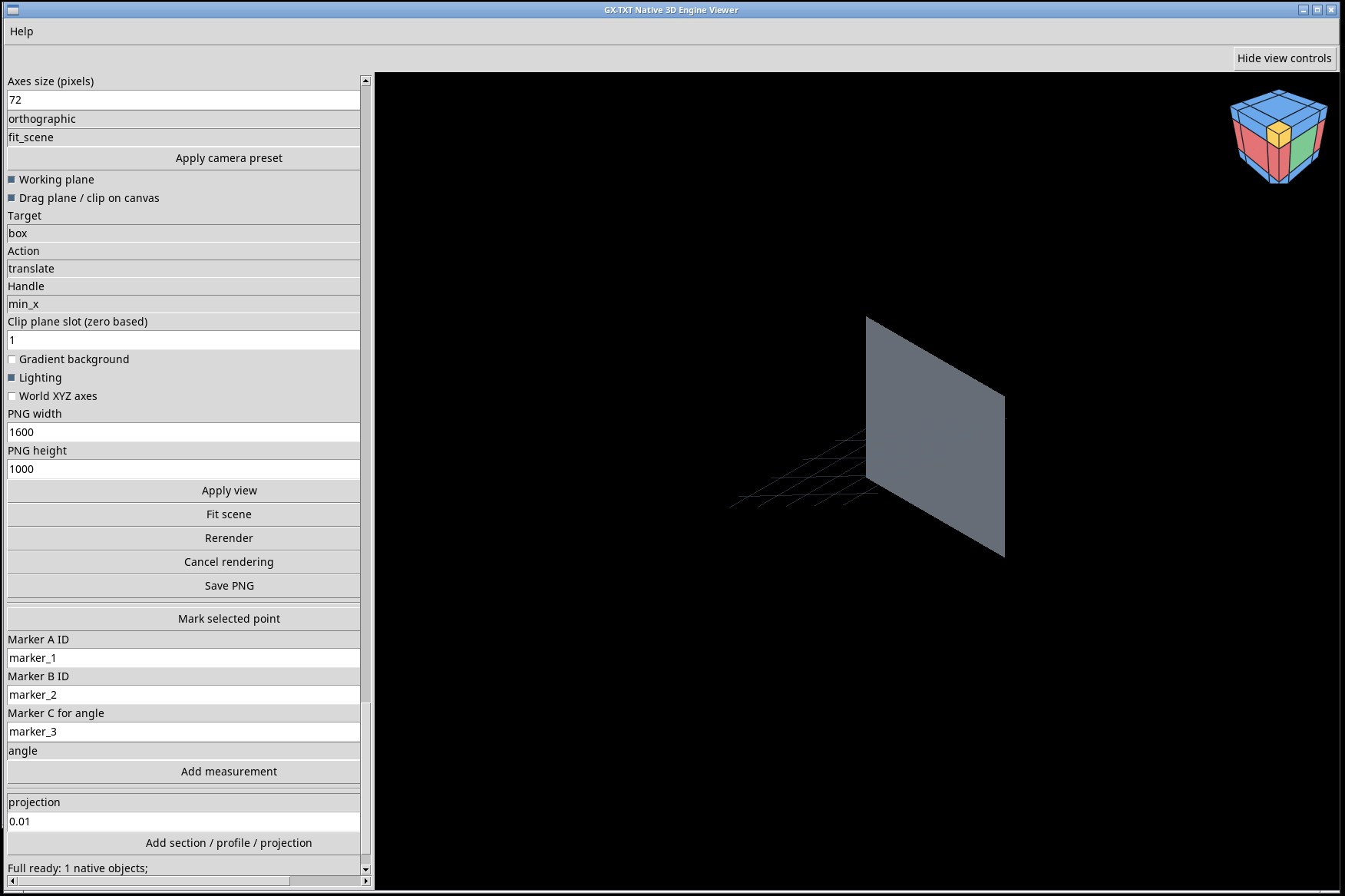
To manipulate the plane or box on the canvas, enable Drag plane / clip on canvas and set Target to working, clip, or box. Translation moves the origin or the faces, and rotation changes the normal. The box stays axis-aligned and rejects rotate gestures with box selected. Press Esc during a gesture to cancel it. In the test, releasing afterward left the origin, normal, and box unchanged. Handle selects a direction or face. Clip plane slot is zero-based and applies only to an entry in the clipping-plane list.
Extract curves and open the saved workflow
Select the source layer. Choose section, profile, or projection next to Add section / profile / projection. Set the joining tolerance, initially 0.001 in the layer’s coordinate units. A section intersects the geometry with the plane. A profile expresses the result in the plane’s reference frame. A projection moves the geometry onto the plane along the normal. A plane that misses the geometry can produce no curves. Check the origin, normal, and U axis before trying again.
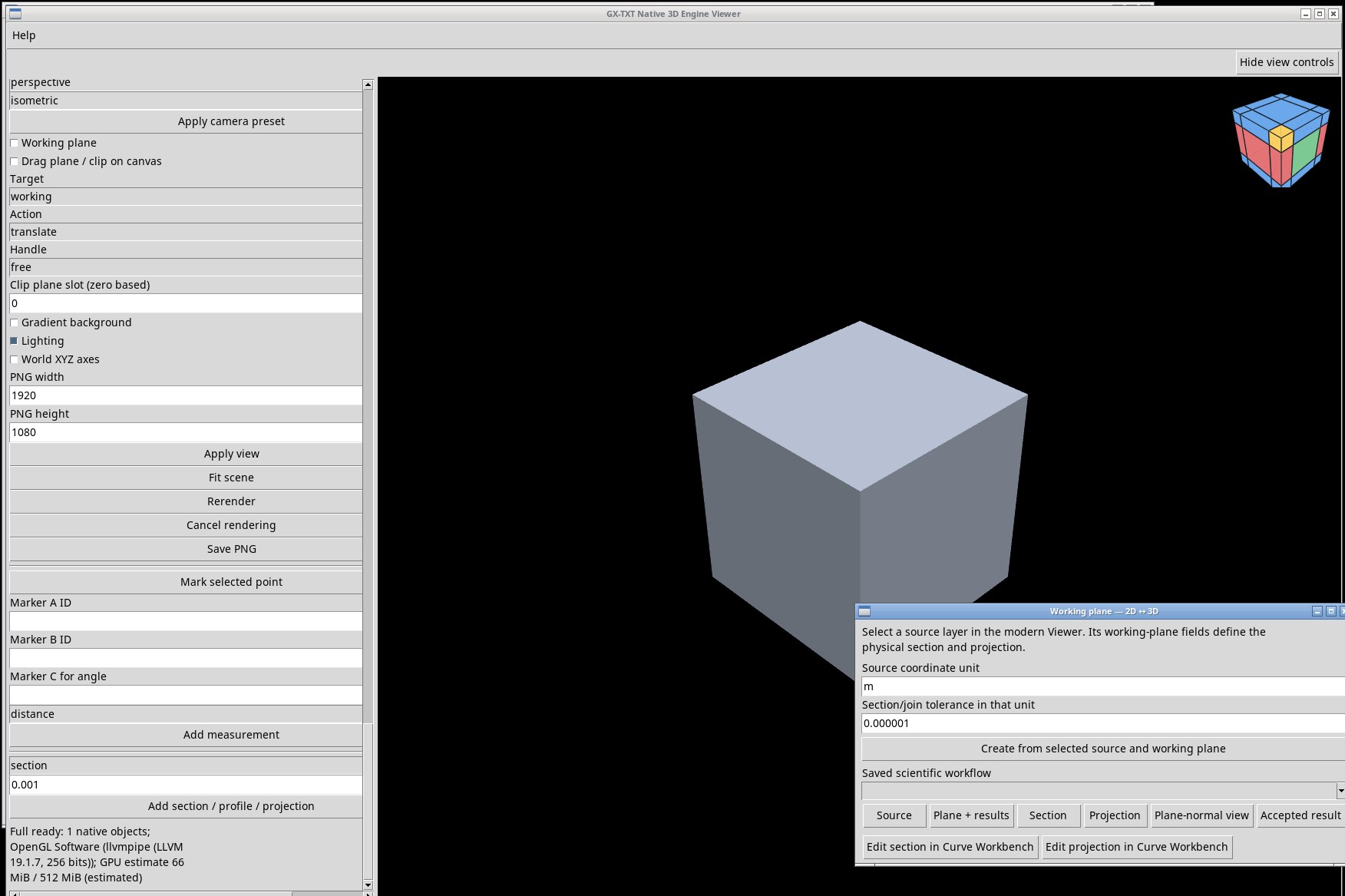
Open Working plane / Curve Workbench… to work with a 2D document associated with an artifact layer. Specify the actual unit and a tolerance in that unit. Create from selected source and working plane uses the current plane and adds the document to Saved scientific workflow. The views isolate the source, working-plane outputs, section, projection, normal, or accepted result. The editing buttons open a Curve Workbench workspace for the selected result. Accept the result in the 2D workflow when the source supplies editable contours. Return to Studio, select the same ID, and use Accepted result.
Commands and settings
- Working plane / Curve Workbench…
- Opens Working plane — 2D ↔ 3D. Prepare an artifact layer and a valid plane before creating the workflow.
- Clipping nx,ny,nz,d
- Enter nx,ny,nz,d for each plane, separating records with semicolons. Clear the field and apply the view to remove the planes.
- Clip box min/max (6 values)
- Enter minX;minY;minZ;maxX;maxY;maxZ, with the minimum before the maximum for each axis. Clear the field and click Apply view to disable the box.
- Plane origin
- Point x;y;z on the working plane. It is the origin of the plane’s coordinates.
- Plane normal
- Nonzero vector that orients the plane. For a vertical X=constant section, use 1;0;0.
- Plane U axis
- Triplet for the plane’s first axis. Choose a direction that differs from the normal.
- Working plane
- Show or hide the working plane. Set its geometry before using it as a section reference.
- Drag plane / clip on canvas
- Enable the canvas tool to move the working plane, a clipping plane, or a box. Disable it to return to orbiting.
- Target ·
working - Move or rotate the working plane used for calculations.
- Target ·
clip - Move or rotate the clipping plane identified by Clip plane slot.
- Target ·
box - Adjust the axis-aligned clipping box.
- Action ·
translate - Change position or bounds while keeping the orientation.
- Action ·
rotate - Change the working or clipping plane normal. The box remains axis-aligned.
- Handle ·
free - Use the free motion permitted by the action and camera.
- Handle ·
x - Constrain the operation relative to the world X axis.
- Handle ·
y - Constrain the operation relative to the world Y axis.
- Handle ·
z - Constrain the operation relative to the world Z axis.
- Handle ·
min_x - Select the minimum-X face. Keep the minimum and maximum in order.
- Handle ·
min_y - Select the minimum-Y face. Keep the minimum and maximum in order.
- Handle ·
min_z - Select the minimum-Z face. Keep the minimum and maximum in order.
- Handle ·
max_x - Select the maximum-X face. Keep the minimum and maximum in order.
- Handle ·
max_y - Select the maximum-Y face. Keep the minimum and maximum in order.
- Handle ·
max_z - Select the maximum-Z face. Keep the minimum and maximum in order.
- Clip plane slot (zero based)
- Use a zero-based index to choose a plane from the Clipping list. Applies to the clip target.
- Working plane operation ·
section - Intersect the mesh and the working plane.
- Working plane operation ·
profile - Build a profile from the section in the plane’s reference frame.
- Working plane operation ·
projection - Project the geometry onto the reference plane along the normal.
- curveTolerance
- Joining tolerance for curve segments in geometric units, for example 0.01 m for the terrain. Too large a tolerance merges nearby details.
- Add section / profile / projection
- Creates a result from the selected layer and current plane. It requires a mesh and a compatible operation.
- Select a source layer in the modern Viewer. Its working-plane fields define the physical section and projection.
- Indicates where to select the 3D source and which plane the workflow uses.
- Source coordinate unit
- Actual coordinate unit of the layer used in the bridge. The workflow preserves it in the plane and curves.
- Section/join tolerance in that unit
- Joining and extraction tolerance in the declared unit, initially 0.000001.
- Create from selected source and working plane
- Builds a workflow from the current artifact layer and working plane. Check the selected ID afterward.
- Saved scientific workflow
- Choose the workflow ID to display or open for editing.
- Source
- Shows the workflow source in context.
- Plane + results
- Shows the plane and available results together.
- Section
- Isolates the workflow section.
- Projection
- Isolates the workflow projection.
- Plane-normal view
- Aligns the view with the plane normal for comparison with 2D.
- Accepted result
- Shows the accepted result. The 2D workflow must already have an accepted result.
- Edit section in Curve Workbench
- Opens the current section as a Curve Workbench workspace. Select a workflow that includes a section first.
- Edit projection in Curve Workbench
- Opens the workflow projection in Curve Workbench. It requires editable projected contours.