

Exporting a scientific MP4 video
Check the scene and set the samples, resolution, and timing to export a scientific timeline as an MP4 video.
Check the scene before export
Open Export scientific animation/video… below the timeline. Select a timeline with at least one track. Export validation checks all registered layers, including layers outside the track. Use self-contained VTI, VTU, or VTP artifacts. Datasets accepted by this workflow have CSV payloads. External attributes and textures block export. The limits are 256 samples, 64 tracks, and 256 layers. If your interactive scene needs OBJ or STL, export from a dedicated Session with compatible inputs.
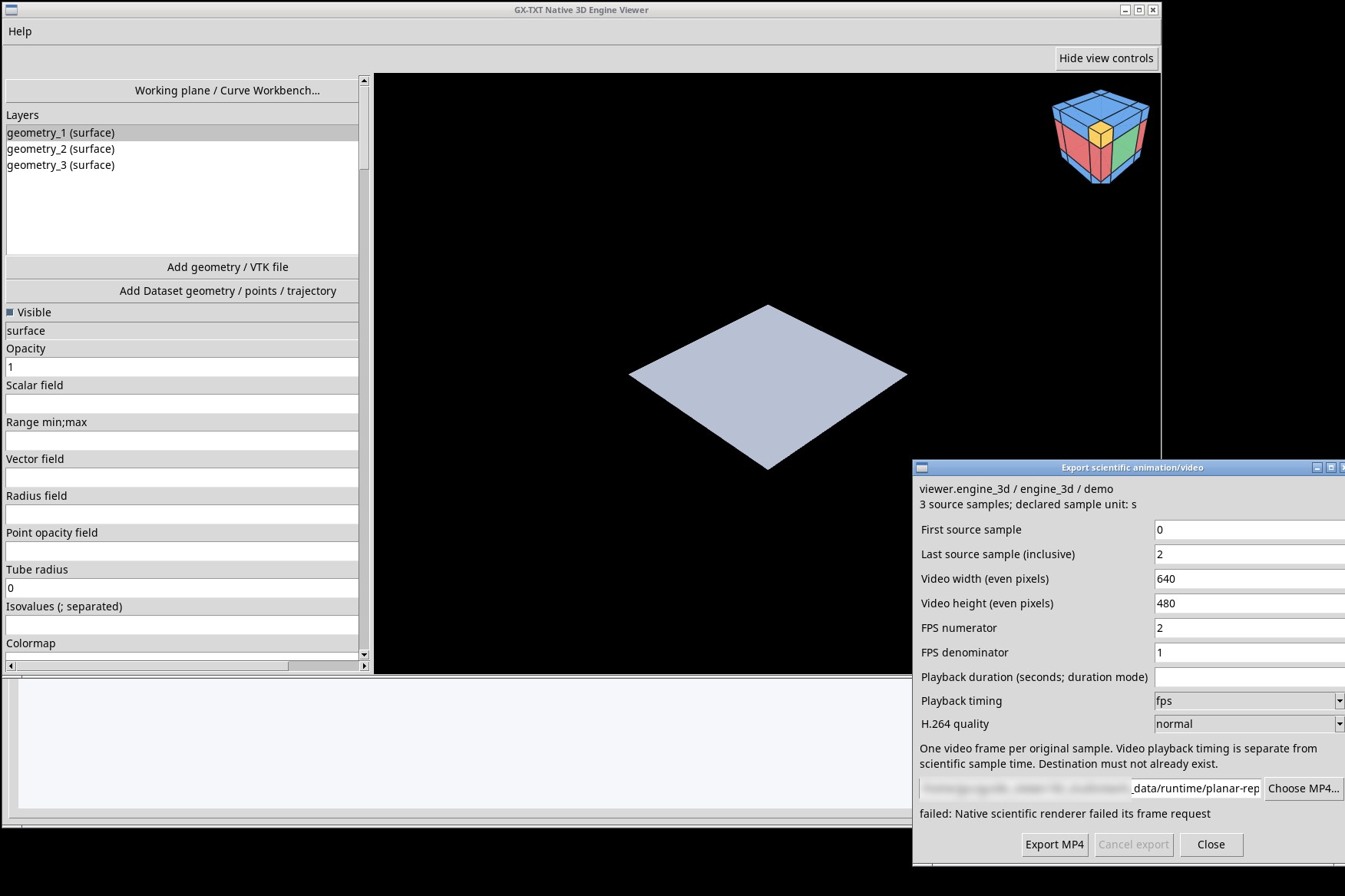
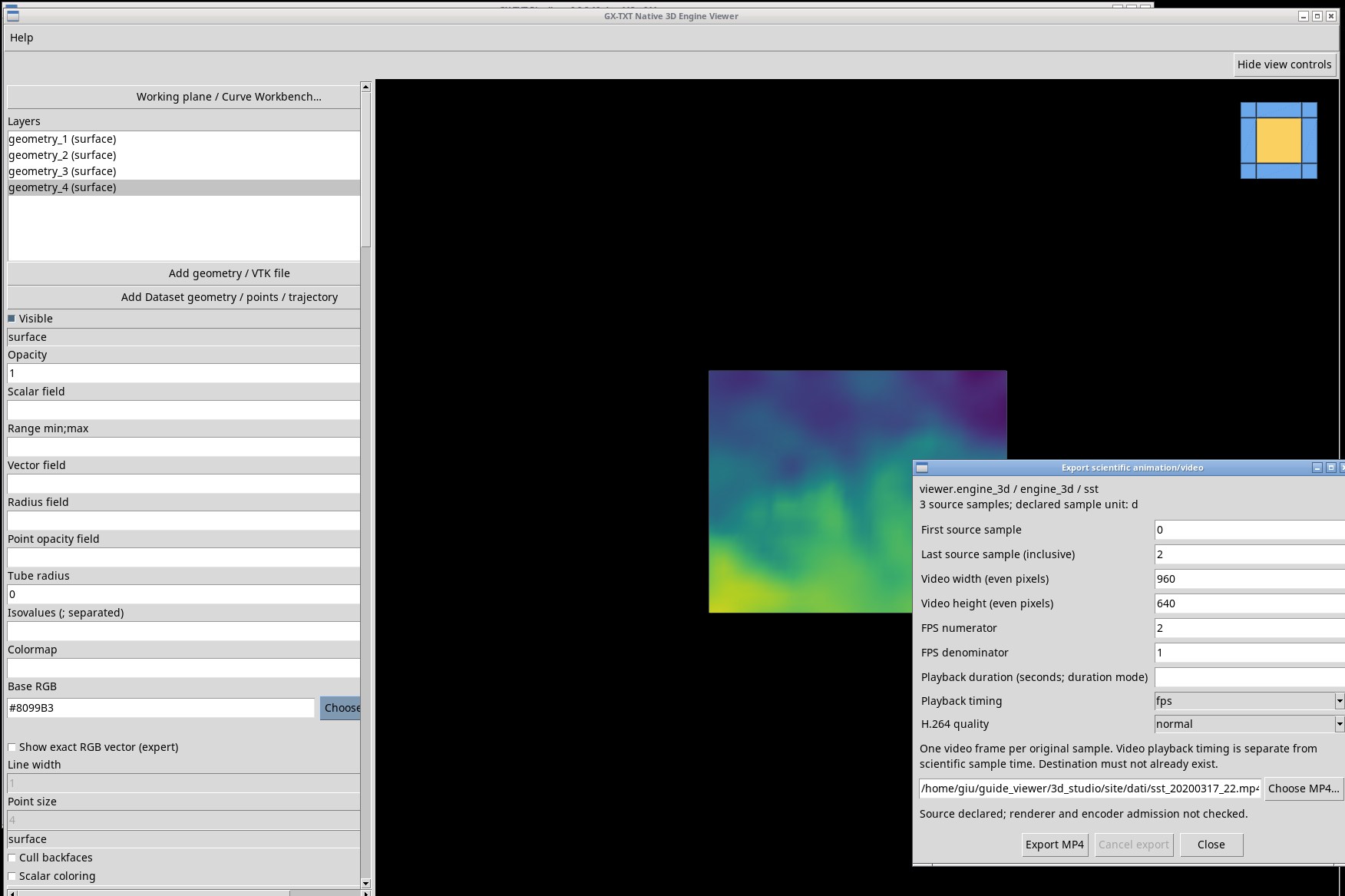
In P011-bis, a scene containing only a perfectly planar surface may pass validation and then stop with Native scientific renderer failed its frame request. Frame capture requires the visible objects in the frame to have extent along all three axes. In the OISST exercise, a reference VTP frame on a second plane provides visual support. The SST temperatures and geometry remain the same. Check for the published status and open the file after export.
Set samples, dimensions, and video timing
First source sample and Last source sample (inclusive) are zero-based indices. Enter even dimensions from 16 to 4096 pixels in Video width and Video height. In fps mode, specify a numerator and denominator, for example 2/1. In duration mode, enter a duration in seconds. The program calculates the frame rate for the requested range. Export produces one frame per original scientific sample. Three frames at 2/1 give 1.5 seconds of video regardless of the time intervals between the samples. H.264 quality offers draft, normal, and high to balance compression and quality.
Choose a new path with Choose MP4… or enter it into the adjacent field. Export MP4 starts the job, and Cancel export is enabled while it runs. Close closes the dialog and requests cancellation if the dialog still owns the job. Wait for the result, then use a player or ffprobe to check the dimensions, codec, and number and order of frames. The destination must be a new path outside the reserved project roots. Retrying the same path returns Video destination already exists. The cancellation test confirmed that no output file was created.
Commands and settings
- Export scientific animation/video…
- Opens the video export check for the active timeline. It validates formats and dependencies across the whole scene.
- viewer.engine_3d / engine_3d / demo 3 source samples; declared sample unit: s
- Shows the timeline, sample count, and scientific time units. Check the time origin before exporting.
- First source sample
- Inclusive first index of the scientific samples to export.
- Last source sample (inclusive)
- Inclusive last index. The frame count is last−first+1.
- Video width (even pixels)
- Video width as an even number of pixels. Choose a size supported by the encoder and engine.
- Video height (even pixels)
- Video height as an even number of pixels, independent of the canvas.
- FPS numerator
- Frame-rate numerator. A numerator of 2 and denominator of 1 give two frames per second.
- FPS denominator
- Strictly positive denominator. A value such as 30000/1001 gives a fractional frame rate.
- Playback duration (seconds; duration mode)
- Total video duration in seconds in duration mode. The engine derives the frame rate from the number of frames.
- Playback timing ·
fps - Sets a rational frame rate. The duration is the frame count divided by the frame rate.
- Playback timing ·
duration - Sets the target duration in seconds, from which the frame rate is derived.
- H.264 quality ·
draft - Uses stronger compression for a test file.
- H.264 quality ·
normal - Default balance between file size and detail.
- H.264 quality ·
high - Retains more detail at the cost of a larger file.
- One video frame per original sample. Video playback timing is separate from scientific sample time. Destination must not already exist.
- Check that export uses one frame per sample and requires a destination that does not yet exist.
- destination.path
- Enter a new MP4 destination. Check that the folder is writable and the filename is available.
- Choose MP4…
- Opens the picker for the new MP4 destination.
- Source declared; renderer and encoder admission not checked.
- The source is declared, but renderer and encoder admission has not been checked yet. The check runs when you click Export MP4.
- Export MP4
- Starts export and updates the status. Wait for published, then open the file.
- Cancel export
- Enabled while exporting. Requests cancellation before publication makes the file available.
- Close
- Closes the dialog and requests cancellation of any active export it still owns.