Workspace and History
Saving a recipe before the calculation
Fill in source, method and parameters, then choose Workspace → Save As…. In the dialog Name use a recognisable name and press Apply. Close closes the dialog and leaves the recipe as it was. Save updates the current recipe. On the first save, if a name is needed, GX-TXT opens the dialog. Save before Run selected method.
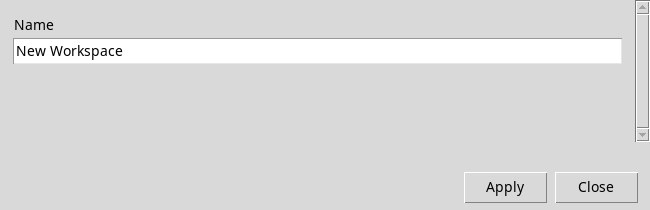
The recipe keeps the values and choices of the viewer. Datasets, reports and plots are Session resources. Keep the source Dataset available. A recipe for a different method can reuse the same Dataset with its own parameters and output IDs.
Creating, opening or closing a recipe
- New workspace…
- Set a name and press Apply to open a new window with the new recipe. Fill in the fields and use Save to record it in the Session. If GX-TXT asks you what to do with the current changes, Yes saves, No discards the current changes and Cancel leaves the window you were working on.
- Open workspace…
- Select a recipe in the window Session Workspaces and press Open. A new viewer window may appear with the restored recipe. Check the Dataset name, method and parameters before running again.
- Close
- Closes the viewer or the current Workspace. If a save confirmation appears, decide before closing. The Datasets already published remain available in Results.
Managing the Session Workspaces
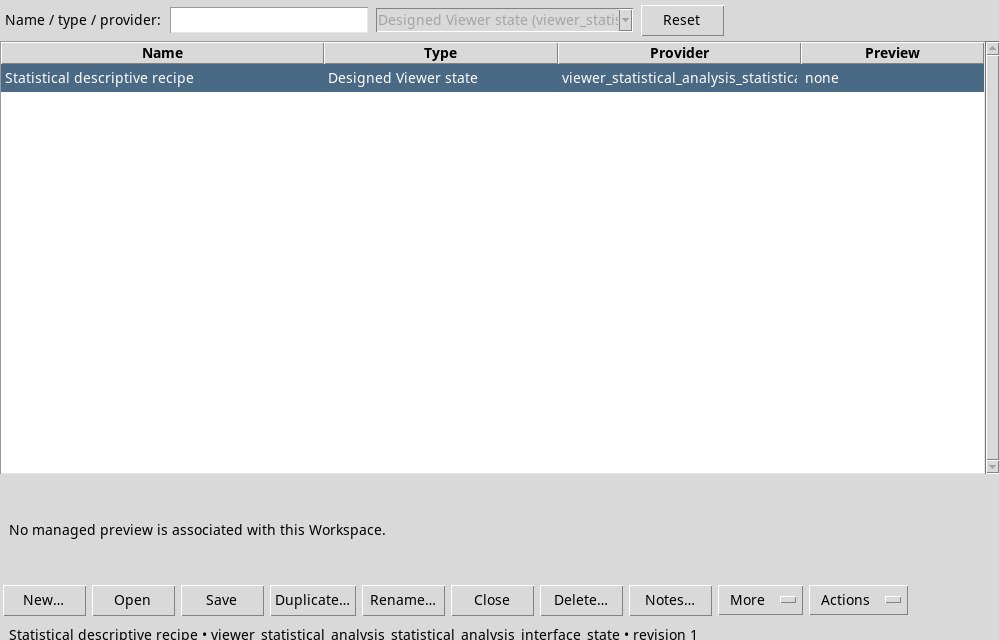
Session Workspaces… opens the list, filterable by name, type and provider. Type in the filter field to narrow the list and press the Reset button next to the filter to remove it. Select a row to enable the applicable operations. In the lower part read the provider and revision of the recipe.
- Rename…
- Renames the active Workspace or the selected row. Fill in the new name and confirm. The actions that require a recipe become available when you have one active or selected in the manager.
- Duplicate…
- In the manager, duplicates the row under another name to try independent configurations. If you refer to canonical sources, the duplication concerns the recipe and the same source IDs.
- Notes…
- Open the notes associated with the recipe, then Edit to write. Press Save in the editor and reopen Notes… to check the change. For example, note the reason for using Welch or the name of the weight column. The notes refer to the selected recipe.
- Preview…
- Select a recipe and request the managed preview. A parameters-only recipe may show No managed preview is associated with this Workspace. To see the field values open it.
- Delete…
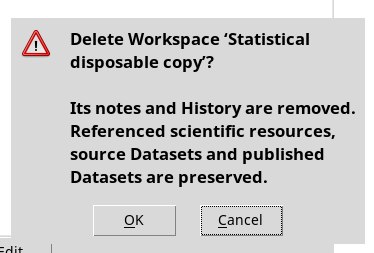
- Select the recipe to remove and read the name in the confirmation dialog. Cancel keeps it. Confirming removes the chosen Workspace. The scientific resources of the Session have their own commands.
- Refresh
- Refreshes the list or the state of the actions after changes in the Session windows.
- Actions and More
- Actions collects the provider’s actions, if available. Without a suitable Workspace it shows a prompt to select one. With a Statistical Analysis recipe you might see No owner-defined actions disabled. In the manager More groups the list and transfer commands. The commands New, Open, Save, Close e Notes have the same purpose as their counterparts in the menu.
Transferring a recipe
With a suitable Workspace selected open Workspace → Export…, assign a ZIP file and confirm. To load it use Import…, choose the ZIP and give the recipe a name when asked. Also import or prepare in the Session the canonical sources required by the recipe, with the original IDs. The exercise Dataset ZIP instead goes through the action Import Dataset ZIP… of the Dataset tab.
Viewing and navigating History
The strip at the bottom alternates Description e History. History → Show / hide Description / History strip shows or hides the whole strip. In History mode the baseline and the changes appear, with sequence and time. Select a state to view it. History details… e Details open the same panel to check the contents of the history.

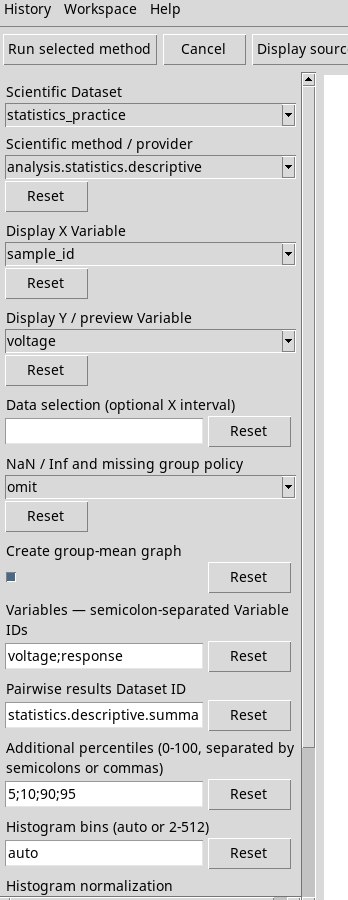
Undo (Ctrl+Z) steps back one change and Redo (Ctrl+Y) reapplies it if available. The actions are disabled at the ends of the sequence. To try the difference, switch the histogram normalisation from count a density, then use Undo and Redo and read the value on the left. History concerns the viewer configuration. The results published in the Session remain available from their respective tabs.
Inspecting, restarting or clearing the sequence
In History mode, click a step and open the context menu with the right mouse button on the sequence. Use the wheel on the strip to scroll horizontally. Viewing previous steps is read-only.
- Previous history step and Next history step
- Move the viewing cursor by one step. At the ends the corresponding direction is disabled. Return to latest returns to the working state and re-enables the changes.
- Expand / collapse individual operations
- Appears if the selected step groups several similar operations close together. It shows the individual operations or regroups them.
- Restart here / discard later local history…
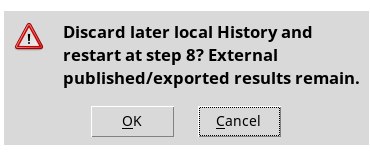
- Select a previous step, open the menu and confirm the restart from there. The later steps of the local history are removed. Cancel keeps the sequence. The scientific publications already run remain in the Session.
- Clear History…
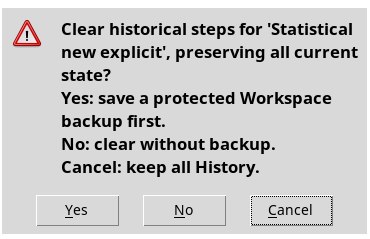
- Appears for a named Workspace. It is active at the current position if there are steps to remove. Yes asks where to save a protected backup before clearing. No clears directly. Cancel keeps the History. The parameters of the current state become the baseline.
- Hide Description / History strip
- Hides the strip from the context menu. Show it again with the command in the History menu at the top.
Keeping and resuming a history
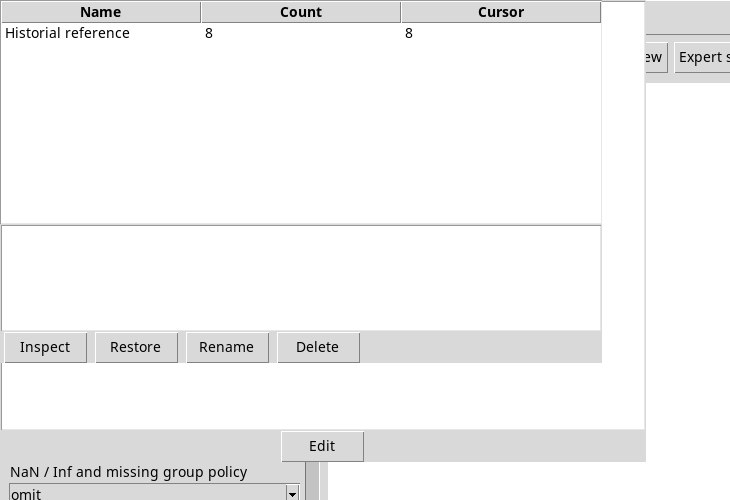
Save History As… opens the name dialog. Apply it to create a named copy. Named History… lists the named copies, with number of steps and position. Select a row and use Inspect to read the contents, Restore to restore it after confirmation, Rename to change the name or Delete to remove the selected copy.
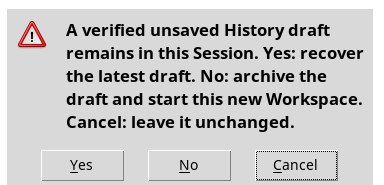
If a valid draft remains without a Workspace, on reopening the following may appear: Recover unsaved History. Yes tries to recover the most recent draft. In the verified version it may restore the Dataset and lose the provider parameters, such as the variable list and the normalisation. Recheck these fields after recovery. To keep the complete configuration, save a named recipe before running. No archives it and opens a new configuration. Cancel keeps the draft and stops the step. If the saved recipe and the journal differ, the recovery dialog lets you recover the journal with Yes or keep the saved recipe with No.
Saving after the calculation
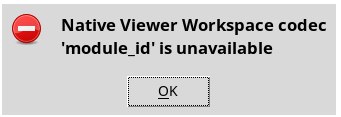
In the verified release, the invocation may introduce a key that the Workspace save cannot encode. If the command shows Native Viewer Workspace codec 'module_id' is unavailable, look at the results already produced through Results. To keep working on the parameters reopen the recipe saved before the run or open a new configuration and set source and method. Use a new ID if you want to keep the previous results alongside.