From preview to published result

Check Preview, Variables, and Job status. Find the published Dataset, group, or Script in the Session.

Read a pending Preview

After closing the file picker, click Preview in the row. GX-TXT opens Dataset → Preview in the Pending context. For a CSV, check the proposed contract, detected delimiter, header rows, variable mapping, structure check, and sample values. For binary containers, the view depends on the provider. It may display the resource itself or show only structure, properties, and recognition results. A short sample can miss errors farther down the file.

The small toolbar has a handle for moving it and buttons to copy readable text, browse pages of the published table, and close the display. The canonical table is unavailable while the source is Pending. Use the bottom and right scrollbars to read wider or longer samples. Image preview zoom changes only the displayed scale.

Check Variables before publication

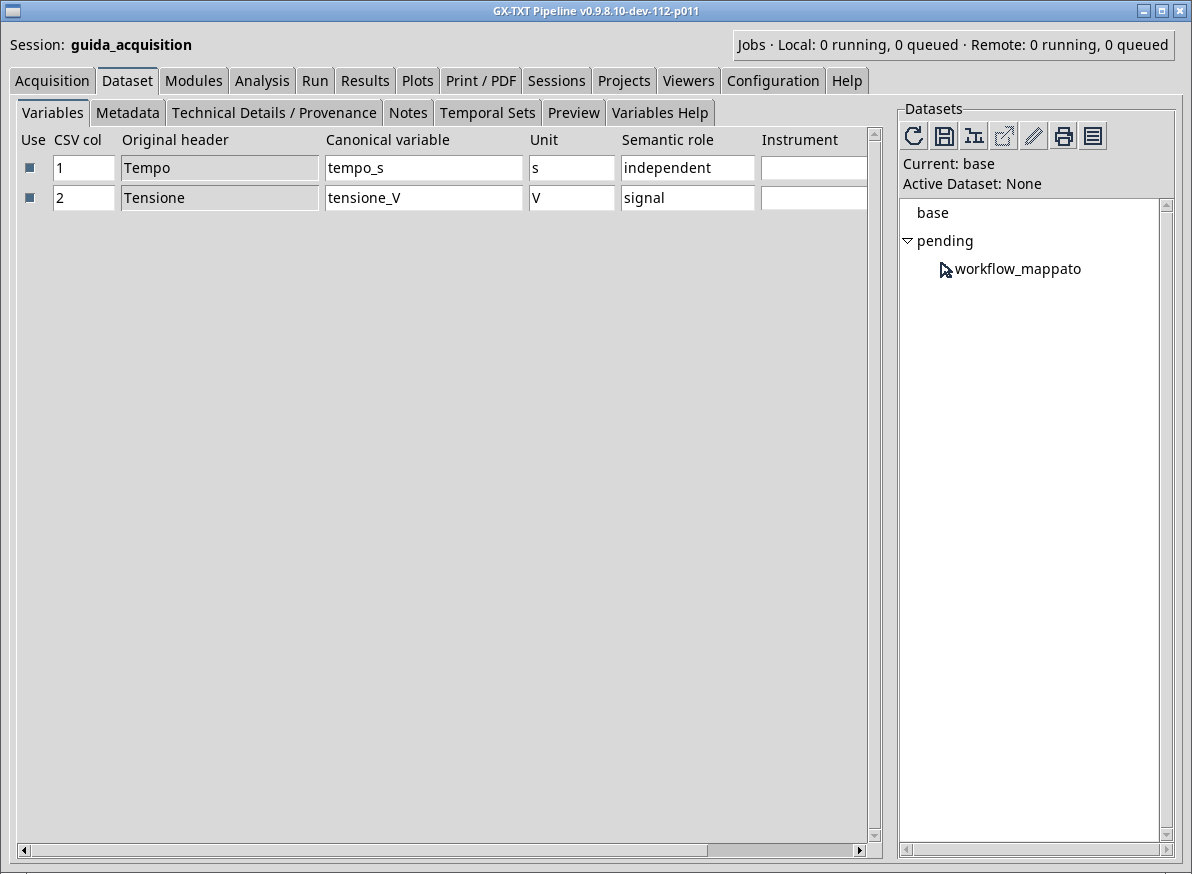
In Acquisition, click Variables. The Use column selects which variables to include if the contract allows exclusions. CSV col or the equivalent source-column field identifies the origin. Original header keeps the name read from the source. Use Canonical variable to set the Dataset variable name. Unit and Semantic role describe units and roles, for example s for independent time and V for the signal. Instrument and Instrument channel identify the instrument and channel when present. A document or opaque binary file can have properties without any numeric variables to map. If an importer requires a column, it can reject disabling that column.

Check the Job and find the result

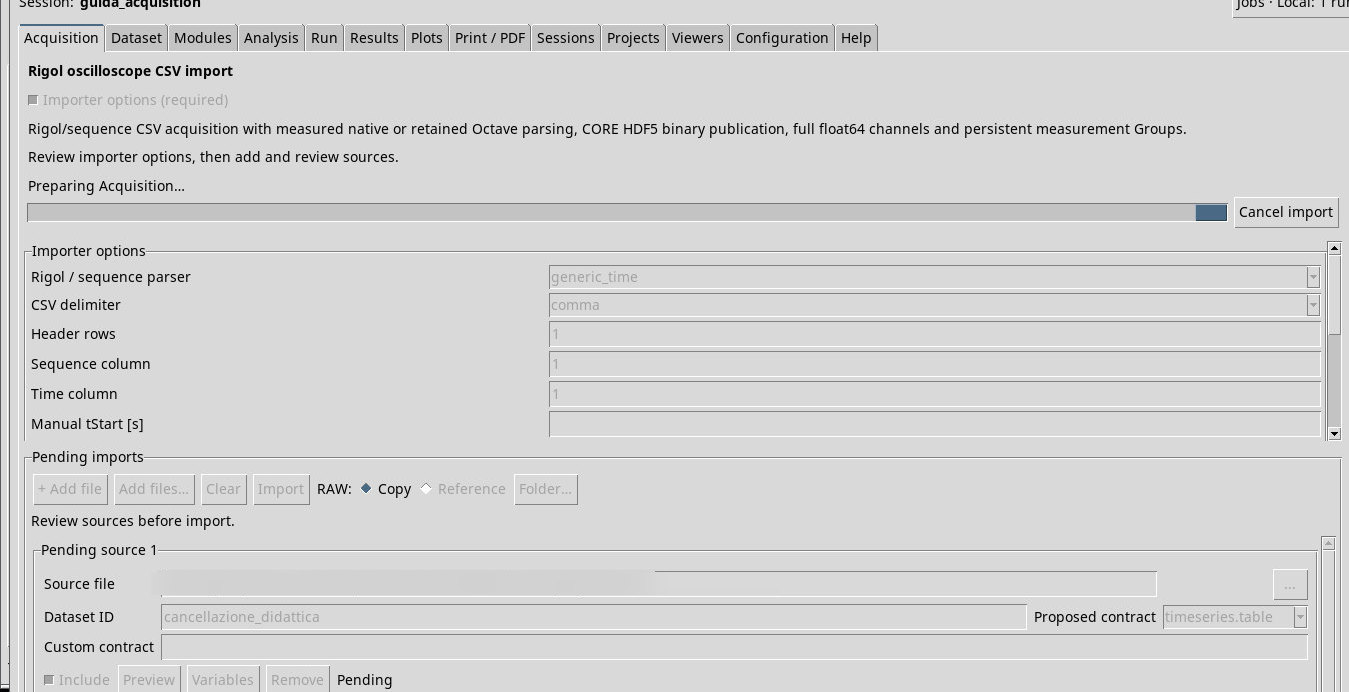
  1. Return to Acquisition and click Import. For a managed Job, follow the status message at the top. Cancel import requests cancellation. Wait for the final message and check whether earlier rows have already published results.
  2. In Dataset, find the ID under the importer’s family. Choose Activate Dataset from the row menu, then check Active Dataset in the browser pane. Click Open active Dataset at the right. The available viewer depends on the contract and installed providers.
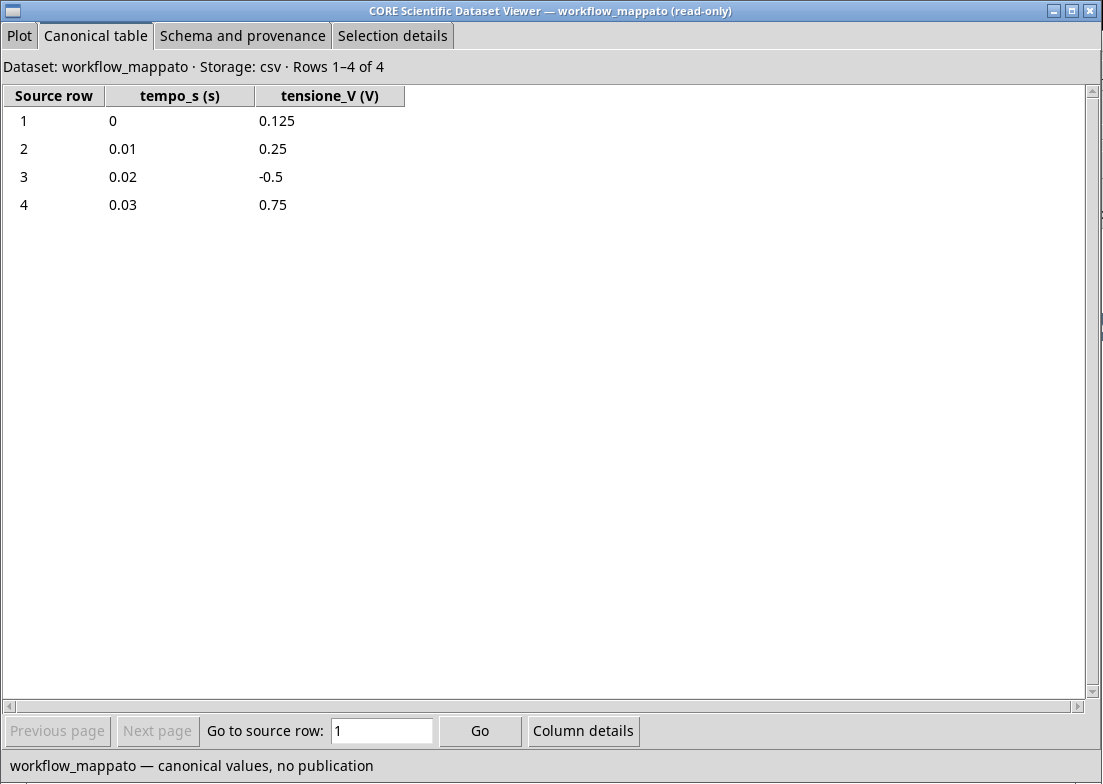
  3. If CORE Scientific Dataset Viewer opens, use Canonical table to compare cells and Schema and provenance to inspect columns, sources, and transformations. If no compatible viewer is installed, use Preview, Metadata, and Technical Details / Provenance to inspect the available information. Opening a resource in an external system application is a separate command.

Groups, Scripts, and file integrity

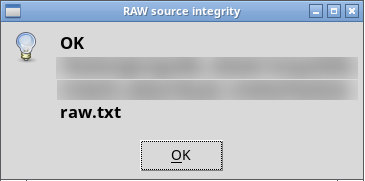
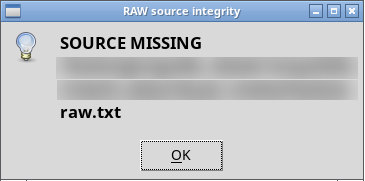
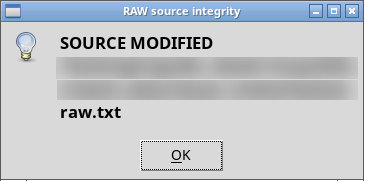
For a publication with multiple members, open Inspect Group… in the browser and follow the member IDs. For a published Script, check its ID and revision in Script Library. You can inspect the registration without executing the code. To check a Dataset source, use Dataset → Metadata → Verify RAW source… and compare the response with the file state. OK indicates a match, SOURCE MISSING a missing file, and SOURCE MODIFIED changed bytes.

Cancel before publication

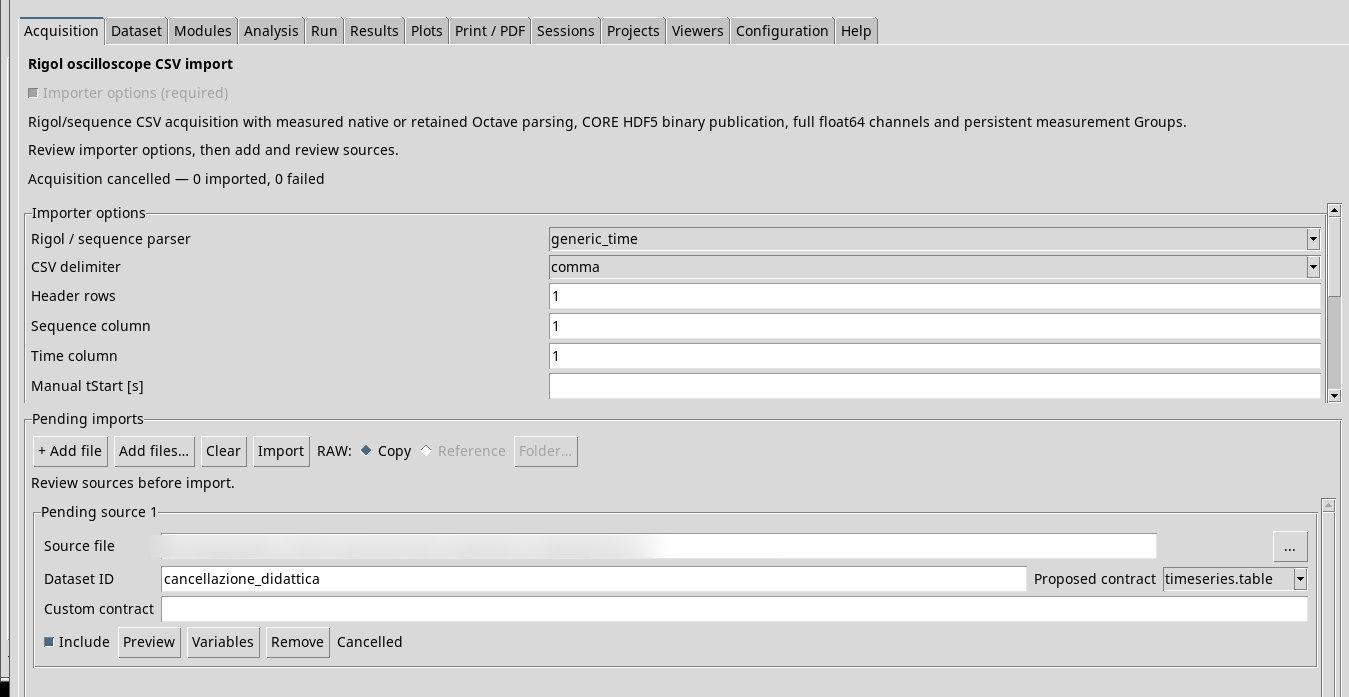
In the Rigol test batch, Cancel import returned Acquisition cancelled — 0 imported, 0 failed. The row stayed in the queue and no Dataset, RAW file, or partial member was registered. After requeuing the same file and retrying Import, both channels appeared in the group. A batch further along may retain results from previous rows. During the import, Importer Builder… and Contracts… were disabled, while Help and About remained available.

Screenshots

Open a screenshot to view it at full size.
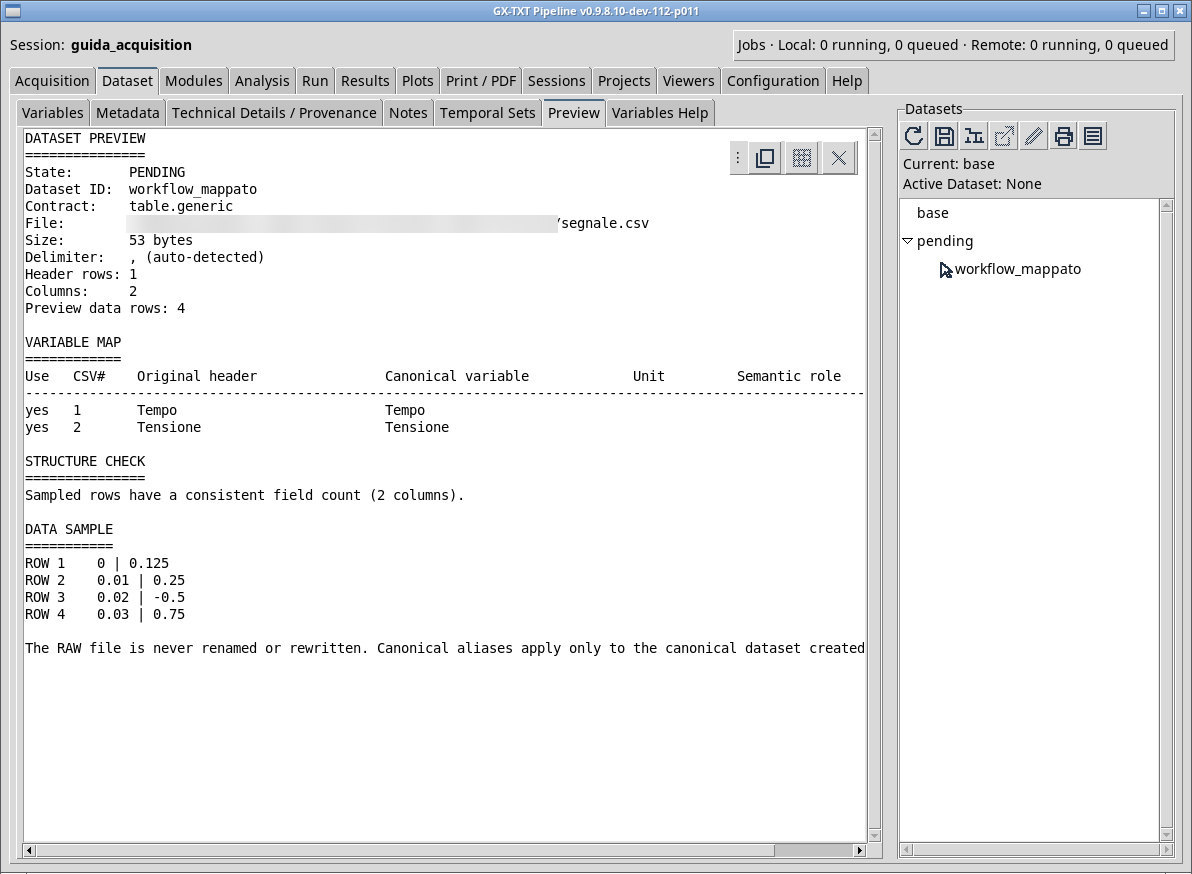
The Dataset browser indicates Pending: workflow_mappato. Preview shows the segnale.csv input with time and voltage.
In Variables for workflow_mappato, the proposed variables are mapped to tempo_s and tensione_V with roles and units.
Canonical table for workflow_mappato after Import. Headers and units reflect the mapping saved for the row.
Queue status during the managed import, with the batch commands.
Queue after the cancellation request. Read the status shown for each row.
RAW check of the original reference with the file in place.
RAW check after temporarily moving the file. The result reports the missing reference.
RAW check after changing the bytes. The check reports the change against the recorded reference.

Controls and settings

Pending

Select the not-yet-published source in the Dataset tree or open it from the Acquisition row. Check that Preview shows PENDING.

Imported

Select the published Dataset in the browser. The context switches from the source-row controls to the Dataset properties.

Copy readable text

Use the copy button in the floating bar to copy the text, including properties and the table sample.

Canonical table pages

Open the pages of the published tabular Dataset. The button is unavailable for Pending sources and opaque payloads.

Clear visualization

Close the current representation and keep the result in the browser.

Preview toolbar handle

Drag the dotted handle to move the floating bar away from the sample.

Zoom out / 100% / Zoom in / Fit image

Zoom out, return to actual size, zoom in, or fit the image preview to the view.

Use

Select the source variables you want to include. Required columns must remain enabled.

CSV col / RAW #

Read or set the source index in the row. Column numbering starts at 1.

Original header

Read-only source name.

Canonical variable

Sets the name assigned to the variable in the Dataset.

Unit

Declares the unit of the variable. Changing the label alone is not a measurement or a conversion.

Semantic role

Indicates the role of the field, for example independent or signal in the training CSV.

Instrument

Assigns the suggested instrument or an appropriate declaration, where the view exposes it.

Instrument channel

Indicates the physical channel that produced the column, when known.

Cancel import

When visible, sends the cancellation request. Wait for the final message and check the publications already completed.

Failed: details…

Open the diagnostics of the unpublished row to find the field, data, or prerequisite that prevents the import.

Activate Dataset

Selects the Dataset context in the Session and enables the actions the contract allows.

Open active Dataset

Open the active Dataset with a compatible provider or use the framework fallback.

Verify RAW source…

Open Metadata on the active Dataset and verify the source integrity. For a reference, restore the original to the same path if it is missing or changed.

Inspect Group…

From the Group node, check the IDs, roles, order, and membership of the published results.

Script Library

Find and select the registered revision to check its language, ID, and source without running it.