Getting started with Acquisition
Find the Acquisition tab, select an importer, and check which options are required before adding files to the queue.
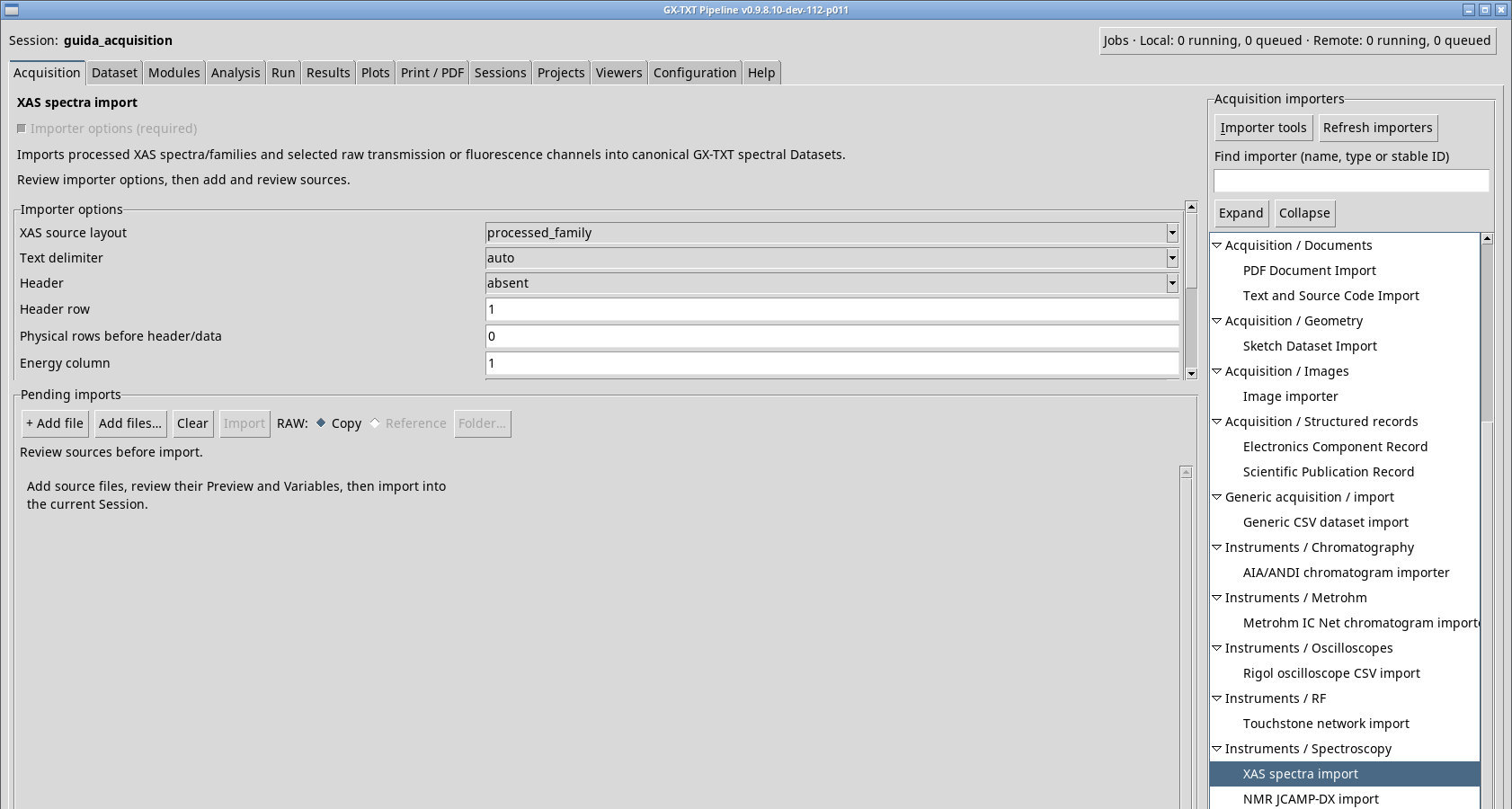
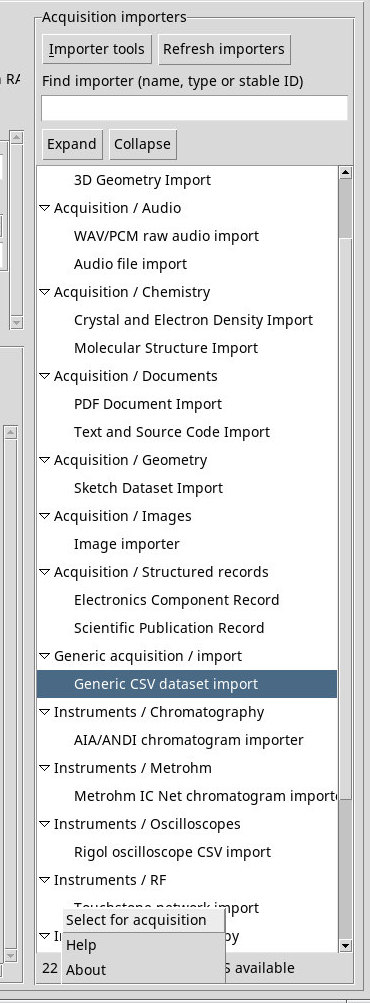
Open a working Session and select Acquisition in the main bar. The title in the center identifies the selected importer, and its description tells you what it accepts. On the right, Acquisition importers groups installed modules by family. The tested P011-bis installation lists 22 importers. ALWAYS available means they are available after installation without the activation step used for Analysis modules in Modules. The active Session determines where the import is recorded.
Find and select the importer
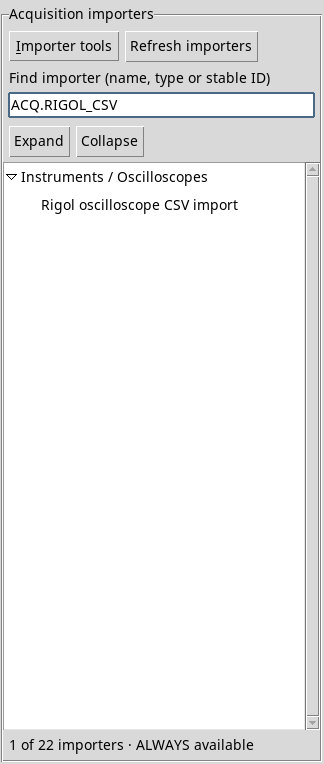
- In Find importer (name, type or stable ID), type part of a name, an ID such as
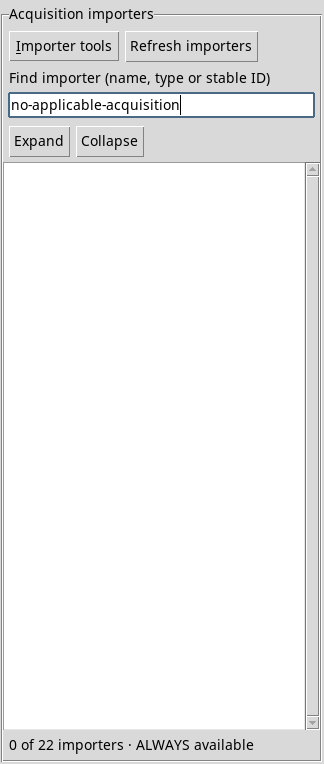
acq.rigol_csv, or a word from the group or description. Search is case-insensitive. The count shows the number of matches out of all catalog entries. Clear the field to see the full list. - Use Expand and Collapse to open or close the visible groups. The arrow next to a group affects that group only. Use the tree scrollbars to reach more importers or read a long name.
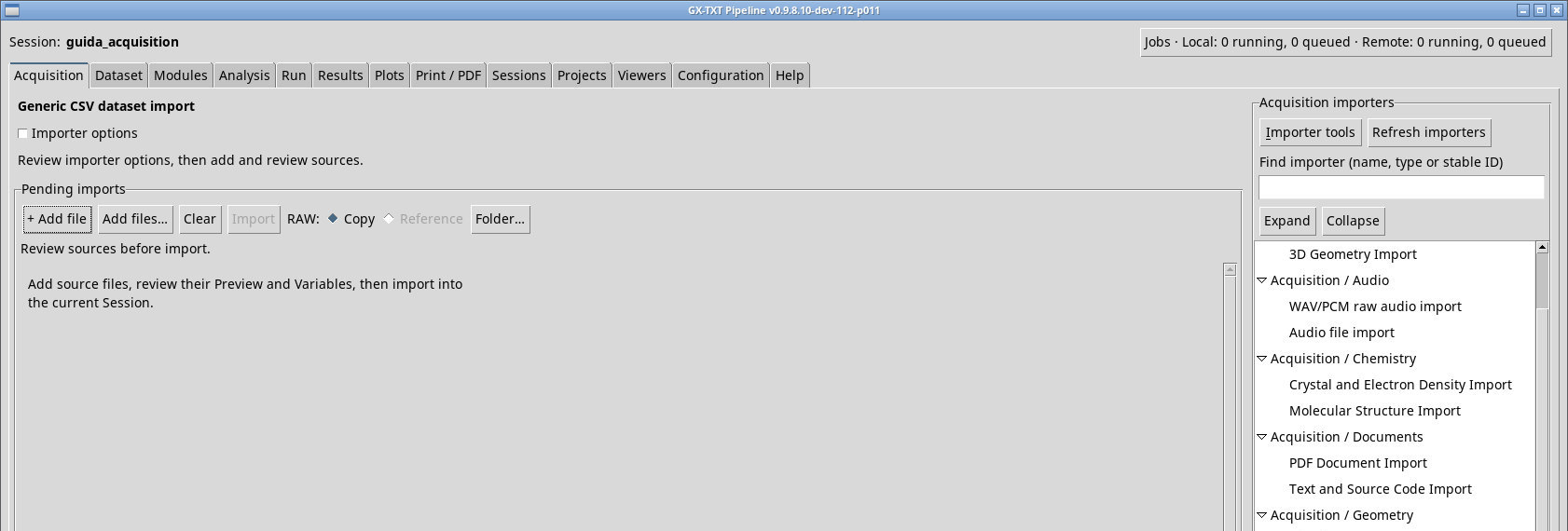
- Select the importer row and check that the header changes. Review the settings before adding sources. If you switch modules, check the queue again. To inspect another importer before selecting it, use the context menu described in Importer tools.
Imports with optional or required settings
When the Importer options checkbox is available, open the options to configure the format and close the panel to make room for the queue. Closing the panel only changes the view. With Importer options (required), the checkbox is selected and disabled, and the panel stays open. Scroll down to reach fields below the visible area. Gray controls are unavailable in the current state. During a Job, check the progress row to see when you can prepare further sources.
You can browse the catalog without an active Session. Open or create a Session before publishing. In P011-bis, the Modules page is titled Analysis Modules. For importer installation and availability, use the references in Acquisition.
Screenshots
Open a screenshot to view it at full size.