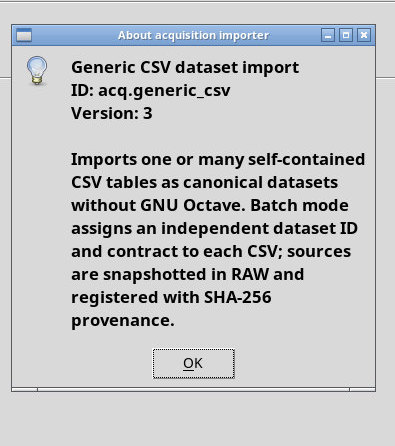
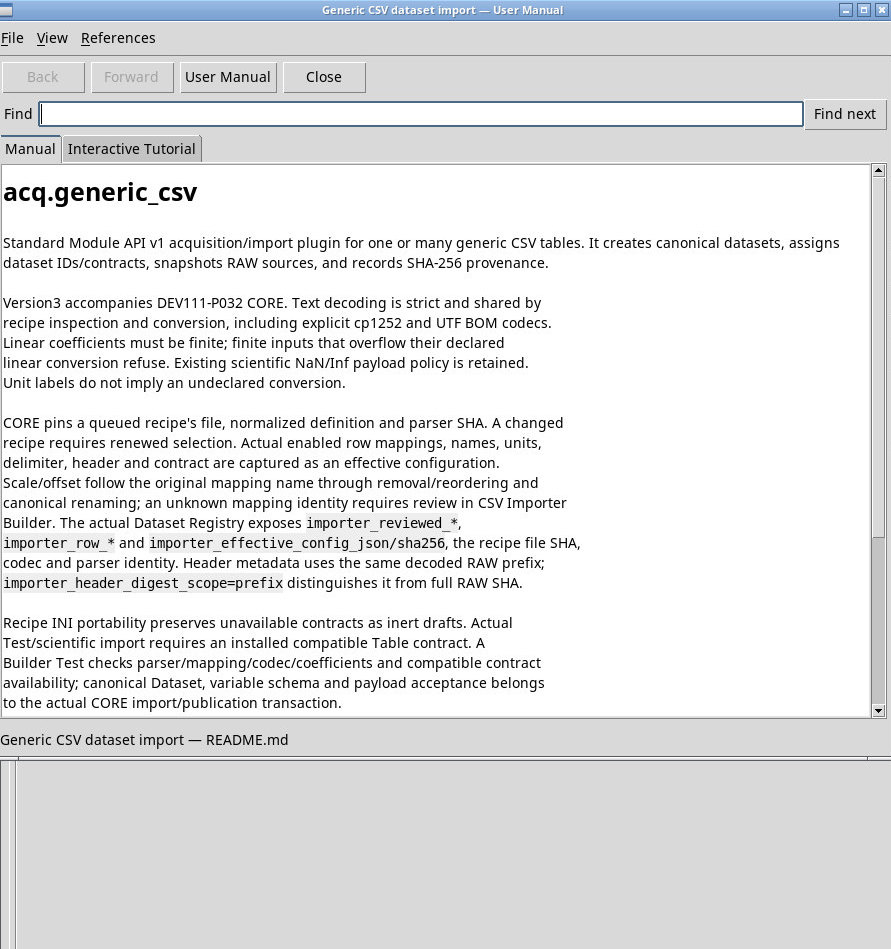
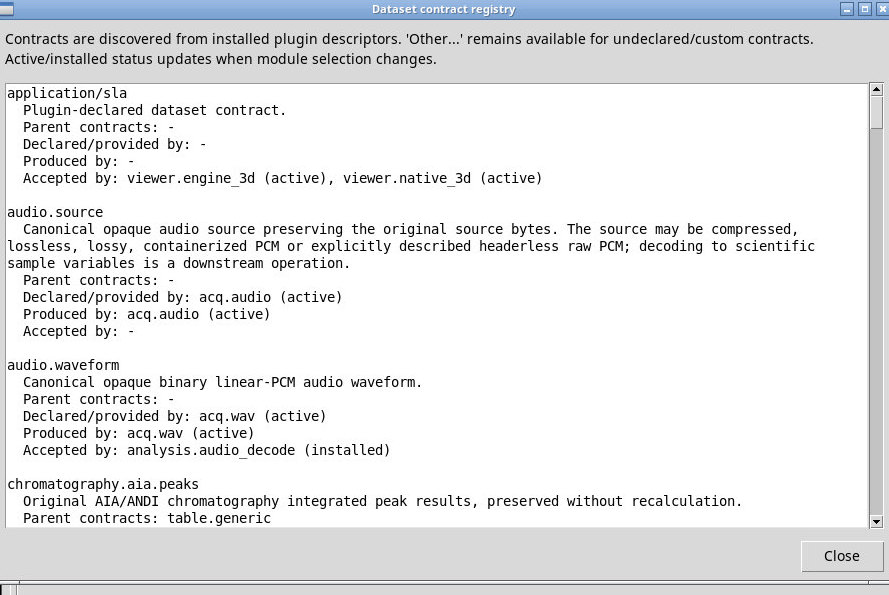
Open importer help, check the module and version, and identify the contract for the Dataset you want to publish.
Open Importer tools above the tree. Importer Builder… opens recipe and project management. Contracts… opens the browsable contract catalog. Read the semantic identity, available definitions, and provider before choosing another Proposed contract. The contract list is built from the current installation and can change if the catalog changes.
Help for current importer opens help for the current importer when a reference is available. About current importer shows the module identity, version, and information. In the tree, right-click, or move the focus to a row and press Maiusc + F10 or the Menu key. Help and About in the context menu apply to the row under the menu. Select for acquisition makes it the working importer. The available commands depend on whether the row is a module or a recipe and on the Job status.
Refresh importers refreshes the tree from the installed descriptors and the recipes saved in the user profile. Check the count, selection, and queue before resuming work. While a Job is running, commands that change the configuration or the catalog may be unavailable. The Importer Builder chapter shows how to make a new recipe appear under Custom importers.
Screenshots
Open a screenshot to view it at full size.
About box for the Generic CSV importer, with module and version.Help page opened from Importer tools.Catalog of installed contracts, opened from Importer tools.
Controls and settings
Contract list
Scroll the read-only list and check status, ID, and origin.
Scrollbar
Use the horizontal or vertical scrollbar to reach fields, entries, or text outside the visible area.
Close
Close the help or catalog window and return to Acquisition.
Menu bar
Open the menus or use the window shortcuts to reach a command.
Back
Go back to the previous page in the help browser history.
Forward
Go forward in the help browser history.
User Manual
Return to the user manual home page.
Close
Close the help or catalog window and return to Acquisition.
Search the manual
Type a term and use Find next to go to the match.
Find next
Moves the view to the next occurrence of the term.
Help browser tabs
Switch between the open help browser pages.
Manual text
Read the selected importer’s page.
Scrollbar
Use the horizontal or vertical scrollbar to reach fields, entries, or text outside the visible area.
Importer Builder…
Opens the Builder for user recipes and separate native plugin projects.
Contracts…
Opens the catalog of installed contracts with their operational status.
Help for current importer
Shows the manual of the current module when available. Use the help browser search or table of contents.
About current importer
Read the name, stable ID, version and description of the module.
Select for acquisition
In the row menu, sets the row as the current importer.
Help
Opens help for that row. Check the title of the module that remains selected in Acquisition.
About
Opens the information box for that row without changing the current importer.