

Preparing the queue, options, and RAW files
Prepare source files, choose Copy or Reference, and check which queue rows will be included in the GX-TXT Session.
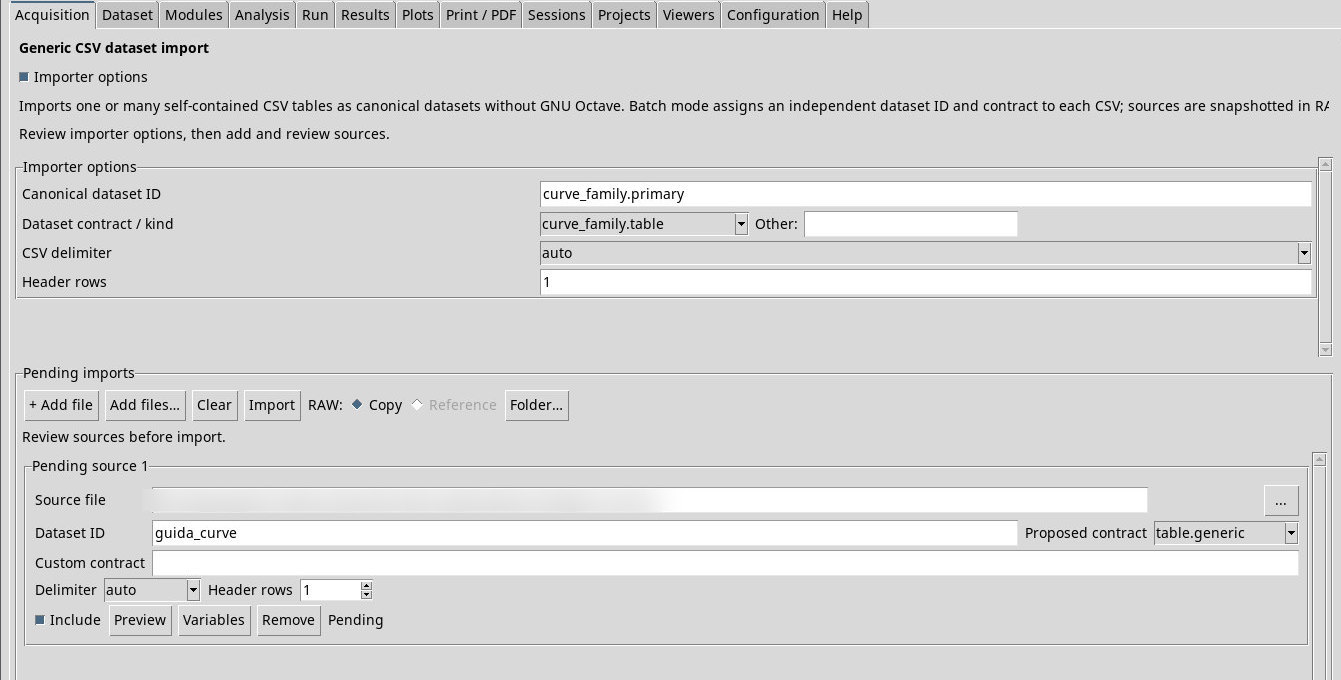
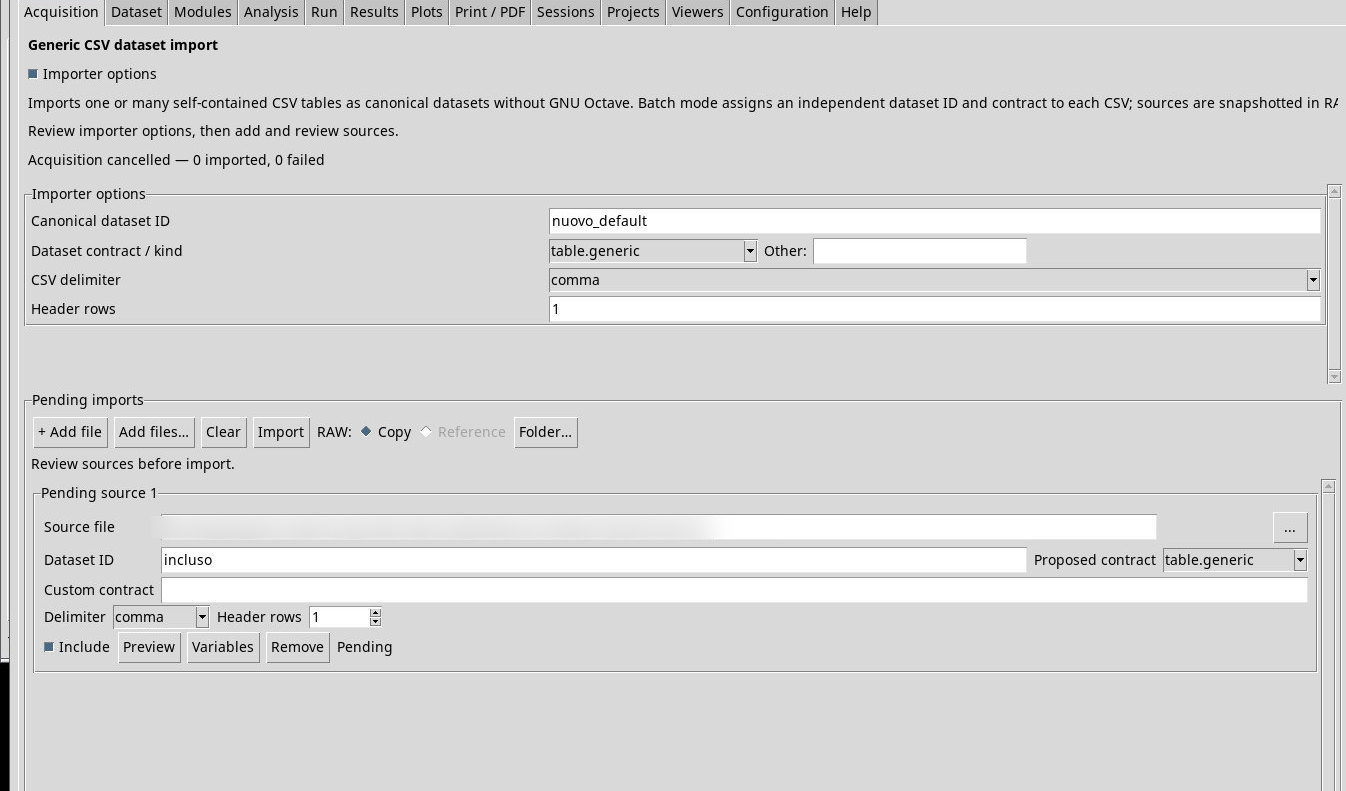
Set the parser and profile in Importer options before adding files. The module settings provide the starting values. The Import uses the included rows in the selected importer’s queue and each row’s acquisition context.
Choose a source
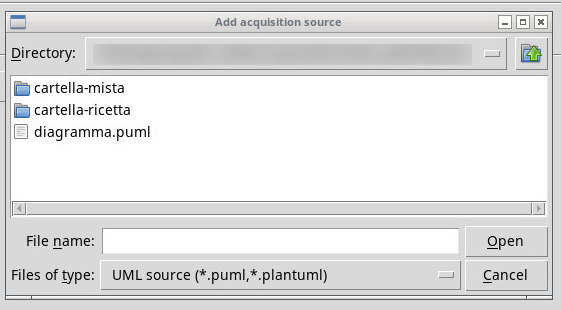
+ Add file queues one file. Add files… opens a multiple-file picker. Folder… is available for Generic CSV and compatible recipes. Generic CSV looks for .csv, .tsv, .txt, and .dat directly in the selected folder. A recipe uses its own regular expression. Cancel closes the picker. Files of type controls which files are listed. When available, All files lets you try a file outside the filter. The importer determines whether it can inspect the file. In an existing row, … opens the picker to replace the source for that row.
Choose which rows to import into the Session
- Include
- Clear this checkbox to keep the file in the queue while excluding it from the next Import. Select it again before retrying.
- Dataset ID
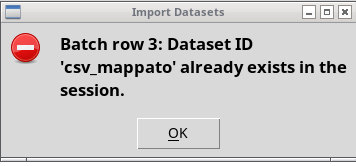
- This is the proposed ID for publication. Give each row a distinct ID. If that ID already belongs to a result, choose another before retrying. Some importers append suffixes to related members, so check derived IDs as well.
- Proposed contract / Custom contract
- The first choice describes the semantic structure you want to publish. The catalog reflects the installed contracts. Where supported, choose Other… and enter the ID in the second field. The catalog may list more contracts than a particular importer can produce.
- Preview / Variables
- These commands open the Pending context in the Dataset tab. Check the inspection again after changing the source. The Generic CSV row also includes Delimiter and Header rows, which you can change directly.
- Remove / Clear
- Remove removes only the selected row. Clear empties the visible queue. Manage published results in the Dataset tab.
Choose Copy or Reference
Copy stores the RAW source in the Session. Choose it when you want to transfer the Session together with its source. If Reference is available, keep the original file at a stable path. The Session stores the reference and integrity-check data. An archive of the Session alone cannot reconstruct a referenced file that was moved or modified. In the tested version, Text and Source Code and Scientific measurement expose this choice. When switching back to a module that disables it, check that the selector is set to Copy.
Start, diagnose, and retry an import
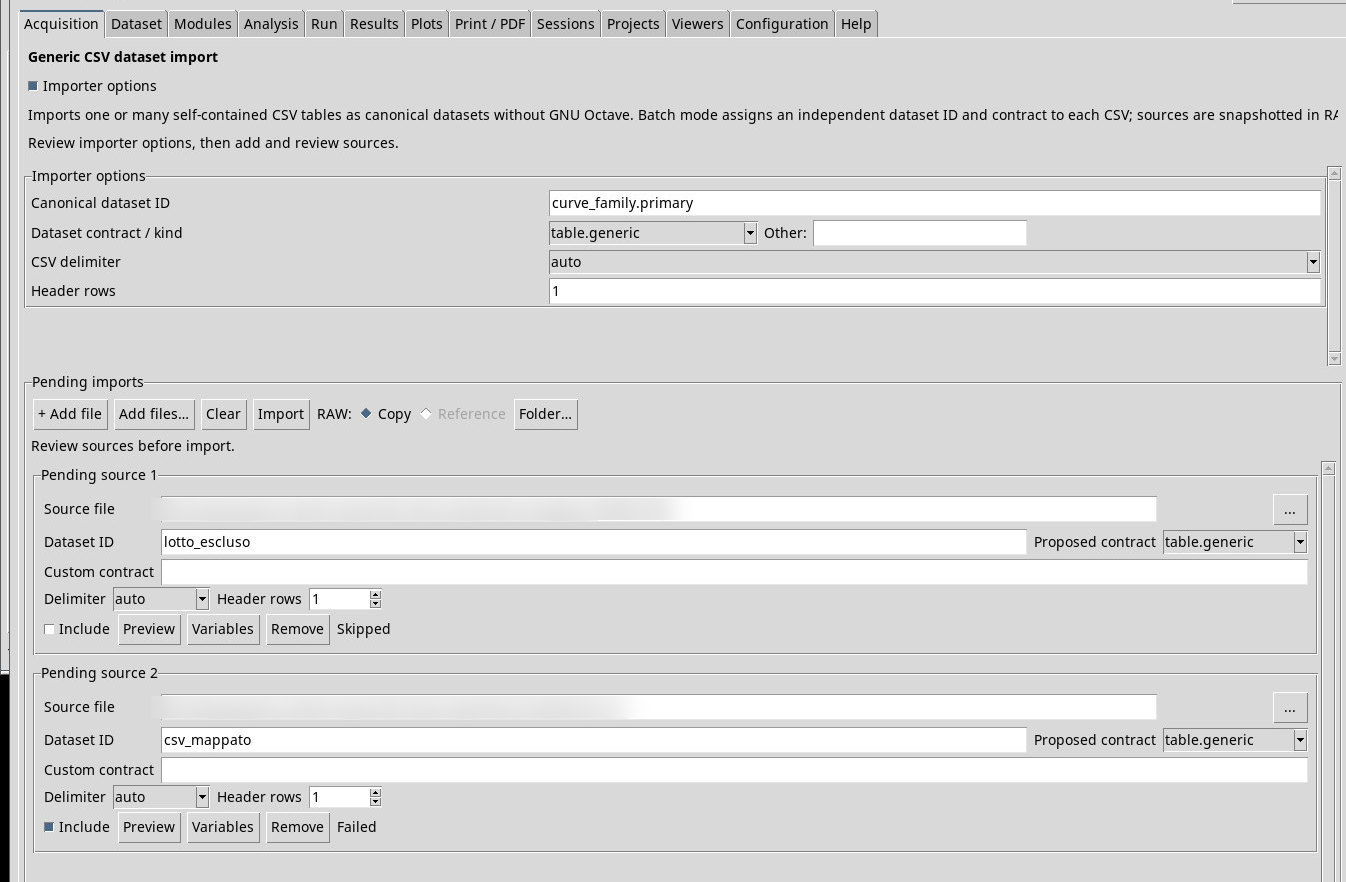
Before choosing Import, verify the active Session and the proposed ID. Pending marks a row waiting to be imported. A published row leaves the queue. If a row shows an error, open the details, fix the reported issue, and retry. Failed: details… opens the row diagnostics when available. Synchronous imports check rows as they process them. A managed batch can stop at preflight before publishing its first result. Check the Dataset list after a partial result or cancellation.
ID collision in a batch
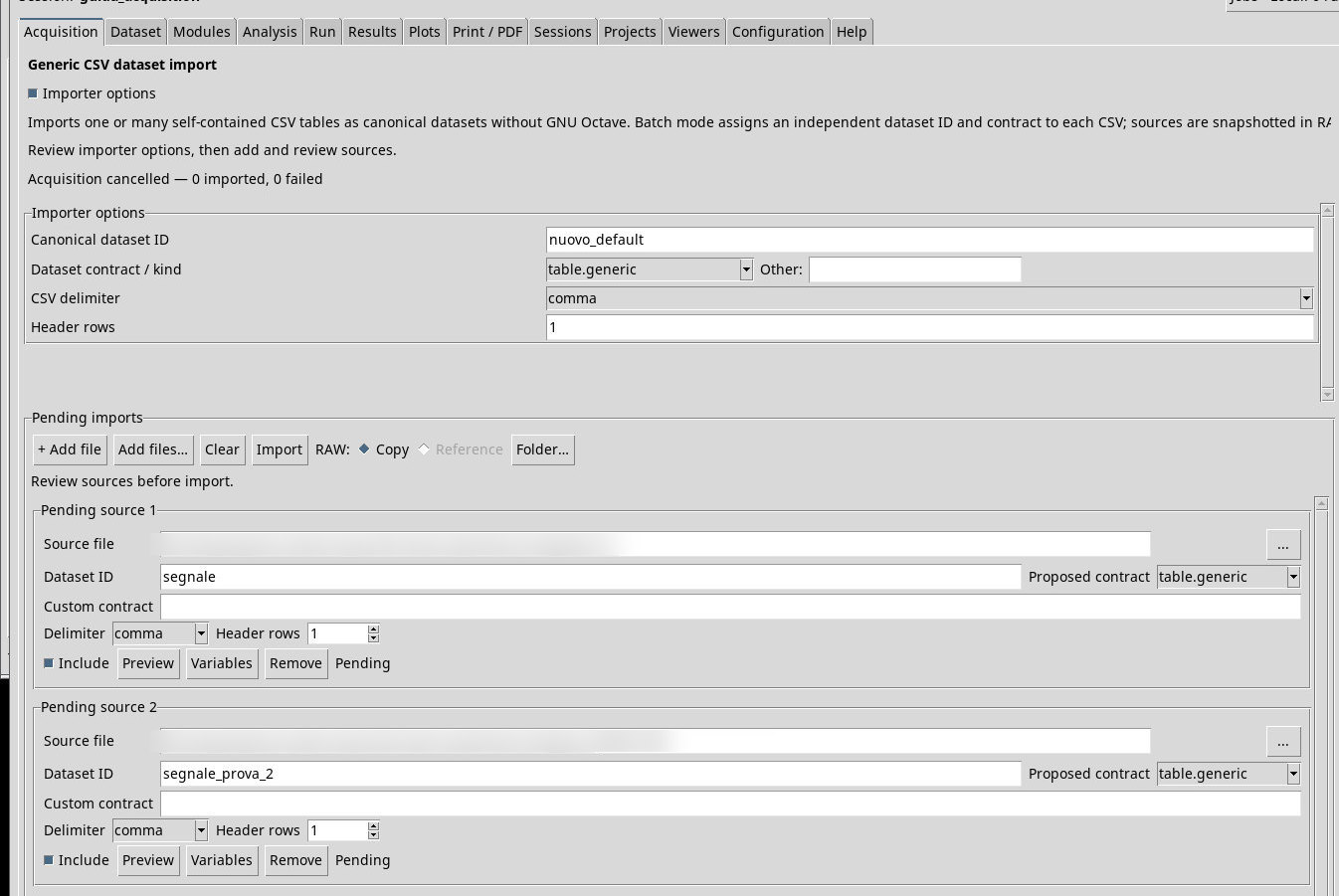
Queue three files with different IDs and clear Include for the second row. If you assign the third row an existing Dataset ID, the CSV batch can publish the first row and leave the other two in the queue. In the tested Rigol batch, preflight stopped the batch before any result was published. Check the Dataset tab for the IDs that appeared. Fix the conflicting ID and retry the rows you want to import.
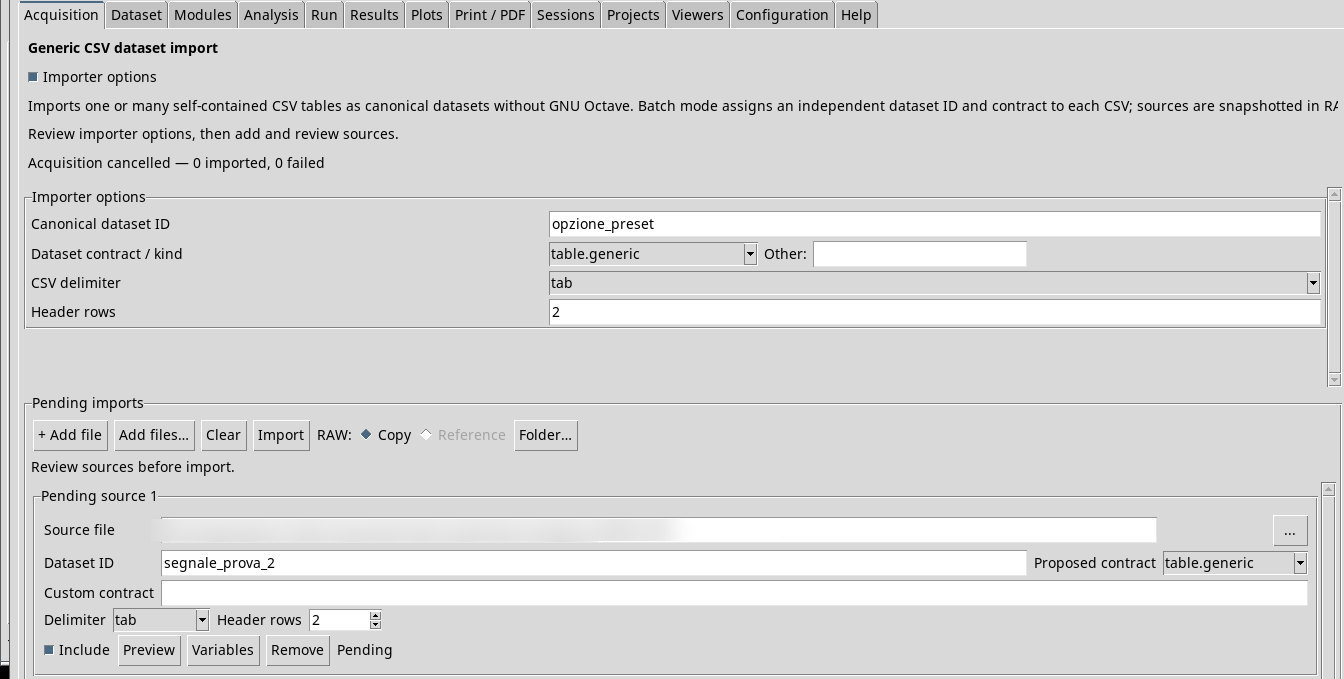
For the TSV Segnale prova 2.tsv, the initial row ID is segnale_prova_2. The contract, delimiter, and header settings captured when the file was added remain on the row even after changing the fields above the queue. To apply a change to that source, edit the row or queue the file again. Reopening the Session clears a queue that is still Pending. Published Datasets remain in the browser.
Screenshots
Open a screenshot to view it at full size.
Controls and settings
+ Add file
Add files…
Clear
Import
Copy
Reference
Folder…
Pending imports pane
Scrollbar
Scrollbar
Include
Source file
…
Dataset ID
Proposed contract
(catalogo dinamico)· The entries come from the contracts visible in the installation. Check the name, conditions, and origin in Contracts…, and any Other… option in the working view.
Custom contract
Delimiter
auto estimates it from a sample. comma uses comma, semicolon semicolon, tab tab, and whitespace whitespace where available. Check that Preview returns the expected number of columns.auto· Choose the separator actually used in the source.autoestimates it from a sample.commauses comma,semicolonsemicolon,tabtab, andwhitespacewhitespace where available. Check that Preview returns the expected number of columns.comma· Choose the separator actually used in the source.autoestimates it from a sample.commauses comma,semicolonsemicolon,tabtab, andwhitespacewhitespace where available. Check that Preview returns the expected number of columns.semicolon· Choose the separator actually used in the source.autoestimates it from a sample.commauses comma,semicolonsemicolon,tabtab, andwhitespacewhitespace where available. Check that Preview returns the expected number of columns.tab· Choose the separator actually used in the source.autoestimates it from a sample.commauses comma,semicolonsemicolon,tabtab, andwhitespacewhitespace where available. Check that Preview returns the expected number of columns.